Proof of Delivery, tracking links, invoice payment links and driver settlements
The next production release adds Proof of Delivery PDFs, tracking links with a map that your customers can open without logging in, automatic customer emails with each order's tracking link and for driver arrivals and departures, and a Payouts page for settling driver and carrier pay. Dispatchers get an Hours of Service board, a driver Issues page, past days' routes and each route's trip history on the Dispatch board, clearer stop limits, and printing of BOLs and labels for many orders at once from the Orders list. Billing teams get built-in reports, card payment links for invoices, invoice PDFs with separate item and charge totals, and a warning when a charge still needs an amount. Companies can also connect their own TollGuru account, create API tokens and choose how long driver data is kept, and emails now carry your logo, accent colour and contact details, with an editor for each template. Dispatchers can also plan on a new Driver Board, filter the board by route status or a date range, and ask the AI assistant which route should take an unassigned stop. This update also adds a QuickBooks-style invoice editor in the New UI, an Invoice include Transfer setting, @mentions in driver chats and a One Full Load per order setting, and each invoice paid by a bulk payment now shows only its own share of the payment.
New45
Orders & quotes
Send customers a proof of delivery PDF from an order or delivery stop
Open Proof of Delivery from a booked order's actions menu or a delivery stop's menu on the dispatch board to print, download or email a PDF with arrival and departure times, driver, truck, delivered items and, when captured, GPS location, signature and photos. Turn on Email proof of delivery on completion in Settings → Driver App → Features to send it to the customer when a driver completes a delivery in the driver app. From an order you pick the Billing copy or a Delivery copy, as with the Bill of Lading, and blind stops print blind as they do on the Bill of Lading.
Orders & quotes
Share tracking links so customers can follow a shipment on a map without logging in
Turn on Settings → Tracking Links, then copy a link from an order or route menu, or email it from the order's Tracking tab, which also counts opens and lets you revoke it. The page shows your company details and each stop's status on a map, never prices. While the load is moving it adds the next stop's estimated arrival and, as you choose, the truck's approximate area, its live position on the way to the shipment, or only the last completed stop. Links expire after the lifetime you set.
Billing & accounting
Settle driver and carrier pay from a new Payouts page in Accounting
A new Payouts page in Accounting, open to company admins by default, lists the routes you add for each driver and outsource carrier (Generate missing routes adds them for a period), with each route's payout amount, what has been paid and what is still due. Enter route payout amounts and record payments, or group a provider's unpaid routes for a period into a settlement and pay it in full or in part. Print, download or email each settlement's statement, and export a year-end summary of payments per provider to CSV. A period follows the work: a route is listed for the stops its driver did in that period, by your local date, however long ago the route was created. Each settlement covers only its period's stops, at the amount you enter for that period, so the next settlement picks up only the next period's work.
Compliance & safety
See every driver's remaining Hours of Service time on one board
A new Hours of Service board shows each active driver's duty status, drive, 14-hour shift and cycle time left, time until their next required break, and today's warnings and violations. It flags who will run out of hours within 2, 4 or 8 hours if their status stays the same, and clicking a driver opens their last 8 days. Open it from Drivers → Compliance or Reports; admins can give other roles access. The board appears while Hours of Service (HOS) is on in Settings → Driver App → Features.
Compliance & safety
See and answer driver-reported issues on a new Issues page
A new Issues page, opened from the Drivers page or Reports, lists what drivers report from the driver app, such as truck defects, safety concerns, wrong addresses and missing paperwork. Filter by category, urgency, status, driver, truck or date, see photos and location, reply to the driver and update the status. Settings → Fleet also shows how many open truck issues each truck has.
Platform
Email customers automatically when a driver arrives at or leaves a stop
Under Settings → Customer Notifications you can email the customer an order is billed to when the driver arrives at or leaves one of its stops, pick which details each email shows and in what order, and preview it. On a customer's Notifications tab you can override these defaults, choose different recipients and see who will receive the emails. Both emails are off until you switch them on.
Integrations & maps
Create API tokens to connect other systems to RushHour
Company admins can now create API tokens under Settings → API Tokens, so another system can use the RushHour API without signing in. Each token acts as the person who created it, with only the roles they pick, and can be set to expire after 7 days up to a year, or never. A token is shown only once, the list shows when each was last used, and any token can be revoked.
Reports & analytics
Run 18 built-in reports from a new Reports page and export them to CSV
A new Reports page in the sidebar has 18 built-in reports on revenue, receivables, operations, sales, pricing and costs, such as AR aging and driver productivity. Set dates or options, run a report and export the rows to CSV. Company admins can run them all; other roles can be given the View reports permission, but the money reports also need invoice or expense access and the rest stay admin-only.
Customer portal
See each customer's Customer Portal access status and disable access when needed
A customer's status now reflects its Customer Portal access: Open with no portal login, Pending while invites wait to be accepted, and Active once a login can sign in. Existing customers are updated to match, so those without a login show Open. Users with the Delete Customers permission can Disable a customer from its profile, which locks out all its portal logins until someone selects Enable.
Billing & accounting
Invoices flag charges that still need an amount before approval
Charges from a charge type with Enter Amount? ticked and no price per unit now show Amount Pending in the Company Portal's invoice preview and editor instead of a zero amount, and a Billing review required warning appears on the invoice and its order. The Company Portal won't approve the invoice, or take a payment that approves it, until you enter a price for each pending fee, or 0 for a fee you don't charge, in the popup that opens from the warning or from Approve. Credit lines keep their amount, and invoices that are already approved show their amounts and take payments as before.
Billing & accounting
Customers can pay invoices by card from a secure link, without logging in
Approved invoices with a balance due now offer Copy pay link and Send payment link in Accounting, and their emails include a Pay online now link. Your customer pays the balance by card on a secure page without logging in, and the payment is recorded against the invoice. Needs a connected Cardknox account; payment links are on by default and can be turned off in Settings → Billing → Payment links. A link stops taking payments once its invoice is paid or replaced by a newer invoice, and the page tells your customer why.
Platform
Branded emails with your logo, and a new page to edit each email's wording
Emails to your customers, drivers and team now use a new layout with your logo, accent colour and contact details. Under Settings → Email Templates, admins can edit each email's subject and content, preview it, send themselves a test or reset it to the default. Branded emails are on by default; turning them off returns to the previous plain format, though emails you have customised keep your wording. Invoice emails print your own payment instructions, for example how to pay by bank transfer. An admin sets them under Settings → Billing → Invoice Payment Instructions; when the field is empty, invoice emails print none. With branded emails off, a subject or content you have not customised is sent in the previous plain format.
Orders & quotes
Print BOLs and labels for many orders at once from the Orders list
Tick two or more orders on the Orders list, open the … (Actions) menu at the right of the toolbar and choose Print BOLs & Labels, Print BOLs or Print Labels to print them all in one print job, up to 50 orders at a time. This needs the View BOL permission. The … menu on the Orders and Quotes lists now stays visible, and until two rows are ticked it explains that bulk actions need at least two.
Platform
Email each order's tracking link to your customer automatically
Turn on Tracking link emails in Settings → Customer Notifications, with Settings → Tracking Links on, to email each order's tracking link to your customer once, at the step you choose: driver assignment, booking or pickup. By default it goes to the order's contact email, or else to the customer's arrival and departure email addresses. To leave out a customer, choose Don't send on its Notifications tab. Links sent this way stay valid until the order is delivered, for up to a year, and then for the lifetime set in Settings → Tracking Links.
Dispatch & routing
See a past day's routes on the Dispatch board, including completed and archived ones
Pick Yesterday, next to Today and Tomorrow, or any past date on the Dispatch board to see that day's routes, including Completed and Archived ones, with every stop planned, assigned or confirmed that day. The Completed Routes switch starts on for past days; turn it off to see only routes with open stops that day, as before. It needs the Route History permission, and a banner warns that editing these routes can reopen a finished route.
Compliance & safety
Choose how long driver GPS history and deleted drivers' details are kept
Settings → Profile has a new Driver data retention section. You can choose how many days of driver GPS history to keep, and whether to erase the personal details of drivers your staff delete once a waiting period has passed. Companies already on RushHour keep how this works today: GPS history older than 90 days is deleted, and drivers your staff delete are erased after a 30-day waiting period, during which they can still be restored. That includes drivers deleted before this release. You can change both here. For companies that join after this release, both start off: a driver your staff deletes stays archived and can be restored, and erasure, once turned on, applies only to drivers deleted from then on. Turning erasure off and on again starts afresh. When drivers delete their own account in the driver app, their details are erased after the waiting period by default, including drivers who asked before this release.
Orders & quotes
Record customer work days and shipping and receiving hours, shown on order stops
Customer records now hold work days and separate shipping and receiving hours, set when you create a customer or on its Company information tab. Existing customers start with Monday to Friday, and hours can run past midnight. Pickup stop forms show the customer's shipping hours and delivery stop forms their receiving hours, and hovering the customer name on an order stop shows all their hours.
Integrations & maps
Connect your own TollGuru account to add toll costs to priced orders
Add your TollGuru API key under Settings → Integrations, and the tolls on a route are added as a Tolls line when an order is priced. Test connection checks the key without saving it, and the TollGuru card shows whether orders are currently priced with toll costs. The saved key is masked and never shown in full in the browser.
Orders & quotes
Company admins can record an order's buying price and see its margin
In the price box of a saved quote or of an order that isn't closed, in both the Old UI and the New UI, company admins can switch between the selling price and the buying price (what you pay whoever hauls the load), enter the buying price with the edit icon and save it straight away. An info icon beside the price shows the line-haul margin: the selling price minus the buying price. Other users don't see the buying price.
Integrations & maps
See which invoices and payments didn't reach QuickBooks, and send them again
If your company has connected QuickBooks, a new Sync health tab under Settings → Integrations lists invoices and payments with their export status, attempts and last error, and lets you send them again. If the connection expires or is disconnected, a banner links you to reconnect and your team is notified. Closing that banner hides it for 24 hours in every open tab, for you and the current company only; it comes back at once if the connection breaks again.
Drivers & driver app
A company-wide drivers' chat shared by all your drivers and the office
Each company now has one drivers' chat that all of its drivers and the office share. Drivers on the latest driver app see it in their chats, can read and post there, and get notifications once they have opened it. Your team finds it under Inbox → Chat on the All tab once any driver has opened their chats.
Orders & quotes
Spot addresses saved under the wrong country on customers and order stops
A warning icon now flags an address that seems to be outside the country it is saved under, such as a New Jersey street address set to another country, which can make an order look international. It appears next to Country in a customer's Company information and on pickup and delivery stop forms, and on an order's stop cards. Hover it for details; nothing is changed automatically.
Dispatch & routing
Keep earlier days' confirmed stops in a route's Confirmation History
A route's Confirmation History can now keep earlier days' confirmed stops. In Settings → Profile → Dispatch route history, keep the last 1 to 365 days or every confirmed stop while the route exists (default: today only). Or set Route history, in the same section or in Settings → Driver App → Preferences, to Until the last stop is confirmed: an open route keeps up to 31 days, and confirming its last open stop in the Portal completes the route, which stays completed unless you choose Continue the route.
Dispatch & routing
See a route's trip history for the dates you pick, with each stop's assigned, confirmed and departure times
Open Trip History from any route card's menu on the Dispatch board, in the New UI and the Old UI, or double-click a route card in the New UI, to see the route's status, truck and driver with their IDs, creation time and stop counts. Each stop shows whether it is a pickup or a delivery, its Pickup # or Delivery #, when it was assigned (for a stop moved to this route from this release on, when it reached this route), when a transfer or hub leg was created, and its planned, arrival, confirmation and departure times, where recorded, and you can filter the stops by order number. The panel opens on the board's date or date range; choose From and To dates, a range of up to 31 days, to see another period, and the Assigned Stops and Confirmed Stops counts cover only stops assigned or confirmed on those dates. Switch to Whole route to see every stop over the route's lifetime, with when the route started. It also shows when the route got its driver and was archived, recorded from this release on. Confirmed stops need the Route History permission. View in Dispatch on a closed order opens the board on the days its stops were confirmed.
Dispatch & routing
Undo a stop on a completed route without reopening it for the driver
When you undo a pickup, delivery or order from the order page or Orders list and its route is already Completed, you can choose Keep Completed: the stop reopens on that route without notifying the driver, and you confirm it again yourself. Give back to driver returns it to the driver as before. Open Completed Route then shows it on the Dispatch board, and users allowed to archive routes can restore it.
Dispatch & routing
Choose whether Assign Transfer also moves an order's other deliveries from the same driver
Turn on Transfer all deliveries from the same driver in Settings → Systems → Order, and Assign Transfer also moves the order's other not-yet-started deliveries on the receiving driver's route through the same transfer point, when their freight comes only from the driver handing over. It is off by default, so only the delivery you pick is transferred and the others can use their own transfer point and date.
Orders & quotes
Filter the Orders and Quotes lists to regular or Air/Port orders
You can now filter the Orders and Quotes lists to regular or Air/Port orders, whose stops are in two or more countries, with the Old UI tabs (the Air/Port tab shows a count) or the New UI Shipment Type menu or filter panel. Order Dashboard counts follow your choice. While you create an order or quote, a notice offers to switch it to an Air/Port or regular order when its addresses call for it.
Customer portal
Reset a Customer Portal user's password from the Customers list or a customer's page
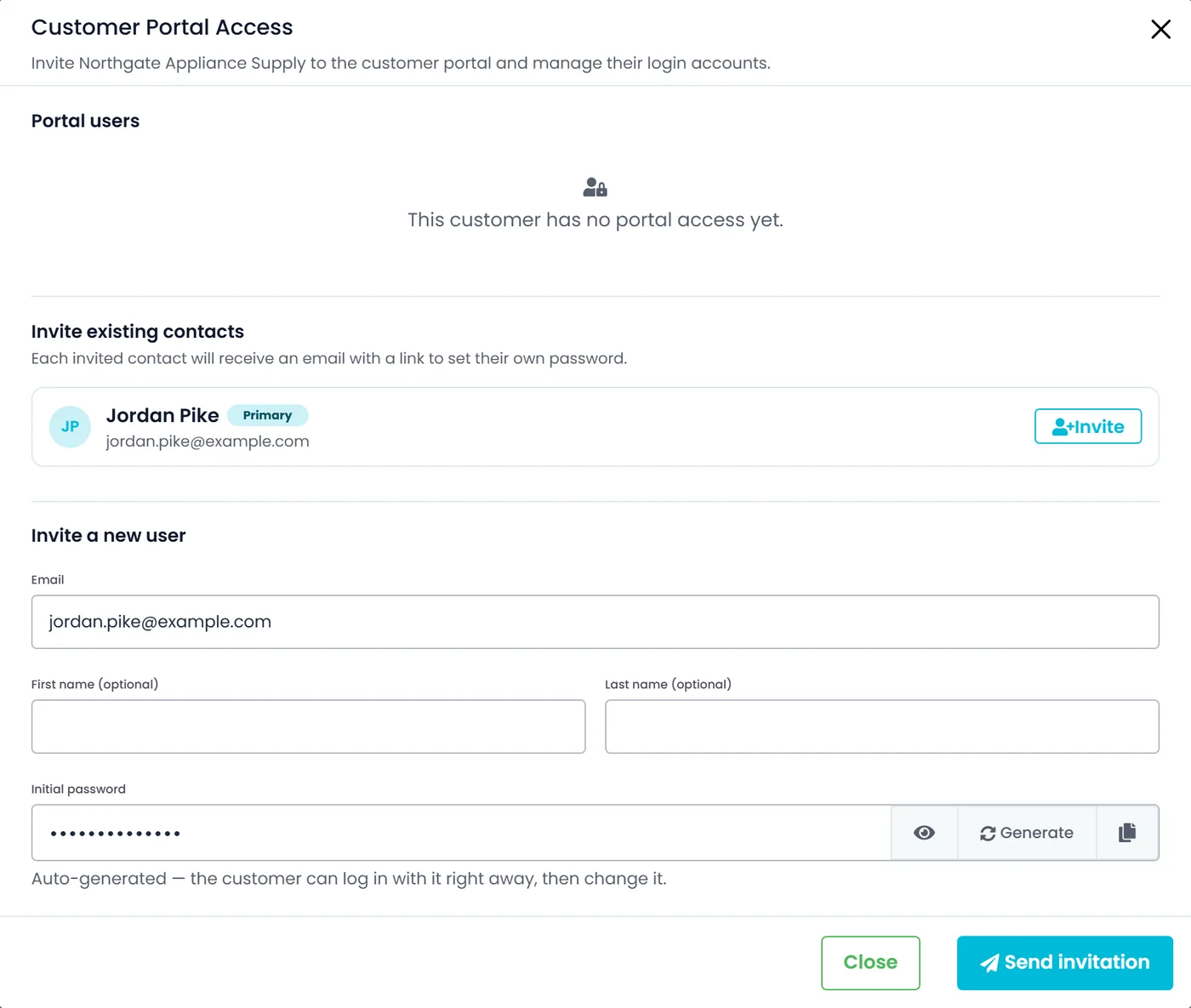
Company admins can now reset a Customer Portal user's password from the … menu on the Customers list, the new Actions menu on a customer's page or the Customer Portal Access window; the user is signed out and emailed a link to set a new one. These menus also offer Resend invite and Disable or Activate portal access, and Invite to Portal reads Manage portal access once a customer has portal logins.
Dispatch & routing
Plan routes side by side on a new Driver Board in Dispatch
Switch Dispatch to Driver Board, in the New UI or the Old UI, to see the Unassigned panel next to a full-height column for each route you add, and drag stops between them with the same rules and prompts as the regular board. Add routes with the board's + button (an active route, or a driver to create a new route for) or with Add to Board in a route card's menu; the board keeps up to 50 routes for you, and pinned columns stay in view while you scroll sideways. New UI columns show each stop on a compact card with order number, customer, pallets, cities, time, priority and indicator icons, with details on hover, and the Old UI gets a header button that puts the Unassigned panel on the left or the right.
Dispatch & routing
Filter the Dispatch board by route status
A Route Status filter next to the Completed Routes switch on the Dispatch board, in the New UI and the Old UI, shows Active, Pending, Completed or Archived routes in any combination, and clearing it shows every status. Completed covers finished routes. Archived covers routes closed with the older Archive action, which the board used until April 2025, and lists them only for users with the Route History permission. The board opens on Active and Pending, as before, a past day opens with every status, and the switch now turns the Completed and Archived options on or off together. Except on past days, your choice stays in the page address, so a reload or a shared link keeps it.
Dispatch & routing
Filter the Dispatch board by a single day or a date range
The Dispatch board, in the New UI and the Old UI, now has one date control for a single day or a date range. It offers Yesterday, Today and Tomorrow, then this or last week, month or year and All Times, a Single day calendar and a Date range calendar, and arrows that step to the previous or next day or period. The routes, their stops, the Unassigned panel and Driver Board columns follow the chosen dates, a range that has already ended opens the same past-day view as an earlier date, and the dates stay in the page address, so a reload or a shared link opens on them. In the Portal's date range pickers, clicking a single date and then Apply selects just that day, and the Orders list's date filter now also offers Tomorrow.
Dispatch & routing
Ask the AI assistant which route should take an unassigned stop
Order cards in the Dispatch board's Unassigned panel now have Ask AI next to Find Route; in the Old UI list view it is in the card's … menu. It opens the AI assistant on that stop: the assistant ranks the routes that can take it, with the same extra distance Find Route shows, explains its pick and answers follow-up questions, then proposes the assignment on a card that changes nothing until you click Apply. The order then goes on that route with the same checks as Find Route, and Undo is offered if the order had nothing on that route before.
Billing & accounting
Save turns orange when you change something an order's invoice is built from, and blue again once you save
When an order already has an invoice, Save now turns orange after you change something the invoice is built from, with a tooltip saying how the invoice gets updated: by saving, when the order is completed, or with Update Invoice. In the New UI that means the side panel (customer, contact, PO and tracking numbers, shipment type, pricing and attachments), with Edit turning orange in view mode, and in the Old UI also stop changes such as items and allocations. Changes to the order's date or notes don't count, invoices already exported to QuickBooks are never flagged, and for invoices created before this release Save is orange only until the order is saved. Save turns blue again once you click it, even when that save does not rebuild the invoice, and turns orange again only when the order changes after that; the colour is the same for every user and after a reload. While the invoice is still out of date, the tooltip saying how it gets updated stays on Save, even when Save is blue.
Dispatch & routing
New setting: block confirming a delivery until its pickup is on a route
Settings → Profile → Order Info has a new option, Block confirming a delivery until its pickup is on a route, which is off by default. Off keeps today's behaviour: a dispatcher who confirms a delivery whose pickup was never put on a route is warned and can still confirm it, and drivers confirm as before. When it is on, such a delivery can't be confirmed on the Dispatch board, on the order screens, in the driver app or in Telegram until the pickup of its items is assigned to a route, and the disabled Confirm button says why. Closing the order is never blocked.
Billing & accounting
A QuickBooks-style invoice editor and invoice page in the New UI
The new interface has a QuickBooks-style invoice editor and invoice page. Invoices downloaded, printed or emailed from it use a new layout: sender and Bill To side by side, one Items and Fees table, and tax in the totals. In the editor, Set Default asks you to confirm, like Set Default in the order's Invoices list, and it is locked on a new invoice and while the order's default invoice is approved or already sent to QuickBooks or by email. Adding billable waiting time to a new invoice no longer stops it from saving. When an invoice has a line with a negative amount, such as a discount, credit or "Paid" line, which the Invoice total does not count, the invoice page, the editor and the invoices they produce leave out the Subtotal and the Total of the Items or Fees group that holds the line, because those did not add up to the Invoice total. Every line, the tax, the Invoice total and the balance due stay as they were.
Drivers & driver app
Driver chat gains reactions, threads, voice messages, calls and secret chats
With the driver app update that adds them, drivers can edit and delete their own messages, react with emoji, reply in threads, add group members and set a group's photo, name and auto-delete, send documents and voice messages, share their live location, reference an order, see link previews, make voice and video calls to other drivers and start secret chats. Secret chats are end-to-end encrypted between drivers, so the office cannot read them.
- Needs driver app 2.0.20 or later
Drivers & driver app
@mention drivers and colleagues in driver chats
Office users can now @mention drivers and colleagues in driver chats. A mentioned driver gets a 'mentioned you' notification even if they muted the chat, and a mentioned office user gets a highlighted notification.
Billing & accounting
New setting: leave transfer hubs off invoices with Invoice include Transfer
New setting in Settings → Systems → Order: Invoice include Transfer. It is on by default, so invoices stay exactly as they are. Turn it off to bill each item from its original pickup to its final delivery without the transfer hub's address: transfer legs are combined into one line, fees and waiting time recorded at the hub keep their amount but show no address, and the invoice editor's Fee Address list leaves the transfer stops out. The Fee Address list also names every stop that shares an address.
Orders & quotes
New setting: allow one Full Load per order
New company setting in Settings → Profile → Order Info: One Full Load per order. It is off by default: Add Pickup and Full Load stay available as before, and the order screens only show a warning when a Full Load order has another pickup. When it is on, an order with a Full Load pickup cannot take another pickup, and Full Load cannot be chosen next to other pickup items; the order screens disable those buttons and say why, and such a save is refused. Orders that already have more than one pickup keep saving, as long as no pickup is added.
Drivers & driver app
Edit, react, reply in threads and send voice messages in the Company Portal's driver chat
Company Portal driver chat: edit your own messages, react with emoji, reply in threads, and send voice messages and order cards. Shared locations, orders and link previews now show as cards. A new info panel lists the members, with who is online, and the photos, files, voice messages and links shared in the chat. Company admins can add drivers to a group from it. Messages can be copied, files downloaded, and text, locations and order cards forwarded to another chat. The inbox list says what a message without text contains.
Dispatch & routing
Choose what the Dispatch board's date applies to, and find a route by its number
Next to the date control on the Dispatch board, in the New UI and the Old UI, a Date applies to menu sets how the selected dates pick routes. Any Stop works as before and stays the default. Route Start lists routes whose first pickup falls on the selected dates (for a route not finished yet, its first pickup still to do). Planned Pickups and Planned Deliveries list routes with a pickup or delivery still to do that is planned by the last selected day, late ones included. Route Lifetime lists the routes that existed on one of the selected days, from when they were created until they were completed or archived, whatever their stops' dates. The menu works while a date is selected, your choice stays in the page address, and the Driver Board columns follow it. Searching the board for a number such as 733 or #733 now also finds the route with that number, and its card shows the route's stops rather than only the orders matching the number.
Platform
See your subscription plan and usage, and switch plans, in Settings → Subscription
A new Settings → Subscription page lists the plans your company can choose, each with its monthly price, one-time onboarding fee, included office users, drivers and orders, features and overage prices, and marks your current plan. A company admin moves to another plan by switching it on and confirming; other office users see the page read-only, and free plans say Contact us. The page also shows your usage against the plan's limits and when the monthly order count resets. When about 10% or less of an allowance is left, a counter appears next to New Order, Add Driver and Add User; if your plan enforces its limits, those buttons are disabled once a limit is reached, otherwise nothing is blocked. Profile → Plan Details → Change Plan now opens this page.
Billing & accounting
Vehicle cost per mile for the fleet and each truck, and an Expenses page for every truck
Settings → Expenses → New Trucks now shows the fleet's vehicle cost per mile (fixed and variable costs, without fuel and tolls) over the last 6 full months, calculated from the truck costs and the Miles entered there; it shows Not available when no miles are entered. In Fleet, each truck's menu has a new Expenses page with that truck's cost per mile next to the fleet's, a month-by-month split that says why a month was or was not counted, and the truck's New Trucks values (month, Finance, Odometer, exclude expenses, save). The Edit Fleet window also has an Expenses tab, and a truck's name on New Trucks opens its page. The figure is for information only and does not change any price. Available to users who can view expenses. On New Trucks, values now stay in their own month in every time zone, a typed value no longer shows 0 after you click out of the cell, the grid keeps showing the current values while a month or a save loads, an Exclude Expenses period starts in the month you picked, and the Odometer tab warns when a truck has miles for a month but no fuel entered. Each New Trucks value can now be One-time or Recurring, with an optional end month (new Maintenance, Tolls and Other values start as One-time), and an "All values" window lists every value a truck has had in a column. Approved truck expenses from driver receipts, Transactions, the Recurring tab and imports now count in the month of their date: they show under the cell and are included in the totals and the vehicle cost per mile. Expenses waiting for approval, or rejected, are not counted, and miles come from the Miles column only.
Platform
A Back button returns to the screen you came from, lists come back as you left them, and records open in one reusable tab
Record screens (orders, quotes, invoices, customers, drivers, outsource companies, the Fleet and Expenses truck pages, Settings → Users → Roles and Permissions, and the document editor) now show a "Back to <screen>" button, such as Back to Dispatch, when you opened them from another screen. It works in step with the browser's Back and Forward buttons, and going back to a list brings back its page, sort and scroll position, plus the filters and search on the Orders, Quotes, Customers, Drivers, Outsource and Invoices lists and the selected route on the Dispatch board. A normal click now opens a record in one reusable tab; Ctrl/Cmd-click, a middle click or the new Open in new tab menu item keep a separate tab, and a record you are editing always keeps its own. On an invoice, Linked Order opens in the same browser tab, and a new Order Invoices link opens that order's invoices.
Customer portal
Your customers can subscribe to tracking links in the Customer Portal
In the Customer Portal's notification settings, your customers can turn on tracking links to get each order's link by email or in the notification bell, when your company sends tracking links automatically and the Customer Portal role has View Orders from own account (Settings → Roles).
Improved44
Orders & quotes
Full Load orders book extra trucks as sub-orders and keep your item count
On a saved order's Full Load pickup, Quantity of Trucks now sets how many truckloads are booked. Above 1, you can create a sub-order for each extra truck, up to 25 per save, with the same stops, items, charges and price, or continue with one truck; the split is offered only when the Full Load is the order's only pickup item. Quantity of Items stays as you enter it, a Full Load is priced as one truckload whatever its item count, and in the Old UI a Full Load pickup has an Edit Item button.
Dispatch & routing
Orders too big for one route are flagged, and routes with room are listed first
On the Dispatch board, an unassigned order with more stops than your Max Route Addresses setting allows now shows Increase Limit, and one needing more pallets than a truck carries shows Over truck capacity, each with a tooltip on what to change. Find Route (previously Auto Reroute) is disabled for those orders. When you select an unassigned order, routes that still have room for all of it are listed first.
Orders & quotes
Order Log Activity tab records document downloads, BOL emails and details sent to drivers
The Audit log tab on orders and quotes is now called Log Activity. On an order, it now records when its Bill of Lading, labels or invoice PDF is downloaded, who a BOL was emailed to, and when order or stop details are copied or sent with Copy to Driver, naming the driver. Invoice rows now also show who the invoice was sent to, and users who can edit invoices can add notes to them.
Platform
A shorter sidebar, with Customers (CRM) and Inbox opening from the header
Customers (CRM) and Inbox now open from the header instead of the sidebar. The people icon opens Customers and shows how many customers your team has not viewed yet, and the inbox icon opens Inbox. The new Issues and Compliance pages open from buttons on the Drivers page and from Reports, with Compliance shown when Hours of Service is turned on in Settings → Driver App.
Integrations & maps
Integrations now open on an Installed tab, with everything available under All
Settings → Integrations now opens on the Installed tab, which lists only the integrations your company has set up, while the All tab shows everything available. A QuickBooks connection that has expired or still needs authorising stays on Installed with its Reconnect or Connect button, and the Map Provider row appears on both tabs.
Billing & accounting
Pick an invoice fee address from the order's stops or type any address
The Fee Address field on invoice fees now lists the linked order's pickup and delivery addresses, labelled Pickup #1, Delivery #1 and so on, followed by any stops a transfer added, labelled Pickup From Transfer #1 and Delivery To Transfer #1. You can still type or paste any other address, and it is kept when you press Enter or Tab or click away. If what you type matches one of the listed stops, that stop's address is used.
Billing & accounting
Invoice waiting time fills in the stop's recorded arrival and departure
In an invoice's Add Waiting Time window, choosing a stop in the Select Customer list now fills in the arrival and departure times already recorded for that stop, and the waiting time and any fee update to match. Any time the stop has not recorded is left blank. The same happens when you switch stops while editing an existing waiting-time line.
Billing & accounting
Invoice fees show Qty and Item Cost, with Fee Cost calculated from them
In the invoice preview and editor, each fee now has Qty and Item Cost columns before Fee Cost. Choosing a fee type fills in its quantity and price per unit, and changing either one recalculates the Fee Cost; a waiting-time fee shows its billable hours and hourly rate. You can still type a Fee Cost directly, and in the items table Qty now sits next to Item Cost.
Billing & accounting
Invoices show the order price under Items, with separate totals and any balance due
The order price now shows under Items, not Fees, in the Accounting invoice preview and editor and in invoices you print, download or email, including Customer Portal prints. In the preview and PDF, the items Total includes the order price and additional charges have their own Total. The PDF's Invoice Total shows the full amount, with Paid and Balance Due lines once a payment is recorded; amounts show two decimals.
Orders & quotes
Appointment emails typed on an order stop are saved to the customer for next time
When a stop's customer has no appointment email yet, the address you type in Email Address for appointment on a pickup or delivery is now saved to that customer and fills in on their next stop. If the customer already has that address under another email type, you choose Save or Use once. Customers that already have an appointment email keep it, and saving needs permission to edit customers.
Dispatch & routing
One Country & Zone filter on the Dispatch board, with zone and outsource company lists that follow the country
On the Dispatch board, in the New UI and the Old UI, the Country and Zone filters now share one Country & Zone button in the header. The button shows the selected country and zone, and Clear All resets both at once. The Zone filter and the Zone field in the New Route and Edit Route windows now list only zones in the selected country, with zones that have no country treated as your company's country. In the New UI, those windows also list only outsource companies with an address in that country. Changing the country clears a Zone filter set to another country's zone.
Orders & quotes
International orders show each country's route and distance on the order map
Once a cross-border order's hubs are assigned, the order page map draws a separate route in each country, such as pickup to hub and hub to delivery, following roads where possible. No line joins stops in different countries, and hovering a line shows its distance. Add Location, in the New and Old UI, now lists the stops still needing a hub, and you can change a pair's hubs before clicking Done. The map now opens on the first pickup and its first leg.
Drivers & driver app
Drivers can keep messaging in a route's chat after the route is completed
In driver app 2.0.4 and later, a completed route's chat still moves to Archived Routes but now stays open, so drivers can follow up on things like a missing signature or a damaged pallet. This also applies to routes completed before this release. Your team sees these messages in the route's conversation under Inbox → Chat → Routes and can reply there.
Dispatch & routing
Route confirmation history shows stops on the day they were confirmed
On the Dispatch board, a route's Confirmation History (History in the Old UI) now places each confirmed stop on the day it was confirmed, or the day its confirmation was last updated, in your local time zone, instead of the day it was planned for. It lists stops planned or confirmed within the dates selected on the board. Route planning still goes by each stop's planned day.
Dispatch & routing
Assign both ends of a hub leg to the same driver, and see drivers by the stop's country
When you assign a driver to a stop on an order routed through a hub, the Portal now offers to give the stop at the other end of that hub leg to the same driver, or says when the route has no room for it. The driver list also offers Show only this stop's country, kept for later stop assignments until you choose Show all countries, and the Outside order country badge now checks the stop being assigned.
Billing & accounting
Sending to QuickBooks skips invoices you already exported for QuickBooks Desktop
With QuickBooks connected, invoices you already exported to a file for QuickBooks Desktop are no longer sent by automatic export or the AI assistant, so they aren't entered twice. Send QB, and Retry now on the Sync health tab, ask before sending one: Send anyway sends that invoice, and Don't send leaves it out. Cancel QB on such an invoice checks QuickBooks for a matching import; if none is found and the invoice was never edited after that export, you can send it without being asked. The Sync health tab marks held invoices.
Billing & accounting
Check QuickBooks again for an invoice held because it was exported for QuickBooks Desktop
An invoice held for review because you exported it to a file for QuickBooks Desktop now has a recheck button on the Sync health tab of the QuickBooks integration, once QuickBooks is connected. It looks for the invoice in QuickBooks without sending or changing anything there: if QuickBooks has it, the invoice stays held; if it doesn't, you can send it with Send QB. Invoices edited after that export stay held.
Billing & accounting
The Accounting button for QuickBooks Desktop files is now called QuickBooks export
In Accounting, in the New UI and the Old UI, the button that downloads the selected invoices as a file for QuickBooks Desktop is now labelled QuickBooks export, and hovering it shows Export a file for QuickBooks Desktop. On the Documents page, each copy of that file saved from now on shows Generated from QuickBooks export with its number; copies saved earlier keep their original description. The QuickBooks features new in this release use the same name, including the Send QB question before sending an invoice you already exported this way, what Send QB, Cancel QB and the AI assistant tell you about such an invoice, the Sync health tab of the QuickBooks integration with its Recheck QuickBooks import button, and the QuickBooks connection alert. The file you download and how you import it into QuickBooks Desktop don't change.
Platform
ZIP codes fill in automatically when you pick a city or a street address
Picking a city on customer, contact, driver, outsource carrier and user address forms, or in Settings → Profile, now fills in the ZIP code when a suitable one is known for that city; you can still pick or type another. Changing the city replaces or clears only a ZIP filled in this way, never one you entered or saved. In Settings → Locations, picking a suggested street address fills in its ZIP code when one is found.
Platform
The About page shows release dates and explains health checks that need attention
Settings → About now shows when the running API and Portal versions were released, and how long ago. Any system health check that reports a problem gets an info button explaining what it affects, the likely causes and what to do next. The Maps and Payments checks also no longer report a problem while those services are working normally.
Reliability & performance
The AI Knowledge window loads faster for long lists of learned rules
The AI Knowledge window on the Documents page now loads faster when the AI has learned hundreds of pricing rules or document layouts. Lane rate, accessorial rate and custom rule entries are also labelled by name on each rule and in the filter list, in English and Hebrew.
Platform
Continue straight into the Portal after replacing a temporary password
When someone signs in with a temporary password and the Portal asks them to choose a new one, saving it now signs them in with the new password and takes them straight to the page they were opening. They no longer have to sign in a second time.
Orders & quotes
Turn off the duplicate item-name check to let items on a stop share a name
Validate unique item names under Settings → Systems → Order is on for every company, so the order item forms and stop confirmation keep rejecting a repeated item name on the same stop, as before. Turn it off to let items on the same stop share a name.
Orders & quotes
Select text in Copy to Driver, and see the option only when a stop is left to send
In the Copy to Driver window you can now highlight part of a stop's details, such as a phone number or address, and still drag the cards to reorder them. On an order, Copy to Driver in the actions menu and in a stop's menu now appears only while a driver is assigned and there is a stop not yet completed, and completed stops are left out of the window.
Billing & accounting
Customer Additional Charges tab now shows each charge's price per unit
Open a customer and go to Additional Charges to see a new Price per unit column: the price each of that customer's charges uses by default, formatted the same way as in Settings → Charge Types. The column stays blank when no price is set.
Orders & quotes
Stops with driver instructions are flagged in the stop card header
In an order, a pickup or delivery stop with driver instructions now shows a green marker in its card header, next to any other stop warnings. Click it to read the instructions, or to edit them while the order can still be changed. Driver instructions no longer have their own info icon beside the address, where a single icon now shows the location details.
Dispatch & routing
Use search and the stop type filter together in the Unassigned panel
On the Dispatch board, opening search in the Unassigned panel no longer hides the stop type filter. The search box takes the top row and the filter sits directly below it, so you can switch between Pickup & Delivery, Pickup, Delivery and Warehouse stops while a search is active.
Billing & accounting
New companies start with invoices created when an order is completed
Companies set up from this release on start with Create Invoices set to Order was completed, so an invoice is created once the order is done instead of as soon as the order is entered. Existing companies keep their current setting, and you can change it any time under Settings → Billing.
Dispatch & routing
The route suggestion action on unassigned orders is now called Find Route
On the Dispatch board, the action on order cards in the Unassigned panel that opens Add to a route is now called Find Route instead of Auto Reroute, in English and Hebrew. Add to a route ranks the routes that could take the order's stop. In list view the action is in the card's … menu. The Auto Reroute option that re-orders a whole route keeps its name.
Orders & quotes
A more compact header and filter row on the Old UI Orders and Quotes lists
The Old UI Orders and Quotes lists have a more compact header and filter row, each sized to fit one line on a typical laptop screen. Filters, Customers, Drivers, From and To show a count, and each picked customer, driver or address is a removable chip below; on orders, Unbilled and Show only unread share one dropdown. New Air/Port Order or Quote now opens from the arrow beside New Order or New Quote.
Dispatch & routing
Late stops are optimized and listed together with today's stops
Reroute, including Optimize with AI, now orders open stops from days that have already passed together with today's stops, instead of oldest day first, and stops planned for later days still come after today's. On the Dispatch board those late stops are listed with today's: in the Old UI the heading reads Today + late stops and each late stop shows the day it was planned for in red, and in the New UI each card still shows its own date, with a divider marking where a later day begins. Optimizing or reordering doesn't change their dates; use Edit Date to reschedule one. Today means your own day, in your computer's time zone.
Platform
Export your whole customer list, however large
Company admins can now export every customer from Customers → Export/Import CSV → Export, however many there are. With no customers selected, the list is downloaded in parts with a progress bar counting the customers done, a part that times out is tried again, and everything is joined into one CSV file; Cancel stops the export without saving anything. An export of more than 20,000 customers used to be refused. Exporting selected customers works as before.
Orders & quotes
Search the Orders and Quotes lists by a stop's Reference Number
Searching the Orders or Quotes list now also finds orders and quotes by the Reference Number entered on any of their pickup or delivery stops, including part of the number, alongside the order, PO and tracking numbers, customer names and addresses it already matched.
Billing & accounting
Send QB shows whether QuickBooks sending is Manual or Automatic
In Accounting, the Send QB tooltip now also says how your company sends invoices to QuickBooks, as set under Send to QuickBooks in Settings → Billing: in Manual mode an invoice is sent right after the click, and in Automatic mode invoices are sent on their own. In Automatic mode the button looks inactive but still works: clicking it asks Send now anyway? with the number of selected invoices, and nothing is sent unless you choose Proceed. This works the same in the New UI and the Old UI.
Platform
Choose enabled currencies from a checklist in Settings → Profile
In Settings → Profile → Currencies, the Enabled Currencies box now shows the currencies you chose as chips inside the box and opens a list with a checkbox for each supported currency, which also works from the keyboard. USD stays on and can't be removed, as before.
Drivers & driver app
The driver invitation page explains what to do when Open App can't open the app
On a computer, Open App on the page a driver reaches from their invitation email now explains that the invitation should be opened on a phone, or that the driver can install the RushHour driver app, tap Enter Invite Code and enter the code shown, with Open the app anyway still available. On a phone, if the app hasn't opened after about two seconds, the page explains how to get in: install or update the app, then tap Enter Invite Code and paste the code.
Dispatch & routing
A warning when one driver gets an order's stops in two countries
When you assign stops of an international order on the Dispatch board and the driver now has stops of that order in more than one country, on this route or another of their routes, a "One driver, more than one country" message names the driver, the order and the countries. The assignment is saved as usual: one driver may cross the border, and the message is a reminder to check that they can. This works in the New UI and the Old UI.
Dispatch & routing
Selecting a route on the Dispatch board zooms the map to where the route starts
When you select a route on the Dispatch board, the map now frames it the same way in the New UI and the Old UI. A route with only pickups or only deliveries is centred on its first stop. A route with both is fitted around its first pickup and the next three stops when they are close together, or centred on the first pickup when they are spread over more than about 30 miles. Before, the New UI always fitted the whole route, and the Old UI did so unless its stops spread over more than about 30 miles. Once you zoom in, nearby stops of a selected route or order show as separate numbered pins instead of one cluster dot, while stops at the same location still share one counted dot.
Dispatch & routing
Find Route and Ask AI suggest every route that can take an unassigned stop
Find Route and Ask AI now suggest every route that can take an unassigned stop, including routes with only late stops, routes that work on other days and routes with no stops yet, and say what each distance means.
Orders & quotes
The Map Link field accepts a plain address and shows both addresses before replacing one
The Map Link field on a customer address now also accepts a plain address or a map link that only names a place, and before replacing an address it shows the current and new address side by side.
Orders & quotes
Confirming a delivery explains hidden transfer stops and offers to show them
On an order whose transfer stops are hidden (Show Transfer cards off), clicking Delivered on a delivery stop while a transfer leg is still unconfirmed now explains why it cannot be confirmed yet: "Order has hidden Transfer stops that need to be confirmed first." Show Transfers turns Show Transfer cards on for that order and reloads it so the transfer stops appear; Cancel closes the message. This works in order details in the New UI and the Old UI.
Platform
The header search filters more lists, and opens Global Search on pages without a list
The search bar at the top of the Company Portal now filters more lists: Payments Received, Expenses (including each truck's expense ledger), Truck Types, FX rates, Pricing Zones and Portal Access Requests. On pages without a list it opens Global Search.
Orders & quotes
The pickup and delivery card on the new order screen starts with the address
The pickup and delivery card on the new order screen now opens with the address, laid out as in the classic stop window: Address and Zip Code first, then Address 2 and Country. Company Name, Reference Number and the date and time follow below the driver instructions. Every field is still there, and none of them got narrower.
Orders & quotes
Order Log Activity also records repeat orders, files, driver instructions, appointments, COD and invites
The Log Activity tab on orders and quotes now also records Repeat Order, an order reverted to a quote, files attached or removed, driver instructions, appointment requests, COD changes, and Cardknox and Client Portal invites, each with who did it and when.
Fixed69
Dispatch & routing
Routes at their stop limit now block more stops up front
When a route holds as many stops as Max Route Addresses allows (Settings → Profile), or more after you lower that limit, the + button on its Dispatch board card is disabled. Its expanded stop list refuses stops dragged in from other routes or the unassigned list, while re-ordering its own stops still works. Order screens no longer let you assign an order to a route marked Full.
Dispatch & routing
Unassigning a stop or deleting a delivery removes its transfer from both drivers' routes
If a pickup or delivery has a transfer, unassigning it without recording an attempt, or deleting the delivery, takes the transfer's stops off both drivers' routes, even while the order's other stops stay assigned. Unassign on the Dispatch board, which refreshes all routes, or on the order screen; deleting warns first. A transfer a driver has started is kept, and deleting tells you to finish or remove it on the board.
Billing & accounting
Accounting stays on the customer you last selected
On the Accounting page, the customer header, balance and invoice list now stay on the customer you last clicked, even if you switch before the previous one finishes loading. Searching or paging the customer list no longer reloads the customer on screen, and results appear as soon as they load. Customer search boxes in Accounting and Settings → Pricing Models show only matches for what you typed.
Dispatch & routing
Stop warnings on an order's other route now update without a page reload
On the dispatch board, when you drop an unassigned stop onto a route's expanded stop list, assign it with Find Route, or drag a stop back to the unassigned list, any other expanded route holding a stop of the same order now refreshes too. Warnings such as Assign Delivery clear or reappear right away, without reloading the page.
Dispatch & routing
Stop confirmation reopens with the arrival and departure times you saved
When you reopen the confirmation window for a pickup or delivery whose arrival and departure times were already saved, for example with Update, it now shows those times exactly as they were entered, whatever your computer's time zone. Saving again with Update or Confirm keeps them unchanged. This works from the dispatch board and from an order's stops.
Dispatch & routing
Dispatch map pins every stop on a route, even when the route line is incomplete
When a route's driving directions are missing or cover only some of its stops, the dispatch board map now pins the remaining stops from their saved addresses, so selecting the route shows all of them. A stop can only be pinned if its address has a map location.
Dispatch & routing
Route stop cards show only the items on that driver's route
When an order's items are split between drivers, each driver's stop card on the Dispatch board now lists only the items on that driver's route, with that route's quantities. This covers both the item badges on the card and the View items list.
Orders & quotes
Click an order or quote number to edit it, with a check for numbers in use as you type
For users who can edit orders or quotes, clicking the number at the top of an order or quote page in the New UI now opens it for editing, ready to save. The number is checked as you type: the box turns green when it is free and red when another order already uses it. In both UIs, after a save is rejected for a duplicate number, saving again with a free number now clears the red warning.
Orders & quotes
Labels print on one page each, with long ship-to addresses sized to fit
Each label printed from an order now fits on a single page, without a near-empty extra page or a blank label at the end. A long ship-to address or label note prints in a smaller font so it fits, and only very long text is shortened. When your Bill of Lading has no terms and conditions text, it no longer ends with the load number alone on an extra page.
Dispatch & routing
Order-number searches on the dispatch board show only matching routes
Searching the dispatch board for an order number, with or without a leading #, now shows only the routes that carry a matching order. Empty route cards no longer appear just because a route's name, truck or driver contains the same digits. Searches that include letters, such as a driver's name or a plate number, work as before.
Dispatch & routing
Pickups list each item once when an order with several deliveries is added to a route
When an order with one pickup and several deliveries is added to a route, for example with Find Route on the dispatch board, each item now goes on the pickup once with its full quantity, so the pickup confirmation lists every item once. The same applies to a delivery fed by several pickups. On pickups that already list an item twice, the repeated line keeps its quantity when the order is saved.
Reliability & performance
Select Customers filter on the Orders and Quotes lists loads reliably
The Select Customers filter on the Orders and Quotes lists now loads its customer list reliably, even for companies with many customers and orders. This applies to both the classic list and the New UI filter panel.
Drivers & driver app
Driver locations from version 1 of the driver app now reach the Company Portal
Drivers using version 1 of the driver app now send their location to the Company Portal, with no app update needed. It feeds stop arrival estimates and driver distance on the Dispatch board, the distance beside each driver in an order's side panel, the GPS location on proof of delivery PDFs, and the truck's location and arrival estimate on tracking links.
Drivers & driver app
After each stop, the driver app shows the next stop instead of "Route complete!"
When a driver completes a stop, the driver app's Task Completed screen now shows the next open stop with its address and estimated arrival, or the driver and truck to meet for a transfer. It no longer says "Route complete!" while stops are still open on the route. No app update is needed.
Billing & accounting
COD payment requests and Accept Payments invites reach the right customer address
A delivery stop's COD email now defaults to the paying stop customer, preferring its Accept Payment or Cardknox email, or to the stop contact if the stop's customer is the billing customer, whose payment emails stay listed. Request Payment, offered once the billing customer has Cardknox set up, uses the same default. Accept Payments invites go to the customer's Cardknox, else Accounting, email and explain how payments reach its own account.
Dispatch & routing
Routes with an unlinked transfer stop now show their stops on the Dispatch board
A route with a transfer drop-off or collection stop that is no longer linked to its transfer now shows its stops when you expand its card on the Dispatch board, instead of none. If a route's stops can't be loaded, the card now says so and offers Retry instead of looking empty, and if loading more stops fails, the stops already shown stay on screen.
Dispatch & routing
Confirming or updating a stop keeps the files already attached to it
When you confirm or update a pickup or delivery from the dispatch board or an order, the files already attached to the stop now stay attached as long as you leave them unchanged. The confirmation window's Attachments section also stays in view when you click Confirm or Update.
Dispatch & routing
Assign Transfer moves the right quantities when a load is split across delivery stops
When the freight one driver hands over is split across several of the receiving driver's delivery stops, Assign Transfer now moves the right quantity for each delivery it covers: the hub drop-off and collection match, and every delivery keeps its own items and route. If the driver handing over has none of that delivery's freight left, you're told to transfer it from the driver who is carrying it.
Billing & accounting
Free waiting time follows each order's price type, including pallet ranges
Waiting-time charges on orders and invoices now use the free time set in Settings → Billing → Waiting Time for the order's price type: Classic, Custom, or the Pallets (Pricing Model) range that fits the pallets picked up on the order. Stop confirmation and an invoice's Add Waiting Time window suggest the same free time. If Custom or Pallets is left blank, or no range fits, the Classic value is used.
Platform
Checkboxes and switches display correctly in dark theme and in Hebrew
In dark theme, unticked checkboxes, radio buttons and switches across the Company Portal now use a dark background with a clearly visible border instead of plain white, and a switch that is off now shows its handle. In the Hebrew interface, most on/off switches no longer leave extra empty space beside them.
Orders & quotes
Opening an order or quote now marks it as read
Opening an order or quote now reliably marks it as read, whichever order screen you use, and the unread count next to Orders or Quotes in the main menu updates right away. Each unread order or quote is counted once in that menu count.
Orders & quotes
Stop menus show BOL and Copy to Driver right after you save or create an order
On the order page, the BOL action on delivery stops and the Copy to Driver action on assigned stops that are not yet completed now appear in the stop's menu as soon as you save or create an order, without reloading the page.
Orders & quotes
Drag items onto any delivery stop, between deliveries and back to their pickup in the order editor
In the New UI order editor, you can now drag an item from a pickup onto any delivery stop's Drop Items Here area, and the item is added to that delivery. This now works for the second and later deliveries too, and for a delivery that has no items yet. You can also drag an item off a delivery onto another delivery, or back onto the pickup it comes from, which leaves that amount unassigned again. When the order has more than one delivery and more than one item, a window asks how many to move. Items that pass through a hub or a transfer stay on their delivery.
Drivers & driver app
Route driver pickers show only details from your driver records
When you choose a driver from a route card on the Dispatch board or in the New Route and Edit Route windows, the list shows only details from your driver records, such as each driver's name and rating. Shift hours, trip counts and distances are no longer shown there, as they are not part of your driver records.
Billing & accounting
Save options for a new invoice charge type show each stop's customer name
When you create a new charge type while editing an invoice, every pickup and delivery save option (Pickup #1, Delivery #1 and so on) now shows the name of that stop's customer after its label, instead of the location name. If a customer's name can't be loaded, the option shows just the stop label.
Billing & accounting
Accounting's Filter view now loads after a page reload or from a bookmark
Opening Accounting straight into its Filter view, whether from a page reload, a bookmarked link or after switching between the old and new interface, now loads the list of invoices and payments instead of staying on a loading spinner. Switching between the Customer and Filter views also no longer reloads the list a second time.
Orders & quotes
Set HOLD is offered only on orders that have a delivery stop
A hold applies to delivery stops, so orders with no delivery stop, such as pickup-only orders, no longer show Set HOLD in the orders list or on the order page. When you put several selected orders on hold at once, those orders are skipped and the message says so. If one of them already carries a hold, its order page shows View HOLD Details and Resolve HOLD so the hold can be released.
Orders & quotes
The + button in Confirm Delivery stops at the picked-up total on split deliveries
When one pickup is split across several deliveries, the + button in the Confirm Delivery window now stops once the deliveries together reach the quantity picked up. Opening the window from a delivery stop's Delivered option on the order page now follows the same limit as Dispatch.
Drivers & driver app
Chat messages show the sender's photo as soon as they arrive
In driver app version 2.x, new chat messages now show the sender's profile photo as soon as they arrive, instead of initials until the chat is reopened. In the Portal Inbox, new messages from other team members do the same, and route conversations in the conversation list now show who sent the latest message.
Integrations & maps
Fleet list shows Samsara location, vehicle name and VIN for linked trucks
With your Samsara account connected under Settings → Integrations, each truck linked to a Samsara vehicle now shows that vehicle's current location, name and VIN in the Settings → Fleet list.
Orders & quotes
Undoing a stop only asks about related stops that are still confirmed
When you choose Undo Pickup or Undo Delivery on an order stop, the confirmation window now appears only if a related stop is still confirmed, and it lists only those stops. If none of them is still confirmed, for example because you already undid them, the stop you picked is undone straight away.
Dispatch & routing
Route cards keep an accurate load bar after you assign or unassign stops
The load bar on dispatch board route cards, and the vehicle capacity count beside it, now update correctly each time you assign or unassign a stop. The load is counted across the whole route, not only the stops your current search or date filter shows.
Orders & quotes
Orders list shows hub and transfer stops in the order the freight travels
On the Orders list, an order split into two legs, through a hub or a transfer between routes, now shows its stop markers in the order the freight travels: pickup, drop-off at the hub or transfer point, collection for the second leg, then final delivery. Hovering a stop marker also keeps its details open without the popup flickering.
Orders & quotes
Deleting an order's stop in another country clears the two-driver and hub notices
When you delete an order's stop in another country, or a stop flagged Assign HUB, any Assign HUB warning tied to it now clears as soon as the stop is deleted. Once the remaining stops are in one country and none still needs a hub, the notice asking you to assign the stops to separate drivers goes away too, and the order-level Assign Driver button is available again.
Orders & quotes
Assigning a hub no longer adds a customer named after the warehouse
Saving an order after you assign it a hub no longer adds a prospect customer named after the hub's warehouse, and the hub stop keeps the warehouse's saved address. If you then change that hub stop's address in the order, only that stop gets the new address: the warehouse's address in Settings → Locations, and on other hub stops that use it, stays the same. Customers already created this way, and hub stops already moved onto their addresses, are left as they are.
Orders & quotes
Searching by the text the address picker shows finds the saved address again
On an order's pickup and delivery stops, the Address picker lists saved addresses in a shortened form, such as 7513 147Th St, Queens, NY for a saved 75-13 147th St, and keeps that text in the box after you pick one. Searching with that text, or editing it, now finds the saved address, and so does typing the street without its punctuation, such as 7513 147th. Before, a dash or other punctuation in the saved street meant no saved address matched, and only map suggestions came back, which could point to unrelated places. When the box holds exactly the text of a saved address, as it does after you pick one, the picker shows that saved address without adding map suggestions; after you edit the text, map suggestions can still appear alongside it.
Platform
When an address can't be saved, the message now says why
When a customer's or outsource carrier's address can't be saved, for example after you change the Company Location in a customer's Company information, the error now gives the reason instead of only Address validation failed, such as that the customer already has a location with that address or with that title, or that the address is missing. The reason appears in the language you use the Portal in, English or Hebrew.
Dispatch & routing
The Add Pickup and Add Delivery window uses its full width in Safari
The window for adding unassigned pickups and deliveries to a route now shows one full-width, column-aligned line per stop in Safari on wide screens, as in other browsers. It opens from a route's + button on the Old UI dispatch board and from an order stop's Assign Pickup or Assign Delivery warning. Stops with no date or time set now read None instead of an empty label.
Platform
Text editor toolbars are easier to read in dark theme and lay out correctly in Hebrew
The formatting toolbar in Settings → Terms & Conditions and in the new Settings → Email Templates editor now shows its buttons, menus, link box and placeholder text clearly in dark theme. In Hebrew, the toolbar uses the same compact spacing as in English, and the text size and heading menus show their arrow beside the label instead of over it.
Billing & accounting
The Order Invoices view in Accounting shows how often each invoice was downloaded
In Accounting, the Order Invoices view, opened from Order Invoices in an invoice's menu or the View All Invoices icon, now shows a download count on each downloaded invoice, as the main invoice list already does. Hover the download icon to see how many times it was downloaded and when it was last downloaded, including for invoices edited after they were downloaded.
Orders & quotes
Item sizes print once on Bills of Lading, quotes and order sheets
On Bills of Lading, quote PDFs and order sheets, each item's size now prints once, on the line under the item name. It is followed by the pallet size's dimensions when a pallet size is chosen, then any dimensions entered on the item. The weight column now shows only the weight.
Dispatch & routing
Copy to Driver and the Dispatch board header are now easier to use on tablets
On a tablet, a swipe now scrolls the stop list in the Copy to Driver window, and you reorder stops by dragging each card's handle; with a mouse you can still drag a card from anywhere outside its text. The Dispatch board header also fits tablet screens: in the New UI its controls sit on their own row below the header icons and wrap when needed, with every button label kept.
Dispatch & routing
Moving a stop to the other half of its transfer now asks for one confirmation
On the Dispatch board, dragging an order's last pickup or delivery off a route where only its transfer would remain, onto the route with the transfer's other half, now shows one confirmation to delete the transfer or HUB hand-off, not the Route Transfer Confirmation window. Confirming moves the stop and removes the transfer from both routes. The move is refused once part of the transfer is confirmed or already in progress with the driver.
Dispatch & routing
Rearranging a route keeps the driver and truck on its confirmed stops
When you add, move or reorder stops on a route after changing its driver or truck, the stops already confirmed on it now keep the driver and truck recorded for them instead of taking on the route's new ones.
Platform
The Settings menu keeps its place when you open an entry
When you pick an entry further down the Settings menu, the menu now stays where you scrolled it instead of jumping back to the top, and keeps the selected entry in view. Opening Settings from another page starts the menu at the top, and if you land on a Settings page further down, for example from a direct link, the menu scrolls to show that entry.
Orders & quotes
The Related Orders tab shows how many sub-orders an order has
When an order has sub-orders, the Related Orders tab on the order page in the New UI now shows how many there are. The Old UI already showed this count.
Orders & quotes
Documents print a stop's time in your time zone instead of UTC
Bills of lading, quotes, invoices and proof of delivery documents that you open or email from the Company Portal now print a stop's exact time in your computer's time zone, with its UTC offset shown, instead of in UTC, so a time entered in your zone prints as you entered it, and the date next to it follows the same zone. A 7:00 PM pickup in New York used to print as 11:00 PM. Stops set to Morning, Noon or Evening print as before.
Dispatch & routing
Expanded route cards keep each day's stops together
On the Dispatch board, when an expanded route card loads more stops and some of a day's stops arrive in the next batch, they now join that day: the Old UI shows the day's heading once instead of twice, and the New UI keeps the day's stops in one list. Adding a stop to a route from a board that still shows it after it was removed elsewhere, for example when its transfer was deleted, is now refused with Invalid Stop, instead of adding a transfer stop that isn't linked to any transfer; refresh the board and try again.
Dispatch & routing
A direct delivery can be confirmed once its own pickup is
On an order where part of a pickup goes straight to a customer and the rest goes through a transfer, the direct delivery's Confirm button, in the New UI and the Old UI, now waits only for the pickup its items come from. It no longer stays disabled until the pickup from the transfer, on another route, is confirmed. A delivery fed by the transfer still waits for that pickup, and the tooltip on a disabled Confirm says whether it is waiting for the pickup or for the pickup from the transfer.
Orders & quotes
Expanded orders show an item-less pickup and delivery on one row
When you expand an order on the Orders list, in the New UI and the Old UI, a pickup and a delivery that have no items are now shown together on one row, pickup first, instead of on two separate rows that each had their own status progress, and the order's Package Details tab lists them as one row too. With several such stops, they are paired in stop order. Orders whose stops carry items look the same as before.
Billing & accounting
Saving an edited invoice always saves it or shows what to fix
In Accounting, Save, Save and Send and Save & Close on an invoice you are editing, for example after Add Fee, now always save it or point you to what needs fixing: invalid lines open for editing, and other invalid fields are highlighted with a message asking you to check them. Before, Save could do nothing at all, for example right after you corrected a value.
Billing & accounting
Settings → Billing shows the invoice settings that are actually saved
Settings → Billing now loads your company's billing settings from the server each time you open it, so Create Invoices and the page's other settings show what is actually saved, even if they were changed in another tab or by another user since you opened the Portal. Before, the page could still show the values from when you opened the Portal, for example Manual while invoices were in fact being created automatically. Changes you have already started on the page are not overwritten.
Orders & quotes
The Assign Driver panel keeps its page numbers in view and estimates a distance for drivers without a recent location
In an order's Assign Driver panel, in the New UI and the Old UI, the list of drivers now scrolls inside the panel and its page numbers stay pinned below it, so you can always reach the next page of drivers. Before, the rows above the list could push the page numbers below the bottom of the panel. Drivers without a recent GPS location now show an estimated distance, marked with "~" and a tooltip naming its source: the driver's last completed stop or, for users allowed to view driver details, the driver's home address. How many days back the driver's last known app location counts is a new setting, Settings → Driver App → Preferences → Last known location window (days), 30 days by default as before. The distance is measured to the stop that still needs a driver, using that stop's saved coordinates for companies that look up coordinates when an address is saved. While driver GPS history pruning is on, that window cannot be longer than the GPS retention period (and never more than 365 days), and Assign Driver uses no GPS location older than the retention. Lowering the retention under Settings → Profile → Driver data retention lowers the window too, and a message says so.
Integrations & maps
The AI assistant tells you when a route's toll costs can't be calculated
For companies connected to Trimble Maps, the AI assistant can look up truck tolls along a route. When no toll provider is connected for your company, it now says toll costs can't be calculated and that an administrator can connect one under Settings → Integrations, instead of reporting $0 in tolls. TollGuru is available there.
Orders & quotes
Clean all data and Clear All no longer show an address error before you type
After Clean all data in a pickup or delivery address window, or Clear All on a New UI order stop, the emptied Address field no longer shows its required-field warning before you have entered anything; the checks still run when you edit or save. In the pickup window, Save, Save and add item and Add items later on an incomplete stop now point out the missing fields, as the delivery window already did, instead of doing nothing.
Platform
Saving a customer's Company information works when its locations share a title
Saving a customer's Company information, or editing the customer's address from an Old UI order, no longer fails with an address error when another of the customer's locations already has the same title as its main location, for example a location named after the customer. Giving a location a title the customer already uses is still refused.
Dispatch & routing
Confirm & Create Delivery offers the items left to deliver and asks which driver takes them
When you confirm an order's last stop with items left over and choose Confirm & Create Delivery, the Add Items to Delivery window now offers the items still to deliver. Before, the quantities you had just lowered were not counted yet, so the window showed nothing left to add and its Add All button read All Added. After you add items, you are asked "Assign to the same driver?": Yes gives the new delivery to the driver who has those items, as before, and No leaves it in Unassigned. While that new delivery has items to deliver, confirming the stop no longer closes the order. This works in the New UI and the Old UI.
Dispatch & routing
The Dispatch board no longer shows the same route cards twice
Scrolling down the Dispatch board while it was reloading its routes could add the next page of routes to the old list, so a block of route cards appeared twice. A reload now starts again from the first page and waits for it before loading more, and a route that is already on the board is never added a second time. This applies to the New UI and the Old UI.
Platform
Date picker calendars label the Sunday column
In the Portal's date pickers and date range pickers, the calendar's Sunday column had no heading. It now shows the day's short name like the other columns, in English and Hebrew.
Billing & accounting
Each invoice paid by a bulk payment shows only its own share of the payment
Bulk payments: each invoice paid by a bulk payment now shows only its own share of the payment, in its balance, paid status and credit and in the order list, while the payment row still shows the full amount received. Customer balances are unchanged.
Billing & accounting
Saving a new invoice no longer offers to replace an unrelated invoice
Saving a new invoice whose number matches an order number no longer offers to replace, and overwrite, an unrelated invoice.
Billing & accounting
Invoice totals and invoices sent to QuickBooks leave out deleted lines
Invoices sent to QuickBooks no longer include deleted lines, and item lines are sent as price × quantity, so QuickBooks gets the same line amounts as the invoice. The invoice editor's total also no longer counts deleted lines, and an item without a quantity counts as zero, matching the saved invoice.
Dispatch & routing
Driver distances on the Dispatch board show two decimals
For companies that use miles, the distance from the driver to the selected stop on the Dispatch board showed every digit, for example "Driver is 12.394349587425422 mi away". It now shows two decimals, "Driver is 12.39 mi away". Route mileage on route cards already had two decimals and looks the same as before, and kilometers are unchanged. This applies to the New UI and the Old UI.
Dispatch & routing
Starting a shift in the Telegram bot no longer changes the driver of finished routes
When a driver starts a shift in the Telegram bot and picks a truck, completed and archived routes now keep their driver. Before, starting a shift took that driver off their own finished routes and put them on every finished route of the chosen truck, so a finished route could show no driver or the wrong one. Open routes still move to the driver who starts the shift, as before. Also, a driver who has no route can now send the truck photos when ending a shift; before, the bot refused each photo and asked for a picture taken on the device.
Dispatch & routing
The New Route button also appears in the Old UI dispatch list view
Dispatch (old interface): the New Route button now also appears in the toolbar in list view, not only in card view. Card view is now also kept in the page address, so a link or bookmark opens the view you chose. The separate list and card buttons are now one toggle that shows the view it switches to.
Orders & quotes
Bills of lading print at 100% without manual scaling, and labels at their true 4 × 6 in size
Bills of lading printed from the Company Portal now print at 100% scale, with a typical one on a single Letter or A4 page, so there is no need to scale them down by hand, and pallet labels print at their true 4 × 6 in size, the same as the label PDF. Printed documents keep their background shading (for example the proof-of-delivery section headers and highlighted BOL items) even when the browser's Background graphics option is off. Invoices printed in the classic layout now use a plain Arial 12 px font on a white background.
Dispatch & routing
Orders with no saved route open for assignment instead of showing a route directions error
An order with no saved route, for example one created through the API, now opens for assignment, for example in its Assign Driver panel, instead of failing with "The system cannot find route directions for the provided order stop address." The route is looked up once and saved with the order, and the order's price is not changed. If no route can be found for the addresses, the same error is shown, and the lookup is tried again after a few hours or as soon as an address is corrected.
Platform
Lists move to a page they can show when a later page fails to load or comes back empty
In the Drivers list and the other lists of the Company Portal, when a later page fails to load or comes back empty, the list now moves to a page it can show, the new last page or the first page, keeping your search, sort and page size, instead of getting stuck on "No records found" with the page numbers gone.
Platform
Pages no longer keep loading forever after an update
If a page, such as a Settings page, cannot load because RushHour was updated while the app was open in your browser, the loading spinner no longer keeps spinning: the app reloads once to the page you opened. If the page still cannot load, for example while you are offline, a message tells you and reloads it when you click it. In a list with no rows, "No records found" is now centered in tables of a fixed height and stays in view when a wide table is scrolled sideways.