
Start with the problem.
Then see what handles it.
Re-keying orders into separate tools. Chasing drivers for inspection and hours records. Deciding who in the office can see and change what. Working out what each truck costs to run. Customers calling to ask where their freight is, invoices waiting to be paid, carriers you hire, and systems that don't talk to each other. Each card below starts from one of these and shows the RushHour features that handle it in production today. Anything finished but not yet released is marked Next release, and anything still planned is marked Coming soon.
Pick the problem
Eight places to start
Each card links to a page that goes into the detail.
On screen
The first four, on screen
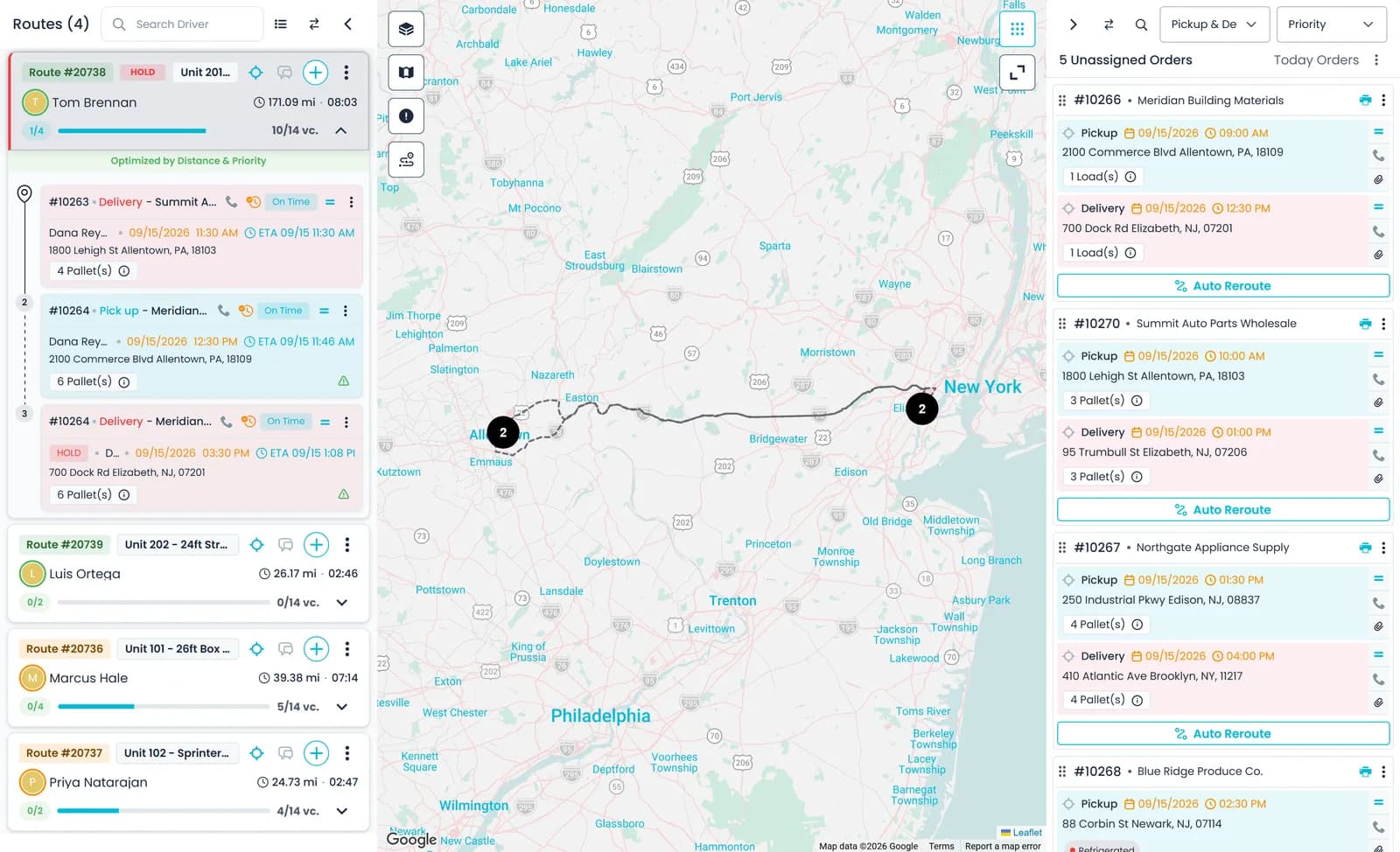
What sits behind the Efficiency, Safety & Compliance, Security and Truck Costs cards. Each card's page goes further.
Efficiency
Enter the order once, and it runs to the invoice
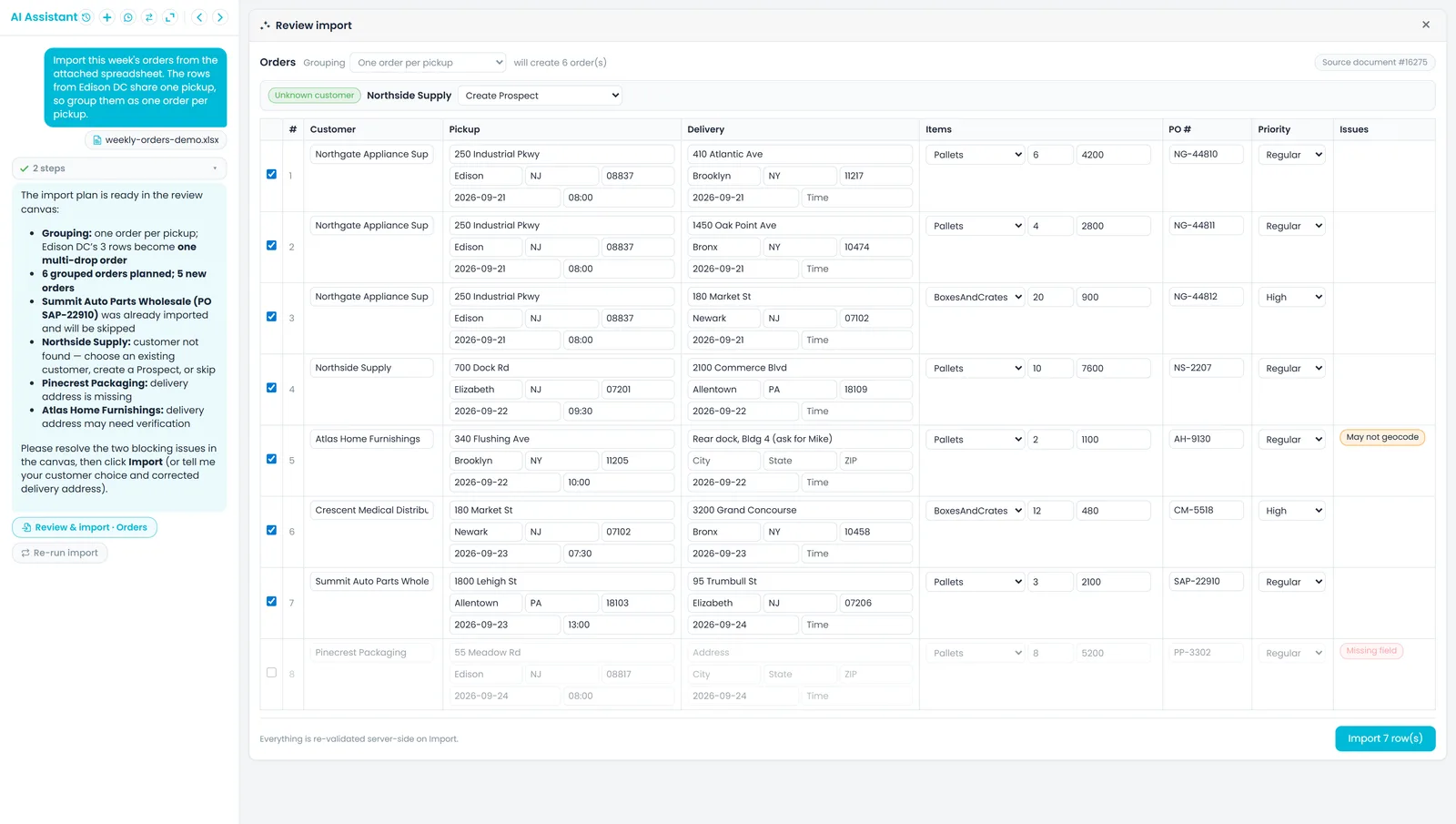
Orders come in typed by your team, booked by a shipper in the Customer Portal, or read from a spreadsheet or PDF by the AI assistant into a review table, where you fix the flagged rows and confirm what gets created. Dispatch assigns that same order to a route, the driver closes each stop in the driver app, and the invoice is created from the order.
- Imports reviewed row by row before anything is created
- Unknown customers are matched, created as prospects or skipped, never guessed
- The same order on the dispatch board, in the driver app and on the invoice
- Invoices created automatically when the order is created or completed
Safety & Compliance
Inspections and hours of service, recorded on the driver's phone
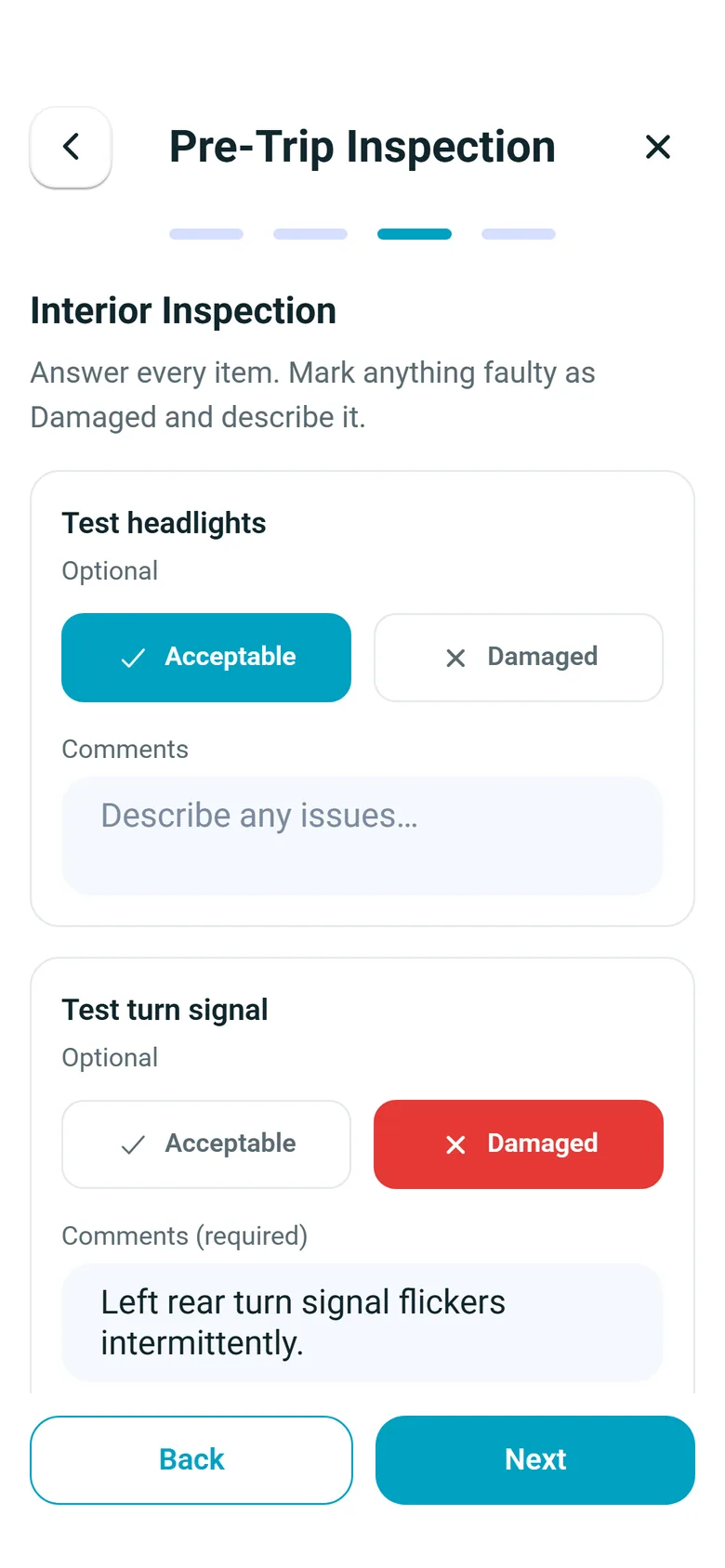
Drivers work through the pre-trip and post-trip inspection in the RushHour driver app. Every check is marked Acceptable or Damaged, a damaged item needs a comment, and the inspection carries photos of the truck and the driver's signature. The office reviews every inspection in Settings > Fleet > Truck Inspection Logs. The same app logs duty status against the hours-of-service clocks and warns the driver before a limit.
- Acceptable or Damaged on every check, with a comment for anything damaged
- Truck photos and the driver's signature on each inspection
- Daily fleet inspection log in the Portal, searchable by driver or truck
- Hours-of-service clocks with warnings; driver-logged, not a certified ELD
Security
Each person sees and changes only what their role allows
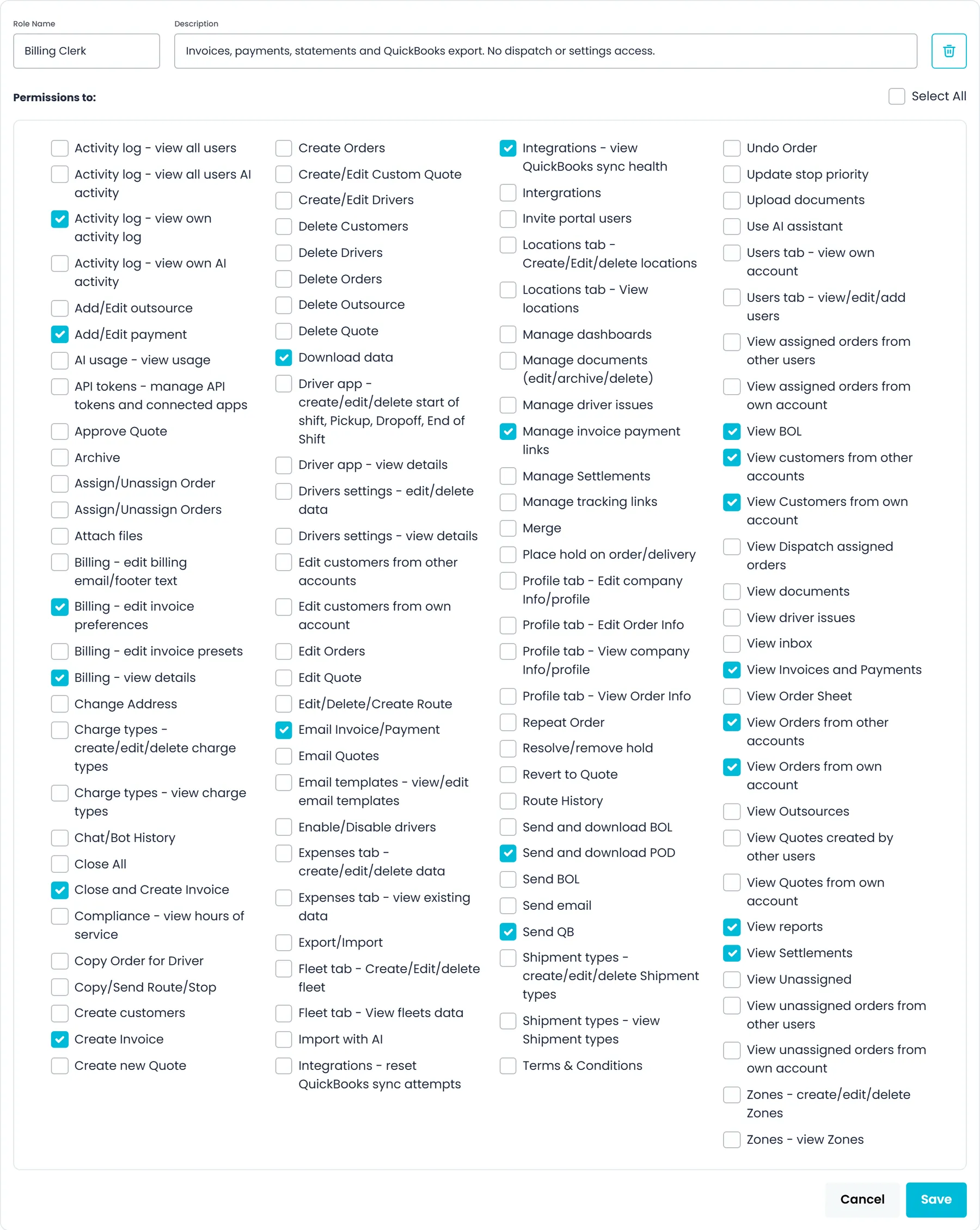
In Settings > Users > Roles, start from the built-in Admin, Dispatcher, Sales, Billing and Accounting roles, or add your own with a name and a description, then tick the permissions it gets in a checklist with Select All. A user can hold more than one role. Disable someone and their next request is refused, even if they are still signed in, and the activity log records who created, edited or deleted what.
- Built-in Admin, Dispatcher, Sales, Billing and Accounting roles
- Custom roles built from 100+ named permissions
- Several roles per user; a disabled user is refused on their next request
- Permissions for hours of service, driver issues and reportsNew in the October 2026 release
Truck Costs
See what each truck costs to run, per mile
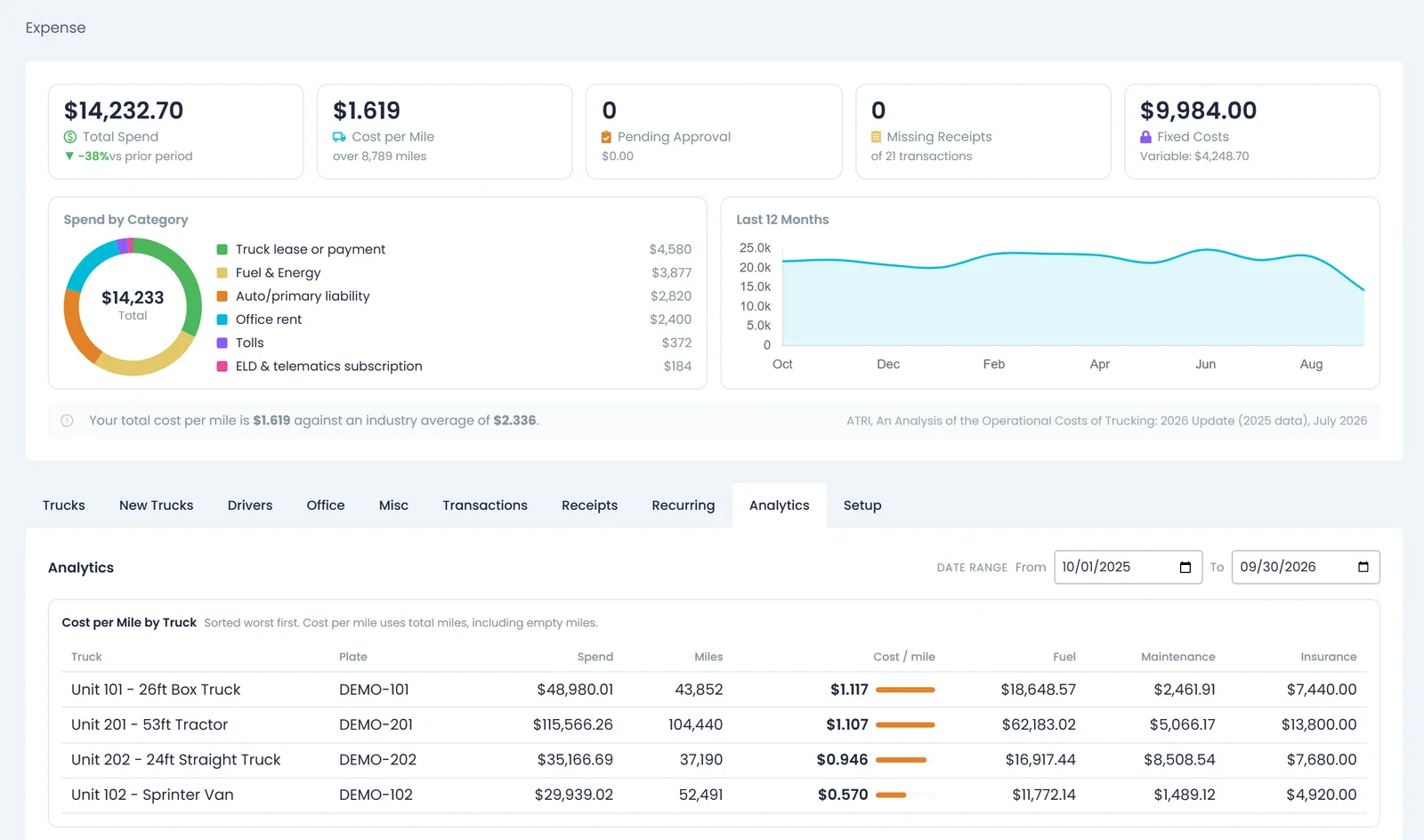
Fuel, repairs, insurance, truck payments and the rest land in one expense ledger: from drivers in the app, from receipts read by AI and checked in the office, or from recurring schedules. The summary at the top of the Expenses screens shows total spend against the prior period, cost per mile with the miles behind it, fixed against variable costs, spend by category and a 12-month trend, and the Analytics tab ranks your trucks by cost per mile with fuel, maintenance and insurance split out.
- Cost per mile by truck, worst first
- Spend by category and a 12-month trend
- Office receipts read by AI and checked before saving
- Miles come from the mileage and odometer entries your team records
Four more places to start
Customers, cash, carriers and connections
These four reach across several product pages, so here is what handles each one in production today.
Customer visibility
Shippers check their freight and their bill without calling you
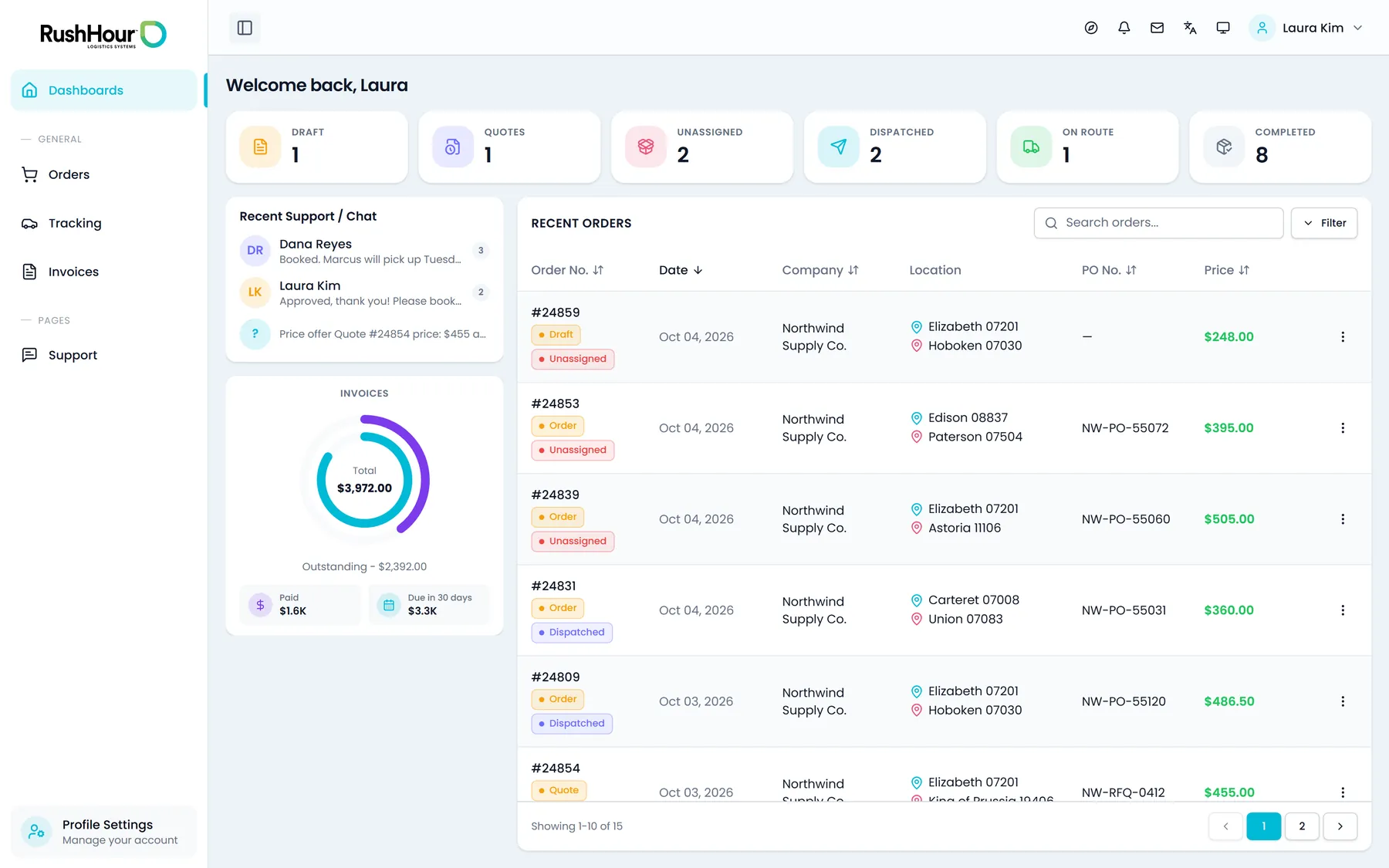
Give each shipper a Customer Portal login. Their dashboard counts their orders by status, from drafts and quotes waiting for approval to dispatched, on route and completed, totals their invoices, and lists recent orders and messages with your team. Each order shows its route on a map with an event timeline, and the files your office attaches to it. Shippers can also switch on late-delivery alerts for their own orders.
- Order counts by status and invoice totals on the shipper's dashboard
- Delivery photos, scans and signatures, BOL and order sheet PDFs, and invoices to view or print
- Late-delivery alerts the shipper switches on, in the portal or by email
- Tracking links that open without a login, emailed automatically if you chooseNew in the October 2026 release
- Emails to the customer when the driver arrives at or leaves a stopNew in the October 2026 release
Get paid faster
Invoice the order when it closes, and collect on it
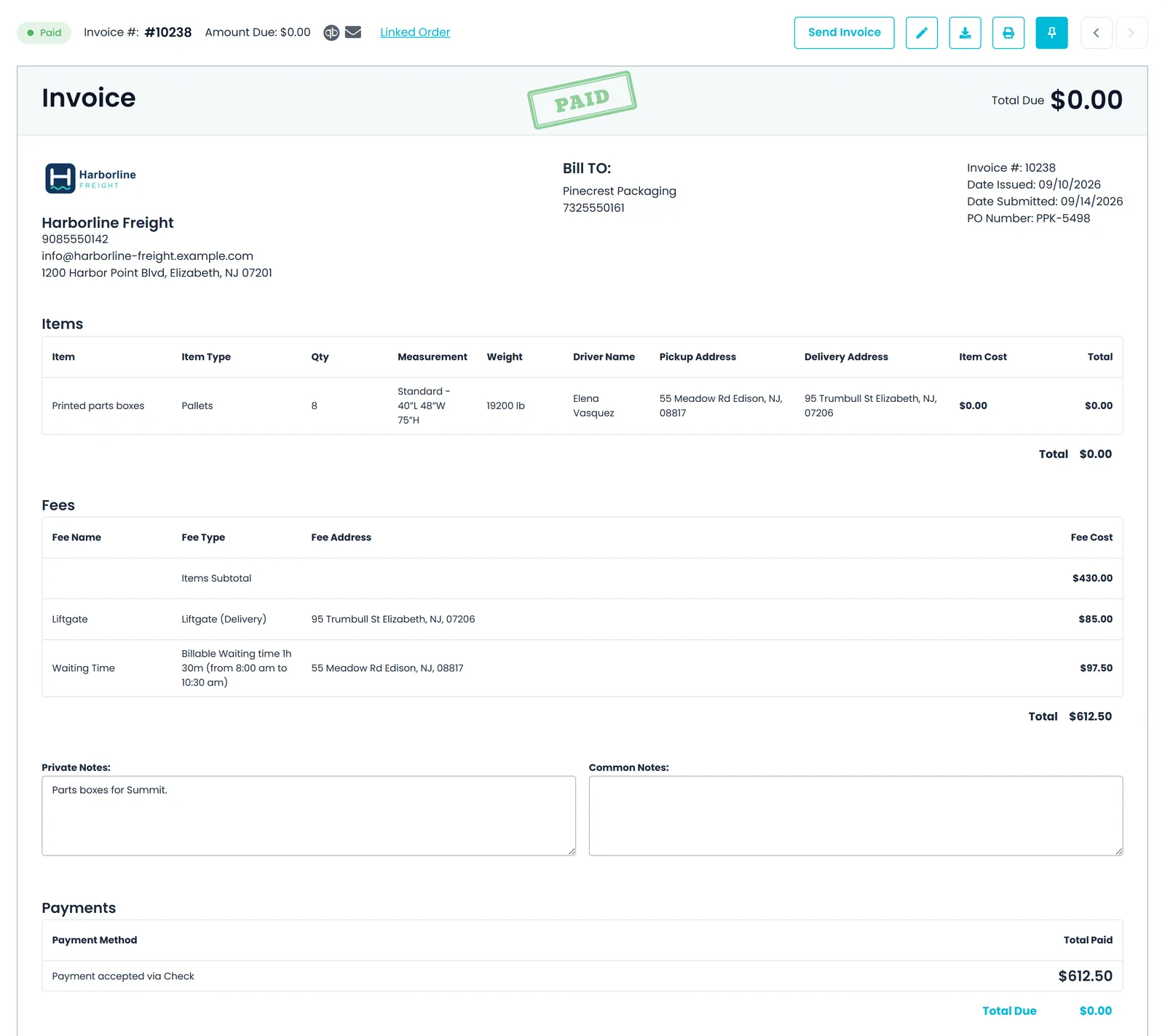
Settings > Billing decides when invoices create themselves: when the order is created, when it is completed, or only by hand. With either automatic setting, Close & Create Invoice closes the order and builds its invoice, if it has none yet, in one action. The lines come from the order: the agreed price, each stop's accessorial charges and the waiting time recorded there. Record cash or a check, charge the customer's saved card through your Cardknox account, or spread one payment across their open invoices, and see what is still owed, by age, in the AR aging widget on the dashboard.
- Automatic invoices when the order is created or completed, or by hand
- Saved-card charges through Cardknox, and bulk payments across open invoices
- Cash on delivery on a delivery stop, collected for your customer: record cash, check or ACH, or email a card payment request that pays into the customer's own Cardknox account
- AR aging in 0-30, 31-60, 61-90 and 90+ day buckets on the dashboard
- Pay links on approved invoices, so customers pay by card through your Cardknox account without logging inNew in the October 2026 release
Outside carriers
The carriers you hire, on the same board as your fleet
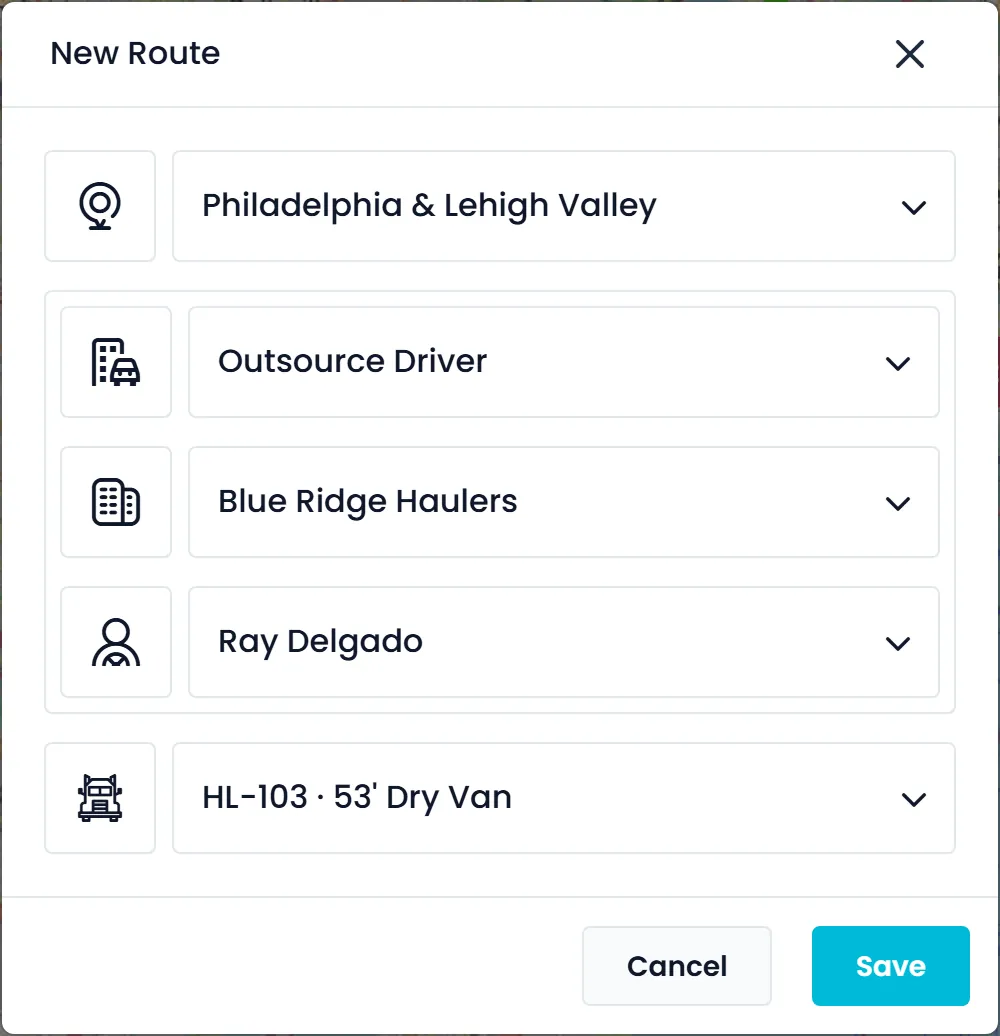
Keep each carrier you hire as a record with its contacts, the truck types it runs and the rates you agreed: a fixed amount, per mile or km, per hour or a combination, plus free waiting time and a discount per order. Link its drivers to it and give them routes from the same New Route window you use for your own drivers. They work their stops in the same RushHour driver app, with the same photos, paperwork scans and signatures.
- Contacts, truck types and agreed rates on each carrier
- New Route: switch to Outsource Driver, then pick the carrier and its driver
- The same driver app and stop steps as your own drivers
- A Payouts page to settle driver and carrier pay, route by routeNew in the October 2026 release
Connect your systems
Switch on what you already use, and reach the rest through the API
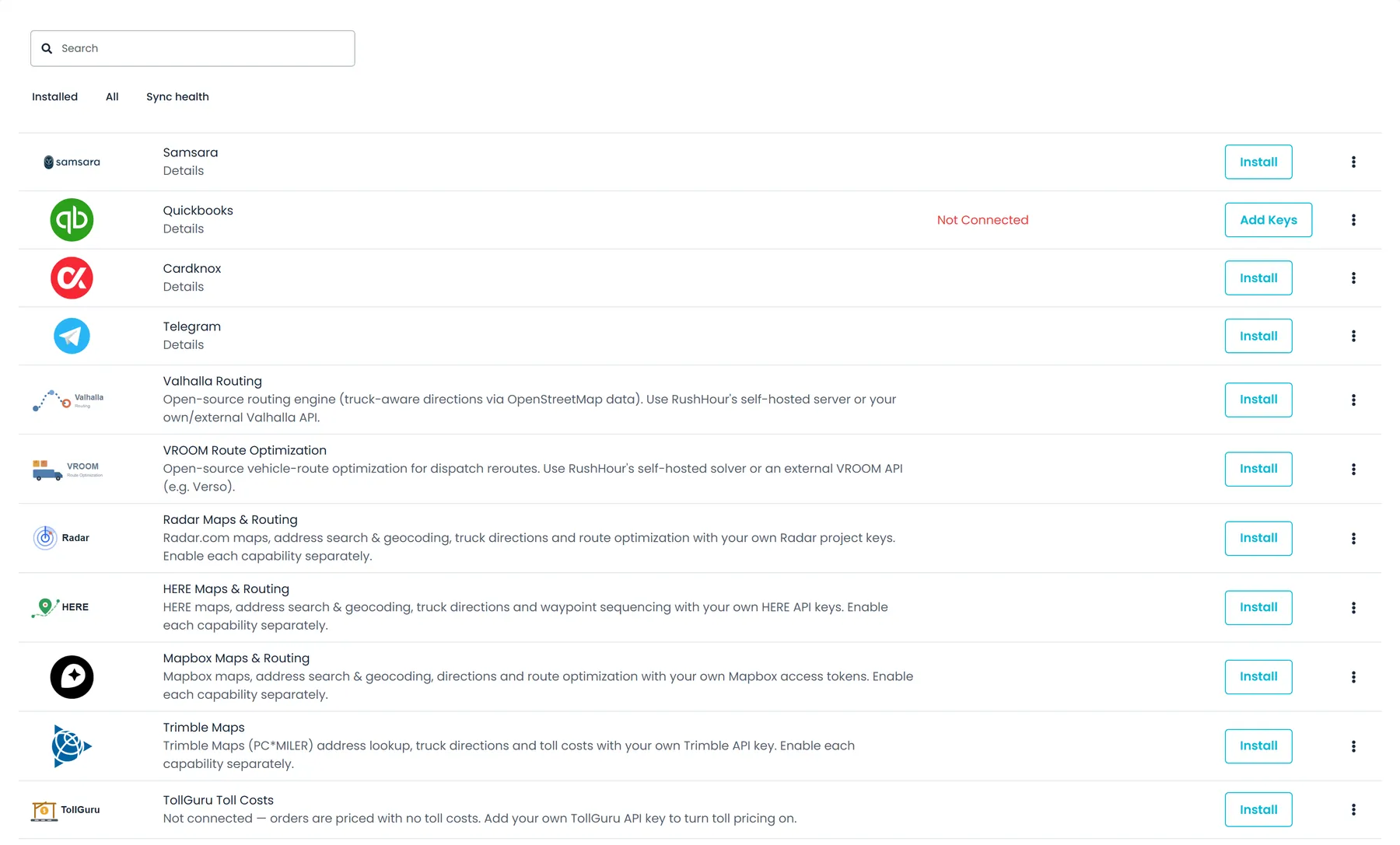
Settings > Integrations connects Cardknox for card payments, Samsara for truck positions, Telegram for sending route details to drivers, your choice of map provider, and the Valhalla and VROOM routing engines, most of them with your own account or keys. Anything else can use the RushHour REST API, documented at docs.rushhourapp.com. It is the same API RushHour's own portals and driver app use, and every request runs as a RushHour user, with that user's permissions.
- Cardknox, Samsara, Telegram, map providers, Valhalla and VROOM
- QuickBooks Desktop export
- Public API reference listing the permissions endpoints require
- No webhooks: integrations check for changes on a schedule
- API tokens, each limited to the roles you pickNew in the October 2026 release
Why the pages connect
One order, one driver app, one invoice
The solutions are angles on the same system, not separate modules.
The order
Entered once by your team, booked by a shipper in the Customer Portal, or imported. Dispatch assigns that same order to a route.
The driver app
The app that runs the route also takes the driver through inspections and logs duty status for hours of service.
The invoice
Built from the order's items, price and the charges recorded at each stop, then approved, emailed or sent to QuickBooks Online.
By company type
Or start from the kind of operation you run
Each industry page shows how an operation like yours prices, dispatches and proves its deliveries in RushHour.
Questions
Common questions
Which page should I start with?
Start with the card for the problem that costs your team the most time. Efficiency, Safety & Compliance and Security each have their own page, and the other cards open the product pages for truck expenses, the Customer Portal, billing, outside carriers and integrations. They all describe one system: the order your team enters is the same record the driver works in the app and the invoice is built from.
What do Next release and Coming soon mean on these pages?
Next release marks work that is finished and in final testing. It ships with the next production release, and the changelog lists what that release contains. Coming soon marks work that is planned but not built yet. Anything without a marker is in production today.
Can our customers check on their freight without calling dispatch?
Yes. Give each shipper a Customer Portal login. Their dashboard counts their orders by status and totals their invoices, each order shows its route on a map with an event timeline, and they can open the files your office attaches to the order, download the BOL as a PDF, view or print the invoice, and switch on late-delivery alerts for their own orders. You can also send them tracking links that open without a login, emails when the driver arrives at or leaves a stop, and a proof-of-delivery PDF with the driver's photos and signature.
Does RushHour handle carriers we hire, or only our own trucks?
Both. Each outside carrier gets a record with its contacts, the truck types it runs and the rates you agreed, as a fixed amount, per mile or km, per hour or a combination. Link its drivers to it, give them routes from the same New Route window you use for your own drivers, and invite them to the RushHour driver app, where they complete stops the same way your drivers do. The Payouts page in Accounting settles driver and carrier pay.
Can RushHour connect to our other software?
Settings > Integrations connects Cardknox, Samsara and Telegram, your choice of map provider, and the Valhalla and VROOM routing engines, and invoices can be exported to a file for QuickBooks Desktop. For anything else there is a REST API documented at docs.rushhourapp.com, the same API RushHour's own portals and driver app use. Every request runs with the permissions of a RushHour user or of an API token that a company admin creates. RushHour does not send webhooks, so integrations check for changes on a schedule.
Which of these costs you the most time?
Tell us, and the demo starts there, with the workflow that handles it.