
Build the day's routes
on one board.
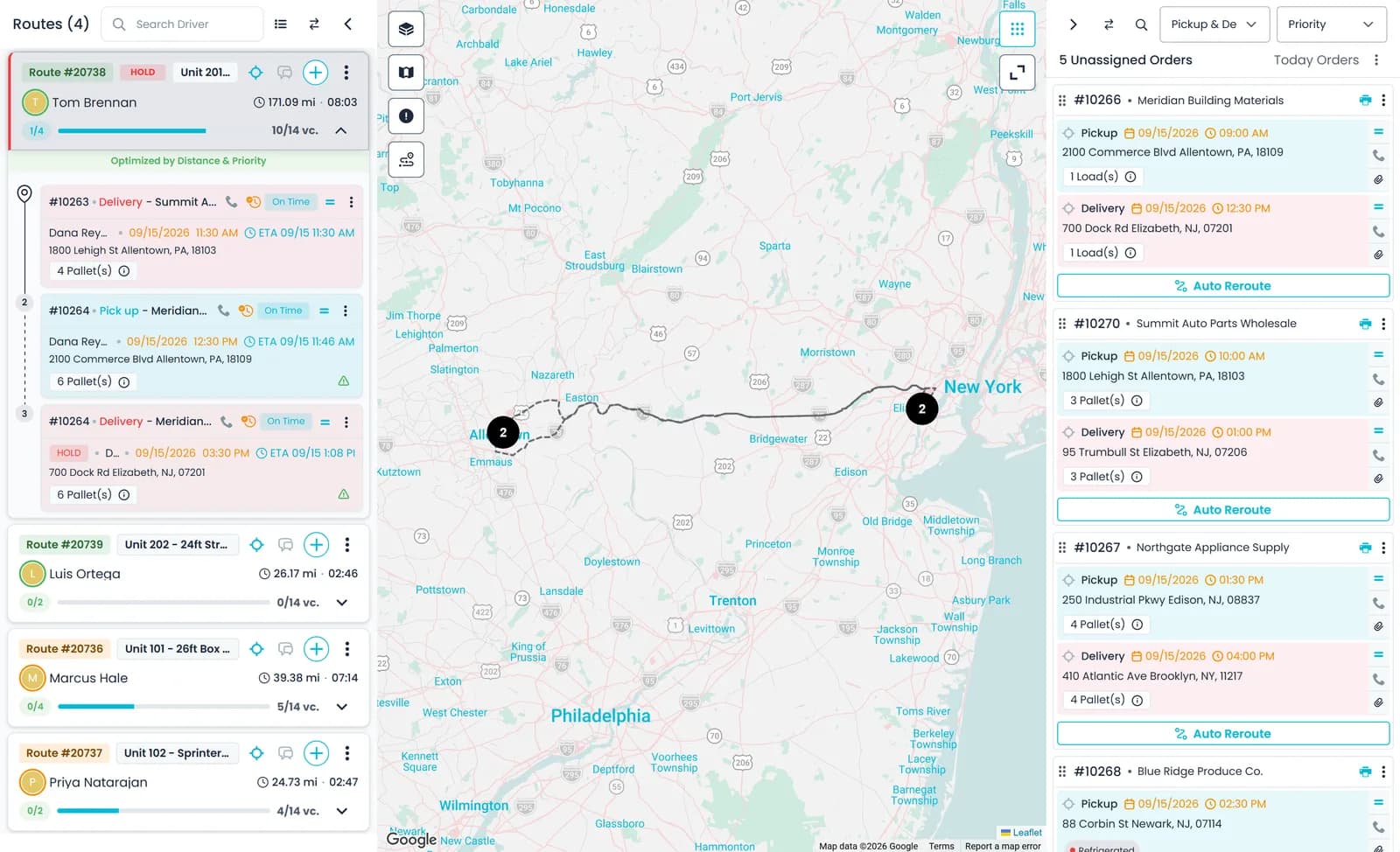
Orders waiting for a truck on one side, each driver's route on the other, the map in between. Drag an order onto a route, move a stop to another truck or back to the queue, and the driver gets a push notification when their route changes.
How a load moves
From booked order to invoice
Every step happens on the same order, so dispatch, drivers and billing work from one record.
1. Waiting for a truck
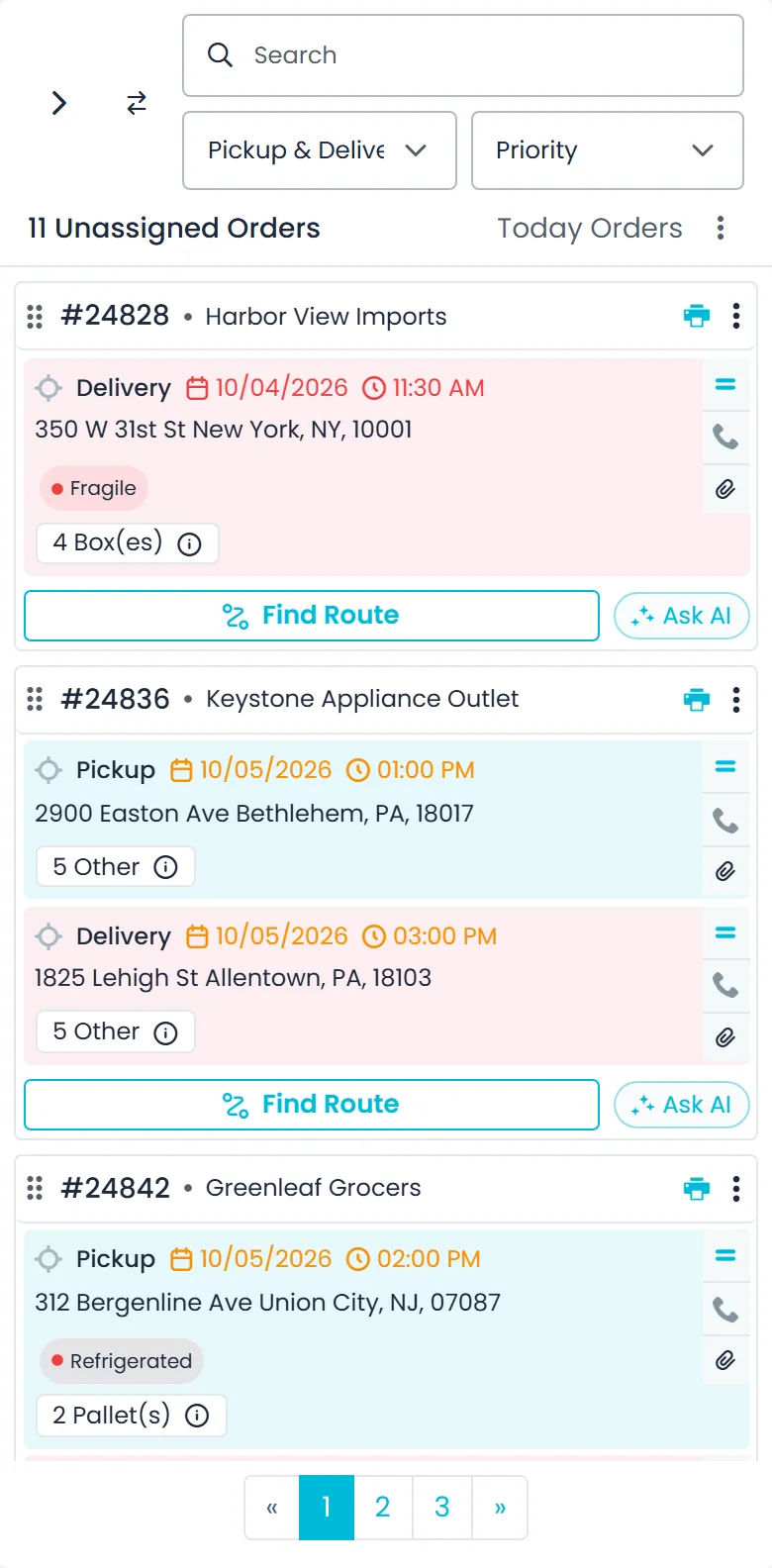
Booked orders' pickups and deliveries that aren't on a route yet wait in the Unassigned panel, grouped by order, with their appointment times.
2. Assigned to a route
Drag the order onto a route, take a best-fit route suggestion, or draw a circle on the map and assign the pickups inside it.
3. Driver informed
The driver gets a push notification in the driver app when a route is assigned or changes. You can also copy the route as text or send it to the driver's Telegram.
4. Stops worked
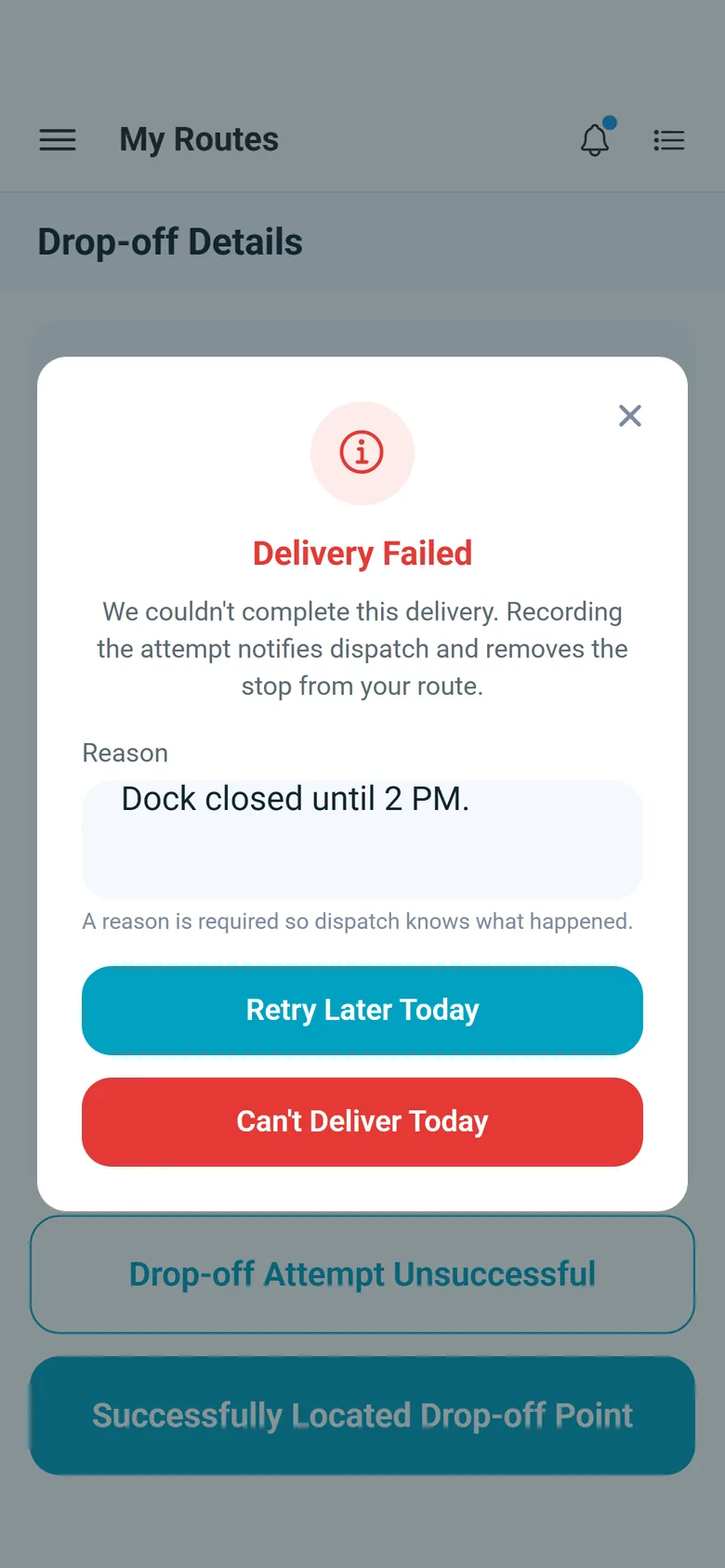
Drivers work each stop in the driver app. A stop that can't be done comes back to the Unassigned panel with the driver's reason.
5. Proof saved
Goods photos, scanned paperwork and the consignee's signature are saved on the stop. The office can also confirm a stop with its times and files.
6. Ready to bill
Stop charges carry into the order's invoice, and so does waiting time beyond the free time, priced by your waiting-time charge and listed with the arrival and departure times.
How the day runs
From unassigned order to confirmed stop
Assign
Drag the order onto the route
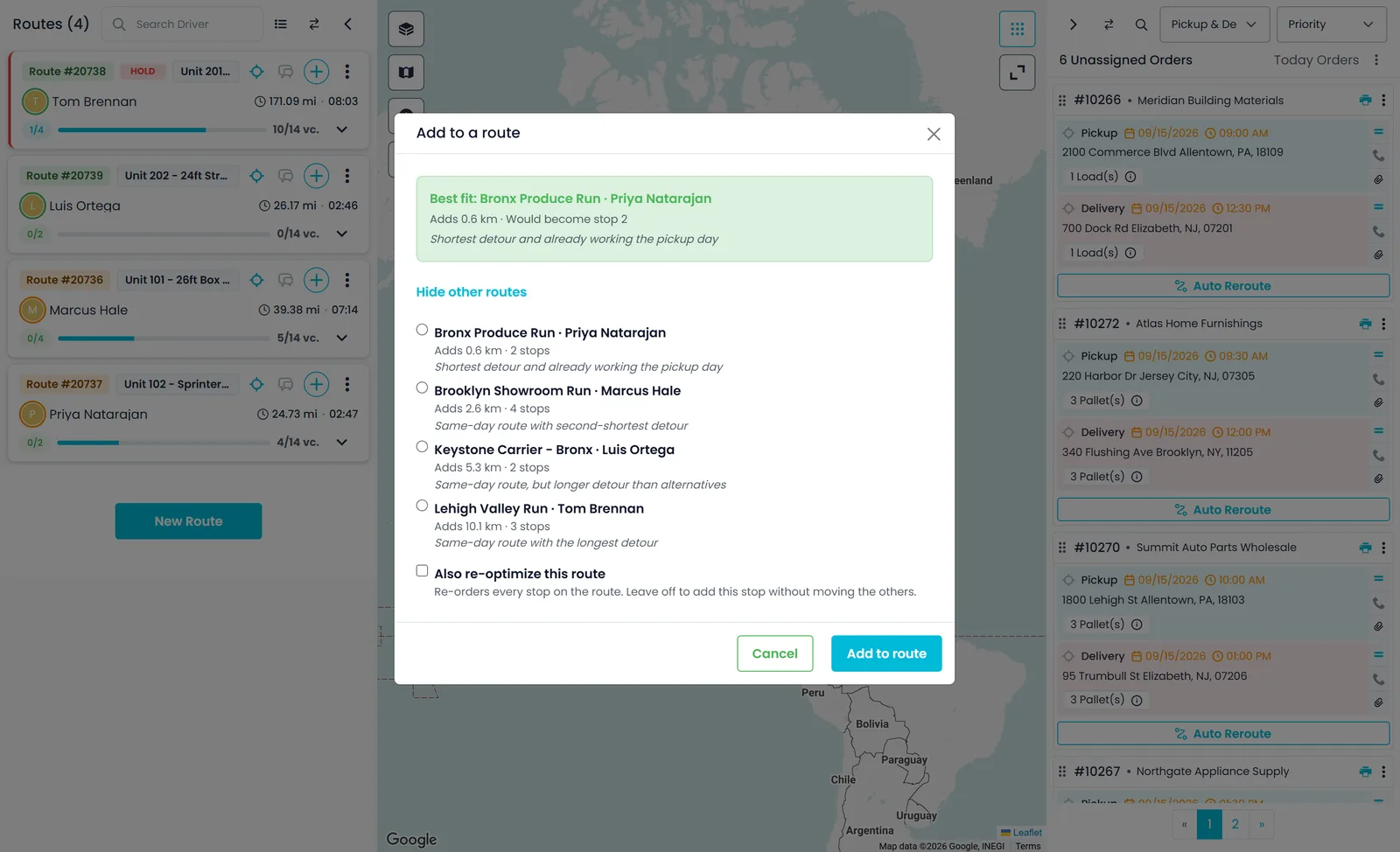
Everything that still needs a truck waits in the unassigned panel. Search it by order number, customer, phone or address, then drag an order card onto a route card. Not sure which route should take a pickup? The card's Auto Reroute button opens Add to a route, which works out the approximate distance each active route would add, ranks the routes with a short reason for each, and shows which stop number the pickup would become.
- Drag and drop from the unassigned panel onto any route
- Best-fit route suggestions with the approximate distance each one adds
- Your per-route stop limit is enforced, with a warning when a route goes past the pallet limit, a single limit that applies to every truck
- Filter the panel to Pickup & Delivery, Pickup, Delivery or Warehouse, and print the BOL, view or void an order from its card
- The + on a route card adds pickups or deliveries found by ZIP, city or state: one at a time, a whole order, or every match
- With a route selected, click the map to drop a circle, resize it, and assign the unassigned pickups inside it to that route
Drivers and carriers
Your own drivers and outside carriers on the same board
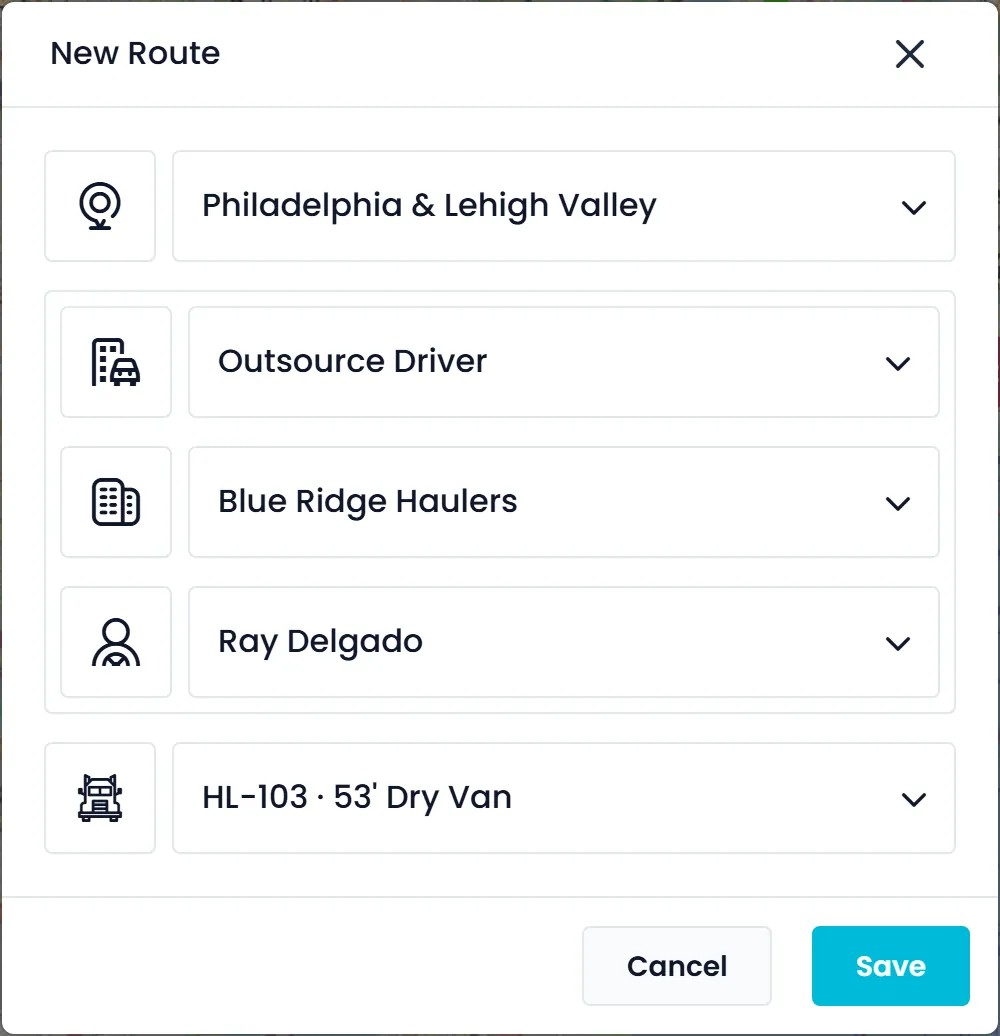
When you create a route, pick the zone, the driver type and the truck. For your own fleet, choose a company driver. For outsourced work, choose Outsource Driver, pick the carrier company, then one of that company's drivers. Each carrier record keeps its own finance profile: the type of work, a fixed, per-distance or hourly cost, free waiting time and an agreed discount.
- Company drivers and outsource drivers in one route dialog
- Carrier records with their rates, free waiting time and discount
- Hand a route to a different driver without rebuilding it
- Carrier drivers can work their stops in the RushHour driver app too
- Zones come from Settings > Zones (name, country, state, city and ZIP code range), are separate from pricing zones, and filter the board
Route cards
Every route's status at a glance
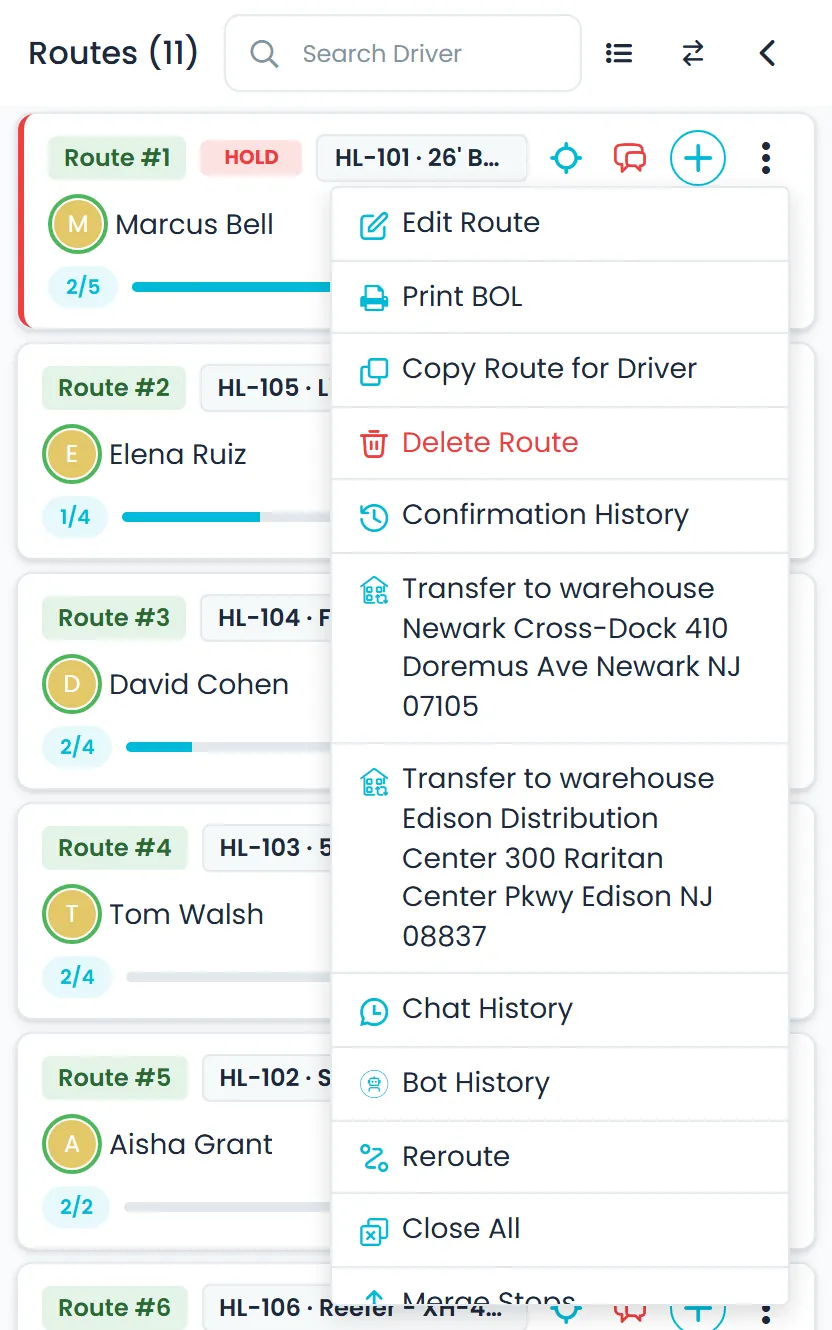
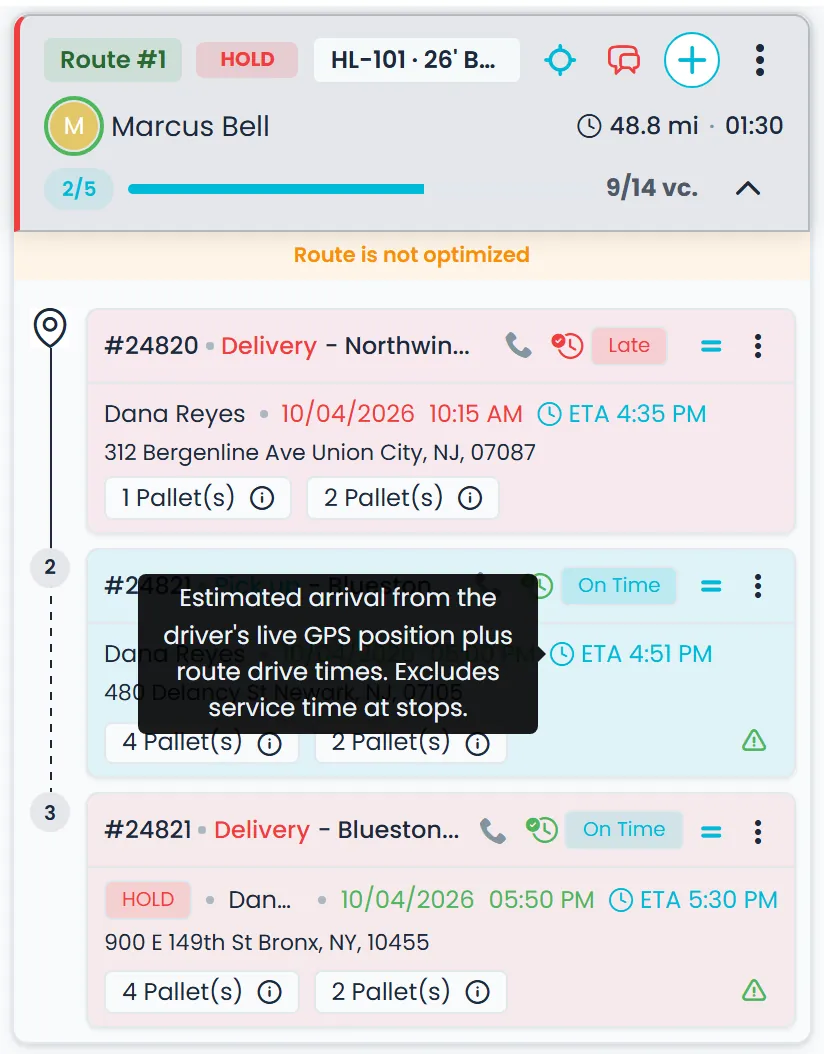
Each route card shows the truck, how many assigned stops are confirmed, how many pallet spaces are in use, and a HOLD badge when a stop on the route is on hold. The card menu covers the daily jobs: print the BOLs, copy the route for the driver, open the route's chat history, close all stops, start a pending route now or next, and archive it when the day is done.
- Confirmed and assigned stop counts with a pallet load bar
- A HOLD badge when any stop on the route is on hold
- Print BOLs, copy the route, close all stops and archive
- Driver, truck and plate, route distance and time, and buttons that show the truck's position with the route's stops on the map (when a position is known), open the route chat or add stops
- Confirmation History lists the route's confirmed stops (Route History permission), and the Completed Routes switch brings finished routes onto the board
- The same menu re-optimizes the route, merges stops at the same address into one card, parks picked-up freight at one of your warehouses and restores a completed route
- Confirm a route's last open stop and you're asked whether to archive the route or continue it
Stop cards
Every stop shows what's planned and what's still missing
Expand a route and each stop has its own card: the order number and customer, the stop type, the appointment date and time color-coded with a tooltip, the address, and a badge for each item. Warning icons point to what is still missing, such as a pickup or delivery that isn't on a route yet, a delivery that hasn't been created, items not allocated, or a transfer or HUB hand-off to assign, and a click takes you to the fix. Stops are confirmed in order, pickup first and delivery last with any transfer legs in between, and a message says what to confirm first.
- Pickup, Delivery, transfer and HUB stops; open stops show On Time or Late
- Set a stop's priority right on the card; Optimize by priority uses it
- Stop menu: Copy Stop for Driver, Order Sheet, Driver Instructions, BOL, Change Address, Set HOLD and Merge Stops
- Warning icons for Assign Pickup, Assign Delivery, Create Delivery, Allocate Items, Assign Transfer and Assign HUB
- Open stops can show an ETA chip; completed stops show when the driver arrived and how late
- Restore a confirmed stop to open from the route's Confirmation History
Office confirmation
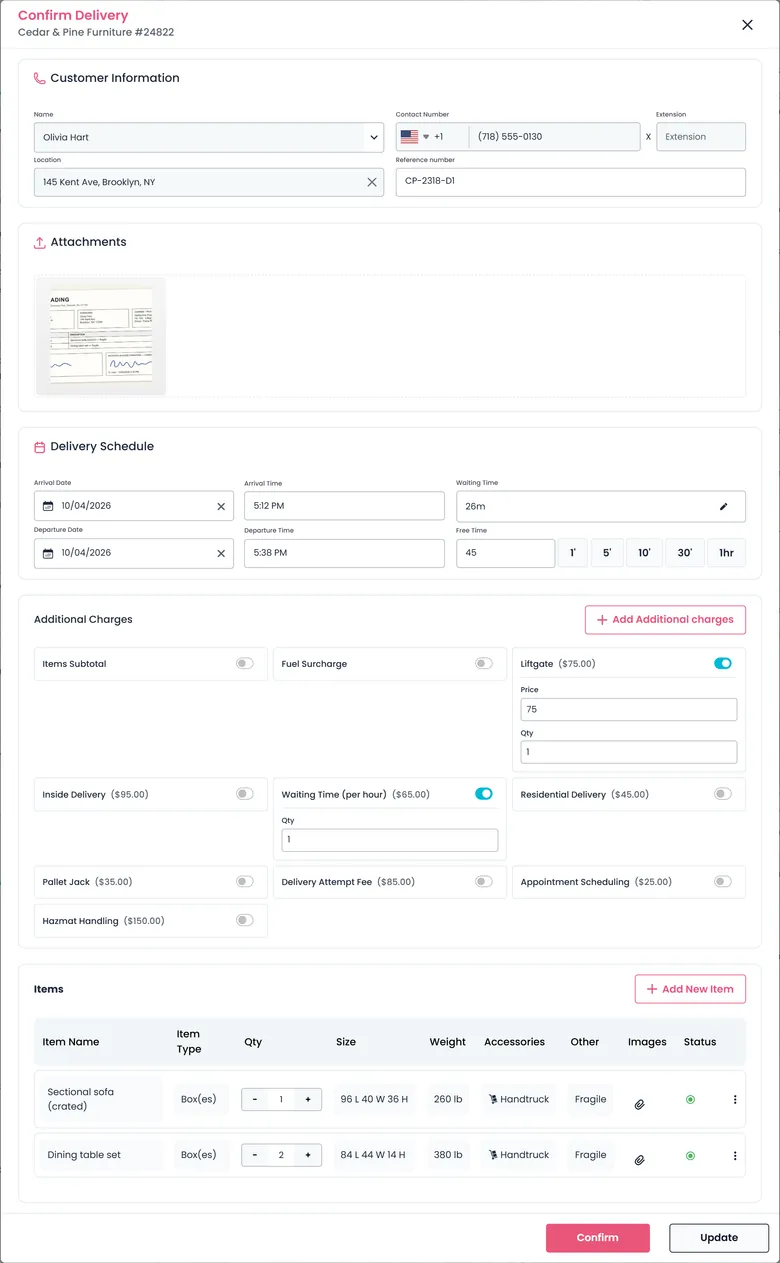
Confirm a stop from the office, with the details billing needs
When a driver isn't on the app or calls a stop in, open the stop's status and confirm the pickup or delivery from the board. The window shows the stop's contact, phone number and location. Record the arrival and departure date and time, the waiting time between them, the stop's free time and a reference number. Attach files such as signed paperwork, adjust item quantities or add items, and add accessorial charges. Update saves your entries without confirming the stop.
- Arrival and departure date and time, with quick buttons that add 1, 5, 10 or 30 minutes or an hour to the departure
- Waiting time is filled in from the arrival and departure times and can be lowered; a longer waiting time moves the departure to match
- Switch on charges from your per-stop charge types, with a price or quantity where the charge type allows it, or create a new charge type with its name and price per unit
- If the order is already invoiced and its total changes, you're asked whether to update the invoice
- Items left over on the last stop? Confirm & Create Order or Confirm & Create Delivery
- Close All on a route card confirms every open stop at once, for users with the Close All permission
Changes and exceptions
Handle the stop that didn't go to plan
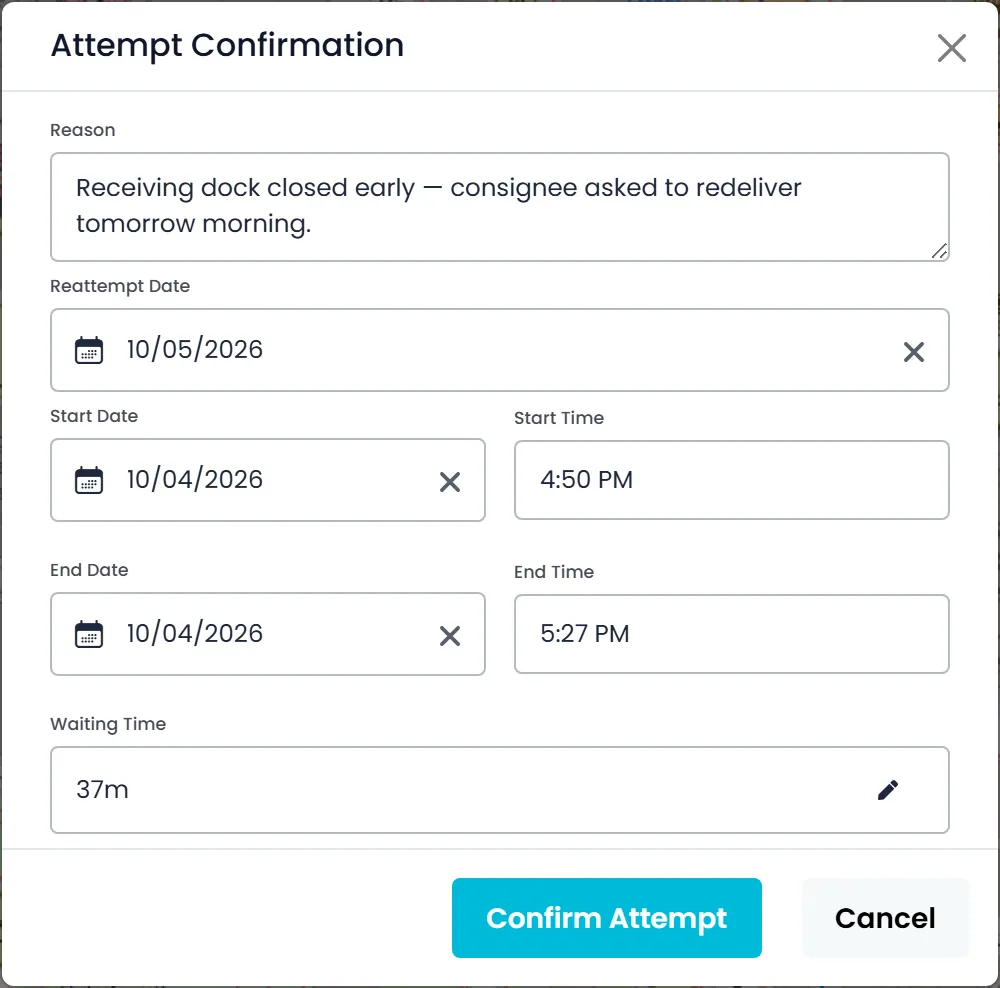
Move a stop to another route and choose what goes with it: only that item, the whole order, only its pickups or only its deliveries. Set a hold from a stop's menu, and the driver can't complete a held delivery until someone resolves the hold. If the driver couldn't complete a stop, send it back to the unassigned panel as a failed attempt with a reason and a re-attempt date. Freight can also change trucks through a transfer at a warehouse or any address.
- Move one item, the whole order, only pickups or only deliveries
- Set, view and resolve a HOLD from the stop menu; the driver can't complete a held delivery
- Failed attempts go back to the queue with a reason and re-attempt date
- Dragging a stop back to Unassigned asks whether it was a failed attempt, and records the reason, a re-attempt date and a time window
- Settings > Driver App > Preferences decides whether transfer legs are removed, with or without telling the paired driver, or kept after a failed attempt
On the driver's phone
What the driver sees after you dispatch
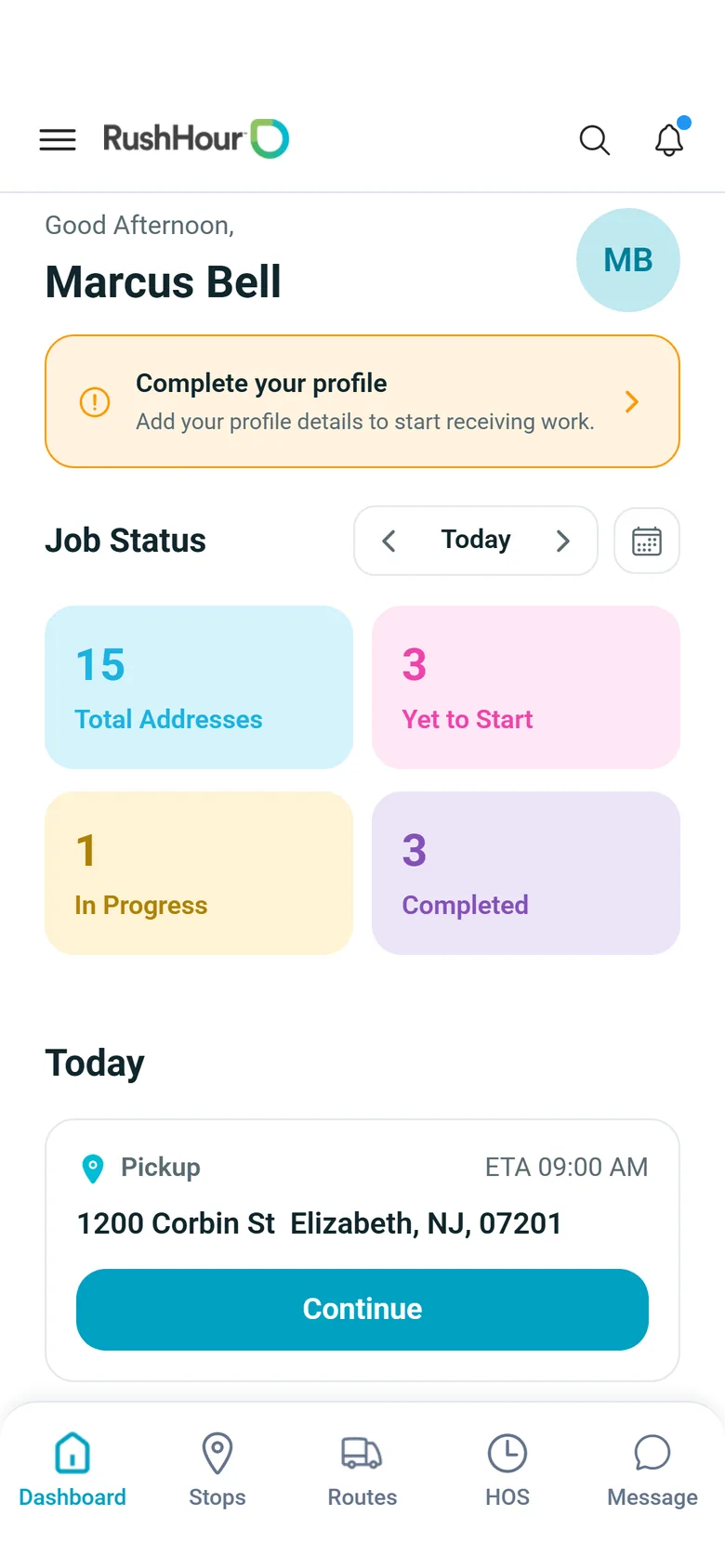
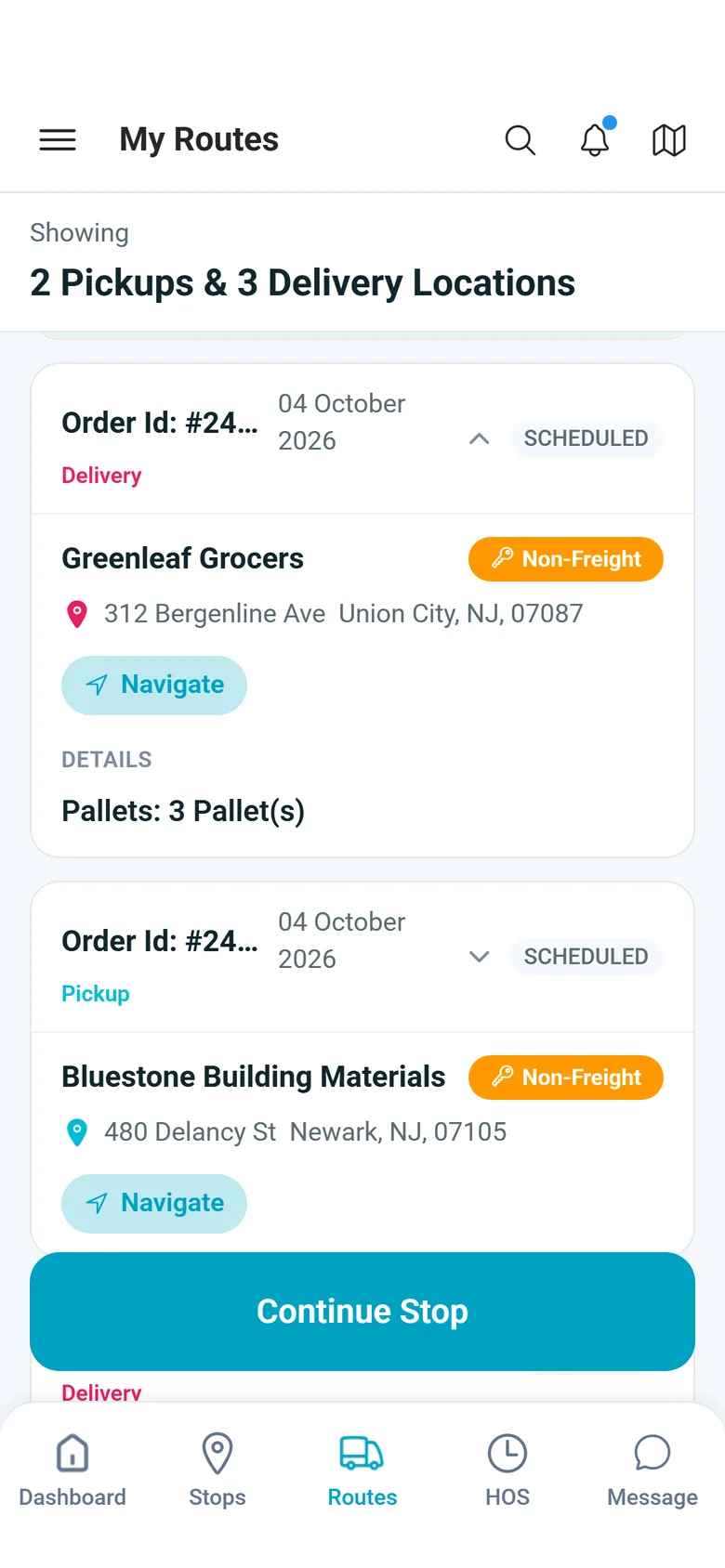
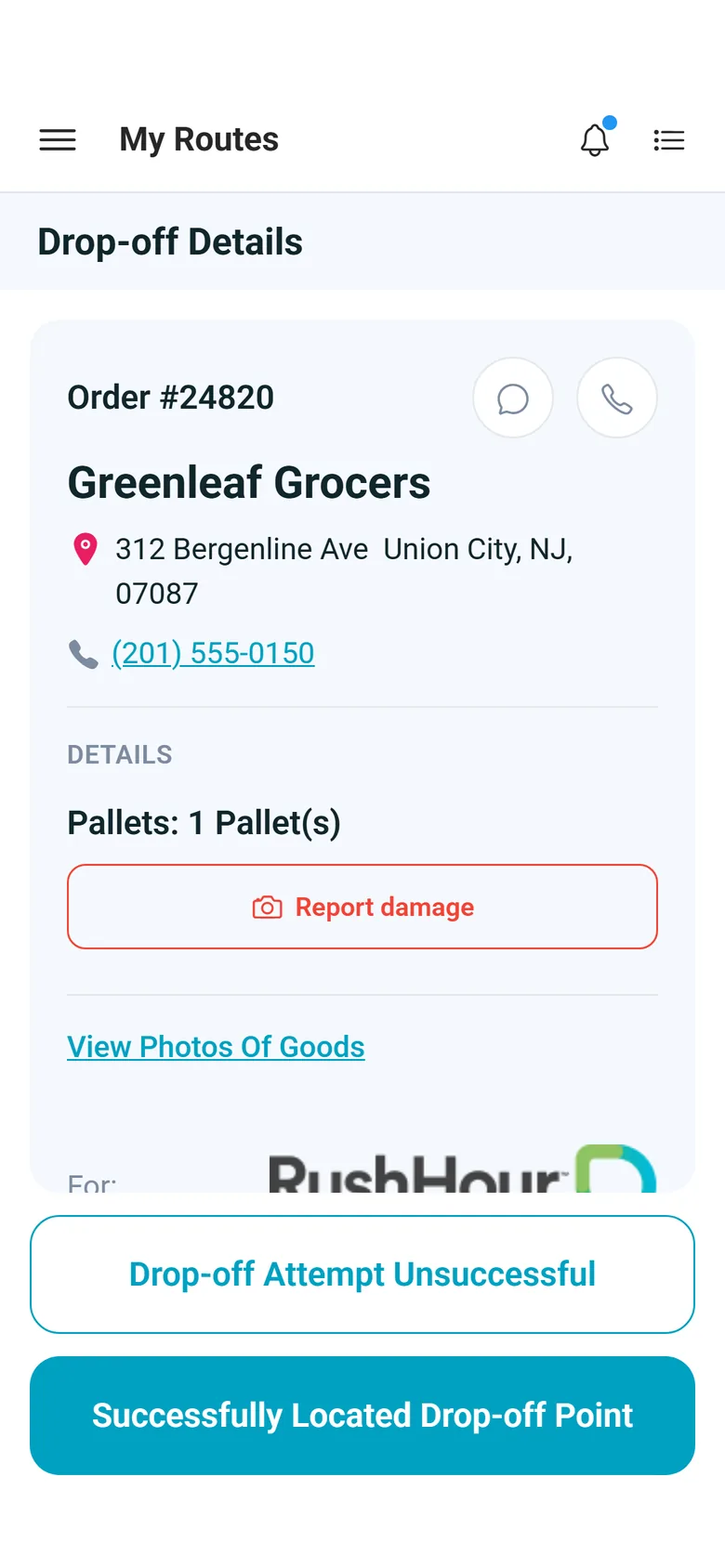
Drivers on the RushHour driver app for Android and iPhone get the route you built, stop by stop. The app itself is in English.
Around the board
Drivers, paperwork and the map, from the same screen
Get the route to the driver, print what the stop needs, and arrange the board the way you work.
Send to the driver
Give drivers their stops, in the app or as a message
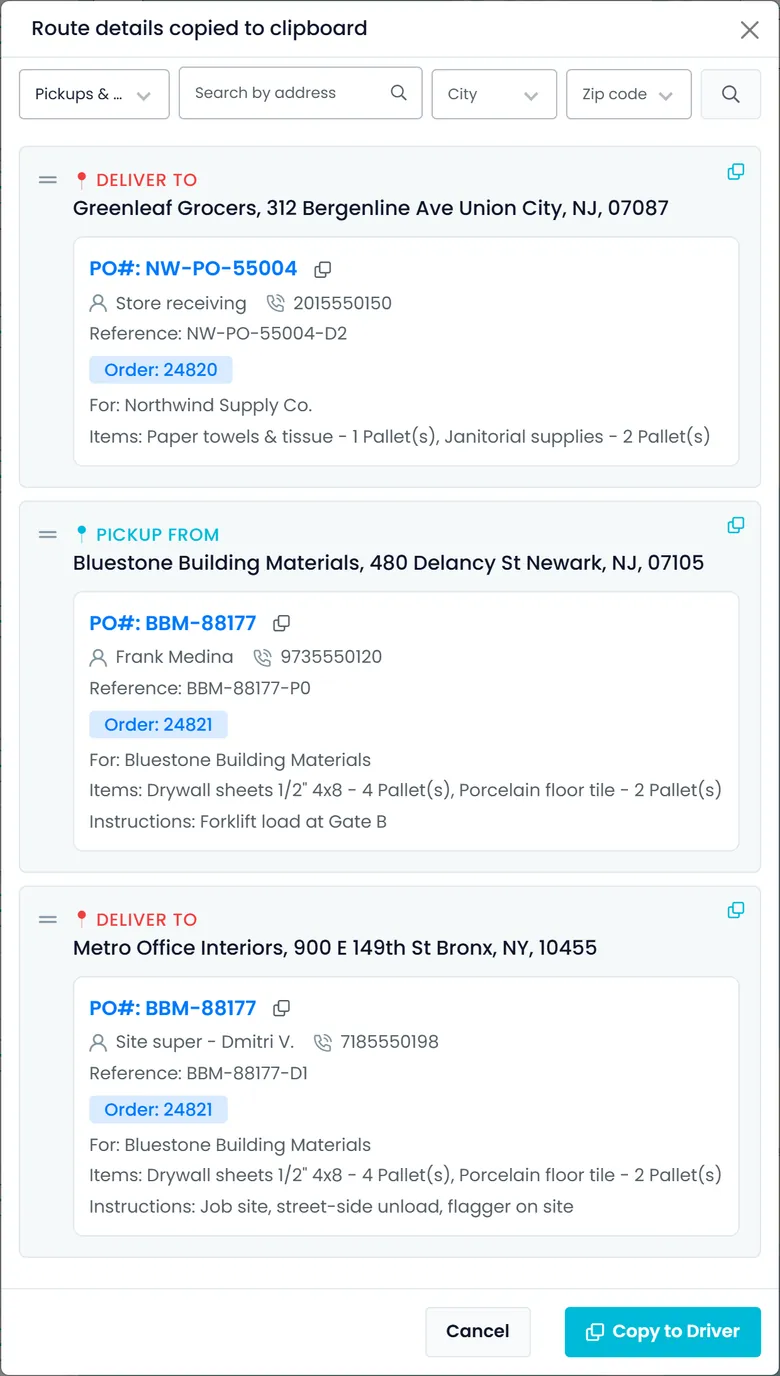
Copy Route for Driver turns a route into one message per stop, with the order number, contact and phone, PO number, reference, who the freight is for, the items and the driver instructions. Drag the messages into the order you want, and combine stops at the same address into one message. The text goes to your clipboard for any messaging app, and when the driver's profile has a Telegram user ID and your Telegram account is connected, RushHour also sends it to the driver on Telegram. Copy Stop for Driver does the same for a single stop.
- One message per stop, with a button that copies just the PO number
- One message for stops at the same address, and messages reordered by dragging
- Copied to the clipboard, and sent to the driver on Telegram when they are linked
- Print BOL for a route: tick the stops, or Select all, and print their bills of lading together
- Order Sheet for a stop's order, to view or download as a PDF
- Edit a stop's Driver Instructions from the board, and open the route's chat with the driver from its card
Map and ETAs
The map where your dispatchers want it
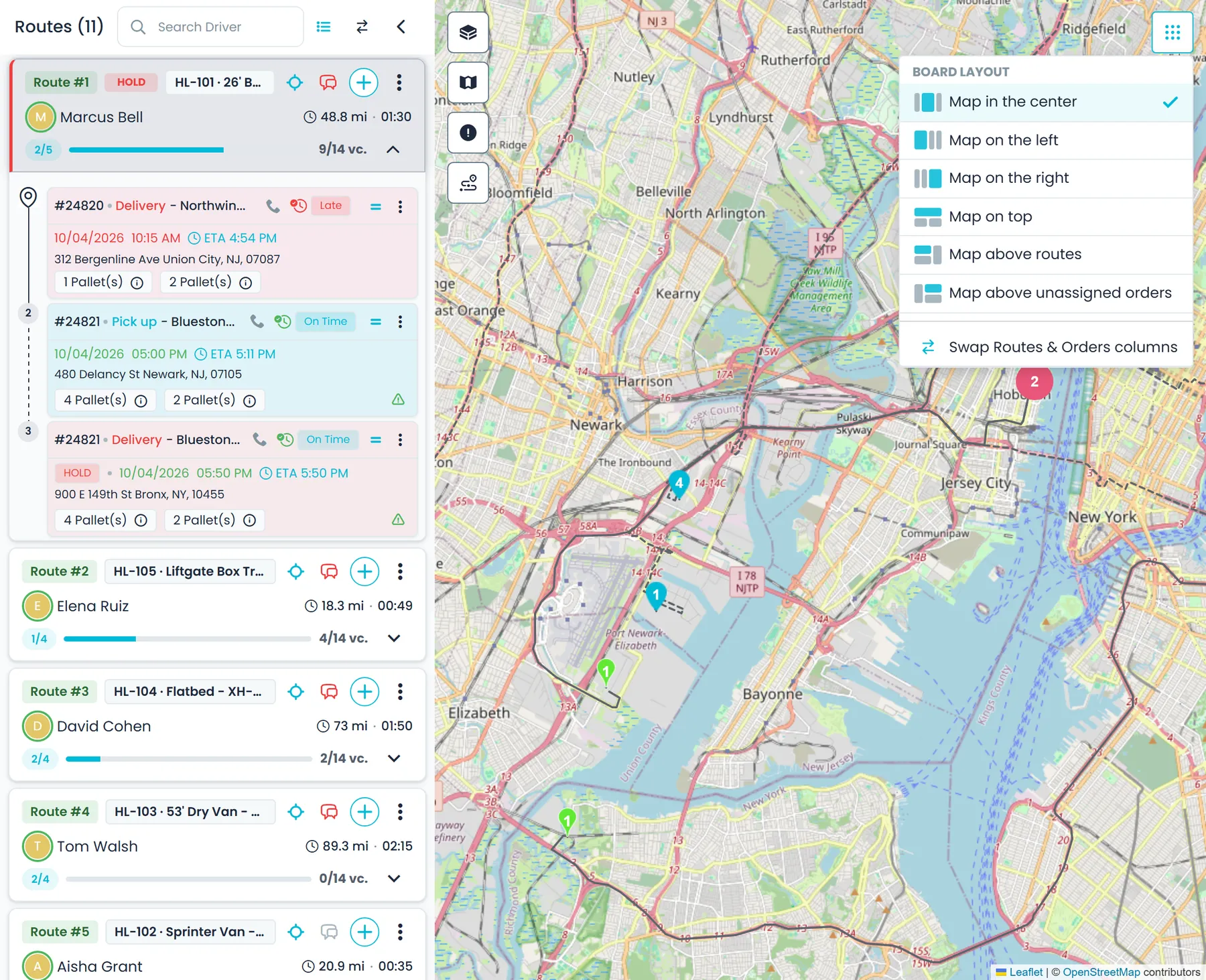
Put the map in the center, on either side, across the top, or above the routes or the orders column, and swap the two columns: twelve layouts, saved for each user, with compact or comfortable cards. Open stops can show an ETA chip built from route drive times. When the truck is linked to Samsara, the ETA starts from the truck's position, and without a Samsara position it starts from the driver's phone if the driver app has sent a location in the last 20 minutes. Otherwise it runs from the last completed stop or the planned schedule. The chip's tooltip says whether it used a live GPS position, the last stop or the schedule.
- 12 board layouts, saved per user
- Per-stop ETA chips that show where the estimate comes from
- Filter by zone, country and date, or search for a driver
- Your layout and card density follow you to any computer, and a map placed on the left or right stays on that side when the Portal is in Hebrew
- Search matches the route name, driver, truck and plate, and the orders on a route: customer, phone, order, PO or tracking number, address, city, state or ZIP
- The zone, country, Completed Routes switch and the selected or expanded route stay in the page address, so a bookmark or a shared link reopens the same view
Truck positions
Truck positions on the map, if you run Samsara
RushHour does not sell tracking hardware. If your trucks already run Samsara, connect your account and link each truck to its Samsara vehicle. Those trucks then appear on the dispatch map, refreshed about every two minutes while the board is open, and their positions feed the stop ETAs. Without Samsara the board works the same; trucks simply have no position on the map.
- Samsara-linked trucks on active routes shown on the dispatch map, with the driver, plate and truck name on hover
- Positions refreshed about every two minutes while the board is open
- Without Samsara the board works the same, with no truck positions on the map
Dispatch, drivers and admins on the same routes
Dispatchers
Assign, move and confirm stops, record failed attempts, place and resolve holds, and re-order a route when the day changes.
Drivers
Get a push notification when a route is assigned to them, and when a stop is added, removed, moved to or from their route, or re-sequenced.
Admins
Dispatch has 18 separate permissions, covering assigning orders, creating and editing routes, Close All, archiving, changing addresses, Route History, merging stops and sending BOLs. You also choose whether a user sees only their own account's orders or other users' too.
Measured on the RushHour platform
FAQ
Questions about the dispatch board
Do I need Samsara or other GPS hardware to use the dispatch board?
No. RushHour doesn't sell tracking hardware, and the board works the same without it. If your trucks run Samsara, linked trucks appear on the dispatch map and their positions feed the stop ETAs. Without Samsara, an ETA starts from the driver's phone when the driver app has sent a location in the last 20 minutes, and otherwise from the last completed stop or the planned schedule.
Do my drivers have to use the RushHour driver app?
No. Without it you can copy a route or a single stop as text for any messaging app, send it to the driver on Telegram once your Telegram account is connected, print the route's BOLs, and confirm each stop from the office with its arrival and departure times. Drivers on the driver app for Android and iPhone get their routes on the phone, a push notification when a route is assigned or changes, and stop-by-stop screens whose confirmations land on your board.
Can I dispatch outside carriers on the same board as my own drivers?
Yes. When you create a route, choose Company Driver for your own fleet, or Outsource Driver and then the carrier company and one of its drivers. Carrier routes sit on the same board with the same drag-and-drop, stop cards and confirmations, and carrier drivers can use the driver app too. Each carrier record keeps its finance terms: type of work, a fixed, per-distance or hourly cost, free waiting time and a discount.
Is there a limit on stops per route?
Yes, and you set it. Max Route Addresses in Settings > Profile starts at 50 stops per route. RushHour won't add stops beyond it, and the route card's stop counter shows when a route is full. Pallets are checked against a single pallet limit that applies to every truck, with a warning when a route goes over it. In the next release, orders too big for one route are flagged before you drag them, and full routes refuse new stops up front.
Can I control what each dispatcher can see and change?
Yes. Dispatch has 18 separate permissions, including assigning and unassigning orders, creating and editing routes, copying or sending routes and stops to drivers, Close All, Archive, Merge, Change Address, Send BOL and Route History. Separate permissions decide whether someone sees assigned and unassigned orders from their own account only, or from other users as well.
What happens when a stop can't be completed?
In the driver app, the driver records a failed pickup or delivery with a required reason and chooses Retry Later Today or Can't Pickup Today / Can't Deliver Today; the stop leaves their route and comes back to your Unassigned panel. From the office, dragging a stop back to Unassigned asks whether it was a failed attempt and records the reason and a re-attempt date. Either way the stop is ready to dispatch again.
Related products
In the next release
Plan more routes at once, and look back at any day
Finished and shipping with the next production release: a Driver Board, date ranges, a route status filter and a trip history for every route.
Driver Board
Plan routes side by side on a Driver BoardNext release
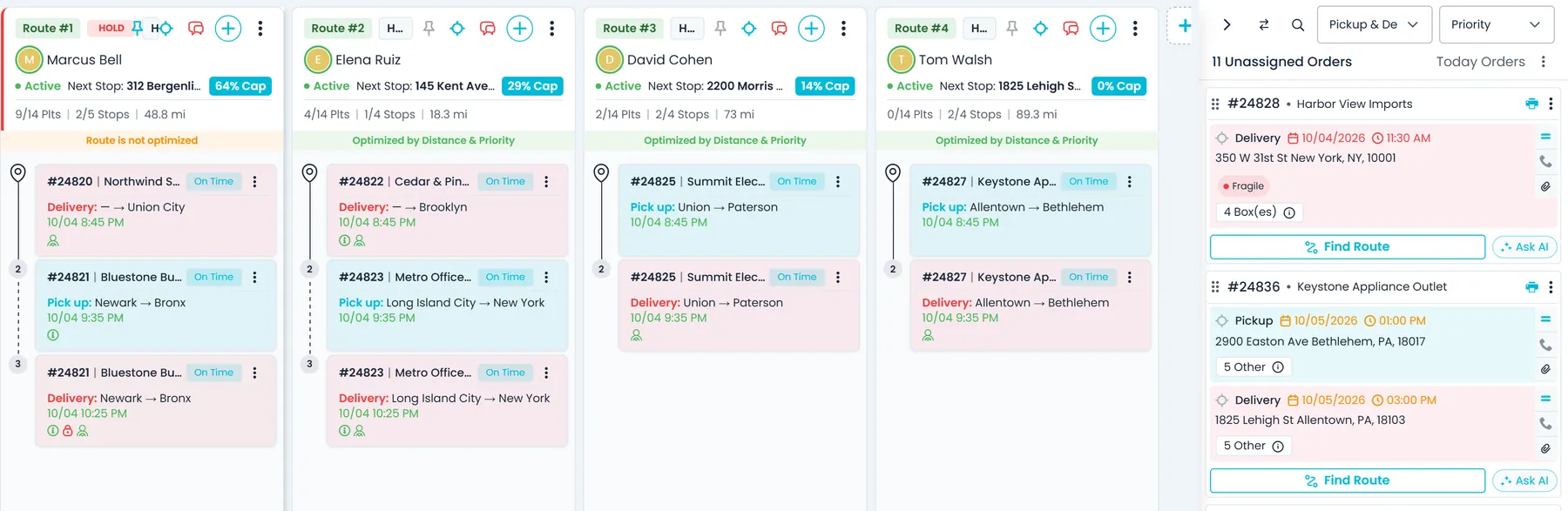
Switch Dispatch to Driver Board, in the new or classic layout, to see the Unassigned panel next to a full-height column for each route you add, and drag stops between them with the same rules and prompts as the regular board. Add routes with the board's + button, picking an active route or a driver to start a new route for, or with Add to Board in a route card's menu. The board keeps up to 50 routes for you, and pinned columns stay in view while you scroll sideways.
- A full-height column per route, beside the Unassigned panel
- Up to 50 routes kept for each user, with columns you can pin
- Compact stop cards with order number, customer, pallets, cities, time, priority and indicator icons such as HOLD, COD and driver instructions
- Classic View switches back, and the classic layout gets a button that puts the Unassigned panel on the left or right
Dates and history
Any day, any date range, any route statusNext release
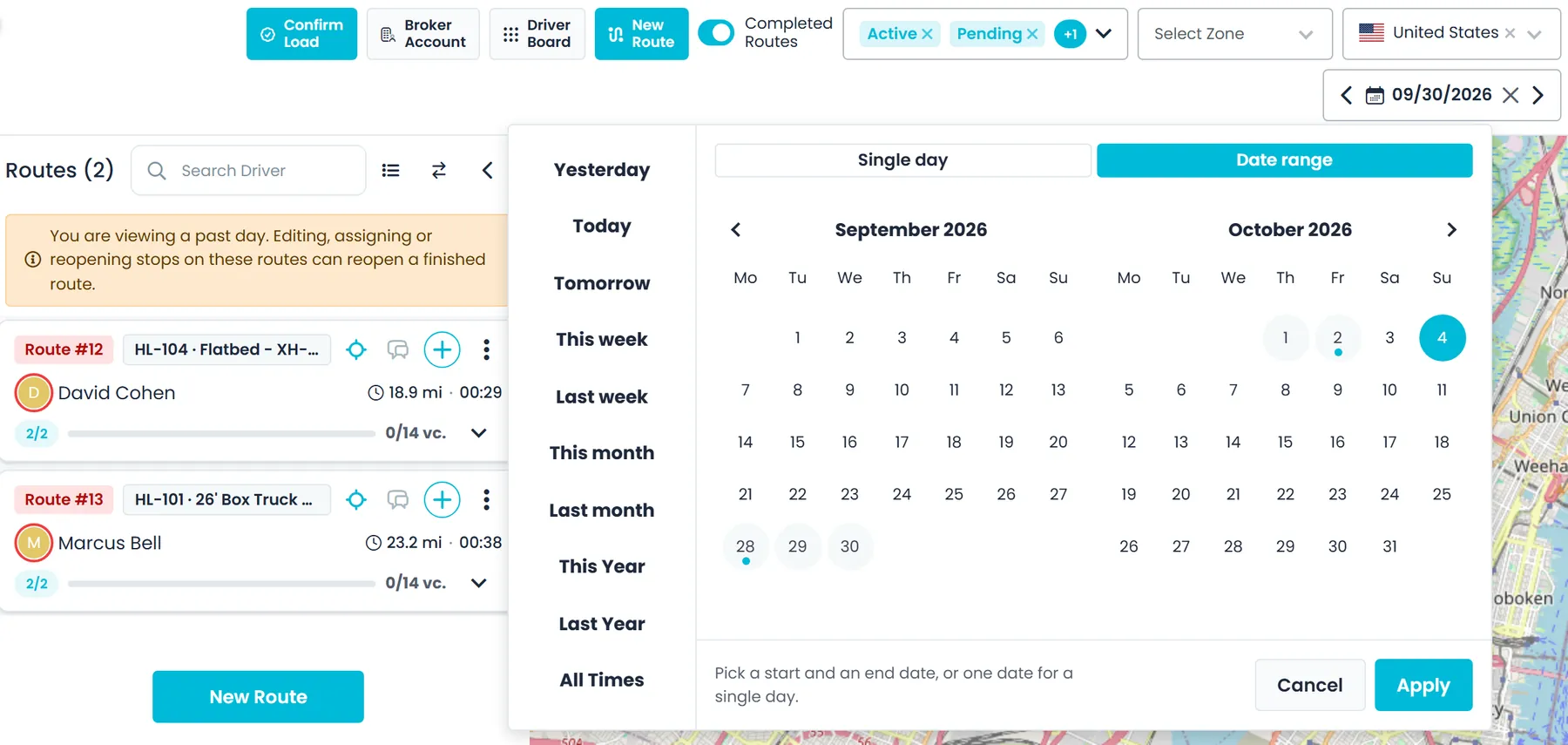
One date control on the Dispatch board covers a single day or a date range: Yesterday, Today and Tomorrow, this or last week, month or year, All Times, and calendars for a day or a range. Routes, their stops, the Unassigned panel and Driver Board columns follow the dates, which stay in the page address. A Route Status filter shows Active, Pending or Archived routes in any combination. Pick a past day to see that day's routes, including completed and archived ones, with every stop planned, assigned or confirmed that day.
- Yesterday, Today and Tomorrow, week, month and year presets, All Times and a date-range calendar
- Route Status filter with Active, Pending and Archived in any combination; the board still opens on Active and Pending
- Past days show completed and archived routes to users with the Route History permission, with a warning that editing them can reopen a finished route
Route history
A trip history for every routeNext release
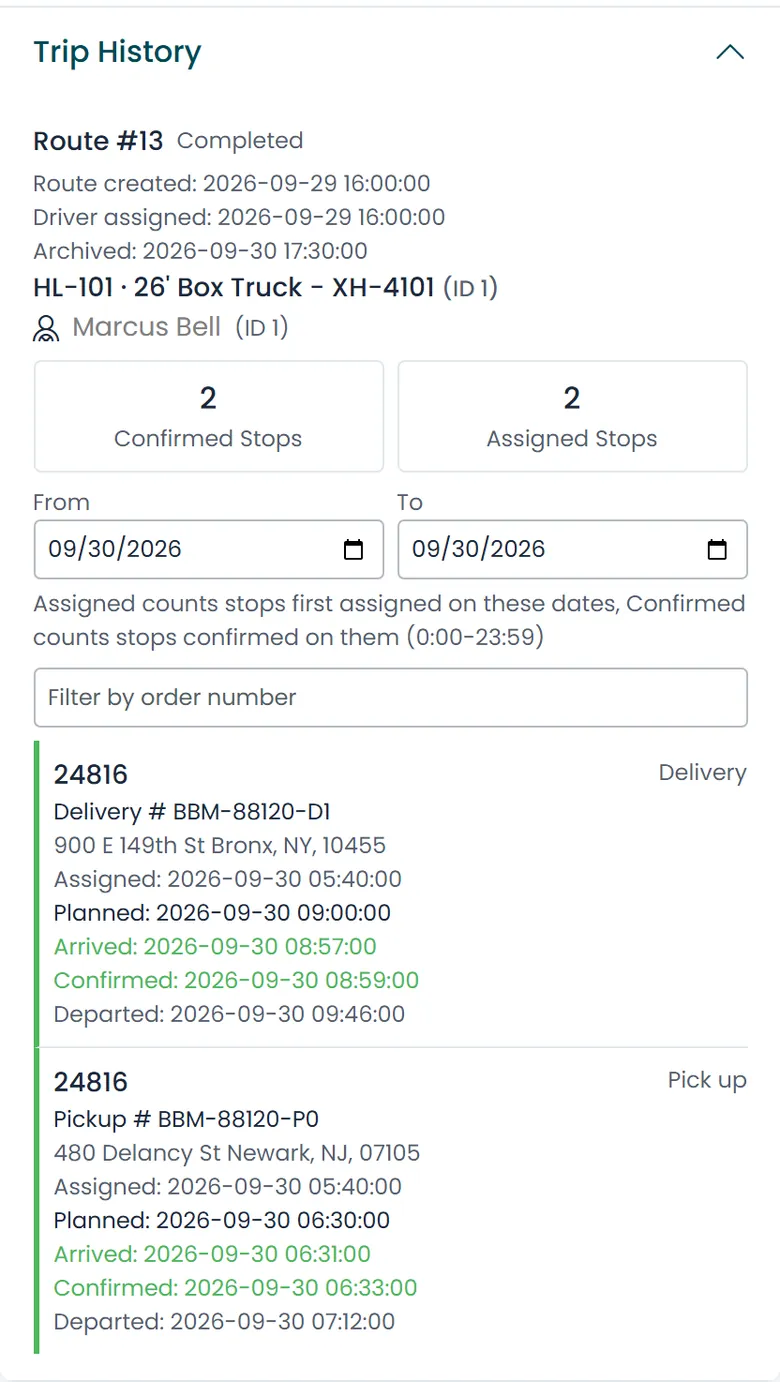
Double-click a route card in the new layout and open Trip History to see the route's status, truck and driver, when it was created and how many stops were assigned and confirmed. Each stop shows its assigned, planned, arrival, confirmation and departure times where recorded; filter by order number, or pick From and To dates up to 31 days apart. It also shows when the route got its driver and when it was archived, recorded from this release on. Confirmed stops need the Route History permission.
- Assigned, planned, arrival, confirmation and departure times for each stop, with its Pickup # or Delivery #
- From and To dates up to 31 days apart, and a filter by order number
- Confirmation History places each stop on the day it was confirmed, and can show earlier days' confirmed stops: 1 to 365 days or the life of the route (Settings > Profile > Dispatch route history; default today only)
- An optional Route history setting, "Until the last stop is confirmed", completes a route when its last open stop is confirmed in the Portal
Corrections
Fix a stop on a finished route without bothering the driverNext release
When you undo a pickup, delivery or order from the order page or the Orders list and its route is already completed, you can choose Keep Completed: the stop reopens on that route without notifying the driver, and you confirm it again yourself. Give back to driver returns it to the driver as before. Open Completed Route then shows it on the Dispatch board, and users allowed to archive routes can restore it.
- Keep Completed or Give back to driver whenever an undo touches a completed route
- Keep Completed reopens the stop without notifying the driver
- Open Completed Route jumps to it on the Dispatch board
In the next release
Fewer surprises when you build the day's routes
These dispatch board changes are finished and ship with the next production release.
Route limits
Orders that won't fit are flagged before you dragNext release
An order whose unassigned stops outnumber your Max Route Addresses setting (Settings > Profile) shows Increase Limit, and one that needs more pallets than the pallet limit (a single limit set for every truck) shows Over truck capacity, each with a tooltip on what to change. Select an unassigned order and the routes with room for all of it are listed first. A route already holding as many stops as the limit allows has its + button disabled and turns away stops dragged in from other routes or the unassigned list.
- Increase Limit and Over truck capacity labels, with Find Route (the route suggestion button, renamed from Auto Reroute) turned off for those orders
- Routes with room for the selected order listed first
- Full routes refuse new stops on the board and can't be picked on order screens
Find Route and Ask AI
Ask the AI assistant which route should take a stopNext release
Order cards in the Unassigned panel get Ask AI next to Find Route, the new name of the Auto Reroute button that opens Add to a route. Ask AI opens the AI assistant on that stop: it ranks the routes that can take it, with the same extra distance Find Route shows, explains its pick and answers follow-up questions, then proposes the assignment on a card that changes nothing until you click Apply. The order then goes on that route with the same checks as Find Route, and Undo is offered if the order had nothing on that route before.
- Auto Reroute on unassigned order cards is renamed Find Route; the Auto Reroute options that re-order a whole route keep their name
- Ask AI explains its pick and changes nothing until you click Apply
- The same checks as Find Route, with Undo
Late stops
Overdue stops planned together with today'sNext release
Reroute, including Optimize with AI, orders open stops from days that have already passed together with today's stops, instead of oldest day first, and stops planned for later days still come after today's. On the board, late stops are listed with today's, each card keeps its own date, and a divider marks where a later day begins. Optimizing doesn't change their dates; use Edit Date to reschedule a stop.
- Late stops ordered with today's, not oldest day first
- The classic layout's heading reads Today + late stops, with each late stop's planned day in red
- Dates never change on their own; Edit Date reschedules a stop
Confirmation rules
Optionally block deliveries until the pickup is on a routeNext release
Settings > Profile > Order Info gets a new option, Block confirming a delivery until its pickup is on a route, which is off by default. Off keeps today's behavior: a dispatcher who confirms a delivery whose pickup was never put on a route is warned and can still confirm it. On, such a delivery can't be confirmed on the Dispatch board, on the order screens, in the driver app or in Telegram until its pickup is assigned to a route, and the disabled Confirm button says why. Closing the order is never blocked.
- Off by default; turn it on in Settings > Profile > Order Info
- Confirm & Create Delivery offers the items still to deliver and asks "Assign to the same driver?"
- Confirmation windows reopen with the times you saved and keep the files already attached
Map pins
Every stop on the map, even when the route line is incompleteNext release
When a route's driving directions are missing or cover only some of its stops, selecting the route still pins the remaining stops from their saved addresses. If fresh directions couldn't be generated, the board tells you the route line may be missing or out of date. A stop can be pinned only when its address has a map location.
- Stops pinned and numbered in route order
- A warning when the route line may be missing or out of date
- On both the new and classic dispatch boards
- Selecting a route frames where it starts, and nearby stops show as numbered pins once you zoom in
Country filter
Zones and carriers follow the country you're dispatchingNext release
The Zone filter on the Dispatch board, and the zone list when you create or edit a route from the board, only offer zones in the country selected in the Country filter. In the new dispatch layout the Outsource Company list follows it too. Switch country and a zone from another country is cleared from the filter, so the board isn't left filtered to a zone outside the country you picked.
- Zone filter lists the selected country's zones
- New and edited routes offer that country's zones, and its outsource companies in the new layout
- A zone from another country is cleared when you switch
- A message when one driver ends up with an order's stops in two countries; the assignment still saves
Also in the next release
A new board for checking which drivers still have hours to drive, plus proof-of-delivery PDFs and tracking links you open from the board.
See it running on your own freight.
Book a demo and we will put a slice of your own orders and routes on the dispatch board.