
Your outside carriers,
on the same board as your fleet.
Keep each carrier you hire as a record with its contacts, the trucks it runs and the rates you agreed. Link its drivers to it, give them routes from the same New Route window you use for your own drivers, and invite them to the RushHour driver app, where they complete stops with photos, paperwork scans and signatures.
Carrier management
Everything about a carrier, next to the routes they run
Carriers live in the same system your dispatchers build routes in, so their details, drivers and terms are never retyped into a second tool.
Carrier records
A record for every carrier you hire
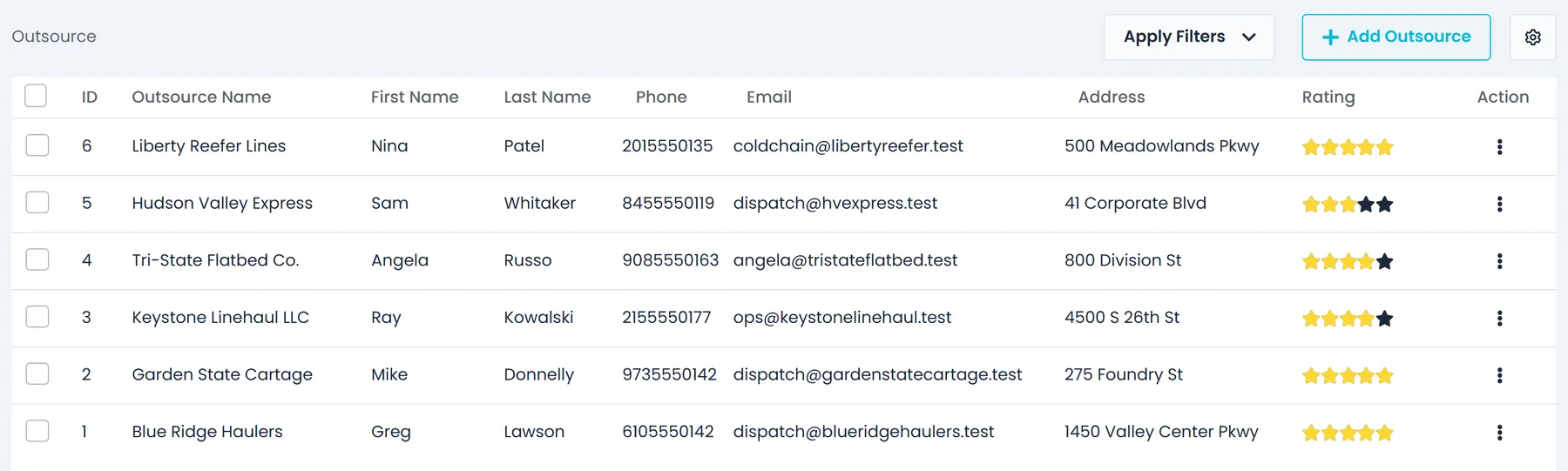
Add Outsource opens one form in three parts: company information, the main contact and the finance terms. The company part holds a logo, the company name and a local name, the phone with an extension, the full address, the truck types the carrier runs, at least one email, each of which can be tagged with email types such as Accounting or Billing, and notes. The main contact gets a name, contact and cell numbers, an email with its own email types, and a location. Open a carrier and its record has four tabs: Outsource information, Finance, Drivers and Contacts.
- Company details, address, emails with email types, and notes
- Contacts tab: add contacts, mark the Primary Contact, and use Normalize Contacts to keep only the primary and move everything else onto it
- Filter the list by country, state, city or ZIP, and click a phone, email or address to copy it
Finance terms
The rates you agreed, on the carrier's record
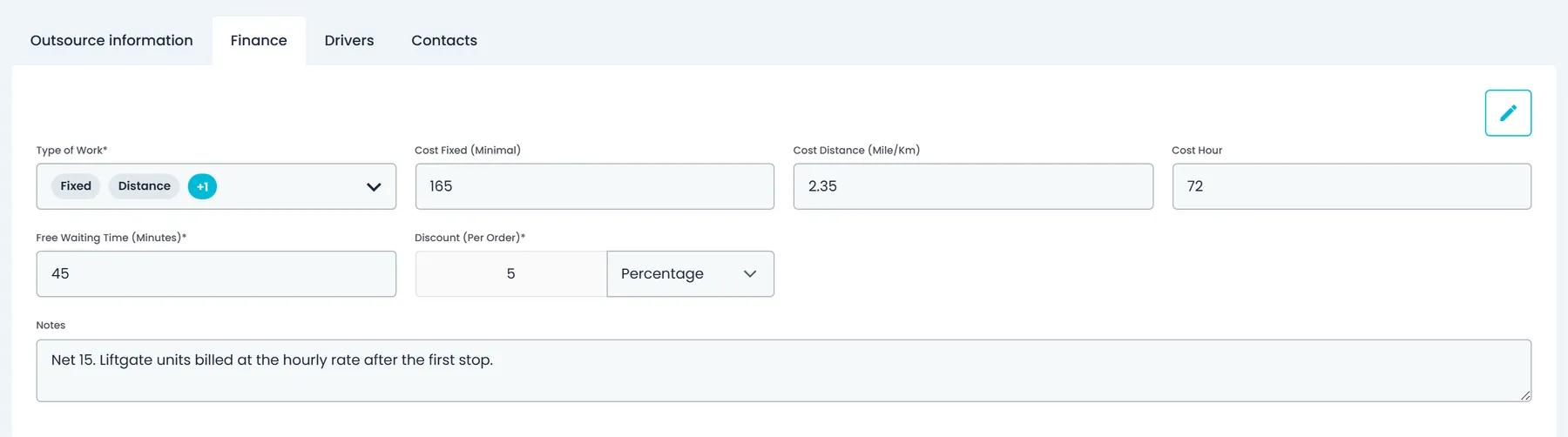
The Finance tab keeps how you pay the carrier. Choose the type of work, Fixed, Distance or Hourly, or a combination, and the matching fields appear: Cost Fixed (Minimal), Cost Distance per mile or km, and Cost Hour. Every carrier also carries its free waiting time in minutes, a discount per order as a fixed amount or a percentage, and notes. Anyone allowed to view carriers reads the same terms, and only people allowed to add or edit carriers can change them.
- Fixed, Distance and Hourly, on their own or combined
- Free waiting time in minutes
- Discount per order, as a fixed amount or a percentage, plus notes
Truck types
The trucks each carrier runs, and how many
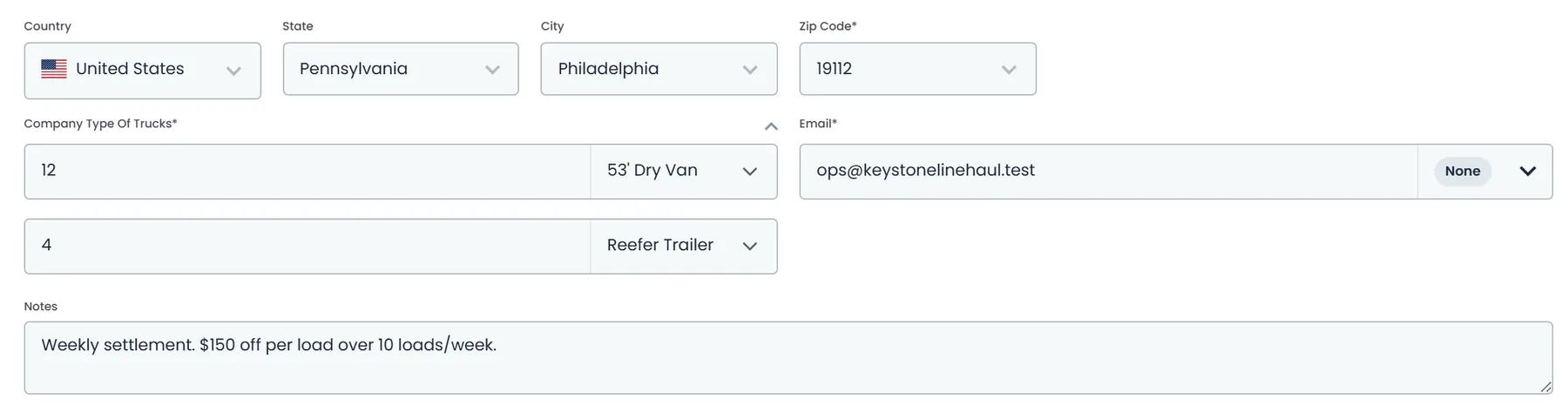
Set up your Type of Trucks list once from the gear menu on the Outsource page. Give each entry your own name and one of six types: Pickup Truck, Box Truck, Semi Truck, Refrigerator Truck, Furniture Truck or Flatbed Truck. On each carrier you then list the truck types it runs, with a Park count for how many trucks of that type it has. Every carrier needs at least one.
- Your own truck names on six base types
- A Park count for each truck type a carrier runs
- Edit or delete entries from the same list
Dispatch
Their drivers on your dispatch board
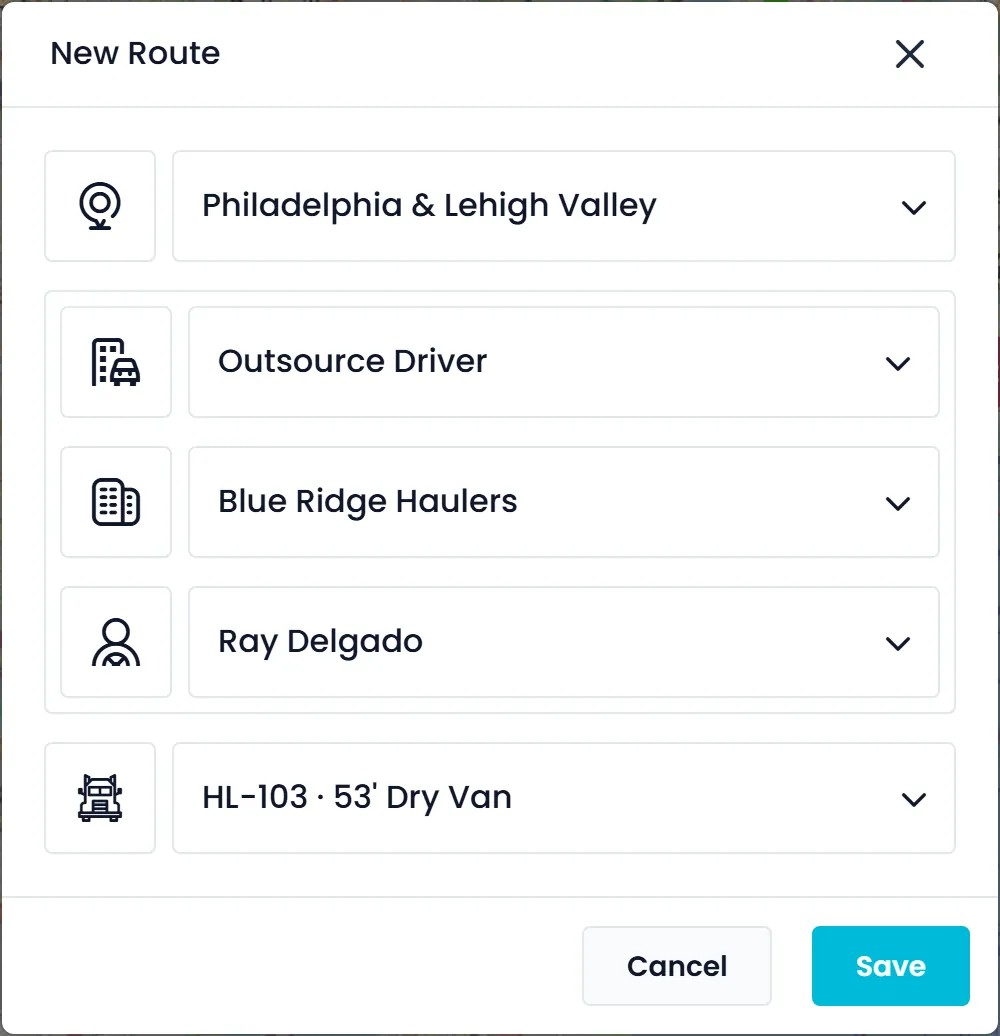
Add the carrier's drivers under Drivers and choose the carrier in the Organization field. They appear in the driver list with the carrier's name in the Company column, and on the carrier's Drivers tab, with each driver's status and rating. To give one of them work, open New Route on the Dispatch board, switch Company Driver to Outsource Driver, pick the carrier, then its driver, a truck and the zone. From there you assign stops to the route the same way as for your own drivers.
- The Organization field links a driver to a carrier
- Company Type filter in the driver list: Internal or Outsource
- New Route and Edit Route: Outsource Driver, carrier, driver, truck and zone
Driver app
The same driver app, the same proof
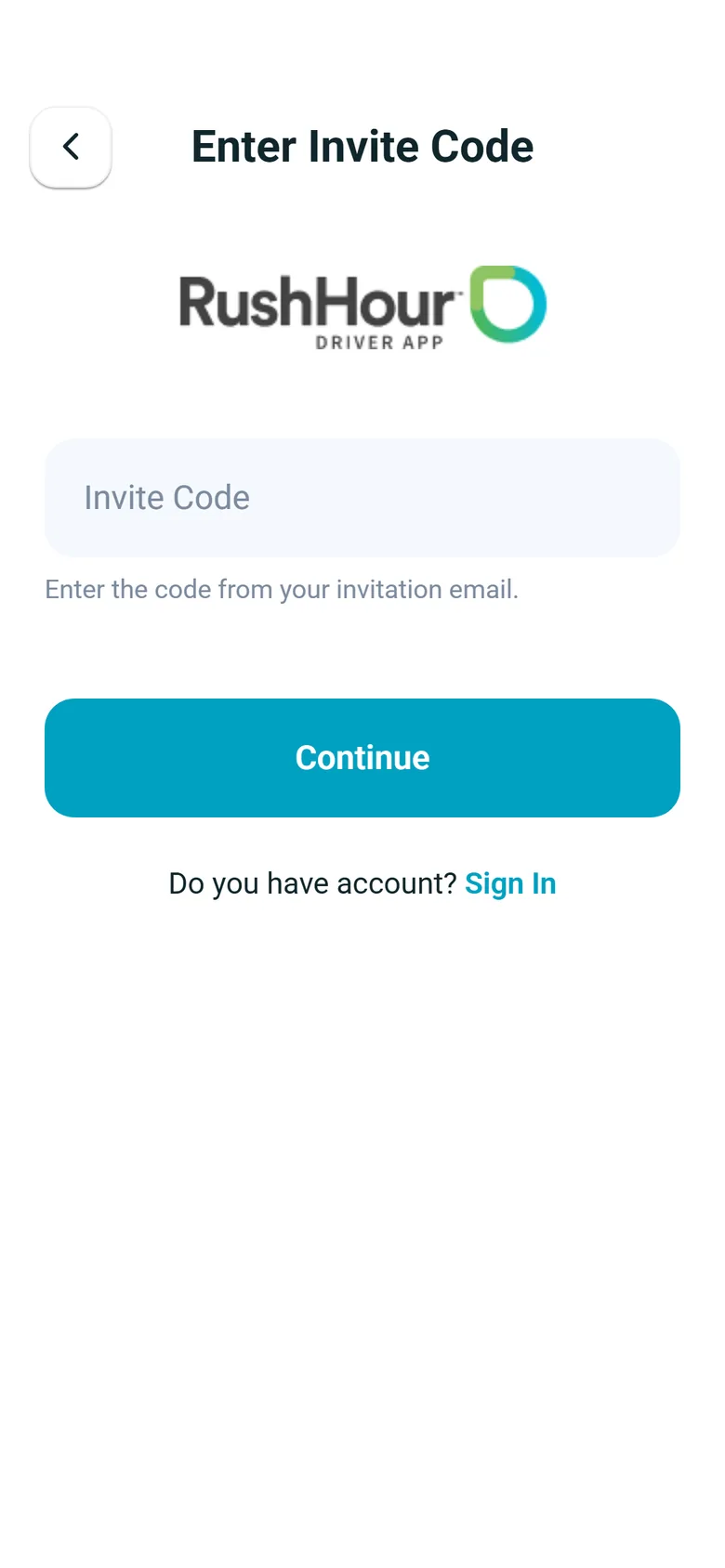
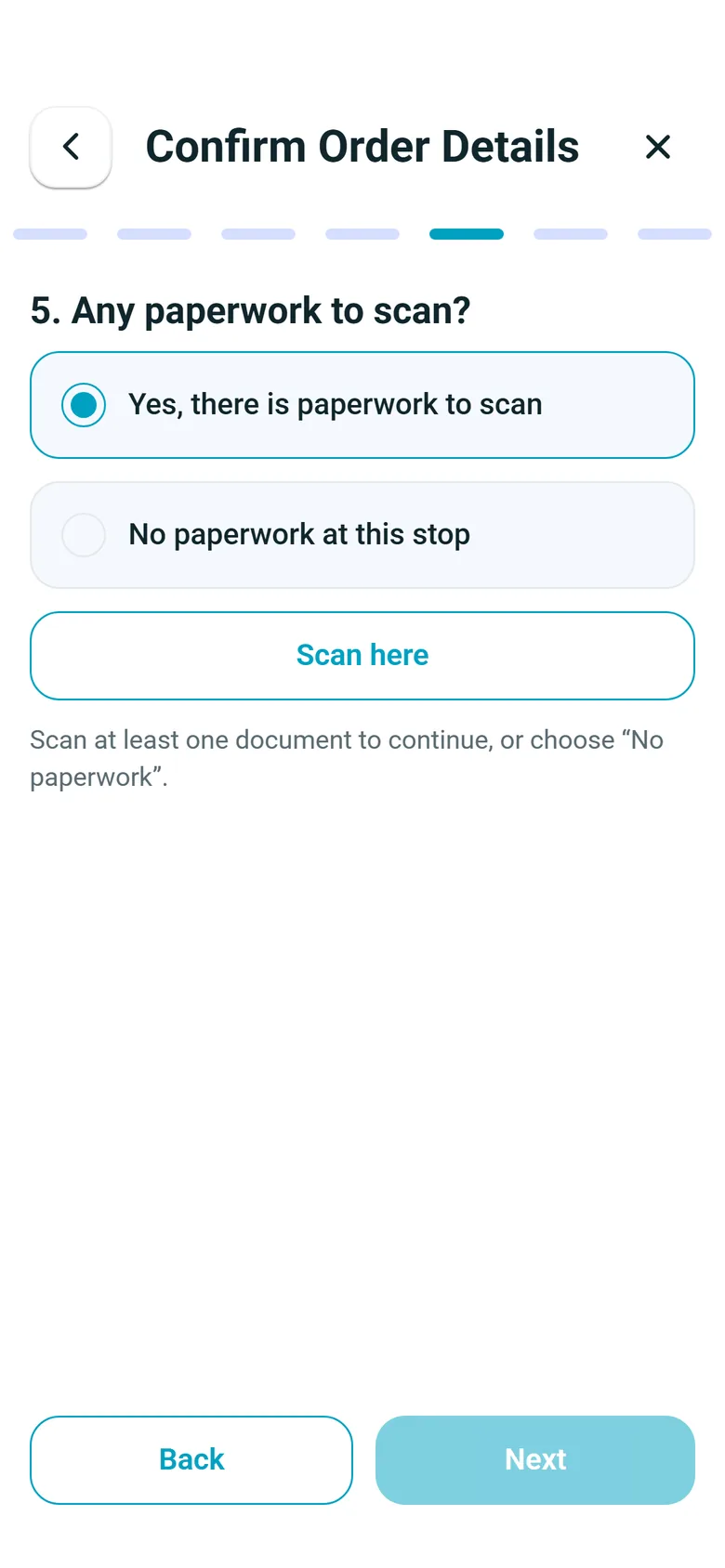
Invite a carrier's driver from the driver list or the driver record, just like your own. The invitation email carries a one-time invite code. In the RushHour driver app on Android or iPhone, the driver taps Enter Invite Code on the sign-in screen, enters the code or pastes the whole invitation link, and chooses a password. The routes you assign then appear in the app, and each stop follows the same steps your own drivers follow, set in Settings → Driver App.
- Invitation email with an invite code; each resend issues a new code
- Enter the code, or paste the whole invitation link (driver app 2.0.13 and later)
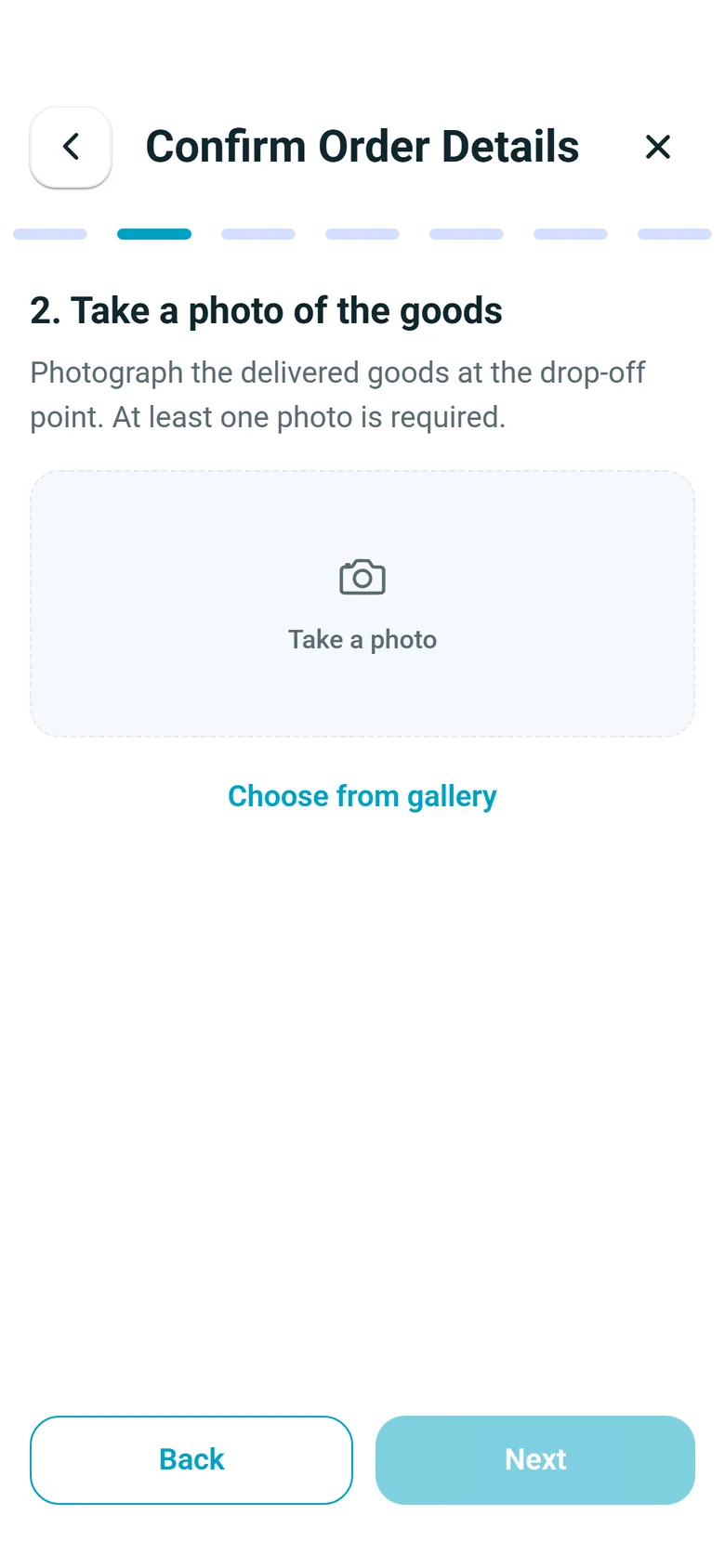
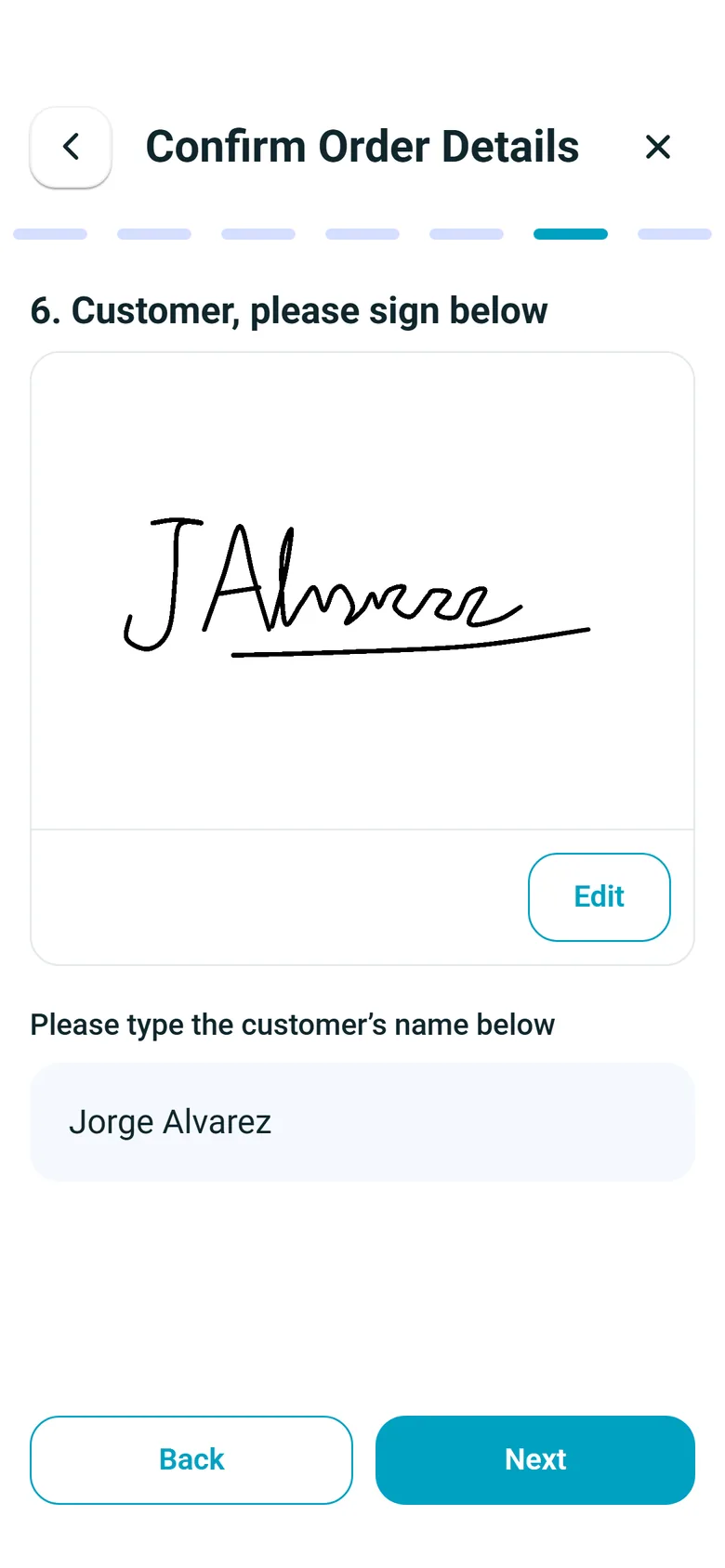
- Item counts, photos, paperwork scans and signatures, as your company's stop steps require
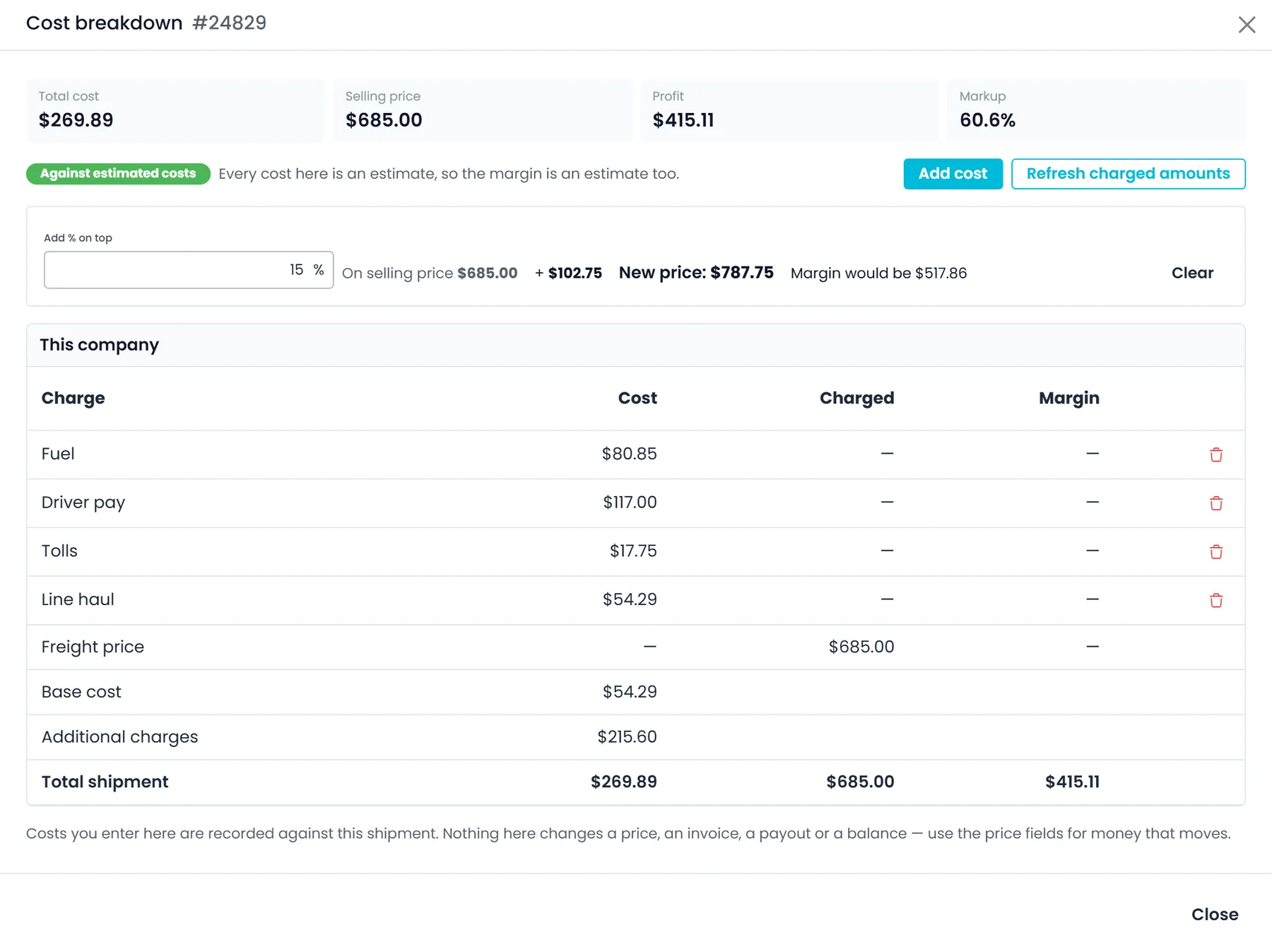
Cost per load
What a carrier costs you on each load
Turn on the buy/sell cost ledger in Settings → Billing and every saved order in the New UI gets a Cost breakdown, which users allowed to see invoices can open. Add a cost, choose the carrier under Paid to, enter a quantity and rate or an amount, and mark it as a Confirmed cost when it comes from the carrier's invoice. The breakdown shows total cost, the selling price, profit, markup and margin, and labels whether the margin rests on estimates or on confirmed costs. It is for reporting only and never changes a price or an invoice.
- Off by default; turn it on in Settings → Billing
- Costs grouped by who you pay: your company or each carrier
- Margin labeled as estimated, partly confirmed or confirmed
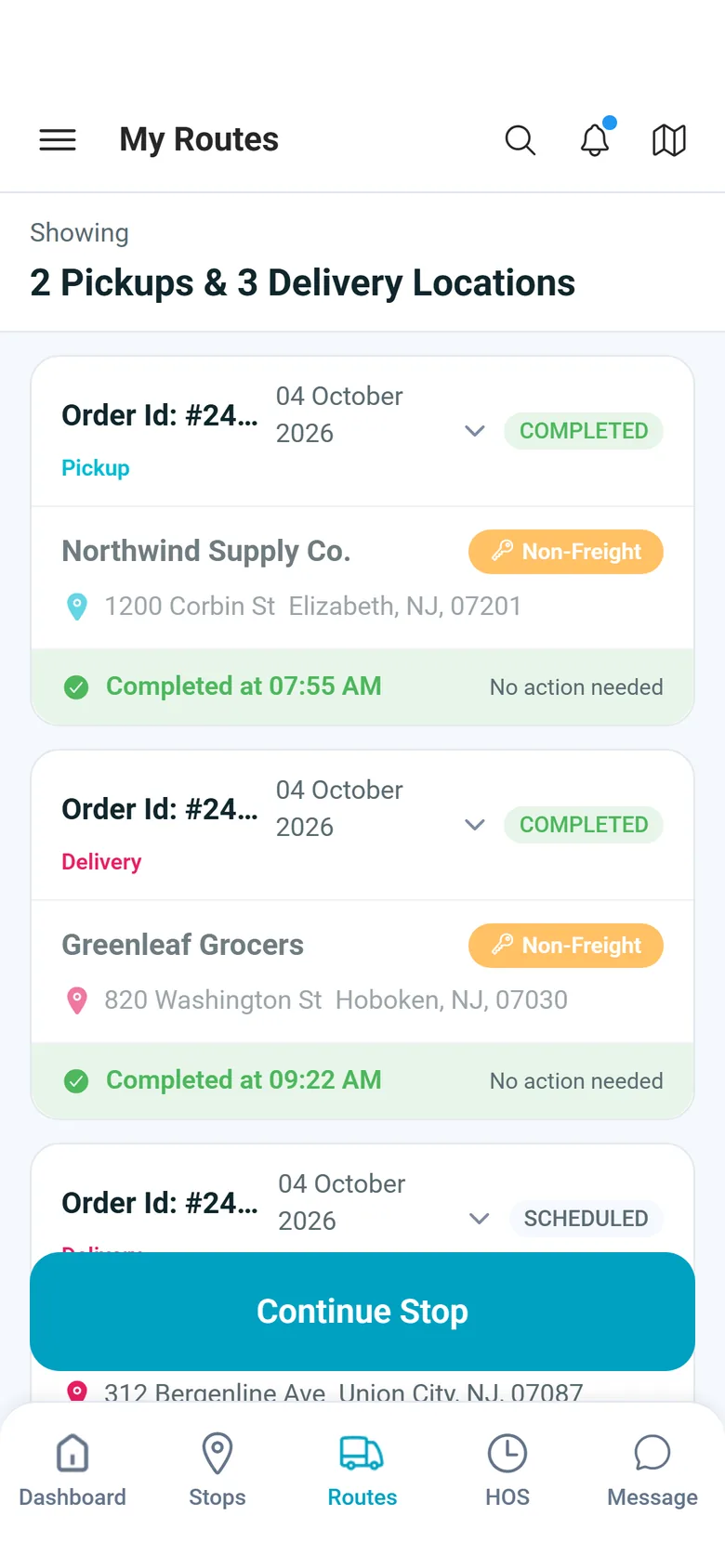
In the driver app
What a carrier's driver does at each stop
Carrier drivers use the same RushHour driver app as your own drivers. These are real screens from the app, which runs in English.
How carrier records fit the rest of RushHour
Three separate permissions
Viewing carriers, adding or editing them, and deleting them are separate permissions: View Outsources, Add/Edit outsource and Delete Outsource. Set them per role in Settings, so some users can read a carrier's terms without being able to change or delete it. Delete one carrier from its row menu, or several at once from the list.
One board for everyone
Carrier routes are built, filled with stops, started and archived on the same Dispatch board as your own routes, so the whole day's plan sits in one place.
What it is not
RushHour keeps the carriers you already work with. It is not a load board, it does not send load tenders to carriers, and it does not track carrier insurance, operating authority or compliance documents.
In the next release
Settling with carriers, and the buying price on an order
These carrier features are finished and ship with the next production release of RushHour.
Carrier pay
Settle what you owe each carrier, route by routeNext release
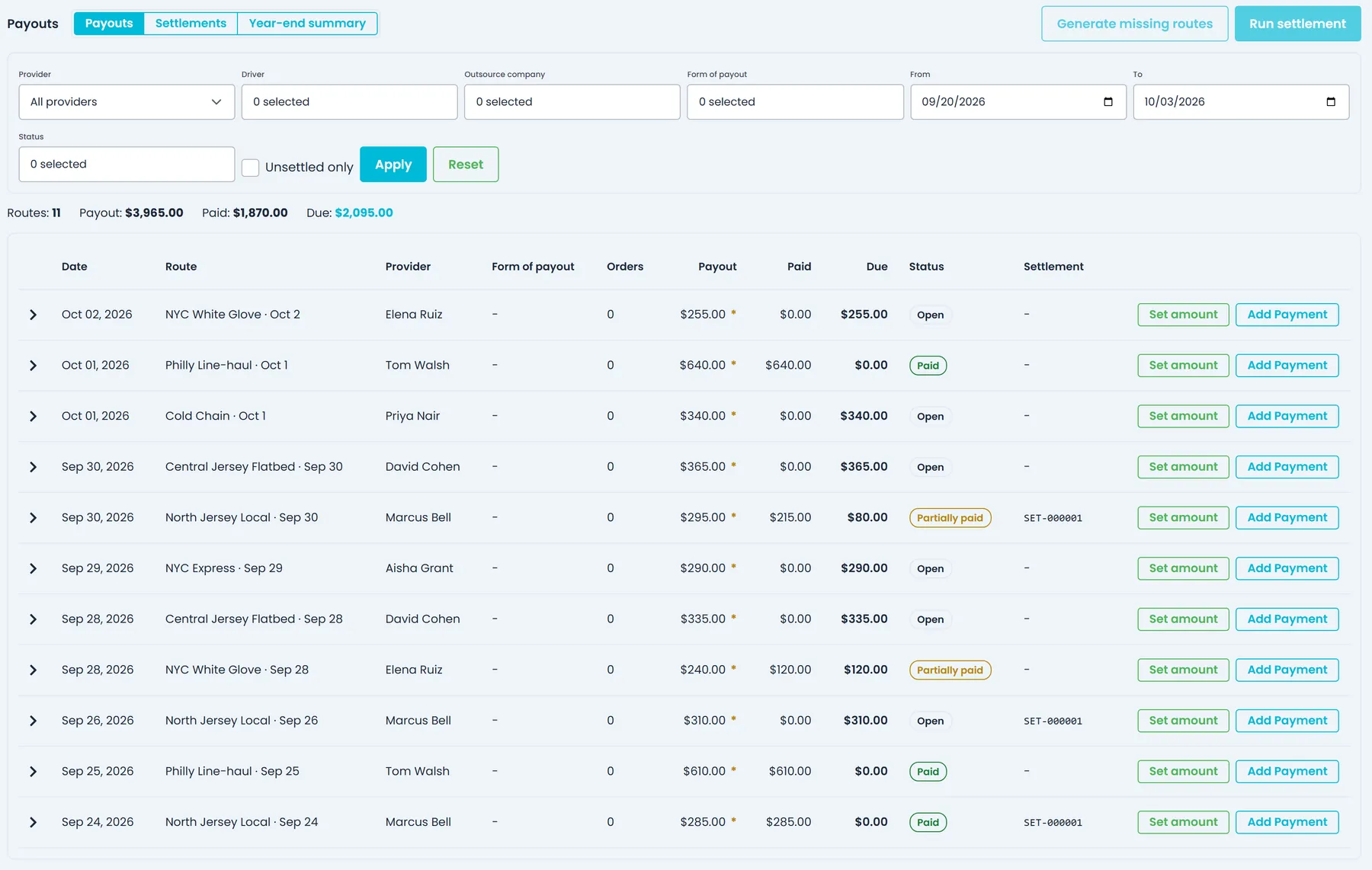
A new Payouts page in Accounting lists the routes you add for each outsource carrier and driver, with each route's payout amount, what has been paid and what is still due. Enter each route's payout and record payments, or group a carrier's unpaid routes for a period into a settlement and pay it in full or in part. Print, download or email the settlement statement, and export a year-end summary of payments to CSV. RushHour keeps the record; the money goes out the way you pay carriers today.
- Payout, paid and due for every carrier route
- Payments by cash, ACH / bank transfer, credit card or PayPal, recorded only
- View Settlements and Manage Settlements permissions, given to company admins by default
Buying price
Record what you pay the carrier on each orderNext release
In the price box of a saved quote or of an order that isn't closed, in both the Old UI and the New UI, company admins can switch between the selling price and the buying price (what you pay whoever hauls the load), enter the buying price with the edit icon and save it straight away. An info icon beside the price shows the line-haul margin: the selling price minus the buying price. Other users don't see the buying price.
- Switch the price box between selling and buying price
- Line-haul margin: selling price minus buying price
- Company admins only; other users don't see the buying price
Country filter
The carrier list follows the country you're dispatchingNext release
In the New UI, the New Route and Edit Route windows opened from the Dispatch board list only outsource companies with an address in the country selected on the board, so a carrier from another country isn't offered by mistake. The Zone field in those windows follows the same country, in both layouts.
- Outsource Company list limited to the selected country (New UI)
- Zone list limited to the same country, in both layouts
- Switch country on the board and the lists follow
Questions about outsource carriers
Can an outside carrier's drivers use the RushHour driver app?
Yes. Add the driver under Drivers, choose the carrier in the Organization field and send an invite, the same as for your own drivers. The driver enters the invite code in the RushHour driver app on Android or iPhone, chooses a password, and then sees the routes you assign and completes each stop with the steps you set in Settings → Driver App.
Where do I record what I pay a carrier?
The carrier's Finance tab keeps the rates you agreed. If you turn on the buy/sell cost ledger in Settings → Billing, you can also record what a carrier cost you on each order in the New UI and mark it confirmed once their invoice arrives. In the next release, a Payouts page in Accounting lets you enter each carrier route's payout, record payments and settle a period with one statement. RushHour keeps the record; the money itself goes out the way you pay carriers today.
Is this a load board or a carrier marketplace?
No. RushHour does not find new carriers, post loads or send tenders, and it does not track carrier insurance or authority documents. It is for the carriers you already hire: their details, rates and drivers, and the routes you give them.
Which truck goes on a carrier's route?
Every route needs a zone, a driver and a truck. The truck is chosen from your fleet list in Settings → Fleet, the same list your own routes use. The carrier record keeps the truck types the carrier runs and how many of each, so dispatchers can see what the carrier has.
Related
Bring your carrier list to the demo.
We'll add one of your carriers with its rates and a driver, give that driver a route on the dispatch board, and walk through the stop in the driver app.