
Every lane has a price.
The system should know it.
A pallet-by-mileage grid, zone-to-zone rates, cross-border cards and shipment-type rules. Set them once and every quote or order priced from them gets your numbers, with a separate card for customers who negotiated their own and a named reason on the order whenever a rule cannot price the load.
Three ways to price every quote and order
Choose Classic, Pricing Model or Custom in the price box of a saved quote or order. When stops or items change, the order reprices on save, and changes to the price, price type, markup and discount are written to the order's Audit log.
Classic
Built from what the run costs you: miles, driver time and fuel, plus your default markup. With Use New Pricing switched on, it comes from the order's shipment type instead.
Pricing Model
Taken from the rate card: the customer's own pricing model if they have one, otherwise your company default. Offered on orders made up of pallet items.
Custom
The price you type, or the AI price suggestion applied with one click. The suggestion shows its confidence, a range and what it is based on.
From rate card to invoice
Set the rules once, and stop pricing by hand
Rate cards for pallet freight, cross-border lanes and service levels, a separate deal for contract customers, and a cost-plus price when no card fits.
Rate cards
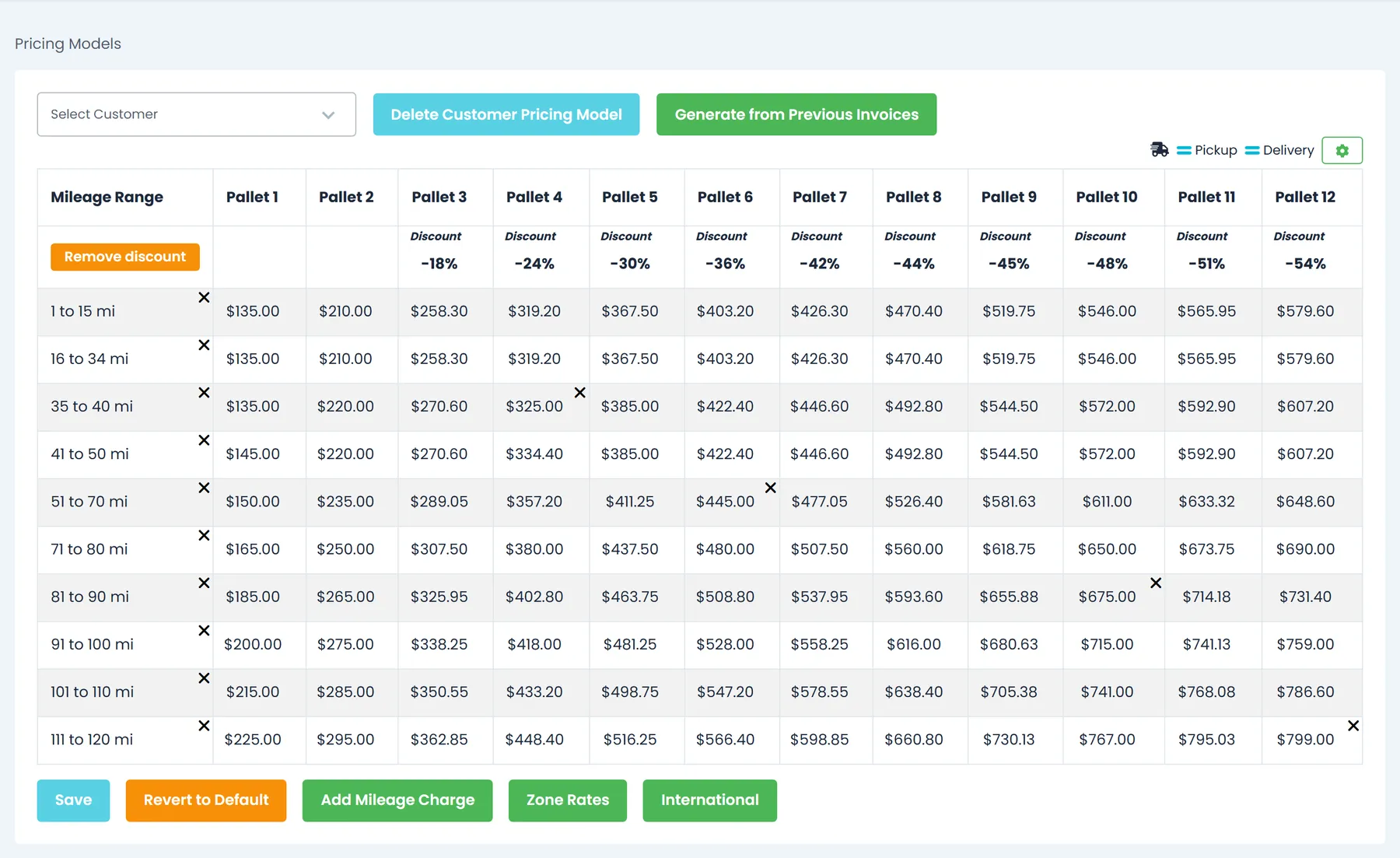
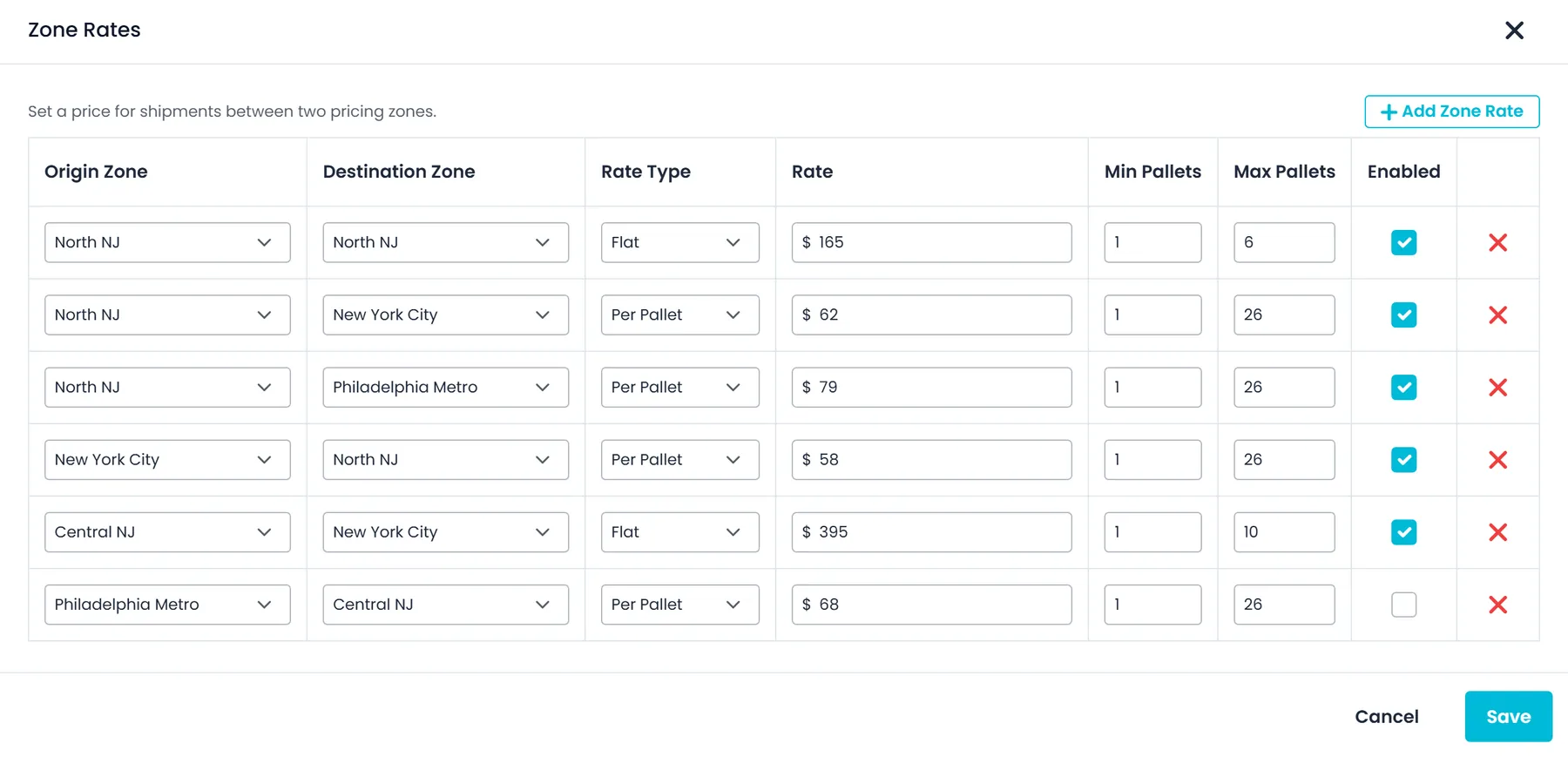
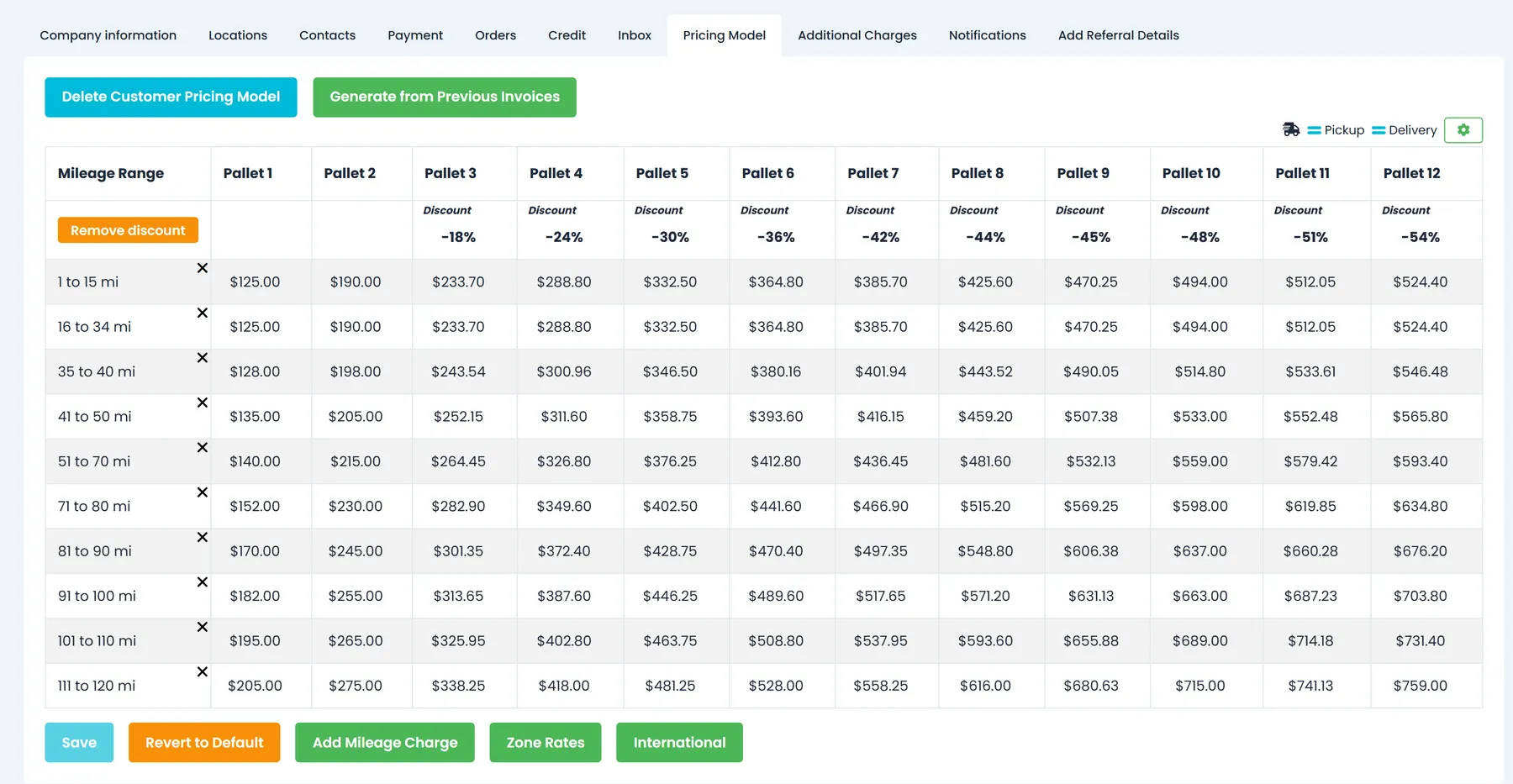
Price by pallet and mileage band, or from zone to zone
Build the grid you actually quote from: pallet count (1 to 12) against mileage band, with your own price in any cell and a percent adjustment per pallet count. Add a flat or per-pallet price between two zones for the pairs that need their own number. The AI assistant can import a rate sheet into the grid, including fixed prices for a cell, after you confirm the import. Through the REST API you can also add lane rates matched on a city or ZIP at each end. A lane rate beats a zone rate, and a zone rate beats the grid.
- Pallet count by mileage band grid, with custom cells
- Zone-pair rates, flat or per pallet, with min and max pallets
- Rate sheets imported into the grid by the AI assistant, after you confirm
- A custom price or discount on any cell, and back to the calculated value in one click
- A distance outside every mileage band is named on the order, with the band to add
- An import adds or updates only what the sheet mentions; every other cell is kept
Cross-border rate cards
Ocean, air and ground lanes between countries
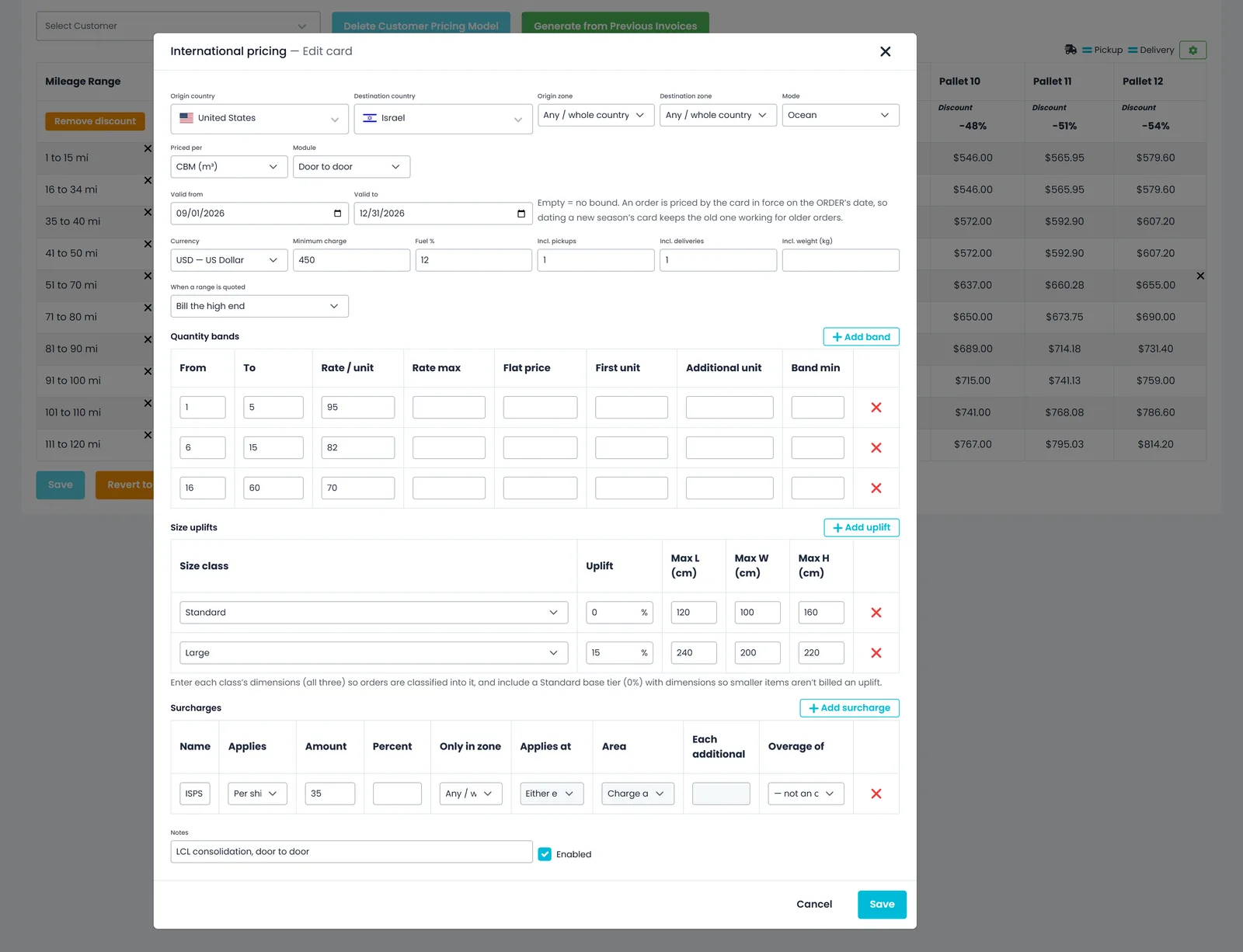
Price a lane by country pair, optionally narrowed to one of your pricing zones. Use one card for the whole door-to-door move, or split it into origin pickup, transport and destination delivery. Bill in quantity bands, with a minimum charge, a fuel percentage, included pickups and deliveries, flat or percent surcharges, and effective-from and effective-to dates. When the AI assistant imports a card with a quoted range or a value it is unsure of, the card stays marked for review until someone checks it.
- Ocean, air and ground cards by country pair
- Billed by pallets, chargeable kg, pieces, CBM or containers
- Validity dates, minimum charge, fuel and surcharges
- Size uplifts for Medium, Large or Oversize pieces over a Standard base, set by length, width and height
- Surcharges per shipment, first unit, each unit or location, limited to one zone or to the pickup or delivery end
- When a sheet quotes a range, bill the high end, the low end or the midpoint, or mark it Needs confirmation
Shipment types
Each service level carries its own price rules
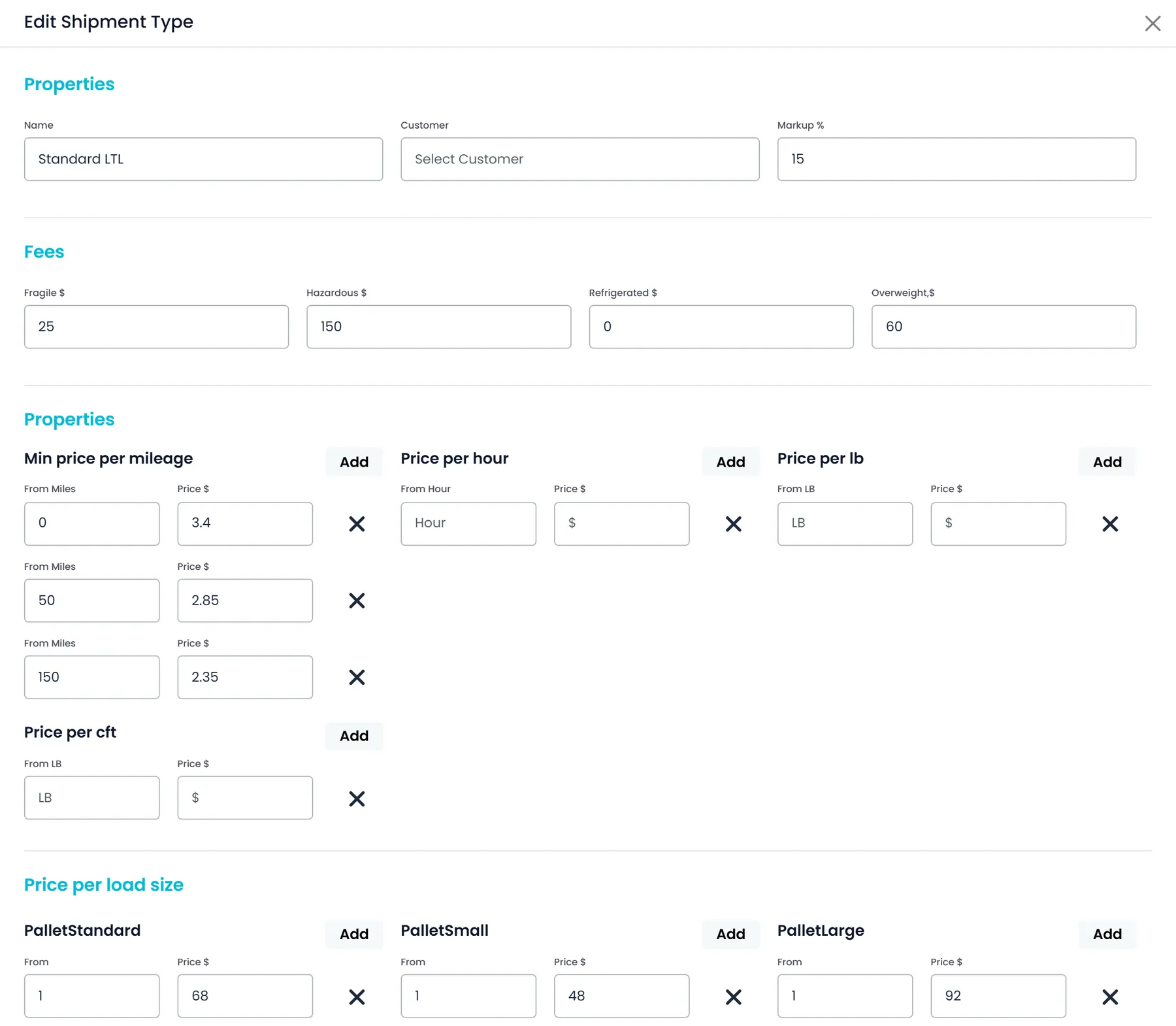
Name the shipment types you sell, company-wide or for one customer. Each type carries its own markup, a price per mileage band, banded rates per hour, per pound and per cubic foot, and prices per load size. Fragile, hazardous, refrigerated and overweight each add a fee for every flagged unit. Shipment-type rates set the Classic price once Use New Pricing is switched on in Settings > Billing (it is off by default); until then Classic is built from your cost settings.
- Markup and a price per mileage band
- Banded rates per hour, pound or cubic foot
- Fragile, hazardous, refrigerated and overweight fees
- When both apply, the higher of the mileage cost and the time cost is billed
Contract pricing
The customer who negotiated a deal gets that deal
Give an account its own rate card, its own shipment types and its own charge prices, while everyone else stays on the company default. The card is edited directly on the customer record, in its Pricing Model tab, and Generate from Previous Invoices can fill it from that customer's invoiced orders. When the contract ends, Delete Customer Pricing Model puts them back on the default.
- A separate rate card per customer
- Per-customer shipment types and charge prices
- Back to the company default in one step
- Zone rates and cross-border cards can be set per customer too
- A Price per unit column on the customer's Additional Charges tabNew in the October 2026 release
Classic pricing
No rate card for the load? Price it from your costs
With Use New Pricing off, which is how every company starts, Classic builds the price from what the run costs you, with your default markup on top. See Details opens Price Details: every cost line with its quantity, rate and total, and room to change the markup or add a discount with a reason.
- Mileage: route miles times your Cost per mile (Settings > Billing)
- Driver time: drive time plus 60 minutes per stop at your default driver wage
- Fuel: route miles at 15 mpg times the diesel price on file for your state (Settings > Profile)
- Your Default Markup % on top, and a discount with a reason when you need one
How RushHour picks the price
On an order priced with the Pricing Model, RushHour uses the customer's own pricing model if there is one, otherwise your company default, and takes the first rate that fits.
First: a cross-border card
If the pickup and delivery are in different countries and a card matches the lane, the order's freight mode and its date, the card prices the order.
Then: a zone-to-zone rate
An enabled rate from the pickup's pricing zone to the delivery's, within its min and max pallets, prices the order by itself, flat or per pallet. Among the domestic rules, only a lane rate added through the REST API is checked before it.
Then: the pallet-by-mileage grid
The cell for the order's pallet count and distance: your fixed price if you set one, otherwise the price the grid calculates from your band prices and pallet discounts.
If nothing fits: a named reason
The order shows Price could not be calculated and why, instead of a $0 price, and a failed reprice keeps the price it had. When a cross-border card matches but cannot price the load, Settings > Billing decides: Off (the default) prices it by your domestic rules, Warn does the same and tells whoever is working on it, and Block leaves it unpriced until someone enters a price.
Charges & waiting time
Charge for the extra work you do
A charge catalogue with customer prices, waiting time billed past the free time, and optional auto-billing that adds the charges for you.
Charges
The extras end up on the invoice, not in someone's head
Keep a charge catalogue with a price per unit, charges that apply per stop, and a customer's own price where one was negotiated. Waiting time recorded at a stop becomes a line on the invoice once it passes the free time, which you set company-wide and can override on a stop. Optional auto-billing, off by default, can add learned accessorials, detention and the fuel surcharge for you, marked Auto and never overwriting a charge entered by hand.
- Charge catalogue with per-unit prices
- Waiting time billed above your free time
- Optional auto-billing for learned accessorials, detention and fuel
- Charge types flagged per stop, waiting time or attempt, with Enter Amount and Overridable Price options
- Free time follows the order's price type, including pallet rangesNew in the October 2026 release
Waiting time
Free time first, then billed waiting time
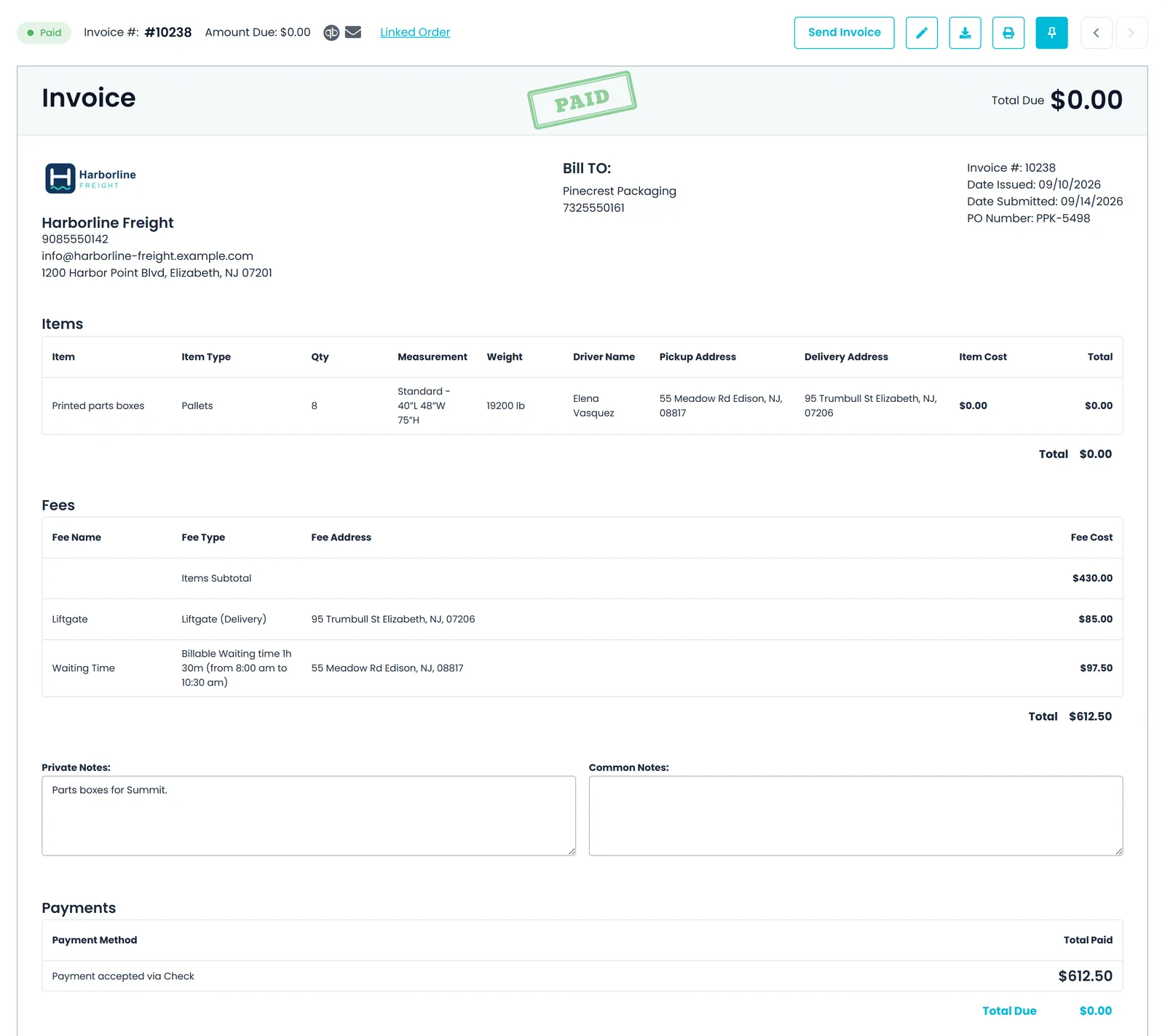
Set the free waiting time in minutes (the Classic value) under Settings > Billing > Waiting Time, and an hourly rate on the charge type marked Waiting time. When a stop's arrival and departure are recorded, the time past the free window becomes a waiting-time line on the invoice at that rate, with the billable time spelled out. A stop can carry its own free time, set when the stop is confirmed or from the invoice, and you can add or correct a stop's waiting time from the invoice without re-confirming the stop.
- Free waiting time in minutes, with an override on any stop
- Billed at the hourly rate of your Waiting time charge type
- Add or correct waiting time from the invoice editor
Auto-billing
Accessorials, detention and fuel, added for you
Auto-billing in Settings > Billing starts Off. Preview writes what it would charge to the order's activity log without charging anything. Apply adds the charges when an order is saved: residential, liftgate and appointment fees the AI learned from your uploaded price sheets, detention for waiting time past the free time at your Waiting time rate and, if you also tick Auto-bill fuel surcharge, the rate card's fuel surcharge percentage.
- A customer's own rules win over company-wide ones
- Each charge is added once and marked Auto; amounts a person edited are never changed
- A charge someone deleted is never added back
- Quotes, drafts, closed orders and orders that already have an invoice are skipped

What keeps the numbers honest
Started from your own invoices
Fill the 1- and 2-pallet prices in each mileage band with the average of orders you already invoiced, for the whole company or one customer. Review every number, then save.
The odd lane says why
When the grid cannot price an order, it is saved without a price and the order shows why: no mileage band covering the distance, or a pallet count the grid does not carry. When a cross-border card matches the lane but cannot price it, such as a call-for-quote band or dates outside the card's validity, the order shows that reason too, and a company setting decides what happens next: your domestic rules still price it, with or without a warning, or it stays unpriced until someone enters a price, so it cannot be approved, emailed or invoiced.
Test before it prices a load
Enter miles, hours, toll count, toll tag cost and an item, and see the cost lines a shipment type produces before you save it.
Also in the REST API
Pricing models, pricing zones, shipment types and exchange rates can also be read and changed through the documented REST API, with the same permissions as the screens.
Recently added
More pricing detail
These pricing changes are in production now. The changelog lists what each release added.
Waiting time
Free waiting time that follows each order's price typeNew in the October 2026 release
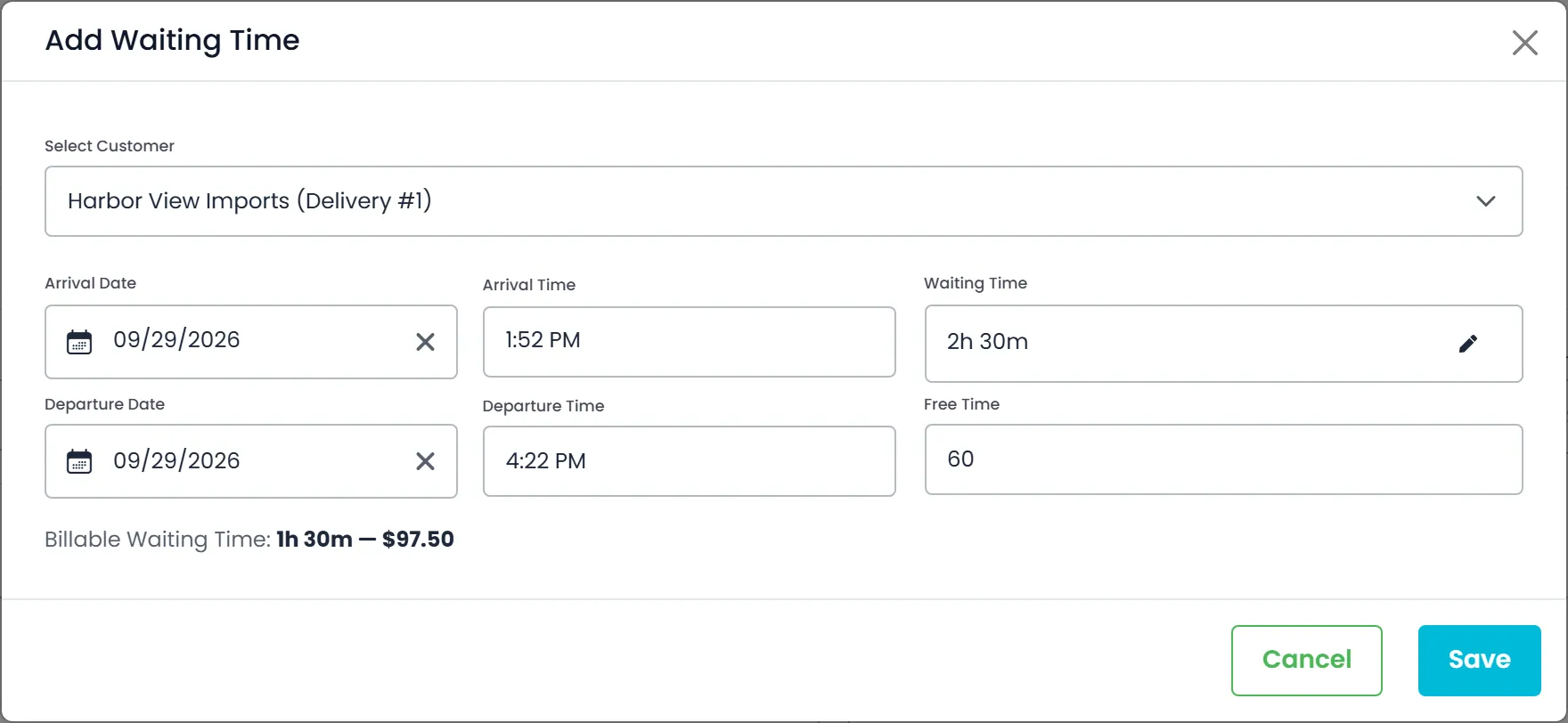
Waiting-time charges on orders and invoices use the free time set in Settings > Billing > Waiting Time for the order's price type: Classic, Custom, or the Pallets (Pricing Model) range that fits the pallets picked up on the order. Stop confirmation and an invoice's Add Waiting Time window suggest the same free time. If Custom or Pallets is left blank, or no range fits, the Classic value is used.
- Separate free time for Classic, Custom and Pallets orders
- Pallet-count ranges, each with its own free minutes
- The same free time for auto-billed detention
Tolls
Toll costs from your own TollGuru accountNew in the October 2026 release
Add your TollGuru API key under Settings > Integrations, and the tolls on a route are added as a Tolls line when an order is priced. Test connection checks the key without saving it, and the TollGuru card shows whether orders are currently priced with toll costs. It needs your own TollGuru subscription.
- A Tolls line added when an order is priced
- Test connection checks the key without saving it
- The saved key is masked and never shown in full in the browser
Margin
Buying price and line-haul margin in the price boxNew in the October 2026 release
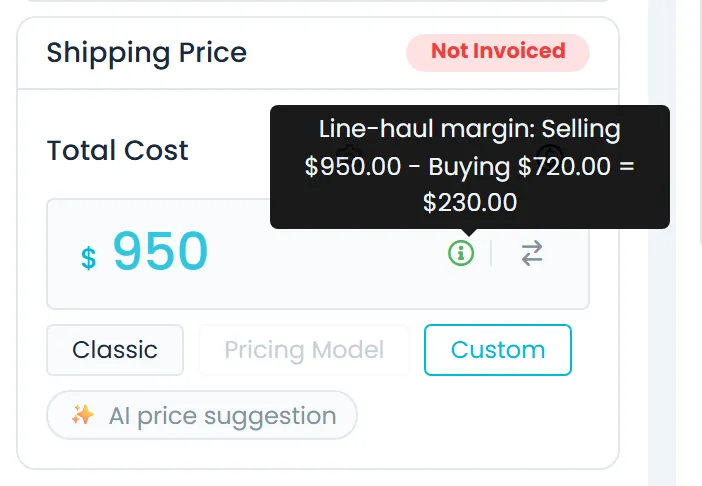
In the price box of a saved quote or of an order that isn't closed, in both the Old UI and the New UI, company admins can switch between the selling price and the buying price (what you pay whoever hauls the load), enter the buying price and save it straight away. An info icon beside the price shows the line-haul margin: the selling price minus the buying price. Other users don't see the buying price.
- Switch between the selling price and the buying price
- Line-haul margin: the selling price minus the buying price
- Visible to company admins only
Rate card questions
Can each customer have its own rates?
Yes. A customer can have its own pricing model, edited on the Pricing Model tab of the customer record, plus its own shipment types and its own charge prices. Customers without one are priced from your company default, and Delete Customer Pricing Model puts a customer back on it.
What happens on a load my rate card doesn't cover?
RushHour does not show a $0 price. The order says Price could not be calculated and gives the reason, for example the distance and the mileage band to add, and a reprice that fails keeps the price the order already had. You can switch the order to Classic or type a Custom price. If a cross-border card matches the lane but cannot price it, a setting in Settings > Billing decides whether your domestic rules price it (Off, the default), price it with a warning (Warn), or leave it unpriced until someone enters a price (Block).
Can I import the rate sheet I already have?
Yes. Upload the sheet to the AI assistant and it maps it to your pallet-by-mileage grid, including fixed cell prices, mileage bands, pallet discounts, a fuel surcharge percentage and charge types, or to cross-border rate cards. Nothing is saved until you approve the plan, and cells the sheet does not mention are kept.
Do I need a rate card before I can quote?
No. Fill in your Cost per mile and Default Markup % in Settings > Billing and your default driver wage in Settings > Drivers Settings, and Classic prices loads from those costs while you build your rate cards.
Do you price ocean, air and cross-border freight?
Yes. International rate cards price a lane by country pair for Ocean, Air or Ground, billed by pallets, chargeable kg, pieces, CBM or containers, as one door-to-door card or as separate origin pickup, transport and destination delivery legs. In the New UI order editor, the order's freight mode narrows which cards can match. The International pricing page has the details.
Which units can I price by?
The grid prices by pallet count and mileage band, and zone rates are flat or per pallet. Shipment types add a price per mileage band, rates per hour, per pound and per cubic foot, and a price per load size. Cross-border cards bill by pallets, chargeable kg, pieces, CBM or containers, and every charge type carries a price per unit.
Are toll costs added to a quote?
Yes, if you connect your own TollGuru account under Settings > Integrations: the route's tolls are added as a Tolls line when an order is priced. It needs your own TollGuru subscription.
Can my other systems manage rates?
Yes. Pricing models, pricing zones, shipment types and exchange rates are covered by the documented RushHour REST API, with the same permissions as the screens. An integration connects with an API token or signs in as a RushHour user.
What's your worst lane to quote?
Bring a rate sheet to the demo and we'll walk through how its rates become a rate card in RushHour.