
Every RushHour product,
grouped by how a load moves
Orders and quotes, dispatch, the driver app, pricing, invoicing and AI in one system, from the first order to the paid invoice: the Company Portal for your office, the RushHour driver app for your drivers and the Customer Portal for your shippers. Open any product to see what it does today.
Next releasemarks work that is finished and running on our stage environment. It reaches every customer with the next production release; everything without the badge is in production today. New in the October 2026 releasemarks what the October 2026 platform release added. See the changelog
Step-by-step user guides for every app:docs.rushhourapp.com
The workflow
Four steps, one order record
The same order carries each load from the moment it comes in to the moment it is paid.
1. The order comes in
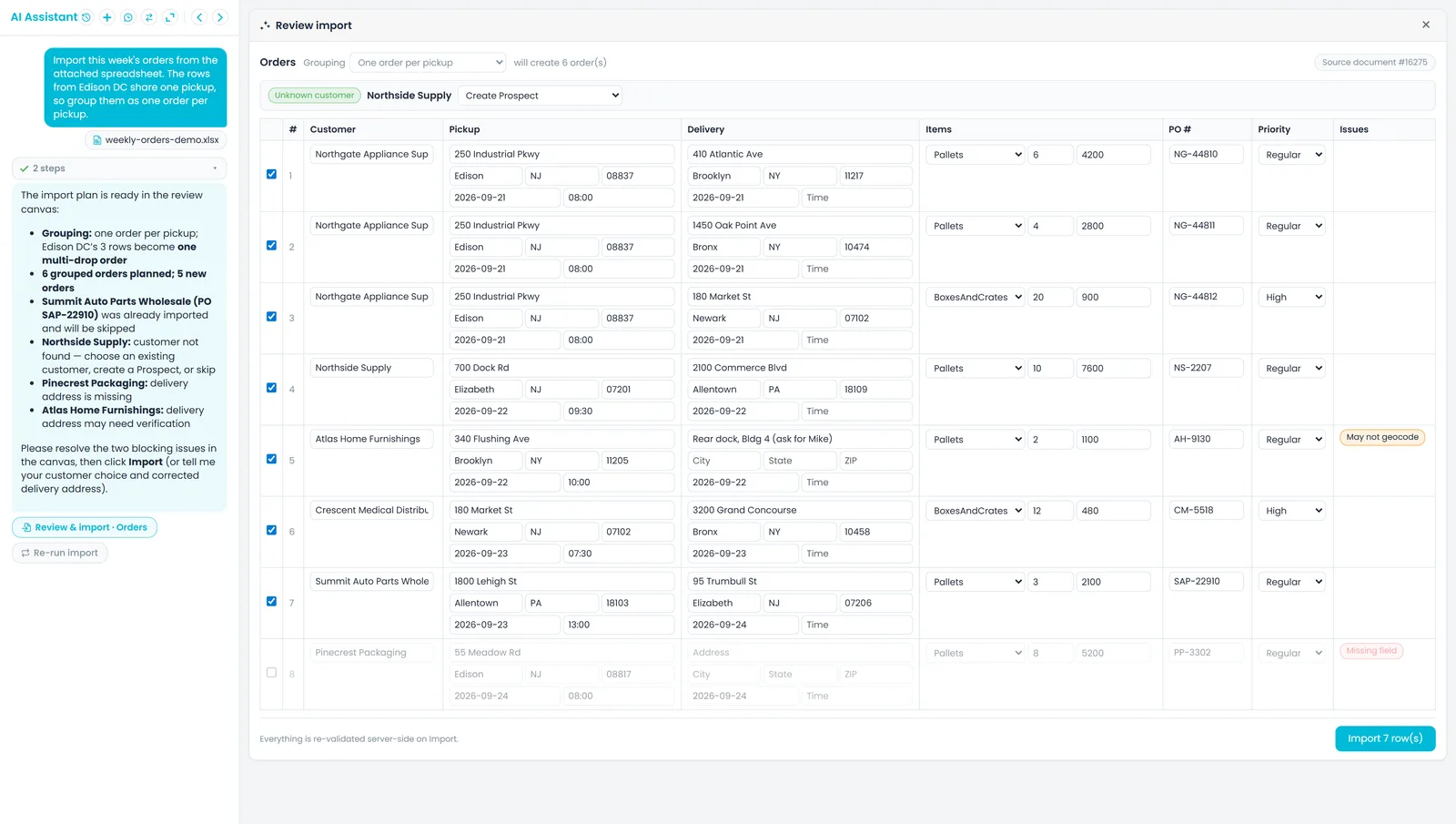
Type it into the order editor, import it from a spreadsheet or PDF and confirm the preview, or let the shipper book it in the customer portal.
2. Dispatch
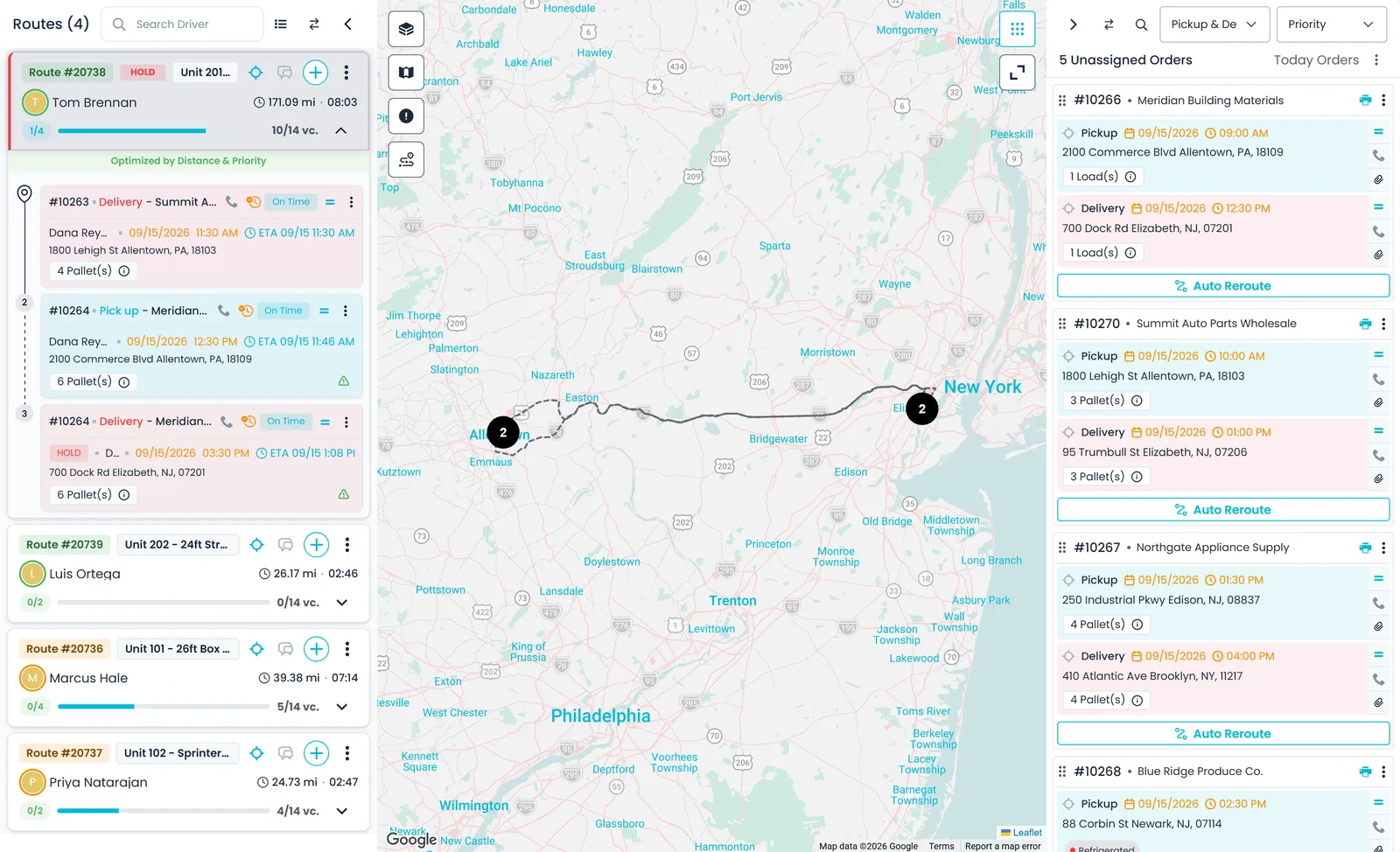
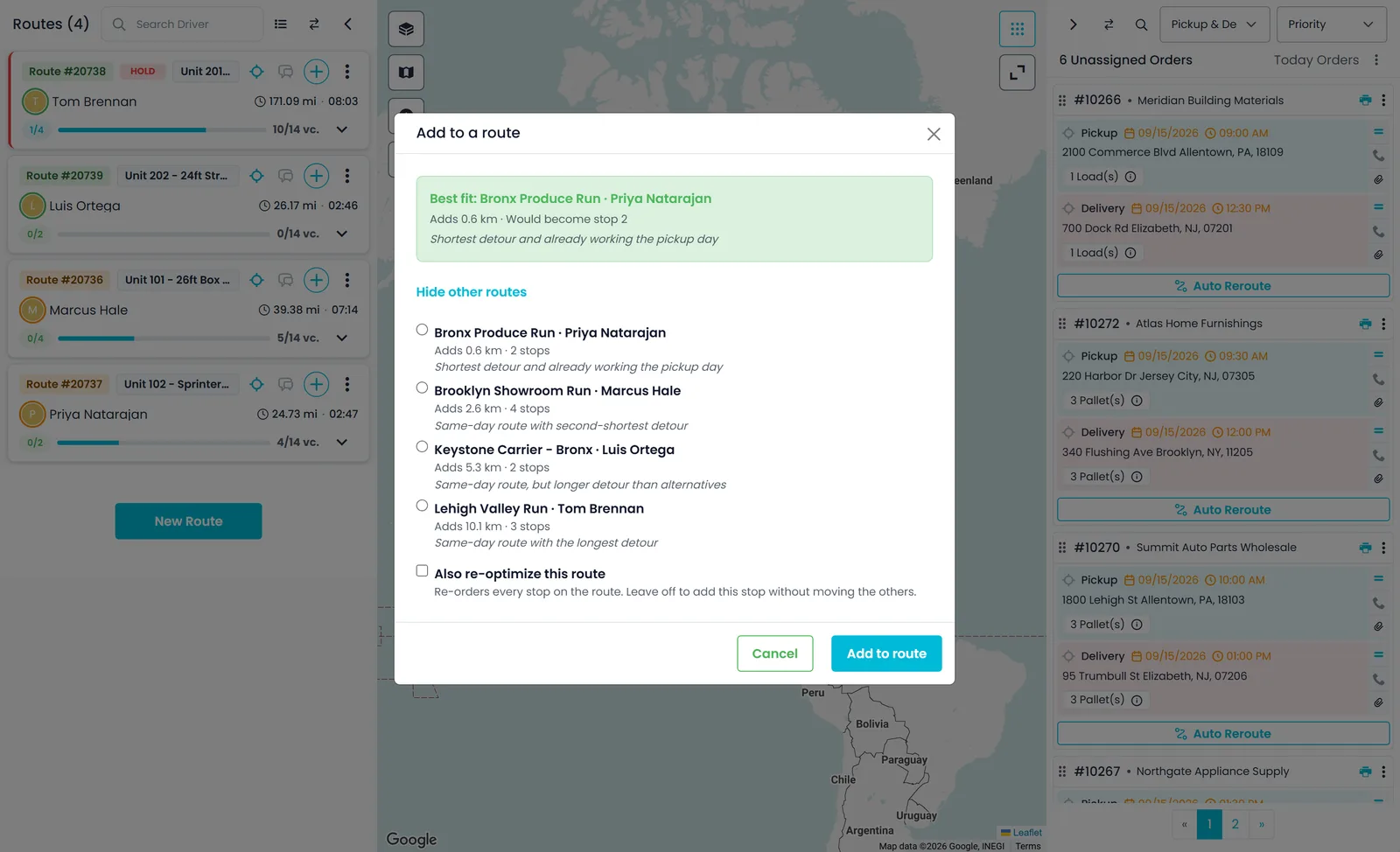
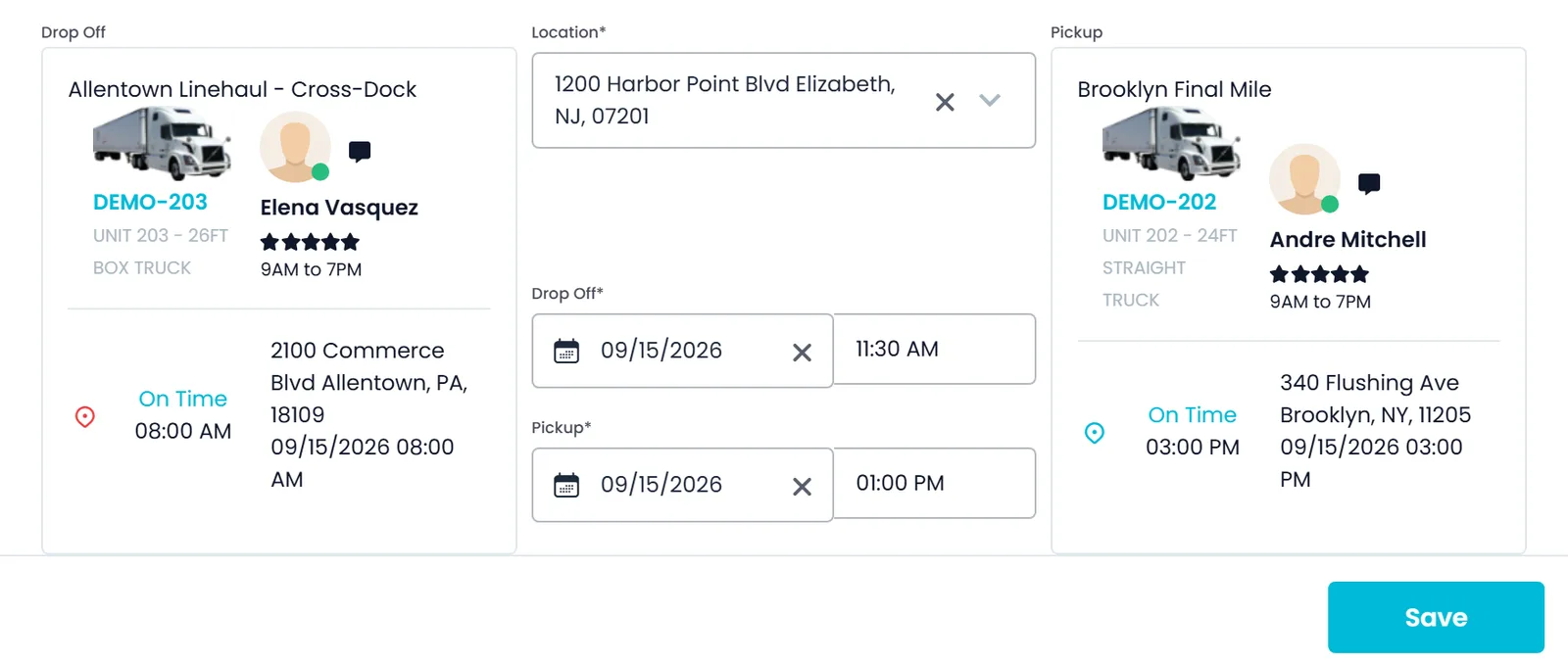
Drag stops onto routes on the dispatch board, re-order a route by distance or priority, and hand freight between drivers at a hub.
3. The driver closes the stop
The driver app walks the driver through each stop, and the goods photos and paperwork scans land on the order.
4. Invoice and cash
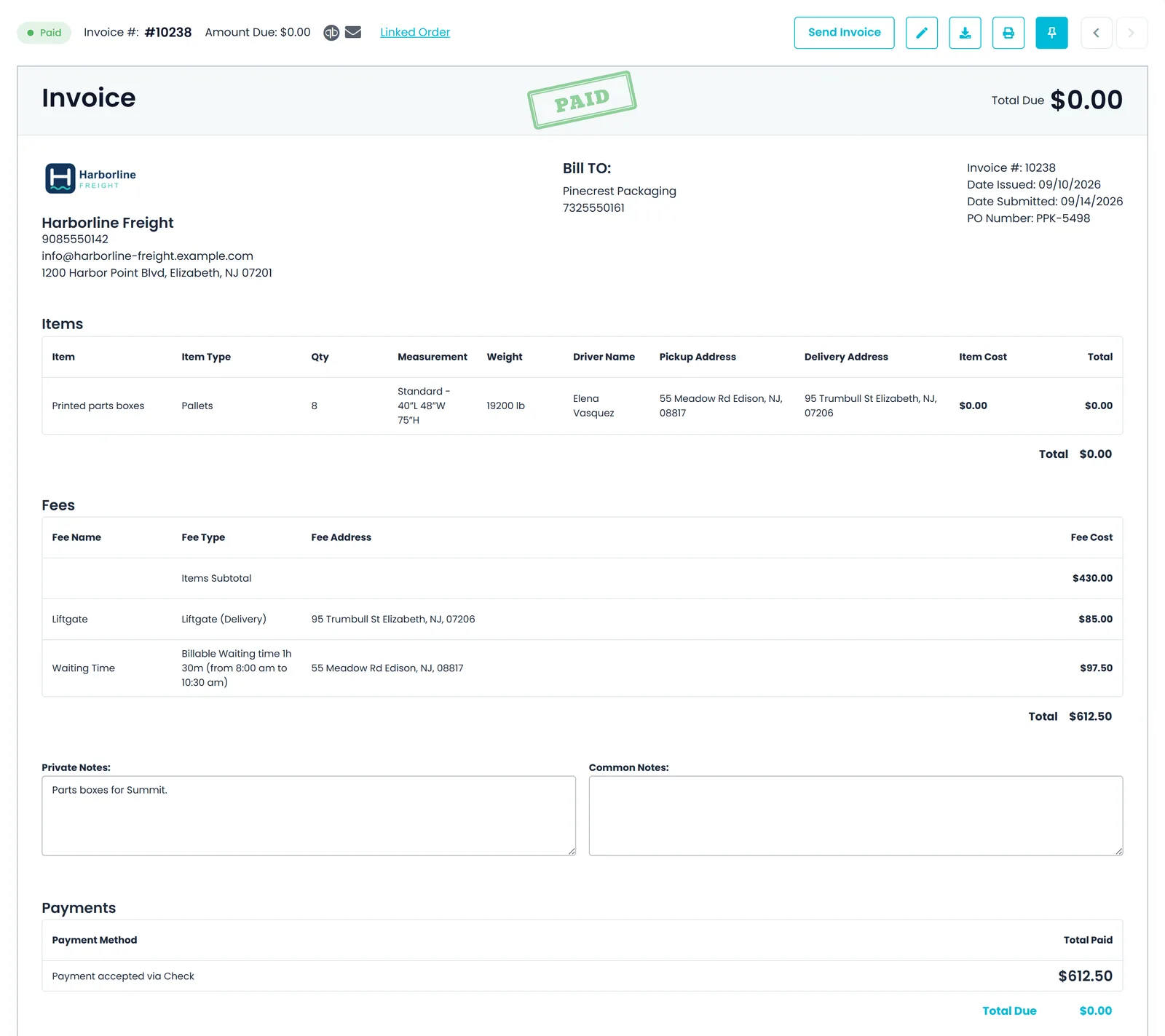
Close the order to build the invoice with its per-stop charges and waiting time, email it, take a card payment and send it to QuickBooks Online.
Three apps and an API
Your office, your drivers and your shippers on the same order
RushHour is one system. What your office enters, what the driver captures at the stop and what a shipper books all land on the same order record.
For your office
Company Portal
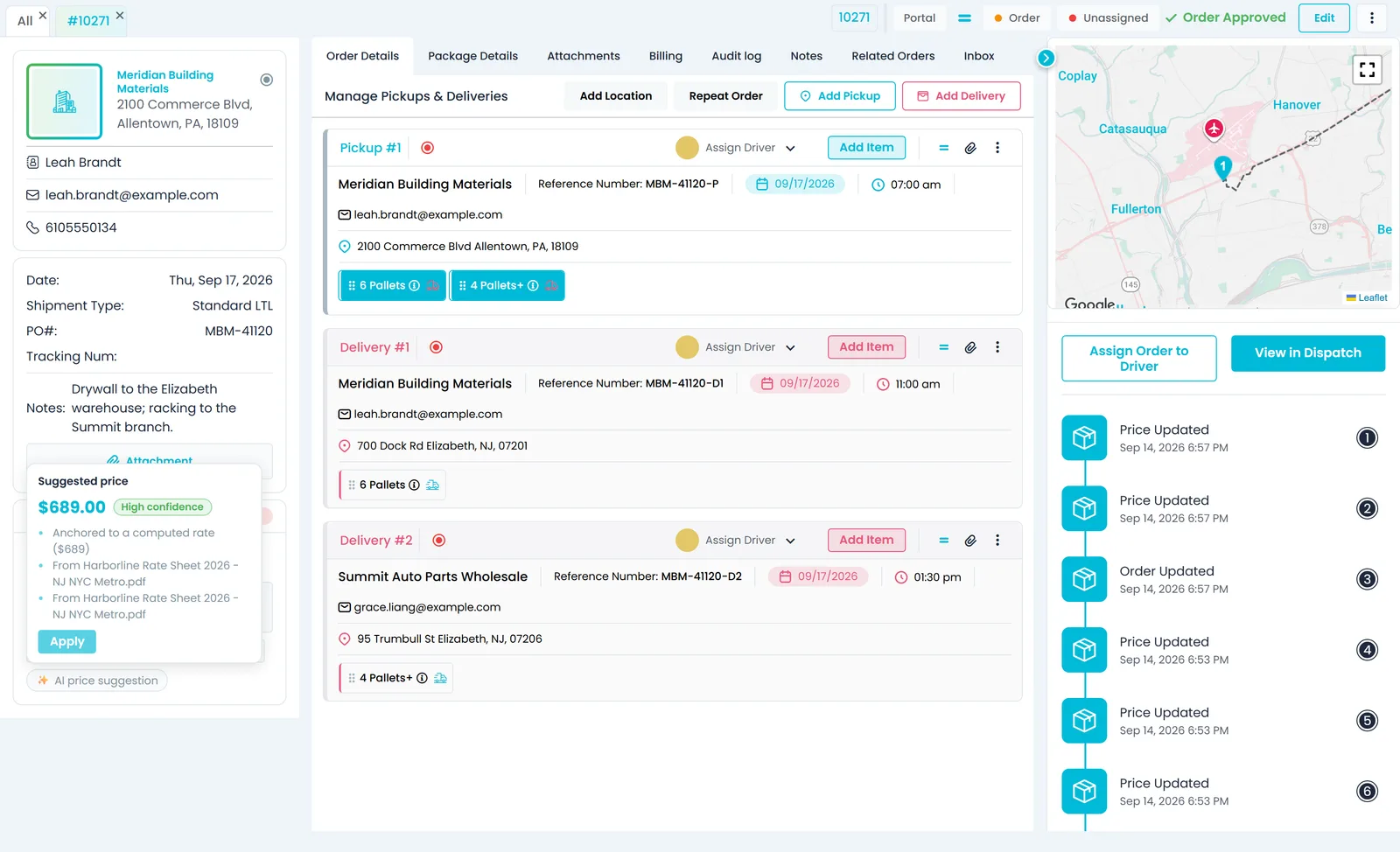
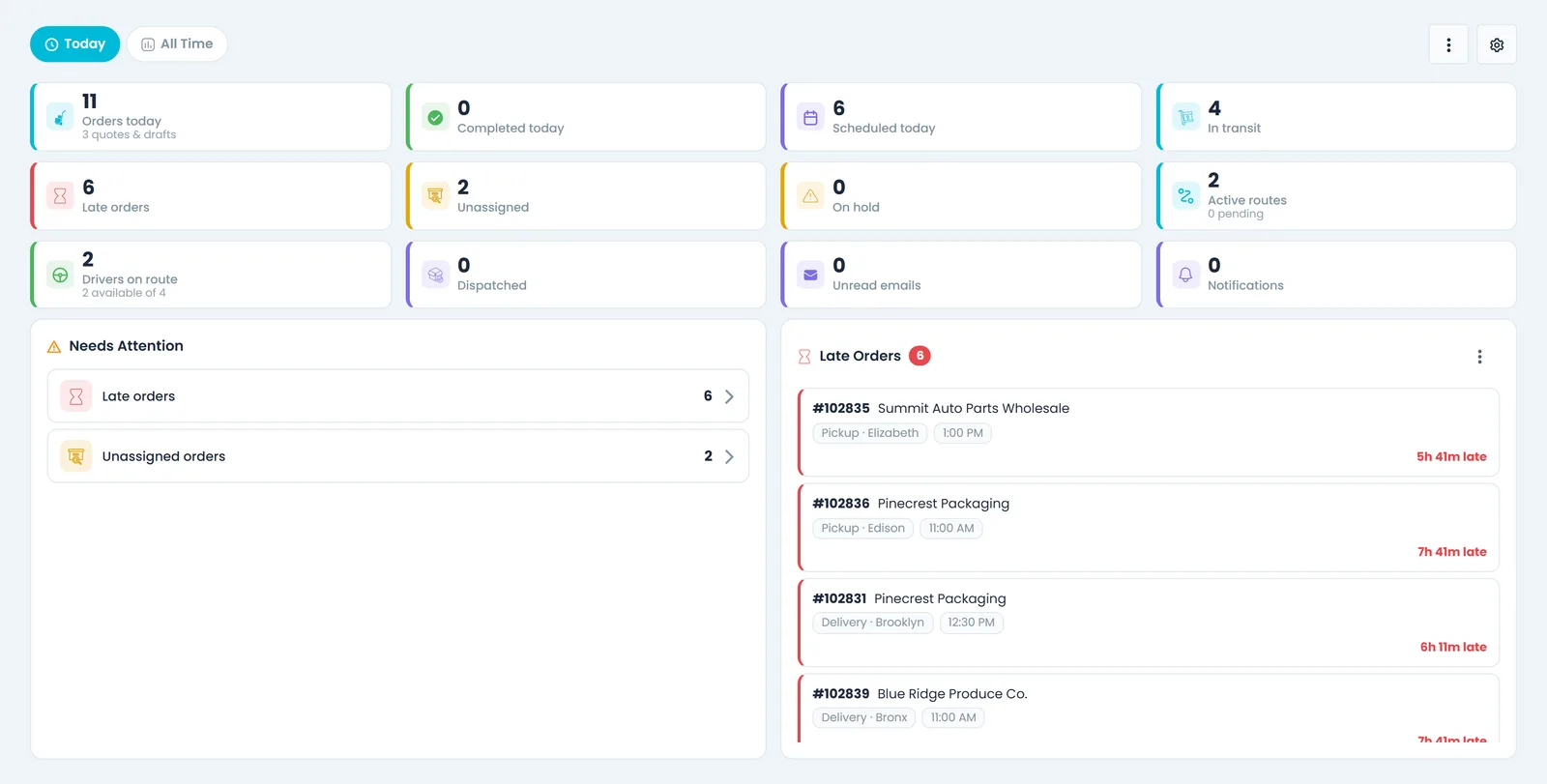
Dispatchers, sales and billing work in one web app: the dispatch board, orders and quotes, customers, invoices and settings, in English or Hebrew and in a light or dark theme. The dashboard's Today view puts late, unassigned and on-hold orders in front of you.
- Find any order, customer, invoice or contact with Ctrl+K
- Keep orders, quotes and customers open as tabs
- Roles and permissions decide what each person sees and changes
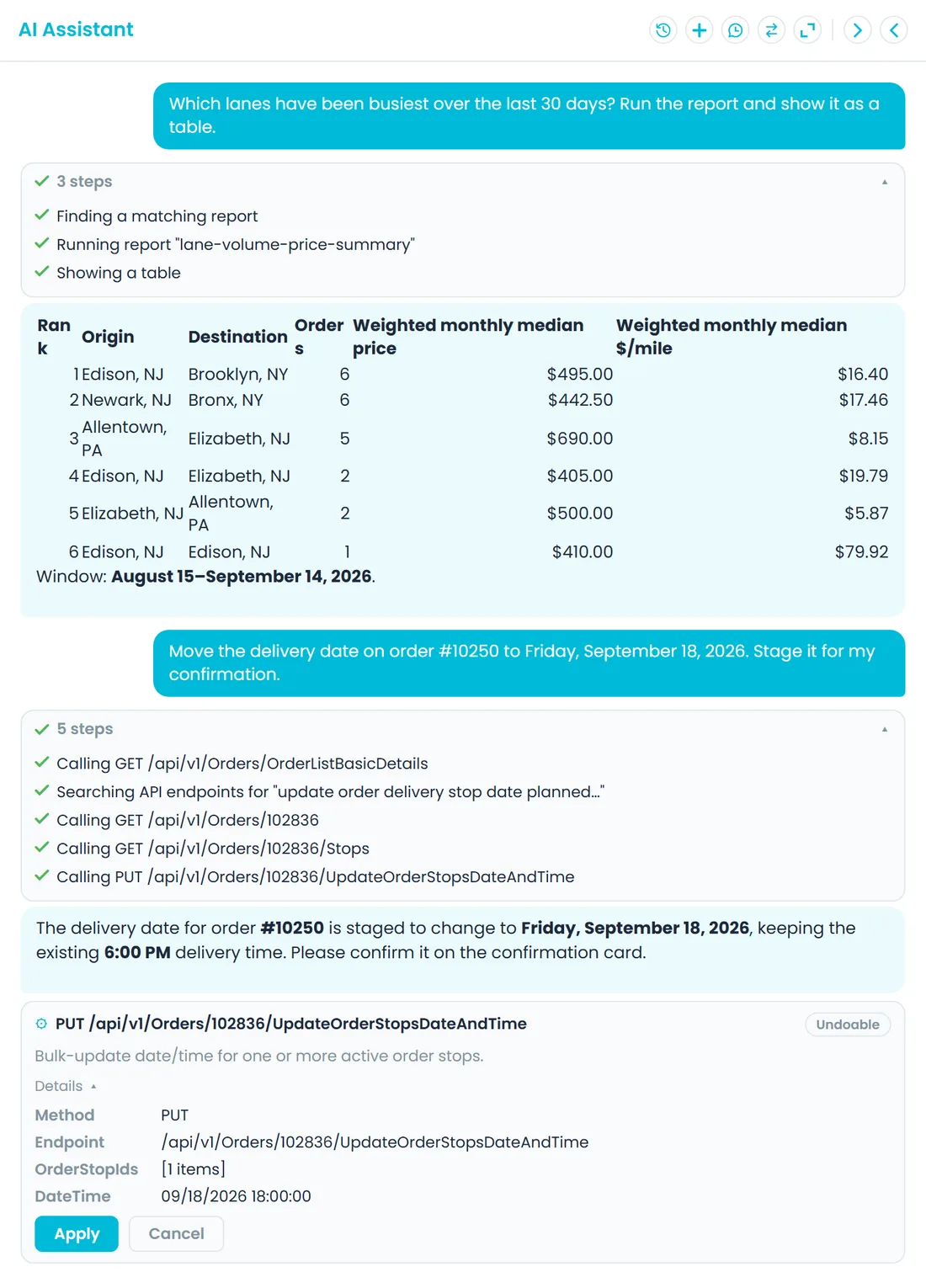
- The AI assistant on every page
For your drivers
RushHour driver app
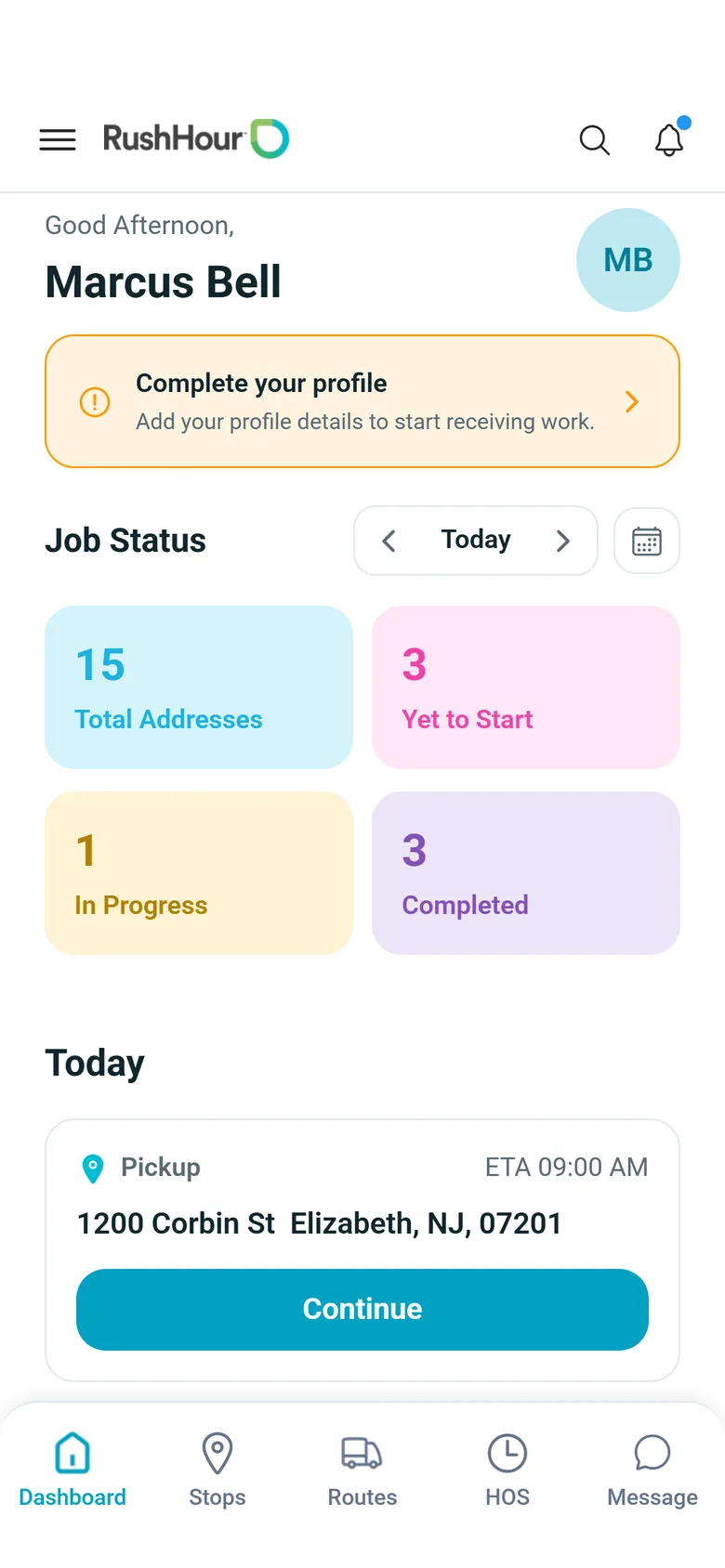
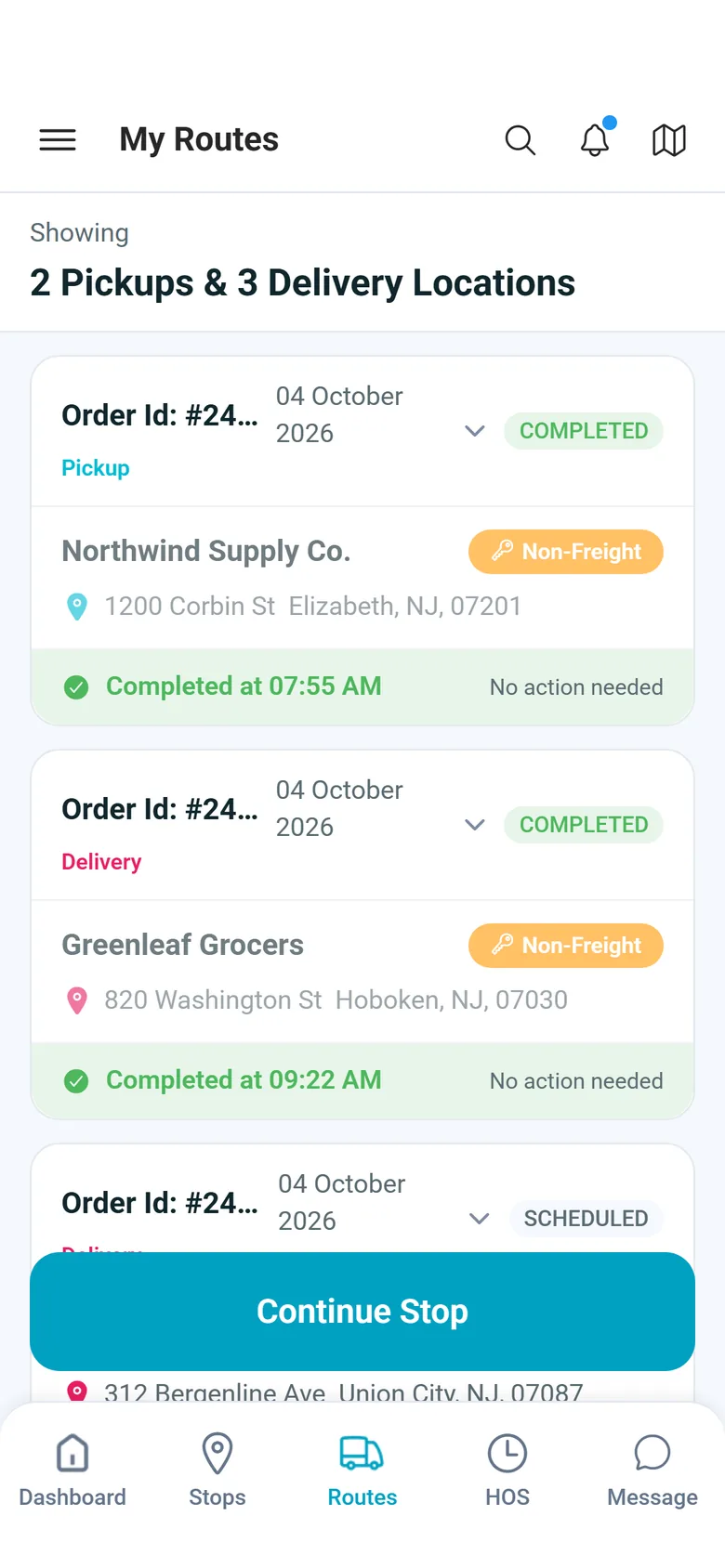
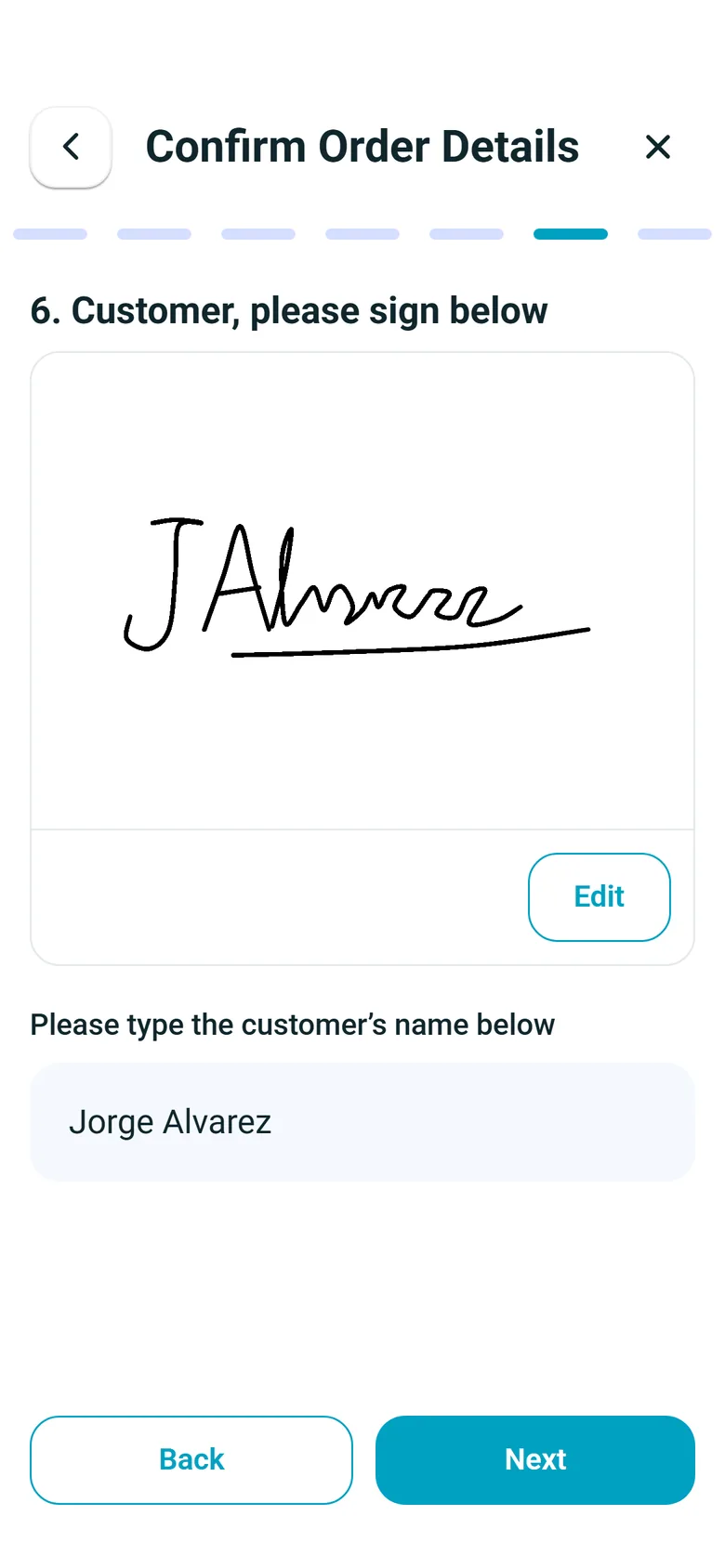
Drivers get their route, run every pickup and delivery step by step, chat with the office and log their hours on their own phone. What they capture lands on the order in the Company Portal.
- Android and iPhone, from Google Play and the App Store
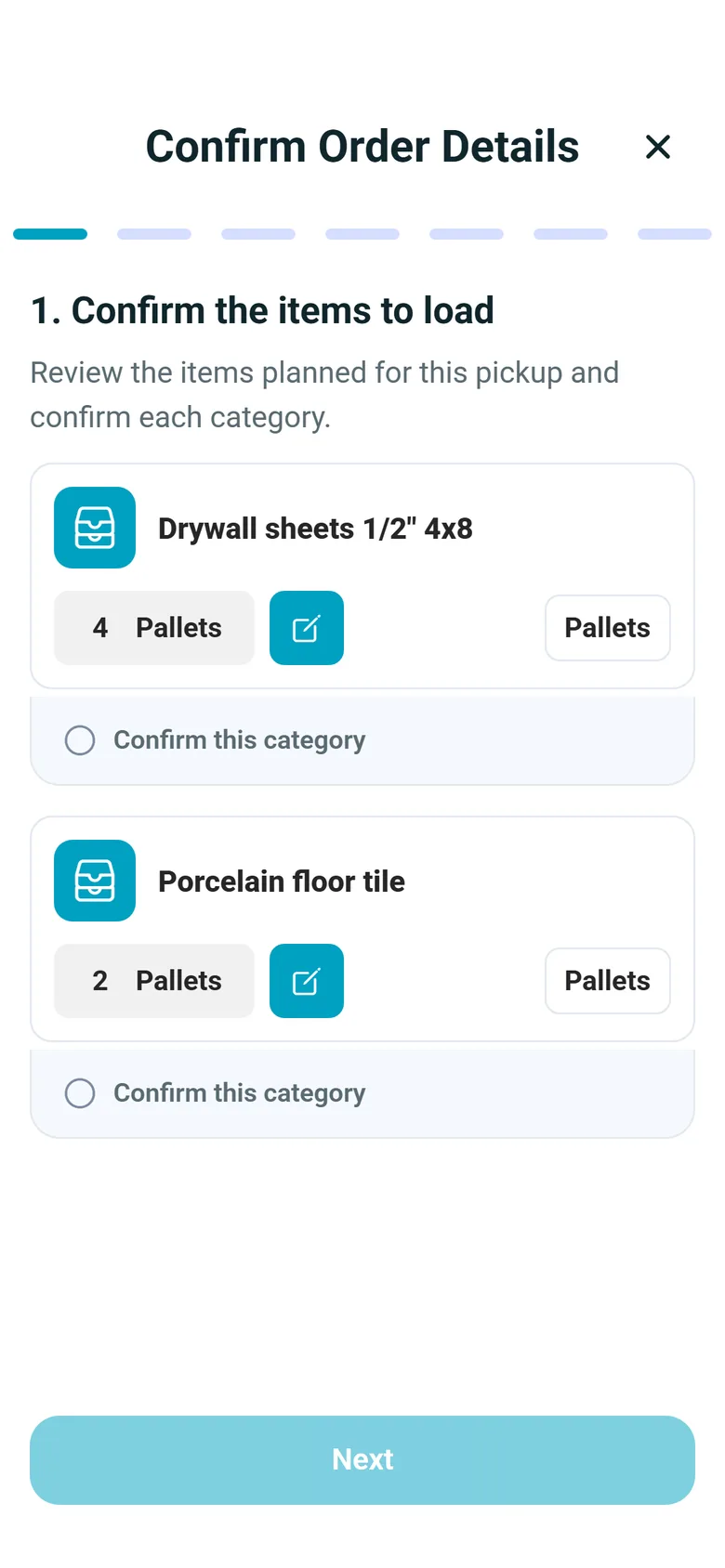
- Stop steps your company sets: item counts, scans, photos, paperwork, charges and signature
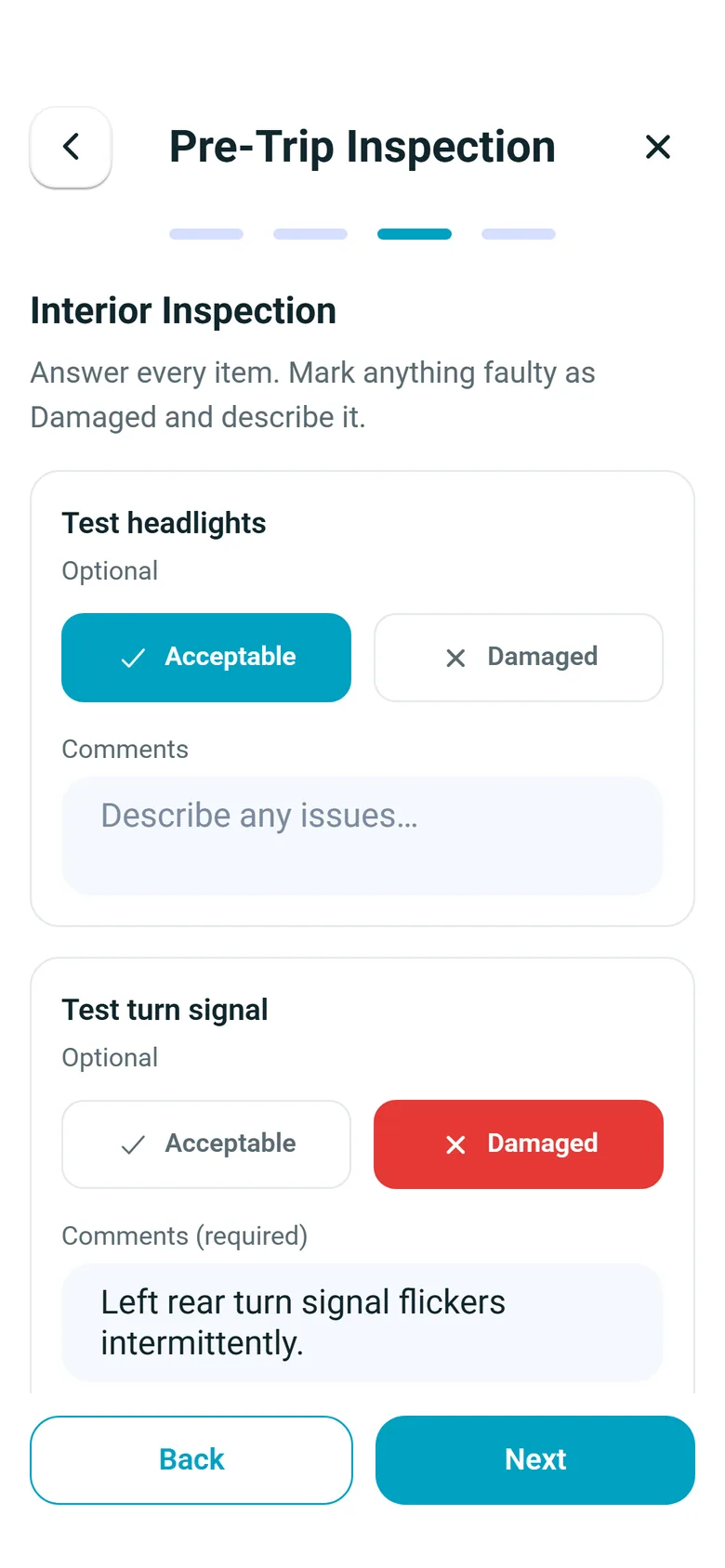
- Pre- and post-trip vehicle inspections with photos
- Hours of Service clocks, and expenses with receipt photos
For your shippers
Customer Portal
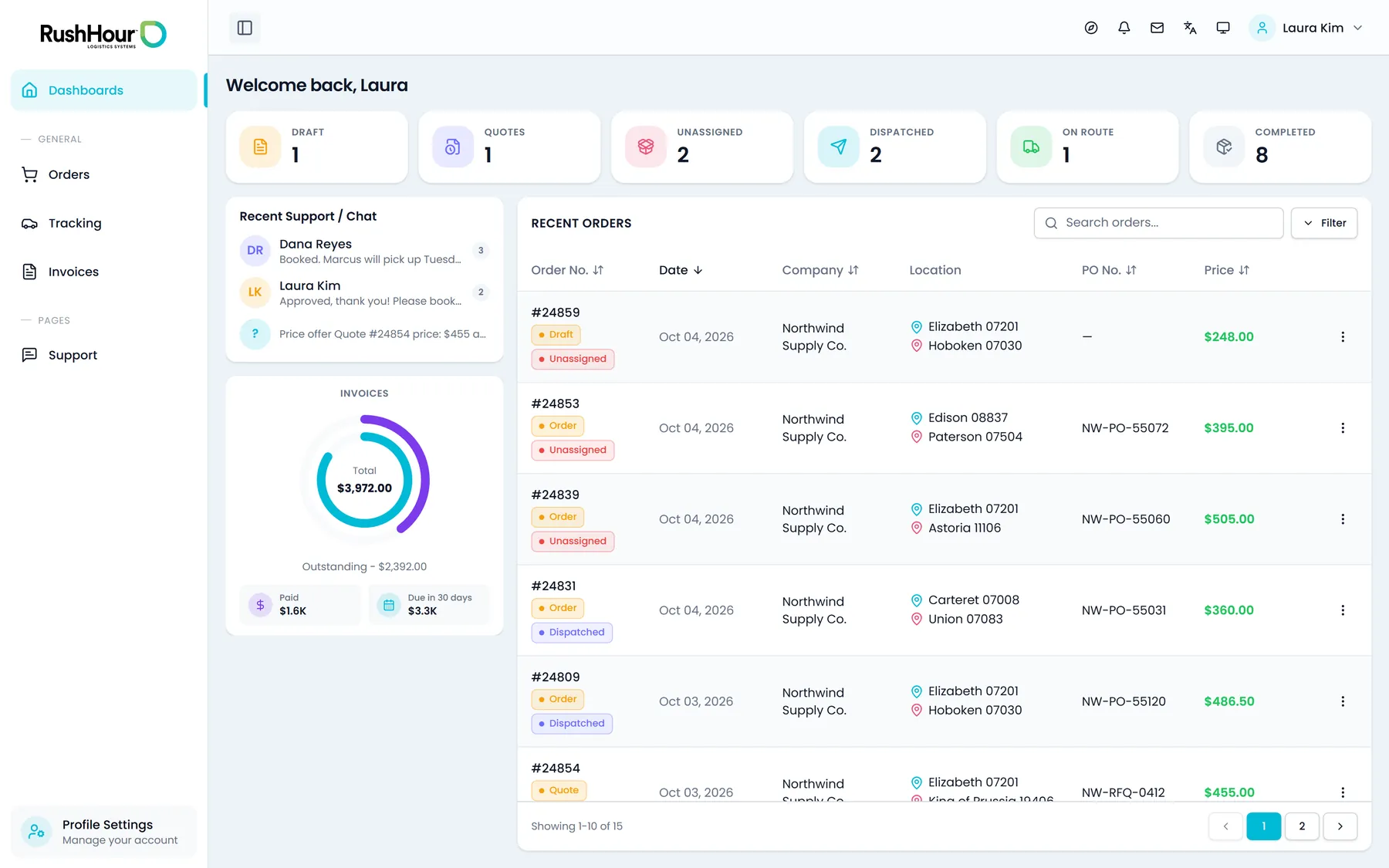
Each shipper gets a login to book multi-stop orders, follow them, open the order sheet and BOL, see and pay their invoices and raise support tickets. They see only their own orders and invoices.
- Orders arrive as quotes for your team to approve
- Order sheet and BOL: preview, print or download the PDF
- Invoices with payment history, and card payments when you use Cardknox
- Support tickets with a priority and a needed-by date
- English or Hebrew, light or dark
For your developers
REST API
The same API the RushHour apps use is documented at docs.rushhourapp.com, including 508 endpoints in 16 areas that your systems can call. Every request runs as a RushHour user, so roles and permissions apply exactly as they do in the Company Portal.
- JSON over HTTPS, the same response envelope on almost every endpoint, and machine-readable error codes
- A refused request usually names the permission that is missing
- Today an integration signs in as a Company Portal user, ideally a dedicated one with only the roles it needs
- API tokens with roles, expiry and one-click revokeNew in the October 2026 release
Plan and run the day
Dispatch & Routing
Build the routes, move the freight and keep track of what the trucks cost.
Price it and get paid
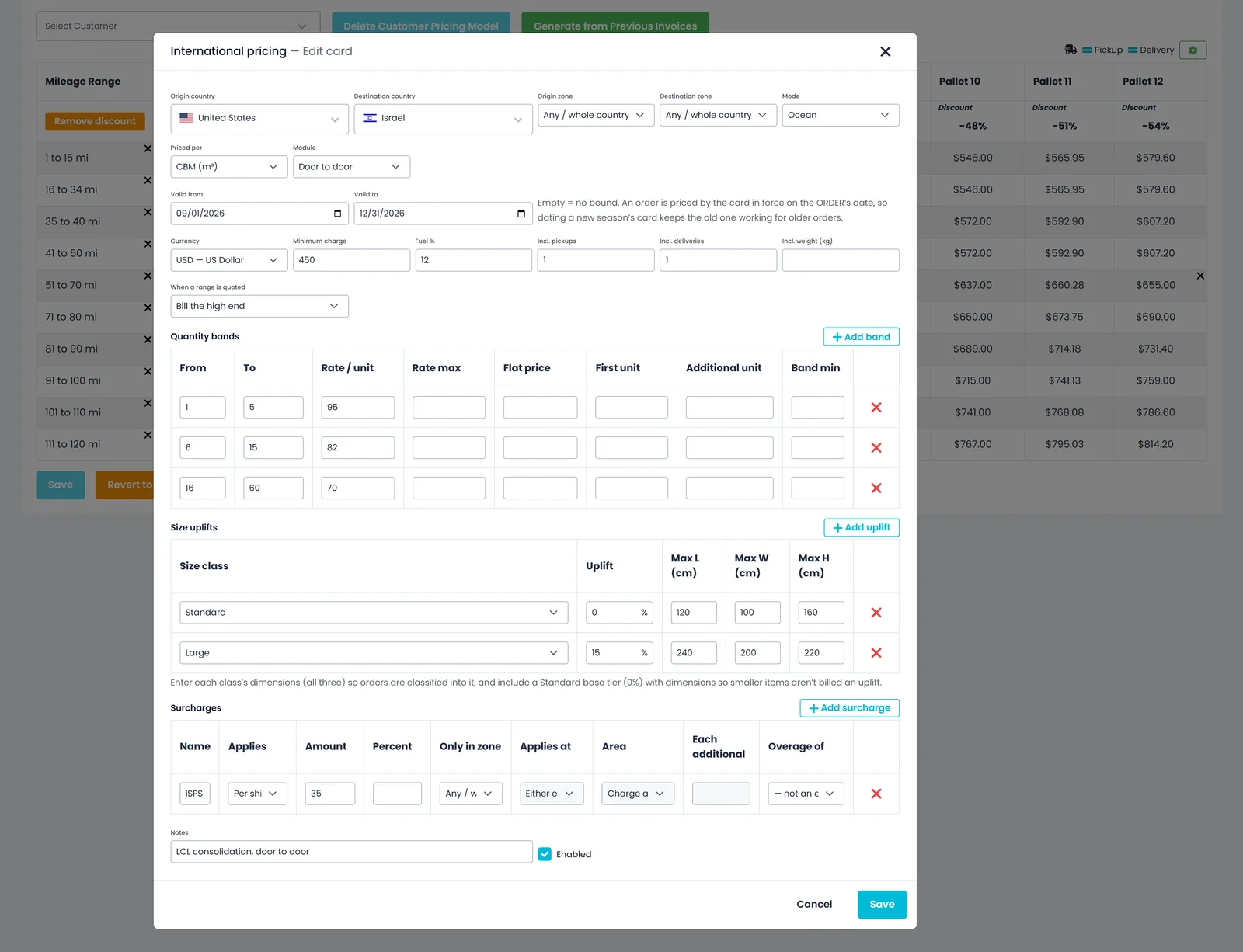
Orders, Pricing & Billing
Take the order, price the load, invoice it and collect.
On the road and with your shippers
Driver App & Customers
What the driver does at the stop, and what your customers can do for themselves.
Work faster with what you already have
Platform, AI & Integrations
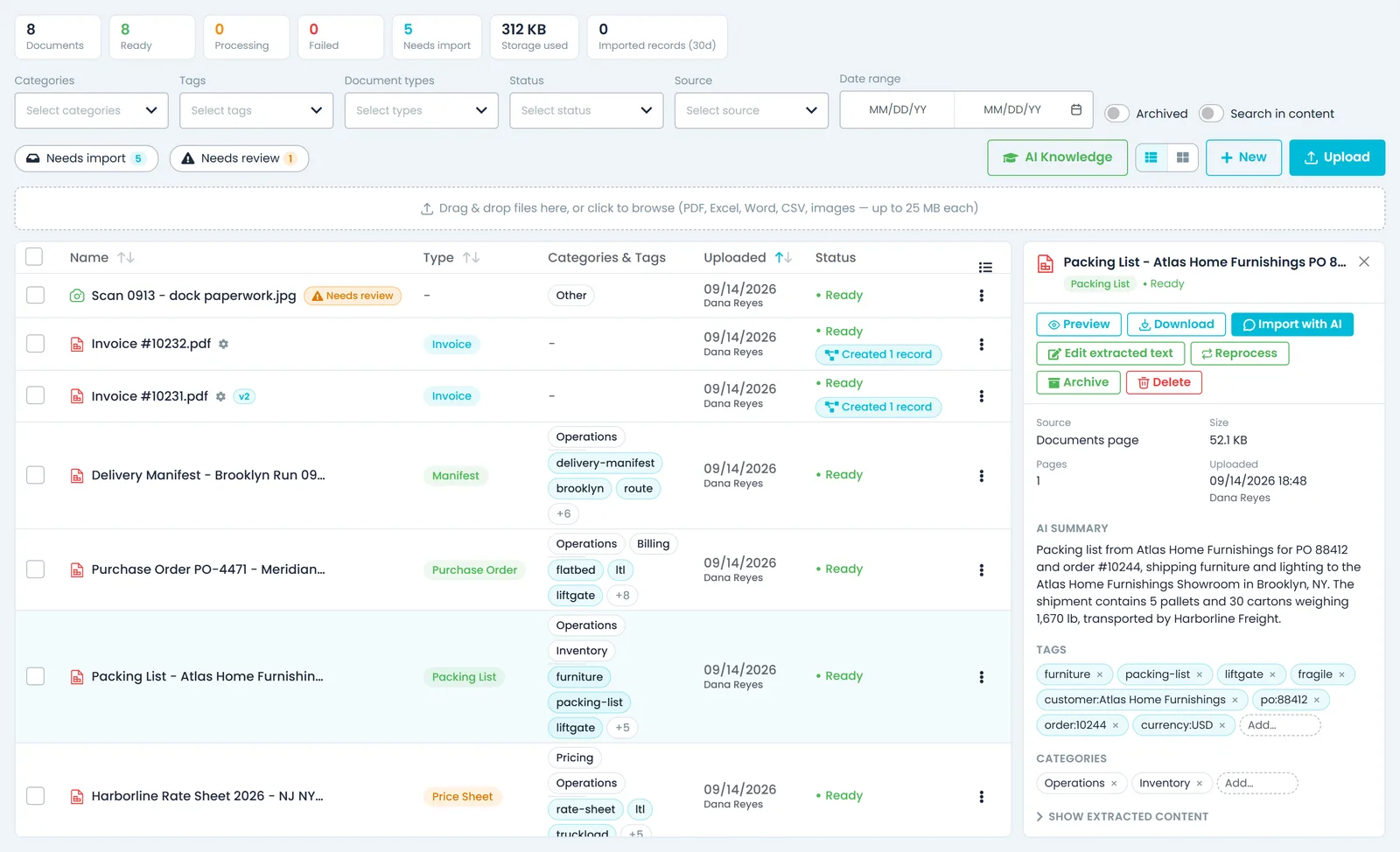
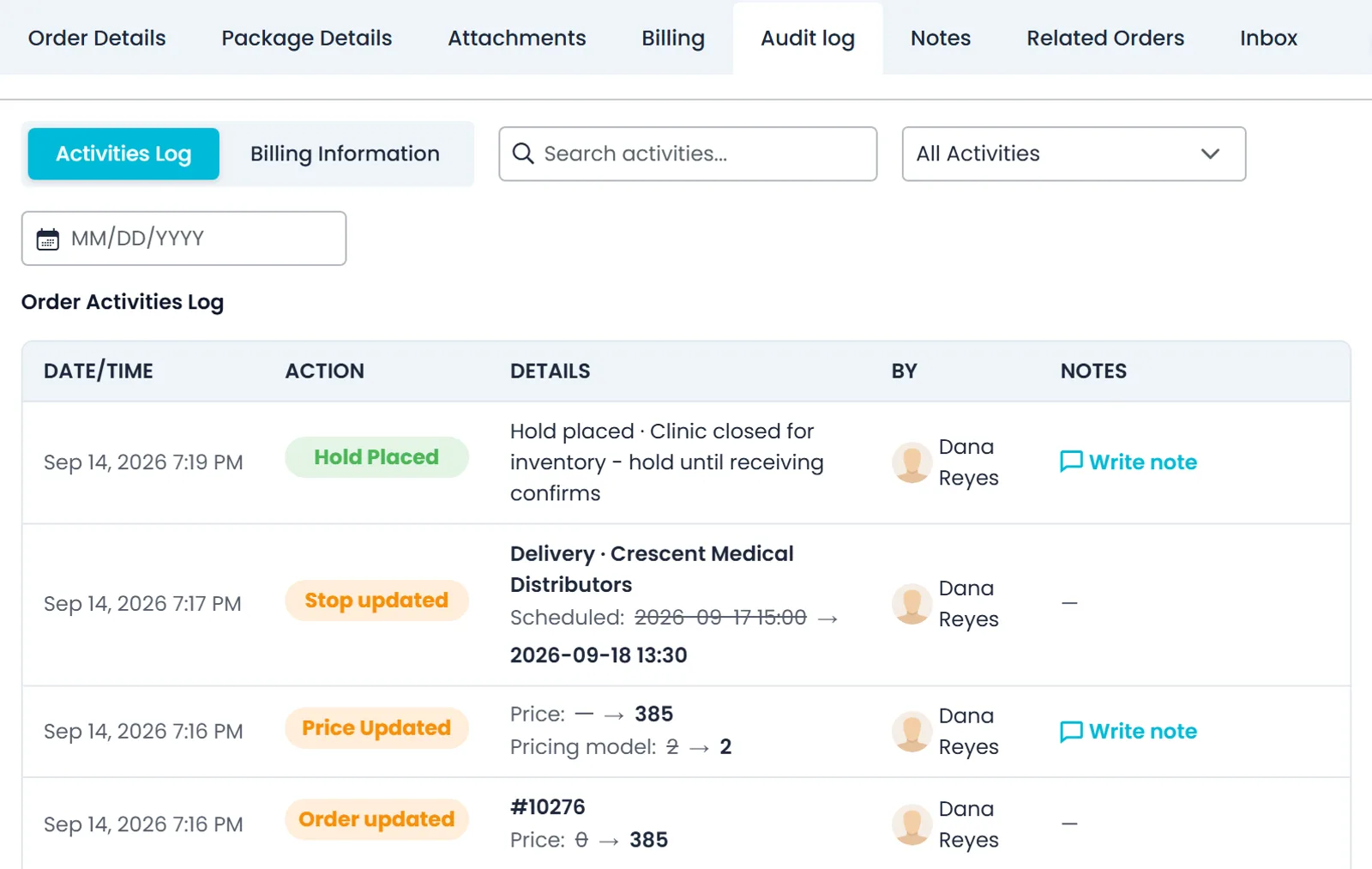
The office app your team works in, plus ways to ask questions, file the paperwork, see who did what and connect the tools you already pay for.
Freight that has already run through RushHour
Questions
Common questions about the products
Is RushHour one system or several apps?
One system with three apps. Your office works in the Company Portal, a web app. Your drivers use the RushHour driver app on Android or iPhone. Your shippers can use the Customer Portal. A REST API gives your developers the same data. An order typed in the office, imported from a spreadsheet or booked by a shipper is the same record the driver works from and the invoice is built from.
What does the Next release badge mean?
The feature is finished and running on our stage environment, and it reaches every customer with the next production release. Everything on this page without a badge is in production today. The changelog lists what the next release contains.
Which phones does the driver app run on?
Android phones and iPhones. Drivers install the RushHour driver app from Google Play or the App Store, then connect to your company with the invite code you send them from the Company Portal. The app's screens are in English.
Does RushHour work in Hebrew?
Yes. The Company Portal and the Customer Portal work in English or Hebrew, with right-to-left layouts in Hebrew, and each person picks their own language. The driver app and the user guides are in English.
Do we need tracking devices in the trucks?
No. Arrival estimates on the dispatch board start from your Samsara trucks if you connect Samsara, or from the driver app's location, and without either from the last completed stop or the plan. RushHour does not sell tracking hardware.
Can we connect our own systems?
Yes. The REST API that the RushHour apps use is documented at docs.rushhourapp.com/developers. An integration connects with an API token that has its own roles, expiry and revoke, created by a company admin in Settings > API Tokens. RushHour does not send webhooks, so integrations check for changes on a schedule.
Where can our team learn each product?
Step-by-step user guides for the Company Portal, the Customer Portal and the driver app, plus the developer section, are at docs.rushhourapp.com, in English. A demo on your own lanes is the quickest way to see the products working together.
See the products on your own freight
Book a demo and we will walk through orders and quotes, the dispatch board, the driver app and invoicing using your lanes.