
Every pickup and delivery,
run from the driver's phone.
Drivers see their routes, work through each stop step by step, log hours of service, inspect the truck, report problems, log expenses and message the office. Drivers on Android and iPhone both get version 2.x of the app, from Google Play and the App Store.
What drivers do in the app
From the first stop to the end of the shift
Everything below is in version 2.x of the app on Android and iPhone, from Google Play and the App Store, except the items marked next release or coming soon. Where the two phones differ, the row says so.
Your day at a glance
The dashboard shows the day and the next stop
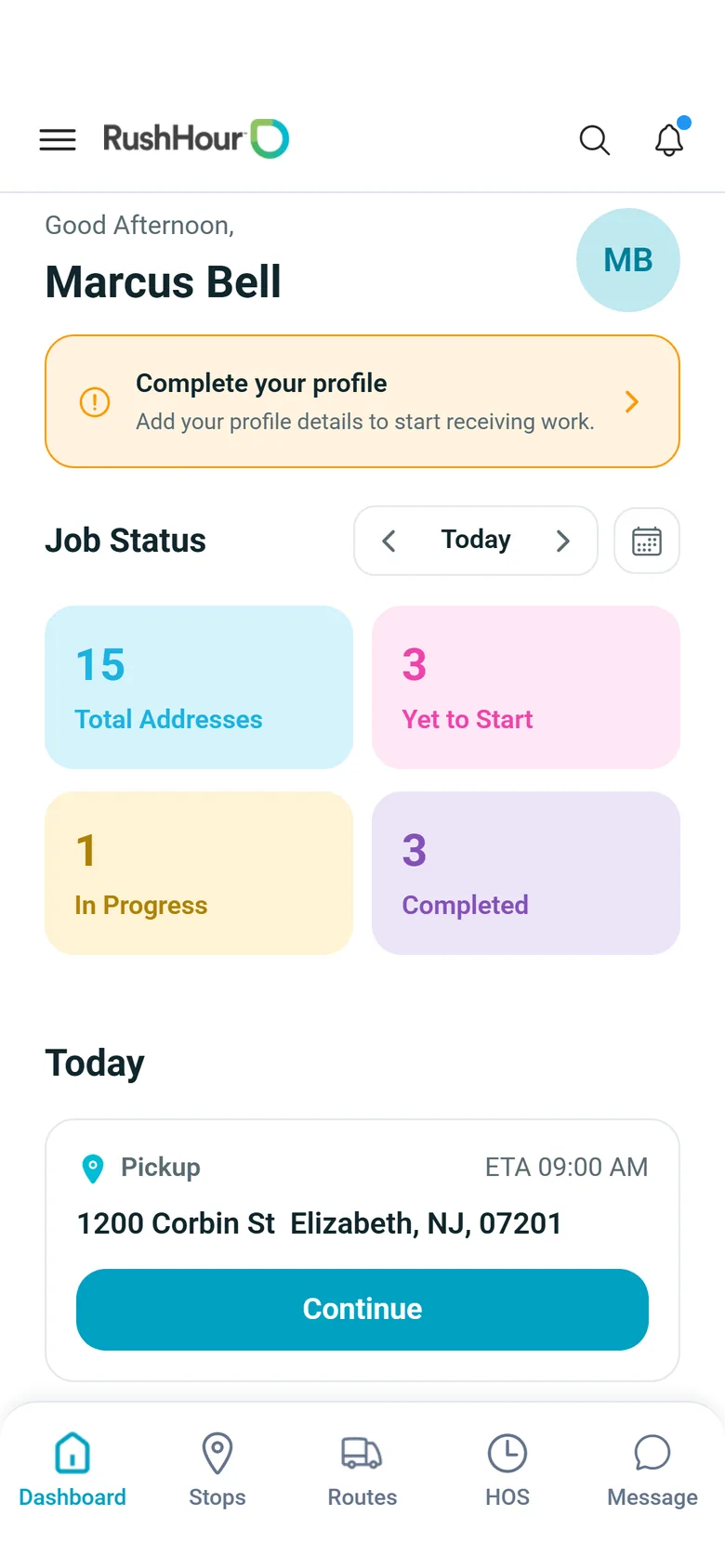
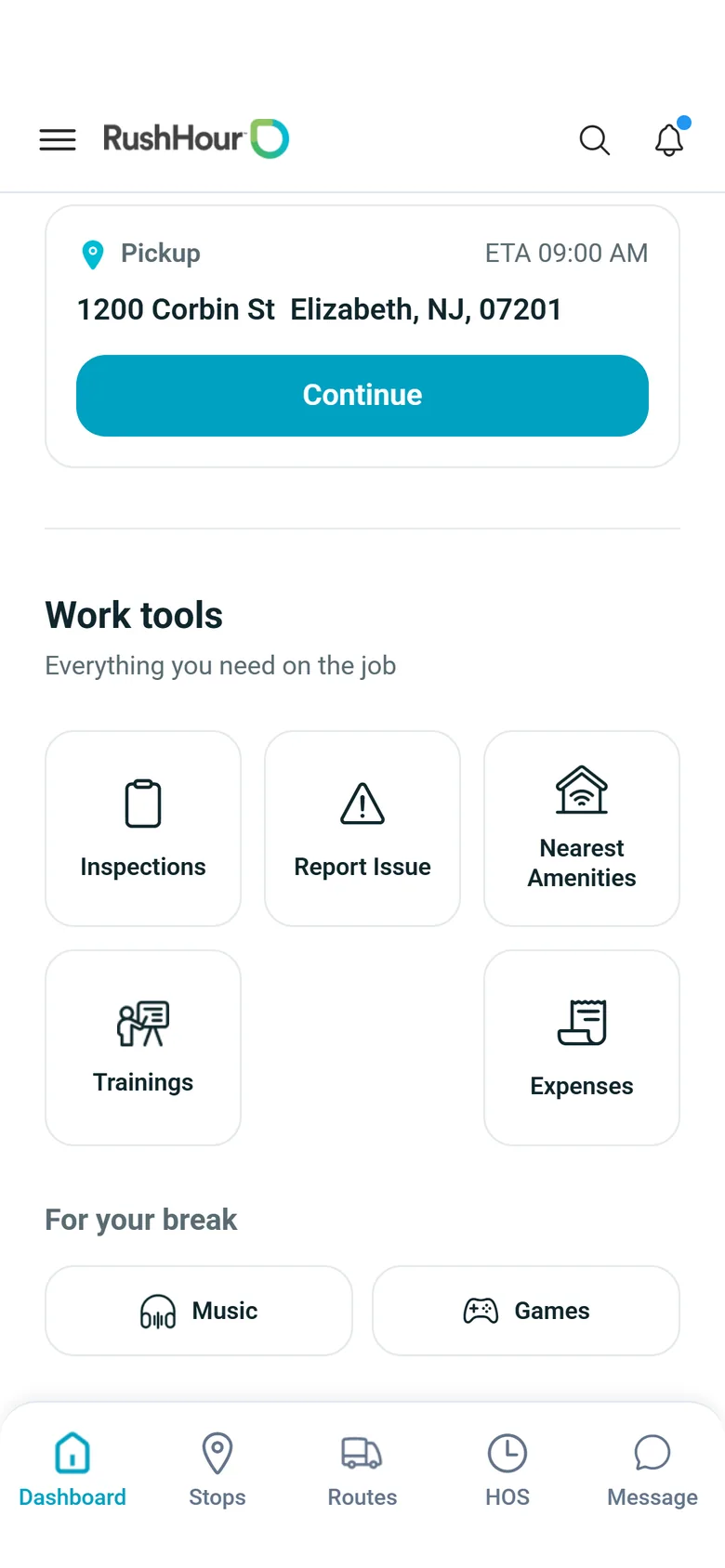
Drivers open the app on the Dashboard: their job counts for the day, the current or next stop with a Continue button that takes them back to the route, and a reminder when a pre-trip inspection is due, including after a change of truck. Below sit the work tools: Inspections, Report Issue, Nearest Amenities and Expenses. The search icon in the header finds screens and tools from the words the driver types.
- Job Status for any day: total addresses, yet to start, in progress and completed, with arrows and a date picker
- Search understands everyday words, such as "fuel receipt" for Add Expense or "dvir" for Vehicle Inspection, and leaves out tools your company switched off
- Nearest Amenities lists places within 10 km by distance, with filters for gas stations, restaurants, cafes, hotels, parking, ATMs, convenience stores, hospitals and pharmacies
- Each place shows its address and distance, with its rating and whether it is open now when the map service supplies them; Get Directions shows it on the Routes map
- Light, dark or follow-the-phone appearance
- Internet radio by genre and eight games, such as Trucking Trivia and Sudoku, under For your break
Routes and dispatch
Today's routes, with a line to the office
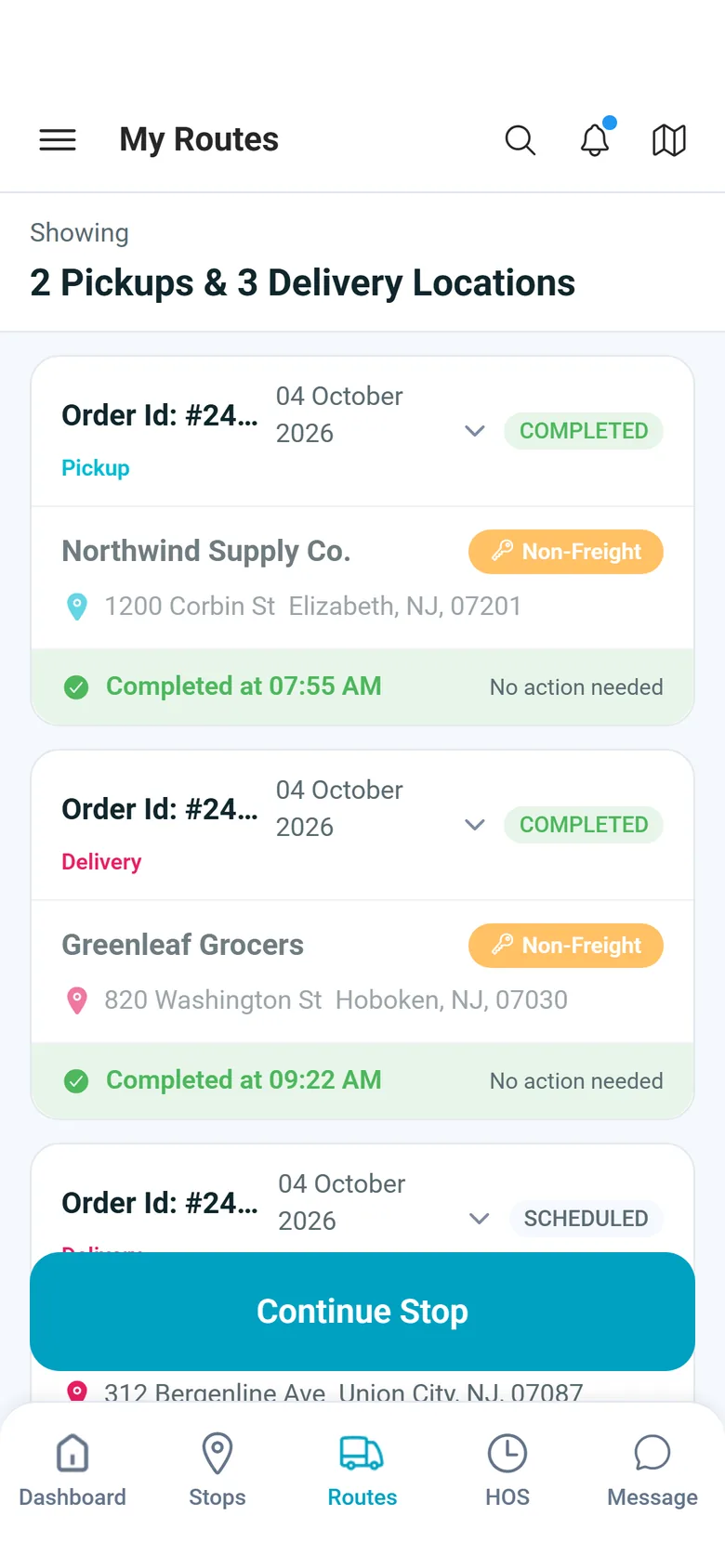
Drivers open their assigned routes on a map or as a list, with each stop's address, contact and the instructions saved on the location, such as a gate code. The app sends a push notification when a route is assigned to them or a stop is added or removed, and drivers can message the office from the app instead of calling.
- Push notification when a route is assigned or changes
- Location Details and Instructions saved on the location, such as a dock or a gate code, on the stop
- Chat with the office from the phone
- Each stop shows its status: Scheduled, Arrived, Attempted, Pending Delivery or Completed; finished stops are dimmed with the time they were completed
- Appointment Required, or a confirmed appointment with its date, time and number, on the stop card, plus a Liftgate required tag on stops flagged for a liftgate (the Company Portal has no setting for that flag yet)
- On the map, stops are numbered and completed stops turn green with a check mark; Google Maps, or Apple Maps on iPhone if you choose the phone's own maps
- Message and Call buttons for each stop's contact
At every stop
A step-by-step stop instead of loose paperwork
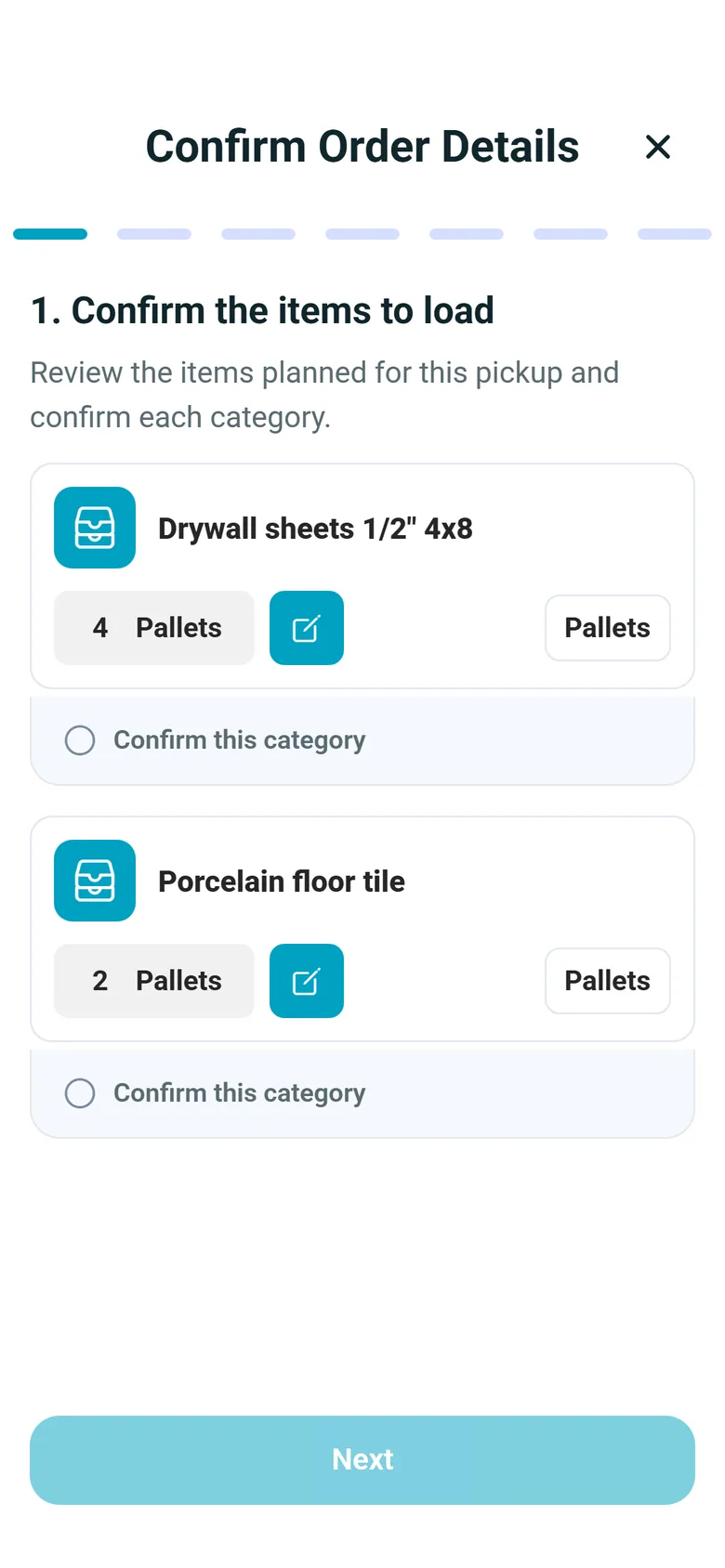
At a pickup or delivery the app walks the driver through the stop: confirm the items and scan barcodes, photograph the goods, add charges from your charge types, scan the paperwork, and photograph a check when freight is paid at the stop, or record cash collected at a pickup. Photos and scans are saved on the order stop, where the office and the customer can open them.
- Multi-page paperwork scan saved as one PDF on the stop
- Barcode scans are kept without signal and sync later
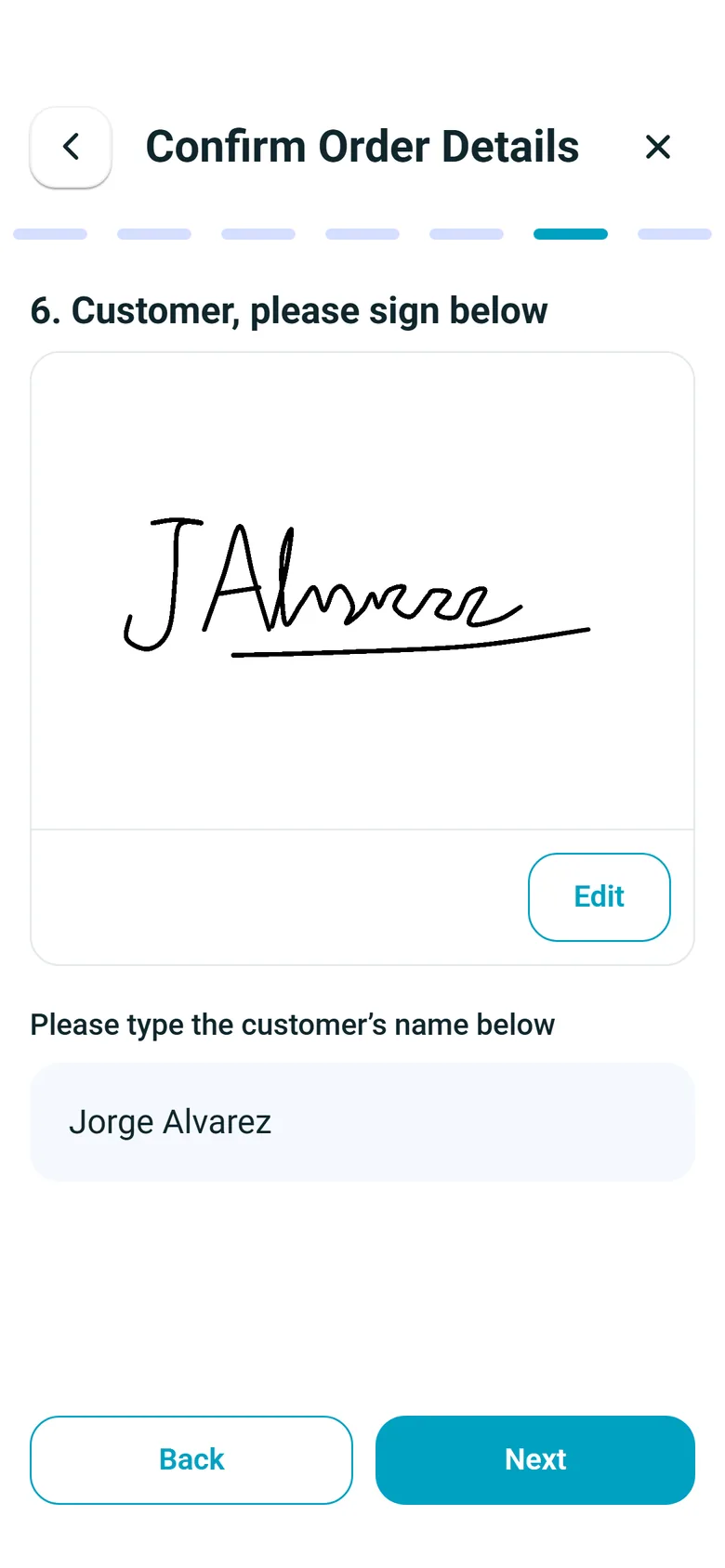
- The consignee signs on the driver's phone
- Planned vs. actual counts, and missing or damaged units with a photo
- Charges come from your own charge types, with a price field only on the ones you allow to be changed
- An unfinished stop is kept on the phone, and the app offers to resume it at the step where the driver left off
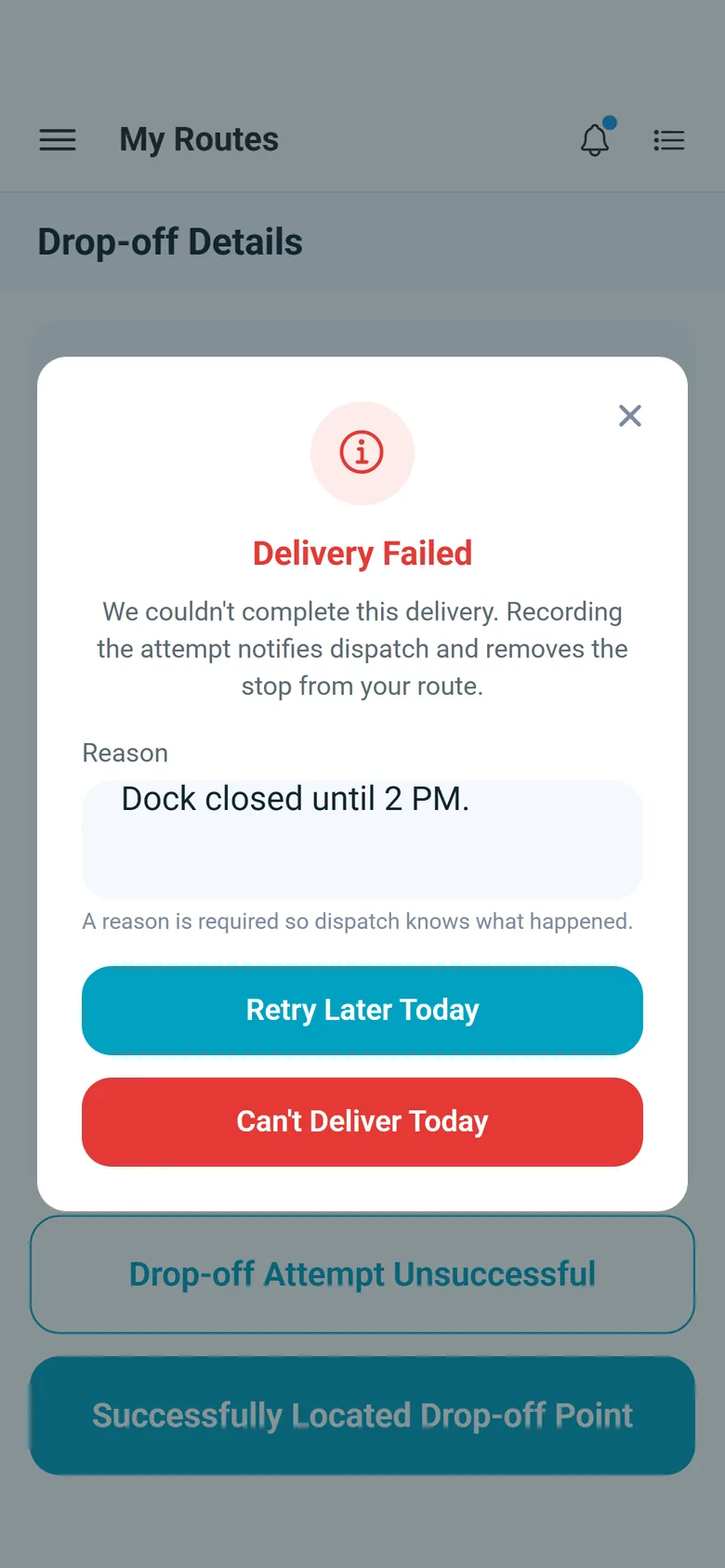
- When a stop can't be done, the driver records a failed attempt with a reason and the stop goes back to dispatch
Messages
Office, route and group chats in the app
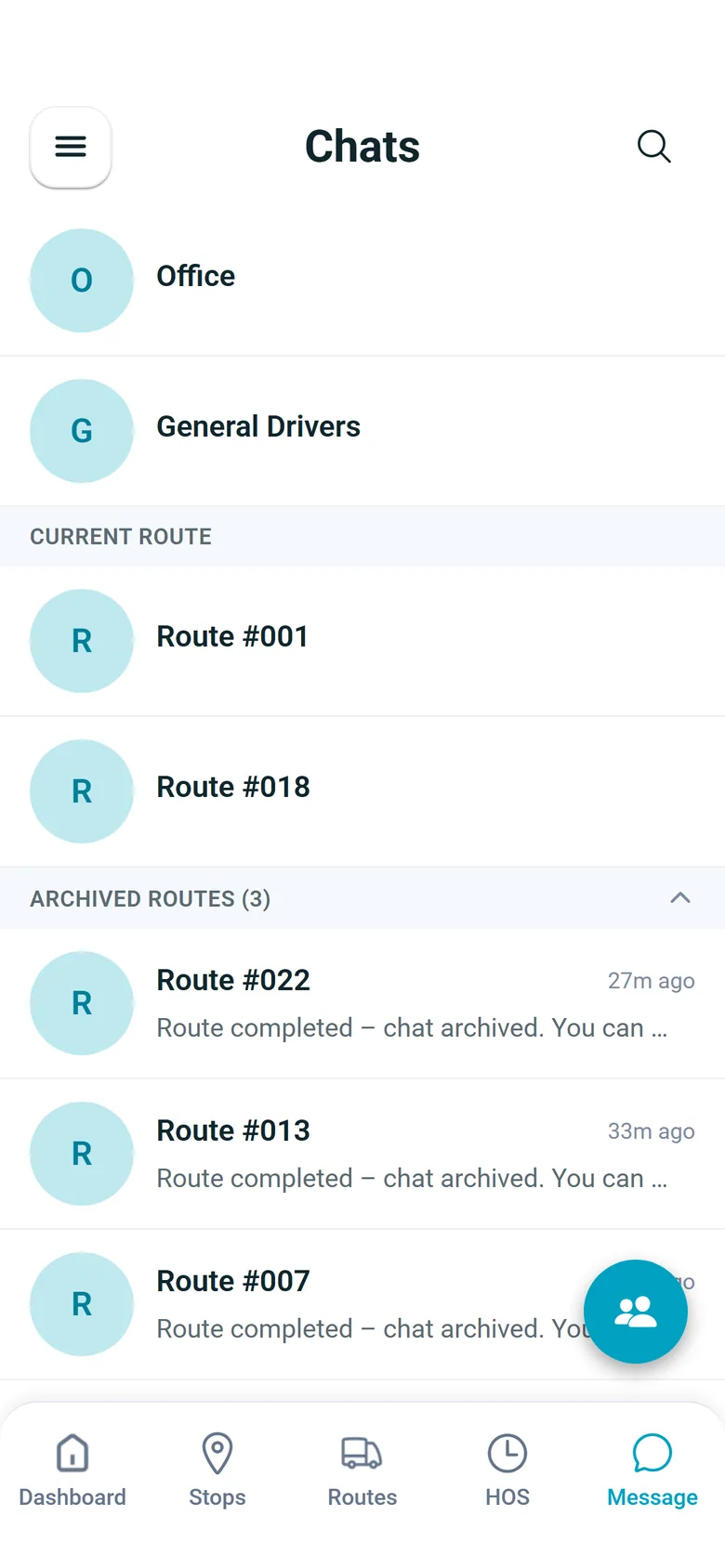
The Message tab starts with the driver's Office chat, then a chat for each route they are driving, archived routes, order chats and direct messages, with search. RushHour opens a chat for every route you assign, and your team answers from Inbox → Chat in the Company Portal. Drivers send photos from the camera or the gallery, open the files the office sends, such as a PDF, and a message written without signal is sent when the connection returns.
- Unread chats in bold, the unread total on the Message tab and a "new messages" line where the driver left off
- A chat button on the route map opens that route's conversation, with its unread count
- Group chats with other drivers working on the same orders right now
- Type @ to mention someone in the conversation
Report a problem
Problems on the road, reported with photos and location
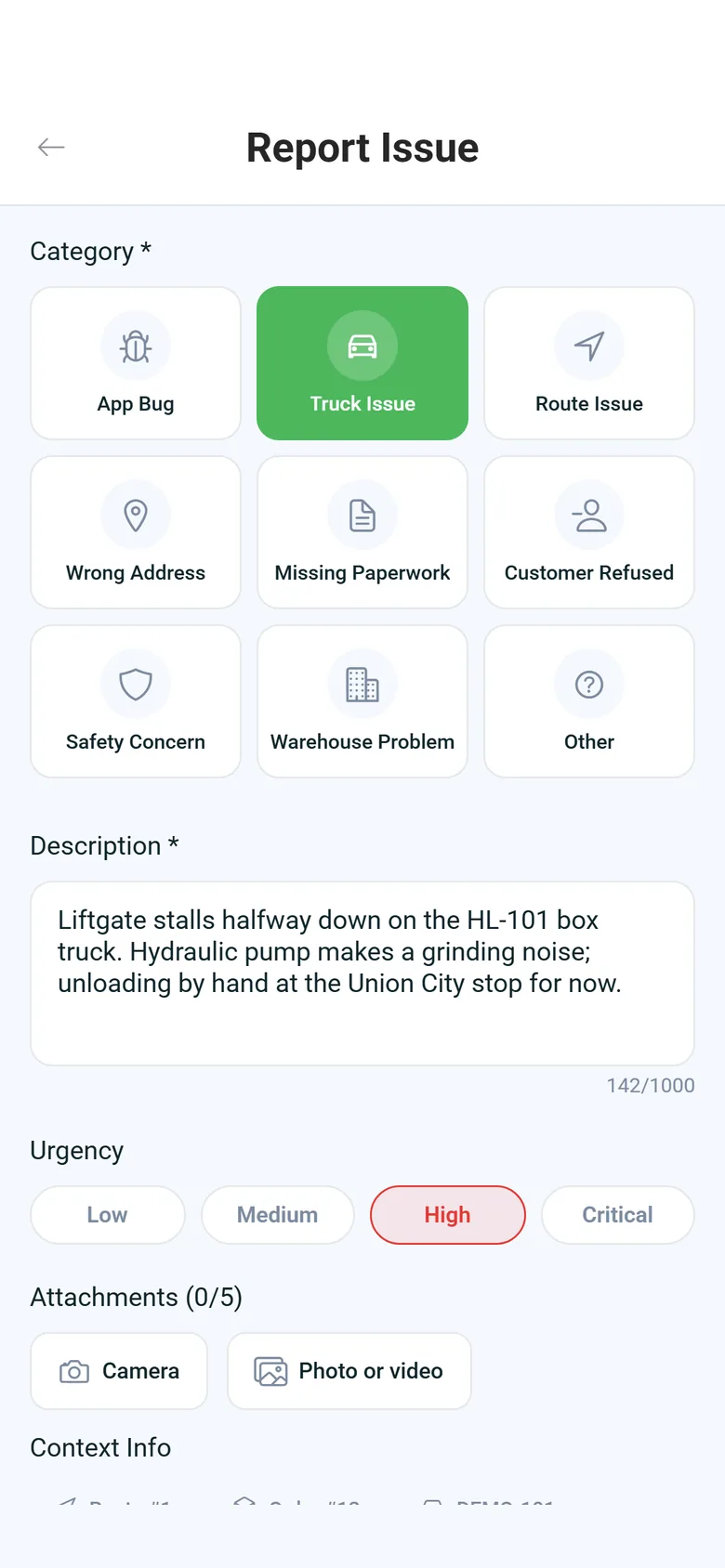
Report Issue sits in the work tools on the dashboard. The driver picks what went wrong, sets how urgent it is and describes it, with up to 5 photos or videos from the camera or the gallery. The app adds the route, truck and stop they are on, and their location when location access is allowed. While a report is still Submitted the driver can edit it, and My Issues keeps the history.
- Nine categories: App Bug, Truck Issue, Route Issue, Wrong Address, Missing Paperwork, Customer Refused, Safety Concern, Warehouse Problem and Other
- Urgency Low, Medium, High or Critical, and a description of 10 to 1,000 characters
- My Issues filters by status, category, urgency and date: today, or the last 7, 30 or 90 days
- An Issues page in the Company Portal where the office replies to the issues drivers already report from the app and tracks each oneNext release
Location sharing
The phone shares its location while stops are left
When a signed-in driver has a route with stops left and has allowed location access all the time, the app shares the phone's location in the background, on any screen and with the phone locked, and stops when no stops are left or the driver signs out. Those positions feed the arrival estimates and driver distances on the Dispatch board, and the distance shown beside each driver when you assign an order. Before it asks for permission, the app explains why it needs background location and that it uses battery.
- Settings > Location Sharing shows whether the phone is sharing, the last position sent, how many were sent and the permission level, with Start sharing now and Stop sharing
- In Settings > Driver App you set how often Android phones send a position, from 10 to 300 seconds (30 by default); on iPhone, iOS decides how often
- Android shows an ongoing notification while it shares; iPhone shows its blue location indicator
- Positions are sent as they happen; a stretch without signal is not filled in later
- Live driver locations on the dispatch map from the driver appComing soon
At a delivery
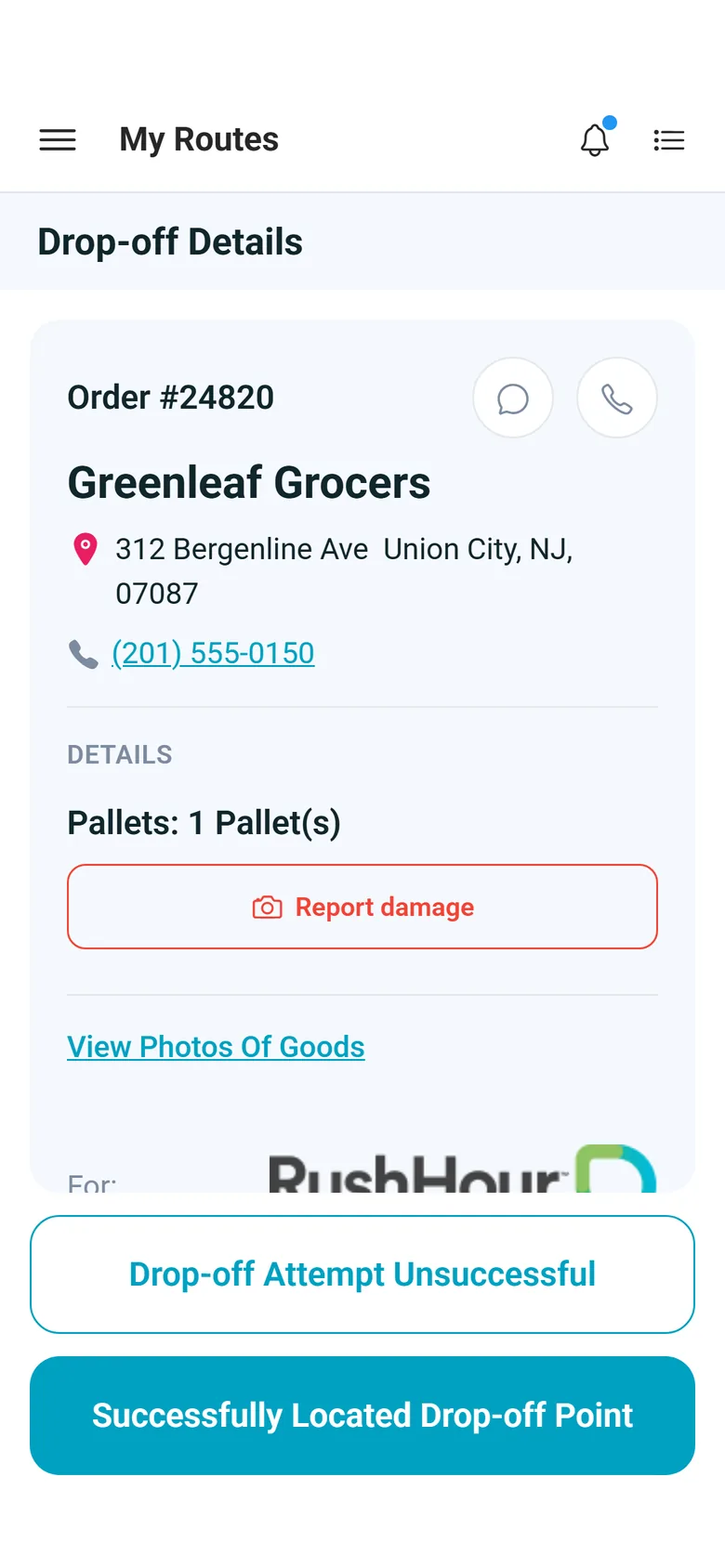
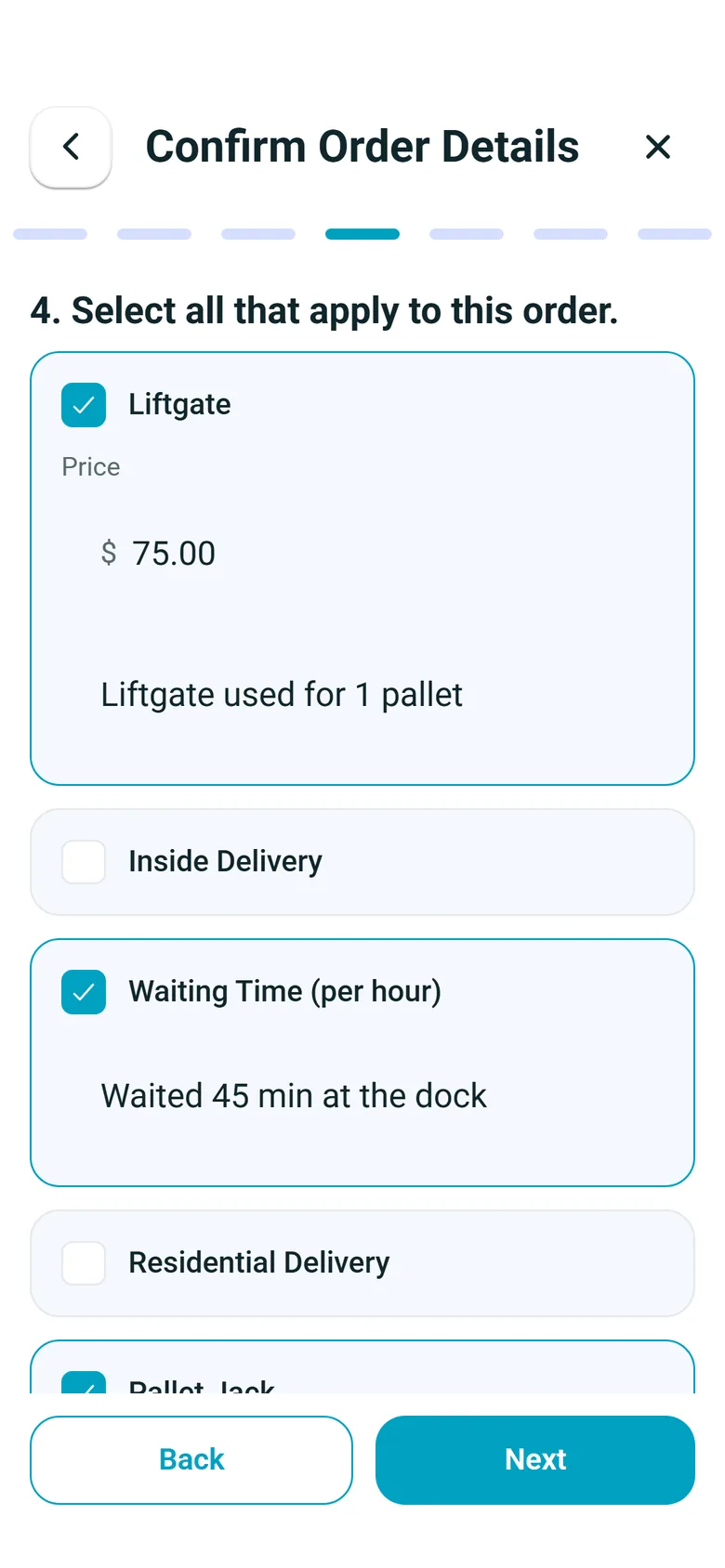
Four screens from a delivery
One thing per screen, from the drop-off details to the signature. The pickup and delivery page walks through every step.
Around the shift
Hours, inspections, expenses and who gets in
The same phone logs duty status, truck inspections and expenses, and the office decides in the Company Portal who joins and what the app asks for.
Hours of Service
Driver-logged hours of service, with warnings
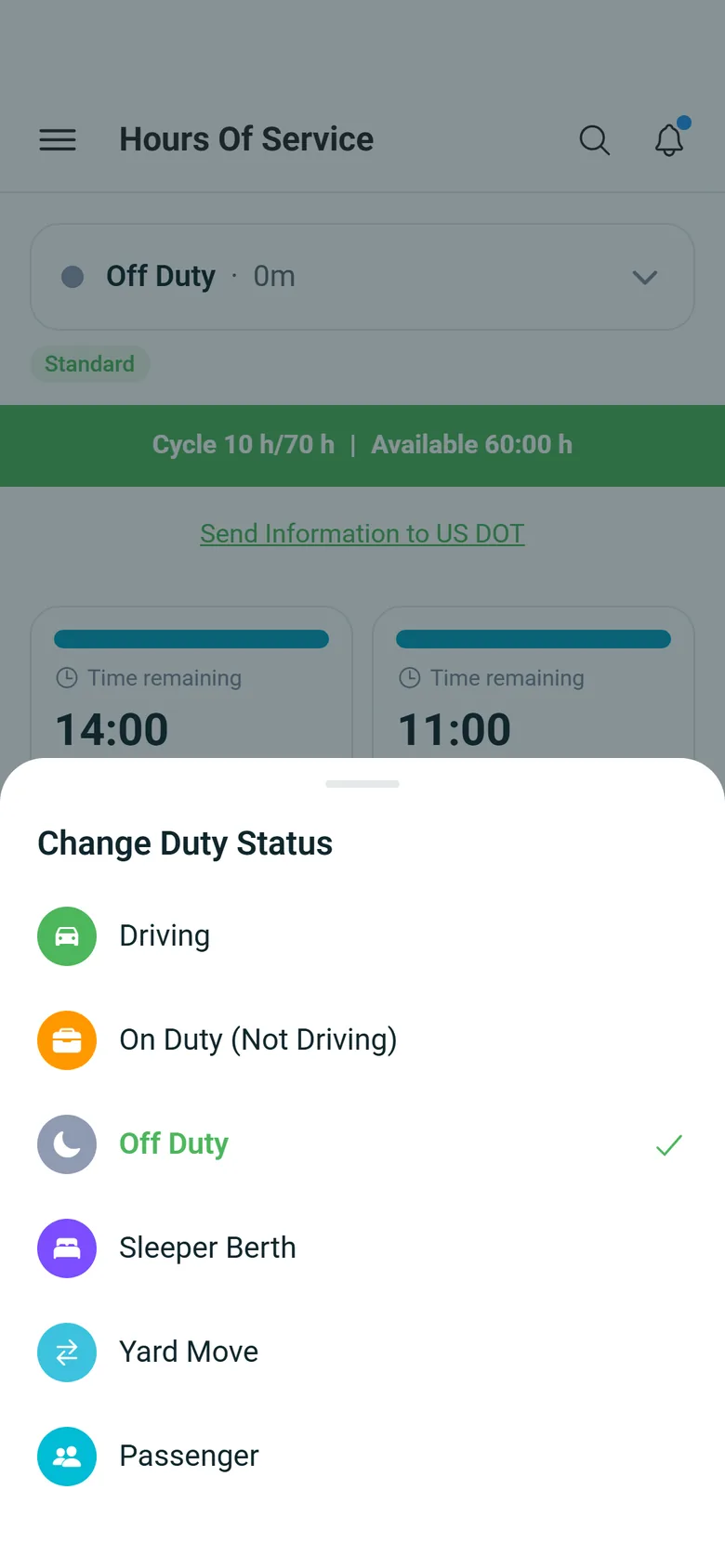
Drivers set their duty status on the phone and see their US hours-of-service clocks: 11 hours driving, the 14-hour on-duty window, the 30-minute break and the 60-hour/7-day cycle. The app warns them before a limit is reached, keeps status changes made without signal and sends them later, and lets them email their logs to a DOT officer. It is a driver-logged record, not a certified ELD.
- Driving, On Duty (Not Driving), Off Duty and Sleeper Berth, each change saved with the GPS position and place name
- Warnings before driving and on-duty limits run out
- Email logs to a DOT officer from the phone
- Start Break and Back to Work buttons, with Nearest Rest Stops one tap away
- A daily summary with driving, on-duty and off-duty time and the day's violations, plus a status log for the dates you pick
- Nearest Rest Stops opens nearby places with restaurants selected first, plus gas stations, parking and hotels, and a rest-stop reminder when a break is due within 30 minutes
Vehicle inspections
Truck inspections done in the cab
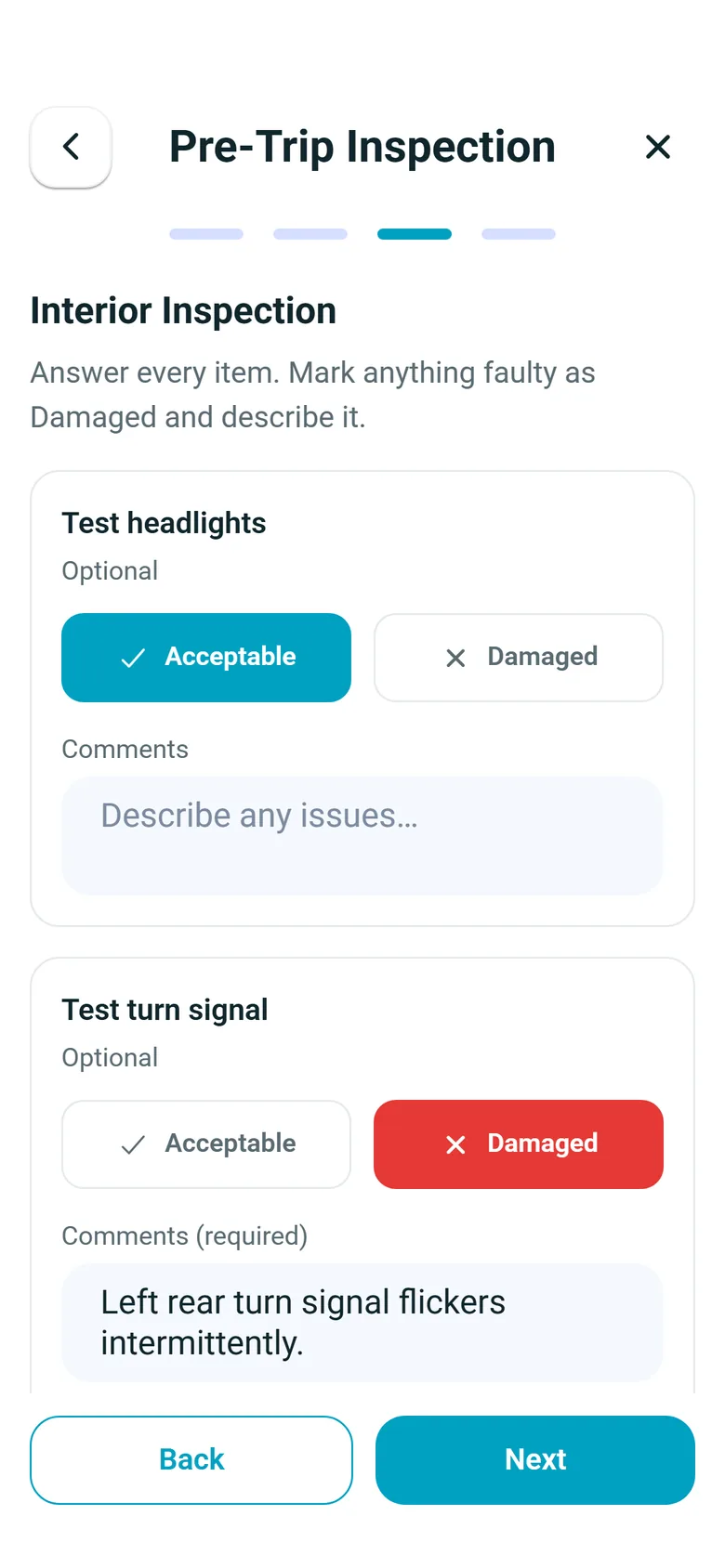
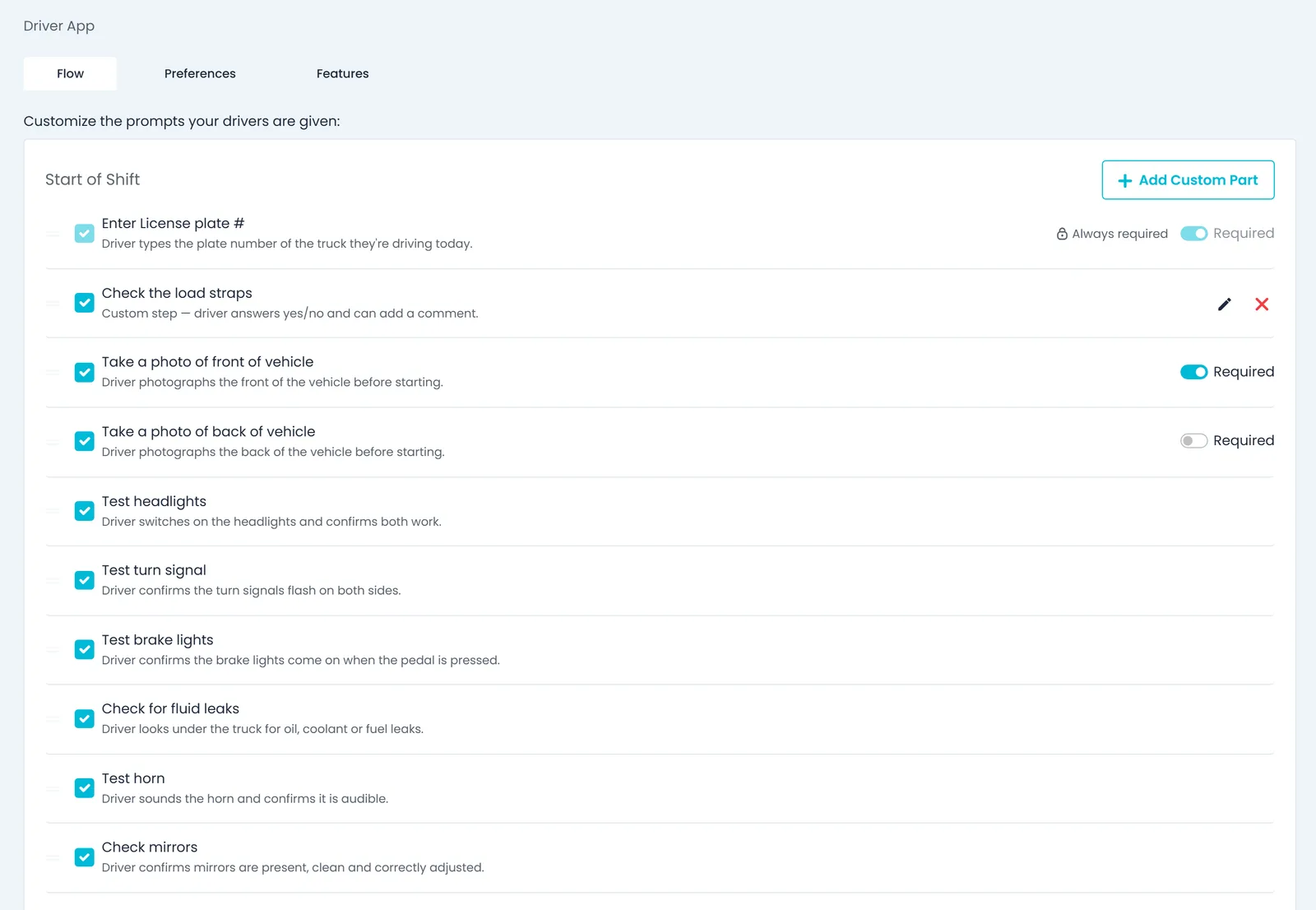
At the start of the shift the driver enters the plate, photographs the front and back of the truck, marks each check as acceptable or damaged, describes anything damaged, with a photo if needed, and signs. The same inspection can be run again at the end of the shift. Company admins review both in Truck Inspection Logs.
- Headlights, turn signals, brake lights, fluid leaks and horn are checked by default, and the driver signs every inspection
- Mirrors, brakes and reverse lights at the start of the shift once you switch them on, and always in the post-trip inspection; an unfinished inspection resumes where the driver stopped
- The plate is filled in from the truck on the driver's route, and the driver adds the odometer reading
- A dashboard reminder when a pre-trip inspection is due, including after a change of truck
- Drivers can look back at their own past inspections in the app
Expenses
Fuel and trip costs, logged with the receipt
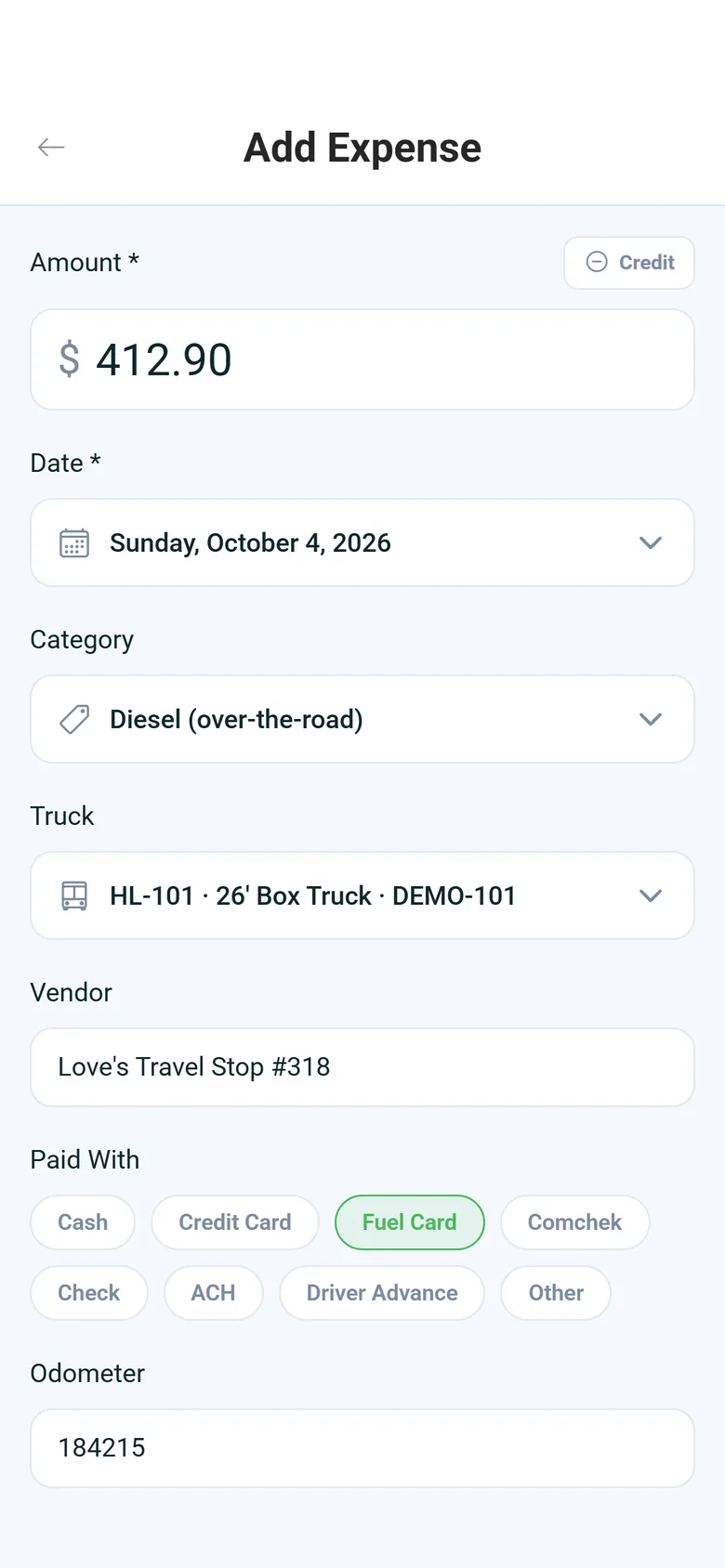
Drivers log an expense from the phone and attach a photo of the receipt. For fuel they enter the gallons and the price per gallon, and the app fills in the total. With no signal, the expense and its receipt wait on the phone and upload later.
- Gallons times price per gallon fills in the total
- Receipt photo from the camera or the gallery, attached to the expense
- Waits on the phone when there is no signal, and the expense list shows how many are waiting to upload
- Each expense can carry the truck, vendor, odometer reading and how it was paid: cash, credit card, fuel card, Comchek, check, ACH, driver advance or other
- Fuel also records the state or province and the fuel type, such as diesel, DEF or reefer diesel
- Your office approves or rejects each one in the Company Portal; the driver sees Pending Approval, Approved or Rejected, and can't change an expense once it has been reviewed
Joining and signing in
Invite-only sign-up, with documents from the phone
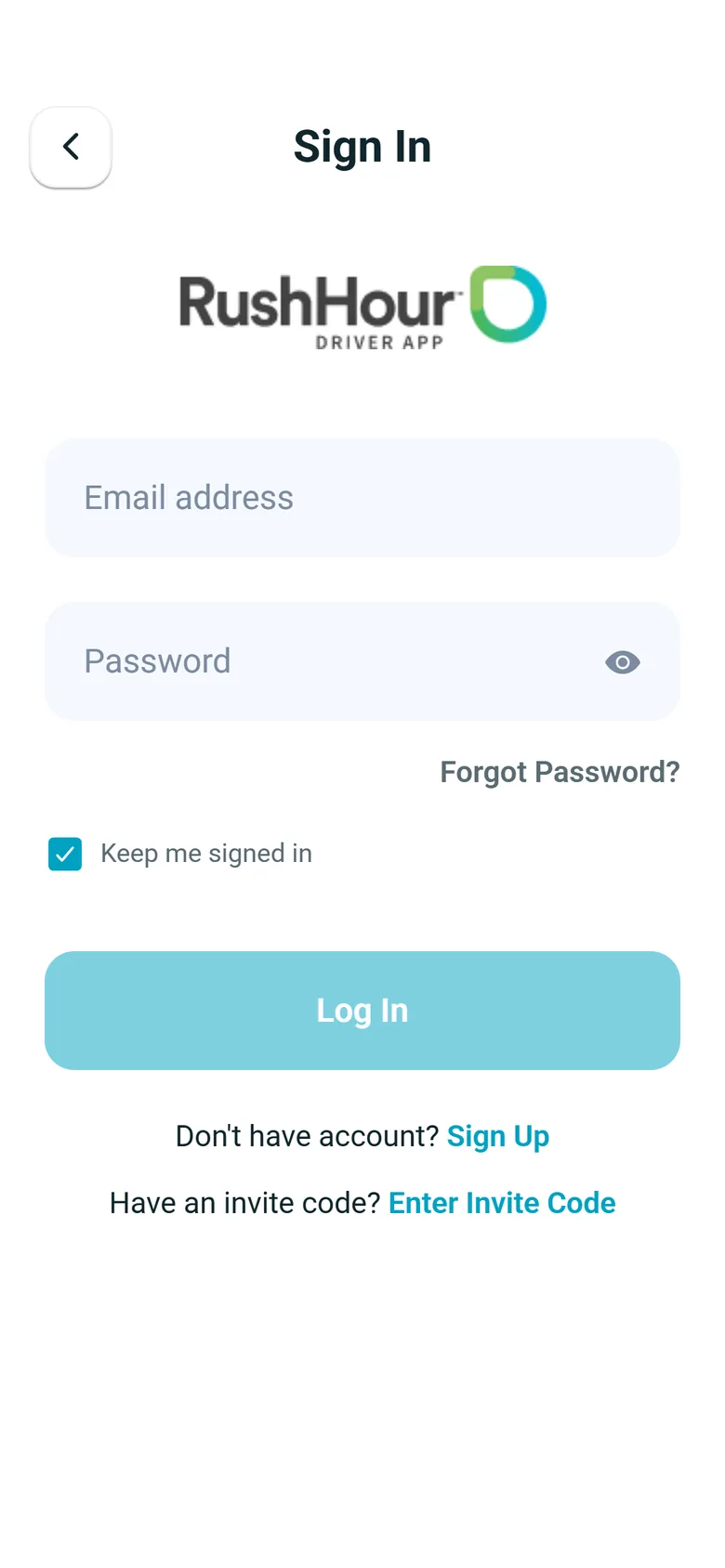
Drivers join your company's account only by invitation. The invitation email links to a page with the driver's code and an Open App button; in the app the driver can also type the code, or paste the whole invitation link and the app picks the code out. The sign-up form shows your company's name and keeps the invited email. After signing in, the driver fills in a short profile and photographs their driver's license, registration card and insurance card.
- Sign-up asks for the driver's name, a password of at least 8 characters and an optional phone number
- Profile: photo, the language they speak, home location, date of birth, years of experience and phone
- Keep me signed in is on by default, and Forgot Password emails a 6-digit code
- On a shared phone, each driver's unsent scans, expenses, duty-status changes and chat messages stay with that driver
- When you deactivate or delete a driver in the Company Portal, the open app shows them a notice within about a minute and then signs them out
- The invitation page explains what to do when Open App can't open the appNext release
Set up by your company
You decide what the app asks for
In the Company Portal, under Settings > Driver App, you choose the start-of-shift inspection checks and the steps at pickups and deliveries, whether a delivery needs a photo and a signature, and which features drivers see. The app picks up changes on Android and iPhone within about 15 minutes, without a store update.
- Add your own yes/no checks to the start-of-shift inspection
- Require a photo and a signature on deliveries
- Turn hours of service, nearby amenities, issue reporting, charges or paperwork scanning off
Why operators put it on every phone
Proof on the order
Goods photos, paperwork scans and check photos are saved on the order stop, so dispatch, billing and the customer open the same files.
Works through dead zones
Barcode scans, expenses with their receipt photos, duty-status changes and chat messages are kept on the phone without signal and sent when it reconnects.
Fewer calls back and forth
Route changes reach the driver as a push notification and questions go through the in-app chat, so dispatch spends less time on the phone.
Safe on shared phones
Work a driver hasn't sent yet stays with that driver when someone else signs in, and a driver you deactivate gets a notice in the open app within about a minute and is signed out.
One app, Android and iPhone
The same 2.x driver app from Google Play and the App Store, on the phones your drivers already carry. No extra hardware to buy.
Easy to find your way
A dashboard that shows the next stop with a Continue button, a search that understands everyday words, and a dark mode for night shifts.
FAQ
Questions about the driver app
Is the RushHour driver app an ELD?
No. Drivers log their duty status in the app, and RushHour works out their hours-of-service clocks, warnings and violations from what they log. The app does not connect to the truck's engine, so it is not a certified ELD.
Does the driver app work without signal?
Mostly. Barcode scans, expenses with receipt photos, duty-status changes and chat messages are kept on the phone and sent when signal returns, and an unfinished stop or inspection is saved on the phone. Completing a stop needs a connection, and location sharing does not save positions from a stretch without signal to send later.
Do drivers need an app update when we change the settings?
No. The app loads your Driver App settings when the driver signs in and checks for changes about every 15 minutes while it is in use, so a change reaches drivers within about 15 minutes. A stop already in progress keeps the rules it started with.
Which phones does it run on?
Android phones, from Google Play, and iPhones, from the App Store. Both stores carry version 2.x of the app, and it also runs on iPad.
What language is the app in?
The driver app's screens are in English. In their profile, drivers can note the language they speak: English, Spanish, Russian, Gujarati or Hindi.
How do drivers get access?
You invite them from the Company Portal. The invitation email carries a code the driver enters in the app, and they sign up with the email address you invited. There is no open sign-up, so only drivers you invite can join your company's account.
Go deeper
In the next release
One chat for all your drivers, and route chats they can still write in
These driver app chat changes are finished and come with the next RushHour release. Drivers need version 2.0.8 or later of the driver app for the Drivers chat, and 2.0.4 or later for route chats; Google Play and the App Store already serve a newer version.
Drivers chat
One chat with every driver in your companyNext release
Each company gets one Drivers chat that all of its drivers and the office share, for messages meant for every driver at once. Drivers find it as General Drivers, just below Office at the top of the app's Chats list, and can read and post there. The office finds it in Inbox → Chat on the All tab once any driver has opened their chats.
- One thread for every driver in your company, plus the office
- Drivers get its notifications once they have opened it
- The office posts from Inbox → Chat, on the All tab
Route chats
Route chats stay open to drivers after the route is doneNext release
When a route is completed, its chat moves to Archived Routes in the driver's Chats list and the driver can still send messages there, so a question about a delivery can be raised after the route closes.
- A note in the chat tells the driver they can still write there
- Also works for routes completed before this release
- New messages there show up for the office in Inbox → Chat
Also in the next release
Two new pages in the Company Portal for the office side of driving, what drivers report and how many hours they have left, plus the Messaging page with the chat changes in the release.
See the driver app on a real route.
Book a demo and we'll run a pickup and a delivery on the phone, then show you where the photos and scans land in the office.