
Set what the driver app asks for,
from the Company Portal.
Under Settings > Driver App you choose the start-of-shift inspection checks, the steps drivers see at pickups and deliveries, which photos and signatures a delivery needs, and which app features are on. The driver app, version 2.x on Google Play and the App Store, picks up changes on Android and iPhone without a store update.
What you control
Three tabs: Flow, Features and Preferences
Everything lives under Settings > Driver App in the Company Portal. Only roles with the Driver App permissions can open these settings or change them.
Flow tab
The inspection and stop steps your drivers follow
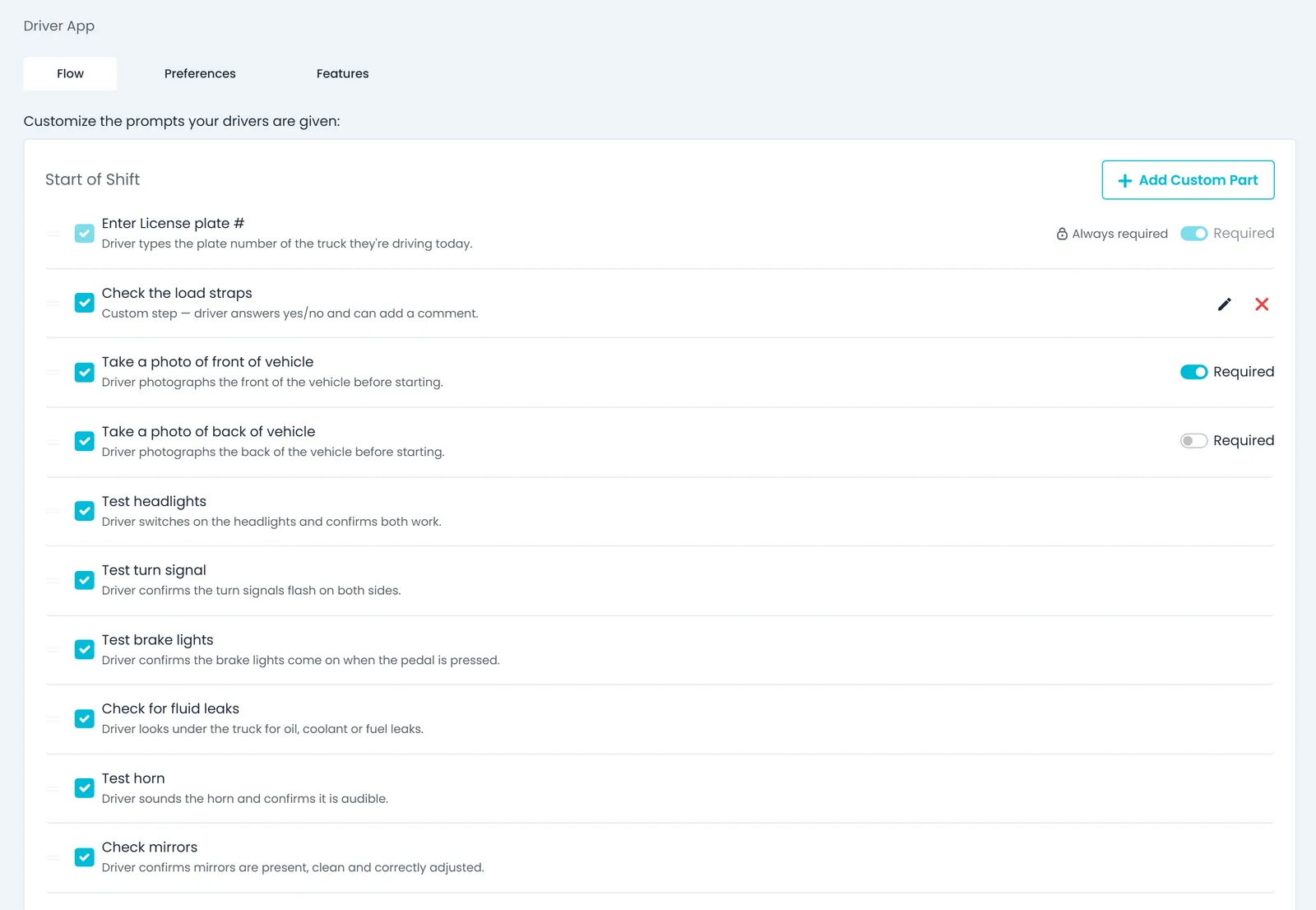
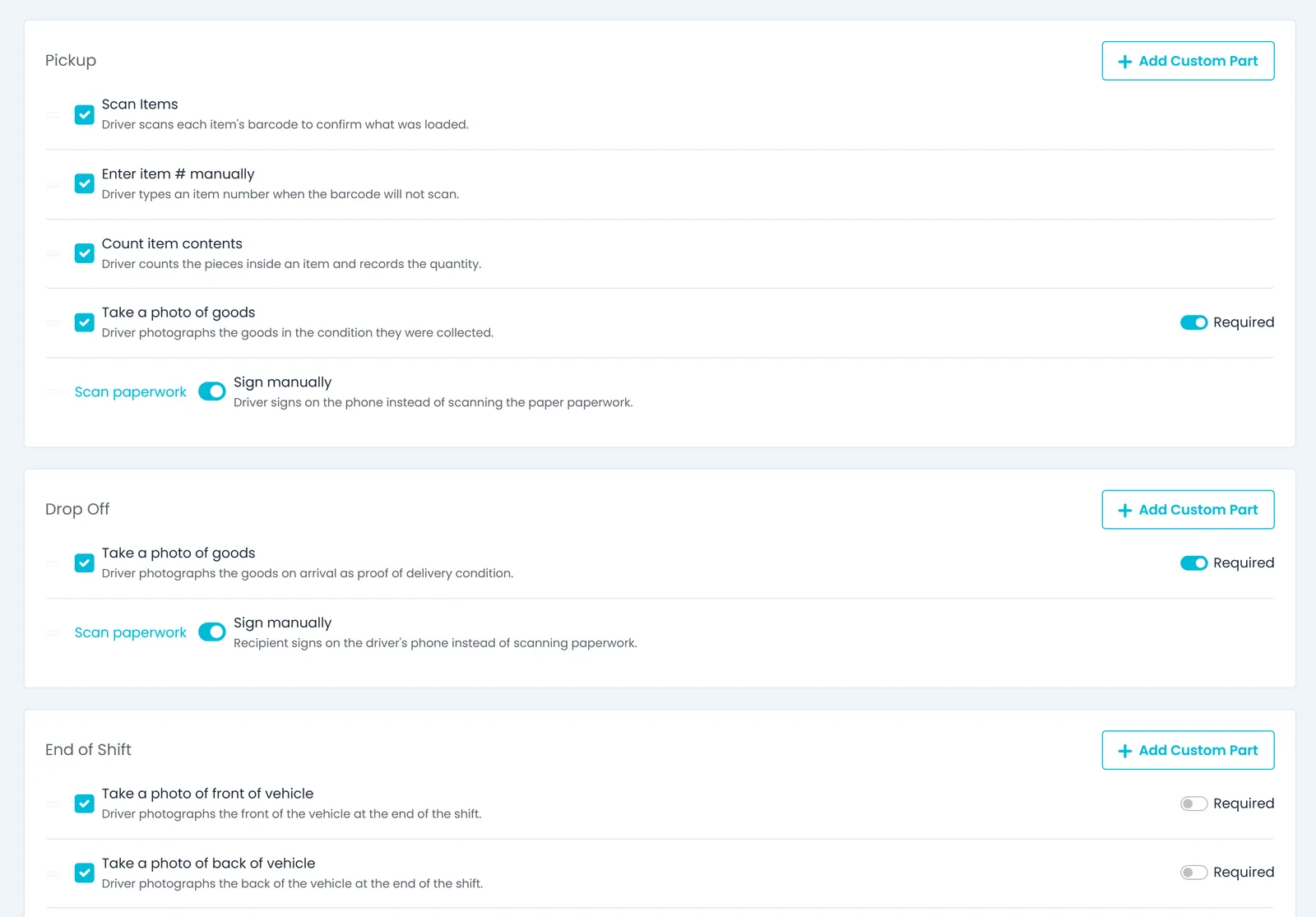
The Flow tab has four sections: Start of Shift, Pickup, Drop Off and End of Shift. In the start-of-shift inspection you turn built-in steps on or off, set their order, choose which photos are required and add your own yes/no questions. At pickups you choose whether drivers scan barcodes, type item numbers by hand, count item contents and photograph the goods, and at pickups and drop-offs whether the driver collects a signature on the phone. At the end of the shift you choose which truck photos are required. Pickup and drop-off steps always run in the same order, and your own questions appear only in the start-of-shift inspection.
- Your own start-of-shift inspection questions
- Barcode scan, manual item entry and item count, each on or off
- License plate at the start of the shift, and the driver's signature on the start- and end-of-shift inspections, always required: they cannot be switched off
- Up to 50 steps per section, each label up to 200 characters
Features tab: requirements
Decide what proof a delivery needs
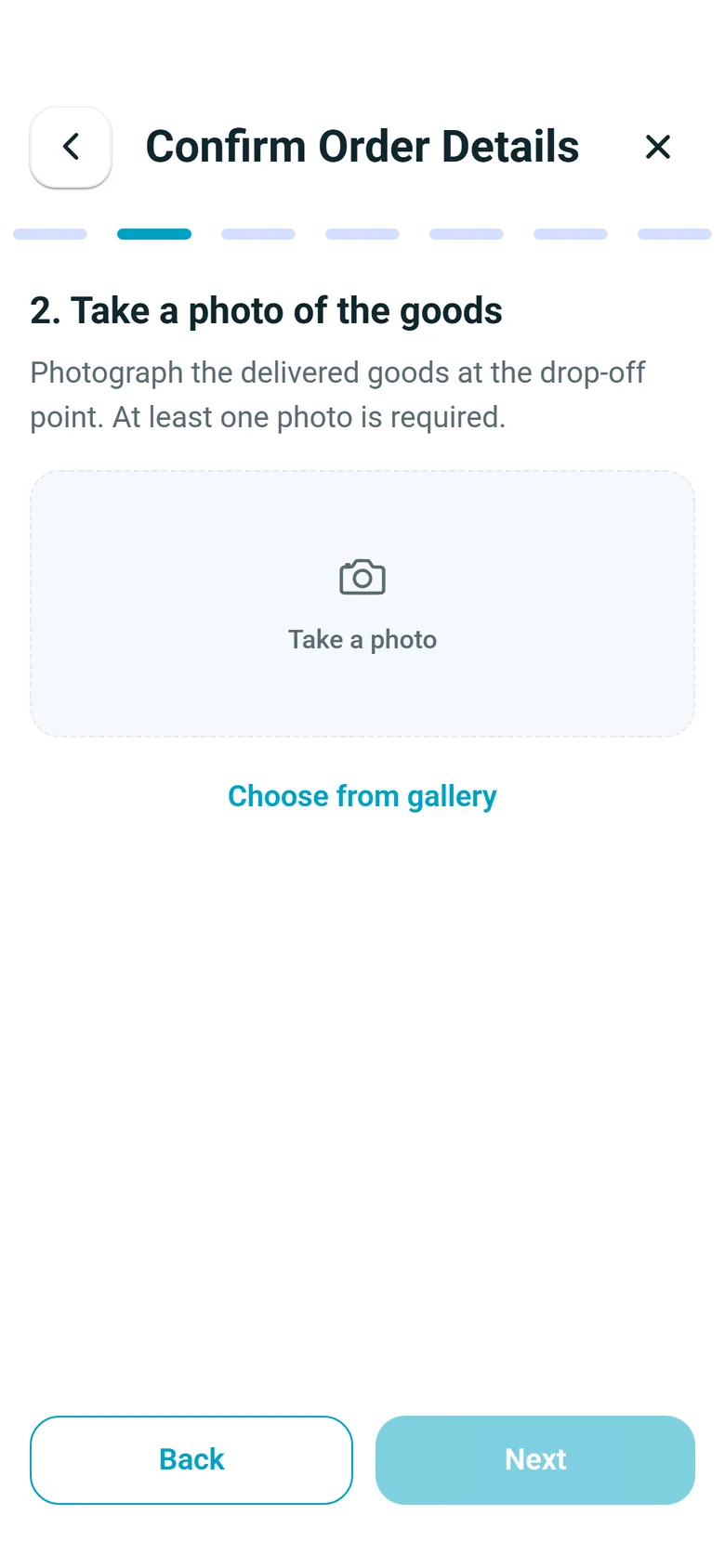
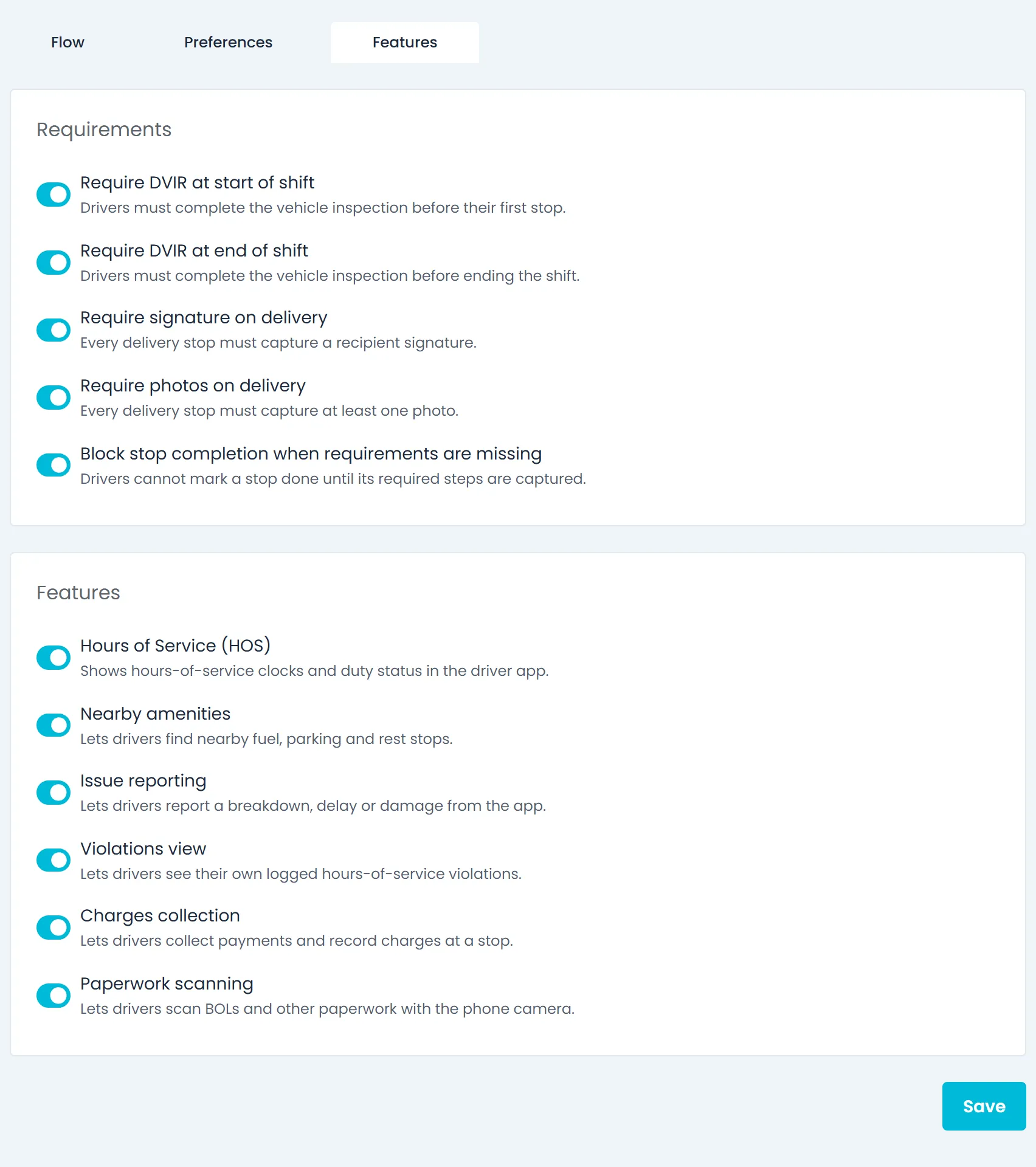
Choose whether every delivery includes a goods photo and a signature; both are on by default. Then decide what happens when one is missing: block the driver from finishing the stop, so the Next button stays disabled until the photo is taken, or the customer signs and their name is entered, or show a warning and let them continue. Warning is the default. You can also turn off the reminders that prompt drivers to inspect the truck at the start or end of the shift; turning off the end-of-shift setting also takes the end-of-shift truck photos and sign-off out of End of Day. Photos and signatures are uploaded to the order stop, so the office sees them on the order.
- Goods photo and signature on delivery
- Block or warn when proof is missing
- Start- and end-of-shift inspection reminders, and whether End of Day includes the end-of-shift inspection
- Email the proof-of-delivery PDF to the customer when a driver completes a delivery in the driver app (off until you switch it on)Next release
Features tab: switches
Show drivers only the features you use
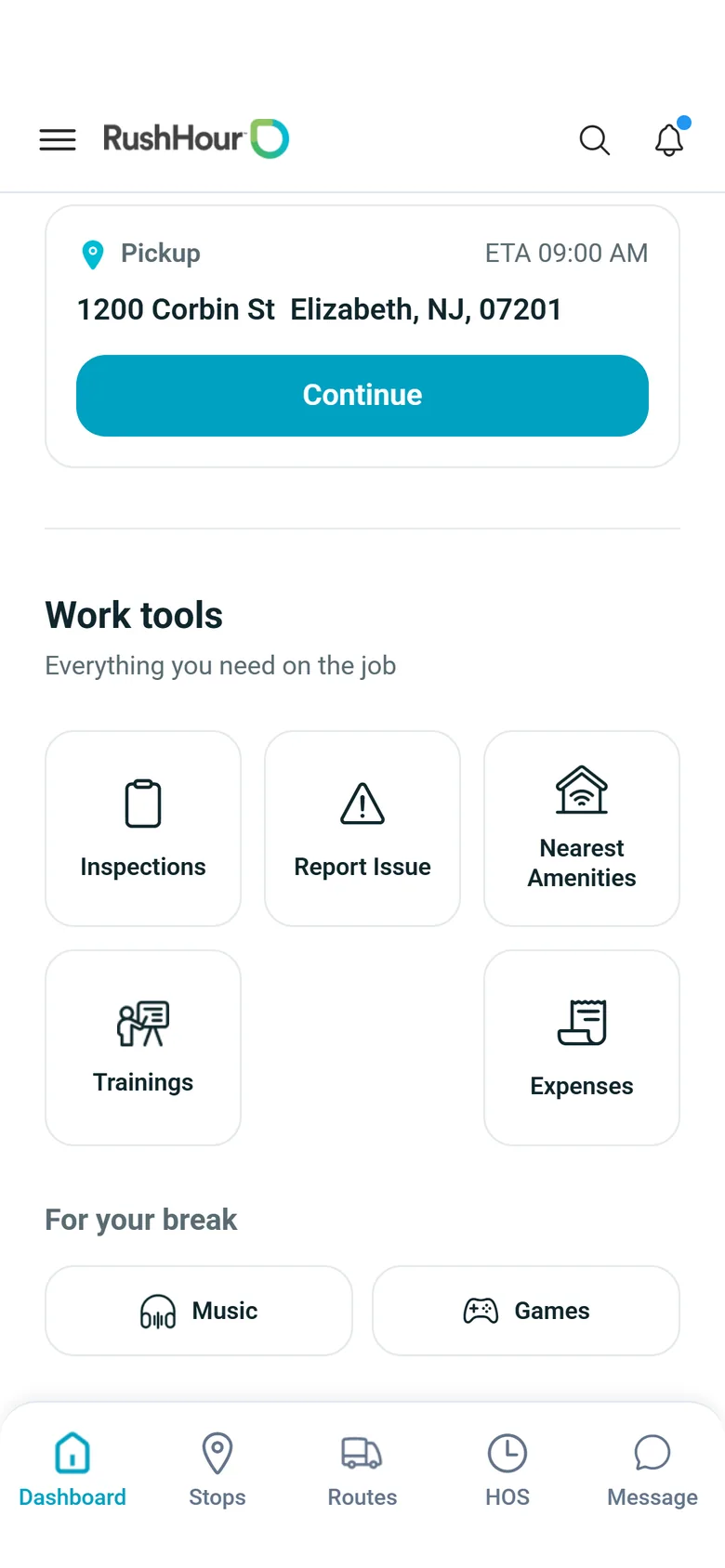
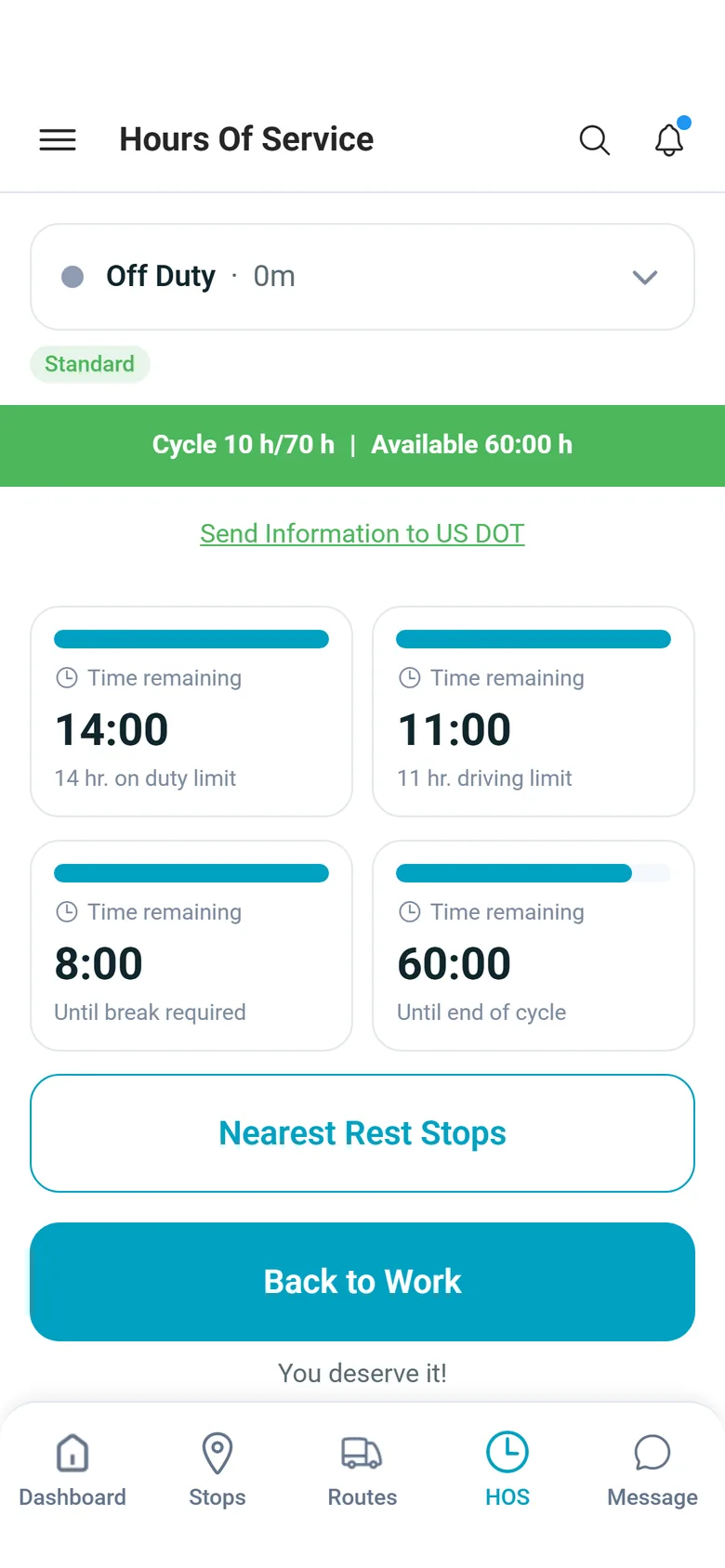
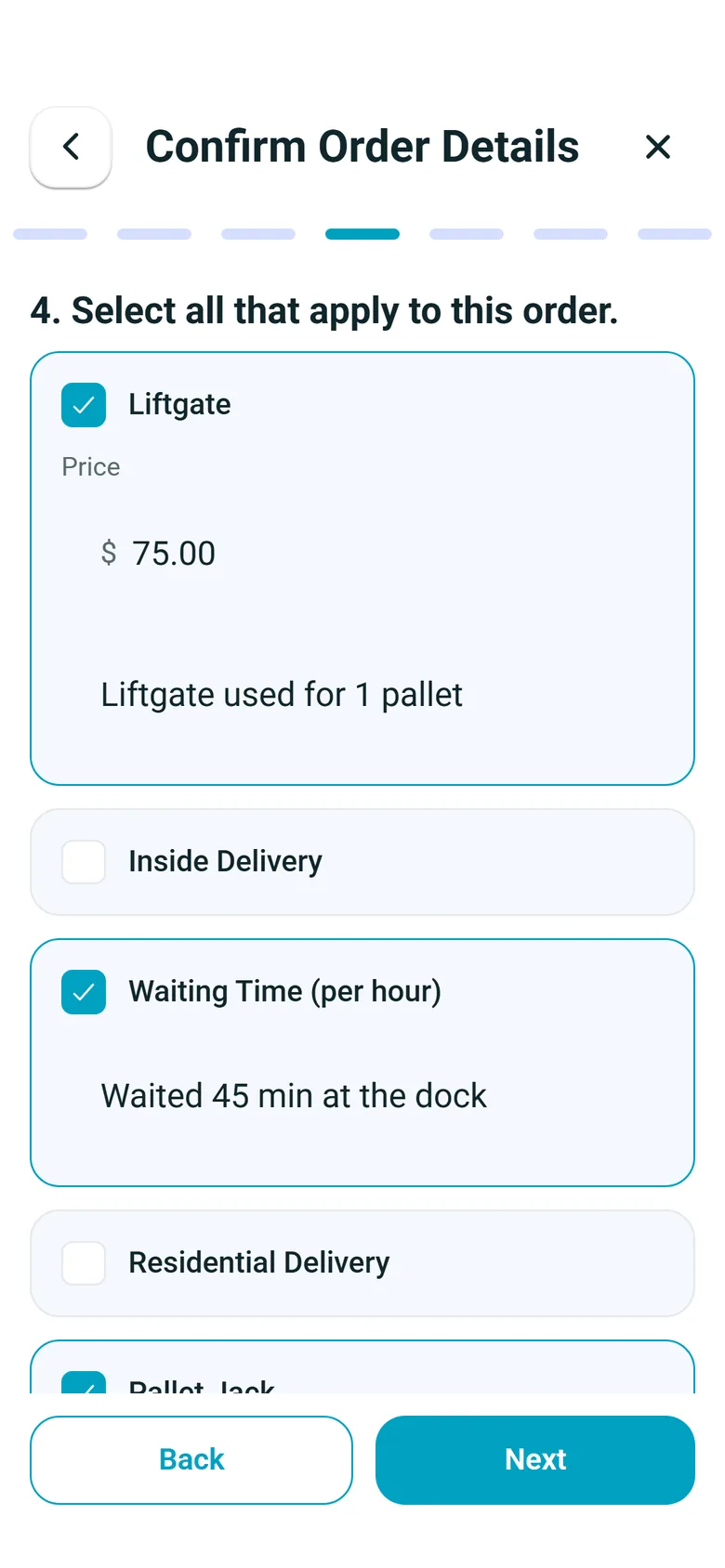
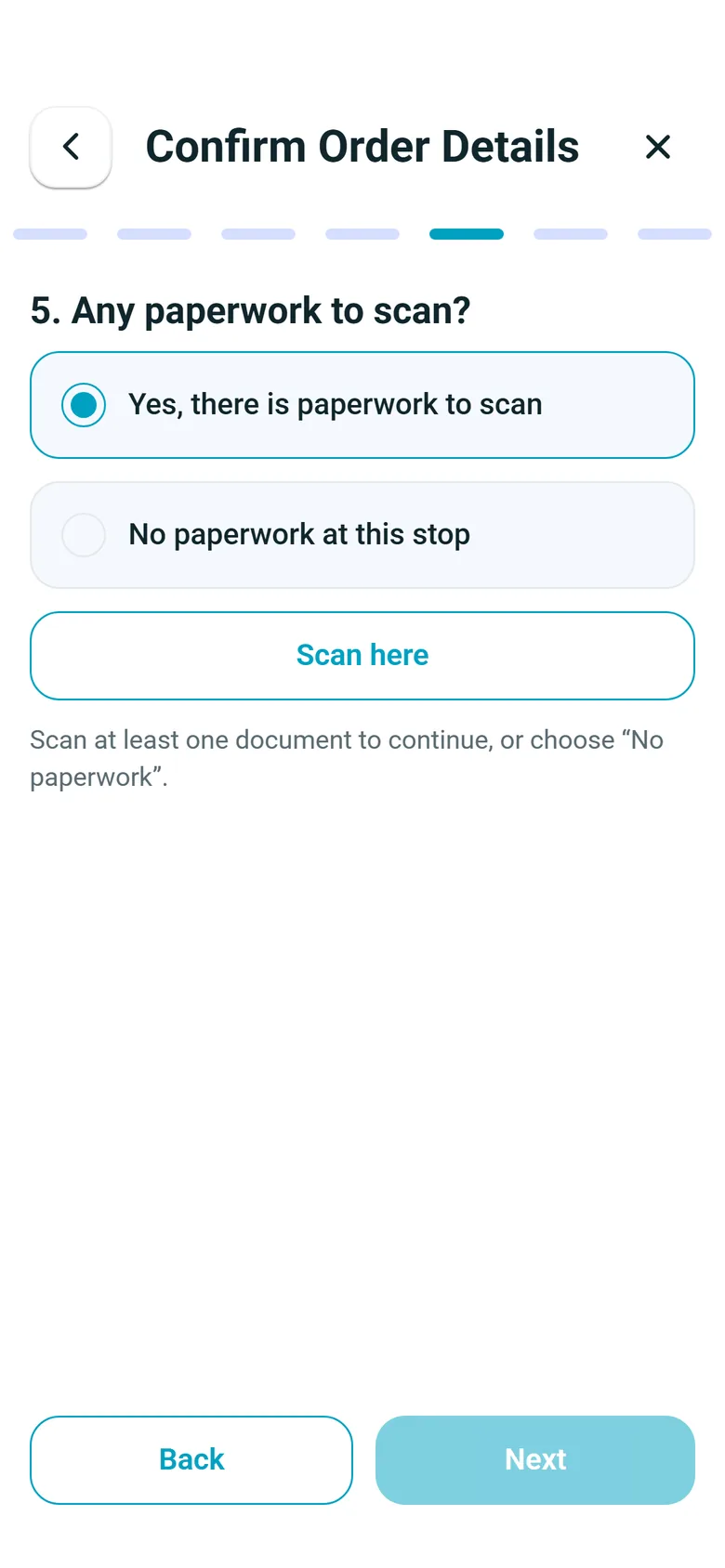
Turn hours of service, nearby amenities, issue reporting, charge collection at the stop and paperwork scanning on or off for the whole company. Drivers can't use a feature you switch off: the HOS tab and the map's amenities button are hidden, the charges or paperwork step drops out of the stop flow, the issue list and report form are no longer available, and a shortcut that stays on screen, such as the Nearest Amenities tile, shows a message that your company has disabled the feature. The app checks for new settings when the driver signs in and about every 15 minutes while it is in use, so drivers get changes within about 15 minutes. A stop already in progress finishes on the settings it started with.
- Hours of service, nearby amenities, issue reporting, charges and paperwork scanning
- Picked up within about 15 minutes
- No app store update needed
Preferences tab
Tune the route refresh, alerts and map
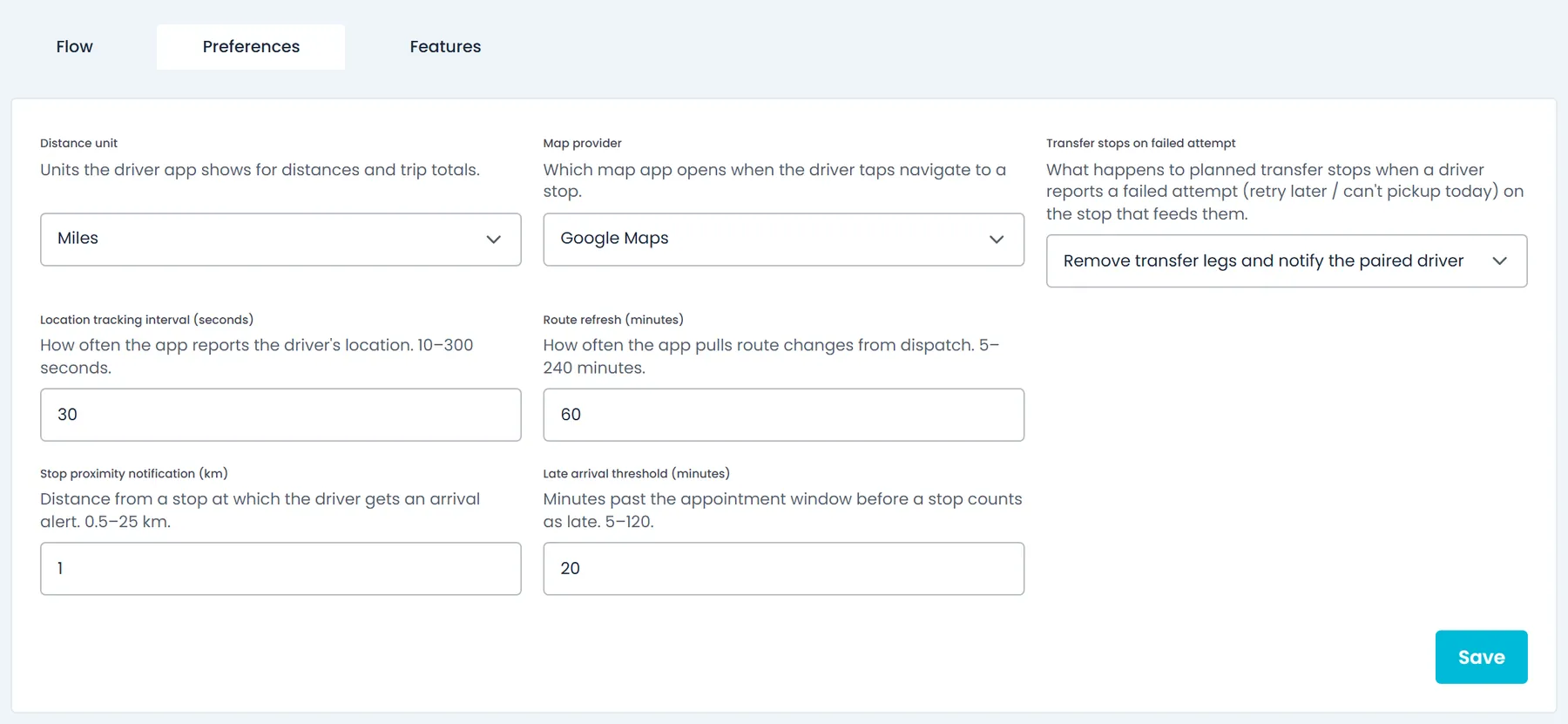
Set how often the app pulls route changes from dispatch (5 minutes to 4 hours), how close a driver must be to the next stop before the approaching-stop alert (0.5 to 25 km), miles or kilometers, and whether the map in the app uses Google Maps or the phone's own map (Apple Maps on iPhone). You also choose what happens to planned transfer stops when a driver records a failed attempt at a stop: remove them and notify the other driver, remove them silently, or keep them on their routes.
- Route refresh interval, 60 minutes by default
- Approaching-stop alert distance, 2 km by default
- Miles or km, and the map provider (miles and Google Maps by default)
- The phone reports the driver's location every 10 to 300 seconds, as you set, 30 by default (Android; on iPhone, iOS sets the timing)
- Route history, 24 hours by default, or Until the last stop is confirmed: then an open route's Confirmation History on the dispatch board keeps confirmed stops for up to 31 days, and confirming the route's last open stop in the Portal completes the routeNext release
Preferences tab: failed attempts
Decide what a failed stop does to transfers
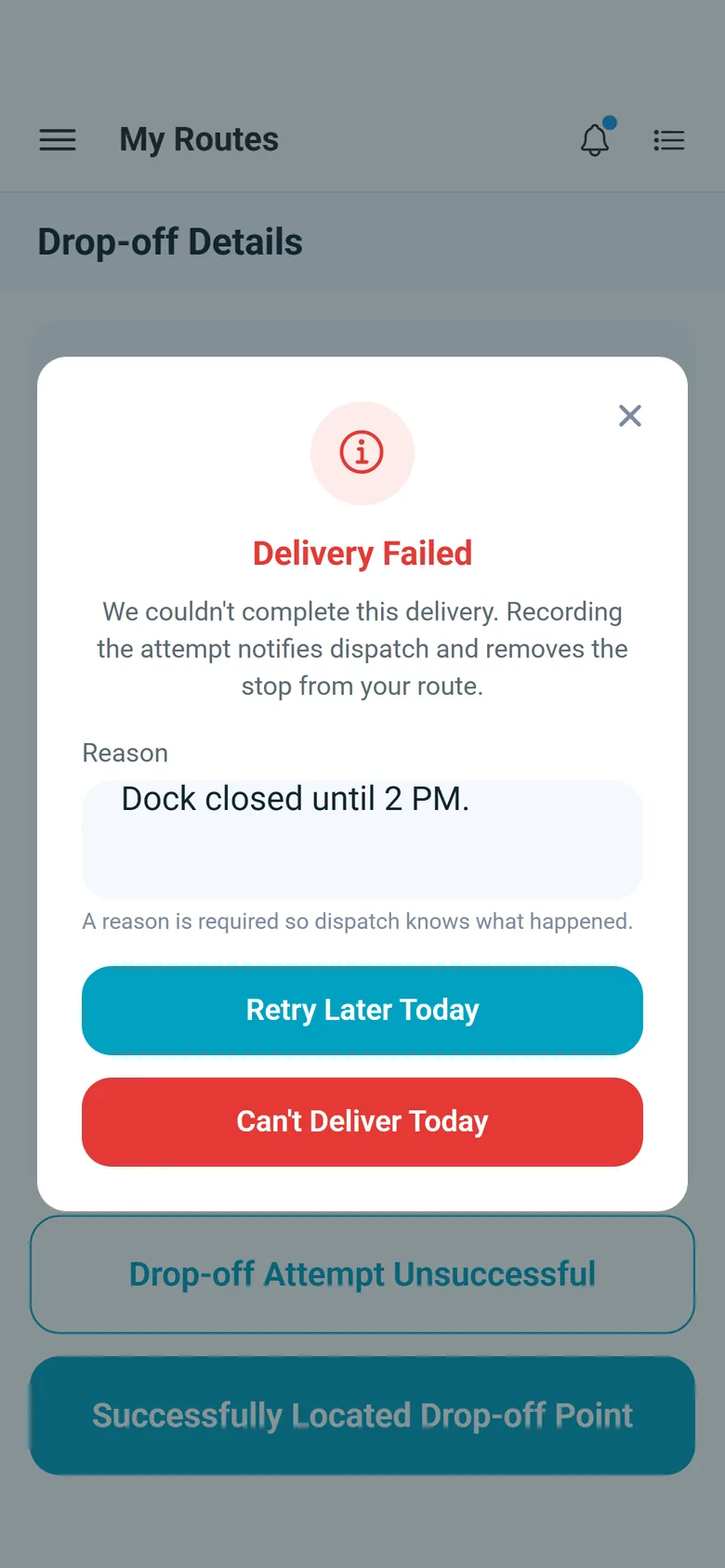
When a stop can't be done, the driver taps Pickup Attempt Unsuccessful or Drop-off Attempt Unsuccessful, types the reason and picks Retry Later Today or Can't Pickup / Can't Deliver Today. The stop comes off the driver's route and goes back to dispatch with the reason and the arrival and departure times. If another driver's transfer stops depend on it, your Preferences setting decides what happens to them.
- A reason is required on every failed pickup or delivery
- Retry Later Today, or Can't Pickup / Can't Deliver Today
- Transfer stops: remove and notify the paired driver (the default), remove silently, or keep them
Rolling out a change
How a change reaches your drivers
At sign-in, then about every 15 minutes
The app loads your settings when the driver signs in and checks for changes about every 15 minutes while it is in use, so a change reaches drivers within about 15 minutes, with no app store update.
Work in progress keeps its rules
A stop the driver has already started finishes on the settings it started with, and so does an end-of-shift inspection that is already open. A new map provider applies the next time the map screen opens.
Plate and signature stay required
The license plate and the driver's signature on the start-of-shift inspection, and the signature on the end-of-shift inspection, can never be switched off. The Portal marks them Always required, and an inspection cannot be submitted without them.
Reference
Driver App settings at a glance
Which tab each setting is on, the choices or range it takes, and the value a company starts with until someone changes it.
| Setting | Tab | Choices or range | Default |
|---|---|---|---|
| Start-of-shift inspection | Flow | Turn the 12 built-in steps on or off (the license plate and signature always stay on), change the order of the photos and of the checks, mark photos Required, and add your own checks | License plate, front and back photos, 5 checks and the signature on; mirrors, brakes and reverse-light checks off |
| Pickup steps | Flow | Scan items, enter item # manually, count item contents, photo of goods and sign manually, each on or off | All on |
| Drop-off steps | Flow | Photo of goods and sign manually, each on or off | Both on |
| End-of-shift inspection | Flow | Front, back and cab photos, each on or off and Required or not; the signature always stays | All on; only the signature required |
| Require DVIR at start of shift | Features | On or off: the start-of-shift inspection reminders in the app | On |
| Require DVIR at end of shift | Features | On or off: the end-of-shift inspection in End of Day, and its reminder | On |
| Require signature on delivery | Features | On or off | On |
| Require photos on delivery | Features | On or off | On |
| Block stop completion when requirements are missing | Features | Block the stop, or warn and let the driver continue | Off (warn) |
| Hours of Service, Nearby amenities, Issue reporting, Charges collection, Paperwork scanning | Features | Each on or off for the whole company | All on |
| Email proof of delivery on completionNext release | Features | On or off: emails the proof-of-delivery PDF to the customer when a driver completes a delivery in the app | Off |
| Distance unit | Preferences | Miles or kilometers | Miles |
| Map provider | Preferences | Google Maps, or Platform default: the phone's own map (Apple Maps on iPhone; Android phones show Google Maps either way) | Google Maps |
| Transfer stops on failed attempt | Preferences | Remove and notify the paired driver, remove silently, or keep the transfer legs on their routes | Remove and notify |
| Location tracking interval | Preferences | 10 to 300 seconds, on Android (on iPhone, iOS sets the timing) | 30 seconds |
| Route refresh | Preferences | 5 to 240 minutes | 60 minutes |
| Stop proximity notification | Preferences | 0.5 to 25 km | 2 km |
| Route historyNext release | Preferences | 24 hours, or Until the last stop is confirmed | 24 hours |
On the driver's phone
What drivers see while a feature is on
Each of these screens follows a switch on the Features tab.
Driver App settings: common questions
Do drivers need an app update when we change a setting?
No. The driver app, version 2.x on Google Play and the App Store (on iPhone from version 2.0.12), reads Flow, Features and Preferences from the Company Portal. It loads them when the driver signs in and checks for changes about every 15 minutes while it is in use.
Can a driver finish a delivery without a photo or a signature?
That is your choice. By default every delivery includes a goods photo step and a signature step, and if the driver leaves one empty, the app shows a warning and lets them continue. Switch on Block stop completion when requirements are missing and the Next button stays disabled until the photo is taken, or the customer signs and their name is entered. You can also switch either step off.
Which steps can't be switched off?
The license plate and the driver's signature on the start-of-shift inspection, and the signature on the end-of-shift inspection. The Portal marks them Always required, and an inspection cannot be submitted without them.
Can we add our own inspection questions?
Yes. On the Flow tab, Add Custom Part adds your own check. The app asks your own checks in the start-of-shift inspection: the driver marks each one Acceptable or Damaged and can add a comment, which is required for Damaged. A section can hold up to 50 steps, each up to 200 characters.
Does the location reporting interval apply on iPhone?
No. The 10 to 300 second interval applies to Android phones. On iPhone, iOS decides how often the phone sends the driver's position.
Who can change the Driver App settings?
Users whose role has the Driver App permissions in the Company Portal: one lets a role view the settings, the other lets it change them. Until someone saves a change, a company runs on the defaults listed in the table above.
Which drivers follow these settings
Android: version 2.x
The Google Play app reads Flow, Features and Preferences from the Portal and applies them within about 15 minutes.
iPhone: version 2.x
From version 2.0.12, the App Store app also reads Flow, Features and Preferences from the Portal and applies them within about 15 minutes. The location reporting interval applies on Android only: on iPhone, iOS decides how often the phone sends its position.
Both apps: transfer handling
What happens to transfer stops after a failed attempt is decided on our servers, so it applies to every driver whichever phone they use.
Related
See the driver app on your own stops.
Book a demo and we'll set up a stop flow the way your drivers actually run it.