
Collect for your shipper
before the freight comes off the truck.
Put a COD amount on any delivery stop and choose how it is paid: cash, check, ACH, or card on your shipper's own Cardknox account. The driver sees what to collect and from whom, and RushHour will not let the stop be completed while the COD is still owed.
How COD works
From the order, to the door, to your shipper's account
A COD lives on the delivery stop of the order. Company admins set it up, the driver app shows it at the door, and the stop stays open until it is paid.
On the order
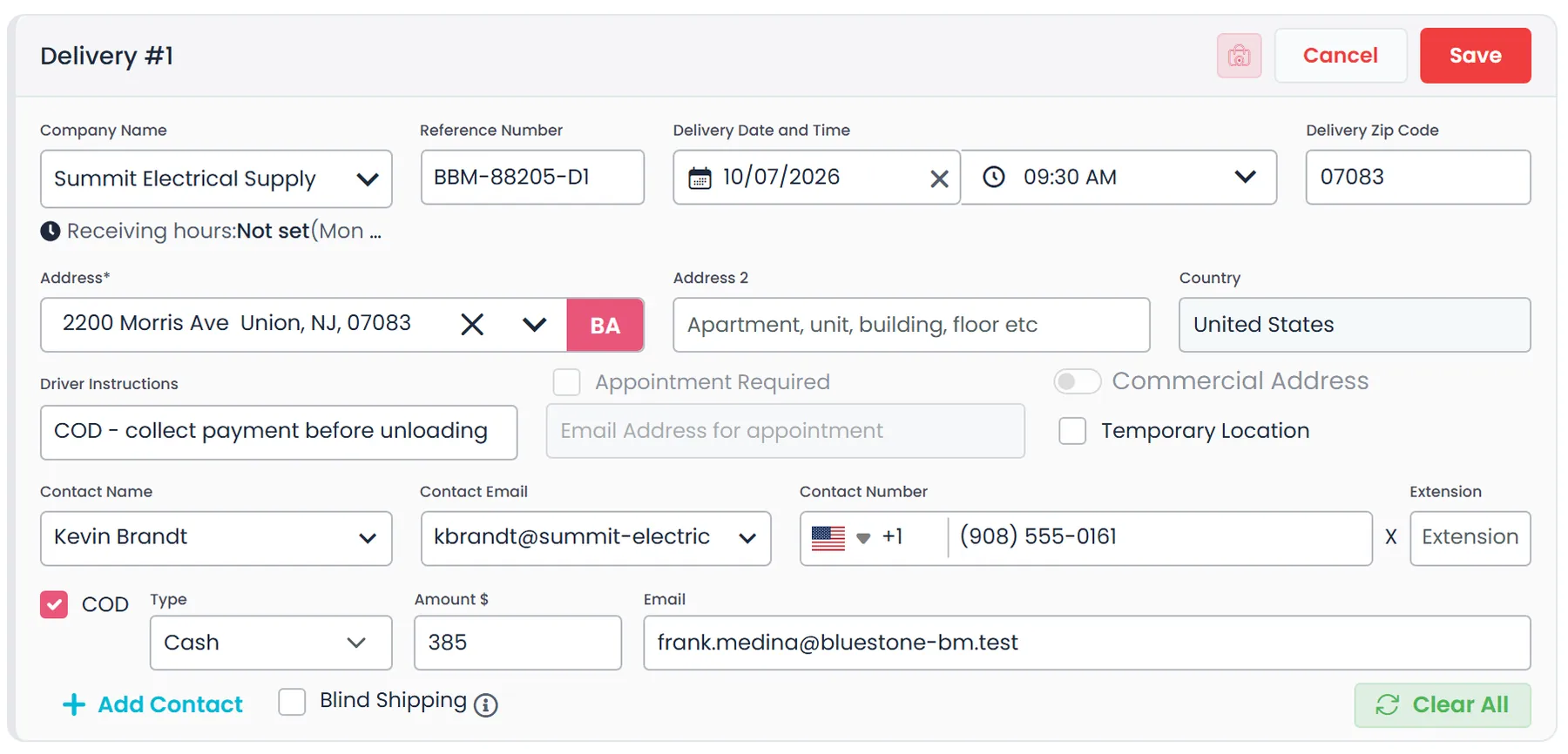
Add a COD to any delivery stop
Turn on COD on a delivery stop, in the order's stop form in both the New UI and the Old UI, and set the payment type, the amount and, if you want, a payment email. The email field suggests the customers' saved Cardknox emails, or you type any address. Each delivery stop carries its own COD, owed by that stop's customer, so an order with several drops can collect at each one.
- Payment types: Cardknox, Cash, Check, ACH and Other
- Cash, Check and ACH work for any customer; Cardknox stays greyed out until the billing customer is authorized to accept payments
- The type starts on Cardknox for an authorized billing customer and on Cash for everyone else
- The COD email defaults to the paying stop customer, preferring its Accept Payment or Cardknox email, or to the stop contact when the stop's customer is the billing customerNext release
Before unloading
The stop stays open until the COD is paid
While a COD is owed, RushHour refuses to complete the stop, whether the driver confirms it in the app or the office marks it delivered, with the message that payment for the goods is required before the shipment can be unloaded. Company admins see the COD amount on the order's delivery stop card: red while it is owed, orange and marked Failed if a card payment fails, and green and marked Success once it is paid in full.
- Applies however the stop is completed, in the driver app or from the office
- A partly paid COD still blocks completion until the rest is collected
- To release the stop, a company admin turns its COD off, as long as no payment has been recorded against it
Accept Payments
Card COD is paid into your shipper's own account
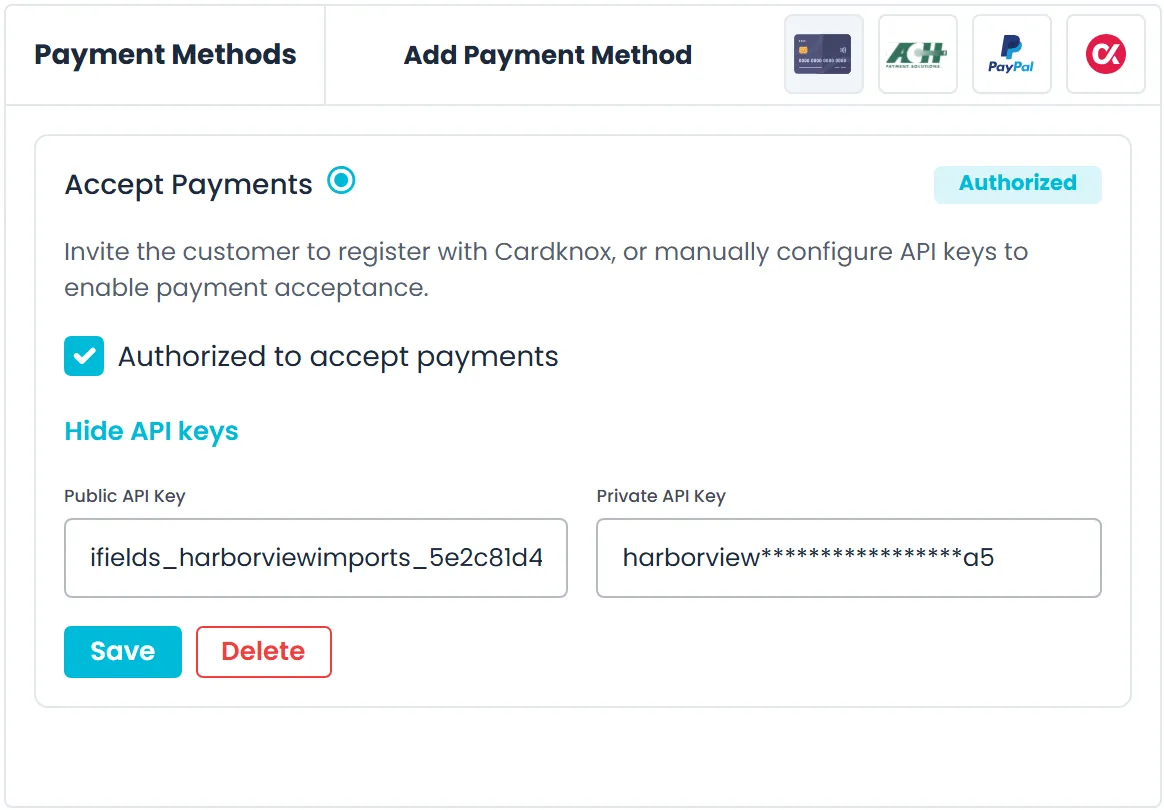
A Cardknox COD is charged on the billing customer's own Cardknox merchant account, not on yours, so the money for their goods goes straight to them. Next to the billing customer, on the order and on the customer page, a colored status dot shows where they stand: Not invited, Pending or Authorized. A company admin sends an invite from that status, asking the customer to register with Cardknox and enter their account keys on a secure form, then ticks Authorized to accept payments in the Accept Payments panel on the customer's Payment tab.
- Invite, or Resend while the invite is pending, straight from the status dot next to the customer
- RushHour checks the customer's private key with Cardknox before saving it, and the customer's reply lands in their Inbox thread
- Or choose Configure API keys manually and enter the customer's public and private keys yourself
- Invites go to the customer's Cardknox email, else its Accounting email, and explain in more detail how the customer gets paid, with the funds landing directly in its own accountNext release
In the driver app
At the door, the driver sees what to collect
On the route, a delivery stop with a COD reads Collect $… Upon Delivery until it is paid. The Drop-off Details screen shows the amount still owed and who pays it. Once the money is in hand, the driver taps Collect payment, which records the full amount due, and can then add photos of the payment, front and back. If the COD is still open when the step-by-step delivery flow starts, the flow adds a step that asks for photos of both sides of the check.
- Collect $… Upon Delivery on the stop card while the COD is owed
- Collect payment records the full amount due, and the stop then reads Freight collected
- Front and back photos of the check or payment, uploaded as collection proof
- On Android and iPhone, in the current driver app
COD that stays straight with your shippers
Card numbers stay with Cardknox
A card COD is processed by Cardknox on your shipper's merchant account. The card number is typed into Cardknox's own secure fields, and RushHour does not store it.
Company admins in control
Adding or changing a COD, seeing its amount on the order, and inviting or authorizing a customer for Accept Payments are company-admin actions. Other users see the Accept Payments status only.
One amount, everywhere
The COD sits on the delivery stop, so the order, the driver app and the check that runs when the stop is completed all read the same amount and the same balance.
Not your money, not your merchant account
Card COD never passes through your own Cardknox account. Cash, check and ACH CODs are recorded in RushHour, with no card processor involved.
Questions about COD
What does COD mean in RushHour?
Cash on delivery: a payment that the customer at a delivery stop owes your shipper for the goods. You put the amount on the delivery stop. The driver collects it at the door, or it is paid by card through Cardknox on your shipper's own account, and RushHour will not complete the stop until it is paid.
Does COD money go through my own Cardknox account?
No. A Cardknox COD is charged on the billing customer's own Cardknox merchant account, after they are authorized to accept payments. Your own Cardknox account, connected under Settings → Integrations, is for card payments on your own invoices. Cash, check and ACH CODs are recorded in RushHour and are not processed by a card processor.
Can the driver take a card at the door?
No. In the driver app the driver records the COD as collected and photographs the payment, such as both sides of a check. Card CODs are charged through Cardknox on your shipper's account, not in the driver app.
What happens if the receiver cannot pay?
The stop stays open: RushHour will not complete it while the COD is owed, even when part of it has been paid. The driver can record a failed delivery attempt with Drop-off Attempt Unsuccessful on the Drop-off Details screen, and a company admin can turn the COD off to release the stop, as long as no payment has been recorded against it.
Who can set up a COD?
Company admins. Adding or changing a COD on a stop, and inviting or authorizing a customer for Accept Payments, need the company admin role. Other users see the Accept Payments status but cannot change it.
Which stops can carry a COD?
Delivery stops. Each delivery stop carries its own COD, owed by that stop's customer, so an order with several drops can collect at each one.
Related
Bring an order with a COD on it.
In the demo we put a COD on a delivery stop, show the Accept Payments status of its billing customer, and walk through what the driver sees at the door.