
From the cargo terminal to the door,
and across borders.
RushHour runs the trucking side of forwarding: airport and terminal recoveries with a reference number and an optional appointment on each stop, blind bills of lading, ocean, air and ground rate cards for each country lane, overseas orders split through your own warehouses, and quotes and invoices in USD, CAD, MXN, EUR, GBP or ILS.
From the terminal to the door
Recoveries, deliveries and the paperwork between them
What the office records on each stop, what the driver sees, and which copy of the bill of lading shows a blind name and address.
Airport and terminal recoveries
The details a cargo terminal asks for, on every stop
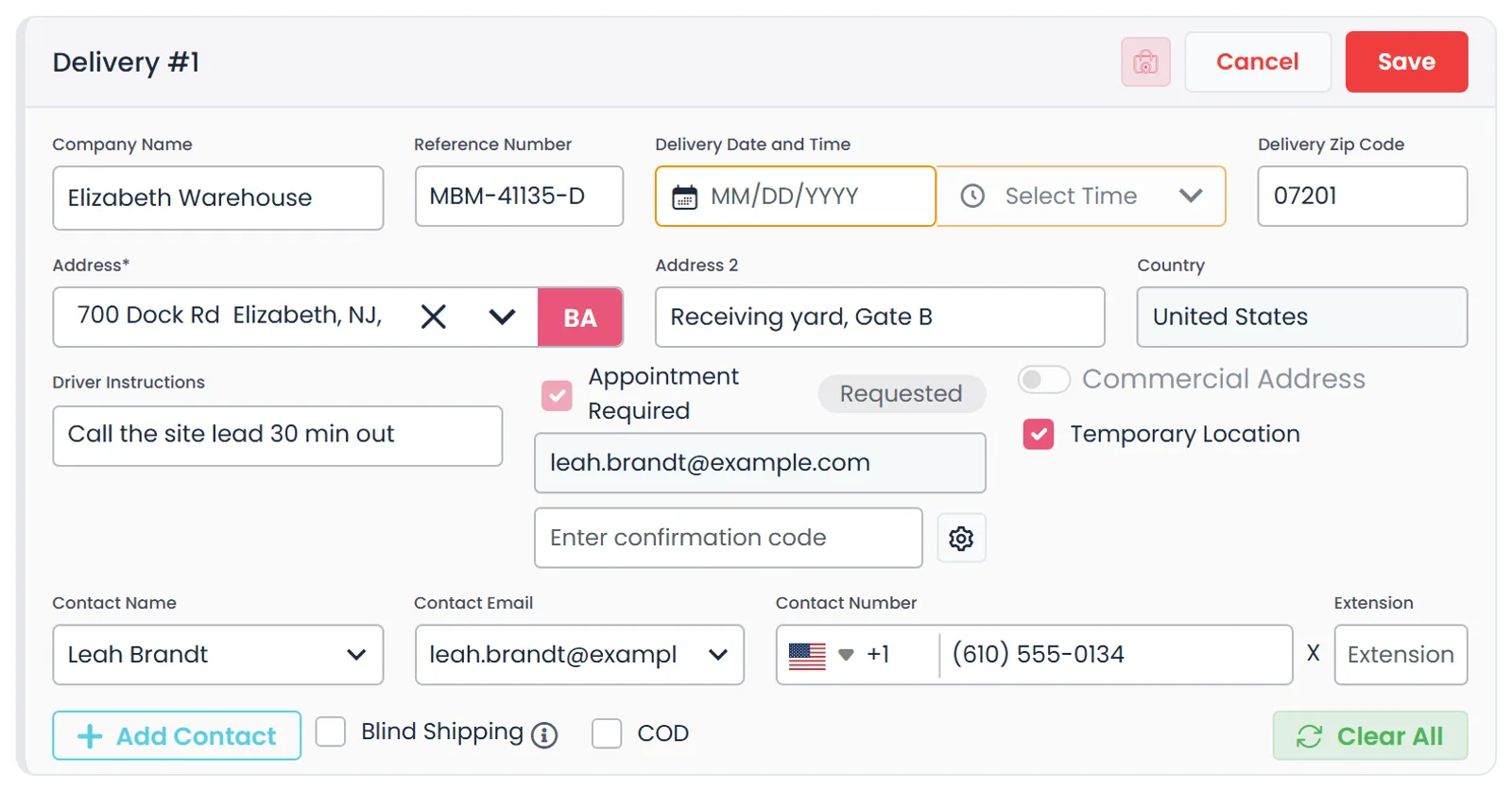
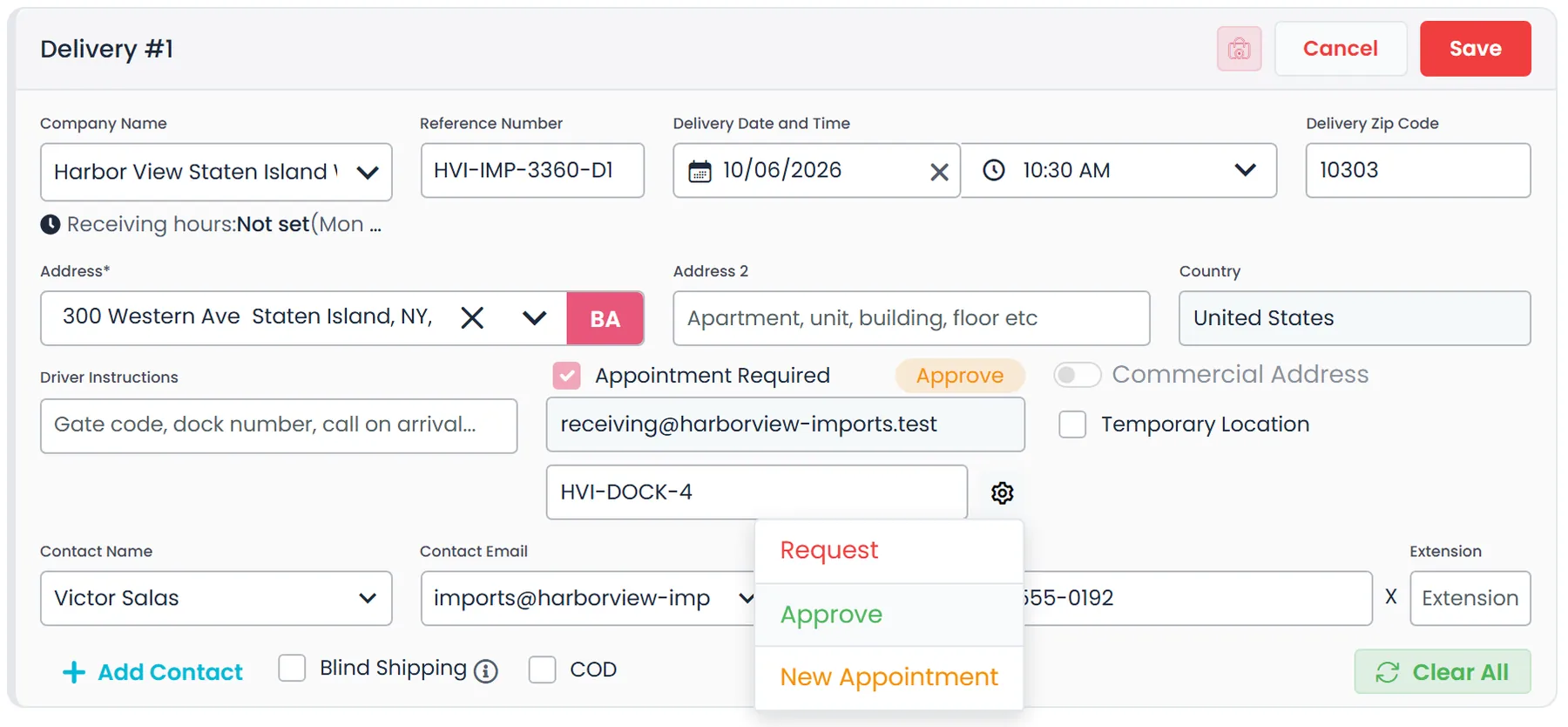
Each pickup and delivery carries its own reference number, a date (Today, Tomorrow or a chosen day), a time slot (Morning, Noon, Evening or an exact time), a site contact with phone and extension, and driver instructions such as a gate code or dock number. Tick Appointment Required, and a company admin chooses Request to email the stop's appointment contact. They reply through a form that needs no login, and the date and time they pick are written onto the stop for your dispatcher to approve.
- Reference number, date, time slot, site contact and driver instructions on each stop
- Appointment status on the stop, from Request to Accepted, and a field for the confirmation code
- When the time they reply with doesn't work, a company admin can send a New Appointment request with a From and Till window
- A Full Load item can carry its container number
- Delivery stop forms show the customer's receiving hours, and pickup stop forms their shipping hoursNext release
In the driver app
The driver has the reference numbers at the counter
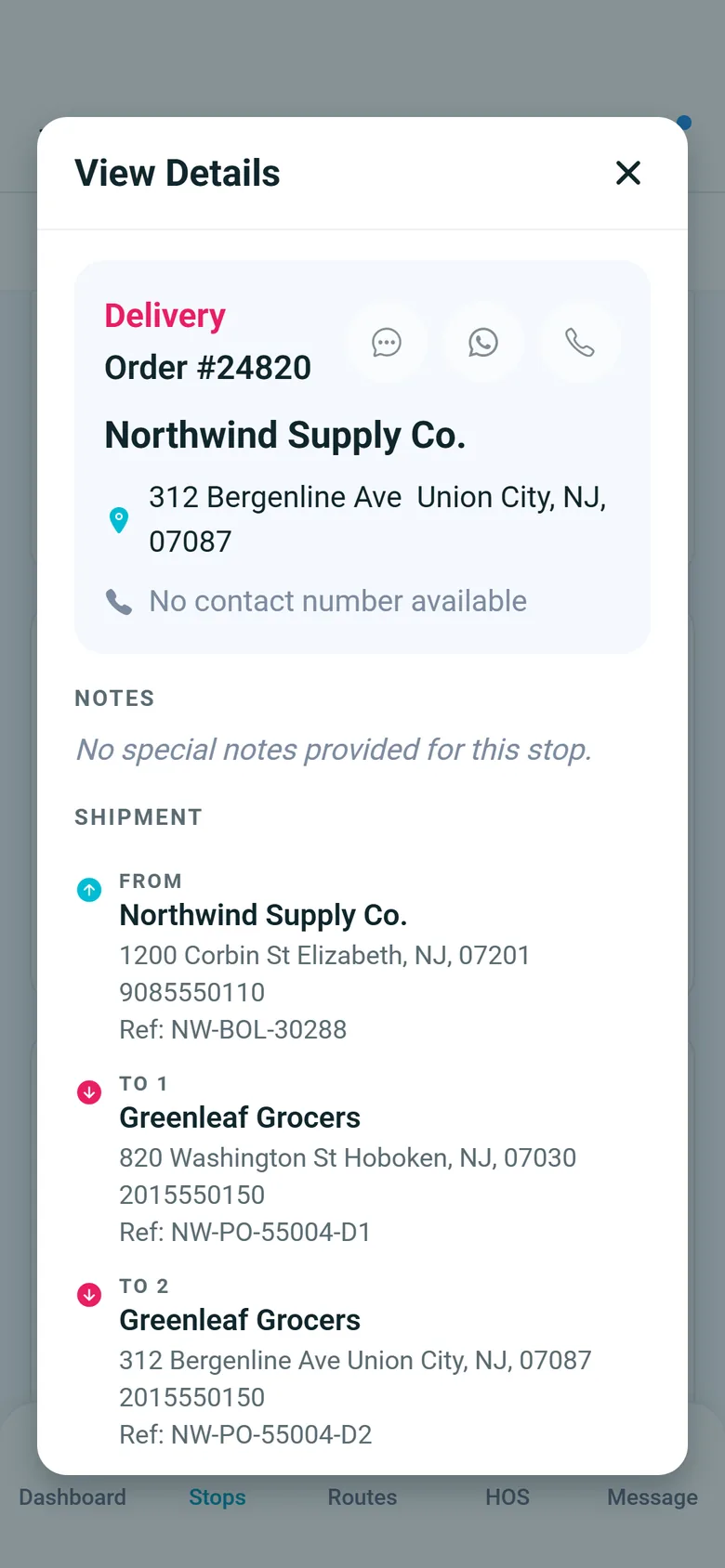
In the RushHour Drivers app, an order's View Details sheet lists the shipment's pickups and deliveries, each with its address and the reference number from the order, so the driver has the right number at the terminal window.
- Every pickup and delivery on the order, with its reference number
- On iPhone and Android
Blind shipping
Keep the real shipper off the consignee's bill of lading
Tick Blind Shipping on a pickup or delivery and enter a Blind Customer Name, a Blind Address and a For name. When you open an order's Bill of Lading, you choose whose copy it is. The billing customer's copy shows the real details. A consignee's copy shows its own delivery as entered and replaces a blind pickup with the blind name and address.
- Blind Customer Name, Blind Address and a For name on any pickup or delivery
- One BOL copy per party: Billing, or Delivery #1, #2 and so on
- The billing customer's copy keeps the real shipper and consignee
- In the driver app, a blind stop's card shows the For name you enter in place of the customer's name
Manifests and purchase orders
Import the manifest instead of typing it
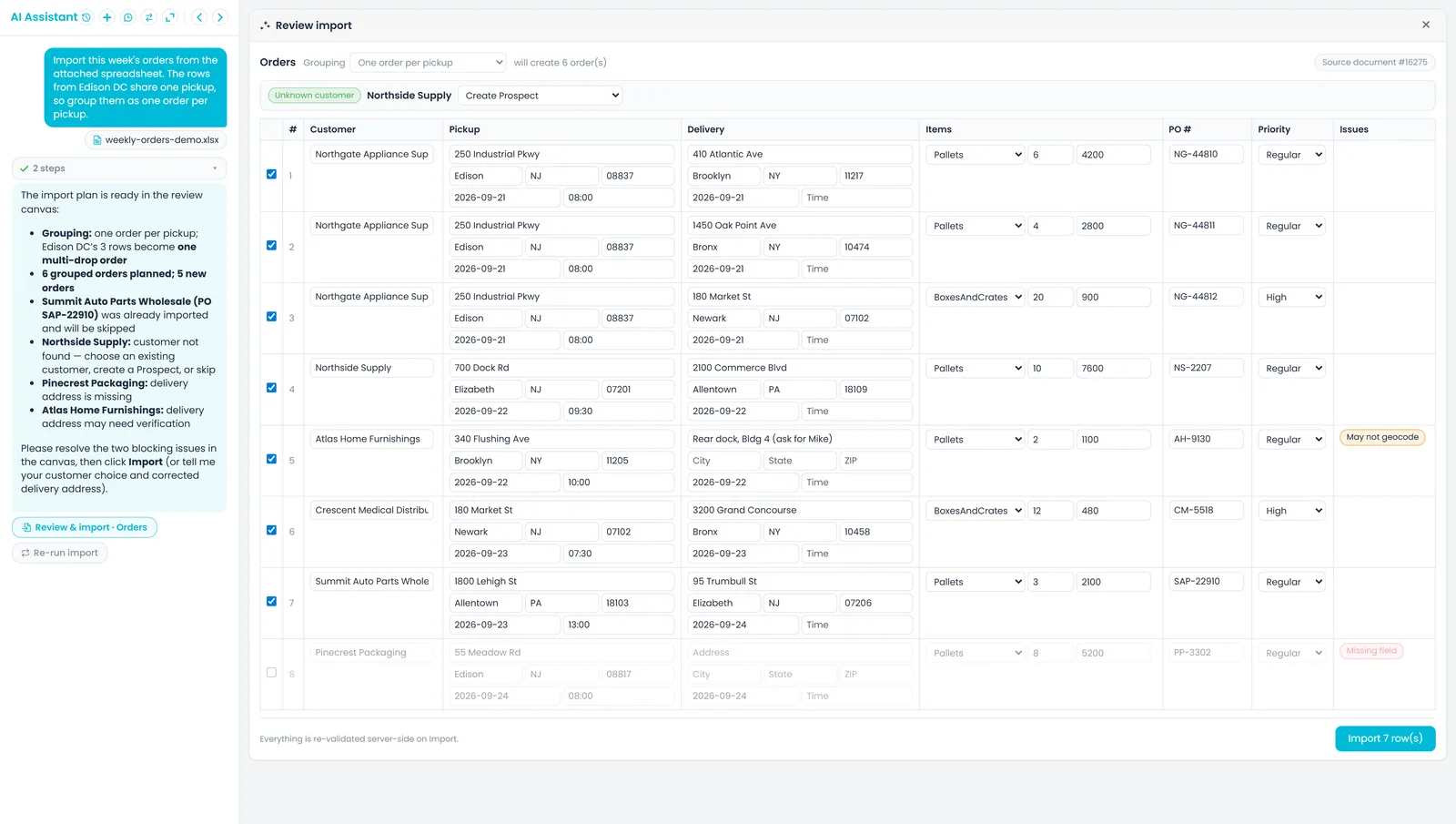
Attach a customer's order sheet, manifest or purchase order in the AI assistant, or open Import with AI on a file in Documents. RushHour lays the rows out in an editable review table: fix a cell, untick a row, choose how rows group into orders, and pick the customer when a name doesn't match. Nothing is saved until you confirm, and the new orders are priced the same way as orders entered by hand.
- PDF, Excel, Word, CSV, text and image files
- PO numbers, line items, delivery windows and special instructions come across
- A PO already imported for the same customer is skipped, not duplicated
- Packing lists become load units on the order
Across borders
International lanes, hubs and currencies
Price the lane from your own rate cards, run an overseas order as two legs through your warehouses, and invoice in your client's currency.
Ocean, air and ground lanes
A rate card for every country lane
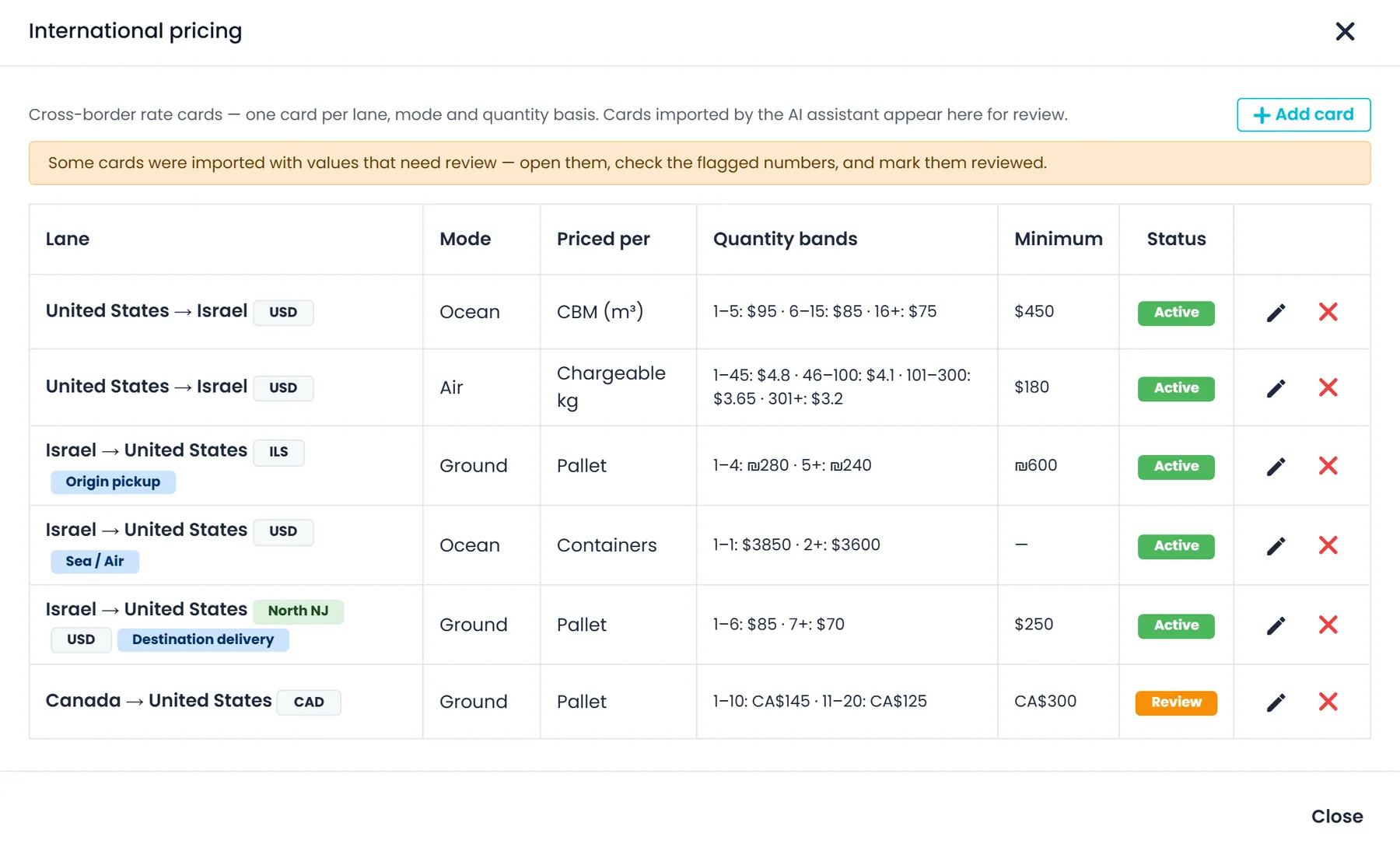
International rate cards live in Settings → Pricing Models → International: Ocean, Air or Ground, from one origin country to one destination country, priced per pallet, chargeable kg, piece, CBM or container, in the card's own currency. When the pickup, the crossing and the delivery come from different vendors, split the lane into Origin pickup, Sea / Air and Destination delivery cards, and RushHour adds the legs into one price.
- Quantity bands, a minimum charge and a fuel percentage applied to the freight subtotal
- Chargeable weight is the greater of actual and volumetric weight, using the card's divisor (for example 6000 for air)
- Named surcharges per shipment, per unit or per location, and size uplifts for Medium, Large and Oversize items
- Valid-from and valid-to dates, and cards for your whole company or for one customer
- Build cards from a forwarder's rate sheet with the AI assistant; nothing is saved until you approve
Overseas and cross-border orders
Overseas orders run as two legs through your hubs
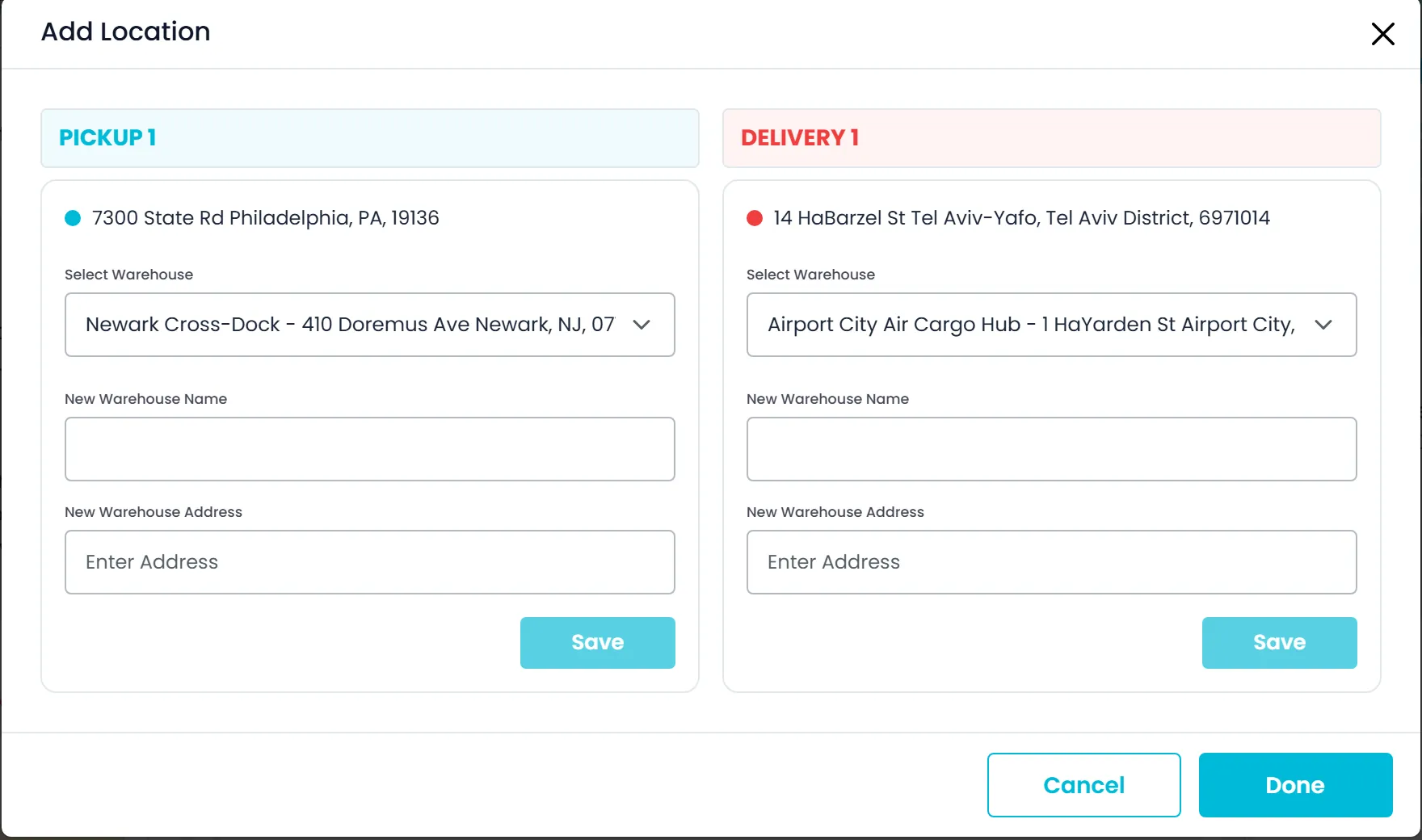
When the map finds no drivable route between a pickup and its delivery, as on an overseas shipment, the order still saves and both stops are flagged Assign HUB. Choose one of your warehouses near each end, and the order runs as two separate legs, each with its own driver, with the hub stops marked HUB. An order with stops in two countries shows that it needs two drivers from different countries and a hub in each country.
- No drivable route: the order saves, with both stops flagged Assign HUB
- Each hand-off is a Delivery To HUB stop and a Pick up From HUB stop at your warehouse
- A notice on orders with stops in two countries: two drivers, two hubs
- Reassigning a stop asks before it deletes the HUB hand-off
Currencies and exchange rates
Quote and invoice in your client's currency
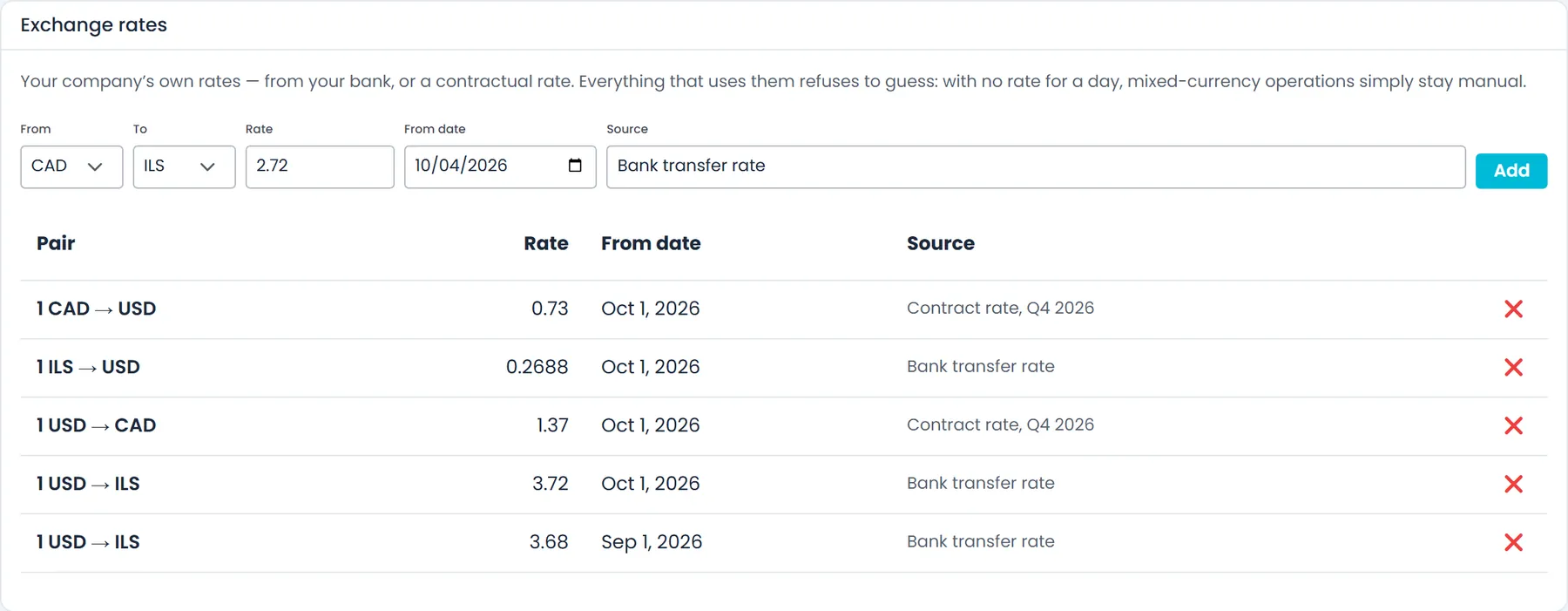
Turn on the currencies you work in under Settings → Profile → Currencies and choose a default. With more than one enabled, quotes and draft orders show a Currency selector, and the currency locks once the quote becomes an order. Invoices take their order's currency, and a payment applies only to invoices in its own currency. Exchange rates come from the table you keep in Settings → FX rates: RushHour never looks one up or guesses one.
- USD, CAD, MXN, EUR, GBP and ILS, with USD always on
- Each international rate card has its own currency
- Your own rates by date, with an optional source such as your bank or a contract
- An invoice in a non-default currency records the rate in force on its date, when you have entered one
- Enabled Currencies picked from a checklistNext release
What stays true on every international order
No hidden conversion
RushHour does not convert money between currencies on its own. Each quote, order and invoice has one currency, rate-card legs in different currencies are not added together, and exchange rates come only from the table you keep.
Reviewed before it's saved
Orders and rate cards the AI assistant reads from a document stay a plan until someone on your team approves them. Rates it took from a quoted range stay flagged Review until someone checks the card.
Per-customer pricing
Give a client international rate cards of their own. Clients without their own pricing model are priced from your company cards.
Next release
Cross-border orders, easier to dispatch
These are finished and in final testing, and they ship with the next production release of RushHour.
Air/Port filter on Orders and QuotesNext release
Filter the Orders and Quotes lists to regular orders or to Air/Port orders, whose stops are in two or more countries, with tabs in the Old UI or the Shipment Type menu in the New UI. Order Dashboard counts follow the filter.
Each country's route on the order mapNext release
Once a cross-border order's hubs are assigned, the order map draws a separate route in each country and shows its distance when you hover it. Add Location lists the stops that still need a hub.
Both ends of a hub leg for one driverNext release
When you assign a driver to a stop on an order routed through a hub, the Portal offers to give the stop at the other end of that hub leg to the same driver, and the driver list can show only drivers in the stop's country.
A reminder when one driver crosses a borderNext release
On the Dispatch board, when one driver gets an order's stops in two countries, a "One driver, more than one country" message names the driver, the order and the countries. The assignment still saves.
Appointment emails rememberedNext release
When a stop's customer has no appointment email yet, the address you type on a pickup or delivery is saved to that customer and fills in on their next stop. Saving it needs permission to edit customers.
Wrong-country addresses flaggedNext release
A warning icon flags an address that seems to be outside the country it is saved under, which can make an order look international. Nothing is changed automatically.
Customer story
Built inside a working freight and forwarding company
RushHour was built inside Shimon's Express, a New Jersey freight, forwarding and warehousing company whose drivers run airport and CFS recoveries alongside metro deliveries and long-haul loads. Its dispatchers and billers specified the platform, and they still run their freight on it.
RushHour and Shimon's Express are connected companies. This is our founding operator's story, not an independent review.
Read the Shimon's Express storyMeasured on the RushHour platform
Totals since 2020, measured on the RushHour production database in September 2026 and rounded down. Nearly all of this volume is Shimon's Express.
FAQ
Freight forwarding questions
Can RushHour price air and ocean freight, not only trucking?
Yes. International rate cards in Settings → Pricing Models → International cover Ocean, Air and Ground lanes between two countries, priced per pallet, chargeable kg, piece, CBM or container, with bands, minimums, fuel and surcharges. They price orders that use the Pricing Model price type, which the order editor offers for pallet orders, and they are checked before your zone and pallet rates.
What happens when an overseas order has no road route?
It still saves. When the map finds no drivable route between a pickup and its delivery, both stops are flagged Assign HUB. Choose one of your warehouses near each end, and the order runs as two separate legs, each with its own driver.
Can we keep the real shipper hidden from the consignee?
Yes, on the bill of lading. Tick Blind Shipping on the stop and enter the blind name and address. When you open the order's Bill of Lading, choose the copy: the billing customer's copy shows the real details, and a consignee's copy shows the blind name and address in place of a blind pickup.
How do we book a pickup or delivery appointment with a terminal or receiver?
Tick Appointment Required on the stop, and a company admin chooses Request. RushHour emails the stop's appointment contact a request with a reply form that needs no login. The date and time they pick are written onto the stop, and your dispatcher approves them. If the time doesn't work, a company admin can propose a From and Till window with New Appointment.
Which currencies can we quote and invoice in?
USD, CAD, MXN, EUR, GBP and ILS. USD is always on, and you choose the others and your default in Settings → Profile → Currencies. RushHour doesn't convert between currencies on its own: exchange rates are the ones you enter in Settings → FX rates.
Can we import manifests and purchase orders instead of typing them?
Yes. Attach the file in the AI assistant or use Import with AI in Documents. You review the rows in an editable table, and nothing is saved until you confirm. A PO already imported for the same customer is skipped. Importing needs the Import with AI permission.
Related
Bring us a manifest and your hardest lane
We'll show how your recoveries, rate sheets and overseas legs look in RushHour as orders, rate cards and hub hand-offs.