
Problems reported from the road,
with photos and location attached.
Drivers report a truck defect, a safety concern, a wrong address or missing paperwork from the RushHour driver app on Android and iPhone today, with up to 5 photos or videos. The app adds the route, truck and stop, and the driver's location when the phone allows it. In the next release, a new Issues page in the Company Portal collects every report, so your office can see how urgent each one is, reply to the driver and follow the issue through to closed.
Available today
Reporting from the driver app
Everything in this section works now in the current RushHour driver app for Android and iPhone, from Google Play and the App Store. Your office will read and answer these reports on the Issues page, which arrives in the next release.
From the road
Drivers report a problem where it happens
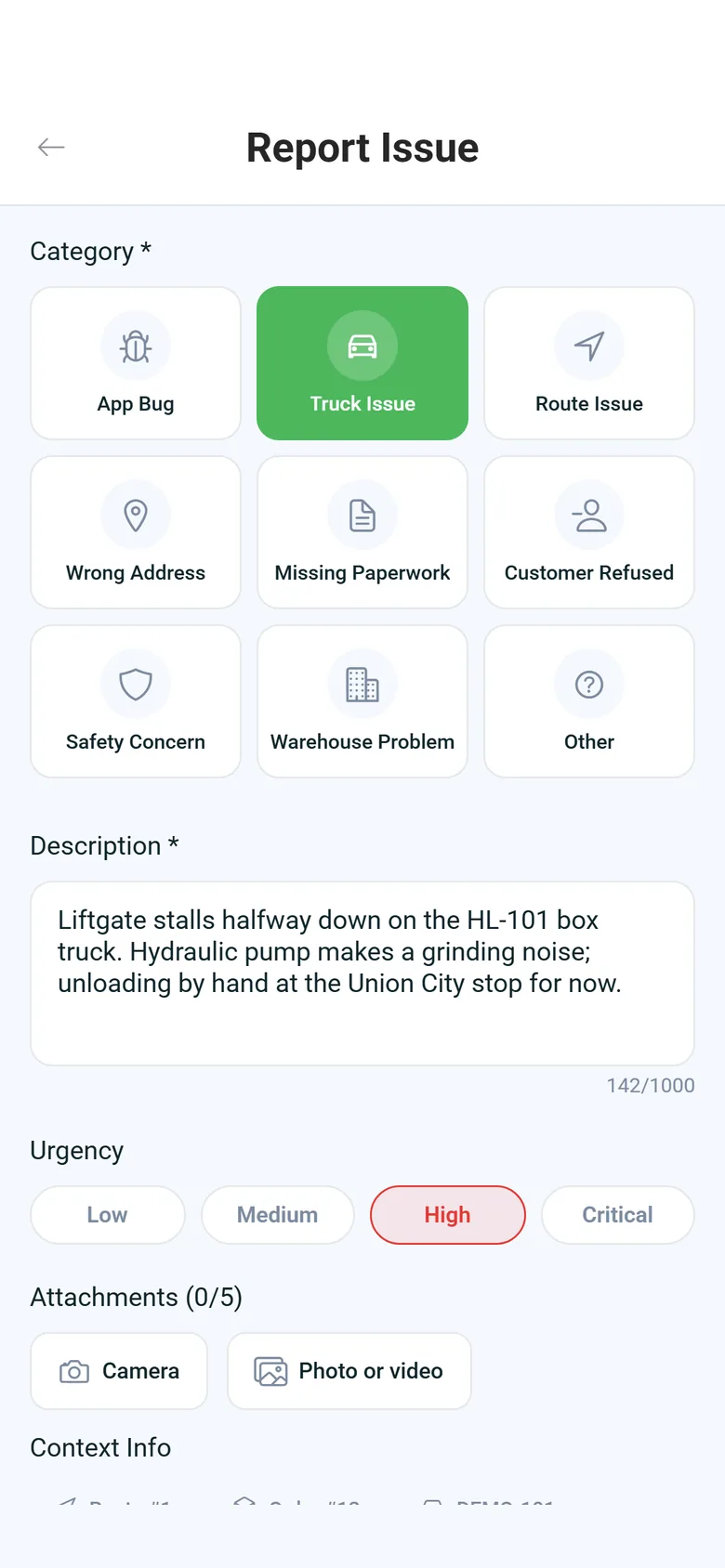
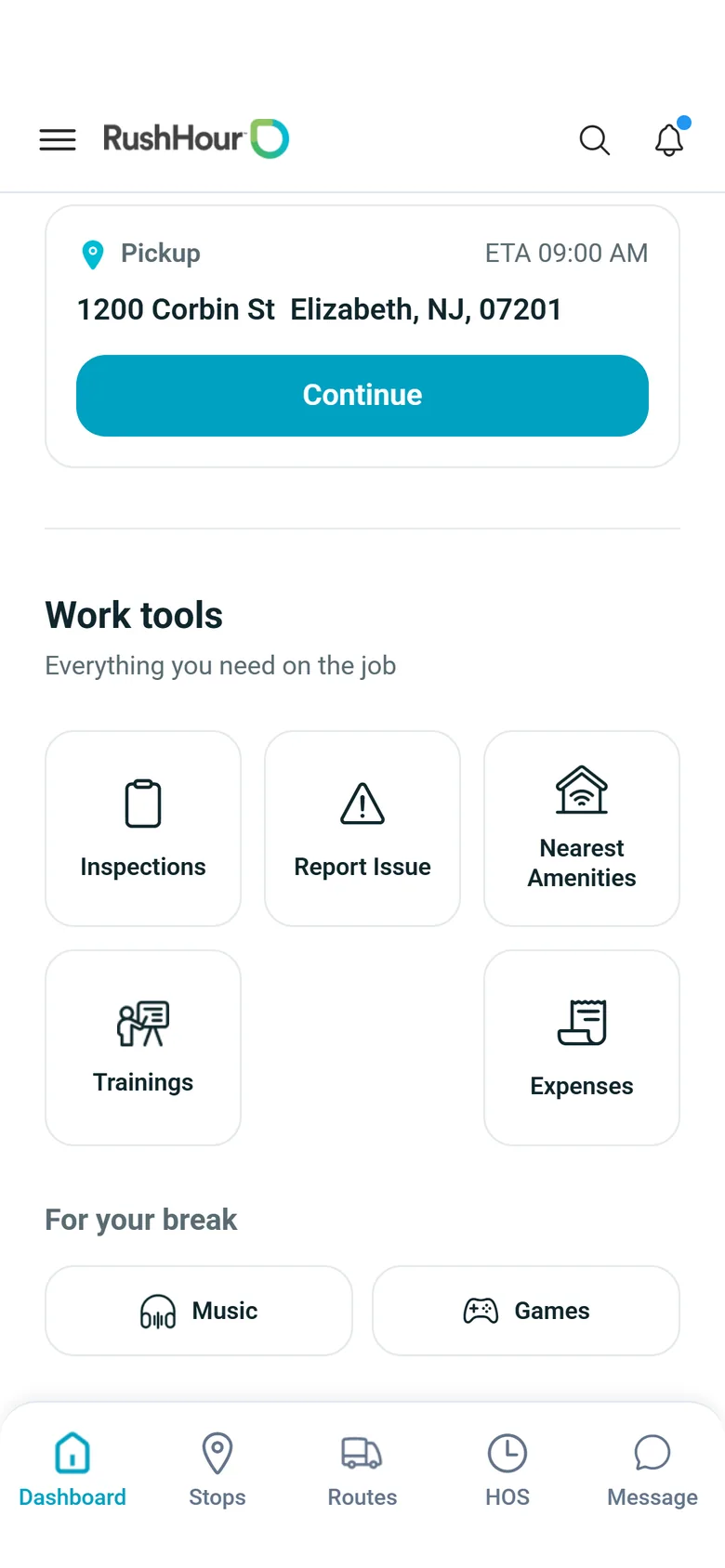
Report Issue sits in the Work tools on the driver app's dashboard. The driver picks the kind of problem, sets how urgent it is and describes what happened, with up to 5 photos or videos from the camera or the gallery. The app adds the route, truck and stop they are on, plus their location when location access is allowed. While the report is still Submitted, the driver can edit it.
- Nine categories, from truck issue to safety concern
- Urgency from Low to Critical
- Up to 5 photos or videos per report
- Description of 10 to 1,000 characters
- Route, truck, stop and the open order filled in automatically
- GPS position and street address added when location access is allowed
Driver's history
Drivers keep track of what they reported
The My Issues tab under Issues & Violations lists every report the driver has sent, with Total, Open and Resolved counts at the top. Opening a report shows its category, status and urgency, the address and GPS coordinates, the truck and the photos and videos. Office replies show on the same screen once your team answers from the Issues page in the next release.
- Filter by status, category, urgency or date
- Date ranges: today, or the last 7, 30 or 90 days
- The list refreshes each time the driver opens it, or with a pull down
Company setting
Switch issue reporting off if you don't use it
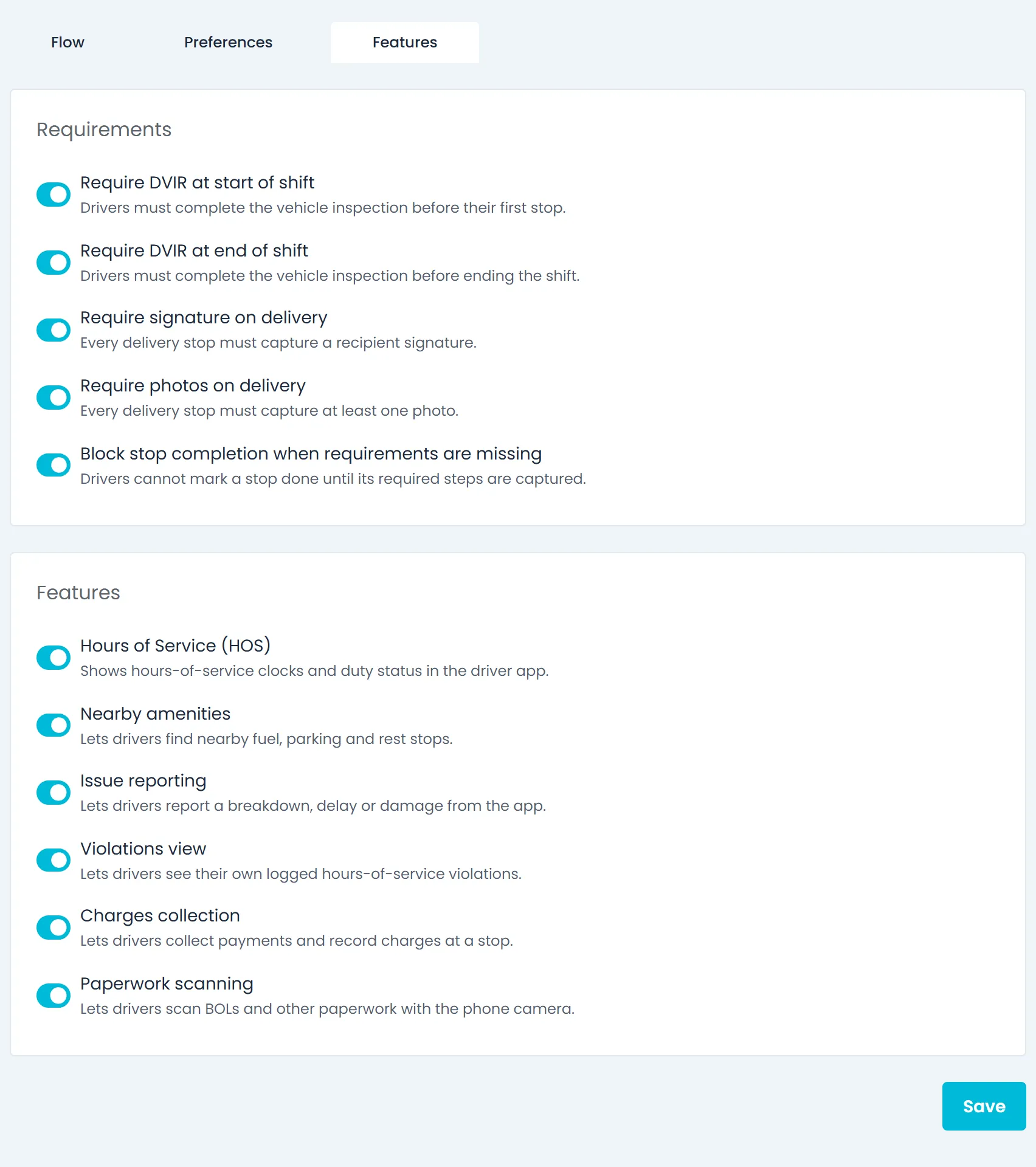
Issue reporting is on for every company by default. If your company handles driver problems another way, turn it off under Settings → Driver App → Features in the Company Portal, and drivers no longer get the report form or the My Issues tab. You can switch it back on at any time.
- On by default
- One switch for all of your company's drivers
- Sits next to the other driver app switches, such as Hours of Service and nearby amenities
What drivers can report
Nine categories, four urgency levels
Every report has one category and an urgency of Low, Medium, High or Critical. Medium is preselected, so the driver changes it only when the problem is more or less pressing than that.
App Bug
Something in the driver app does not work as it should.
Truck Issue
A defect or breakdown on the truck, such as a liftgate that stalls halfway.
Route Issue
A problem with the route the driver is on.
Wrong Address
The stop's address is wrong, or the place is not where the address says.
Missing Paperwork
Documents the driver needs at a stop are missing.
Customer Refused
The customer refused the delivery or part of it.
Safety Concern
Anything that puts the driver or other people at risk.
Warehouse Problem
A problem at a warehouse or loading dock.
Other
Anything else, described in the driver's own words.
How it works
From the driver's report to a closed issue
The next release adds the office side in the Company Portal: the Issues page, replies to drivers, status changes and an Open issues column on the Fleet list. These features are finished and ship with the next production release. Reporting itself is already in the RushHour driver app on Android and iPhone (version 2.x from Google Play and the App Store).
For the office
Every report on one Issues pageNext release
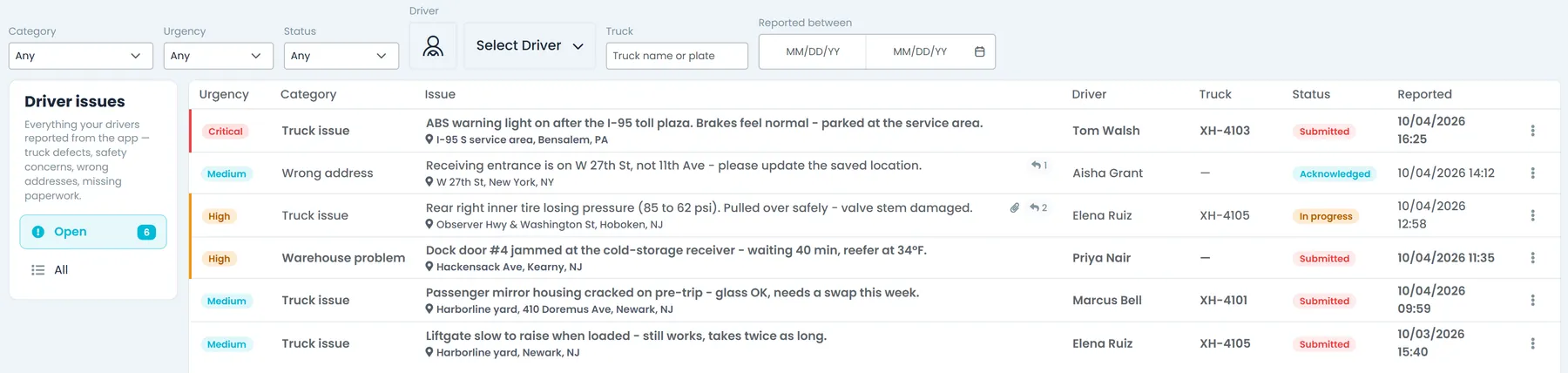
The Issues page lists every report with its urgency, category, driver, truck, status and the time it came in. The Open view shows reports not yet resolved or closed, with a count, and All keeps the full history. On this page, the header search box finds reports by description, truck, address or driver name.
- Open from the Drivers page, Reports or the header search
- Filter by category, urgency, status, driver, truck or date
- Admins choose which roles can view issues, and which can also reply and change status
- Ask the AI assistant to filter the list, for example to show open critical truck issues
- Share a link that opens the same filters, or a single issue
Reply to the driver
See the photos and location, then replyNext release
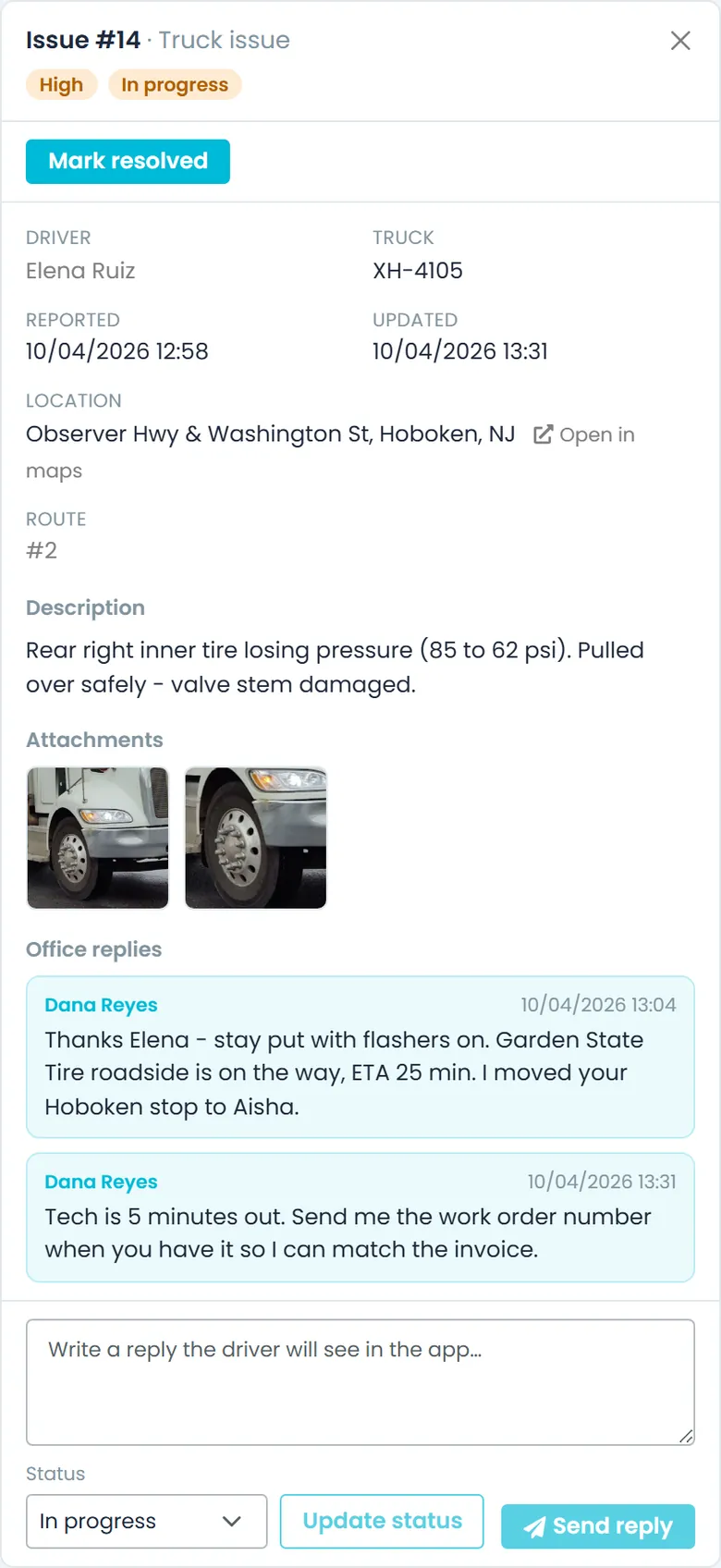
Click a report to open it beside the list, with the driver's description, photos, the location with an Open in maps link, and links to the driver, route and order. Your reply shows on the report in the driver app, and the driver gets a push notification if their phone allows notifications. Replying to a Submitted report moves it to Acknowledged, so the driver knows it was seen.
- Photos and location from the driver's phone
- Links to the driver's profile, the route and the order
- Replies shown to the driver in the app
- Users with view-only access see the issue without the reply box or status controls
Track it to closed
Move each issue from Submitted to ClosedNext release
Every report moves through Submitted, Acknowledged, In progress, Resolved and Closed. Your team moves it on with Acknowledge, Start working, Mark resolved or Close from the row menu or the open report, or picks any status there with Update status. The driver sees the current status in the app and gets a push notification when it changes, if their phone allows notifications.
- Five statuses from Submitted to Closed
- One-click moves from the list or the open report
- Reopen a resolved or closed issue if the problem comes back
Fleet view
See which trucks have open defectsNext release
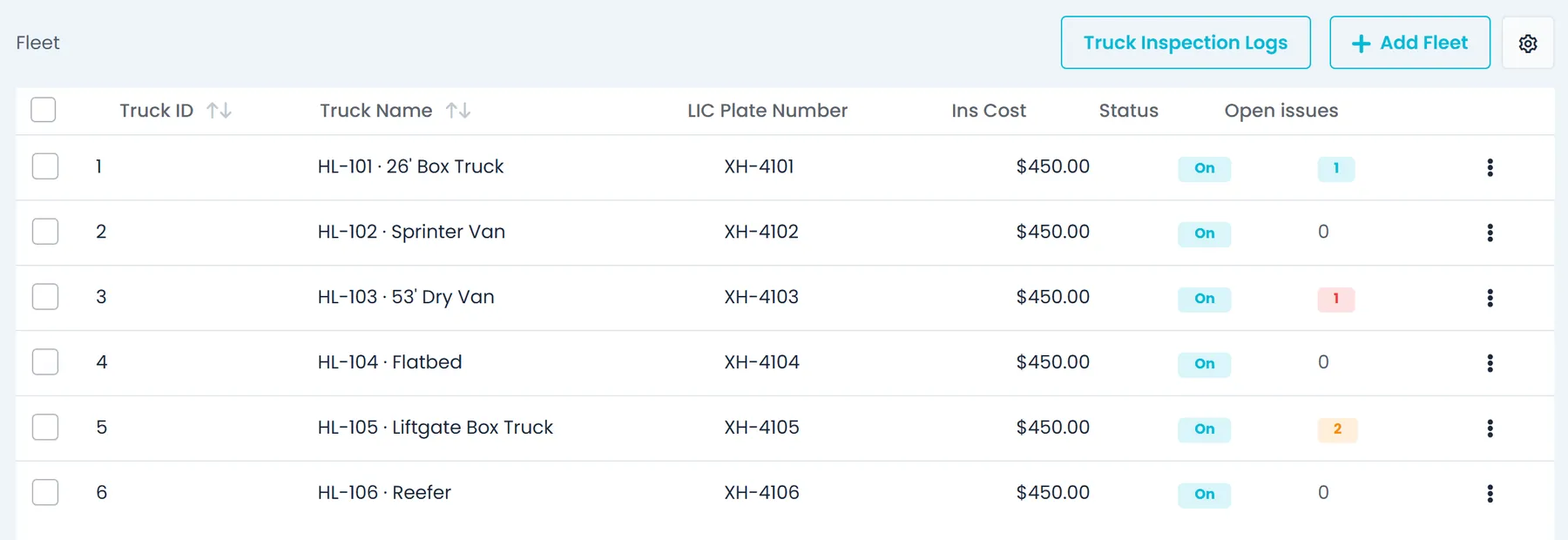
The Settings → Fleet list gets an Open issues column that counts each truck's open Truck issue reports, matched on the truck's name or plate number. The badge color follows the most urgent of them, and a click opens that truck's open issues on the Issues page.
- Counts open reports in the Truck issue category
- Badge color follows the most urgent report
- One click to that truck's open issues
In the next release
How an issue moves from Submitted to Closed
The moves your team gets for each status on the Issues page, from the row menu or the open report. Update status in the open report can also set any status directly, and the driver sees the current status in the app.
SubmittedNext release
The driver has sent the report and can still edit it. Next: Acknowledge, Start working or Mark resolved. Sending a reply also moves it to Acknowledged.
AcknowledgedNext release
Your team has seen the report. Next: Start working or Mark resolved.
In progressNext release
Someone is working on the problem. Next: Mark resolved.
ResolvedNext release
The problem is fixed and the issue leaves the Open view. Next: Close, or Reopen if it comes back.
ClosedNext release
Finished, and kept in the All view with its replies. Reopen if the problem comes back.
ReopenNext release
Sends a Resolved or Closed issue back to In progress, so it shows in the Open view again.
Why it matters
Drivers only describe the problem
The route, truck, stop and location are added by the app, so a report takes a category, an urgency and a few words, plus photos when they help.
Written down, not lost in a callNext release
A defect or safety concern arrives in writing, with the driver's own description and any photos and location, instead of in a phone call or a text thread.
Drivers hear backNext release
Replies and status changes reach the driver in the app, so they know the report was seen and what happens next.
Trucks with problems stand outNext release
Open truck issues show on the Fleet list, so your team can see which trucks still have unresolved defect reports.
Questions about driver issue reporting
Can drivers report issues from the app today?
Yes. Report Issue is in the RushHour driver app on Android and iPhone (version 2.x from Google Play and the App Store). The driver picks one of nine categories and an urgency, describes the problem in 10 to 1,000 characters and can add up to 5 photos or videos.
When will our office see and answer reports in the Company Portal?
With the next release. It adds an Issues page in the Company Portal where your team filters reports, sees the photos and location, replies to the driver and moves each issue from Submitted to Closed, plus an Open issues column on the Settings → Fleet list. The Issues page also lists reports that drivers sent before it arrived.
What is attached to a report automatically?
The route, truck and stop the driver is on, the order when the driver has one open, and the GPS position and street address when the driver has allowed location access.
Can a driver change a report after sending it?
Yes, while it is still Submitted. After that, the driver can still open it in My Issues to see its status and details.
Can we turn issue reporting off?
Yes. It is on by default, and you can switch it off for the whole company under Settings → Driver App → Features in the Company Portal.
Who in our office will be able to reply?
In the next release, two role permissions control the Issues page: View driver issues lets a user see reports, and Manage driver issues also lets them reply and change status. Existing companies' admin and dispatcher roles get both, and you can grant them to other roles.
Does the driver find out when the office answers?
Yes. Once your team replies or changes the status from the Issues page in the next release, the driver sees the reply and the current status on the report in the app.
Related
Bring the last problem a driver called in about.
In the demo a driver reports an issue from a phone, and you watch it land on the new Issues page from the next release, send a reply and mark it resolved.