
Pallets and cartons to businesses,
delivered, proved and invoiced.
For box-truck and straight-truck fleets delivering freight to stores, offices and receiving docks. RushHour builds the multi-stop routes, keeps each driver's route current, brings the photos and signature back from the dock, and turns the finished stops into the invoice.
A final-mile freight day
From the loading dock to the receiving dock
Routes
Fit each new delivery into the right route
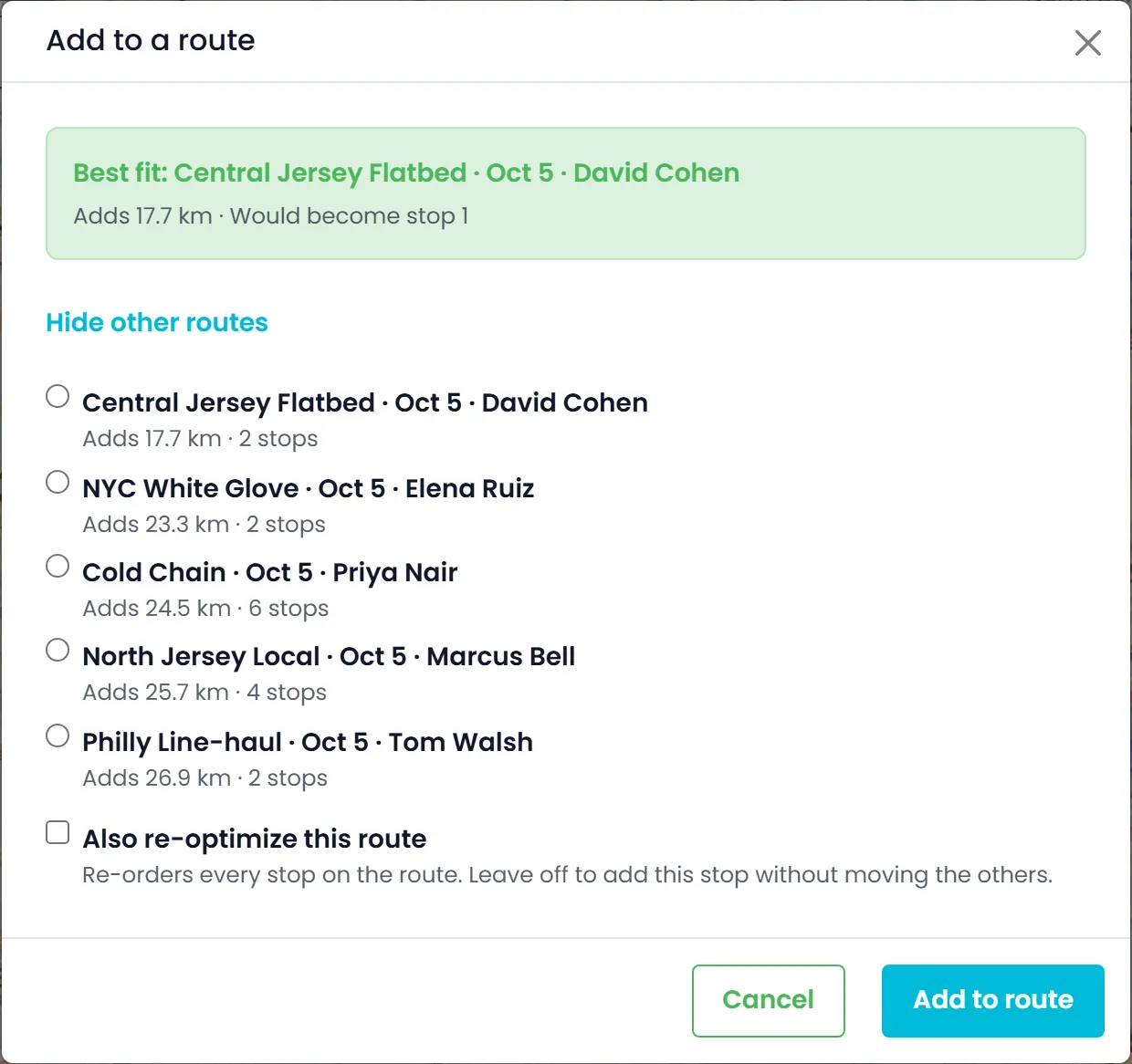
Build the day's multi-stop routes on the dispatch board by dragging orders onto them. Each stop's time is coloured on its card, green when it is due today, amber for a later day and red once it is late, so dock times stay in view while you plan. When a new delivery comes in, or a failed drop comes back to the unassigned list, Add to a route works out the extra distance the stop would add to each active route, recommends a best fit and shows which stop number it would become. It skips routes already at your stop limit or at the pallet limit, which is one limit for every truck. Add the stop without moving the others, or re-order the whole route by distance or priority.
- Extra distance a new stop adds to each route, with a best fit recommended
- Routes at your stop limit or the pallet limit skipped (one pallet limit for every truck)
- Stop order re-optimized by distance or priority
- Add a stop without moving the others, or re-optimize the route as you add it
- Orders too big for one route flagged Increase Limit or Over truck capacityNext release
Dock appointments
Book the receiving dock's time on the stop
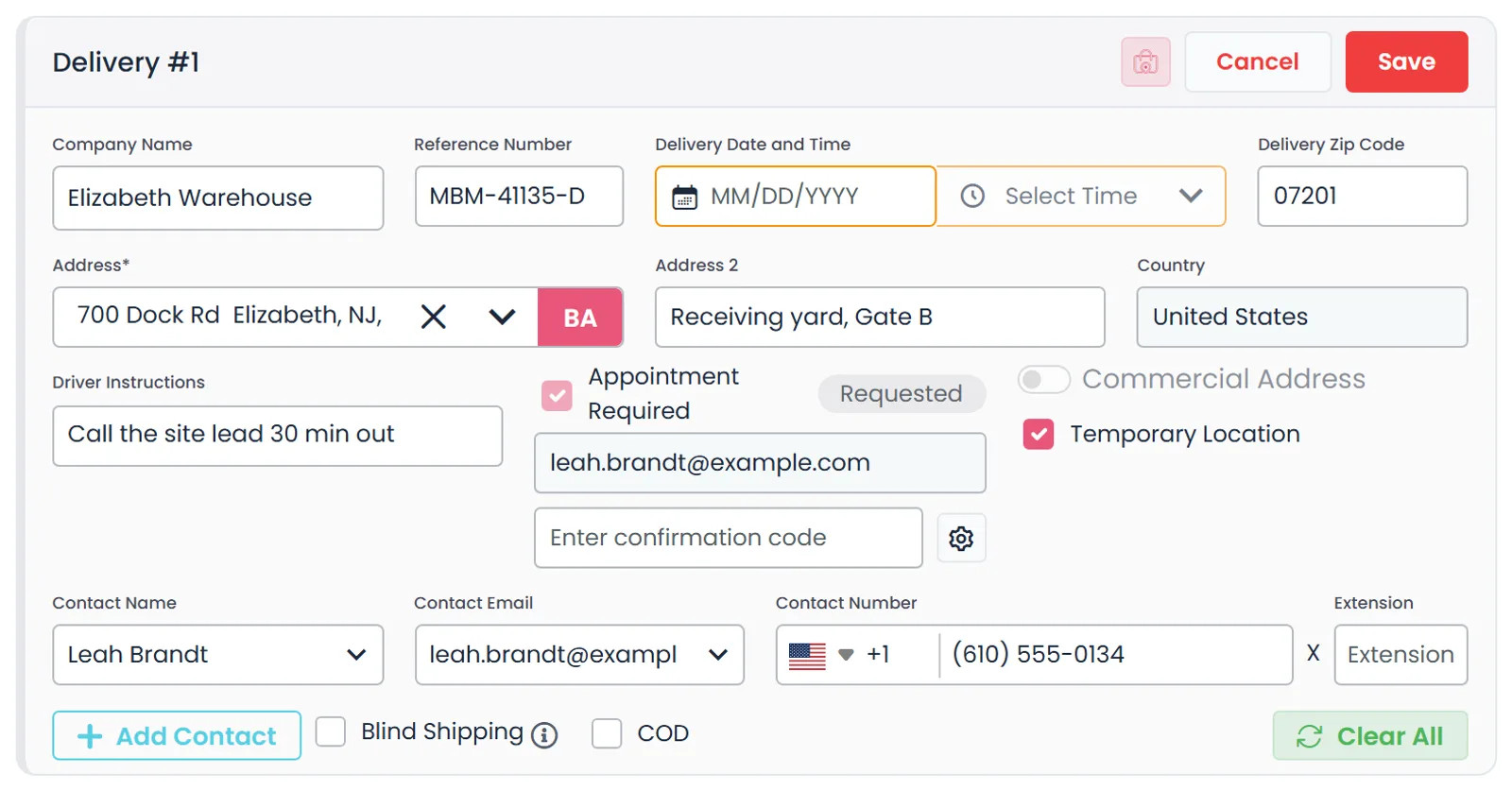
Tick Appointment Required on a delivery stop, choose Request from its appointment menu, and when you save the stop RushHour emails the receiver a request under your company name. They pick a date and time on a form that needs no login, their reply writes that time onto the stop, and your dispatcher approves it. Once the slot is accepted, record the facility's confirmation code on the stop, next to the appointment status. If the time doesn't work, a company admin can propose a From and Till window and ask again.
- Appointment request emailed under your company name
- The receiver replies with no login, and your dispatcher approves
- Confirmation code kept on the stop
- The customer's receiving hours shown on the delivery stop formNext release
On the road
Keep the board and the driver in step
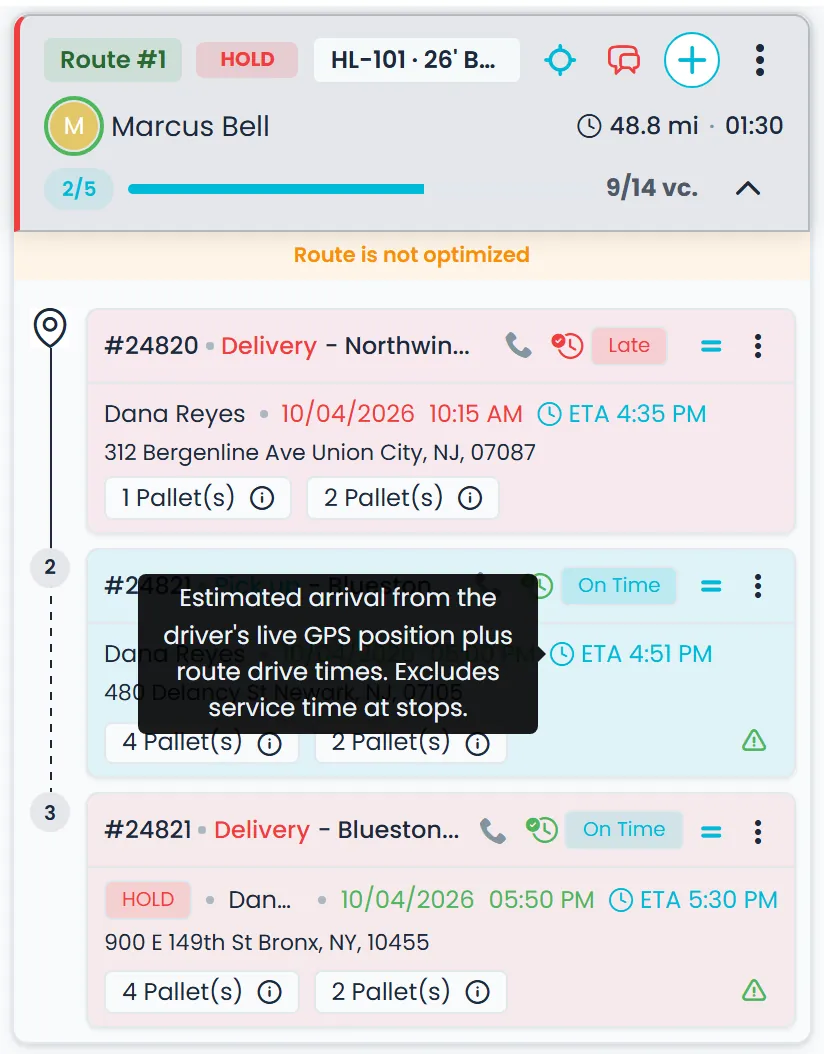
Pending stops can show an ETA chip built from the route's drive times. It starts from the truck's position when the truck is linked to Samsara, or from the driver app's location if it was sent in the last 20 minutes, otherwise from the last completed stop or the planned schedule, and the tooltip says which. When you add, remove, re-order or move a driver's stops, the driver gets a push notification. Instructions saved on the delivery address, such as the receiving dock or a gate code, show on the stop in the driver app.
- ETA chip on pending stops, with its source in the tooltip
- Push notification when a driver's stops change
- Address instructions on the stop in the driver app
- Select a stop to see how far away the driver is, when the truck or the driver app reports a position
- Completed stops show the arrival time, and the delay when the stop ran more than 15 minutes late
- Estimates count drive time only, not the time spent at each stop
Proof of delivery
Proof from the receiving dock, filed on the order
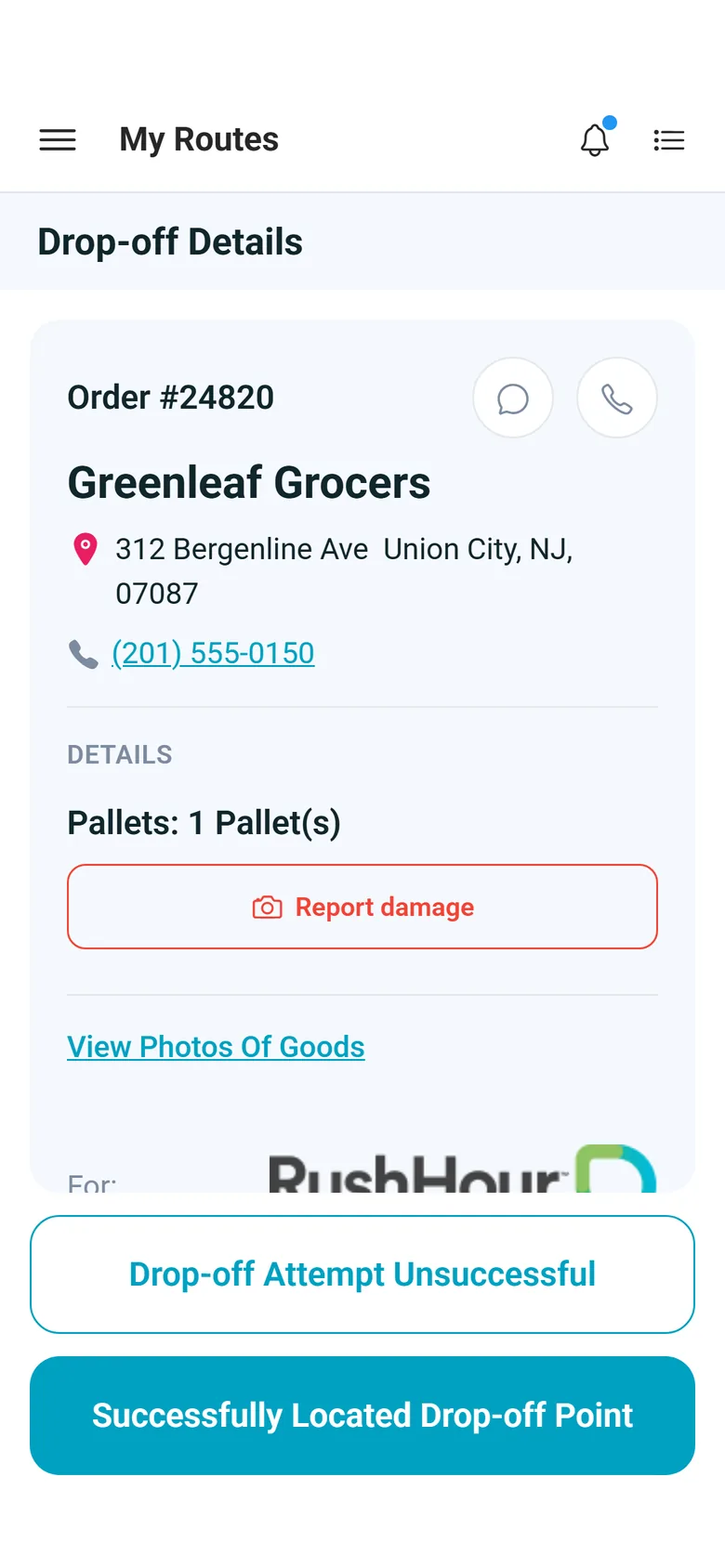
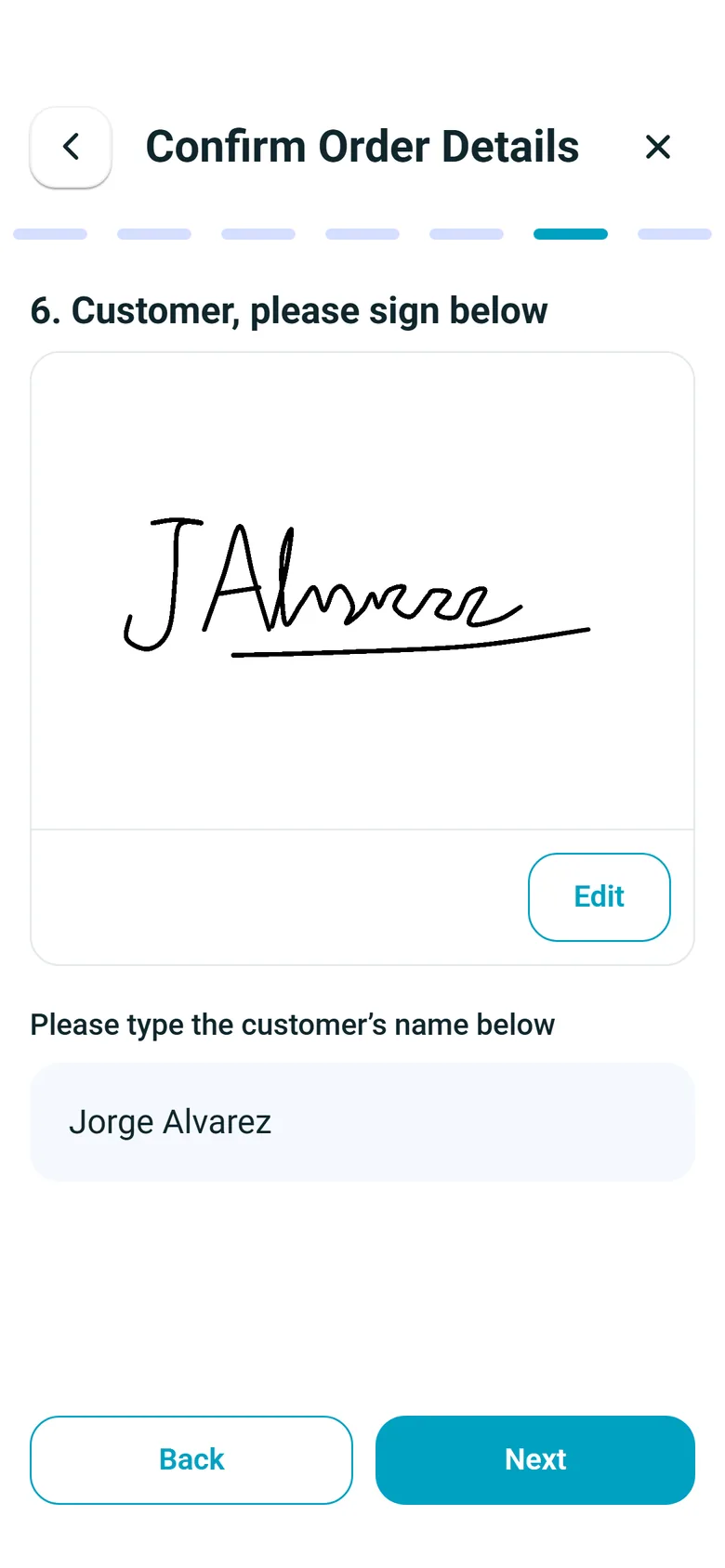
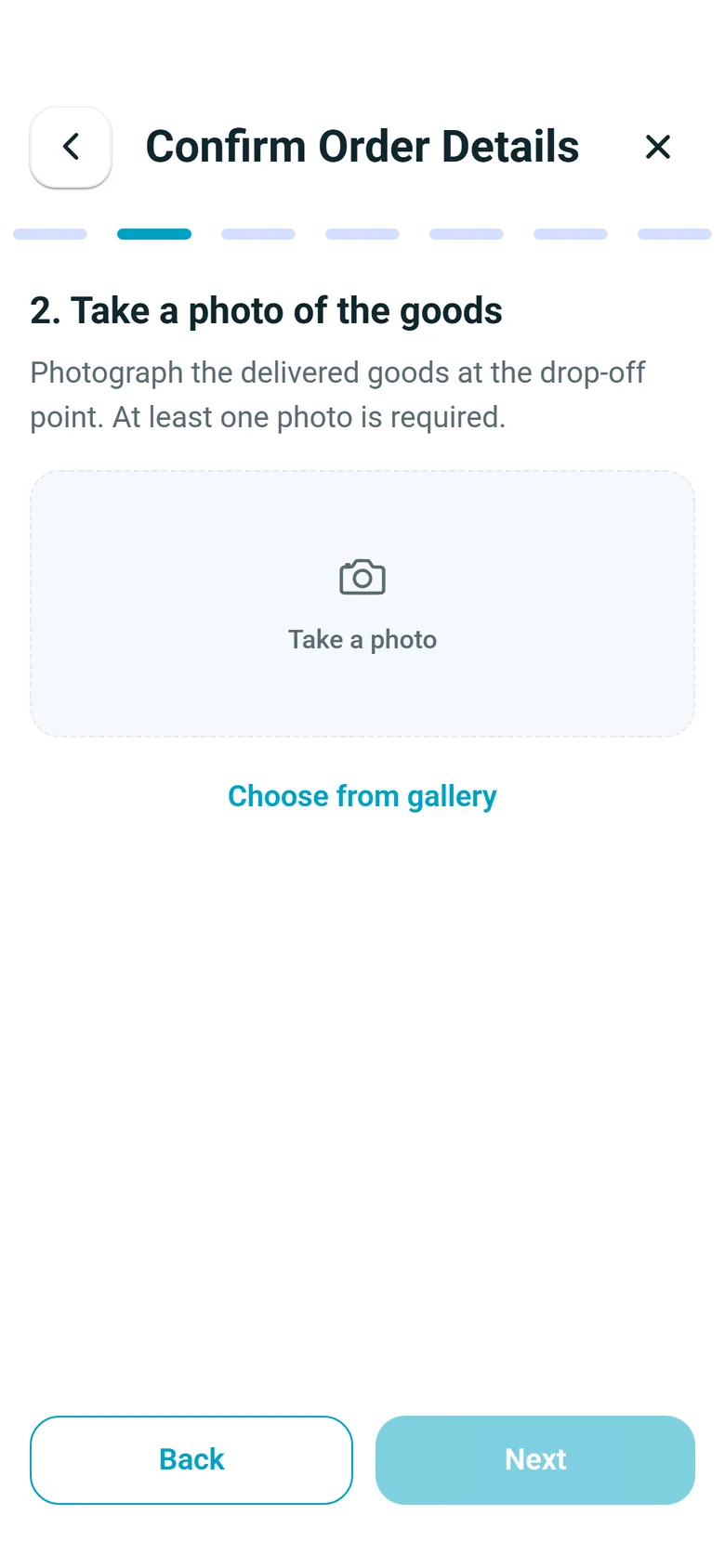
At the drop, the driver photographs the freight and captures the receiver's signature, and both are saved to the order for your office and your customer. Every order prints barcode labels with a QR code of the order number. In the driver app, drivers scan the load units at pickup, and your company can require photos and a signature before a delivery can be completed.
- Delivery photos and signature saved to the order
- Barcode labels printed from the order
- Pickup scans and required proof in the app
- Photo and signature steps on every delivery by default, with an option to block completion without them
Exceptions
Closed docks, long waits and payment on delivery
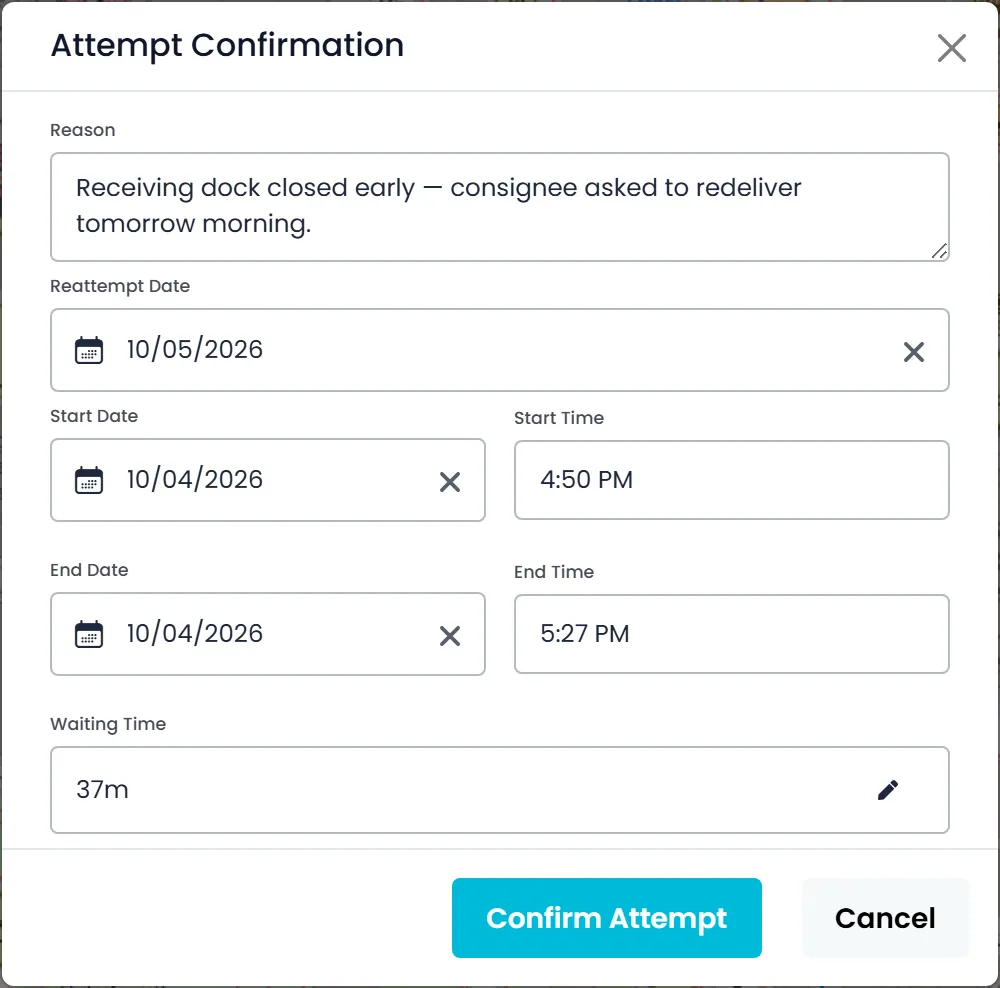
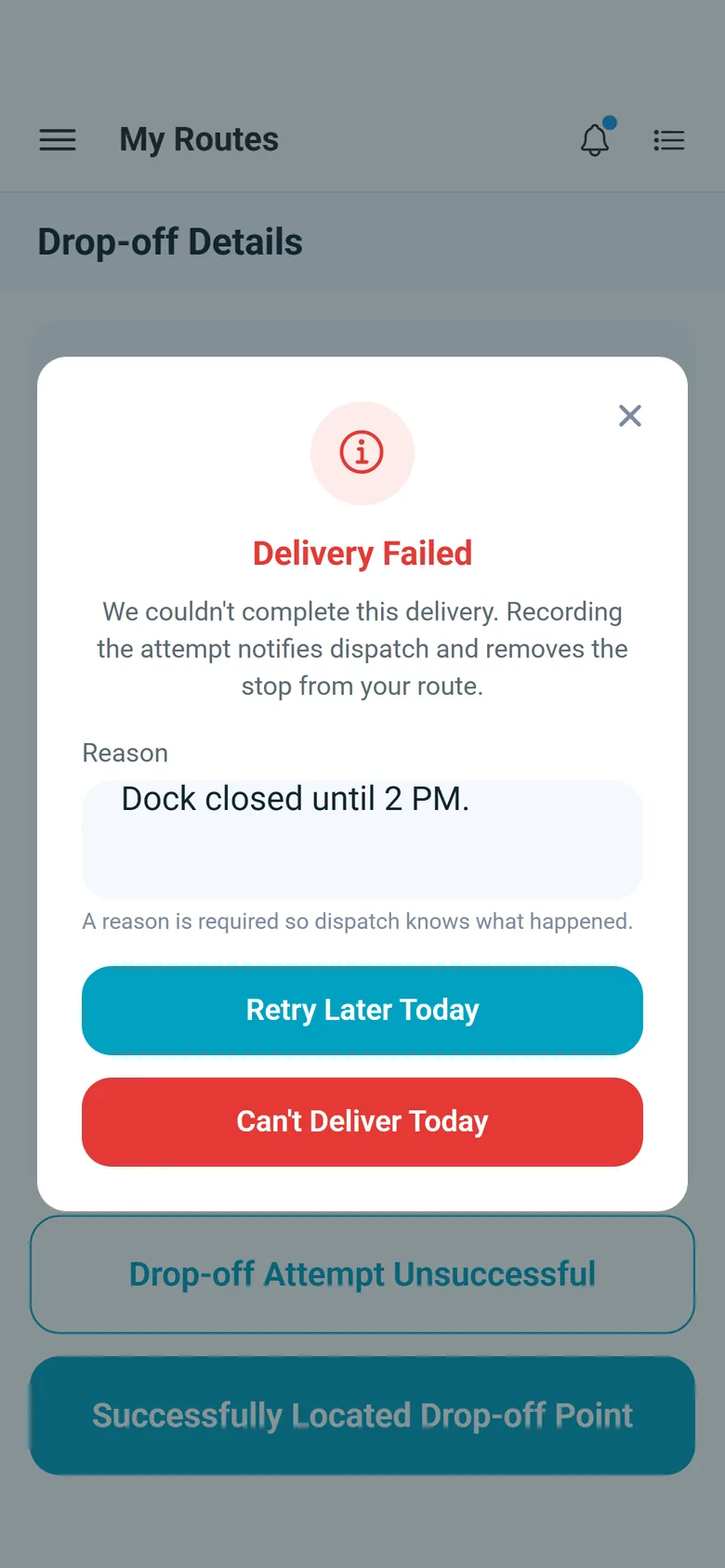
If the delivery can't be made, the driver taps Drop-off Attempt Unsuccessful, types the reason and chooses Retry Later Today or Can't Deliver Today, or the office records the attempt with a reason and a re-attempt date. The stop goes back to the unassigned list, and the charge types you mark as Attempt are added to the stop with the reason in the note. Arrival and departure are stamped at the stop, so waiting time beyond the free time is billed as its own line. When a stop has a COD amount, the app shows the driver the amount due and, if the customer pays by check, the driver photographs both sides; at a pickup the driver can also record cash. The office can email the customer a card payment request through Cardknox.
- Failed attempts with a reason, re-attempt date and attempt charge
- Driver reports Retry Later Today or Can't Deliver Today, with a required reason
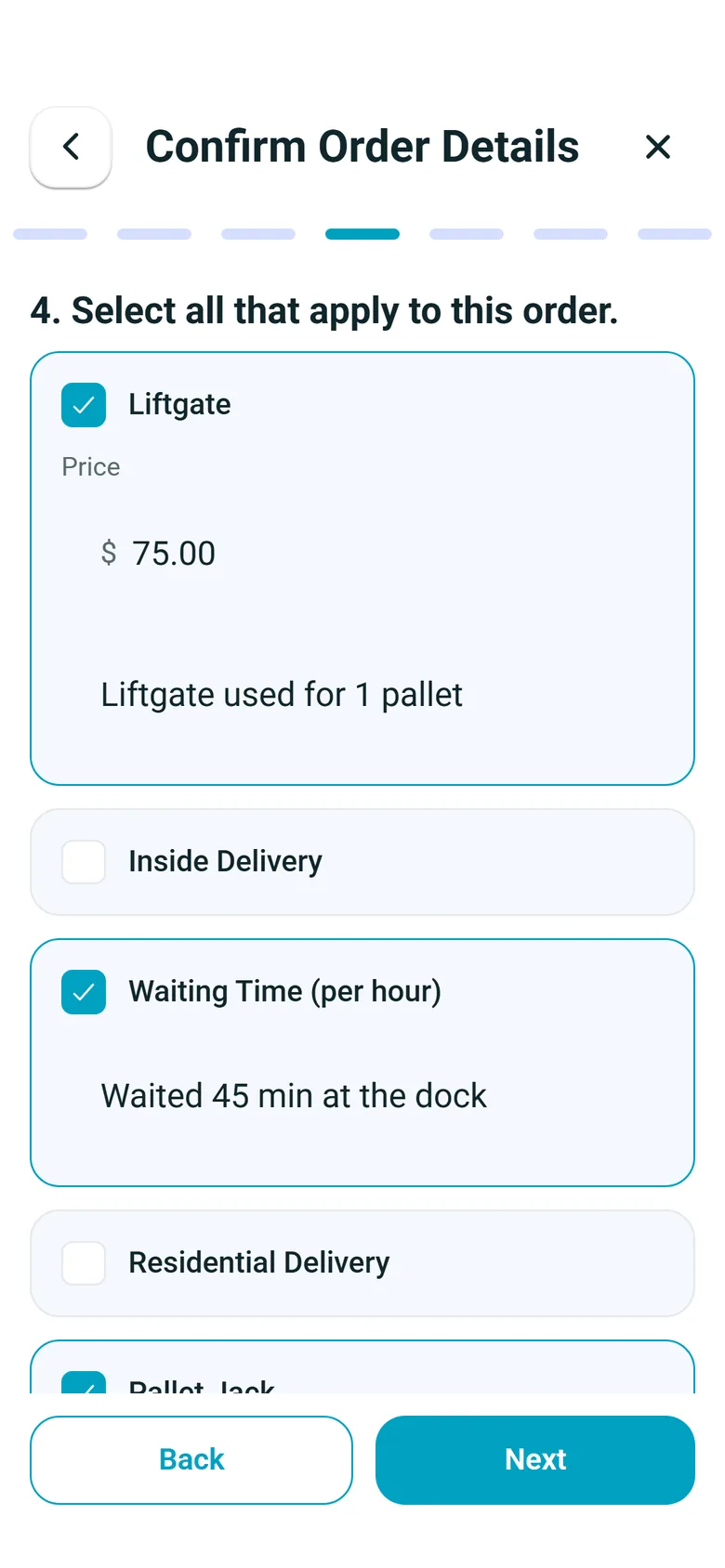
- Waiting time beyond free time billed from stamped arrival and departure
- Amount due shown to the driver, with check photos as collection proof
- Card payment request by email, tracked as Requested, Success or Failed
Billing
The invoice is ready when the route is
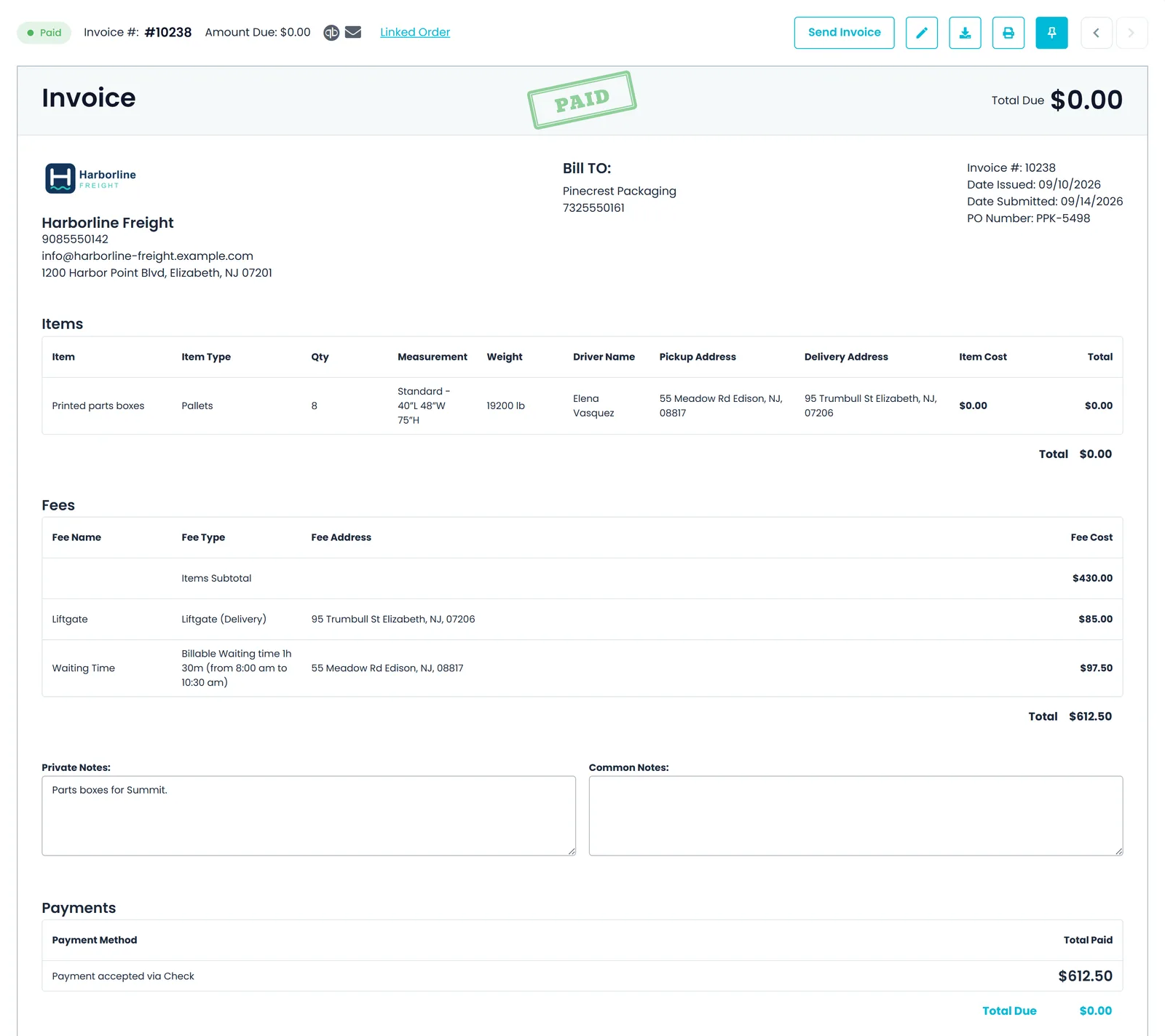
The invoice can be created automatically from the order, when it is entered or when it is completed (your choice in Settings → Billing), and is updated when the order closes, including waiting time, attempt charges and extra charges from the stops. Your customer can pay it in the Customer Portal, by card when you take cards through Cardknox, and invoices go to QuickBooks Online automatically or when you choose.
- Invoice created from the order, when entered or when completed, and updated at close
- Card payment in the Customer Portal when you take cards through Cardknox
- QuickBooks Online export, automatic or manual
- A card pay link in invoice emails, with no login needed (needs Cardknox)Next release
Driver app
At the receiving dock, step by step
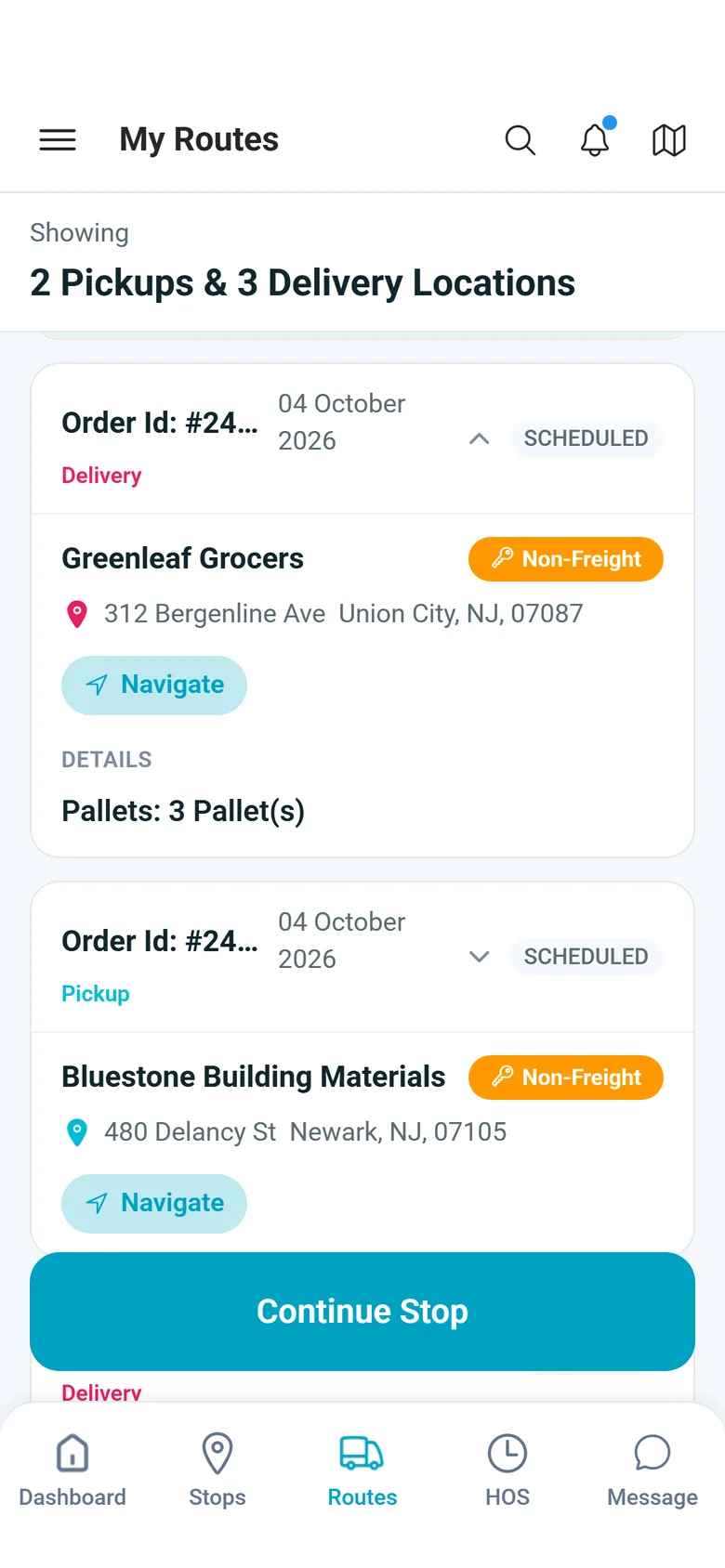
Screens from the RushHour driver app for Android and iPhone, on a delivery like the ones your drivers run.
In the next release
Keep the receiver informed
Finished for the next release and not in production yet: a tracking link and automatic emails that tell your customer where the freight is and when it was delivered, without a call to dispatch. They go by email, and each one is off until you turn it on.
Tracking links
A tracking page the receiver opens without logging inNext release
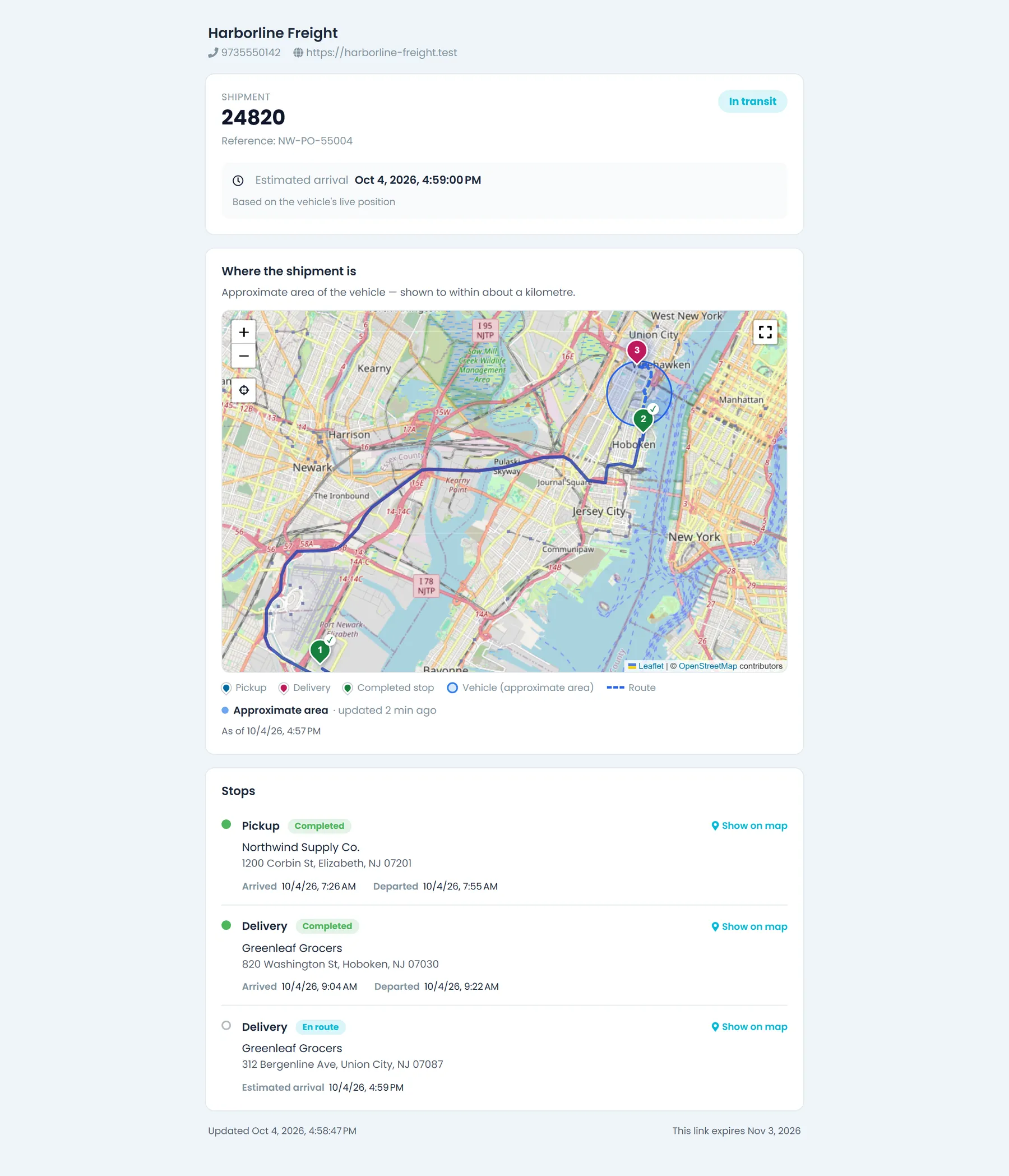
Turn on Settings → Tracking Links, then copy a link from an order or route menu, or email it from the order's Tracking tab, which also counts opens and lets you revoke it. The page shows your company details and each stop's status on a map, never prices. While the load is moving it adds the next stop's estimated arrival and, as you choose, the truck's approximate area, its live position on the way to the shipment, or only the last completed stop. Links expire after the lifetime you set.
- No login and no prices: your company details, stop statuses and a mapNext release
- The next stop's estimated arrival while the load is movingNext release
- Optionally email each order's link automatically at driver assignment, booking or pickupNext release
- Links expire after the lifetime you set, and you can revoke one at any timeNext release
Customer emails
Arrival, departure and proof-of-delivery emailsNext release
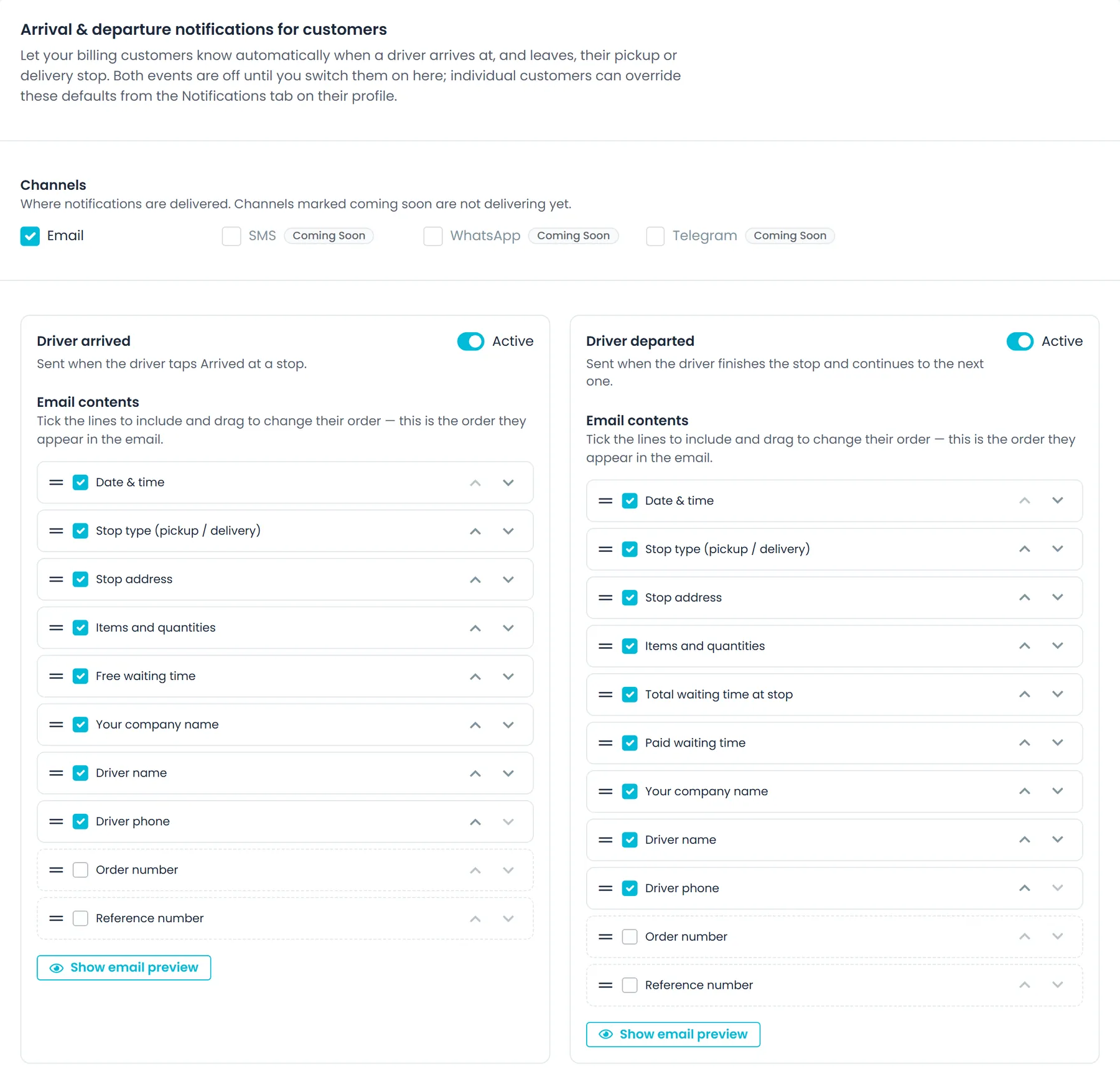
Under Settings → Customer Notifications you can email the customer an order is billed to when the driver arrives at or leaves one of its stops, pick which details each email shows and in what order, and preview it. Turn on Email proof of delivery on completion in Settings → Driver App → Features, and when the driver completes a delivery in the driver app the customer gets a PDF with arrival and departure times, driver, truck, delivered items and, when captured, GPS location, signature and photos.
- Driver arrived and Driver departed emails, each off until you switch it onNext release
- Pick the lines each email shows, such as items, waiting time and driver phone, and preview itNext release
- Per-customer settings and recipients on the customer's Notifications tabNext release
- Proof-of-delivery PDF emailed when the driver completes the deliveryNext release
Freight to businesses
Built for pallets on a box truck, not parcels on a doorstep
Pallets and cartons on the order
Describe each shipment as boxes, pallets or a full load, with dimensions, weight and handling flags, and the BOL and labels follow from it.
Rates by pallet and zone
Price each customer from a mileage-band by pallet-count grid or zone-to-zone rates, calculated as the order is built.
Customers book and track online
Your business customers place orders, follow them stop by stop, open the delivery documents and pay invoices in the Customer Portal.
Measured on the RushHour platform
Platform-wide figures from the RushHour production database, September 2026, rounded down. Almost all of this volume is Shimon's Express.
Questions
Final-mile freight questions
Can the receiver see when the freight will arrive?
Your dispatchers can see an ETA chip on pending stops on the dispatch board, and business customers with Customer Portal access can follow their orders there. In the next release you can also send a tracking link that opens without a login and shows the stops on a map with the next stop's estimated arrival, and email customers automatically when the driver arrives at and leaves a stop. These updates go by email.
What happens when the receiving dock is closed?
The driver taps Drop-off Attempt Unsuccessful in the driver app, types the reason and chooses Retry Later Today or Can't Deliver Today. The stop goes back to the unassigned list on the dispatch board, and the charge types you mark as Attempt are added to the stop. The office can also record an attempt with a reason and a re-attempt date, then use Add to a route to put the stop on another route.
Can I require a photo and a signature on every delivery?
Yes. In Settings → Driver App, Require photos on delivery and Require signature on delivery are on by default, so the app asks for both and warns the driver when one is missing. Turn on Block stop completion when requirements are missing and the driver cannot finish a stop until both are captured. The photos and signature are saved on the order.
Can drivers collect payment at the door?
When a stop has COD set on the order, the driver app shows the amount to collect and who pays it. At a delivery, if the customer pays by check, the driver photographs both sides as collection proof; at a pickup the driver can also record a cash amount, including a partial payment. From the office, a company admin can email the customer a card payment request through Cardknox once the billing customer is set up to accept payments.
How are liftgate and other extras billed?
Set up charge types such as a liftgate in your settings. The driver ticks the ones that applied at the stop, with a note and a price where the charge type allows it, and the office can add charges when it confirms the stop. They become lines on the order's invoice, next to waiting time beyond the free time.
Do drivers need a separate scanner?
No. At pickup the driver app scans the load units with the phone's camera, and when the quantities differ from the plan it shows planned against actual for the driver to review. Every order also prints barcode labels with a QR code of the order number.
Which phones does the driver app run on?
Android phones and iPhones. Drivers join with the invite code your office sends them.
Related pages
Run one of your delivery days through RushHour.
Bring a real day of deliveries. We will build the routes with you and show the proof, charges and invoice that come back.