
One record for every load,
from quote to closed.
The order is where dispatch, the driver, the paperwork and the invoice all read from. Build it once, with the customer, the stops, the freight and the price, and everything downstream uses the same details.
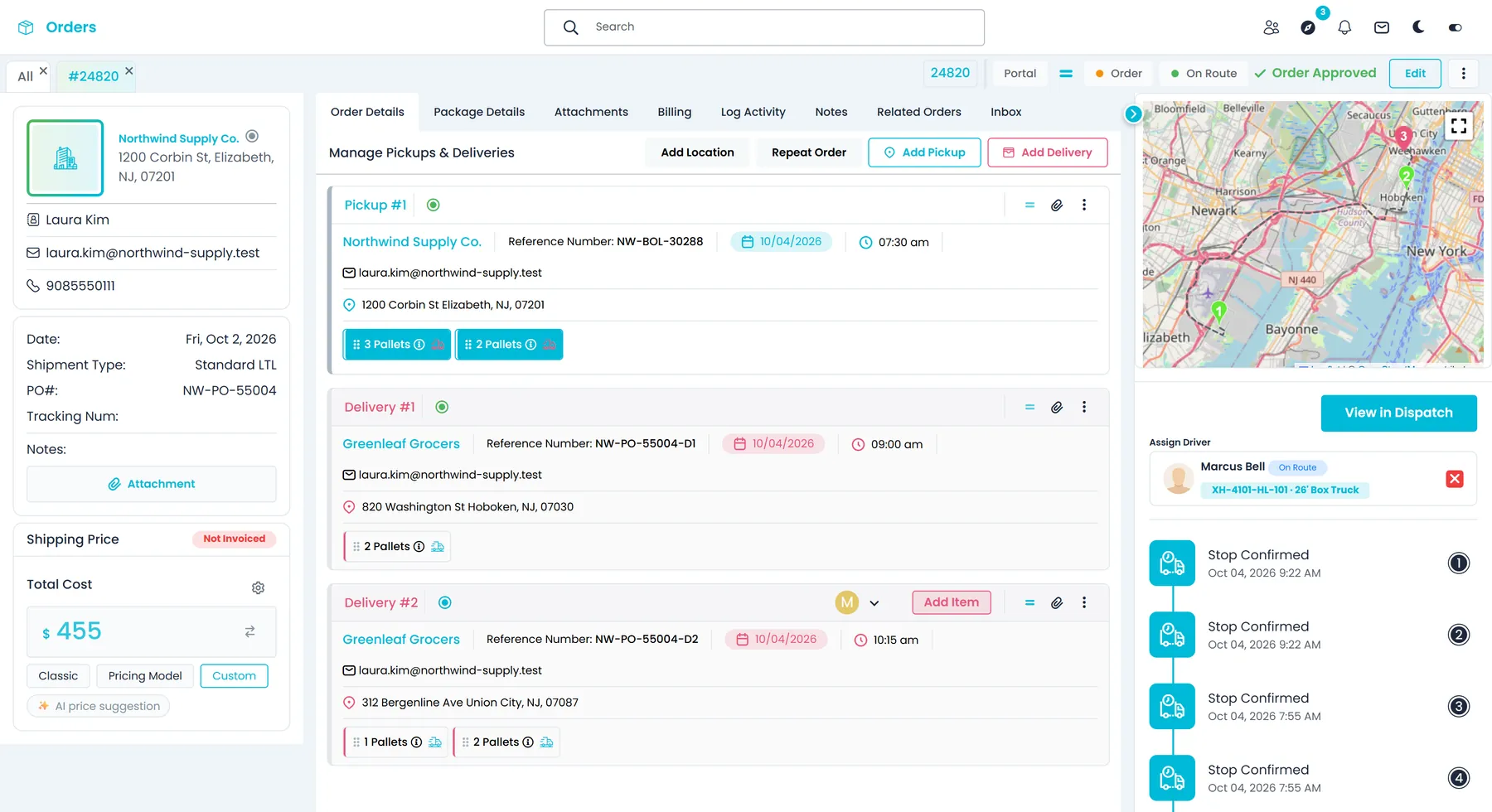
The order record
Everything about a shipment, in one place
Quotes and orders share the same editor, so a quote you approve becomes the order without retyping anything.
Order editor
Customer, stops, freight and price in one editor
Pick the customer and the contact, add as many pickups and deliveries as the load needs, and describe the freight the way it ships. Then choose where the price comes from: the Classic calculation, your Pricing Model rate card (for pallet orders), or a Custom price you type in.
- Customer and contact picker, with PO and tracking numbers
- Boxes and crates, bags, pallets, full loads and other freight
- Price source: Classic, Pricing Model (pallet orders) or Custom
- AI price suggestion: a price with a range, a confidence level and what it is anchored to, such as a rate-grid match or lane history. Apply sets it as the Custom price
- Calculate reprices the order after stop or item changes, and says why when a price can't be calculated
- Once a quote is an order, only company admins can type a Custom price
Order workspace
Every open order gets its own tab
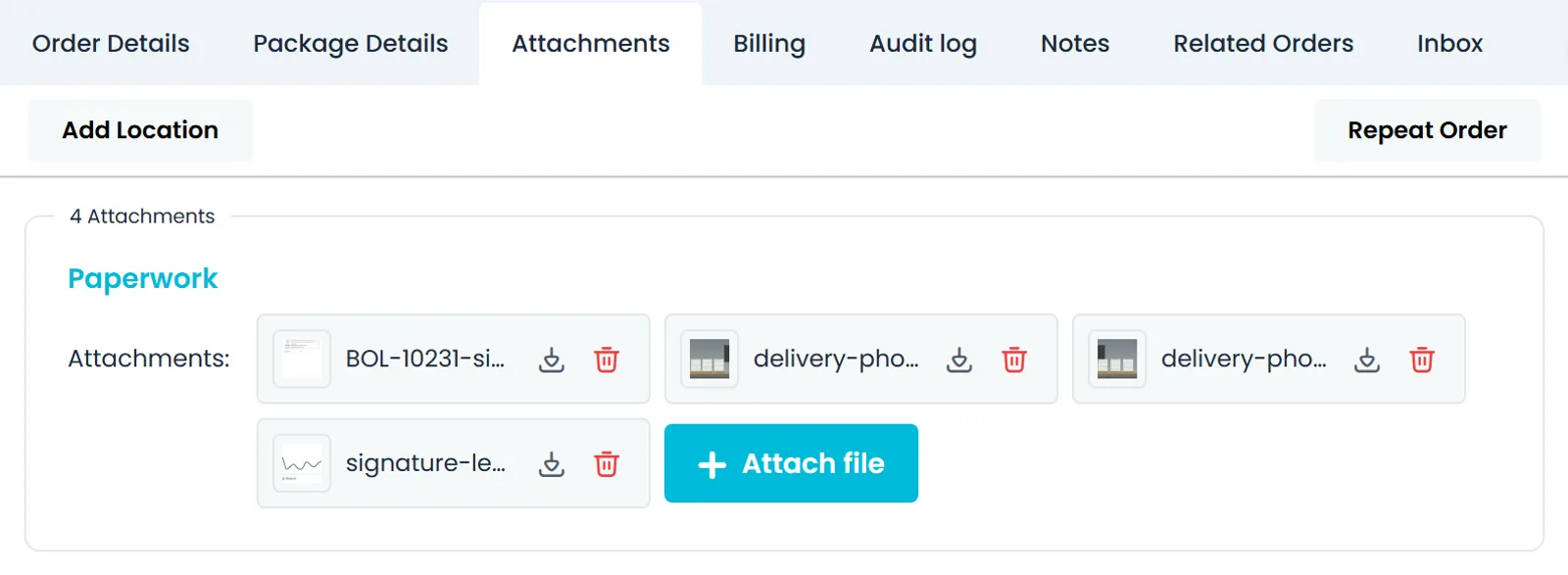
Open an order or quote and it becomes a tab next to the list, so a dispatcher can keep several shipments open and switch between them. Inside, the order is split into tabs: the stops, the package list, attachments such as paperwork and photos the driver captured, the audit log, notes, related orders and the message thread with the customer about this order.
- Tabs: Order Details, Package Details, Attachments, Audit log, Notes, Related Orders and Inbox
- A header with the order number, priority and badges for source, status and trip status
- Package Details lists every item with the pickup and delivery it travels between, its size and its weight
- Settings > Systems > Auto-Close Tabs closes idle tabs after a time you choose, from 5 minutes to 24 hours, or never
Pickups & deliveries
Each stop carries what the driver and the dock need
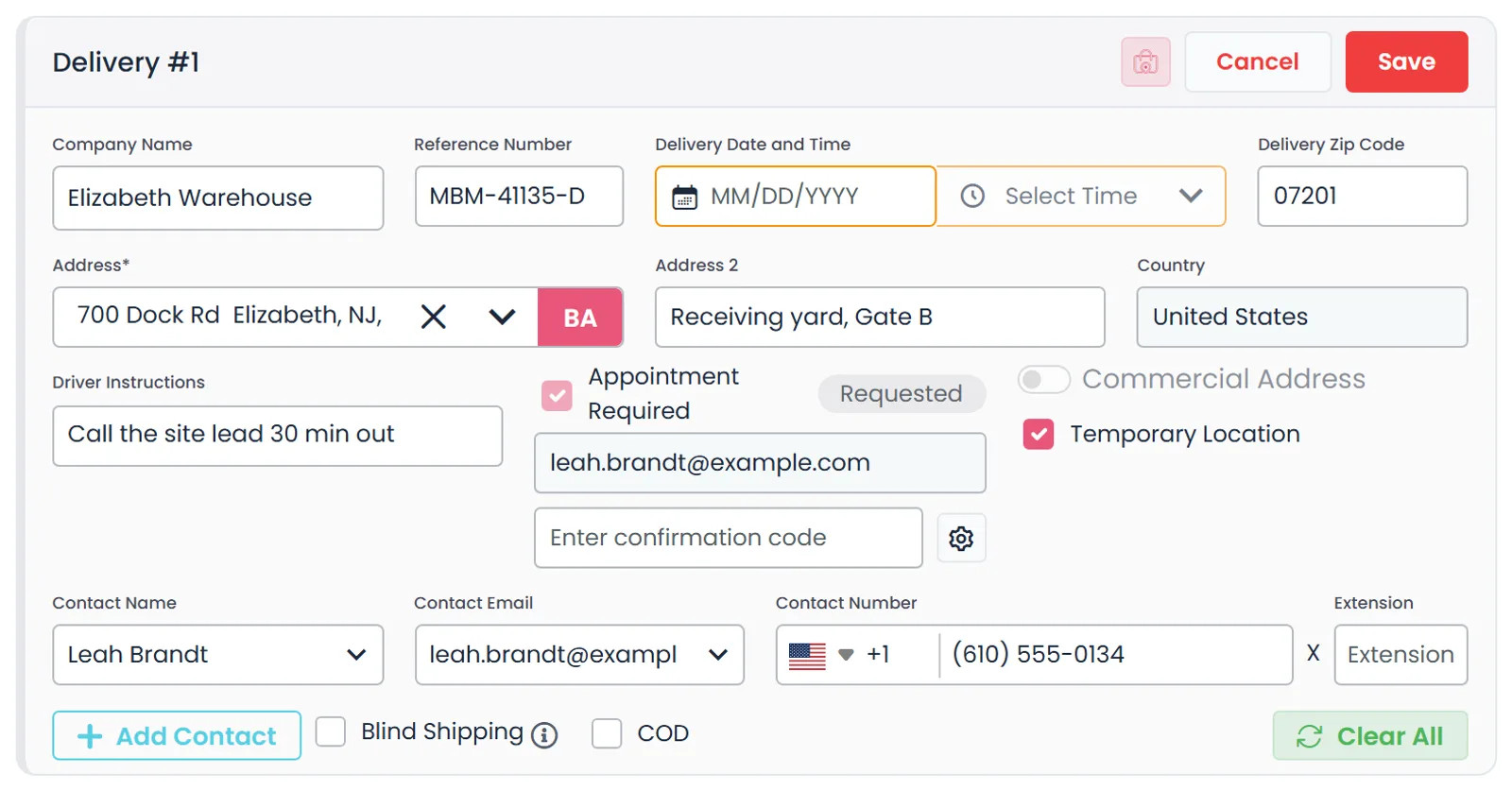
Every pickup and delivery has its own date and time, reference number, driver instructions, which go out with Copy to Driver, and site contact. The driver app also shows the instructions saved on the location, such as a gate code. Mark a stop as a temporary location, ship it blind so the paperwork shows a stand-in name and address, or flag that the receiver needs an appointment.
- Date and time, reference number and site contact
- Driver instructions on every stop, sent with Copy to Driver
- Blind shipping, temporary locations and appointment-required stops
- Company names are suggested from your saved customers as you type, and BA fills in the order customer's billing address
- A date plus Morning, Noon, Evening or an exact time
Multi-stop loads
Split one pickup across several deliveries, unit by unit
An order can have any number of pickups and deliveries. Items collected at a pickup are split across the deliveries by quantity, so every unit is tracked from where it is loaded to where it comes off. A pickup item with units not yet allocated shows how many are left, and Edit Date & Time can change several stops of the order at once.
- A badge on a pickup item shows how many units are still unallocated
- Stop warnings such as Allocate Items, Assign Delivery or Create Delivery, several of which you click to fix the gap
- Edit Date & Time, with Apply for multiple to change several stops at once
- Swap Address reverses a one-pickup, one-delivery order and offers to update its invoice
- Drag an item onto any delivery stop's Drop Items Here areaNext release
Quotes
Quote first, then approve it into an order
Save a quote, email it to the customer as a PDF, and approve it into an order when they say yes, one at a time or several at once from the list. A quote saved as a Draft can't be emailed or approved until it is saved as a quote. An order with no stops assigned to a driver yet can go back to being a quote. Repeat any order or quote to start the next one from a copy.
- Email the quote as a PDF
- Approve one quote or a batch from the list
- Repeat an order or quote as a new copy
- Email Quote shows the quote first, suggests recipients from earlier quote emails and adds your message
- Quotes your customers submit in the Customer Portal land in the same Quotes list
Closing and corrections
From delivered to invoiced, and back when something was wrong
An order closes on its own when its last stop is confirmed and every item is delivered. You can also close it yourself: Close & Create Invoice marks the unfinished stops as done, closes the order and creates its invoice, and Close & Update Invoice does the same when an invoice already exists. If a stop was confirmed by mistake, Undo Pickup or Undo Delivery reverses it, and Undo Order reverses the completed stops of the whole order.
- Automatic close when the last stop is confirmed and all items are delivered
- Create, update or open the order's invoice from the green or red invoice icon in the list
- Undo Pickup, Undo Delivery and Undo Order for stops confirmed by mistake
- Deleting an order warns you when it has an invoice, because the invoice is deleted with it
- With the right permissions, list deleted orders, restore them, or delete them for good
Paperwork
The BOL, labels and order sheet come from the order
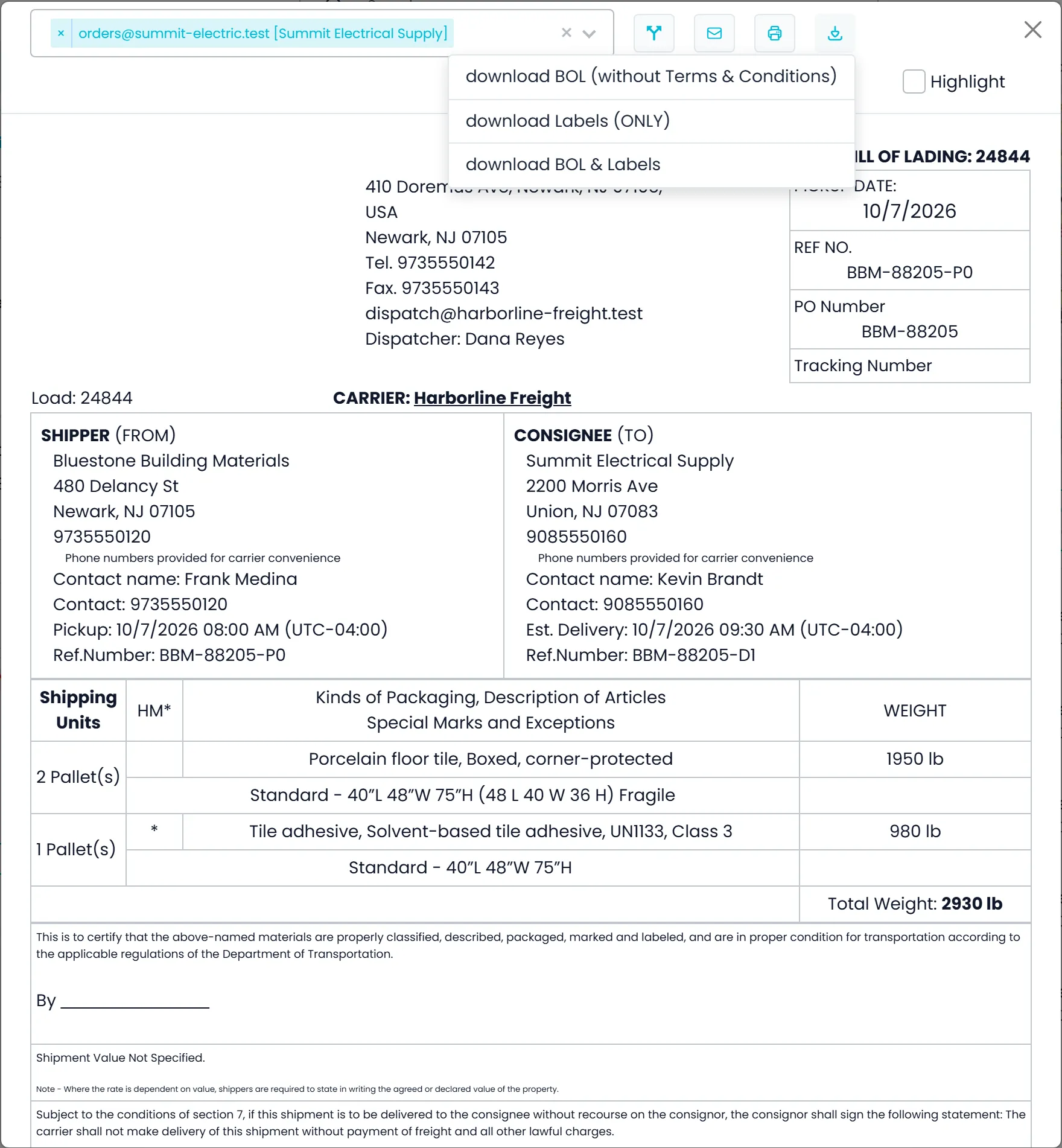
Open the Bill of Lading or the order sheet straight from the order, so the paperwork matches what was booked. Choose the BOL for the billing customer or for a specific delivery, then print it, download it together with the labels, or email it to several recipients without leaving the order. Quotes and order sheets also print your Terms & Conditions.
- BOL for the billing customer or a single delivery
- Labels with a QR code of the order number
- BOL emailed to several recipients from the order
- Your Terms & Conditions print on quotes and order sheets
- The standard BOL PDF you download is filed in your Documents library
- Separate permissions to view the BOL and to send or download it
Audit log
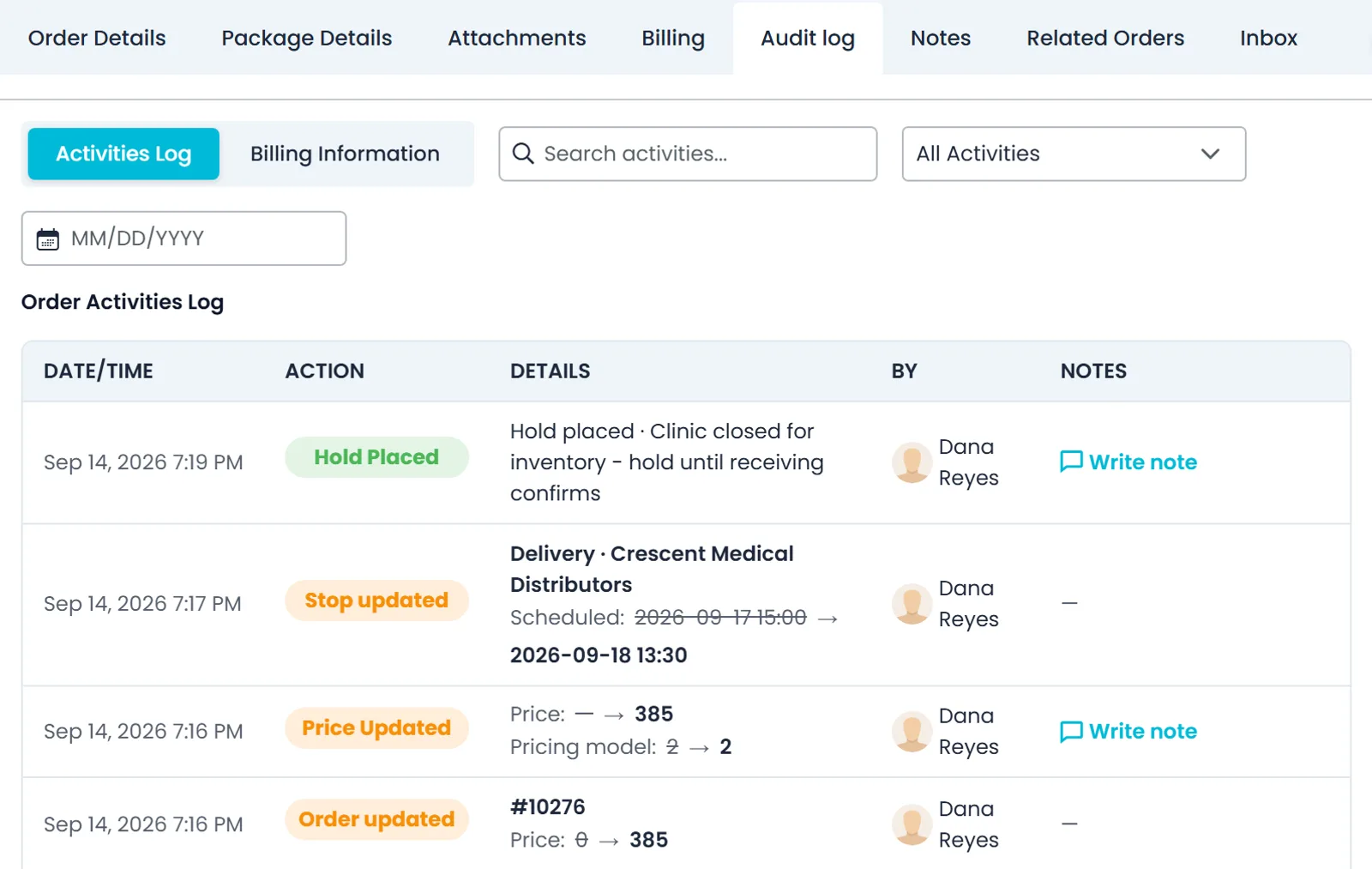
Every change to the order, with the old and new value
The Audit log tab shows who changed what and when: dates, prices, stops, items, charges, driver assignment and holds, each with its previous and new value. It records whether the change came from your staff, a driver, the customer portal or the AI assistant. The tab is for your team only.
- Old and new value for each change
- Made by staff, a driver, the customer portal or the AI assistant
- Visible to your team, not to customers
- Filter by activity type, search the entries or pick a date, and add a note to an entry
- The tab becomes Log Activity and also records BOL, label and invoice downloads, who a BOL was emailed to, and Copy to Driver sendsNext release
Lists and views
Find any load, then see it as a list, a map or a board
The table, the map and the board share the same search and filters, so a dispatcher can switch views and keep the same filters.
Search and filters
Search, filter and save the views your team uses
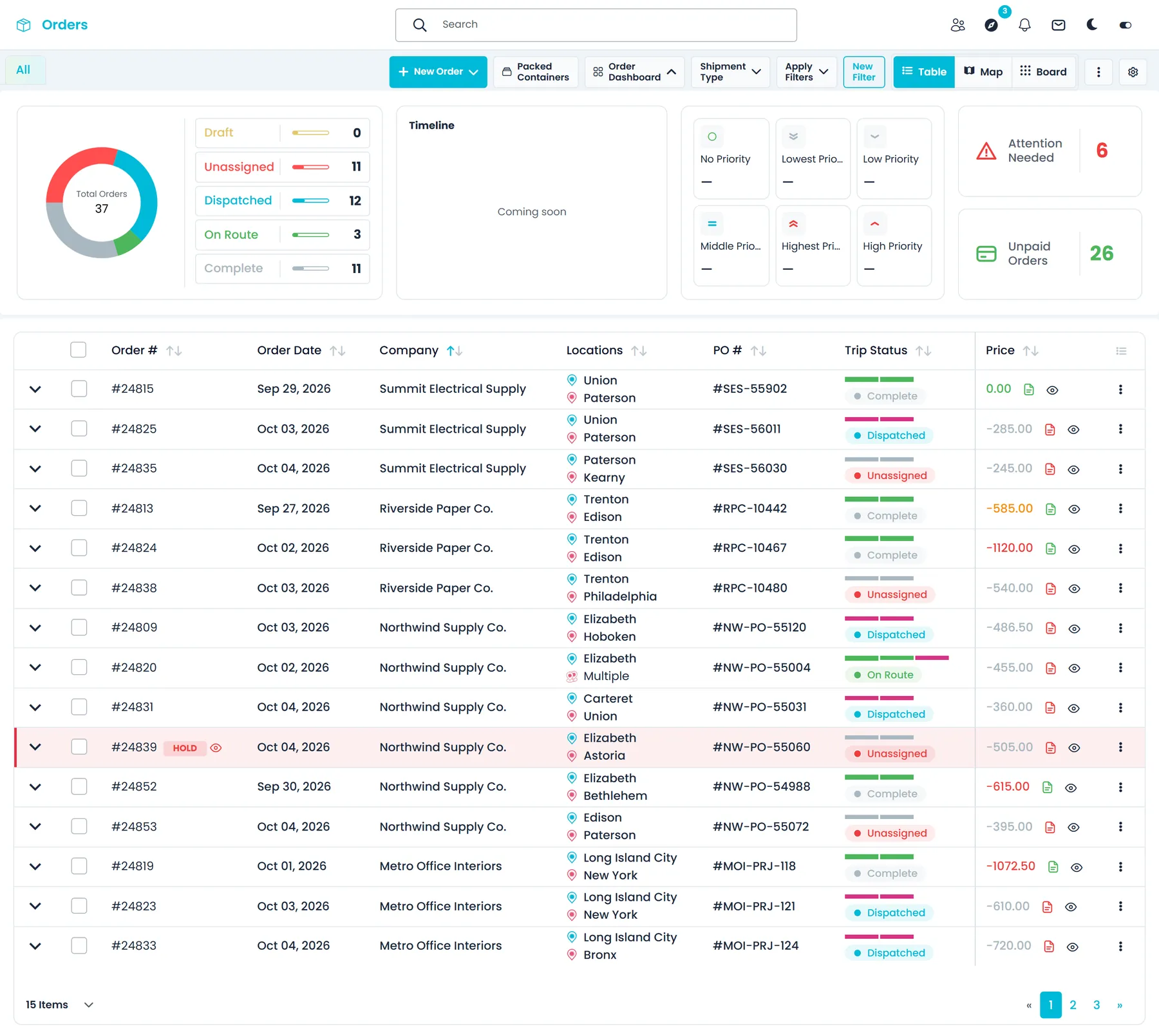
The search box matches customer names, order, PO and tracking numbers, and stop addresses. Filters cover dates, customers, drivers, pickup and delivery addresses, status, source and payment status, plus Unbilled and Show only unread, and any combination can be saved as a named filter. Above the table, the Order Dashboard charts orders by trip status and counts the ones that need attention or are unpaid.
- Saved filters you can name, update and delete
- A trip-status bar on each row with one segment per stop, showing planned and actual arrival on hover
- Bulk actions: approve or delete quotes, place or resolve holds, delete orders
- Expand a row to see its trips without opening the order
Orders list
A table, a map or a kanban board
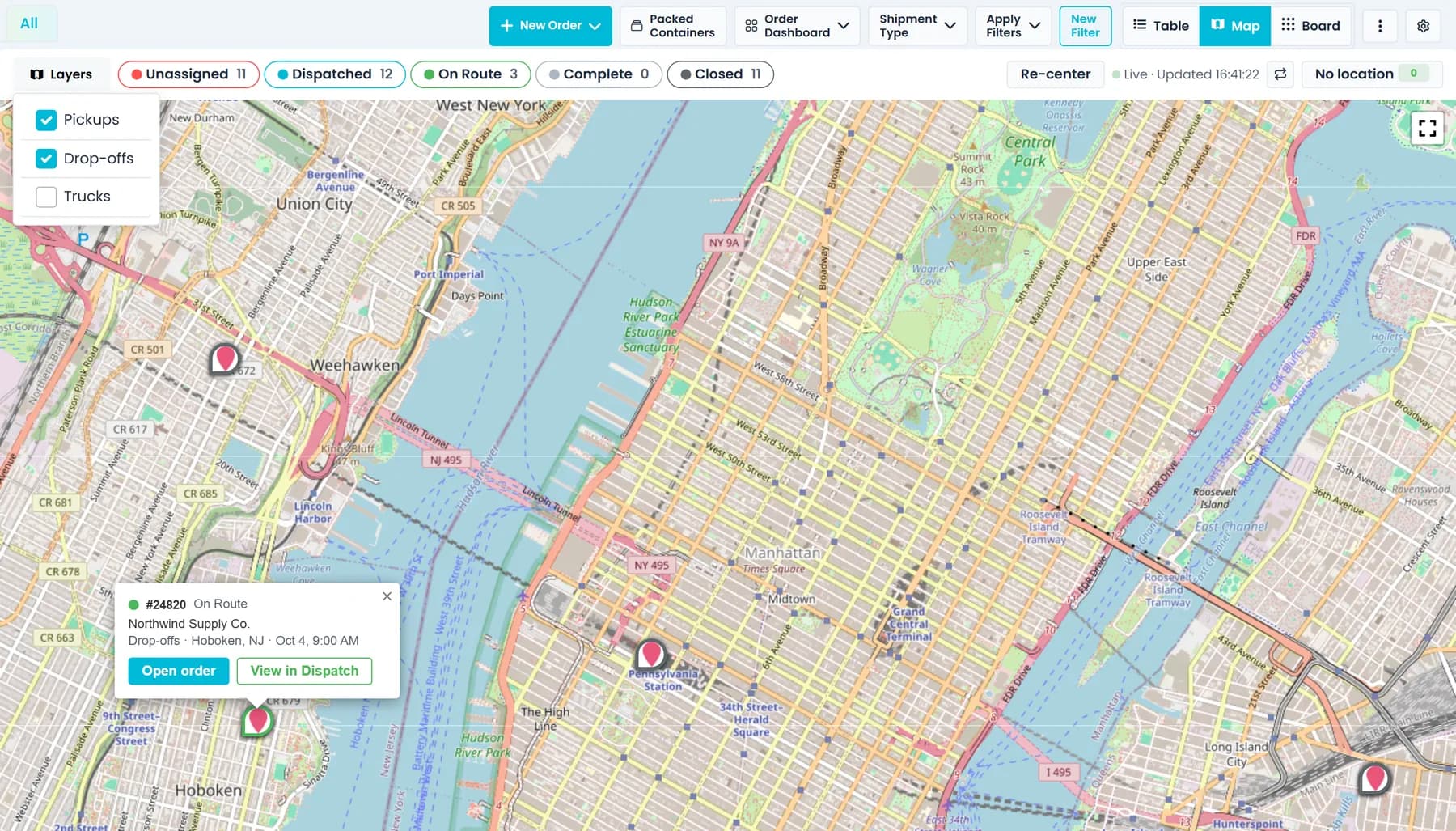
Switch the orders list between a table, a map and a kanban board, and it opens in the view you used last. The map places orders by status and keeps the ones without a location in a separate tray. The kanban runs from Unassigned to Closed, and dragging a card from Complete to Closed runs the normal close, with a confirmation.
- Filter by date, customer, driver, status or payment
- Map of orders coloured by status
- Kanban columns: Unassigned, Dispatched, On Route, Complete, Closed
- The map refreshes about every 30 seconds and shows up to 1,000 orders at a time
- Trucks appear on the map when their positions come from a connected Samsara account
Board view
Move orders along the board, with the rules built in
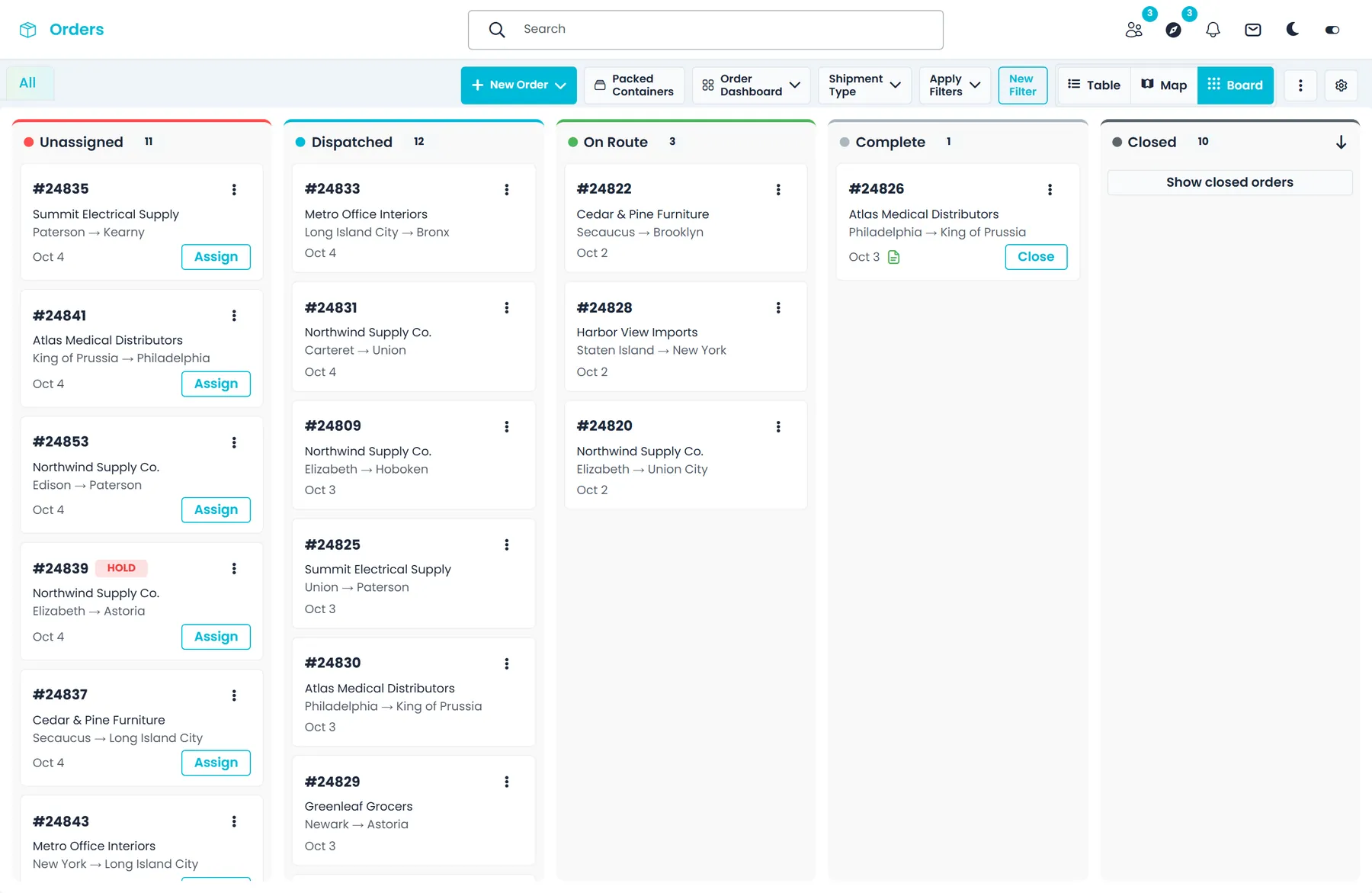
The board groups orders by trip status, from Unassigned to Closed, and keeps Closed folded until you ask for it. Cards show the order number, customer, route cities and date, with Assign on unassigned orders and Close on completed ones. Moves the board can't make, such as dragging a card into On Route, are refused with the reason.
- Dragging an unassigned card to Dispatched opens the order so you can assign a driver
- Closing from the board needs the Close and Create Invoice permission
- Held orders carry the HOLD badge on their card
From the order to the truck
Assign it, hold it and send it to the driver
Dispatch can start from the order itself, and what the driver sees on the phone comes from the same record.
Assign from the order
Pick a driver without leaving the order
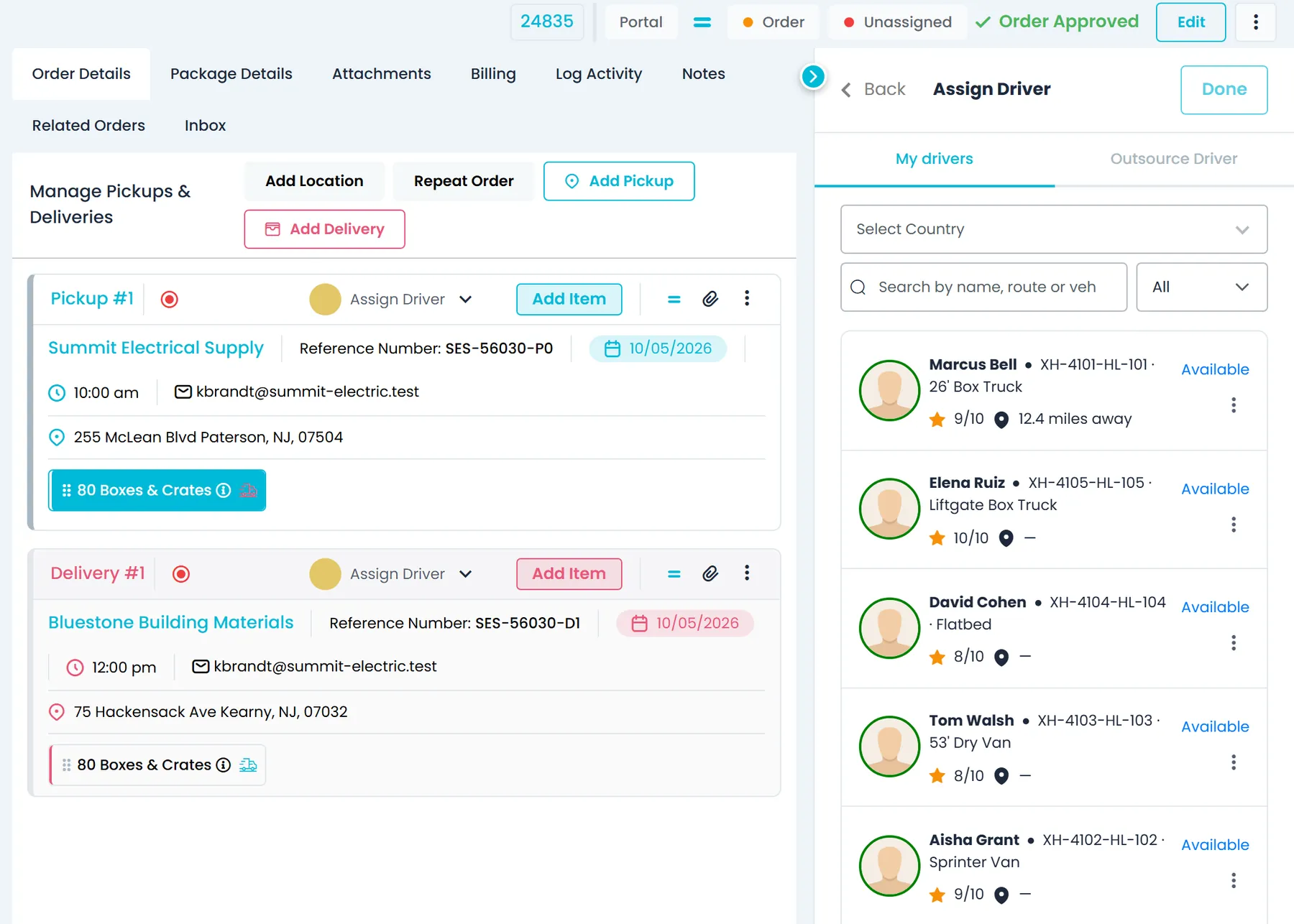
The Assign Driver panel lists your drivers with their truck, rating and distance, and whether they are available or full. Where a position is known, distance is a straight line from the truck's Samsara position or the driver's last location from the driver app in the past 30 days, so it may not be where the driver is right now. Assign one driver to the pickup and delivery, to only one of them, or to a single stop, or give the load to an outsource carrier from the Outsource Driver tab.
- Filter All, Available or Full, search by name, route or vehicle, or narrow the list by country
- An Outside order country badge on drivers registered in another country
- Assigned drivers and the route map stay in the order's side panel, with View in Dispatch
Holds
Stop a delivery from going out before it should
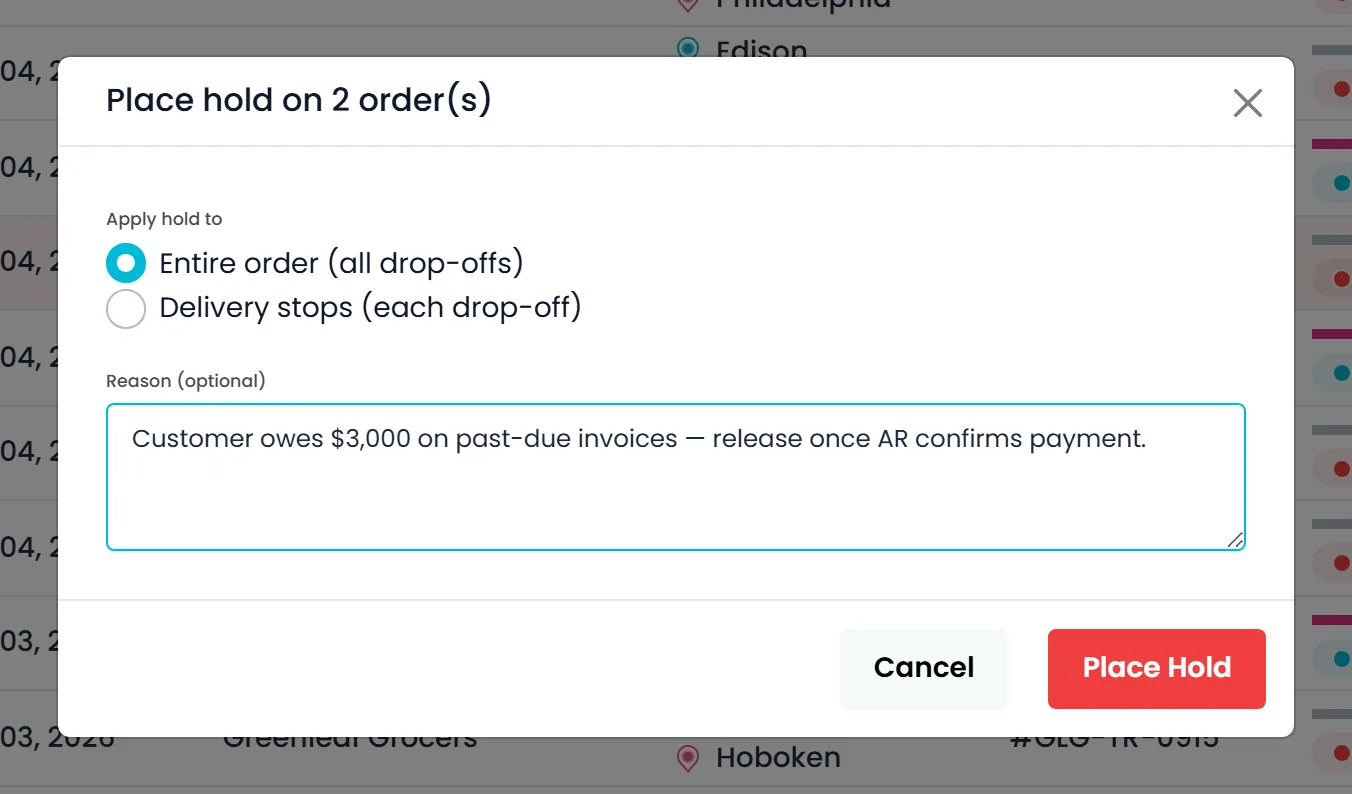
Put the whole order, or a single delivery stop, on hold, with a reason if you want one. A held delivery cannot be marked done until someone with permission resolves the hold. The HOLD badge shows in the orders list, on the kanban and on the map, and the hold history keeps who placed it, who resolved it and when.
- Hold a whole order or one delivery stop
- Held deliveries cannot be completed
- Place and resolve holds in bulk from the list
- The driver sees the drop-off as on hold, with no address and no navigation, until the hold is resolved
- Pickups are never held, so the freight can still be collected
- With permission, an On Hold status filter lists every held order
Copy to Driver
Send the order to the driver in one click
Copy to Driver turns a whole order, a single stop, or a whole route from Dispatch into a ready-to-send message: contact name and phone, PO and reference numbers, order number, who the goods are for, the items and the driver instructions. It is copied to your clipboard for any messaging app, and when Telegram is connected and the driver has a Telegram user ID, RushHour also sends it to the driver in Telegram.
- A whole order, a single stop or a whole route
- With several stops, narrow the list to pickups or deliveries before you copy
- Stops at the same address can be combined into one message
- Highlight part of a stop's details in the Copy to Driver window, such as a phone number or address, and the option shows only while a driver is assigned and a stop is still to be doneNext release
In the driver app
The driver sees the same order on the phone
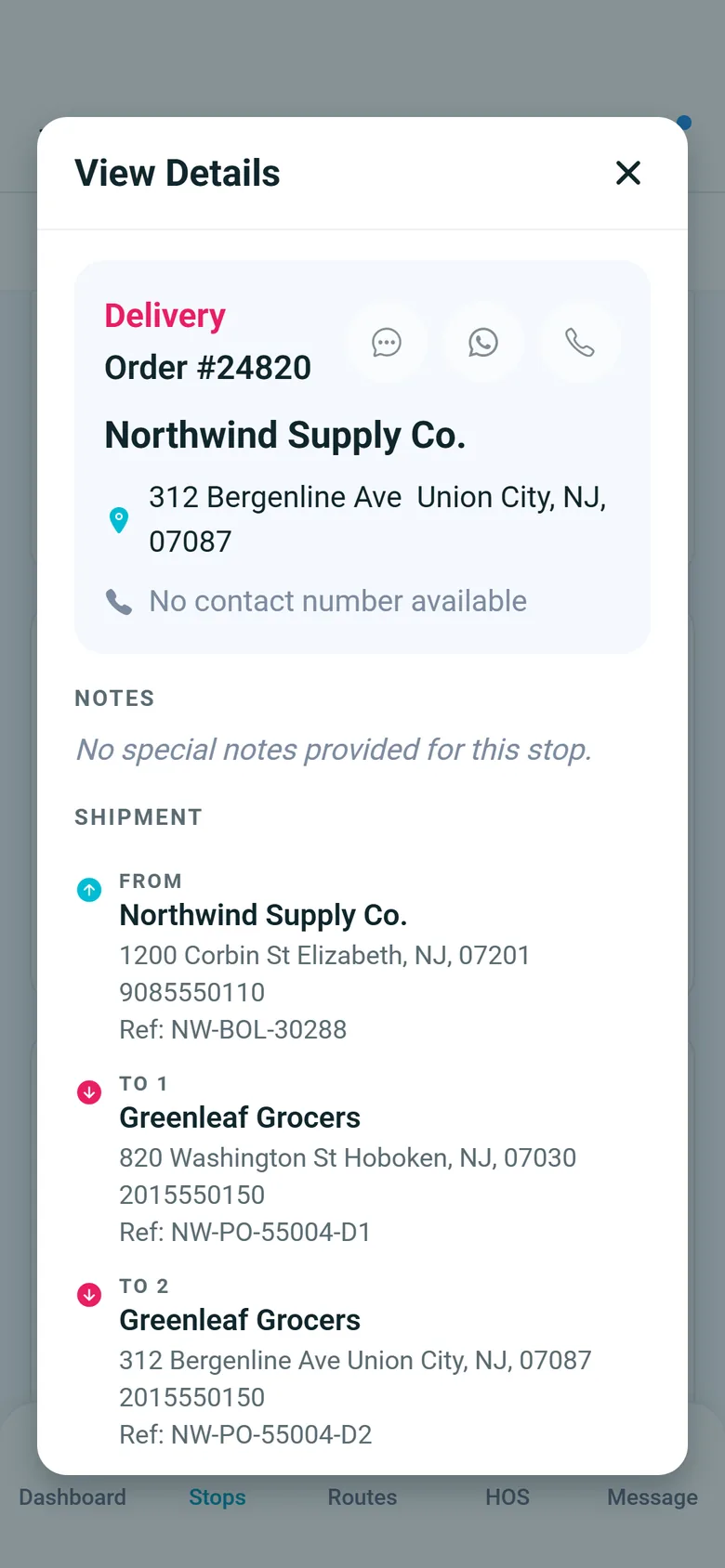
The driver app's View Details sheet shows the order number, the customer, the stop's address, and the shipment from the pickup to each delivery, with the addresses, phone numbers and reference numbers entered on the order. Nothing is retyped between the office and the cab.
- Pickup and every delivery listed in order, with their reference numbers
- Instructions saved on the location, such as a gate code, show at the stop
- A held drop-off stays locked until dispatch resolves the hold
Collect on delivery
Put a COD on the delivery stop
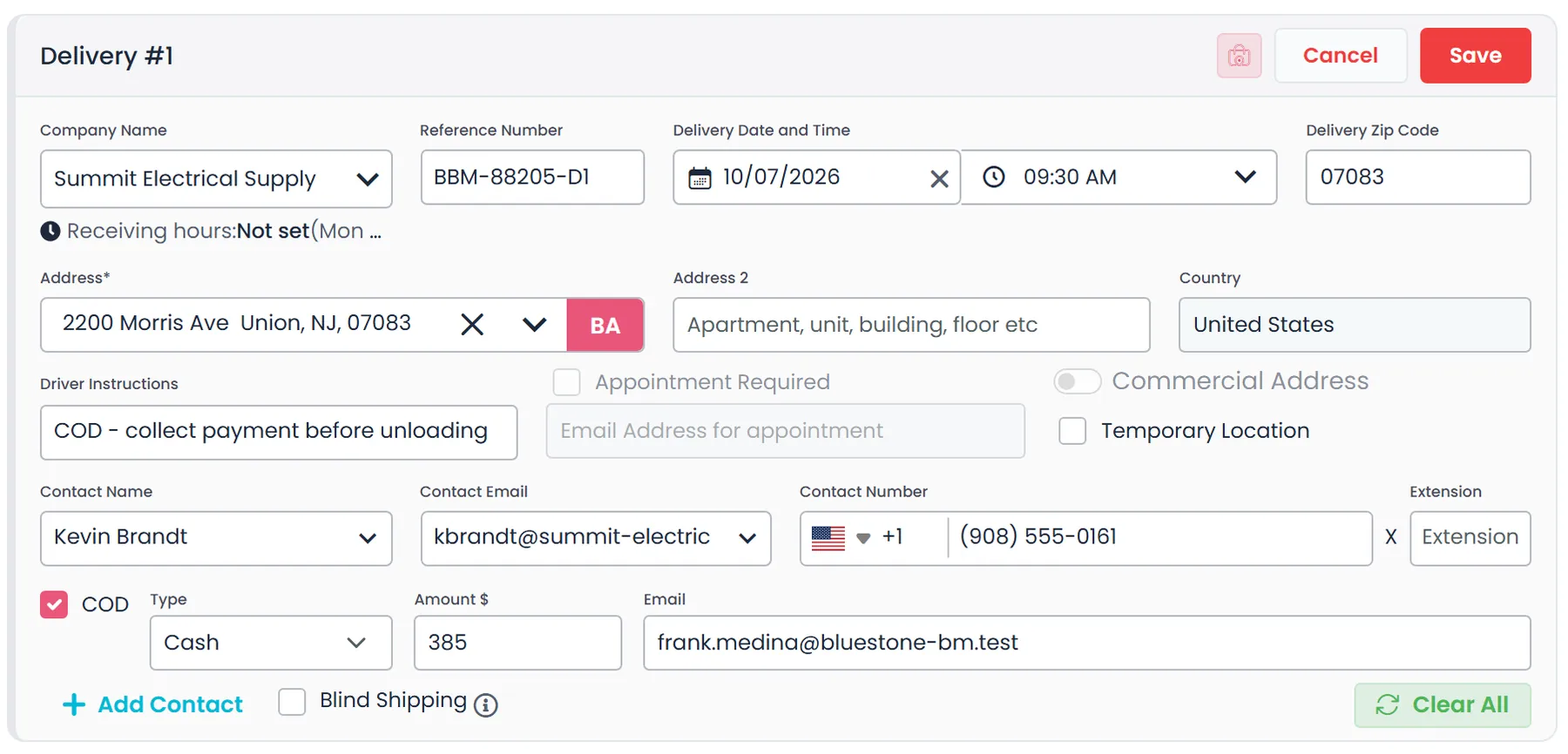
Tick COD on a delivery stop and enter the payment type, the amount and an email for the payment request. While the COD is owed, RushHour won't let the stop be completed, and the driver app can attach photos of the payment collected. Card payments run through Cardknox once the billing customer is authorized to accept them; cash, check and ACH can always be recorded.
- Payment type, amount and payment email on the stop
- For a billing customer authorized for card payments, Request Payment emails a Cardknox payment link and tracks it as Requested, Success or Failed
- COD is managed by company admins
Orders already running through RushHour
Built for how a freight office works
Permissions by action
Decide who sees only their own orders or everyone's, and who can create, edit, approve quotes, revert to a quote, assign, undo a confirmed stop, place or resolve a hold, and view or send the BOL.
Room for plans to change
Revert an order to a quote while none of its stops are assigned to a driver, swap the pickup and delivery addresses on a one-pickup, one-delivery order, or restore an order that was deleted by mistake.
Import instead of typing
When a customer sends a spreadsheet or PDF, the AI assistant can turn it into orders you review and confirm before anything is saved.
Order notes, and notes for the invoice
Each order has two notes fields. Private Notes are not printed on the invoice. Common Notes are copied onto the order's invoice and printed on it, so delivery remarks reach the customer without retyping.
The customer conversation on the order
The order's Inbox tab keeps the message thread with the customer about this shipment. What your team sends there goes to the customer by email, and replies to appointment requests land in the same thread.
Your terms on every document
Write your Terms & Conditions once in Settings. They print on quotes and order sheets, and customers can read them in the Customer Portal.
In the next release
Margins, better search and cleaner order data
These order and quote features are finished and ship with the next production release of RushHour.
Margin per load
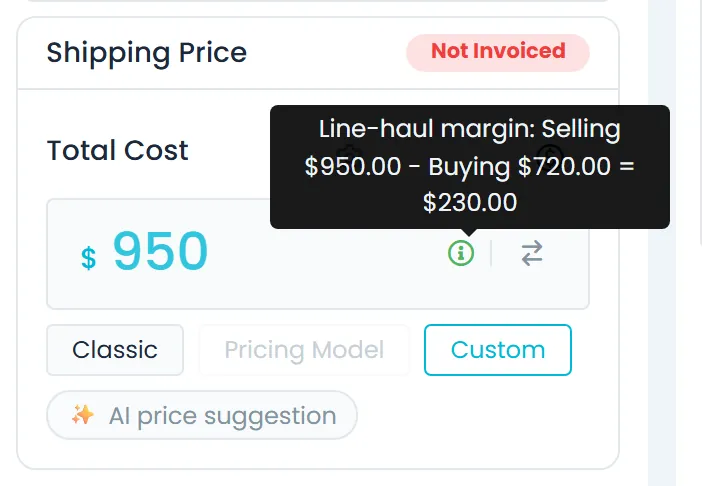
Record the buying price and see the marginNext release
In the price box of a saved quote or an open order, company admins switch between the selling price and the buying price, which is what you pay whoever hauls the load, and save it in place. An info icon shows the line-haul margin: the selling price minus the buying price. Other users don't see the buying price.
- In both the New UI and the Old UI
- On saved quotes and on orders that aren't closed
- Only company admins see or edit the buying price
Find and filter
Search by a stop's reference number and filter Air/Port ordersNext release
The Orders and Quotes search also finds a record by the Reference Number on any of its pickup or delivery stops, including part of the number. The lists can also be limited to regular orders or to Air/Port orders, whose stops are in two or more countries, and the Order Dashboard counts follow the choice.
- Part of a reference number is enough
- An Air/Port tab with a count in the Old UI, and the Shipment Type menu in the New UI
- While you create an order or quote, a notice offers to switch it to Air/Port or regular when its addresses call for it
Cleaner order data
Catch duplicate numbers and wrong-country addresses as you typeNext release
Click the order or quote number in the New UI to change it. The box turns green when the number is free and red when another order already uses it. A warning icon flags an address that seems to be outside the country it is saved under, and nothing is changed automatically.
- Live check for order numbers already in use
- Wrong-country warning on customer addresses, stop forms and stop cards
- Validate unique item names (Settings > Systems > Order) stays on, so a repeated item name on a stop is refused as today; turn it off to let items on a stop share a name
- A green marker in the stop card header shows which stops have driver instructions
Customer hours on stops
Shipping and receiving hours on every stop formNext release
Customers get work days and separate shipping and receiving hours. Pickup stop forms show the customer's shipping hours, delivery stop forms show their receiving hours, and hovering the customer name on a stop shows all of them. When a stop's customer has no appointment email yet, the one you type on the stop is saved to that customer for their next stop.
- Work days and hours set on the customer record
- Hours can run past midnight
- Saving an appointment email to the customer needs permission to edit customers
Log Activity
The order log records paperwork and driver sendsNext release
The Audit log tab on orders and quotes is renamed Log Activity. On an order it also records when the Bill of Lading, labels or invoice PDF is downloaded, who a BOL was emailed to, and when order or stop details go out with Copy to Driver, naming the driver.
- BOL, label and invoice PDF downloads
- Who each BOL was emailed to
- Copy to Driver sends, with the driver's name
- Invoice rows show who the invoice was sent to
Questions
Orders and quotes: common questions
Can a freight quote become an order without retyping it?
Yes. Quotes and orders share one editor, so Approve Quote turns the quote into the order with its customer, stops, items and price. Approve one quote from its page, or select several in the Quotes list and approve them together. A quote that is still a Draft has to be saved as a quote first.
Can I undo a stop that was confirmed by mistake?
Yes. Undo Pickup or Undo Delivery in the stop's menu reverses that stop, and Undo Order on a closed order reverses its completed stops and reopens it. Undo Order has its own permission, so you decide who can use it.
What does the driver see when a delivery is on hold?
The held drop-off stays on the driver's route, but without its address and without navigation, and the driver can't complete it: the app shows "Delivery on hold" with "This drop-off is on hold. Contact dispatch to release it.", and the server refuses the confirmation too. Pickups are never held, so the freight can still be collected. Once someone with permission resolves the hold, the stop works as usual.
Can I restore an order that was deleted by mistake?
Yes. With the right permissions, you can filter the Orders list to Deleted and restore an order. It comes back as an open order, or as closed if all of its stops were already done. Deleting an order also deletes its invoice, and RushHour warns you first. Deleting an order permanently from the Deleted list can't be undone.
What freight can an order describe?
Boxes and crates, bags, pallets, full truckloads and other freight. Pallets come in standard (40 x 48 in), small and large sizes, other items take dimensions in inches or centimeters, and weight is entered in pounds or kilograms. Full Load items take a truck type: 53' tractor trailer, 26' box truck or sprinter van. Items can be flagged fragile, hazardous, refrigerated or overweight, and hazardous items are marked in the HM column of the bill of lading.
Where does the price on an order come from?
You choose for each order. Classic builds it from what the run costs you plus your markup, or from your shipment-type rates once Use New Pricing is on, Pricing Model applies your pallet rate card to orders made up of pallets, and Custom is a price you type. AI price suggestion can propose a price anchored to your computed rates, rate grids, lane history or learned pricing rules, and Apply sets it as the Custom price. Once a quote is an order, only company admins can type a Custom price.
What do my customers see of their orders?
In the Customer Portal, customers see their own orders and quotes, download their bill of lading and quote PDF, and can create and submit quotes that land in your Quotes list. The audit log is for your team only and is not shown in the Customer Portal.
Related features
The order is the starting point for dispatch, paperwork and billing. These pages cover what happens next.
Bring an order you quoted last week.
We'll build it in RushHour on the demo call: stops, freight, price, approval and the BOL.