
The load is delivered.
Now get paid for it.
Close the order and the invoice is already built: the agreed price, the per-stop accessorials and the waiting time recorded at each stop, as lines. Approve it, email it, record the payment and send it to QuickBooks Online. More than $12M has been invoiced through RushHour so far.
From closed load to recorded payment
Order to cash, without re-keying
An order's invoice is built from the order itself, and your billing team works every invoice and payment from one Accounting screen.
Close and invoice
The invoice builds itself out of the order
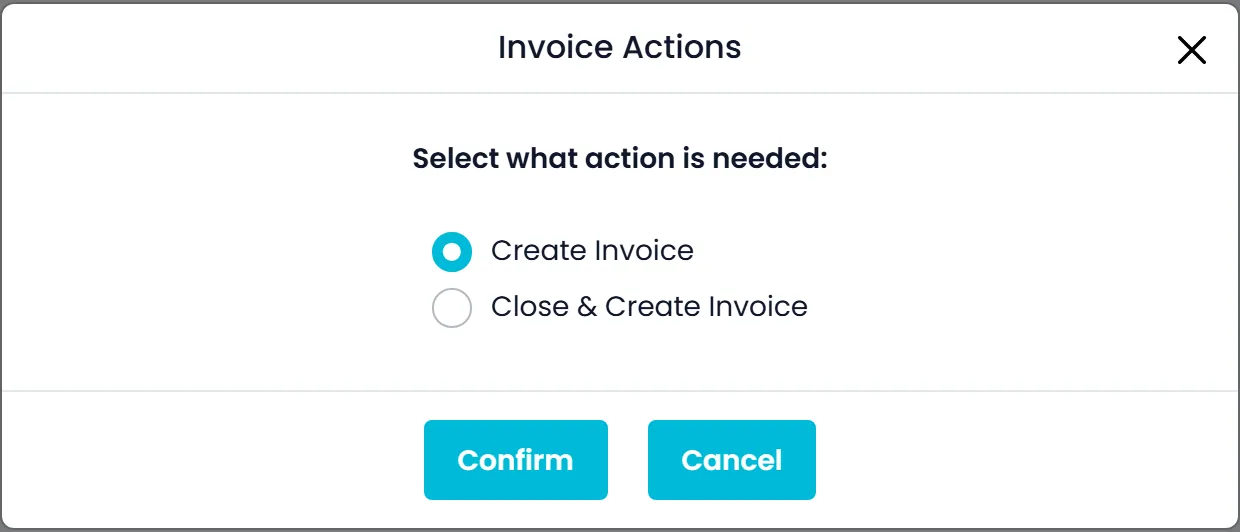
Close & Create Invoice closes the order and creates its invoice in one action. Settings → Billing also decides when invoices are created on their own: as soon as the order is created, only once it is completed, or only by hand. The lines come from the order itself: the items with their pickup and delivery addresses, the agreed price, every per-stop accessorial charge and the waiting-time lines. Nobody types them in again.
- Close & Create Invoice in one action
- Automatic invoices when the order is created or completed, or manual only
- Per-stop accessorials and waiting time arrive as lines
- No invoice is emailed until someone on your team sends it
Accounting
Every customer's invoices and payments on one screen
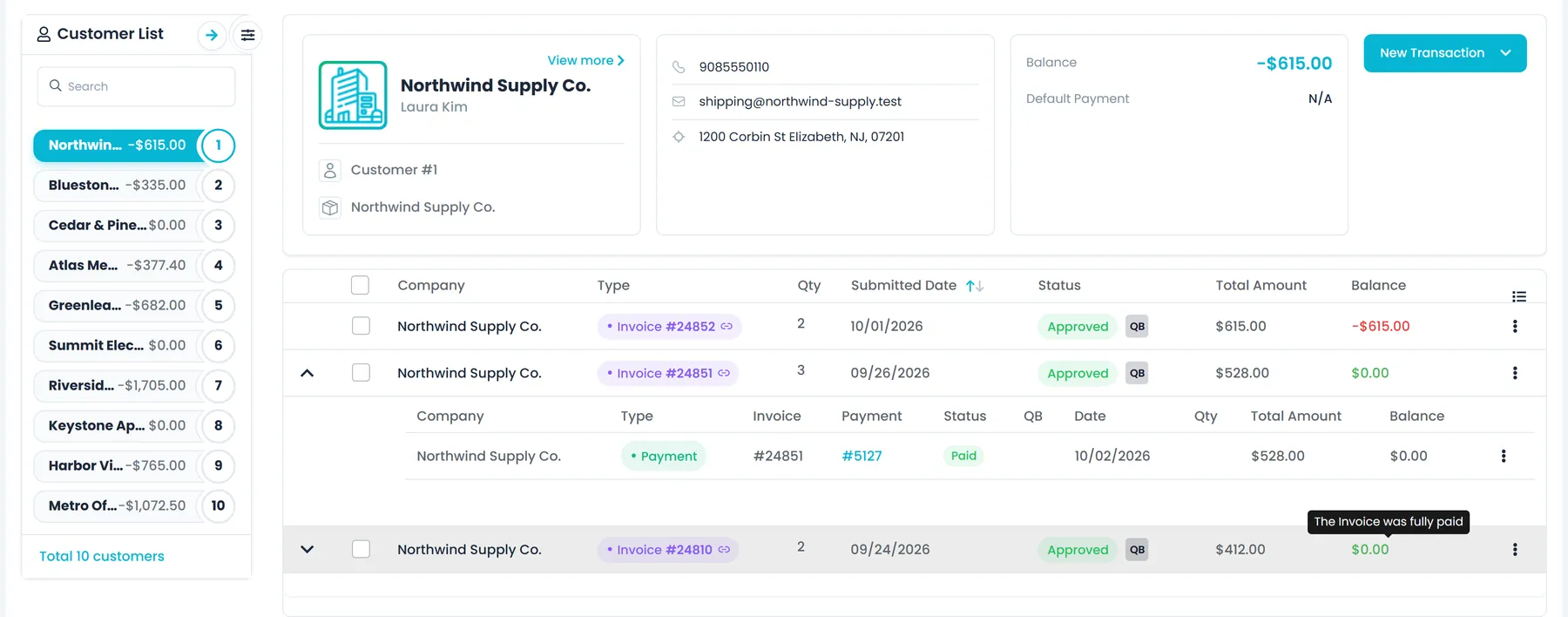
Accounting lists your customers with a search box and a count. Pick one and the header shows the open balance and the default payment method, with that customer's invoices and payments in one list beside it: type, invoice and order number, status, submitted date, quantity, total and balance. The status cell shows whether each invoice was downloaded and emailed, and hovering a balance tells you whether the invoice is fully paid, partly paid, overpaid or not paid. The filter view narrows the list by type (invoice or payment), status (Draft, Approved or Pending), dates, an amount range, emailed or not, invoice type, payment status (Paid, Pending or Overdue), order number, and whether an invoice counts toward the customer's balance. New Transaction starts a new invoice, a payment or a bulk payment, and Accounting works in both the classic and new layouts.
- Customer list with open balance and default payment method
- Invoices and payments in one list, with download and email status
- Filters for type, status, dates, amount, invoice type, payment status and order number
- See which invoices count toward the customer's balance
- Show or hide list columns in the new layout
Invoice editor
Fix an invoice, or bill without an order
The invoice editor holds the Bill To name and address, the issue date, due date and PO number, item lines (name, description, quantity, measurement, weight and cost) and fee lines picked from your charge types. Create New adds a charge type without leaving the invoice, and you tick where it is saved: your company list, the billing customer, or a pickup or delivery customer on the order. Private Notes stay in the office, while Common Notes print on the invoice as Invoice Notes. Upload invoice and order attachments, see the customer's total balance as you work, then Save, Save and Send, or Save & Close. An invoice with no order is a custom invoice numbered with a C, and a number that is already in use is flagged.
- Item and fee lines, with new charge types created on the spot
- Private notes for the office, Invoice Notes for the customer
- Invoice and order attachments kept on the invoice
- Custom invoices without an order, numbered with a C
- Duplicate invoice numbers are flagged
Several invoices per order
Re-bill or split an order without losing track
Order Invoices, opened from an invoice's menu or the View All Invoices icon, shows every invoice on one order beside the order's customer, contact details and route, with the default invoice, the amount paid and what is still due. Add Invoice adds one, Duplicate copies an existing one, and Set Default chooses which invoice is the order's default. When an order has more than one invoice, they are numbered after the order with -1, -2 and so on, and each invoice is marked as included in or excluded from the customer's balance; making an invoice the default includes it. Once the default invoice is approved, or already emailed or exported, Set Default locks until someone unlocks it from the settings icon and confirms.
- Every invoice on the order, with paid and due amounts
- Add Invoice, Duplicate and Set Default
- Numbered after the order, with -1, -2 when there are several
- Included in or excluded from the customer's balance
- Set Default locks once the default is approved or sent
- Download counts and last-download times shown in Order Invoices tooNew in the October 2026 release
Waiting time and accessorials
Waiting time turns into an invoice line on its own
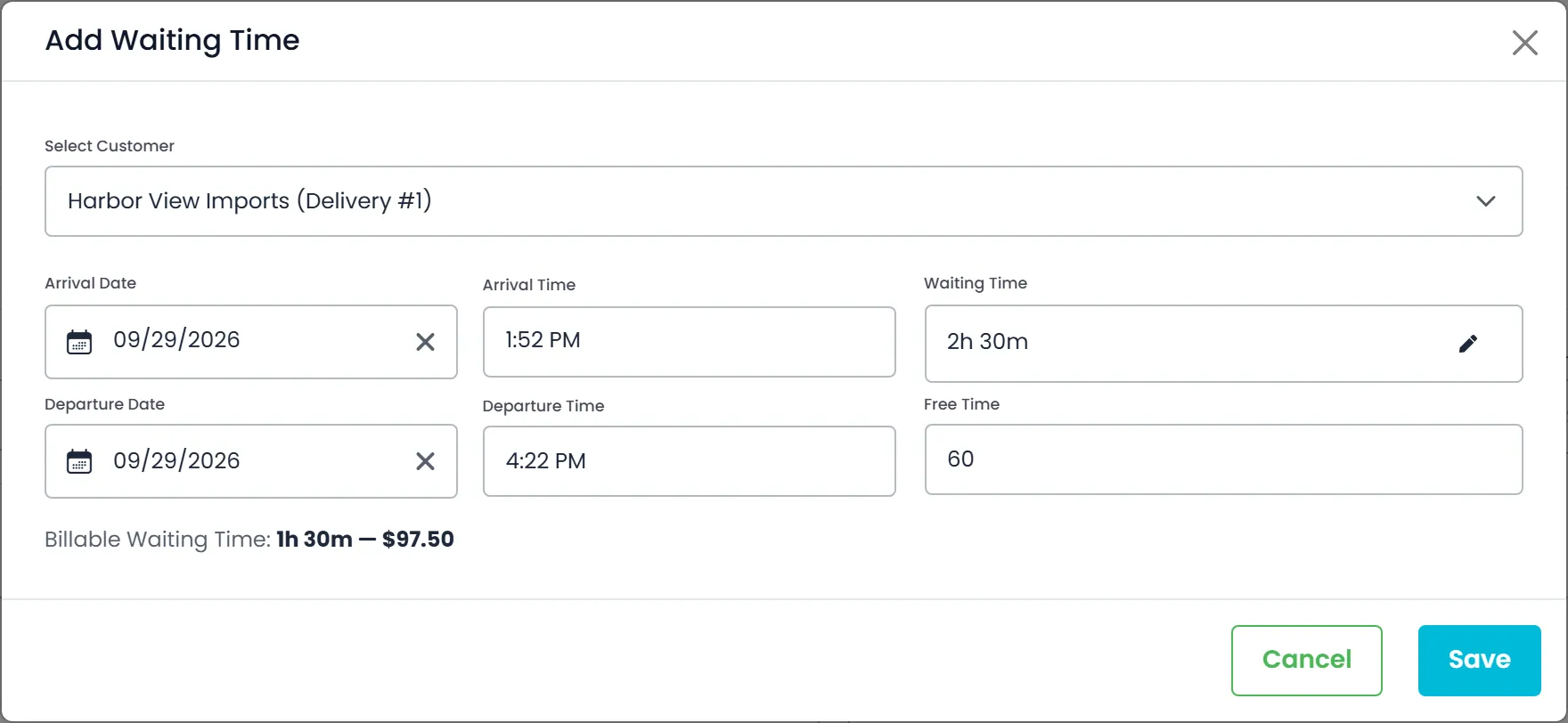
When arrival and departure are recorded at a pickup or delivery, the invoice gets a Waiting Time line at your hourly waiting rate, after the free time you allow. Free time is set company-wide and can be overridden on a single stop, and the calculation and times are written on the line. Billing staff can add or correct a stop's waiting time straight from the invoice with Add Waiting Time, and the stop's own times are updated to match. Auto-billing (Settings → Billing, off by default): Preview only logs what it would bill; Apply adds, when the order is saved, the accessorial charges learned from your uploaded price sheets that match the order, detention past the free time and, if switched on, your pricing model's fuel surcharge percentage, all marked Auto, never overwriting a charge someone entered by hand.
- Free waiting time company-wide or per stop
- Add or correct waiting time from the invoice
- Auto-billing: Off, Preview (log only) or Apply
- Your fuel surcharge percentage can be auto-billed too
- An auto charge someone deletes is never added back
The invoice your customer gets
An invoice PDF with the references your customer needs to pay
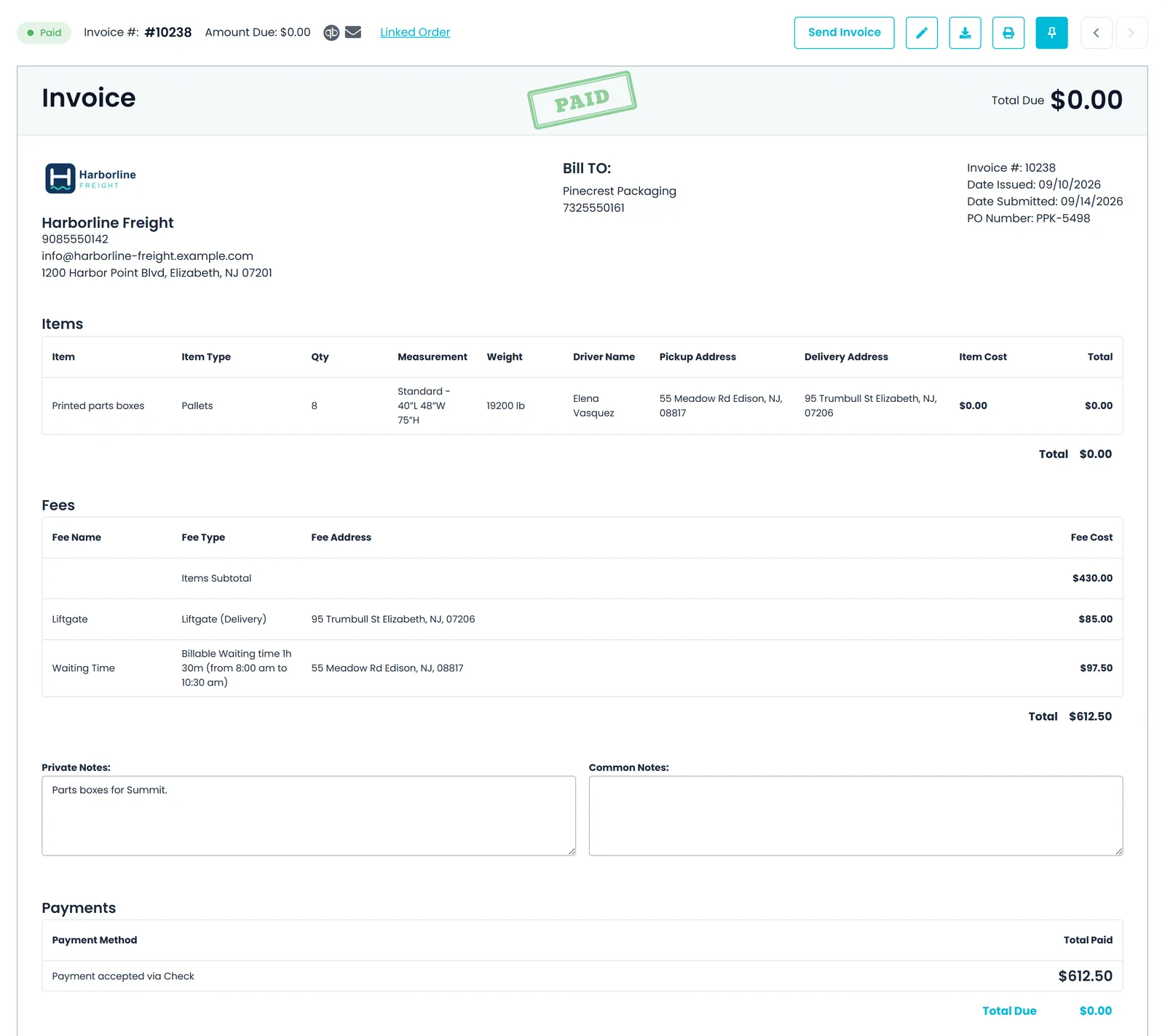
The invoice PDF carries your logo, address, phone, fax and email, the Bill To address, the invoice and order numbers, and the order's PO number and tracking number when it has them, or its pickup and delivery reference numbers when it has neither. Item and fee lines follow, then the invoice's notes and the footer text you set in Settings → Billing. A fully paid invoice gets a PAID stamp and a revised one a REVISED stamp. Print it from the preview, download it, or tick up to 50 approved default invoices and download them in one go. Emailed invoices go out from the billing email set in Settings → Billing, with the order's photo attachments, such as photographed paperwork, merged into one attachments.pdf next to the invoice.
- Logo, company details, and PO, tracking or reference numbers
- Footer text from Settings → Billing on every invoice
- PAID and REVISED stamps
- Print one, or download up to 50 at once
- Emailed with the order's photos in one attachments.pdf
- Invoices in USD, CAD, MXN, EUR, GBP or ILS
Billing already running through RushHour
Payments and receivables
Get paid, and know what is still owed
Record what came in, see what is overdue, and keep a clear record of every invoice for your books.
Payments & AR
One payment, applied across the open invoices
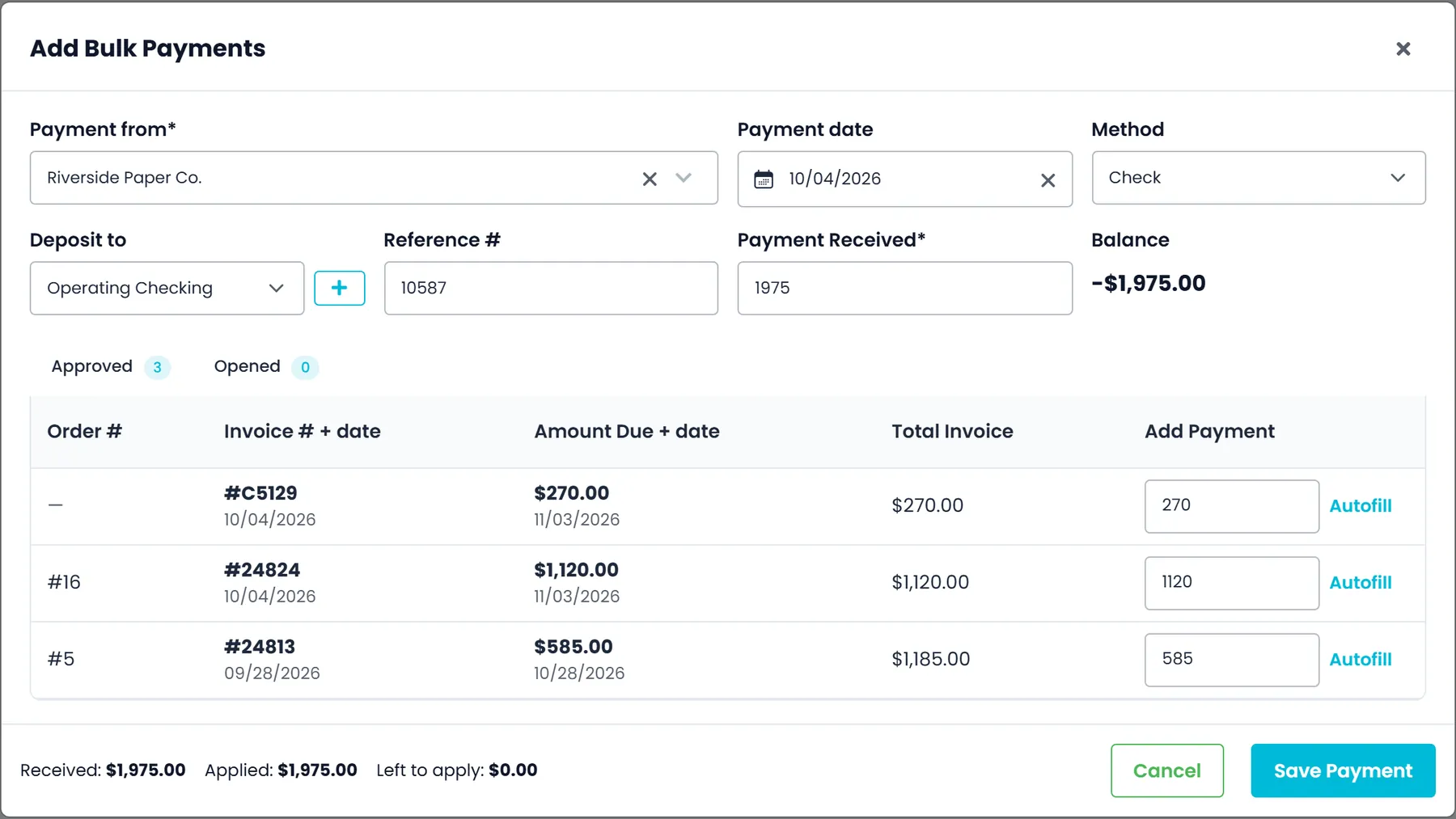
Add Payment records cash or a check, or charges the customer's saved card through your Cardknox account, with the amount, date, reference number and memo; Pay Invoice opens it straight from an approved invoice. Add Bulk Payments takes one amount and applies it across the customer's open approved invoices in a single dialog: type each invoice's share or fill it with one click, and pick the method (cash, check or the customer's default card), a reference and the deposit account the money went into, while Received, Applied and Left to apply keep count. Any surplus is credited to the customer's balance. Applied payments come straight off the balances the dashboard's AR aging widget counts.
- Cash, check or saved card through Cardknox
- Add Bulk Payments across open invoices, with deposit accounts
- AR aging by bucket on the dashboard
- Applying more than was received is refused
- Only company admins can delete, restore or permanently delete a payment
Receivables
What came in, what is owed, and what was never billed
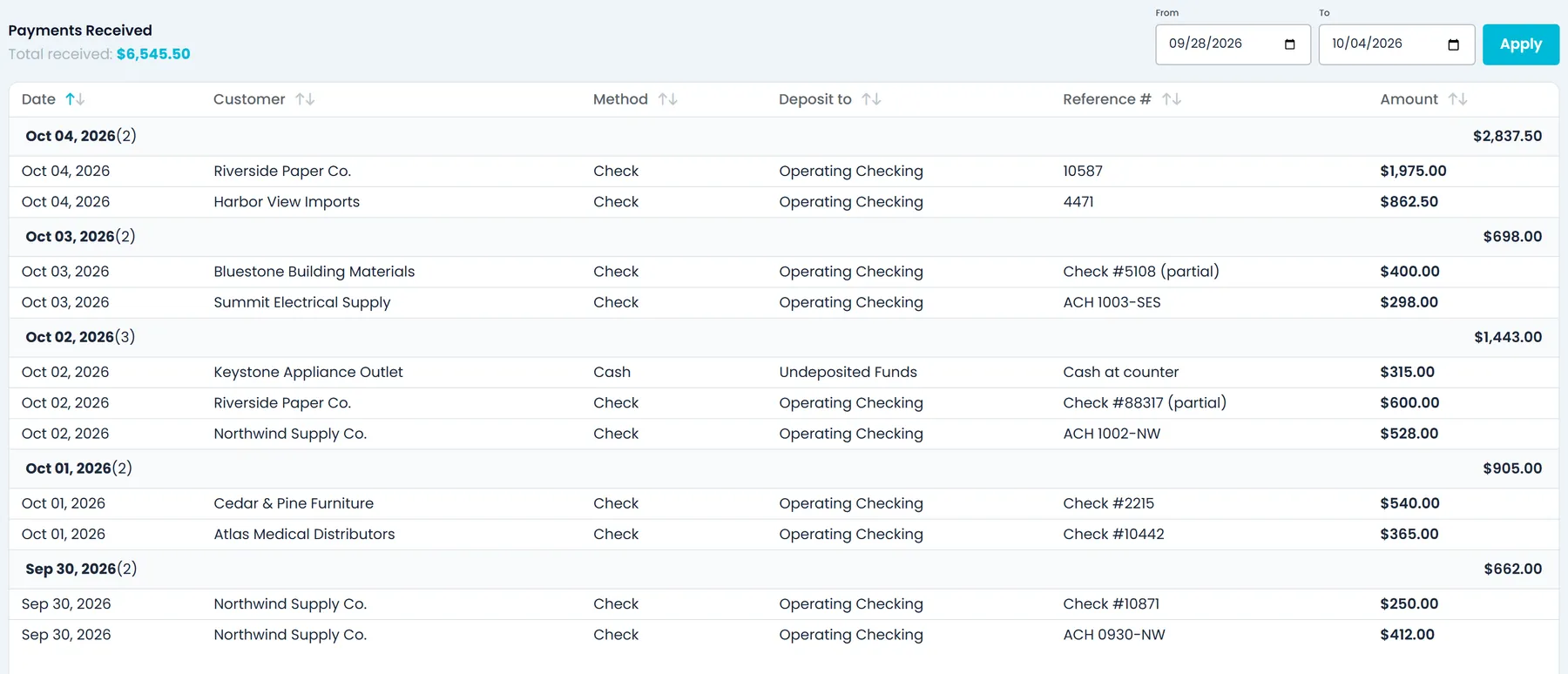
Payments Received lists every payment between two dates with its date, customer, method, deposit account, reference number and amount, plus the total received, ready to match against your bank. On the dashboard, the Invoices widget shows total, paid, outstanding and due in the next 30 days; Receivables aging sorts open invoices into 0-30, 31-60, 61-90 and 90+ day buckets by due date (or invoice date); Revenue trend charts invoiced revenue over the last 30 or 90 days; and Unbilled closed orders counts finished work with no invoice over the last 3, 6 or 12 months. The aging, revenue and unbilled widgets are offered only to people allowed to view invoices and payments.
- Payments Received for any date range, with the total
- Method, deposit account and reference on every payment
- Invoices widget: total, paid, outstanding, due in 30 days
- Receivables aging in 0-30, 31-60, 61-90 and 90+ day buckets
- Unbilled closed orders over 3, 6 or 12 months
Invoice history
Who sent the invoice, to whom, and what changed since
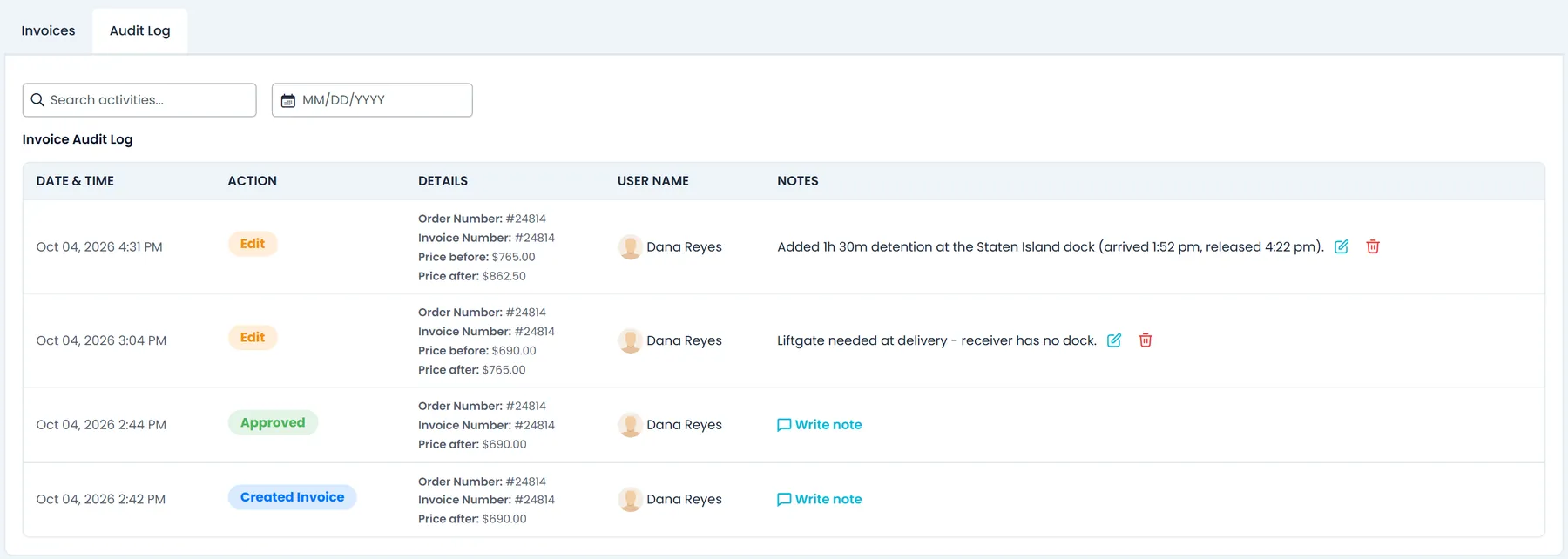
Each invoice has an audit log: Created, Approved, Email Sent with the recipients, Sent to QuickBooks, QuickBooks errors and Revised, each with the user who did it and a note you can edit. Email recipients come from the customer's accounting emails, and a new address you type can be saved as one. Downloads are counted with the time of the last one. Changing the price of an invoice that was already emailed gives it a revised number, so the customer can tell the two apart.
- Audit log with who did what, and when
- Recipients from the customer's accounting emails
- Download count and revised invoice numbers
- Price changes logged with the price before and after
- A REVISED stamp on the revised PDF
QuickBooks Desktop
Export invoices to a file for QuickBooks Desktop
Select approved default invoices in Accounting and use the QuickBooks export to download a file for QuickBooks Desktop. Each invoice is posted to Accounts Receivable under the customer's name, with a split line for each item, carrying its pickup and delivery addresses, and for each charge, using the QuickBooks item name and account set on that charge type in Settings → Charge Types. Exported invoices are marked as in QuickBooks, and the invoice's download status lists who exported it and when.
- Only approved default invoices go into the file
- Posted to Accounts Receivable with a line per item and charge
- QuickBooks item name and account taken from each charge type
- Exported invoices marked as in QuickBooks, with who and when
Accounting sync
QuickBooks Online gets the invoice when it is ready
Connect QuickBooks Online and choose Automatic or Manual sending. An invoice is exported only once it is approved, it is the order's default invoice, and its order is closed (or it has no order), so drafts stay out of your books. In Automatic mode, an invoice that is not ready yet gets an Awaiting QuickBooks Eligibility entry in the order's invoice audit log. Manual sends of invoices, or of a single payment, list which numbers were sent, skipped or rejected. Customers missing in QuickBooks are created during the send, and failed sends are retried every 3 hours. If you run QuickBooks Desktop, export selected invoices to an import file instead.
- Automatic or manual sending, with a readiness rule
- Sent, skipped or rejected results for every send
- File export for QuickBooks Desktop
Where billing stops leaking money
Invoice the day you deliver
The invoice is ready when the order closes, not at month end.
Nothing closed and unbilled
A dashboard widget lists closed orders that still have no invoice.
One clean invoice record
Duplicate an invoice, approve or unapprove it, and get warned when an invoice number is already in use.
Customers pay in the portal
Shippers with a Customer Portal login see their open invoices and, when you take cards through your Cardknox account, pay approved invoices by card themselves.
Controls a billing office expects
Who can do what, which currency an invoice is in, and where it is sent from.
Billing access by role
Separate permissions to view invoices and payments, create and edit invoices, add and edit payments, email invoices and download billing data, set per role. Only company admins can delete or restore a payment.
Invoices in your customer's currency
Turn on CAD, MXN, EUR, GBP or ILS next to USD in Settings → Profile. An order priced in one of them is invoiced in it, and the PDF prints its symbol. RushHour does not convert invoice amounts between currencies.
Sent from your billing address
Settings → Billing sets the email address invoices are sent from and the footer text printed at the bottom of every invoice.
A deleted payment can come back
A deleted payment stays on its invoice for company admins under Show Deleted, where they can restore it or delete it for good.
Recently added
Invoices that flag what's missing and show the math
These invoice changes are in production now. The changelog lists what each release added.
Billing review
Charges that still need a price are flagged before approvalNew in the October 2026 release
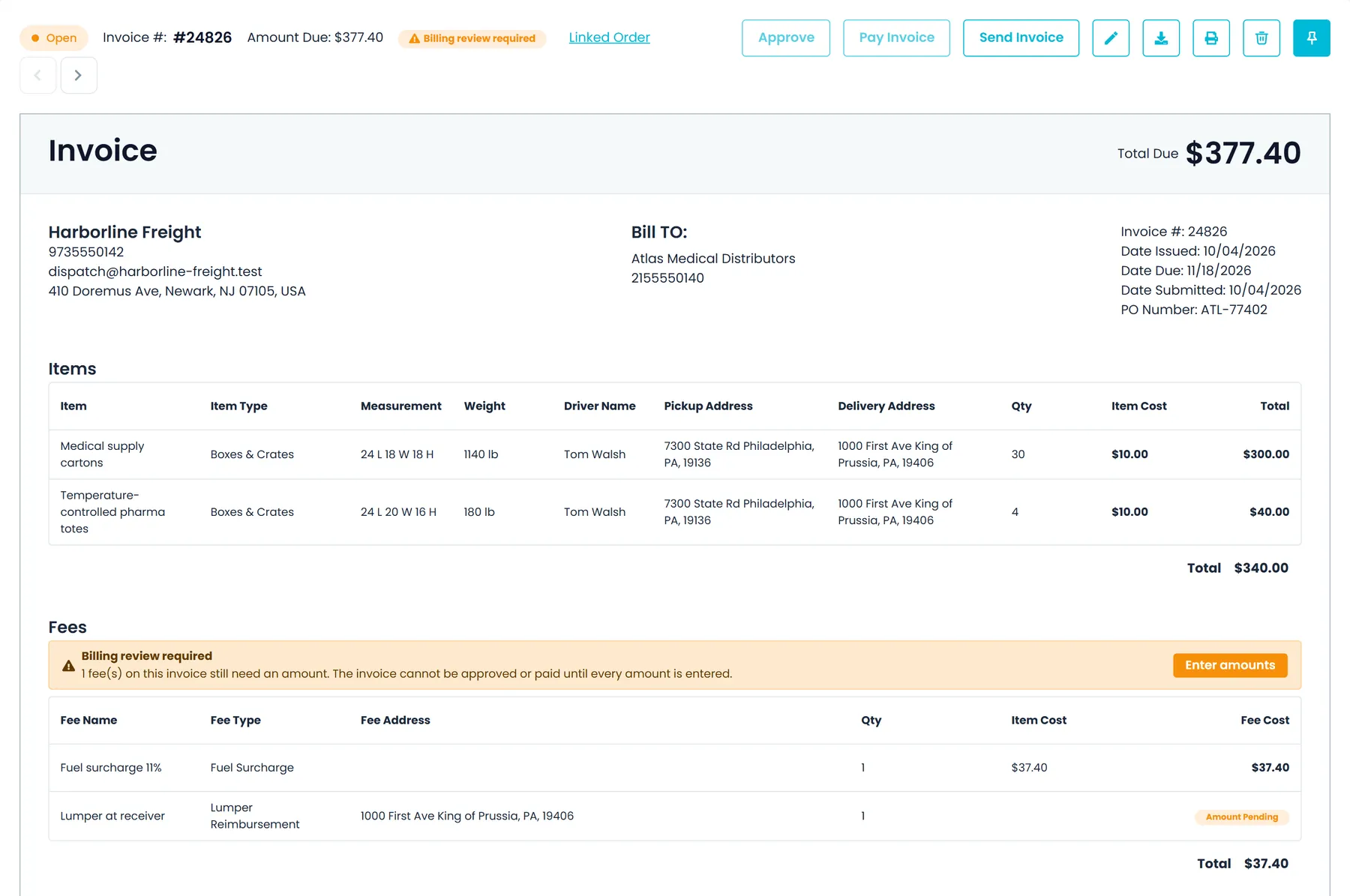
Some charge types only record that something happened, and billing prices them later: in Settings → Charge Types, those have Enter Amount? ticked and no price per unit. In the Company Portal's invoice preview and editor, such a fee shows Amount Pending instead of a zero amount, and a Billing review required warning appears on the invoice and on its order. The Company Portal won't approve the invoice, or take a payment that would approve it, until you enter a price for each pending fee, or 0 for a fee you don't charge, in the popup that opens from the warning or from Approve in the invoice list. Invoices already approved show their amounts and take payments as before.
- Amount Pending on the fee, not a zero amount
- Billing review required on the invoice and its order
- Approval and payments wait until every price is entered
Order changes
Save turns orange while an order's invoice is out of dateNew in the October 2026 release
When an order already has an invoice, Save turns orange after you change something the invoice is built from, with a tooltip saying how the invoice gets updated: by saving, when the order is completed, or with Update Invoice. In the new layout that means the side panel (customer, contact, PO and tracking numbers, shipment type, pricing and attachments), with Edit turning orange in view mode; in the classic layout it also covers stop changes such as items and allocations. Changes to the order's date or notes don't count, and invoices already exported to QuickBooks are never flagged.
- Save, or Edit in view mode, turns orange after a billed field changes
- A tooltip says how the invoice will be updated
- Changes to the order's date or notes don't count
Fee lines
Fee lines that show their math and take less typingNew in the October 2026 release
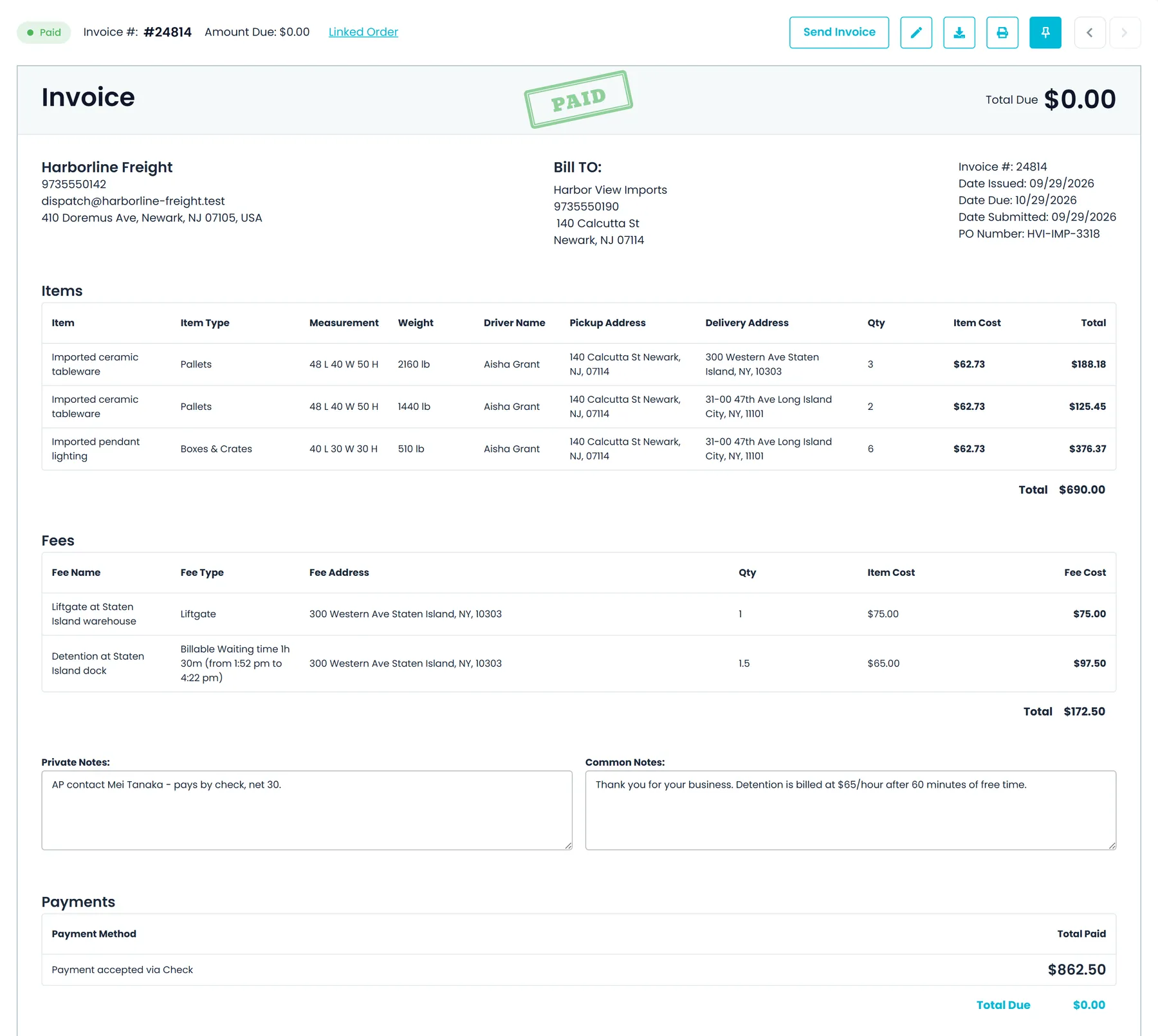
Fees in the invoice preview and editor get Qty and Item Cost columns before Fee Cost, which is Qty times Item Cost, and picking a fee type fills both in. In Add Waiting Time, choosing a stop fills in the arrival and departure already recorded for it, and the fee shows the billable hours as its Qty and your hourly waiting rate as its Item Cost. The Fee Address field lists the linked order's pickup and delivery addresses as Pickup #1, Delivery #1 and so on, and keeps any other address you type or paste.
- Qty x Item Cost = Fee Cost on fee lines
- Waiting time filled from the stop's recorded times
- Fee Address from the order's stops, or typed in
Waiting time
Free waiting time that follows each order's price typeNew in the October 2026 release
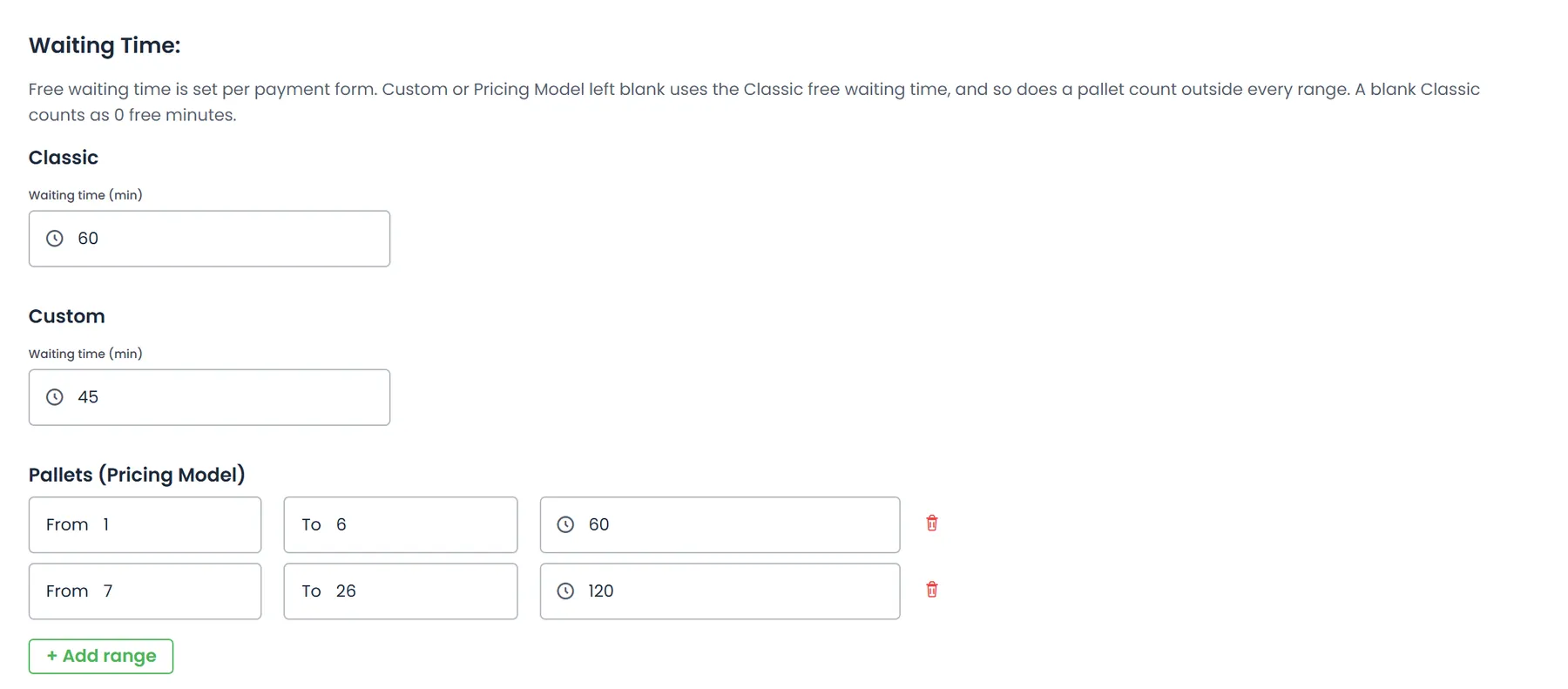
Waiting-time charges on orders and invoices use the free time set in Settings → Billing → Waiting Time for the order's price type: Classic, Custom, or the Pallets (Pricing Model) range that fits the pallets picked up on the order. Stop confirmation and an invoice's Add Waiting Time window suggest the same free time. If Custom or Pallets is left blank, or no range fits, the Classic value is used.
- Separate free time for Classic, Custom and Pallets orders
- Pallet-count ranges, each with its own free minutes
- The same free time for auto-billed detention
The customer's copy
Invoice PDFs with separate totals and the balance dueNew in the October 2026 release
On the invoice PDF you download or email, the order price moves out of the charges table: the Items table ends with its own Total, and the charges table lists only the additional charges, with a Total of its own. The grand total is labelled Invoice Total and shows the full invoice amount. When a payment has been recorded, Paid and Balance Due lines appear under it instead of the payment being taken off the total.
- Items and charges each end with their own Total
- Invoice Total shows the full invoice amount
- Paid and Balance Due once a payment is recorded
Invoice settings
New companies start with invoices created when an order is completedNew in the October 2026 release
New companies start with Create Invoices set to Order was completed, so an invoice is created once the order is done instead of as soon as the order is entered. Companies that already existed kept their setting, and you can change it any time under Settings → Billing. Settings → Billing also loads your saved billing settings each time you open it, so Create Invoices always shows what is actually saved.
- Order was completed is the starting setting for new companies
- Existing companies keep their current setting
- Settings → Billing always shows the saved values
More billing features
Each of these billing features has its own page.
Billing questions
Can RushHour create invoices automatically?
Yes. In Settings → Billing → Create Invoices, choose Order was created, Order was completed or Manual. Close & Create Invoice also closes an order and builds its invoice in one action. Creating an invoice never emails it: an invoice reaches your customer only when someone on your team sends it.
How is detention billed?
When a stop's arrival and departure are recorded, the invoice gets a Waiting Time line for the time past your free waiting time, at your hourly waiting rate, with the times written on the line. Free time is set company-wide and can be changed on a single stop. Billing staff can add or correct waiting time from the invoice, and optional auto-billing in Settings → Billing can add detention to the order when it is saved.
Can one order have more than one invoice?
Yes. Order Invoices shows every invoice on an order with the amount paid and still due. Add another invoice, duplicate one, or set a different default; when an order has several invoices, they are numbered after the order with -1, -2 and so on. Only approved default invoices are downloaded in bulk or exported for QuickBooks Desktop.
What happens when an invoice changes after it was emailed?
If the total of an invoice that was already emailed changes, its number gets an R in front and the PDF carries a REVISED stamp, so your customer can tell the two copies apart. The invoice's audit log records the change with the price before and after and the user who made it, and you can add a note to any entry.
Can customers pay their invoices online?
Customers with a Customer Portal login see their own invoices, record a cash or check payment, and pay by card when you take cards through your own Cardknox account. One payment can be applied to several open invoices, which are listed oldest due date first. You can also email a pay link, so a customer pays an approved invoice by card without logging in.
How do invoices get into QuickBooks Desktop?
Select approved default invoices in Accounting and use the QuickBooks export. RushHour downloads a file that you import into QuickBooks Desktop: each invoice posts to Accounts Receivable with a line per item and per charge, using the QuickBooks item and account set on each charge type, and the exported invoices are marked as in QuickBooks.
Can I invoice in Canadian dollars or other currencies?
Yes. Turn on CAD, MXN, EUR, GBP or ILS next to USD in Settings → Profile and pick a default. On a new order you choose its currency, the invoice is issued in it, and the PDF prints that currency's symbol. RushHour does not convert invoice amounts between currencies.
Can I limit who sees invoices and payments?
Yes. Billing access is split into separate permissions set per role: view invoices and payments, create and edit invoices, add and edit payments, email invoices and download billing data. Only company admins can delete or restore a payment, and the receivables aging, revenue trend and unbilled-orders widgets on the dashboard are offered only to people allowed to view invoices and payments.
More on billing
Bring your messiest invoice.
In the demo we take a sample load from close to invoice, with its accessorials and waiting time on it, then through a payment and the QuickBooks Online send.