
We've got your back
The assistant on this page answers any time, the user guides walk you through the Company Portal, the Customer Portal and the driver app step by step, and our team reads every email that comes in. Whether you're sizing up RushHour or running your daily dispatch on it, help is one message away: ask the assistant, or email the team.

Ways to get support
Start with the assistant or the user guides for questions about how RushHour works. Need something account-specific, or a person? Pick a channel below.
Ask the AI assistant
The quickest way to an answer about how the platform works, right here on this page.
Read the user guides
Step-by-step guides for the Company Portal, the Customer Portal, the driver app and the integrations, plus the API reference for developers. In English.
docs.rushhourapp.comSend us a message
Prefer a form? Tell us what you need and we'll reply by email.
Go to the contact formSee what changed
Release notes for the platform, the Customer Portal and the driver app, with the next release listed first.
Open the changelogWhere to sign in
Three apps, three sign-in pages
Your office, your shippers and your drivers each have their own app, and each app has its own password reset. Here is where each one signs in and what to do when they can't.
Company Portal
app.rushhourapp.com
For your office: owners, dispatchers, billing and admins.
- Sign in with your email and password; tick Keep me signed in on your own computer.
- Forgot Password? on the sign-in page emails you a link to choose a new password.
- Admins handle the rest in Settings → Users: invite people, email a reset link, set a password, or disable and enable an account.
- Invitation links expire after 14 days, and a fresh one can be sent from the same menu.
- After replacing a temporary password you go straight to the page you were opening, without signing in again.
Customer Portal
customer.rushhourapp.com
For your shippers: their orders, tracking, documents and invoices.
- You invite your shippers: the link in the invitation email opens a page where they choose a password and select Activate account.
- Remember for 30 days keeps them signed in on that browser; without it, closing the tab or the browser signs them out.
- Forgot password emails a link to choose a new one.
- The portal accepts customer accounts only. Your own staff sign in to the Company Portal.
- Company admins can email a portal user a password reset link from the Customers list or the customer's page.
RushHour driver app
Google Play · App Store
For your drivers, on Android and iPhone.
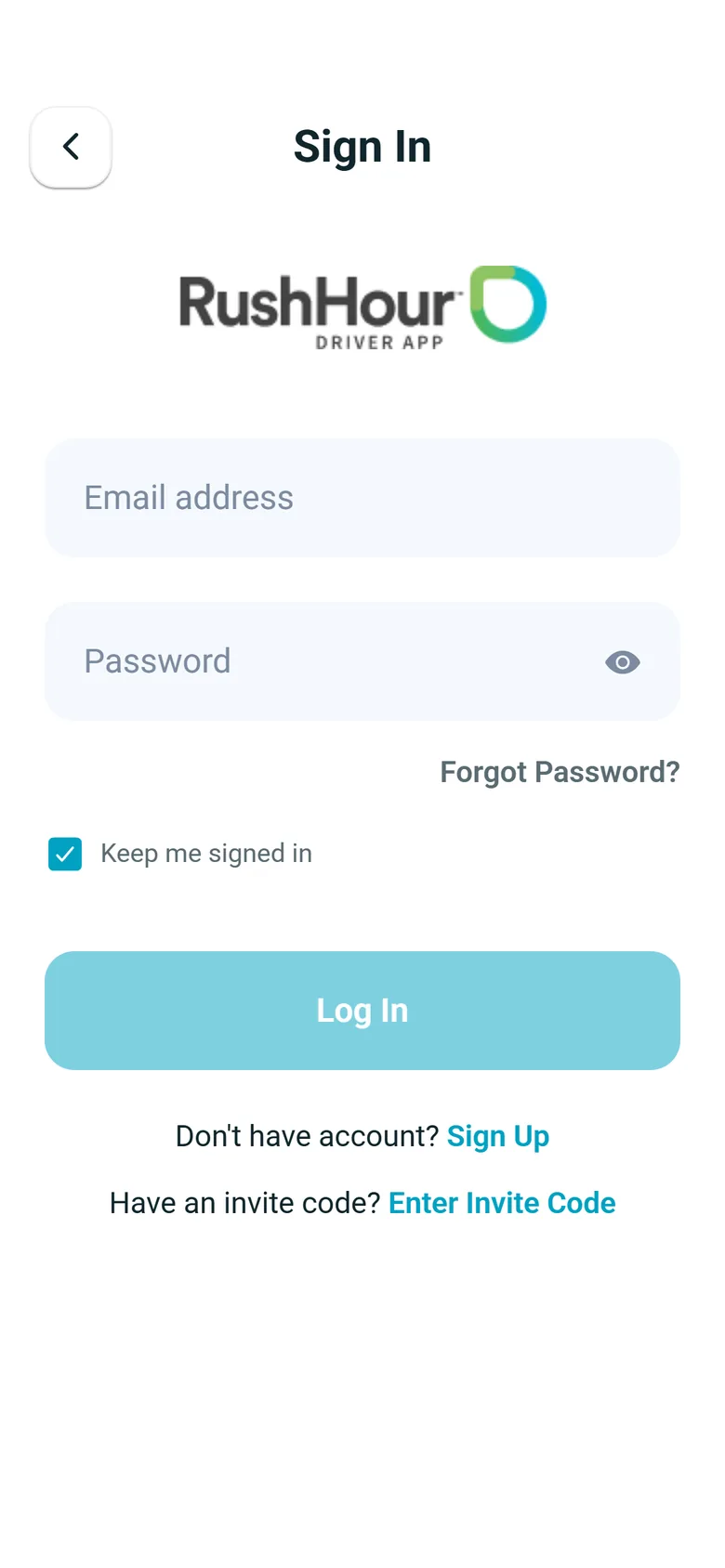
- Drivers join by invitation only: Enter Invite Code on the Sign In screen, or tap the link in the invitation email.
- Forgot Password? emails a 6-digit code to set a new password, so a reset doesn't wait for the office.
- Keep me signed in is ticked by default; with it off, the next app start clears the session from the phone, which suits shared phones.
- Version 2.x is on both stores. If a screen looks different from the guide, update the app from the store.
What we can help with
From your first quote to your busiest dispatch day, ask away.
Getting started
First steps for a new company, how the three apps fit together, switching between companies and the New UI.
Orders & quotes
Creating quotes, approving them into orders, freight items, stops and holds.
Dispatch & routing
Building routes, assigning drivers and outside carriers, moving stops and re-ordering routes.
Drivers & the driver app
Routes and stops in the app, stop photos, vehicle inspections and hours of service.
Customer Portal
Inviting your shippers, their sign-in and passwords, and what they do in the portal: orders, tracking, documents and invoices.
Billing & invoices
Creating invoices from orders, recording payments, card payments through Cardknox and QuickBooks Online export.
Integrations
Samsara truck positions, Cardknox card payments, QuickBooks Online, and map and routing providers.
For admins
Access fixes you can make yourself
Most access requests don't need us: company admins manage office users and shipper logins from the Company Portal.
Office users
Invite, reset and switch off office users
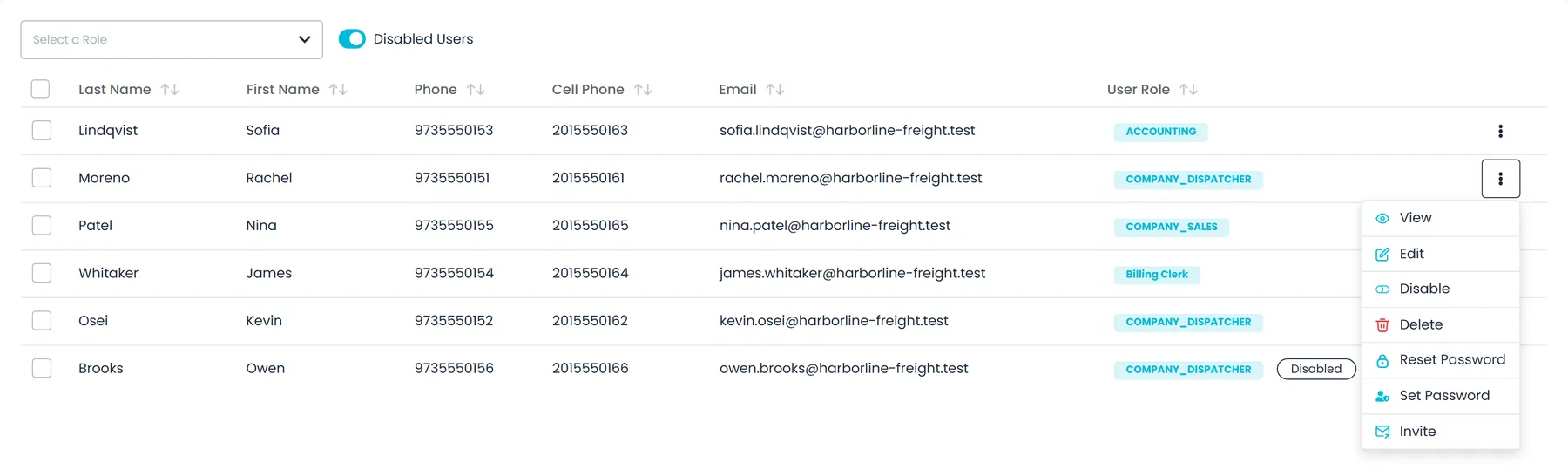
Settings → Users lists your team with their roles. Filter by role, turn on Disabled Users to see the accounts you switched off, and act from each row's menu.
- Add User emails an invitation, and the new user sets their own password from the link. The link expires after 14 days; Invite sends a new one.
- Reset Password emails the user a link; Set Password lets an admin type a password or generate one.
- A reset or an admin-set password signs the user out of sessions that are already open.
- Disable stops access on the user's very next request, without deleting the account or its history. Enable restores it.
- Sign-ins, failed sign-ins with the reason, and password resets and changes are recorded in Settings → Activity Logs.
Shipper logins
Invite your shippers and manage their logins
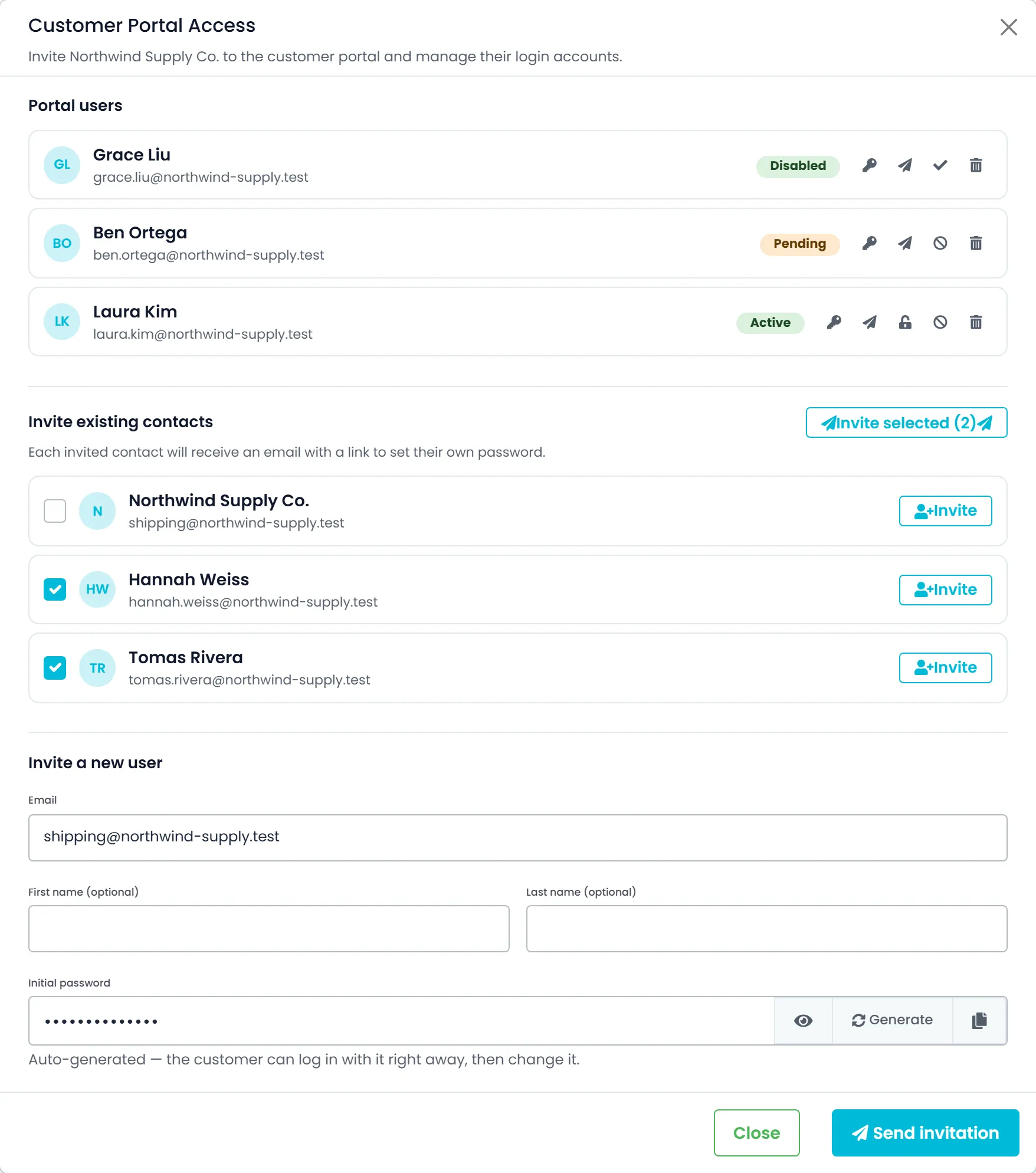
Open a customer and select Invite to Portal. The Customer Portal Access window lists that customer's logins as Active, Pending or Disabled.
- Invite one existing contact, the ones you tick or all of them; each gets an email with a link to set their own password.
- Or invite a new person with an initial password the window generates, which they can use right away and change later.
- For each login: Set password, Resend invitation, Disable or Enable, and Delete.
- Email a portal user a password reset link from this window, the Customers list or the customer's page. They are signed out of the portal first.
Driver app
Quick fixes for drivers
Common driver questions, answered from the driver app troubleshooting guide. The app's screens are in English.
Joining
Joining with an invitation
Driver accounts are invite-only. The office invites the driver, and the invite code links the new account to the driver record you created, so the routes you assign show up in the app.
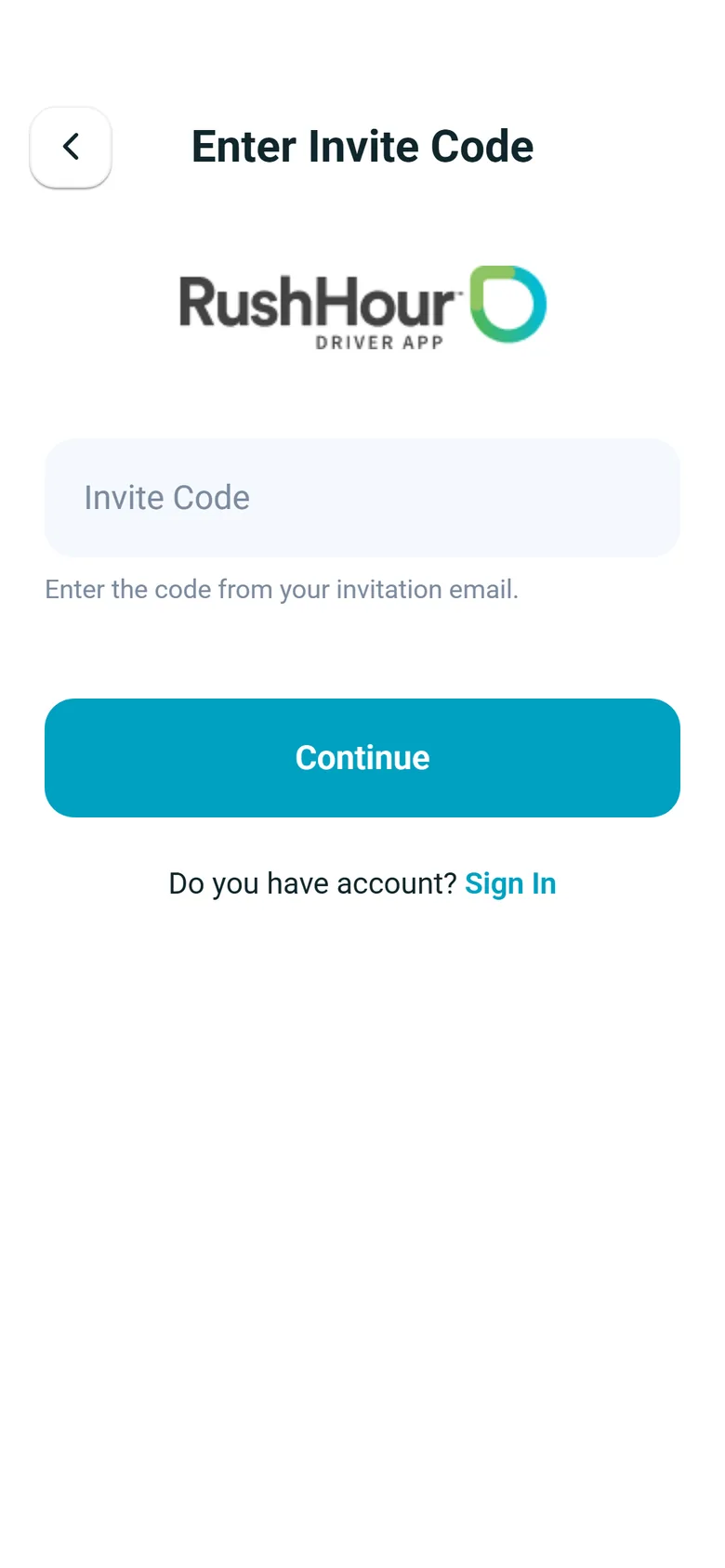
- On the Sign In screen, tap Enter Invite Code (or Sign Up), type the code from the invitation email and tap Continue.
- Pasting the whole invitation link works too: the app picks the code out of it and drops invisible characters copied from the mail app.
- Use the code from the most recent invitation. Each new invitation replaces the old code.
- On a phone, the button in the invitation email opens the app with the code filled in, or a page that shows the code with a copy button and Open App.
- When Open App on that page can't open the app, the page explains how to get in: install or update the app, then tap Enter Invite Code and paste the code.
Signing in
Signing in and resetting a password
Drivers reset their own password from the phone, so a forgotten password doesn't hold up a route.
- Forgot Password? emails a 6-digit code. Only the newest code works, and Resend OTP appears when the countdown ends.
- Passwords need at least 8 characters with an uppercase letter, a lowercase letter, a number and a symbol.
- Keep me signed in is ticked by default. With it off, the next app start clears the session from the phone, which suits a shared phone.
- Change Password is under Settings → Privacy and is confirmed with an emailed code.
- Account Access Restricted means the office changed the driver's status, for example deactivated or disabled the account. The driver should contact the office.
Location
Location for the map and arrival estimates
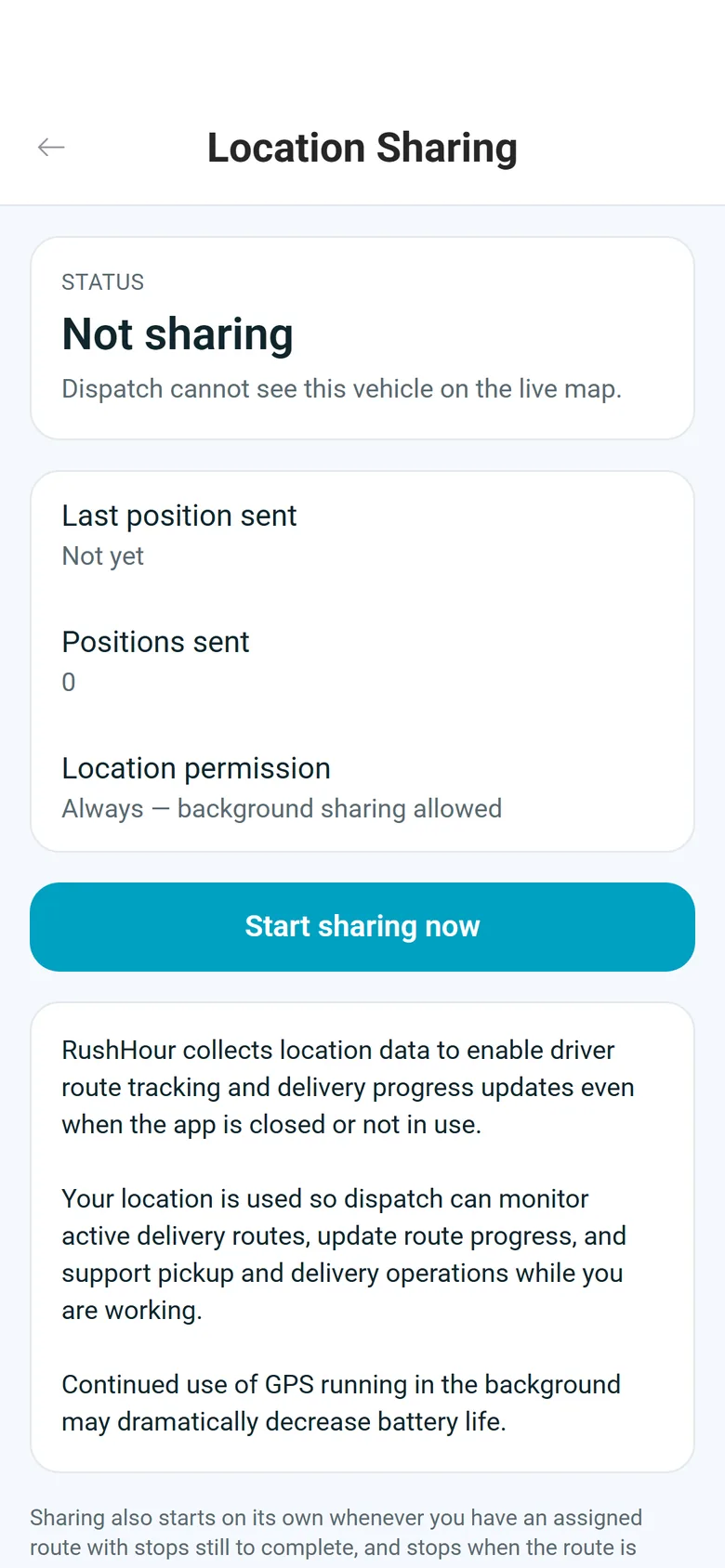
The app uses the phone's location for the driver's map, arrival alerts near a stop and duty-status changes. While a driver has stops to complete and location is allowed, it also sends positions that your arrival estimates in the Company Portal can start from.
- When the app shows Background location for active routes, tap Continue, then allow location all the time (Always on iPhone).
- Settings → Location Sharing shows whether sharing is on, the last position sent, how many were sent and the permission the phone granted.
- Sharing starts on its own while the driver has an assigned route with stops to complete. Start sharing now turns it on by hand, and Stop sharing ends it.
- Without location the route and stops still show, and the driver can mark arrival by tapping the stop.
Problems
Reporting a problem with the app
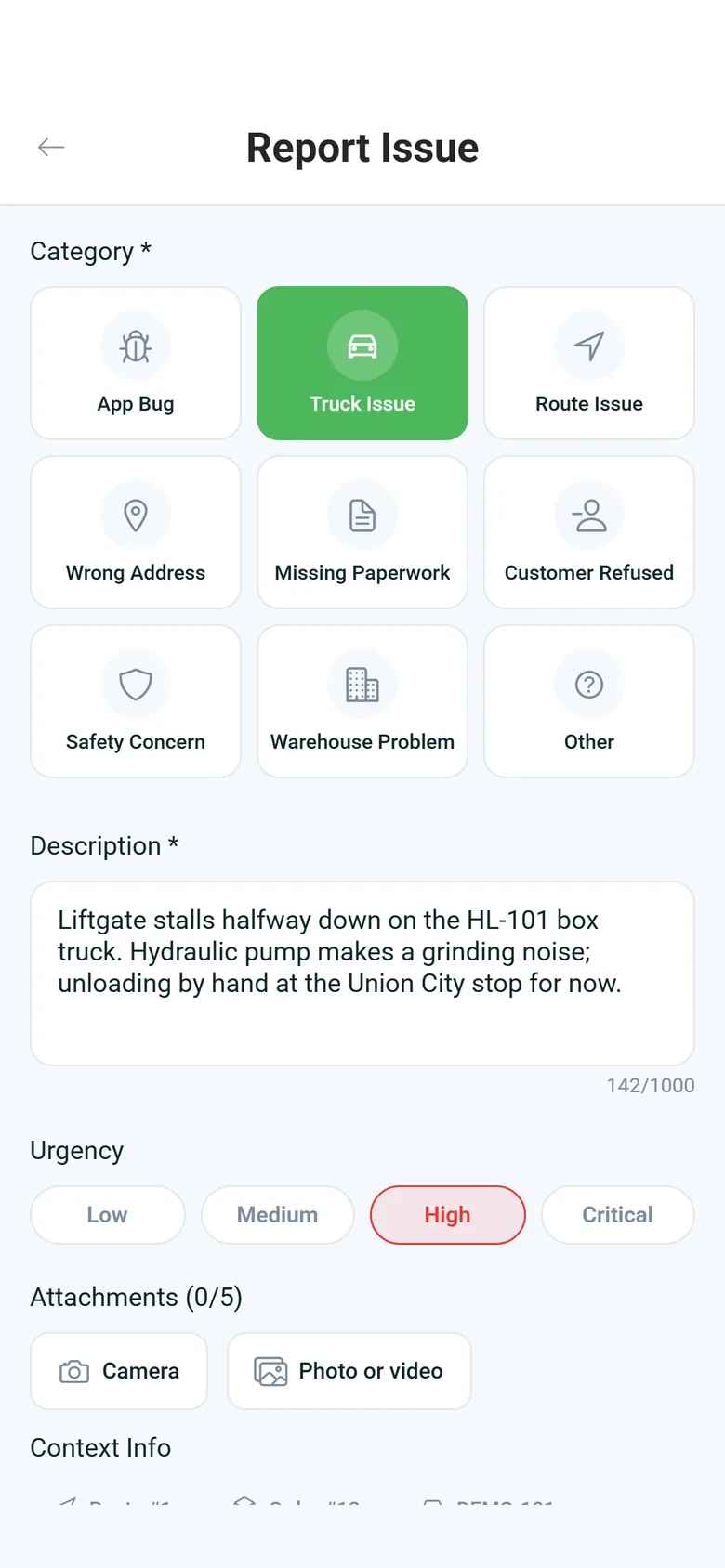
Drivers report an app problem from the app itself, and the app adds the route, order and truck they were working on.
- Report Issue on the dashboard, category App Bug: a description, an urgency from Low to Critical and up to five photos or videos.
- Your office reads these reports on a new Issues page in the Company Portal, opened from the Drivers page or Reports, and can reply to the driver and update the status.
- Settings → About shows the app version to include in the report.
- For anything urgent on a route, message the office from the Message tab.
- If your office needs us, email [email protected] with the driver's app version and what happened.
Support FAQ
How do I get help fastest?
Ask the assistant in the chat on this page. It answers questions about how RushHour works straight away. For anything account-specific, or anything that needs a person, email [email protected].
I forgot my password. Can you reset it here?
We can't access your account from this page. Use the Forgot Password? link when you sign in at app.rushhourapp.com, or ask your company admin. Customer portal users can reset theirs from the portal sign-in page at customer.rushhourapp.com, and drivers tap Forgot Password? in the app to get a 6-digit code by email. Still stuck? Email [email protected].
Where do I report a bug or outage?
Email [email protected] with what you were doing and a screenshot if you have one. The more detail you give, the faster we can help.
Do you offer onboarding and training?
Yes. Every customer gets hands-on onboarding: we import your data with you, configure your pricing and billing, connect QuickBooks Online if you use it, and train your team. It's a one-time fee that depends on your plan; see the pricing page.
Did something change? Where can I see what's new?
The changelog has the release notes for the platform, the Customer Portal and the driver app, with the incoming release first and, for the driver app, which store each release is on. In the Company Portal, Settings → About shows the API and Portal versions you are running, when each was released, and an explanation of any system health check that needs attention.
Is there a written user guide?
Yes. The user guides at docs.rushhourapp.com walk through the Company Portal, the Customer Portal, the driver app and the integrations step by step, with a troubleshooting page for drivers and a developer section with the API reference. They are in English.
A driver's invite code isn't accepted. What now?
Use the code from the most recent invitation email, because each new invitation replaces the old code. The driver can also paste the whole invitation link into Enter Invite Code, and the app picks out the code. If the app says the code was replaced and the driver already registered with it, they simply sign in. Still stuck? Resend the invitation with Send Invite in the driver's row menu on the Drivers page of the Company Portal, or email [email protected].
Still have questions?
Ask the assistant above, or talk to our team about a demo, pricing, or what moving your operation onto RushHour would look like.