
Every pickup and delivery,
done the same way, step by step.
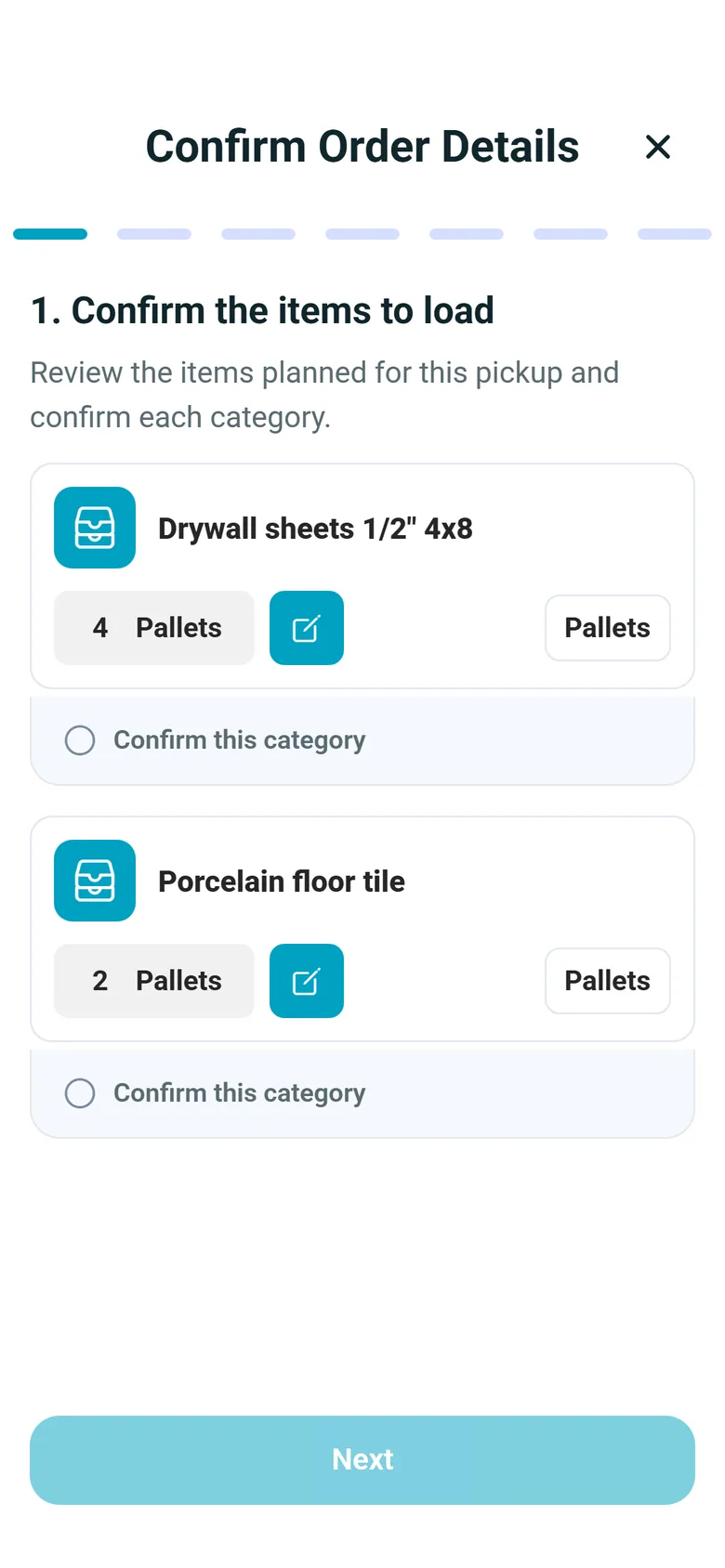
At each stop the RushHour driver app asks one question per screen, such as confirming the items, scanning barcodes, photographing the goods, adding charges, scanning the paperwork and collecting the signature. What the driver captures is saved on the order stop. Drivers on Android and iPhone follow the same flow, in driver app 2.x.
Inside the stop flow
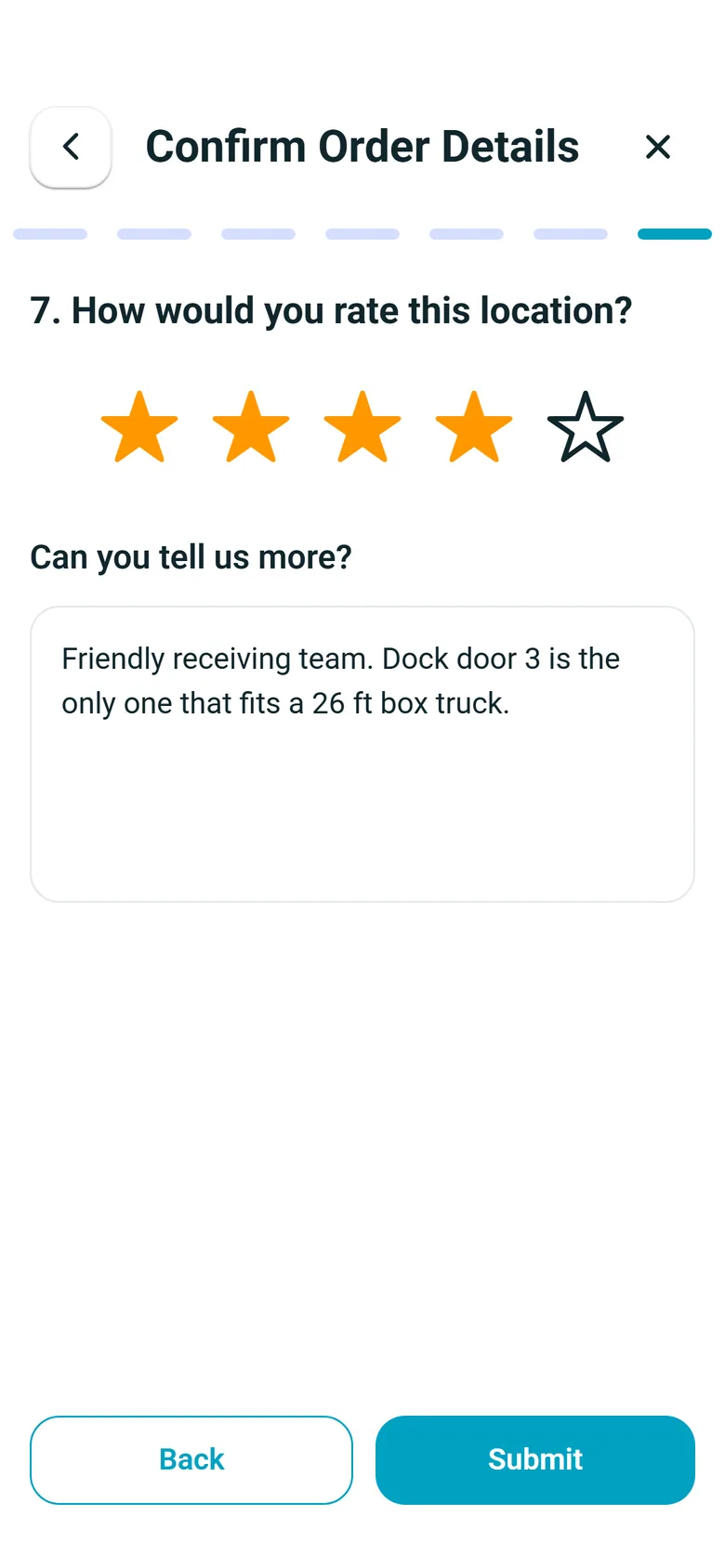
One question per screen
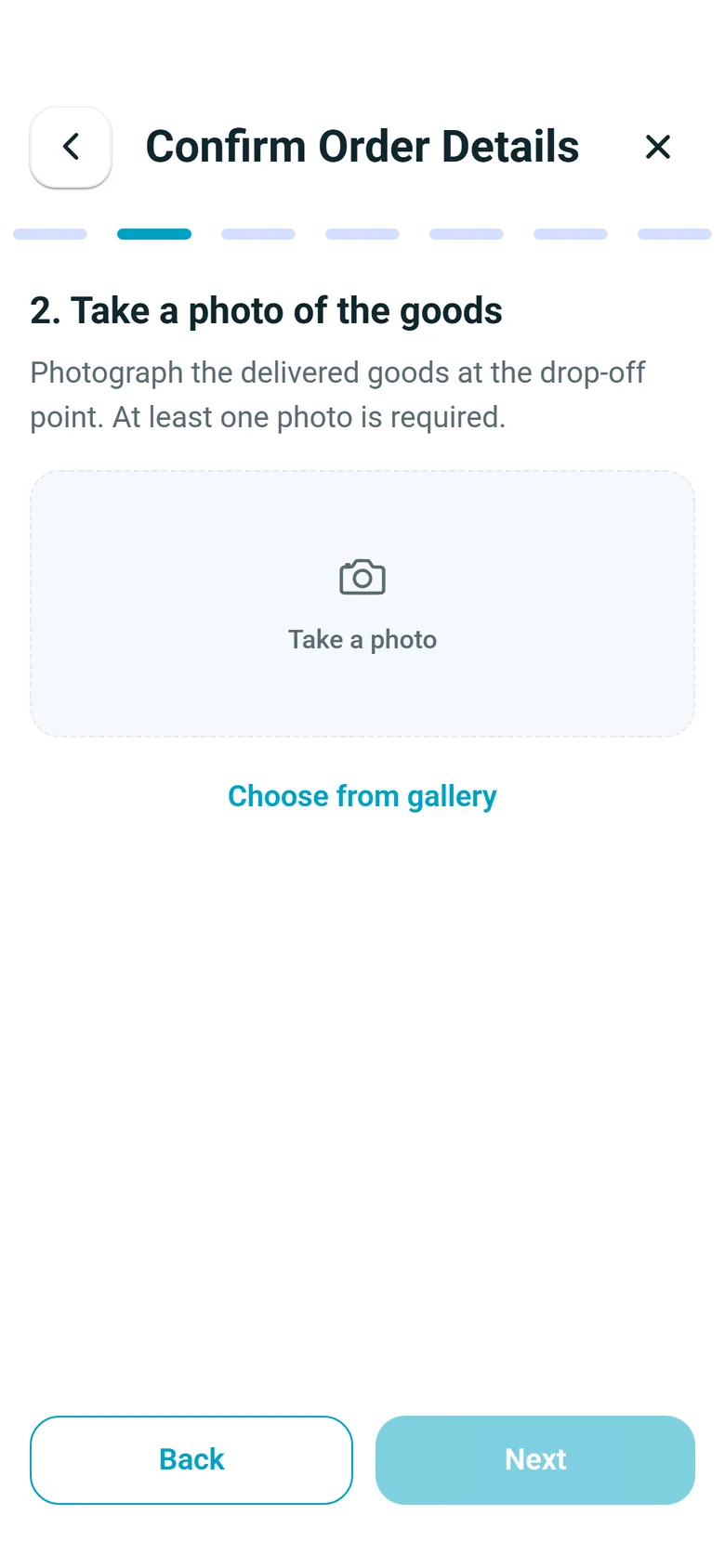
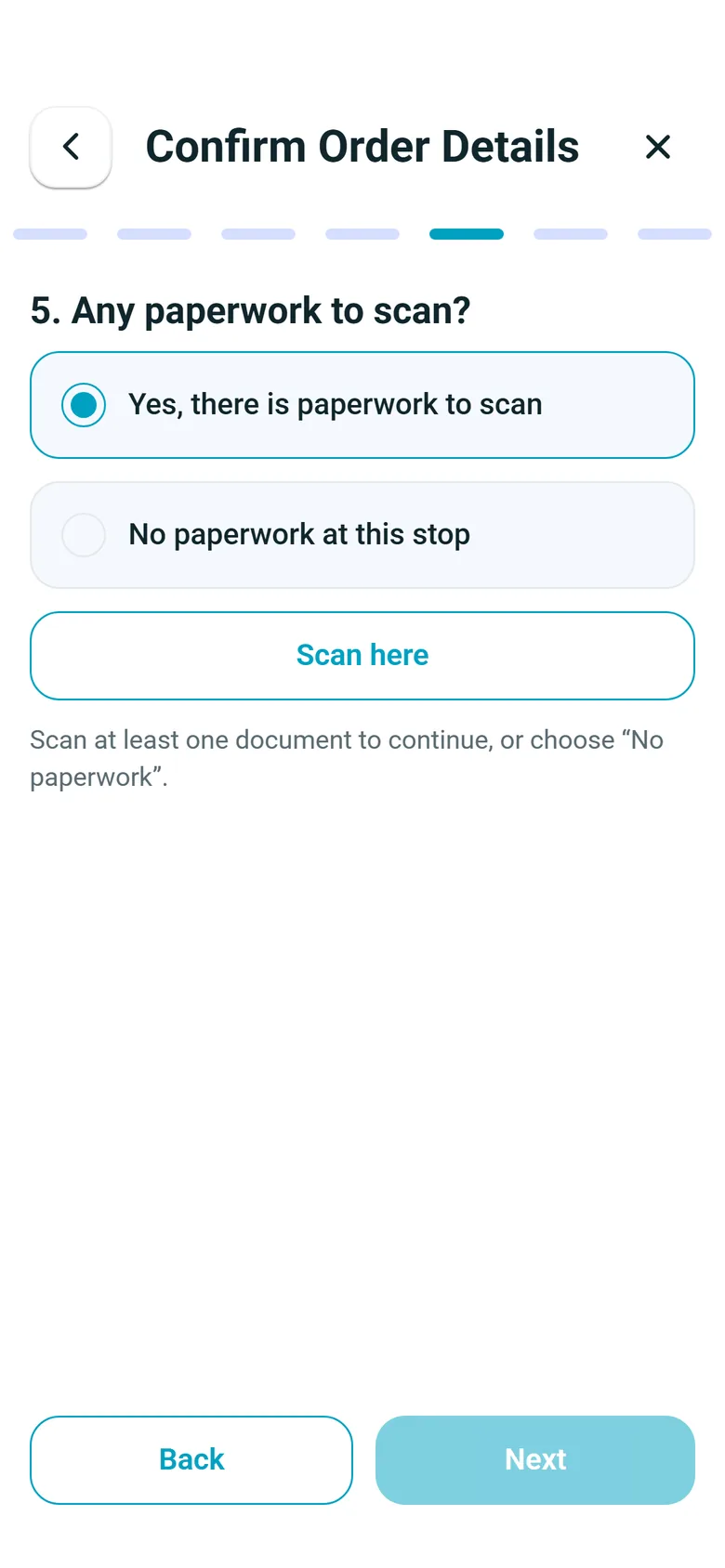
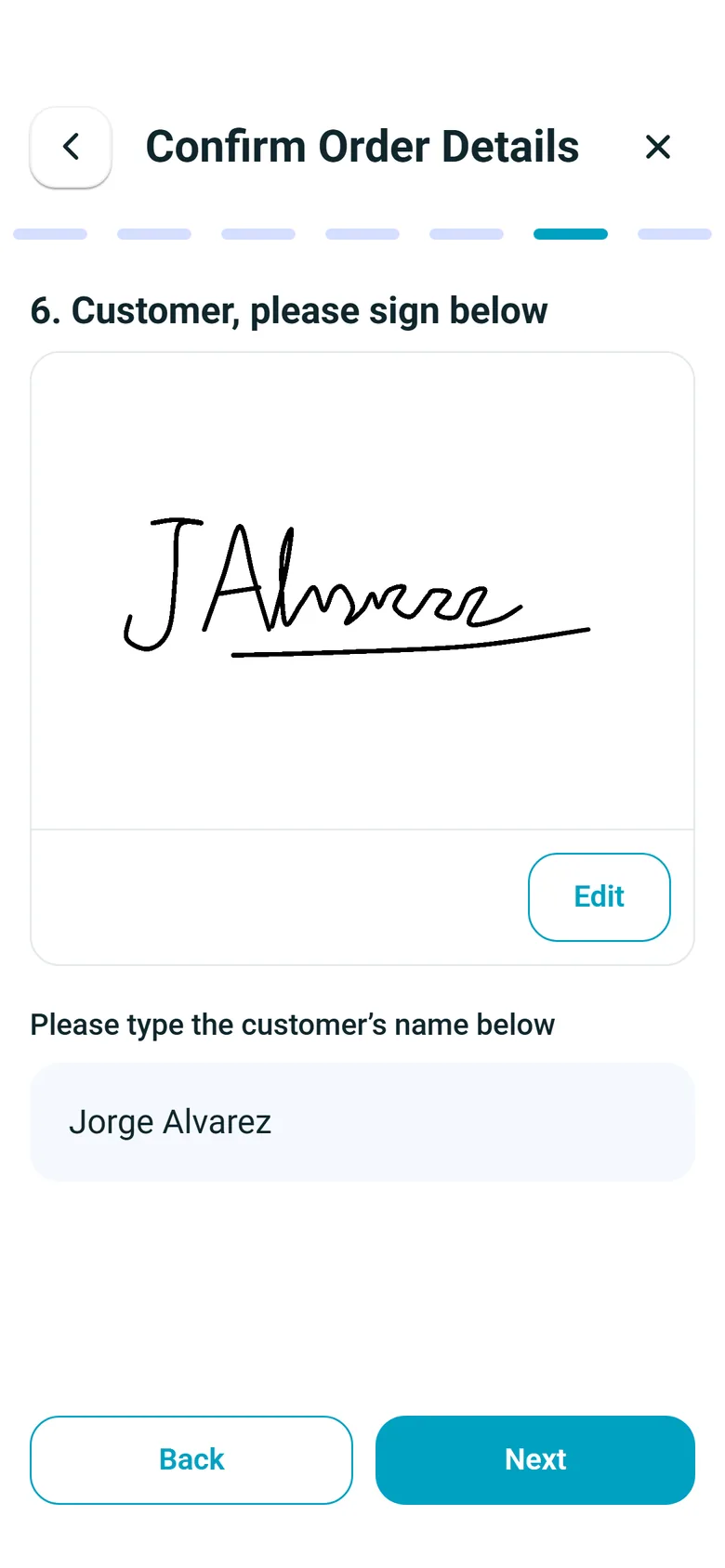
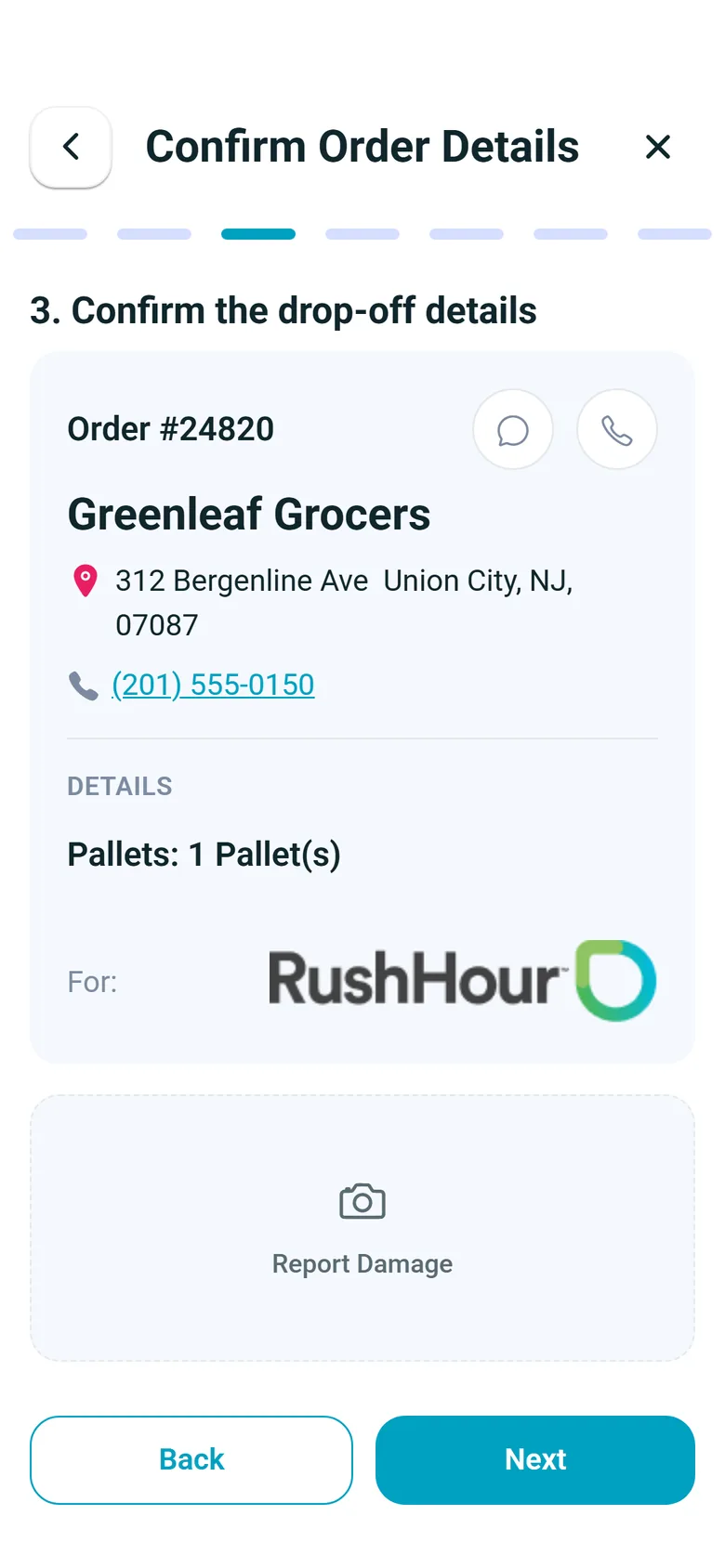
The bar at the top shows how many steps this stop has, and steps your company switched off are skipped. Four steps from a delivery:
From the stop list to the next stop
What the driver does at every stop
Everything below is in the RushHour driver app, version 2.x, on Android and iPhone, unless a line names one phone. Your settings in the Company Portal decide which of the optional steps drivers see.
Before the stop
Every stop on one list, with what to expect there
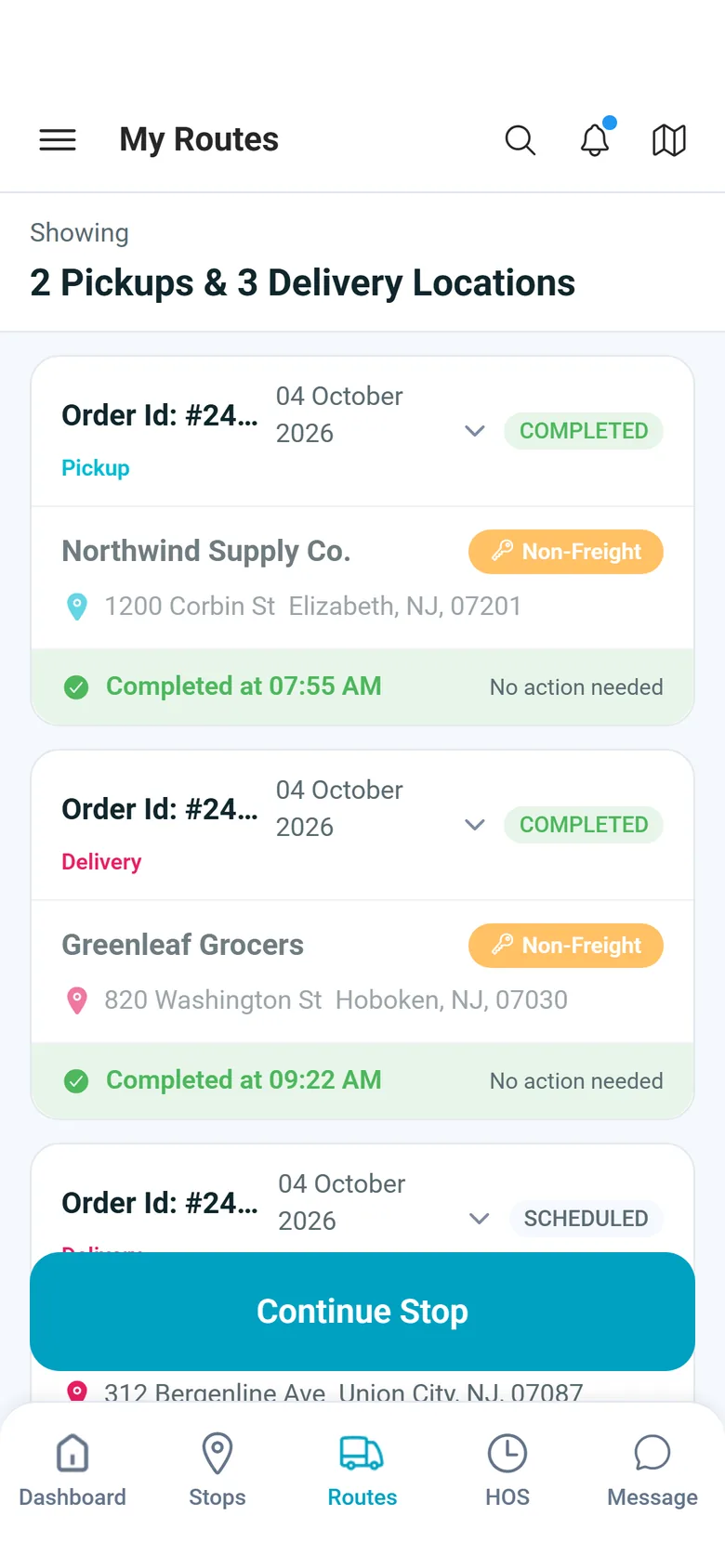
My Routes shows how many pickups and deliveries are on the route and lists each stop with its order number, date, customer and address. A status pill shows where each stop stands, completed stops are dimmed with the time they were finished, and appointment details and special requirements are on the card before the driver gets there.
- Status pills: Scheduled, Arrived, Attempted, Pending Delivery and Completed
- Appointment Required, or a confirmed appointment with its date, time and appointment number
- A Freight tag on stops where freight is collected, and a Liftgate required tag on stops flagged for a liftgate (not yet settable in the Company Portal)
- Blind stops show the name you set for the driver instead of the real customer's
- A delivery on hold has no map pin and can't be completed: tapping it shows Delivery on hold and asks the driver to contact dispatch to release it
Arriving
The arrival is recorded when the driver gets there
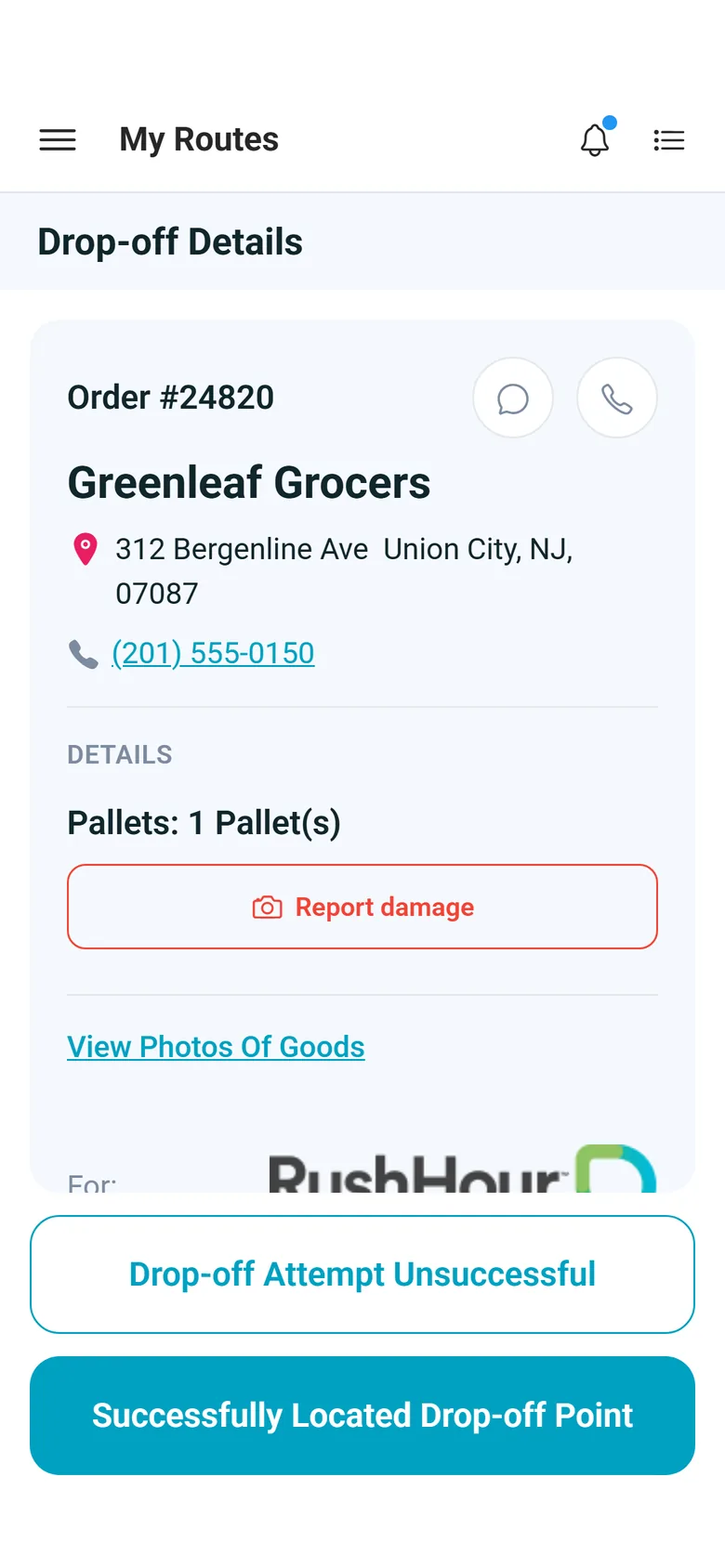
On the route map, a banner with an Arrived button appears when the driver's phone is within about 25 meters of a stop. The driver can also tap any stop, on the map or in the list, and confirm Arrived. The arrival time is saved on the stop, and Pickup Details or Drop-off Details opens with the address, the contact and the notes saved on the location.
- Arriving out of order asks: This isn't your next stop. Continue anyway?
- Location Details and Instructions saved on the location, such as a dock or a gate code
- Message and Call buttons for the stop's contact; Message opens the phone's messages with a greeting filled in
- Report damage on this screen uploads a damage photo to the stop
- The departure time is saved when the driver finishes the stop
The pickup
Load what the order says, and show what was loaded
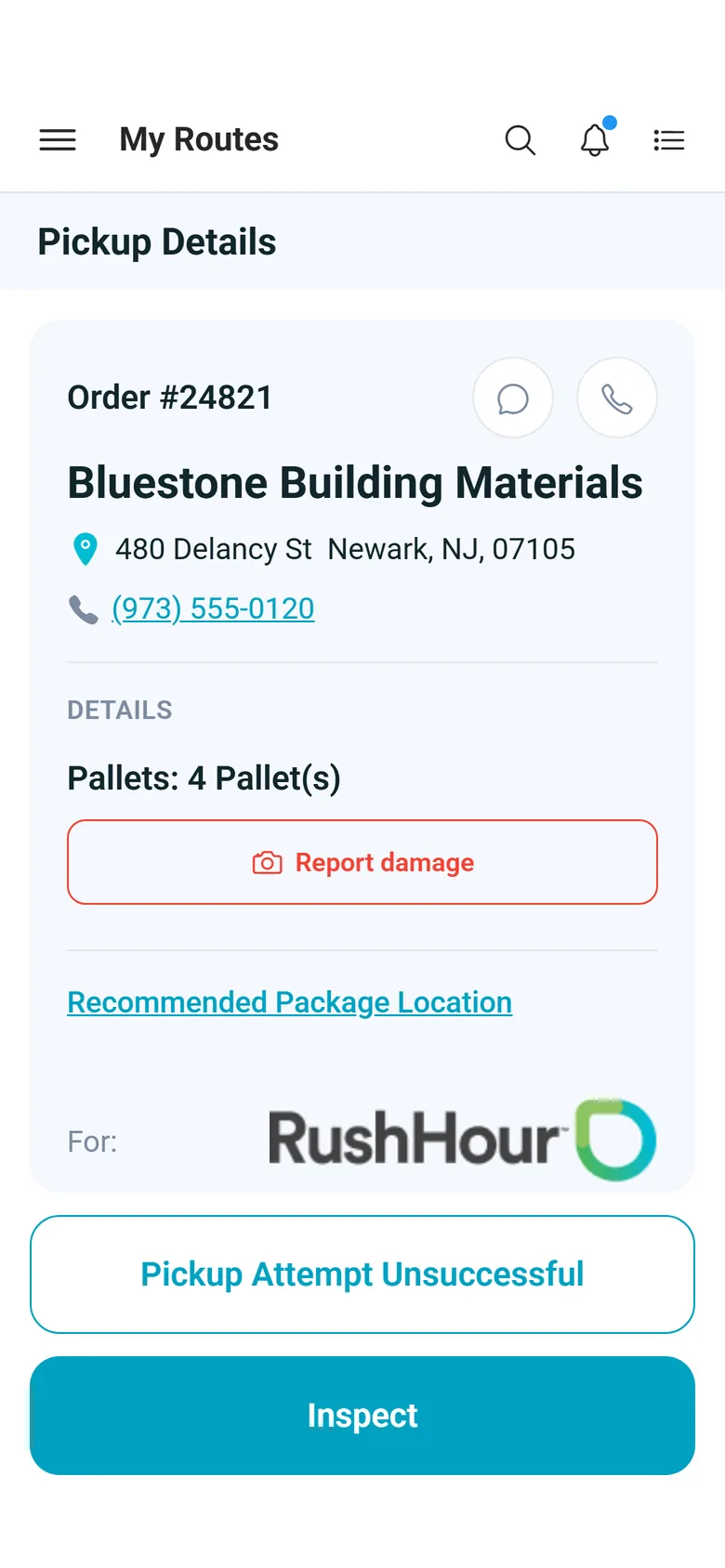
The pickup starts from the items planned on the order. The driver confirms each item category and corrects the quantity when the count is different. When the freight carries barcodes, the driver scans each unit as it goes on the truck, and the app compares planned, actual and scanned quantities before the goods photo, charges, paperwork and signature.
- On Pallets+ items, the driver opens a pallet to count the boxes, bags or items on it
- Reads QR, Code 128, Code 39, Code 93, Codabar, EAN-13, EAN-8, ITF-14, UPC-A, UPC-E, PDF417, Data Matrix and Aztec codes
- Each scan shows whether it matched this stop, repeat scans are ignored, and a barcode can be typed in by hand
- Can't scan? The driver picks why: no barcode on freight, barcode unreadable or damaged, or camera not working
- A Short Pickup flag when less was loaded than planned
- Recommended Package Location: drag the freight to its spot in the truck (left, center or right; front, middle or rear) and pick the bottom, middle or top layer
The delivery
Unload against a checklist, and note what was wrong
At a delivery with load units on the order, the driver ticks off each pallet or unit as it comes off the truck, with a progress count and a search by pallet, SKU or item. A unit can be marked missing or damaged with a quantity, a note and a damage photo. Then come the goods photo, the drop-off details, charges, the paperwork scan and the recipient's signature with their name.
- Missing units lower the delivered quantity, and each missing or damaged unit is added as a note to the stop confirmation
- If the unit list can't load, the step waits for a retry instead of letting the checklist be skipped; Unload without checklist is the driver's explicit choice
- Paperwork pages from the camera or the gallery are saved as one PDF on the stop, at pickups too
- A delivery photo and a signature are required by default, and you choose whether a missing one blocks the stop or only warns (warning is the default)
- On Android, in driver app 2.0.15 from Google Play, each scanned page is scaled to a print-friendly size, and a page that can't be read is named so the driver can retake it
Charges and freight payment
Extra charges and freight money, captured at the stop
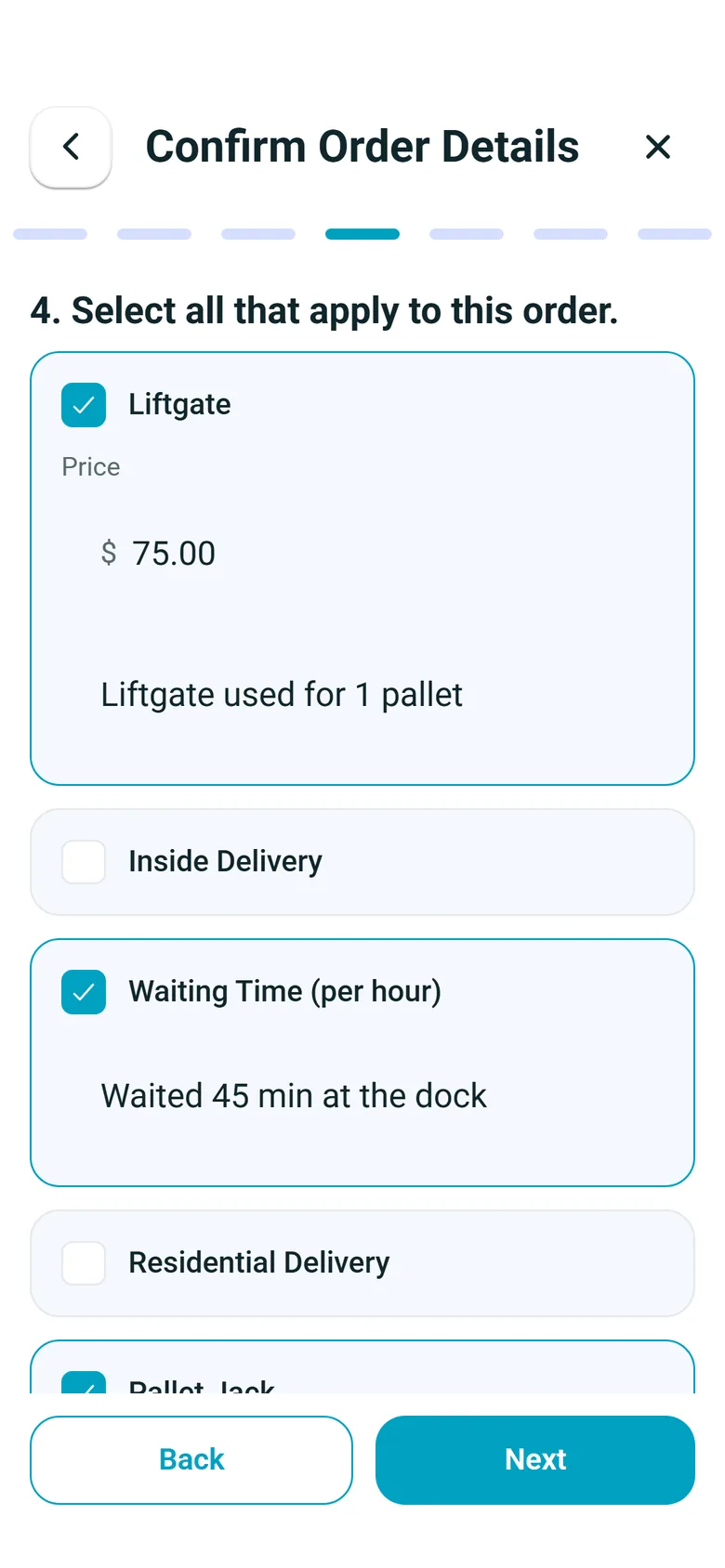
The driver ticks the charges that apply from your own charge types for that stop, such as a liftgate or waiting time, and adds a note. A price field appears only on charge types you allow to be overridden. When freight is collected at the stop, the app shows the amount due and, if the customer pays by check, asks for photos of the front and back. At a pickup the driver can also record the cash taken.
- Charges are saved on the order stop, and confirming the stop again updates them instead of adding duplicates
- Cash at a pickup: enter the amount and add a proof photo; a partial payment shows Partially paid with the balance left
- Front and back photos of a check, at pickups and at deliveries
- RushHour won't complete a stop while freight is still owed on it
- Charge collection can be switched off for the whole company
When a stop can't be done
A failed attempt with a reason, not a phone call
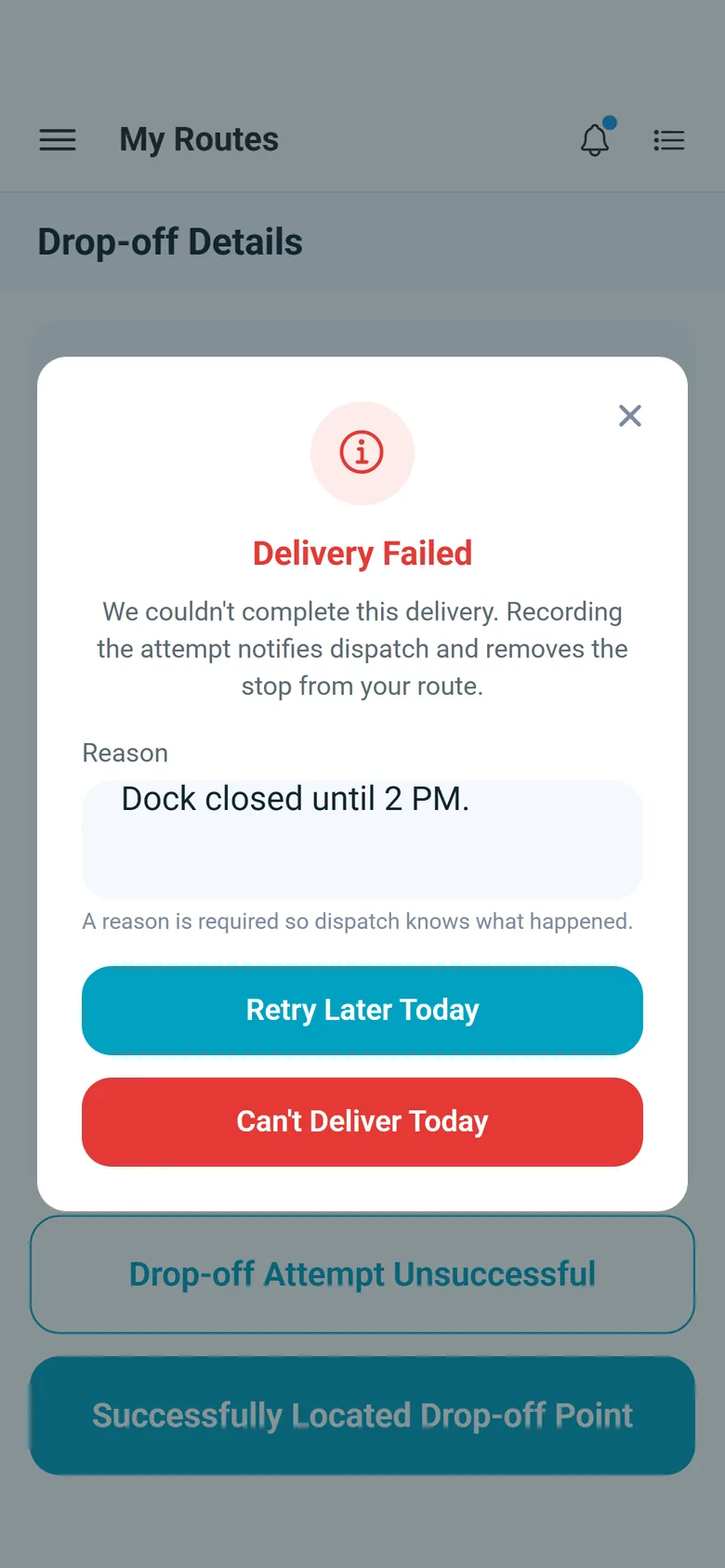
From Pickup Details or Drop-off Details, the driver taps Pickup Attempt Unsuccessful or Drop-off Attempt Unsuccessful, types what happened and chooses Retry Later Today or Can't Pickup Today (Can't Deliver Today on a delivery). The attempt is saved with the reason and the arrival and departure times, and the stop leaves the driver's route and goes back to dispatch.
- A reason is required, so dispatch knows what happened
- The stop goes back to the unassigned list on the dispatch board, ready for another route
- Your setting decides what happens to a planned transfer that depended on the stop: remove it and notify the other driver (the default), remove it silently, or keep it
Around every stop
What keeps the stop flow dependable for drivers and useful for the office.
You decide the steps
In Settings > Driver App you choose barcode scanning, typed barcodes, item counts and goods photos at pickups, whether a signature and a delivery photo are needed, whether a missing one blocks or warns, and whether charges and paperwork scanning are on.
Picks up where it left off
If the app closes in the middle of a stop, the Routes screen asks Resume stop? and shows the step number and the order number. The arrival time and the photos already taken stay with the stop.
Built for dead zones
Barcode scans and confirmed quantities wait on the phone without signal and are sent later, and Scanned Items shows what is still pending. Finishing a stop needs a connection, so the stop is saved in one piece.
Straight to the next stop
After the last step, Task Completed tells the driver which task is next and sends them back to the route map. "Route complete!" appears only once no stops are left.
Proof on the order
Goods photos, damage photos, paperwork PDFs and the signature are saved on the order stop, and your office opens them on the order's Attachments tab.
Android and iPhone
The same stop flow in driver app 2.x, from Google Play and the App Store.
In the next release
More from every stop, in the next release
These are finished and come with the next RushHour release. They work with the driver app your drivers already have, with no app update needed.
After each stop
The next stop's address and scheduled time after every stopNext release
When a driver completes a stop, the Task Completed screen shows the next open stop with its address and scheduled time, shown as the ETA, or the driver and truck to meet for a transfer. Today the screen names the next task number and sends the driver back to the route map.
- The next open stop, with its address and scheduled time
- For a transfer: the driver and truck to meet, and the meeting location
- No driver app update needed
Proof of delivery
The proof-of-delivery PDF emailed when the driver finishesNext release
Turn on Email proof of delivery on completion in Settings > Driver App > Features. When a driver completes a delivery in the driver app, the customer the order is billed to gets that stop's proof-of-delivery PDF, with arrival and departure times, driver, truck, delivered items and, when they were captured, the GPS location, signature and photos.
- Off until you switch it on
- Sent to the customer's email addresses tagged Bill of Lading, or else those tagged Billing, or else all of its active email addresses
- Only deliveries completed in the driver app send it; stops completed from the Company Portal send nothing
Customer emails
Email the customer when the driver arrives or leavesNext release
Under Settings > Customer Notifications you can email the customer an order is billed to when the driver arrives at or leaves one of its stops, pick which details each email shows and in what order, and preview it. On a customer's Notifications tab you can override these defaults and choose different recipients.
- The arrival email goes out when the driver taps Arrived
- The departure email goes out when the driver finishes the stop
- Both emails are off until you switch them on
Questions
Questions about the stop flow
Can drivers work a stop without signal?
Partly. Barcode scans made without signal wait on the phone and are sent when the connection returns, and the Scanned Items screen shows which scans are still pending. Item quantities confirmed without signal are kept on the phone and sent when the stop is completed. Photos upload as they are taken, with a retry if the upload fails, and the last step that completes the stop needs a connection.
Can we require a photo and a signature on every delivery?
Yes. Both are on by default. In Settings > Driver App you can switch either one off, and choose whether a missing photo or signature blocks the driver from finishing the stop or only shows a warning. Warning is the default.
Which barcodes can drivers scan?
The phone camera reads QR, Code 128, Code 39, Code 93, Codabar, EAN-13, EAN-8, ITF-14, UPC-A, UPC-E, PDF417, Data Matrix and Aztec codes. Scanning is part of the pickup when the freight carries barcodes, and drivers can type a barcode by hand unless you switch manual entry off.
Can drivers collect cash or checks at the stop?
When freight is collected at a stop, the app shows the amount due. The driver can photograph a check front and back at a pickup or a delivery, and record a cash amount at a pickup, including a partial payment. RushHour won't complete a stop while freight is still owed on it.
What happens when a driver can't make a pickup or delivery?
The driver records a failed attempt from the stop screen with a required reason and chooses Retry Later Today or Can't Pickup Today (Can't Deliver Today on a delivery). The attempt is saved with the arrival and departure times, and the stop goes back to the unassigned list on the dispatch board.
What does the driver see after finishing a stop?
The Task Completed screen. While stops remain, it says which task is next and sends the driver back to the route map; "Route complete!" and Review End of Day appear only when no stops are left. In the next release, the same screen also shows the next stop's address and scheduled time, or the driver and truck to meet for a transfer.
Do drivers on Android and iPhone get the same flow?
Yes. The stop flow on this page is the same in version 2.x of the RushHour driver app, from Google Play and the App Store, and follows the same settings from your Company Portal. One difference: from version 2.0.15 on Google Play, Android phones scale scanned paperwork pages to a print-friendly size and name any page that can't be read.
Related
Watch a full stop on a phone.
In a demo we run a pickup and a delivery in the driver app, then open the order to show the photos, paperwork and signature it saved.