
Message drivers and customers
from the system you dispatch in.
Your team chats with drivers from the Company Portal, in Inbox → Chat or from a route card on the Dispatch board, one-to-one or per route, and drivers answer from the Message tab in the RushHour driver app. Customers reply to your messages by email or in the Customer Portal, and a copy of every email RushHour sends for you is kept in one company Inbox.
What's included
Driver chat, customer threads and company email, where your team already works
Conversations sit next to the routes, drivers and customers they are about, so the history is there the next time someone asks.
Office to driver
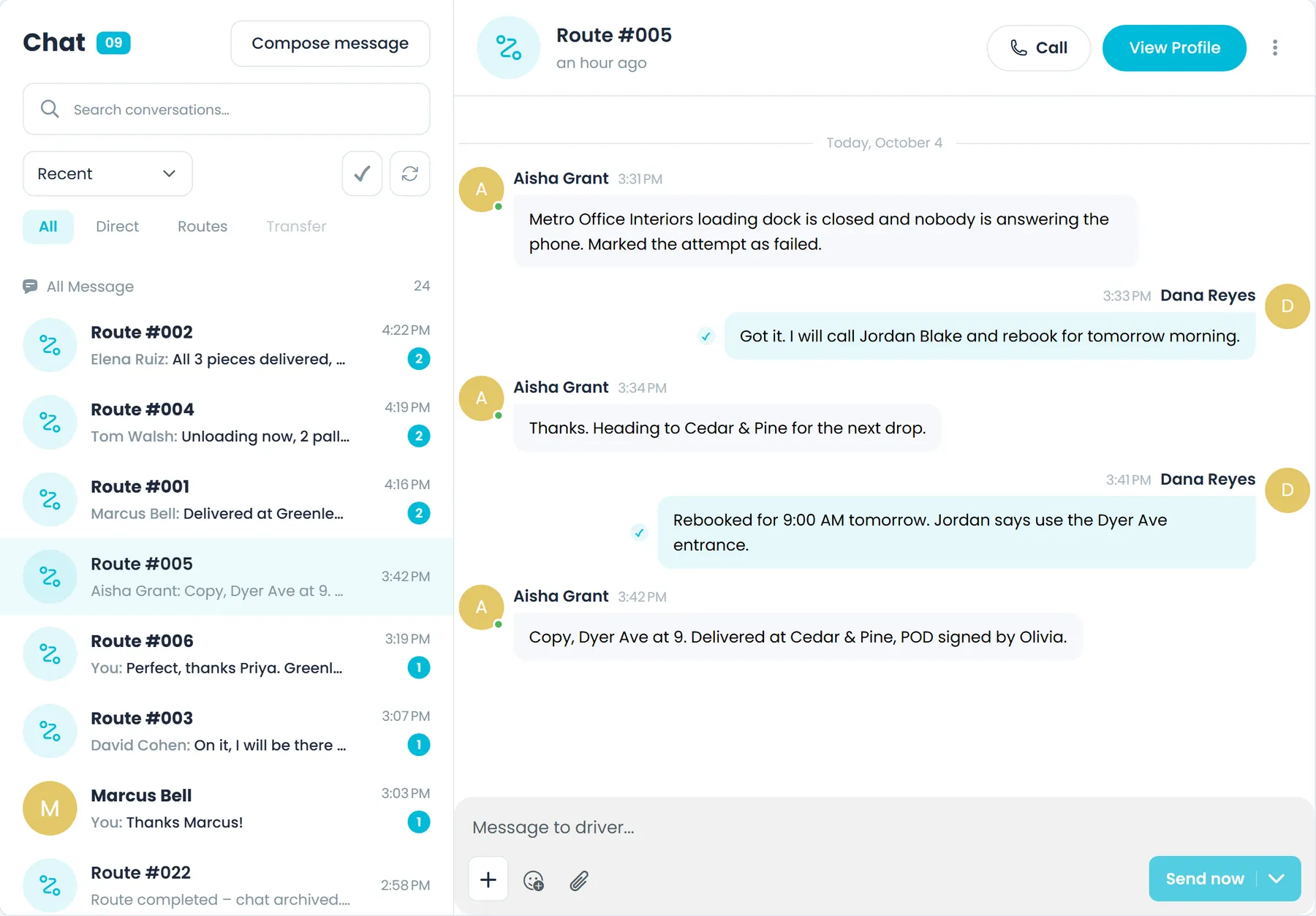
Inbox → Chat: driver and route conversations in one list
Inbox → Chat lists the office's one-to-one conversations with your drivers and a conversation for each route, created when a driver is first assigned to it. Switch between All, Direct and Routes, search, sort by Recent, Unread first or Name, and mark everything read with Mark all read. Inside a conversation, write with emoji, attach photos and files, delete messages you sent, call the driver or open their profile. When a driver writes while you are elsewhere in the Portal, a toast pops up and the chat icon for that driver or route turns unread.
- Compose message sends one message to several drivers at once, each in their own conversation, and tells you how many could not be sent
- The same chats open from a driver's Messages tab and from the chat icon or Chat History on a Dispatch route card
- Reassign a route and its chat moves with it: the new driver joins and the previous driver leaves
- Archived conversations stay readable, but the office can't post in them
Copy to Driver
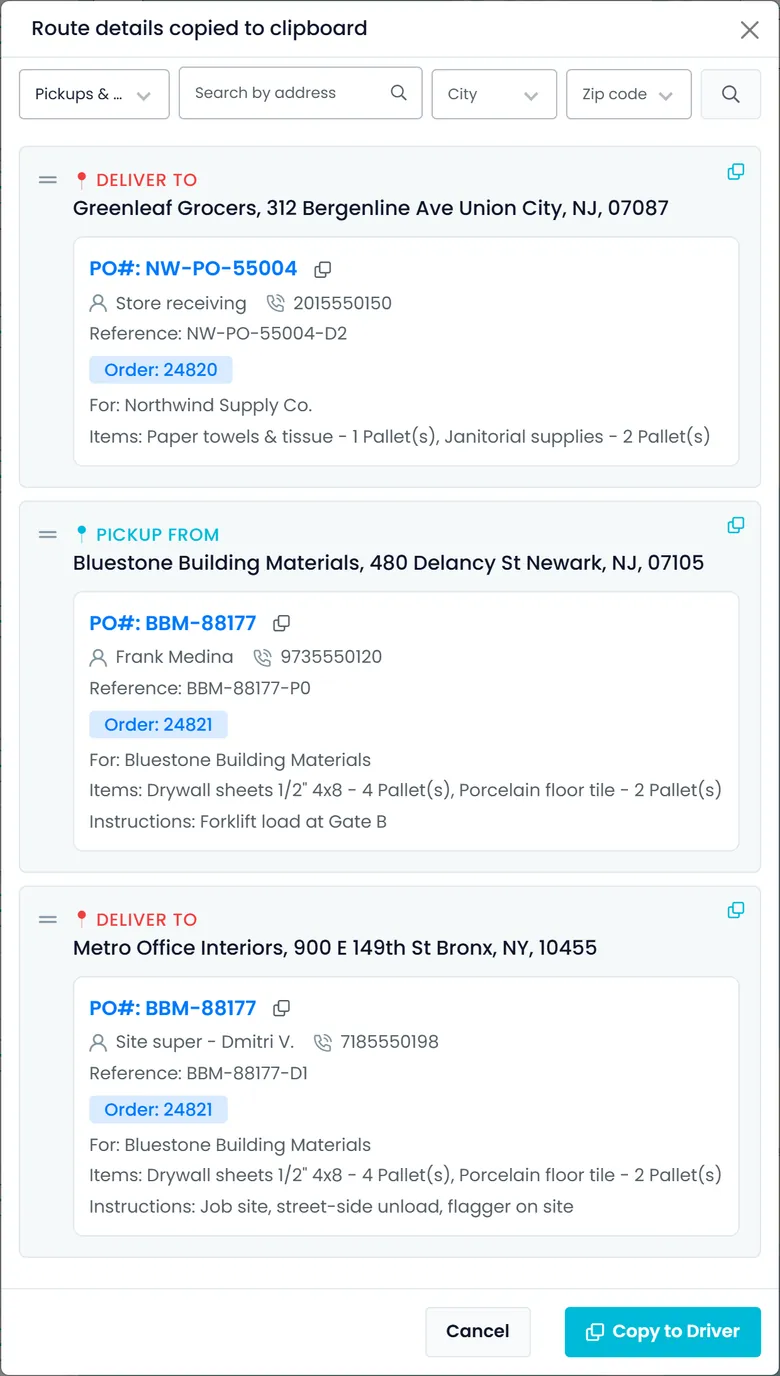
Stop details for the driver in one click, or sent to Telegram
Copy to Driver turns an order, a single stop or a whole route into a message the driver can work from: for each stop, the address, the contact name and phone, the PO number, reference, order number, the customer the order is for, the items and the driver instructions. It lands on your clipboard, ready to paste into whatever app your drivers already use. If you connect Telegram in Settings → Integrations and enter a driver's Telegram user ID on their profile, RushHour also sends it to that driver in Telegram.
- Open it from the Orders list, an order or a stop's menu, or a route or stop card on the Dispatch board
- Show only pickups or only deliveries, and send one message for stops that share an address
- On the Dispatch board, the PO number has its own copy button
- Telegram connects by signing in with your Telegram phone number and the code Telegram sends
In the driver app
Drivers answer from the app they run their routes in
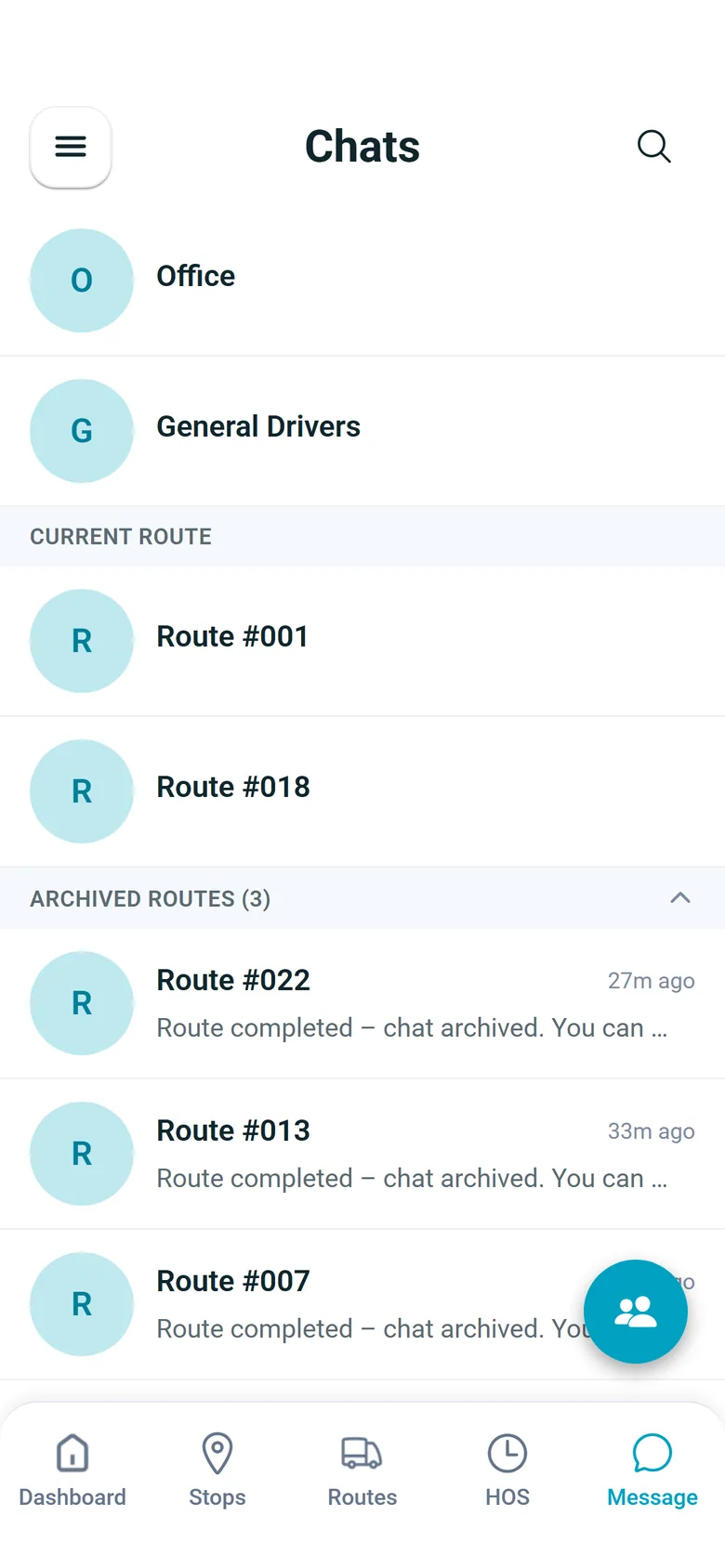
The Message tab in the RushHour driver app starts with the driver's Office chat, then a chat for each route they are driving, then Archived Routes, order chats and direct messages, grouped under headings, with search. Drivers send photos from the camera or the gallery, with or without a caption, and open or save files the office sends, such as a PDF; they can send photos but not documents. A message that could not go out for lack of signal stays in the conversation and is sent automatically when the connection returns. All of this is in version 2.0.12 and later of the app, on Android and iPhone.
- Unread chats in bold, the unread total on the Message tab, and an 'N new messages' line where the driver left off
- A chat button on the route map opens that route's conversation and shows how many messages are unread
- Group chats with other drivers who are working on the same orders right now
- Type @ to mention someone in the conversation (app 2.0.14 and later); a mention does not send a separate notification
- A driver you @mention gets a separate "mentioned you" push, even in a muted chat, and office users can @mention drivers and colleaguesNext release
Customer threads
One thread per customer, answered by email or in the portal
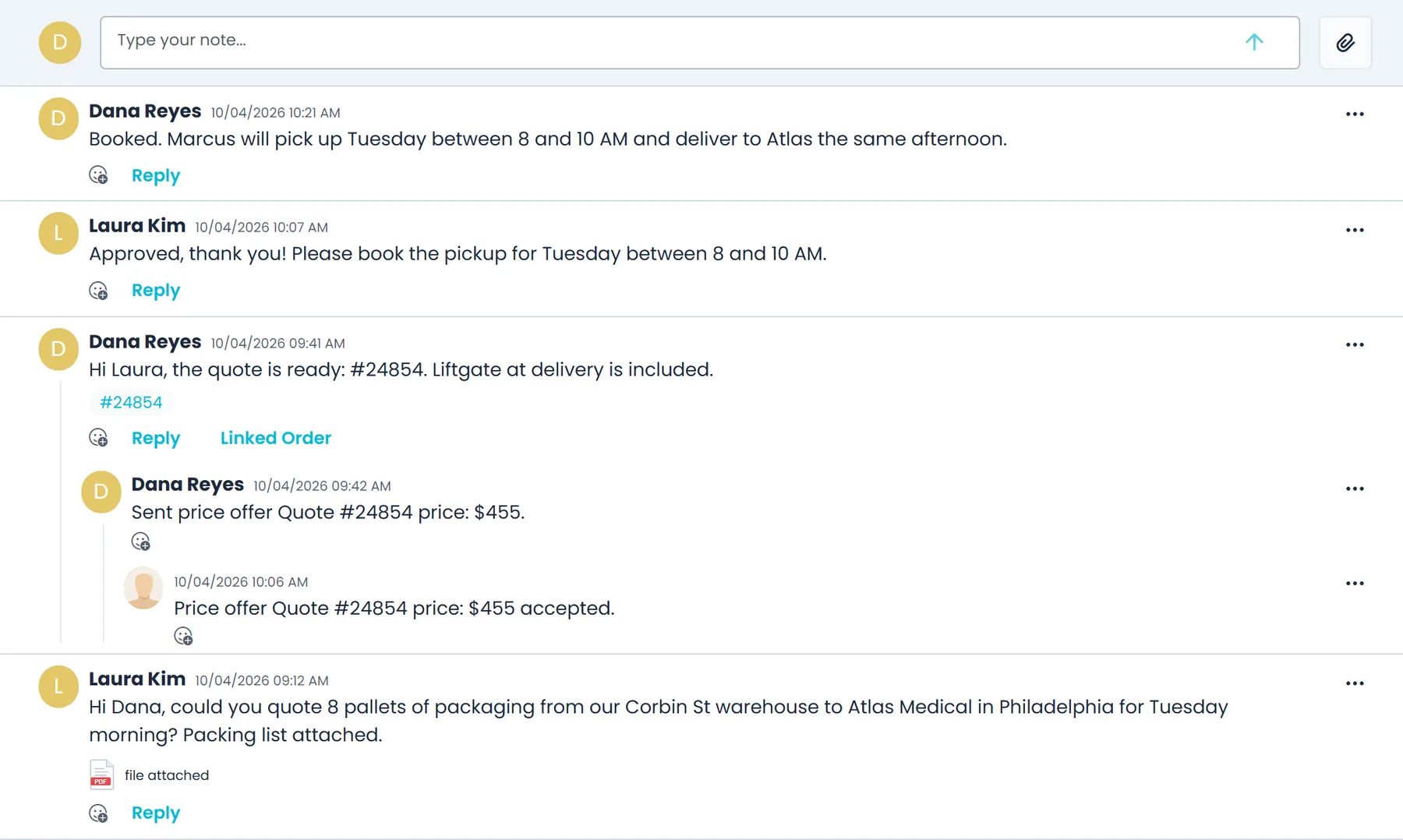
Each customer record has an Inbox tab holding one conversation between your team and that customer. A message you post there is emailed to the customer with a secure link, so they can reply without signing in, and the reply lands back on the thread. Customers with Customer Portal access use the same thread from Support → Chat, shared with their colleagues, and can attach images or PDF, Word, Excel, CSV and text files of up to 10 MB each.
- Type # to tag an order, invoice or bill of lading, attach files, reply to a specific message and react with emoji
- Company admins send a price offer that the customer accepts or rejects from the email
- Report an Issue and Request Price Match from the Customer Portal arrive on the thread, as do appointment replies
- The customer's Inbox tab shows how many messages are unread
Company Inbox
A copy of every email RushHour sends for you
Invoices, quotes, bills of lading and notifications that RushHour emails for your company are copied into one Inbox, marked Sent when the mail service accepted them or Failed when it refused them. Open an email with its attachments, preview them in the app or download them, and answer with Reply, Reply all or Forward. Write new emails with To, Cc and Bcc suggestions from your contacts, customer emails and drivers, and ask AI to draft the body from the subject, improve what you wrote or suggest a subject, each shown for you to accept or decline.
- Folders for all mail, sent mail and unread mail, a date range filter and Mark all read
- Password reset links and one-time codes are redacted before an email is stored, and the email is marked Redacted
- Sent from your own addresses set in Settings → Profile: one for quotes and BOLs, one for accounting, a general From address, and a CC address copied on every email
- Each sender address is used once it is verified; until then, email goes out from your general From address if that one is verified, or from RushHour's default address
- Open to users with the View inbox permission, and writing email also needs Send email; company admins have both by default
Notifications
A notification bell in both portals, and push for route changes
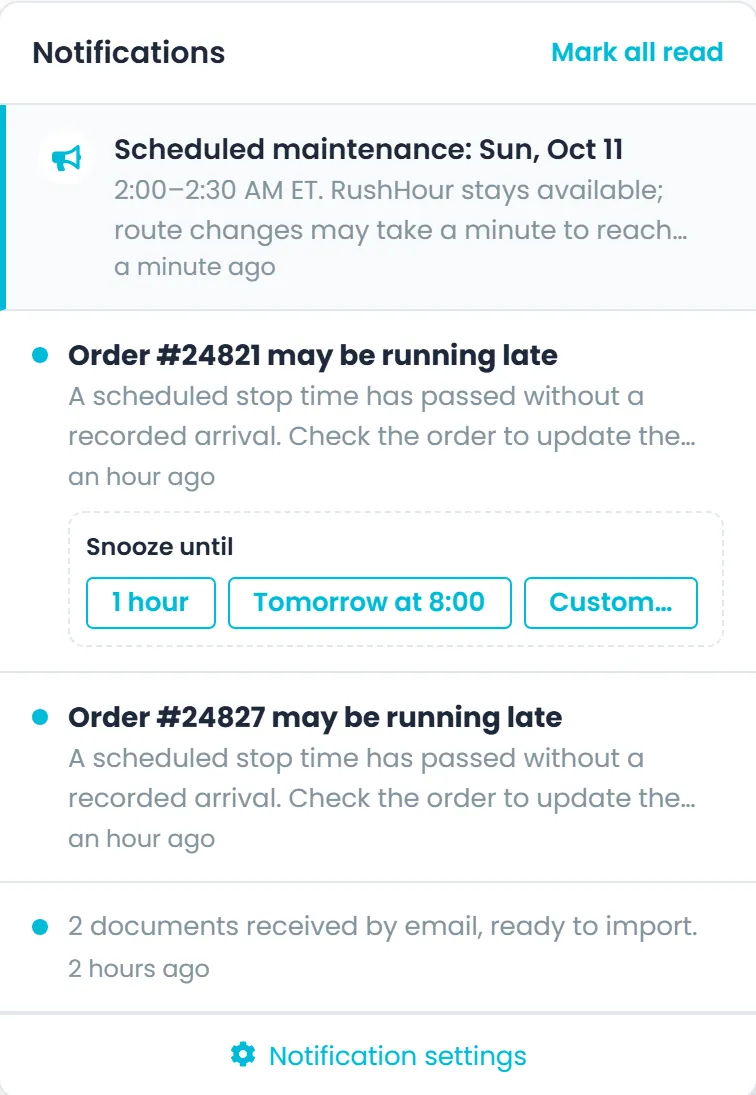
The Company Portal and the Customer Portal each have a notification bell whose unread badge updates while you work. Mark notifications read or unread, dismiss them, or snooze one for an hour, until 8:00 the next morning or to a time you pick up to 90 days ahead. Each person chooses, category by category, whether notifications show in the bell, arrive by email, or both, and email stays off until they switch it on. In the driver app, the bell lists the driver's notifications, and a push notification arrives when a route is assigned to them or its stops change.
- Categories include announcements from RushHour, documents and late deliveries
- Push to drivers when a route is assigned and when stops are added, removed, re-ordered or moved to another route
- Announcements from RushHour are pinned at the top of the list, and Mark all read clears the unread badge in one click
Built around the work, not a separate chat tool
Tied to the work
A chat for every assigned route, and customer messages that tag the order, invoice or bill of lading they are about.
Made for patchy signal
Messages a driver writes without coverage wait on the phone and go out on their own when the connection returns.
Customers reply without an account
Your message arrives by email with a secure reply link, and a price offer is accepted or rejected straight from its own email.
Your own sender addresses
Quotes, bills of lading and invoices go out from the addresses you set in Settings, once they are verified.
In the next release
One chat for every driver, route chats that stay open, and read ticks
These messaging changes are finished and come with the next RushHour release. Drivers need the latest driver app from Google Play or the App Store: version 2.0.8 or later for the drivers' chat and read ticks, and 2.0.4 or later for completed route chats.
Drivers chat
One chat with every driver in your companyNext release
Each company gets one drivers' chat that all of its drivers and the office share, for messages meant for every driver at once. Drivers find it as General Drivers, just below Office at the top of their chats, and can read and post there. Your team finds it under Inbox → Chat on the All tab once any driver has opened their chats.
- One thread for every driver in your company, plus the office
- Drivers get its notifications once they have opened it
- The office posts from Inbox → Chat, on the All tab
Route chats
Route chats stay open to drivers after the route is doneNext release
A completed route's chat still moves to Archived Routes but stays open to the driver, so they can follow up on things like a missing signature or a damaged pallet. This also applies to routes completed before the release. Your team reads and answers these messages in the route's conversation under Inbox → Chat → Routes.
- A note in the chat tells the driver they can still write there
- Also works for routes completed before this release
- Your team replies in the same route conversation under Inbox → Chat → Routes
Read ticks
Read ticks and sender photos in driver chatsNext release
In the driver app, each message a driver sends is marked once it has been read, and again once everyone in the chat has read it. In the drivers' chat, every active driver counts and the office counts as one reader. New messages in the driver app show the sender's profile photo as soon as they arrive, and so do new messages from other team members in the Portal Inbox. Route conversations in the Inbox list show who sent the latest message.
- A mark when a message is read, and another when everyone has read it
- Sender photos on new messages straight away
- Route conversations in Inbox → Chat show who wrote last
Copy to Driver
Copy to Driver only while stops remain, with every send on recordNext release
On an order, Copy to Driver appears only while a driver is assigned and a stop is not yet completed, and completed stops are left out of the window. You can highlight part of a stop's details, such as a phone number or an address. Each copy or send is recorded on the order's Log Activity tab with the driver's name, and on a tablet a swipe scrolls the stop list.
- Offered only while a stop is still to be done
- Each copy or send recorded on the order, naming the driver
- Easier to use on tablets
Questions about messaging
Do drivers need a separate messaging app?
No. Chat is part of the RushHour driver app, version 2.x on Android and iPhone, and the office answers from Inbox → Chat in the Company Portal. If your drivers also use another app, Copy to Driver puts the stop details on your clipboard to paste there, and if you connect Telegram and add the driver's Telegram user ID, RushHour can send them to the driver's Telegram directly.
Can customers reply without signing in?
Yes. A message you post on a customer's Inbox tab is emailed to them with a secure reply link, and their answer lands back on the same thread. Customers with Customer Portal access can also write from Support → Chat.
Does the Inbox show whether an email was delivered or opened?
It shows whether the mail service accepted an email (Sent) or refused it (Failed). It does not track delivery to the recipient's mailbox, opens or bounces.
What happens when a driver has no signal?
A message that could not be sent stays in the conversation, even if the driver closes the app. When the connection comes back, messages that never left the phone for lack of signal are sent automatically; a message that failed for another reason waits for the driver to retry it.
Who in the office can use Inbox → Chat?
The Inbox, including Chat, opens for users with the View inbox permission. Company admins have it by default and you can add it to other roles; writing email from the Inbox also needs Send email. Other office users can still message a driver from the driver's Messages tab or from a route card on the Dispatch board.
Can the office send files to drivers?
Yes. In a driver's conversation the office can attach photos and files, such as a PDF, and the driver opens or saves them on the phone. Drivers send photos from the camera or the gallery, but not documents.
Bring your dispatchers' daily conversations into the system they dispatch in.
In the demo we message a driver from Inbox → Chat, answer from the driver app and post on a customer's thread, so you can see where each conversation is kept.