
Proof from every stop,
filed on the order.
Drivers photograph the goods, scan the bill of lading and other paperwork into one PDF, get the consignee's signature on the phone, and photograph a check paid at the stop or record cash collected at a pickup. The files are saved on the order stop, where dispatch and billing open them.
In the driver app
A delivery, step by step on the phone
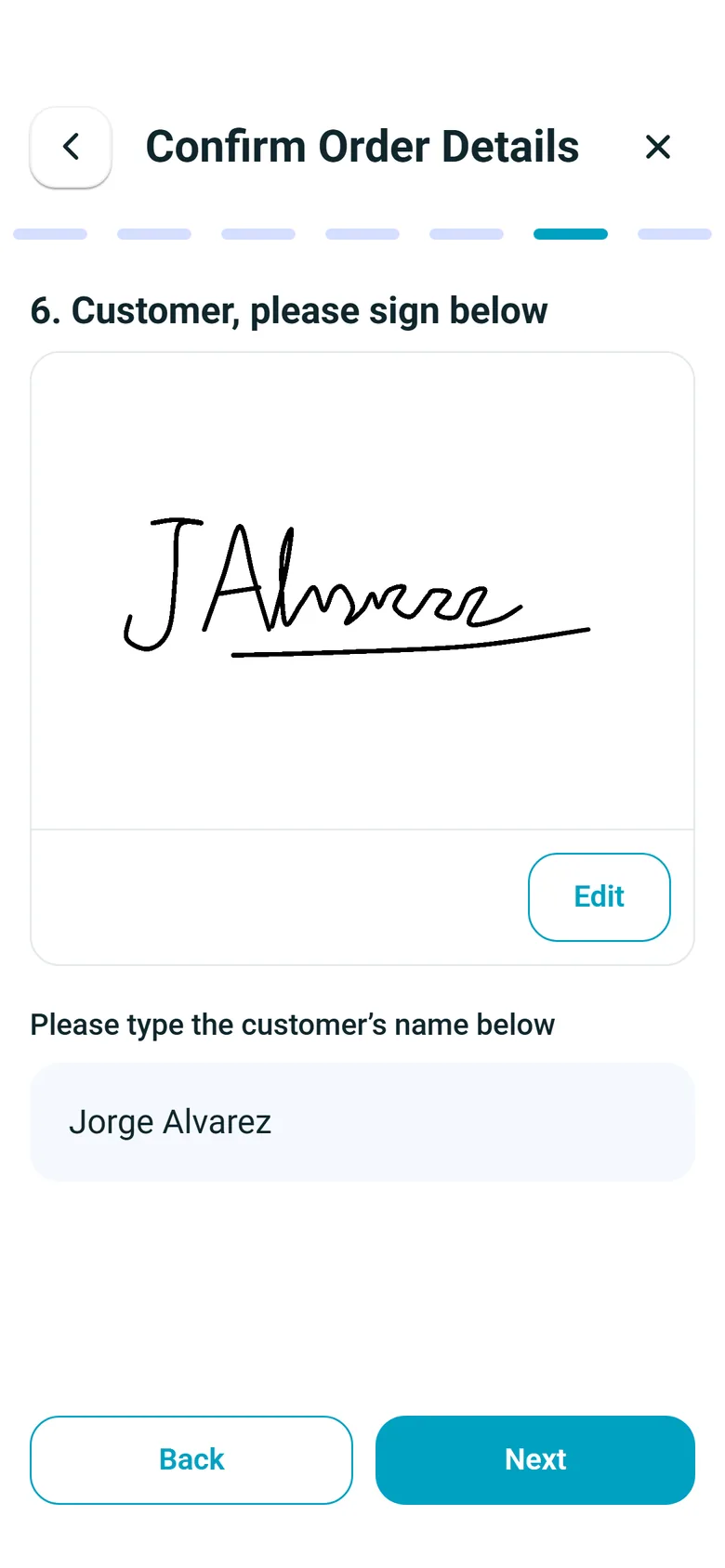
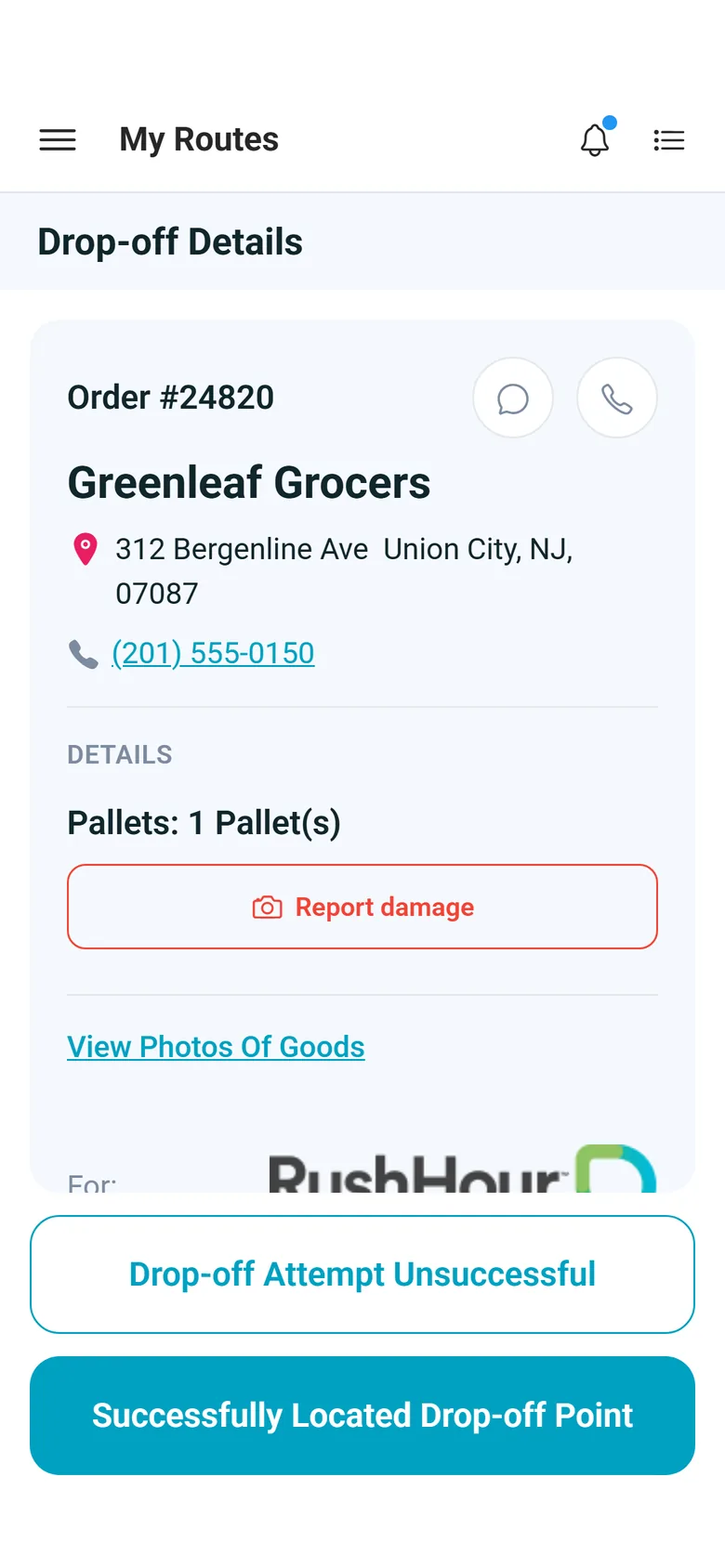
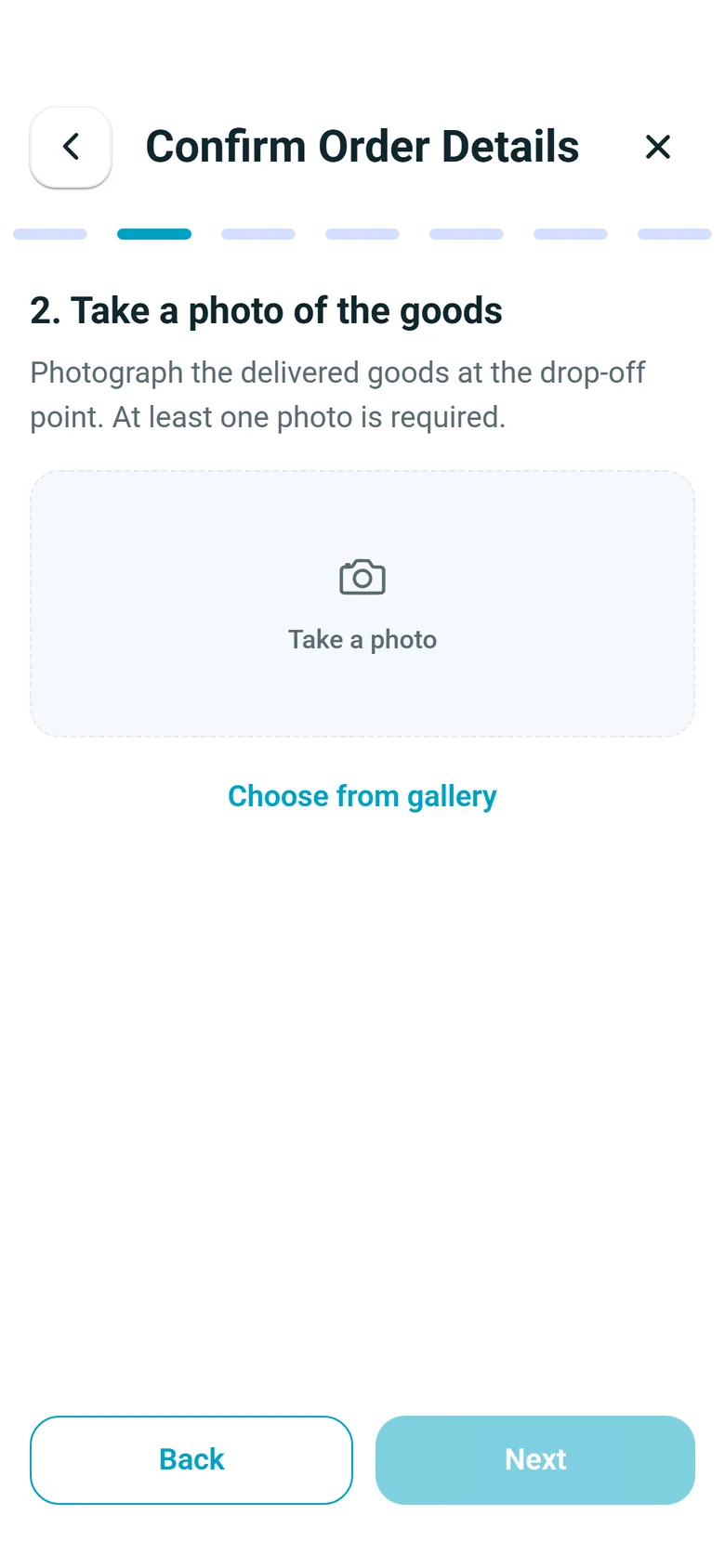
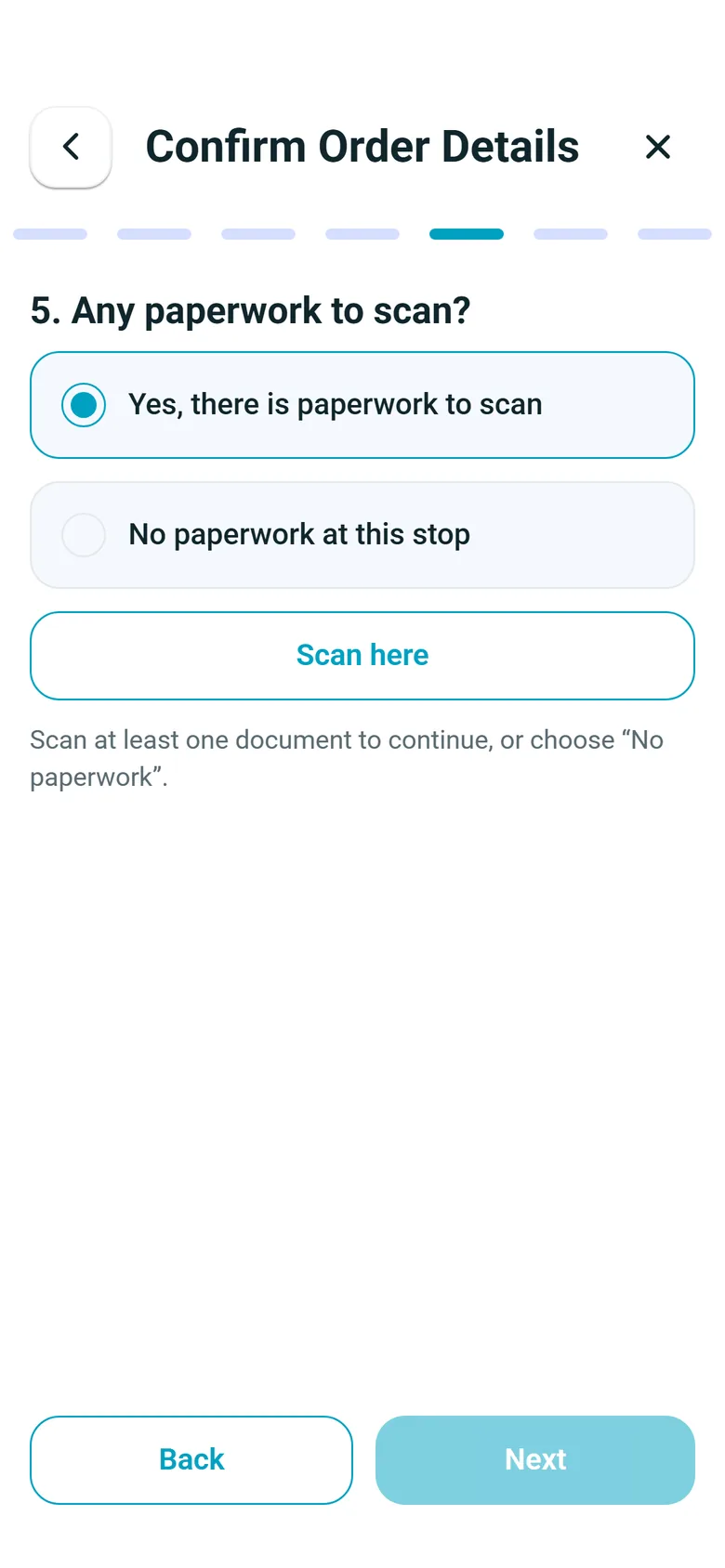
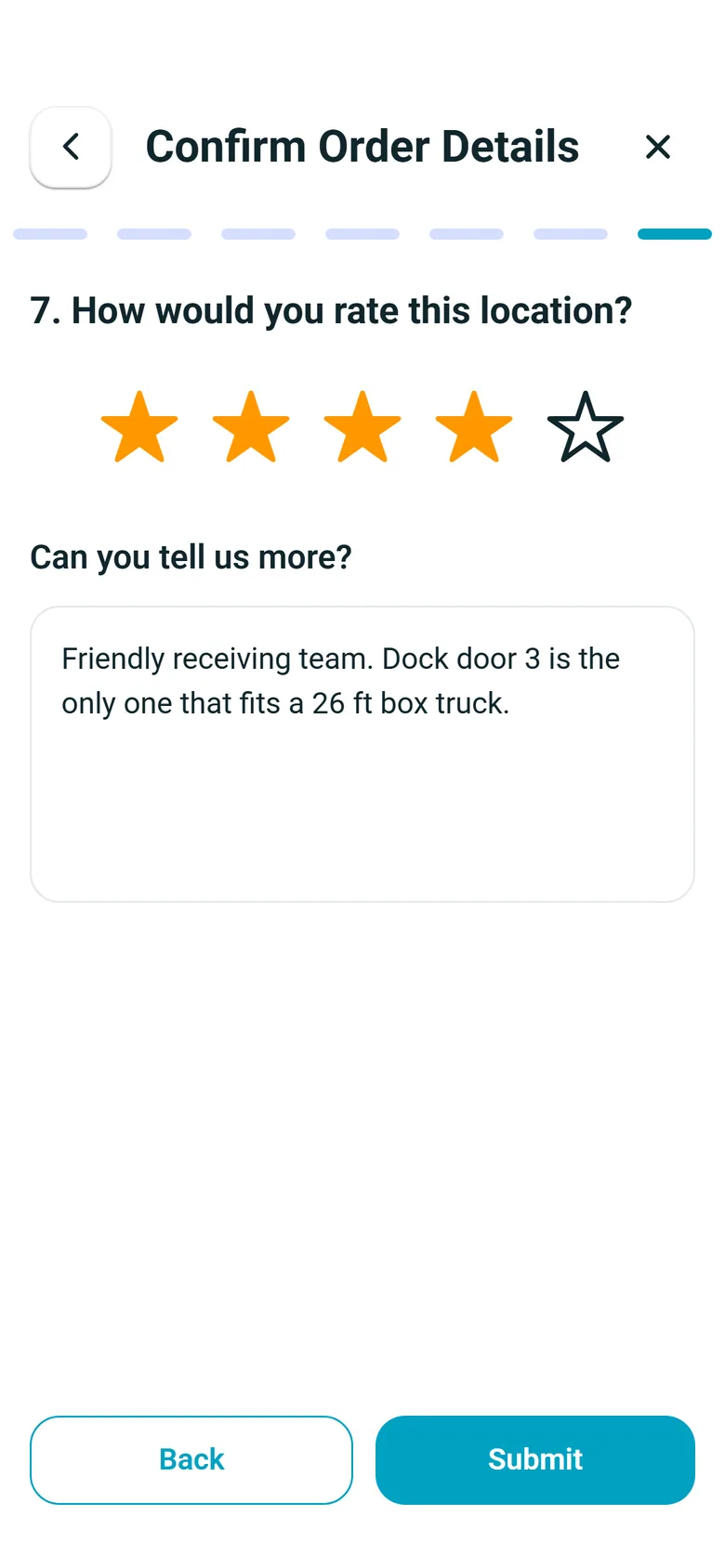
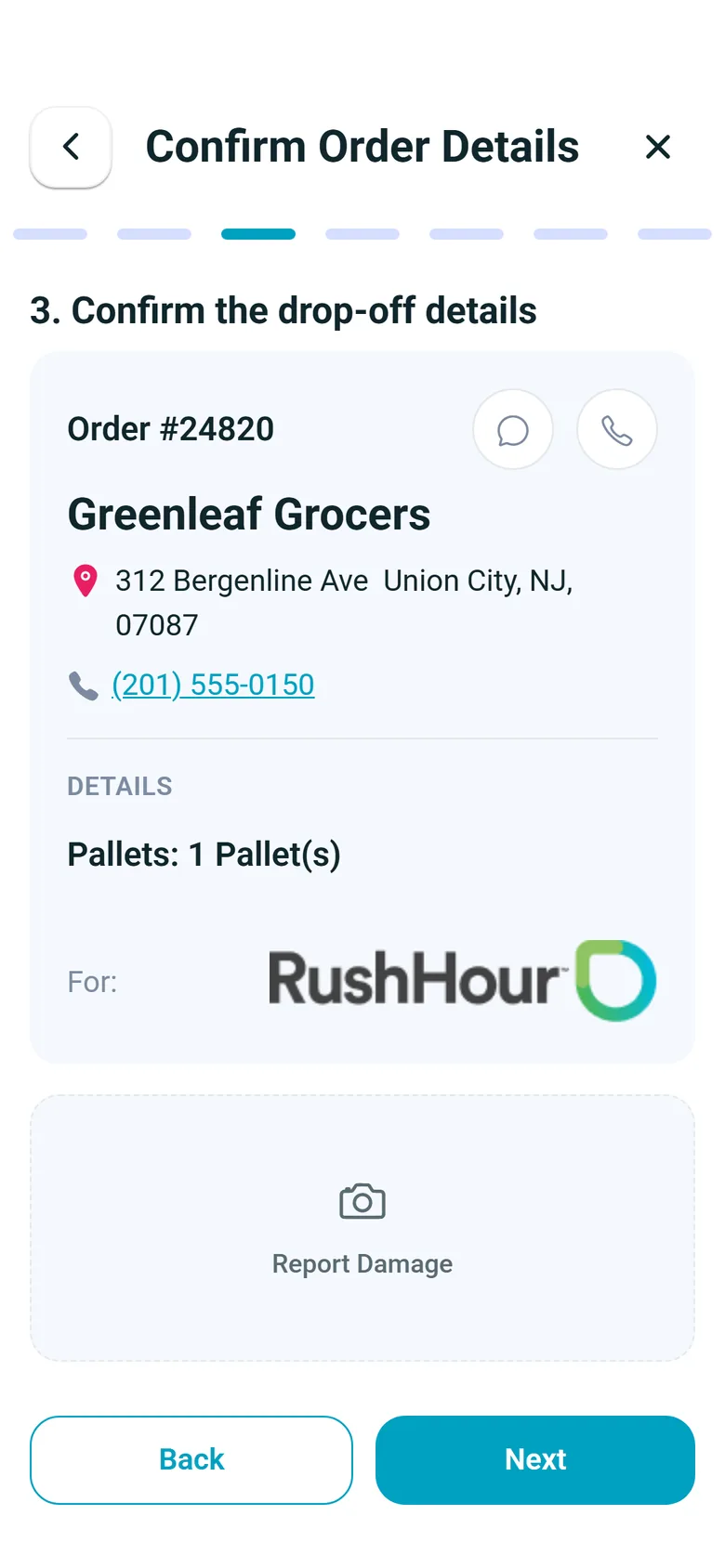
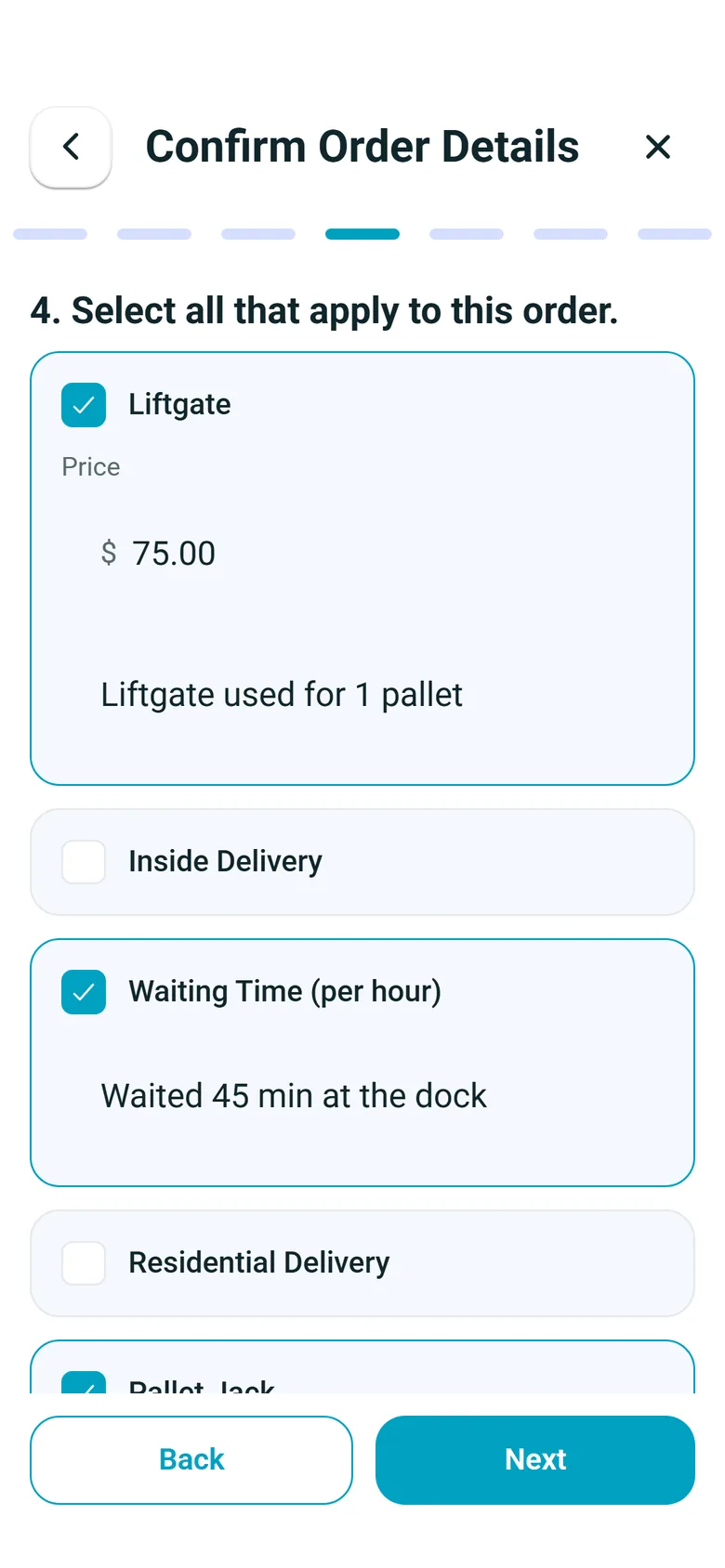
Real screens from the RushHour driver app 2.x. Each step asks one question, and the bar at the top shows how many steps this stop has.
How proof gets captured
From the driver's phone to the order
Proof is captured in the RushHour driver app, in version 2.x from Google Play and the App Store. Every driver step below works on both Android and iPhone.
At the door
Photos and paperwork, captured as part of the stop
The stop flow asks the driver to photograph the goods and whether there is paperwork to scan. The scanner takes several pages from the camera or the gallery, lets the driver remove a page and take it again, and saves them as a single PDF on the stop. When freight is paid at the stop, the app shows the amount due and the driver photographs the check front and back; at a pickup the driver can also record the cash collected.
- Goods photos at pickup and delivery, from the camera or the gallery
- Multi-page paperwork scan saved as one PDF
- Check photographed front and back; cash recorded at pickups
- Answering Yes to “Any paperwork to scan?” requires at least one scanned document before the driver moves on
Signature
The consignee signs on the driver's phone
At delivery the consignee signs on the driver's screen, and the signature image is saved on the stop next to the photos and scans. Pickups can ask for a signature too. Signature capture works on both Android and iPhone.
- Signature image saved on the order stop
- Your setting decides whether a missing signature stops the driver or only warns
- Pickups and drop-offs each have their own Sign manually switch in Settings > Driver App > Flow
What actually moved
Count what went on and came off the truck
When an order's freight is tracked as load units (for example from an imported packing list), the driver scans the ones that carry a barcode at pickup, and scans made without signal are kept on the phone until it reconnects. If a pickup count differs from the order, the app shows planned against actual before the driver moves on. Units imported from a packing list sit on the pickup, so at most deliveries the unload step just asks the driver to continue once everything is off the truck; when a delivery stop carries load units of its own, the driver checks each one off as it comes off the truck and can mark one as missing or damaged, with a photo: missing units reduce the delivered quantity, and the damage photo is saved on the stop. On any stop the driver can also add a damage photo with Report Damage.
- Load-unit barcode scans at pickup, kept offline until signal returns
- Planned vs. actual count check
- Missing or damaged units with a photo, on delivery stops that carry their own load units
- Report Damage photo on any stop, filed with the stop's attachments
Extras at the door
Charges recorded at the stop, not reconstructed later
The same flow asks the driver to tick the charges that apply, such as a liftgate or waiting time, from the charge types you set up for stops. The driver can add a note to each one and change the price only where the charge type allows it. Charges are saved on the stop, and a corrected confirmation updates a charge already there instead of adding it twice.
- Your own per-stop charge types, not a fixed list
- Price editable only where the charge type allows an override
- A note on each charge, such as why the liftgate was needed
- Charges collection can be switched off for the whole company
After the stop
The same proof for dispatch, billing and your customer
Nobody waits for the driver to come back: each photo, scan and signature is on the order as soon as it uploads.
Back in the office
The office and the customer see the same proof
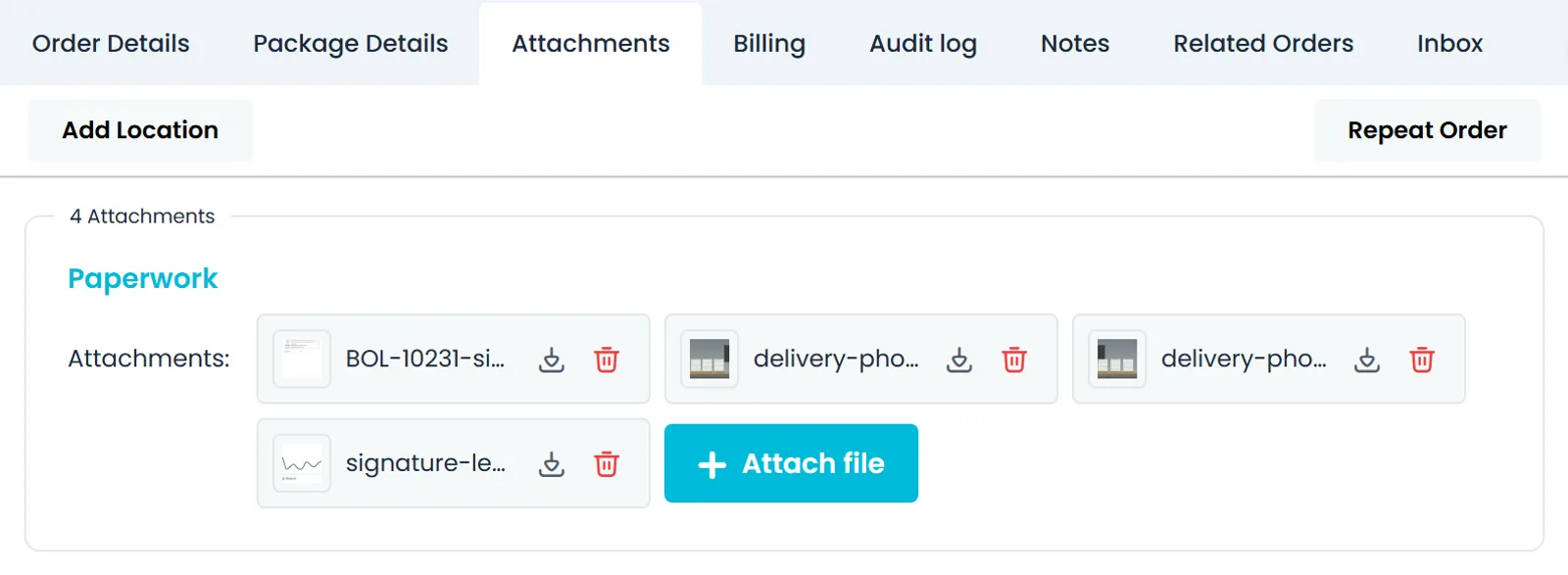
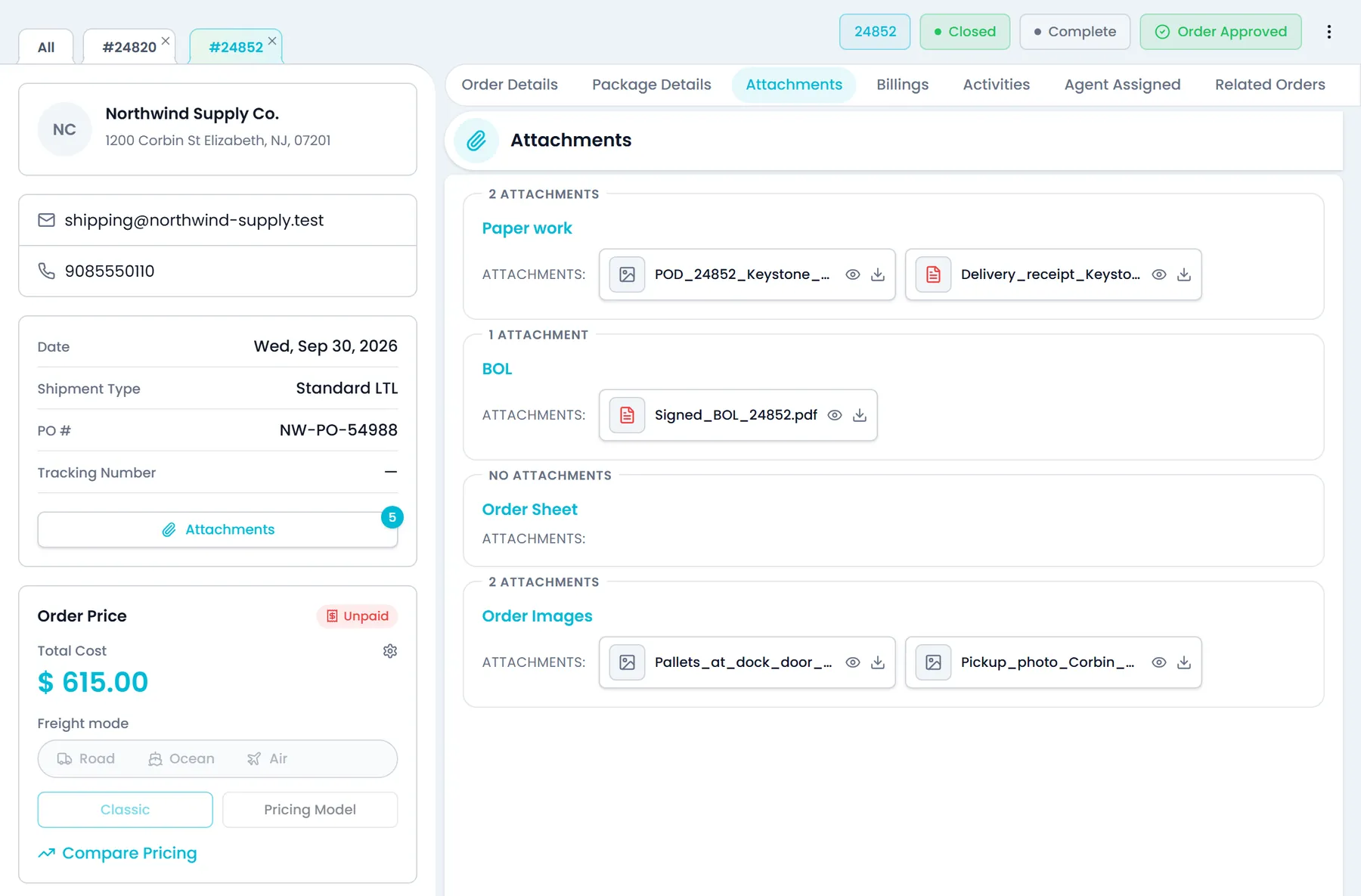
When the driver taps Arrived and completes the stop, the arrival and departure times are saved on it, and completed stops on the dispatch board show when they arrived and how late they were. The photos, scans and signature appear on the order's Attachments tab, where your team can preview and download them.
- Arrived time and late-by on completed stops
- Proof on the order and in the Customer Portal
- Preview photos and PDFs, download or delete any file, and attach your own to the order, a stop or an item, up to 100 MB each
- A proof-of-delivery PDF to print, download or email to your customer, or send automatically once you switch it on (see below)Next release
For your customer
What your customer opens in the Customer Portal
Customers who sign in to your Customer Portal open the order's Attachments tab and can preview and download the files your office attaches to the order, its stops or its items, such as a signed BOL or a delivery receipt. The photos, scans and signature the driver captures in the app stay in your Company Portal for now; in the next release you can email them to the customer as one proof-of-delivery PDF.
- Files your office attaches to the order, its stops and its items, grouped by type
- Download and on-screen preview of the photos and PDFs your office attached
- Customers add or delete files only while the order is a draft or a quote; approved orders are view and download only
Where proof of delivery pays for itself
Claims and disputes
Photos of the goods, the scanned paperwork and any damage photo from unload are on the order, not in a driver's camera roll.
Waiting time you can bill
Arrival and departure are saved on the stop, and billing can add waiting time from the invoice, priced from your Waiting Time rate.
An order history
The order's Audit log shows who changed what on the order, and when.
What the driver does at the door
The steps behind every finished stop
Each stop runs as a short series of screens, one question at a time. Steps you switch off are skipped, and some appear only when they apply.
Delivery
A delivery in up to eight steps
From the first unit off the truck to Submit. The steps that depend on the stop or on your settings say so below.
- Unload: check off each load unit as it comes off the truck, or choose Unload without checklist; a stop with no load units just continues
- Photograph the check, front and back: only when freight is collected at the stop
- Photograph the goods: when delivery photos are on
- Confirm the drop-off details, with a Report Damage photo if needed
- Tick the charges that apply: when charges collection is on
- Answer “Any paperwork to scan?” and scan it: when paperwork scanning is on
- Customer signature: when delivery signatures are on
- Rate the location, then Submit to complete the stop
Pickup
A pickup, from the item count to Submit
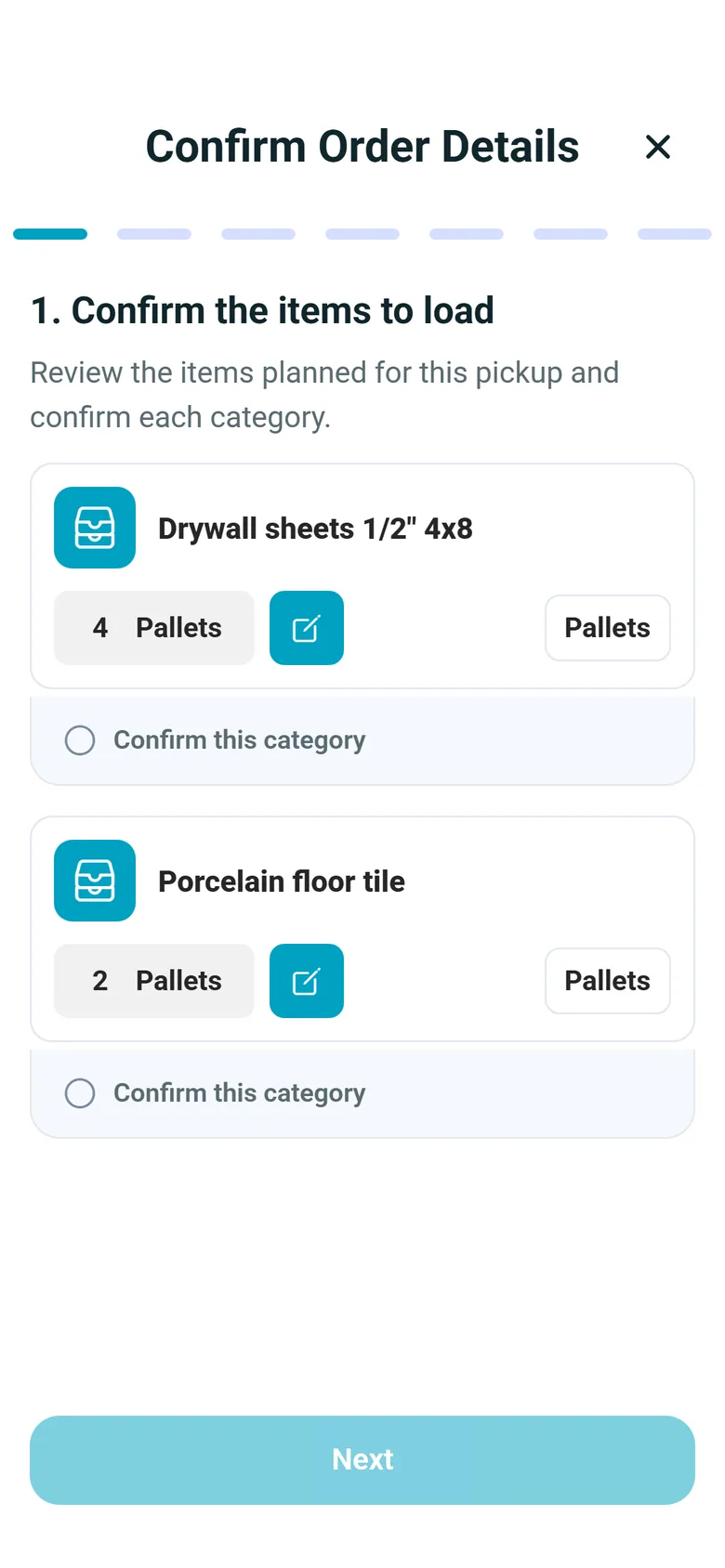
The driver starts by confirming what is being loaded, so a short pickup is caught at the dock rather than at delivery or on the invoice.
- Confirm the items to load, correcting a quantity where your settings allow it
- Scan the items as you load: when the freight carries load-unit barcodes and Scan Items is on
- Review planned vs. actual: when a count changed or items were scanned
- Photograph the goods: when goods photos are on for pickups
- Confirm the pickup details
- Tick the charges that apply: when charges collection is on
- Answer “Any paperwork to scan?” and scan it: when paperwork scanning is on
- Signature: when Sign manually is on for pickups
- Photograph a check or record the cash collected: only when freight is collected at the pickup
- Rate the location, then Submit
Your rules at every stop
Decide what a finished stop needs
In Settings > Driver App you choose whether deliveries include a goods photo and a signature, which steps drivers see at pickups, and whether a missing photo or signature blocks the stop or only warns the driver. Warning is the default. You can also switch charges and paperwork scanning off for the whole company. The driver app follows these rules on Android and iPhone.
- Goods photo and signature on deliveries, on or off
- Block the stop or just warn, warn by default
- Charges and paperwork scanning can be switched off
The settings behind a finished stop
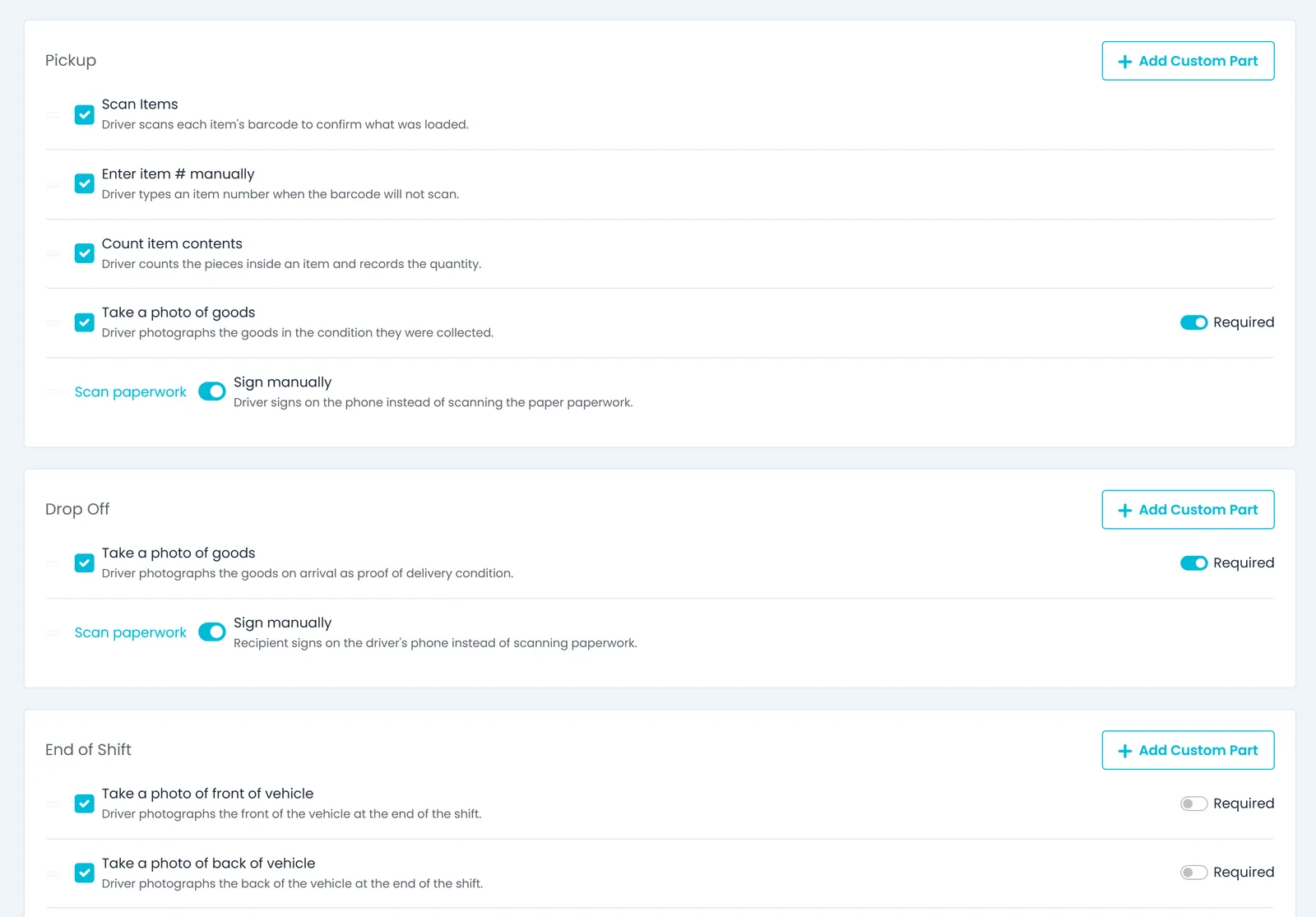
Company-wide switches on the Features tab of Settings > Driver App, shown with the defaults every company starts with, plus the per-stop steps on the Flow tab. The driver app picks up changes without an app update, and a stop already in progress keeps the rules it started with.
Require signature on delivery
On by default. Turn it off and delivery stops skip the signature step.
Require photos on delivery
On by default. Turn it off and delivery stops skip the goods photo step.
Block stop completion when requirements are missing
Off by default, so a missing photo or signature only warns the driver. Turn it on and the driver cannot move past those steps until they are captured.
Paperwork scanning
On by default. Every stop asks whether there is paperwork, and a Yes needs at least one scanned document.
Charges collection
On by default. Drivers tick the charges that apply from your list of stop charges.
Per-stop steps on the Flow tab
Take a photo of goods and Sign manually are set separately for pickups and drop-offs. Pickups add Scan Items, Enter item # manually and Count item contents.
In the next release
Proof of delivery as a PDF you can send
These proof-of-delivery features are finished and ship with the next production release of RushHour.
What the PDF shows
Every delivery stop's proof in one PDFNext release
Open Proof of Delivery from a booked order's actions menu to cover all of its delivery stops, or from a delivery stop's menu on the dispatch board for that stop alone. Each stop lists the consignee, the scheduled, arrival and departure times, waiting time, driver and truck, and the items planned against the items delivered. The recipient's signature, delivery photos and the driver's GPS location at completion are added when they were recorded.
- Whole order from the order menu, one stop from the dispatch board
- Quantity differences and damage photos listed under Delivery exceptions
- Internal office notes and the driver's rating of the site are never included
Print, download or email
Print it, download it or email it to your customerNext release
The PDF opens in the same document viewer as your bill of lading, with print, download and email buttons. Emails go out with the PDF attached, and admins can change their wording in Settings > Email Templates. Each POD you email, and each whole-order POD you download, is filed in your Documents library against the order.
- Print, download or email from one viewer
- Email wording editable in Settings > Email Templates
- Admins control access with a new Send and download POD permission, given to every role that already has Send and download BOL
- Stop times print in your computer's time zone, with the UTC offset shown, when you open or email the POD from the Company Portal
Sent on completion
Email the POD automatically when the driver finishesNext release
Turn on Email proof of delivery on completion in Settings > Driver App > Features. When a driver completes a delivery stop in the driver app, RushHour waits 90 seconds so the signature and photos can finish uploading, then emails that stop's POD to the customer the order is billed to. It goes to the customer's email addresses tagged Bill of Lading, or else those tagged Billing, or else all of its active addresses.
- Off until you switch it on
- Works for deliveries completed in the Android and iPhone driver apps
- Pickups and transfer drop-offs never send a POD
- Stops completed from the Company Portal do not send one; you can still email the POD from the order
Questions
Proof of delivery: common questions
Can a driver finish a delivery without a photo or a signature?
That is your setting. By default a missing goods photo or signature only warns the driver, who can continue. Turn on Block stop completion when requirements are missing in Settings > Driver App > Features and the driver cannot move past those steps until they are captured. You can also turn the delivery photo or signature step off completely.
Where do I find the proof for an order from last month?
Open the order in the Company Portal and go to its Attachments tab: the driver's photos, scanned paperwork and signature are listed under Paperwork, ready to preview or download. In the next release you can also open a proof-of-delivery PDF from the order's actions menu and email it to your customer, and each POD you email is filed in your Documents library.
Can my customers see the photos and the signature?
Not in the Customer Portal yet. Customers with a Customer Portal login open the order's Attachments tab, preview and download the files your office attaches to the order, its stops and its items, and add their own files while the order is a draft or a quote waiting for approval. The driver's own photos, scans and signature stay in your Company Portal, where your team can download them; in the next release you can email them to your customer as one proof-of-delivery PDF, or turn on automatic sending when the driver completes a delivery.
Does proof capture work where there is no signal?
Partly. The stop's progress is saved on the phone, so an app restart does not lose the steps already done, and barcode scans made without signal are sent when the connection returns. Photos, scans and the signature upload as soon as they are taken; if an upload fails, the driver can try again. Completing the stop needs a connection.
Is the paperwork saved as photos or as a PDF?
As one PDF per scan. The driver photographs each page with the camera or picks it from the gallery, can remove a page and take it again, and saves the pages together as one PDF on the stop.
Which payments can a driver record at the stop?
When freight is collected at the stop, the app shows the amount due. At pickups and deliveries the driver can photograph a check, front and back, as collection proof. At a pickup the driver can also record the cash collected and take a proof photo. A check photo does not mark the freight as paid, and RushHour does not let a stop be completed while its freight is still owed. Card and bank-transfer payments are not taken in the driver app.
Which phones does the driver app run on?
Android phones, from Google Play, and iPhones, from the App Store, with version 2.x of the RushHour driver app. Every step on this page works on both.
Bring a delivery you had to argue about.
In the demo a driver runs a delivery on a phone, with photos and a paperwork scan, and you watch the files land on the order.