
See who did what in RushHour,
and what the system did on its own.
Settings > Activity Logs puts sign-ins, record changes, emails and automatic jobs in one searchable feed, with the AI assistant's actions alongside. Orders, quotes and invoices also keep their own history, so a changed price or delivery time comes with the time of the change and, when a person made it, their name.
What gets recorded
From a sign-in to a pallet count
One log covers your people, the AI assistant and the jobs RushHour runs on its own. Orders, quotes and invoices keep a detailed history on the record itself, so the answer is where the question comes up.
All activity
One feed for people, the AI and the system
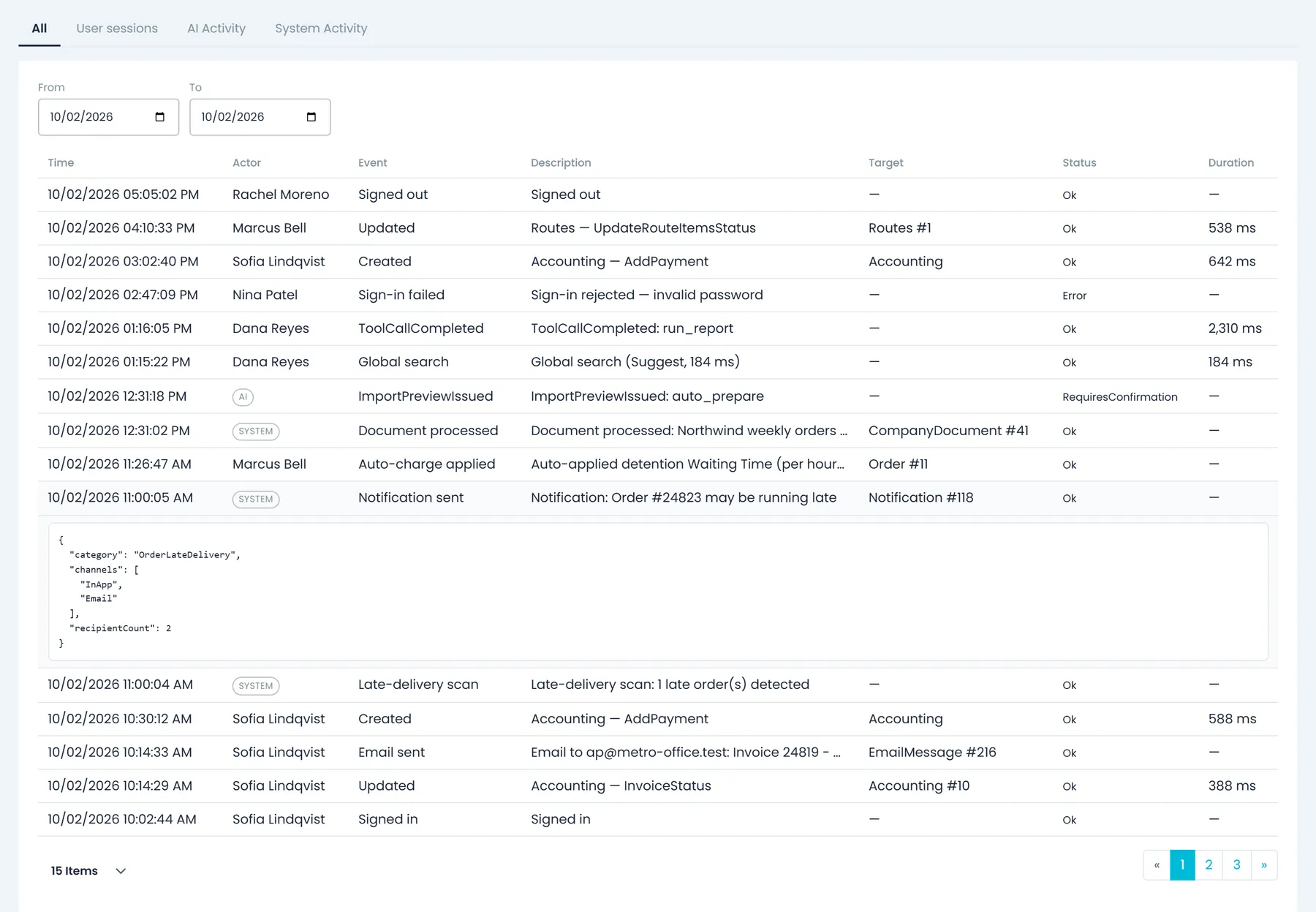
The All tab lists what happened in your company, newest first. Each row shows the time, who acted (a person's name, or a System or AI badge when no person was involved), the event, a short description, the record it touched, its status (Ok, Error or Skipped on people and system rows) and how long it took. Click a row to see its full details. People with the 'view all users' permission see everyone's activity, plus a System Activity tab with only the automatic rows; people with 'view own' see their own.
- People: sign-ins, failed sign-ins, sign-outs, password changes and resets, forced sign-outs, global searches, and the records they create, update or delete
- System: emails sent, failed or skipped, notifications sent, documents processed or captured, automatic charges applied or dismissed, users disabled by their schedule, and late-delivery scans
- Filter by From and To dates, search from the toolbar, and page through 15, 20, 50 or 100 rows at a time
User sessions
When each person started and stopped work
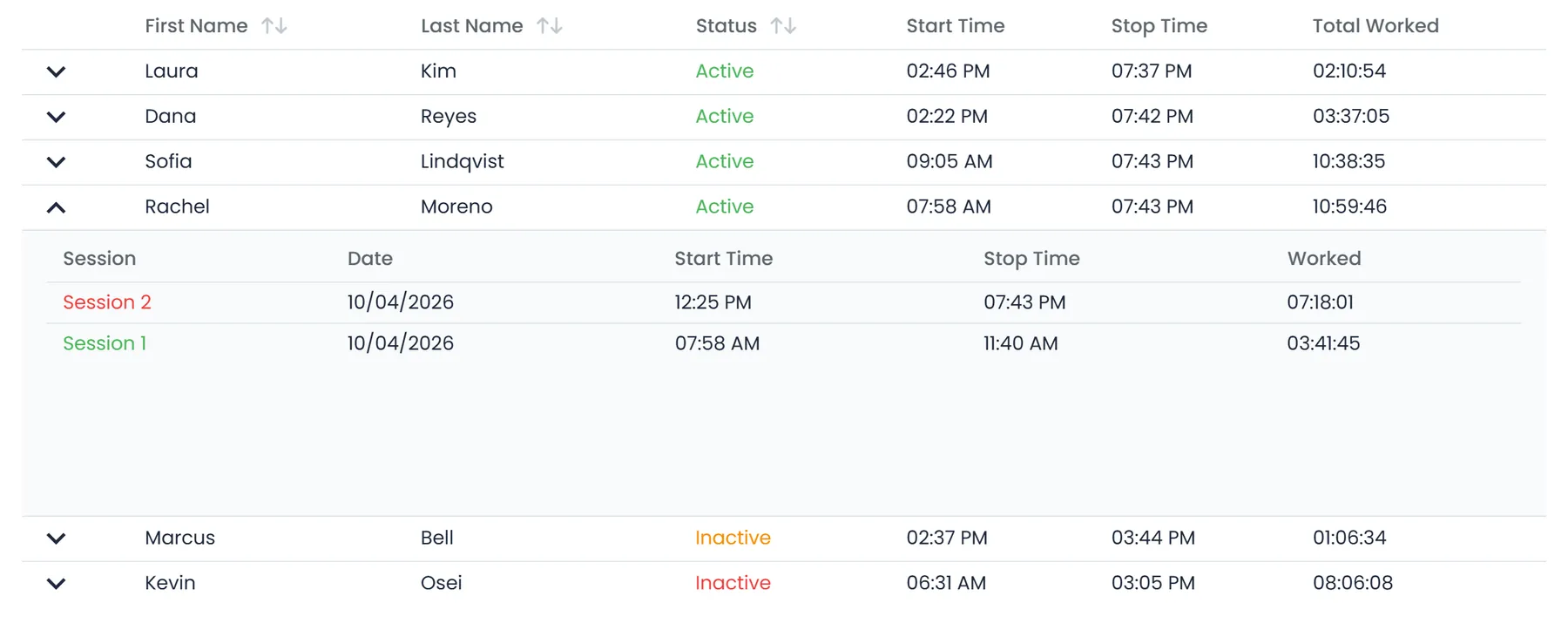
The User sessions tab lists your users for the day you pick, with a status, start time, stop time and Total Worked. Expand a user to see each session of that day with its own start, stop and worked time. The status reads Active while someone is online and Inactive once they are idle or signed out; a user with no activity for 10 minutes counts as idle. With 'view all users' you see the whole team, and with 'view own' just yourself.
- Pick a date to see that day's sessions
- Each session listed separately, with its start, stop and worked time
- The Team activity widget on the dashboard lists today's users as Active or Inactive, with a link to the full log
AI Activity
What the AI assistant read, proposed and changed
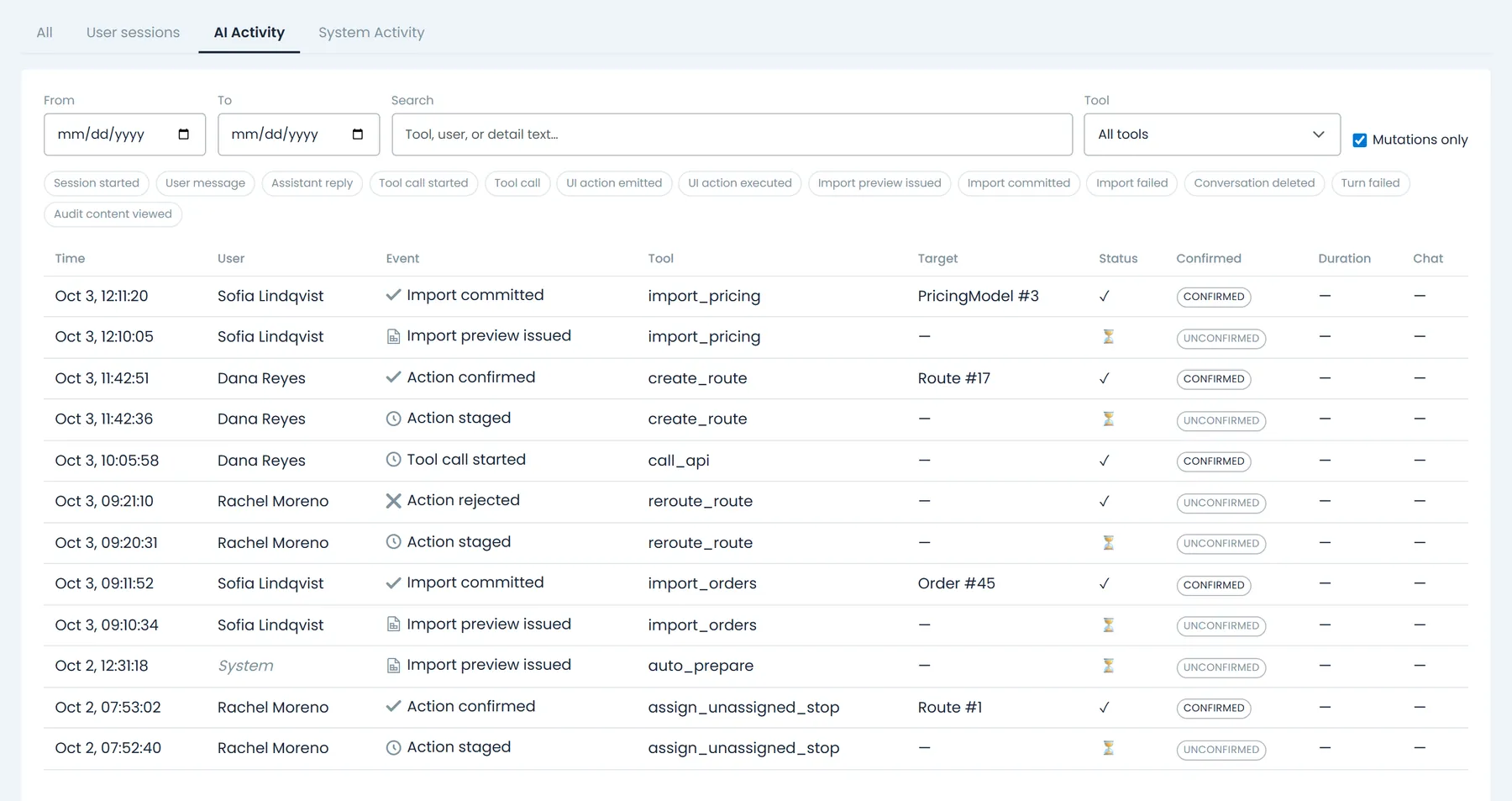
The AI Activity tab records each turn of a chat: the user's message, the assistant's reply, every tool call and the record it targeted, imports, and the changes the assistant staged, with whether each was confirmed, rejected, expired or failed. Rows show the time, user, event, tool, target, status, a Confirmed or Unconfirmed badge on changes, the duration and the chat number. Click the chat number to reopen the conversation, or use View audit trail in the assistant panel to see one chat's trail.
- Filter by date, tool and event type, search, or tick Mutations only to see changes alone
- Fields holding passwords, tokens, API keys or card numbers are masked before details are stored
- Seeing your own AI activity and seeing everyone's are separate permissions
Order and quote history
Field-by-field history on every order and quote
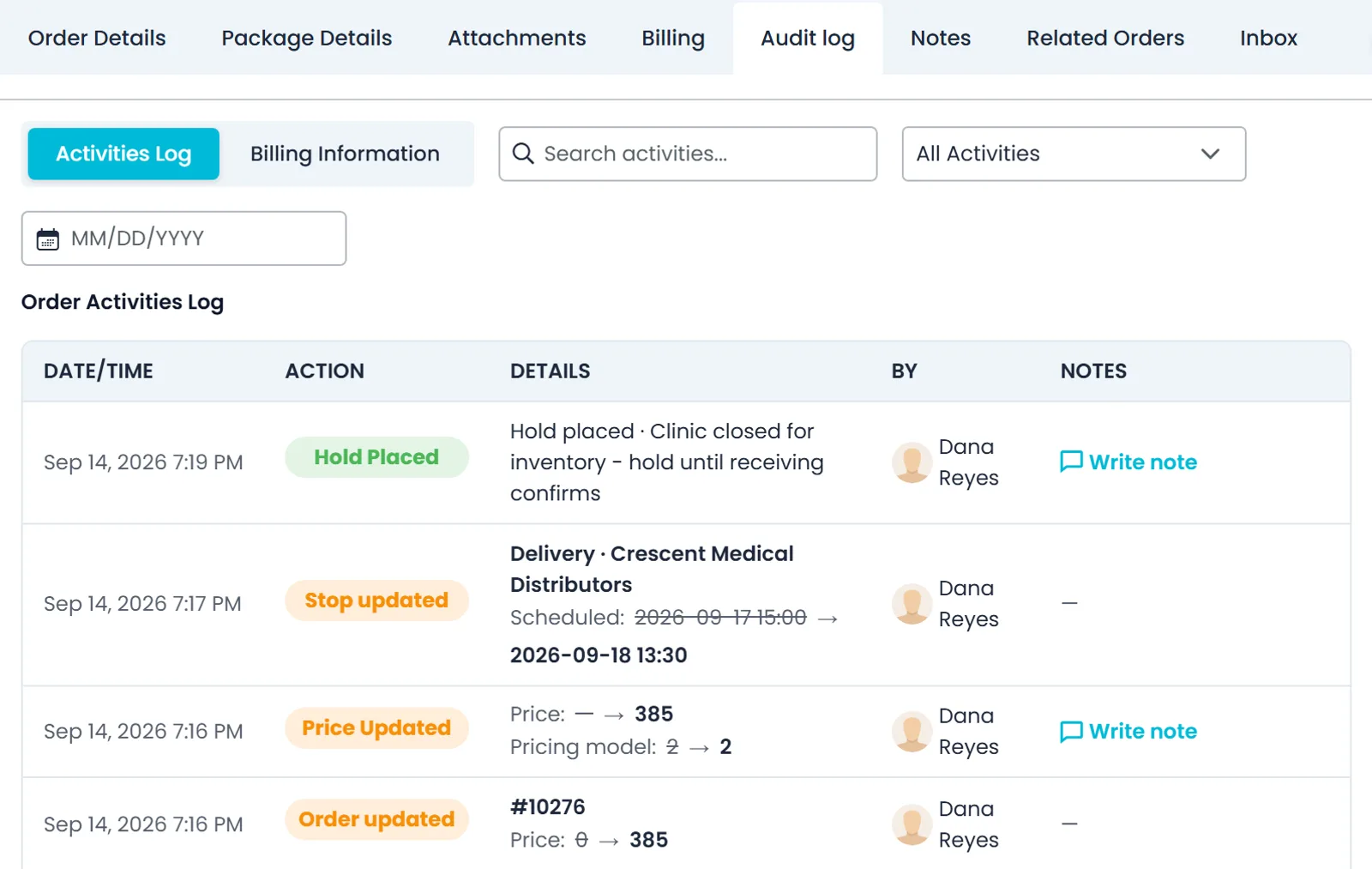
Open an order or quote and its Audit log tab shows what happened to it: when it was created, approved from a quote, reverted to a quote, closed, deleted or restored, and each tracked field that changed, with the old value struck through next to the new one. Dispatch events, invoices, payments, holds, automatic charges and emails for the same order sit in the same timeline. Entries made by a person name who made the change, whether someone in your office, a driver or your customer in the Customer Portal.
- Tracked fields include customer, contact, bill-to, PO and tracking numbers, price, pricing model, markup and discount, stop addresses, dates, times, appointments, driver instructions, liftgate and item quantities per stop
- Filter by Lifecycle, Order details, Stops, Items, Pricing, Charges, Dispatch, Accounting or Other, search the entries, and, if you can edit orders, add notes to activity entries such as assignments, holds and payments
- For your team only: the tab is not part of the Customer Portal
Invoice audit log
Invoice changes on record, and revised numbers your customer can see
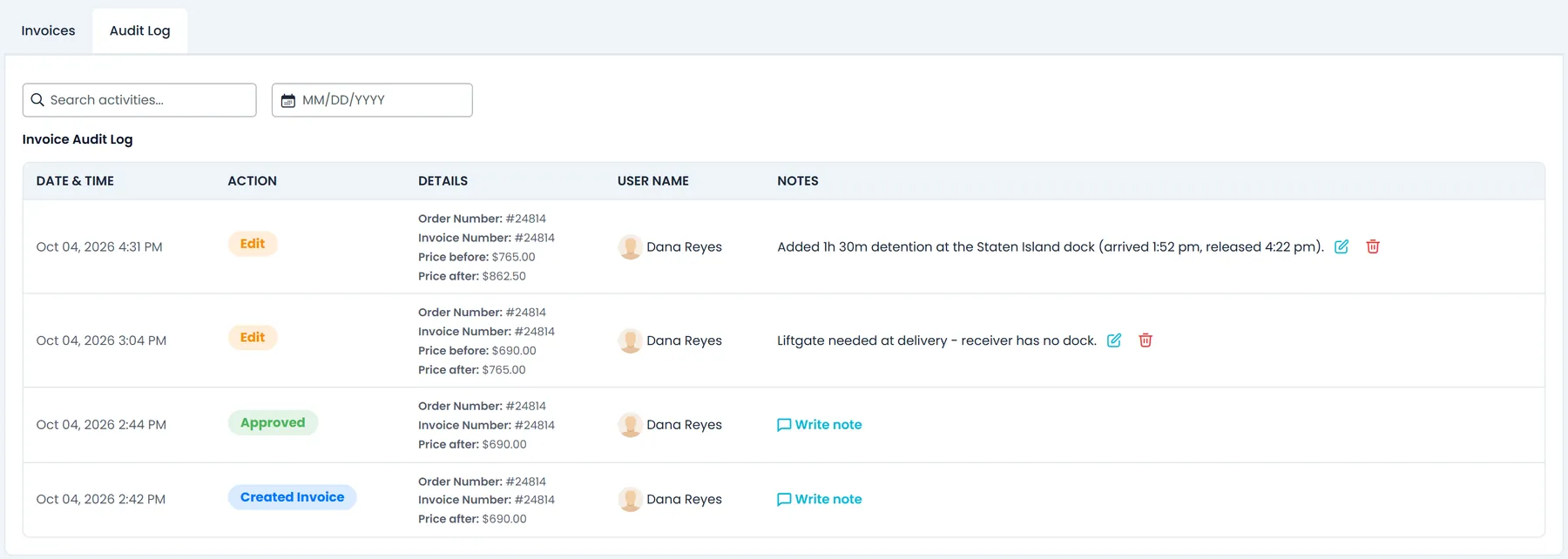
In Accounting, the Audit Log tab next to an order's invoices records actions such as Created Invoice, Created Custom Invoice, Set Default, Edit, Approved, Email Sent, Email Error and Revised. Each entry shows the date and time, the user, the order and invoice numbers, the price before and after, and who an email went to. When the total of an invoice that was already emailed changes, its number gets an R prefix and the PDF carries a REVISED stamp.
- Search the log or pick a date
- People with the Create/Edit Custom Quote permission can add, edit or clear a note on any entry
- Invoice entries also appear in the order's Audit log, under Accounting
Customer Portal
Your customers can check their own sign-ins
In the Customer Portal, Settings > Activity Log shows each signed-in user their own sessions for the day they pick, numbered Session 1, Session 2 and so on, with start time, stop time and time worked. Customers never see your team's activity log or your order and invoice audit logs. On their own orders, an Activities tab shows a shipment timeline limited to assignments, stop updates, item changes and holds, with no internal notes or price changes.
- Pick a day from the date picker
- Sort by start or stop time, 25 sessions to a page
- Only the signed-in user's own sessions
Built to be trusted
Kept for 365 days
Activity events and the AI activity trail stay in the log for 365 days, so last quarter's question still has an answer.
Secrets stay masked
Before details are stored, fields that hold passwords, tokens, API keys, card numbers or one-time codes are masked.
Off-limits to the AI assistant
The assistant is blocked from reading the activity feed behind the All and System Activity tabs and its own AI activity trail. Only people you give the permissions to can open them.
No export today
There is no export file. The order and invoice audit logs can also be read through the documented REST API; the activity log, AI activity and user sessions are viewed and searched in the Company Portal.
In the next release
The order log becomes Log Activity, with a paperwork trail
These changes to the order history are finished and ship with the next production release of RushHour.
Paperwork trail
See when paperwork was downloaded or emailedNext release
The Audit log tab on orders and quotes is renamed Log Activity. On an order, it records when the Bill of Lading, the labels or the invoice PDF is downloaded, including BOL downloads by your customer in the Customer Portal, and who a BOL was emailed to.
- A row for each BOL, label or invoice PDF download
- BOL downloads from the Customer Portal included
- The recipients of each BOL sent by email
Copy to Driver and invoices
A record of what was sent to the driverNext release
When someone uses Copy to Driver for the whole order or for a single stop, the log adds a row that names the driver. Invoice rows in the order's log also show who the invoice was sent to, and users who can edit invoices can add notes to them.
- Whole order or a single stop, with the driver named
- Invoice recipients on the order's invoice rows
- Notes on invoice rows, added from the order's log
Related
Questions about the activity log
Can I export the activity log?
Not as a file. The activity log, the AI activity trail and user sessions are viewed, filtered and searched in the Company Portal. The order and invoice audit logs can also be read through the documented REST API, with GET /Orders/{id}/AuditLog and GET /Accounting/AuditLog, so your own systems can pull that history.
Who can see the activity log?
Two permissions control it. 'Activity log - view own activity log' shows people their own rows, and 'Activity log - view all users' shows everyone's, plus the System Activity tab. The AI Activity tab has its own pair, for your own AI activity or everyone's. Assign them to roles in Settings > Users.
How long is activity kept?
Activity events and the AI activity trail are kept for 365 days, and you can filter them by date and search them throughout.
Can our customers see the audit log?
No. The order and invoice audit logs carry prices and internal notes, so they are for your team only. In the Customer Portal, Settings > Activity Log shows each user only their own sign-in sessions, and an order's Activities tab shows only assignments, stop updates, item changes and holds.
Does it show what the AI assistant changed?
Yes. The AI Activity tab lists each chat's messages, replies, tool calls, imports and staged changes, with a Confirmed or Unconfirmed badge on changes and a link back to the chat. For people with an AI activity permission, the same rows also appear in the All tab, next to people and system rows.
Can User sessions replace a timesheet?
User sessions show when each person was active in RushHour and their total for the day, which helps you see who was working when. It is not a payroll timesheet: it counts only activity in RushHour, and there is no export.
See the trail behind a real order.
In a demo we'll change a price and a delivery time, then open the order's Audit log and Settings > Activity Logs to show exactly what was recorded, by whom and when.