
Shippers book their own orders,
and you approve what they submit.
Each shipper you invite gets a Customer Portal login to build multi-stop orders with real freight details, see your price as they go and send the order to you as a quote. Once you approve and dispatch it, they follow it, pull the BOL and repeat it next time, without calling your office.
Booking
How a shipper books an order
Orders reach you already typed in by the shipper, in the fields your team works with, instead of over the phone or by email.
Pickups and deliveries
Multi-stop orders, entered by the shipper
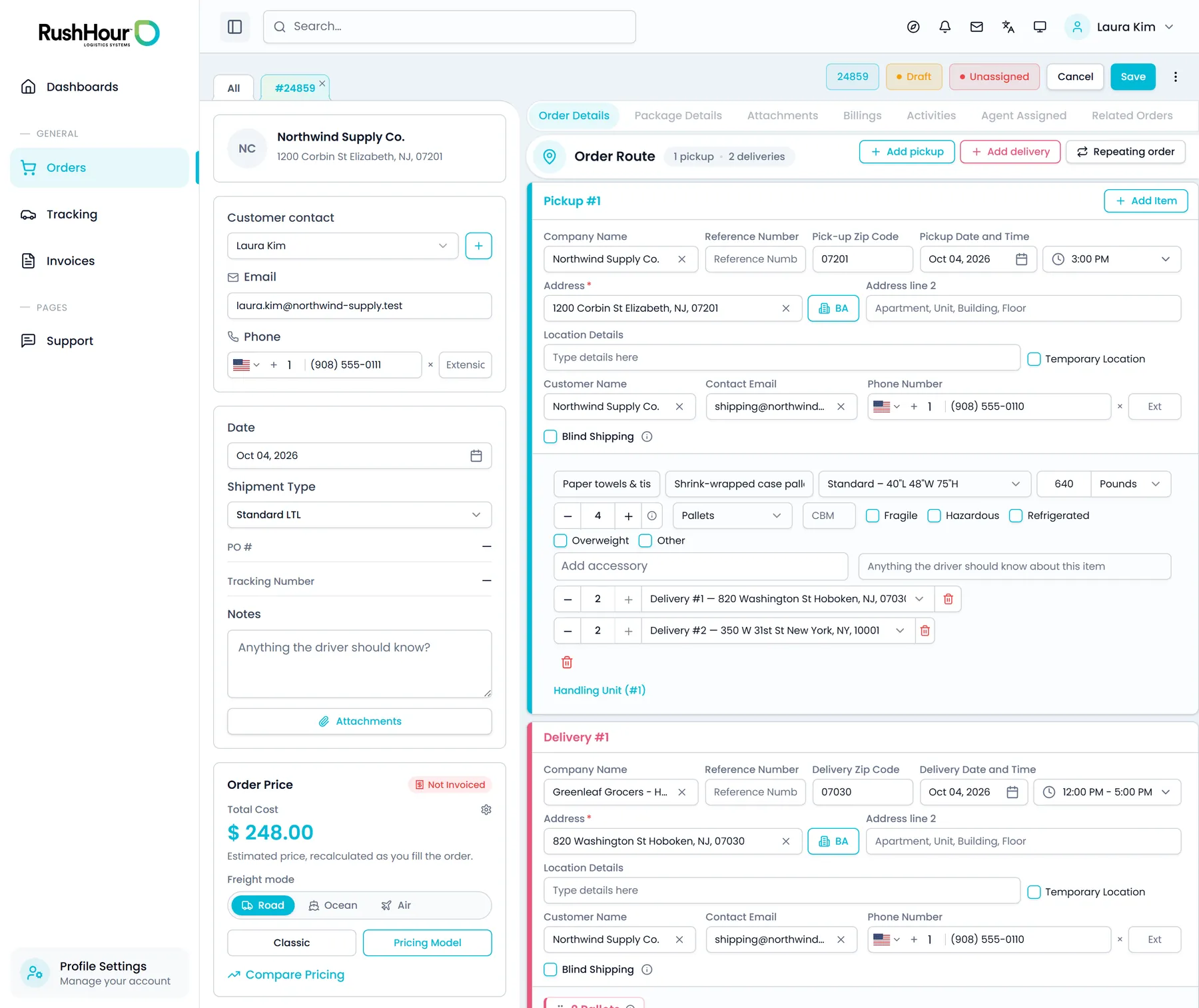
The shipper adds as many pickups and deliveries as the load needs. Each stop starts from an address search by street, city or ZIP over their saved addresses, with map suggestions for new ones, or fills in their billing address with one click, and gets its own date and time: Morning (6 AM to 12 PM), Noon (12 PM to 5 PM), Evening (5 PM to midnight) or a specific time.
- Per stop: company name, contact name, phone with extension, email, reference number, address line 2, location details for the driver and a temporary-location flag
- Blind shipping on any stop, with a blind customer name and address and a separate blind name for the driver, to hide pickup details on the BOL
- Dates are checked so no delivery falls before the latest pickup, and every order needs a date before it can be saved
- At order level: a shipment type from the ones you offer that customer, order notes, and the order contact, picked from their list or added on the spot
- PO and tracking numbers your team sets appear on the order, read-only for the shipper
- Saved locations under Settings → Locations can be added, edited, deleted in bulk, exported to CSV or printed, and are offered whenever the shipper picks an address
Freight details
Real dimensions, weights and equipment before you price
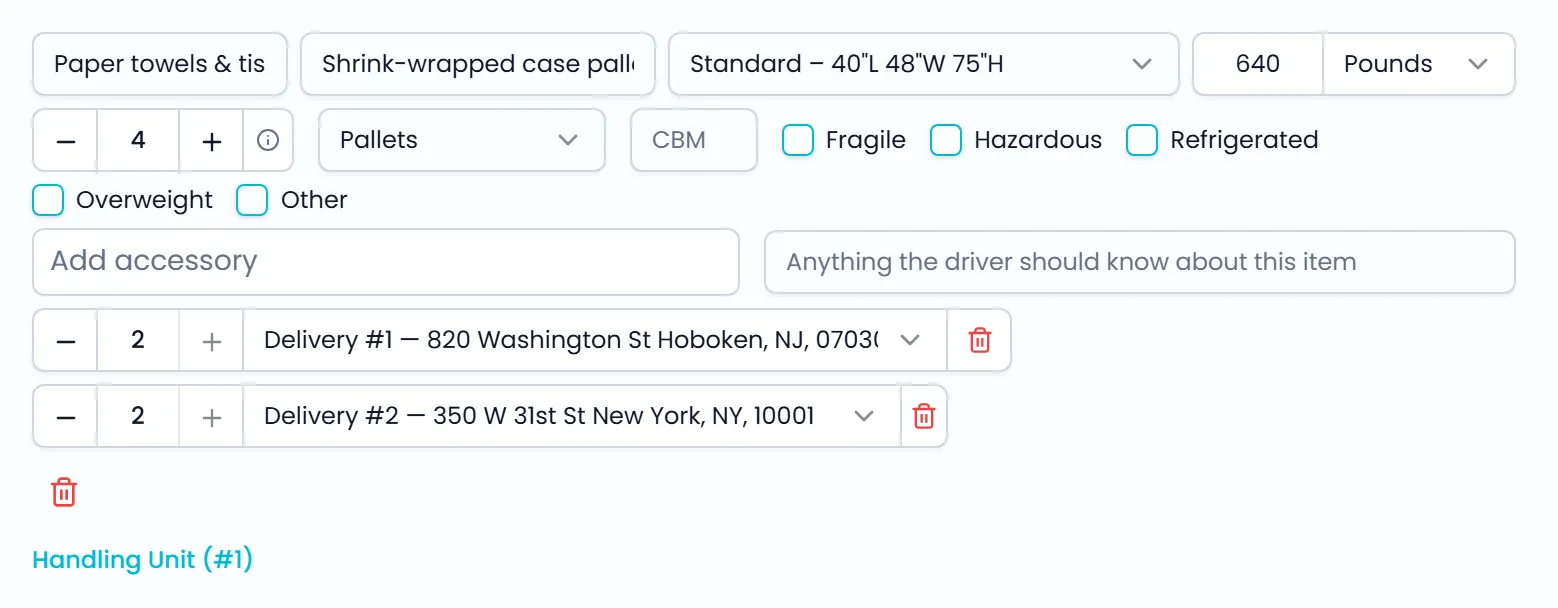
From each pickup the shipper adds handling units as Boxes & Crates, Pallets, Full Load or Other. Pallets come in three standard sizes, a full load names the truck and how many are needed, and each unit can be split across the order's deliveries, so you know what goes where before you dispatch.
- Pallet sizes: Standard 40×48×75 in, Small 42×42×75 in and Large 48×48×75 in
- Full Load: 53' tractor trailer, 26' box truck or Sprinter van, number of trucks, how the items are packed, container number and a With Tracker flag
- Quantity, length, width and height in inches or centimeters, weight in pounds or kilograms, and CBM
- Fragile, Hazardous, Refrigerated and Overweight flags on each unit
- Delivery Allocations split a pickup's units across deliveries, and the portal asks before saving when items are left unallocated
- Each unit has an item name and description, and the portal flags a second item with the same name on the same stop
Price while they book
Your price, worked out as the order takes shape
The order sidebar shows the price from your own pricing engine, Classic or Pricing Model, with the mileage taken from the stops. It recalculates after changes that affect price, such as stops, dates, shipment type or items, and always prices the order as that customer, with their own pricing model when you have set one, because the customer comes from the shipper's login.
- Plain prompts until there is enough to price, and a note that your team will confirm the price when your rules cannot price the route
- The selling price only: your cost lines and markup never appear, on the price card or on the order's Billings tab
- Freight mode (Road, Ocean or Air) sits on the price card and can be set on a saved draft or quote
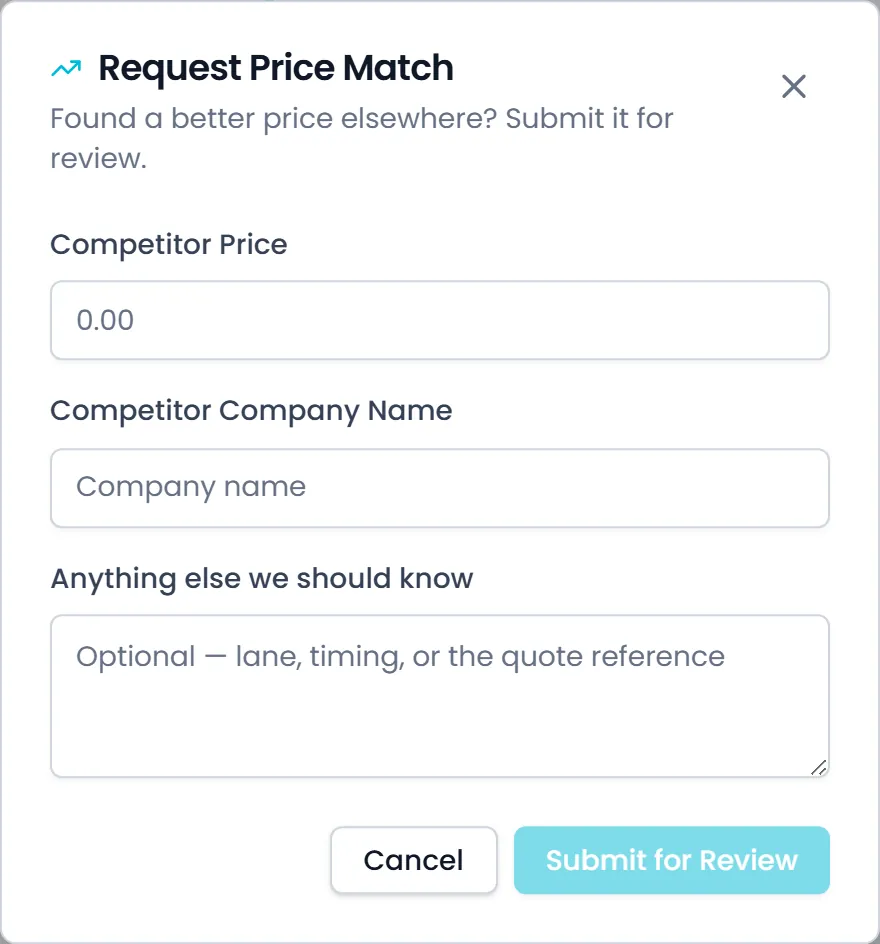
- Compare Pricing on a saved order: the shipper enters a competitor's price, the competitor's name and an optional note
- The price-match request reaches your team as a message linked to that order, so you can answer before the load goes elsewhere
Approval
Submitted orders wait for your staff to approve them
A new order is saved as a draft the shipper can keep working on, or submitted to you as a quote waiting for approval. The shipper can withdraw a submitted order back to a draft. Once your staff approve it in the Company Portal, it shows Order Approved and becomes read-only for the shipper. The exception is Repeat Order on an order you already approved: the copy is created as an approved order.
- Save as Draft or Submit Order on a new order, then Submit for approval or Withdraw from approval on a saved one
- While it is a draft or a quote, the shipper can edit the order, its stops and its items, or change one stop's date and time in a quick dialog
- Submitting a new order with no items asks for confirmation first, since your team cannot price or plan it without them
- Repeat Order copies the pickups, deliveries and items into a new order. A copy of a draft or quote stays a draft or quote; a copy of an approved or closed order is created already approved
- Cancel Order works on drafts, quotes and approved orders until a stop is completed or the order is closed; after that the portal asks the shipper to contact support
After they book
Orders, paperwork and tracking in the shipper's own login
The same login answers the calls your office usually takes: what did I book, where is it, and can you send me the BOL.
My Orders
Every order, draft and quote in one list
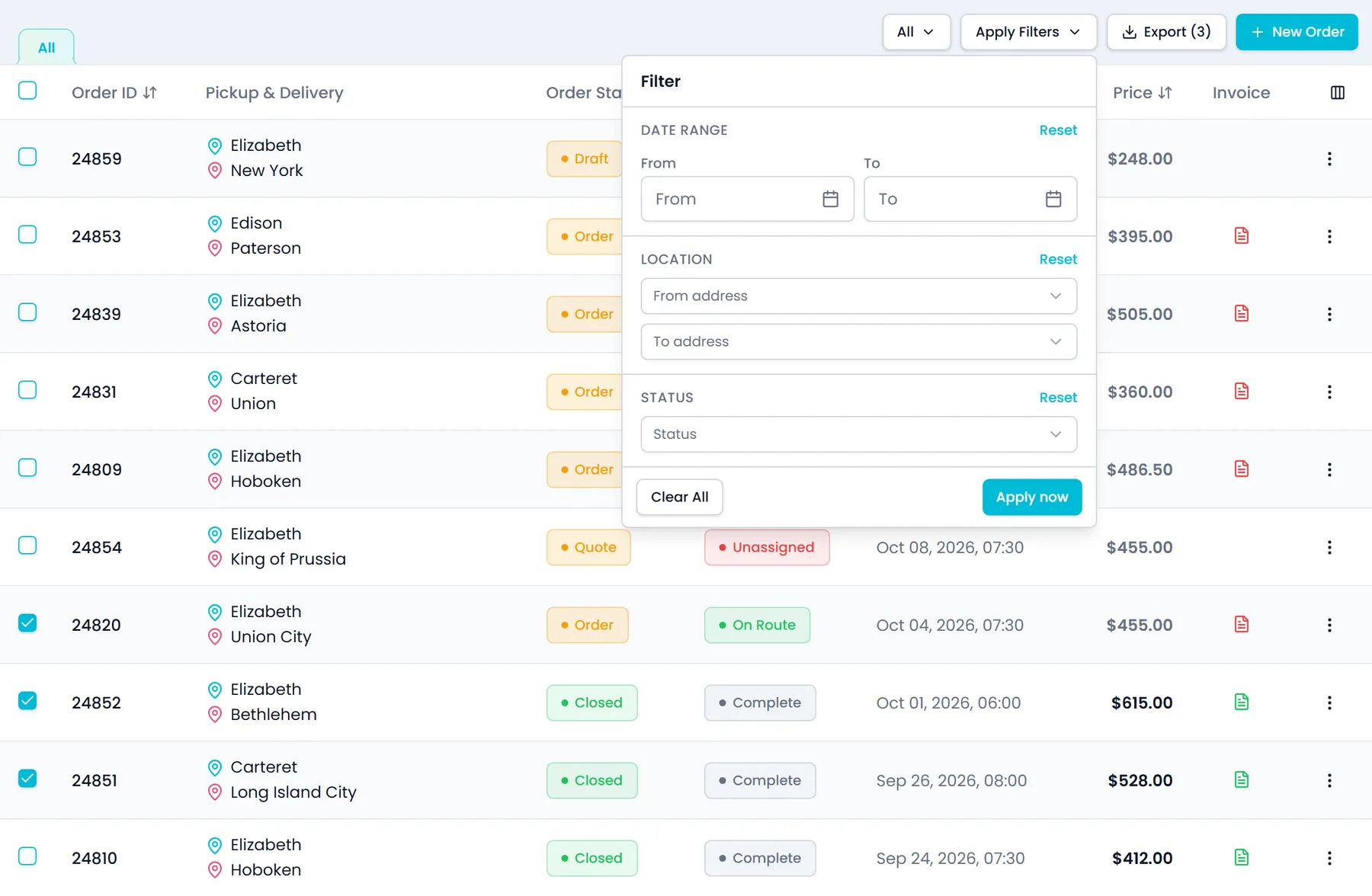
Drafts and quotes waiting for approval sit next to approved orders, with an All, Approved or Not Approved switch, filters and a column layout each shipper sets up for themselves.
- Filters for date range, from address, to address and trip status
- Columns for order ID, pickup and delivery, order status, trip status, ETA, price and invoice status; show, hide and reorder them, and the layout is remembered in their browser
- Tick orders and export them to an Excel (.xls) file
- Row menu: Repeat Order at any time, Edit until approval, Cancel Order until a stop is completed, and View Details, Order Sheet, BOL and Track Live (which opens the Tracking page) once a driver is assigned
- Orders open as tabs beside the list, a copied link reopens the same view, and on phones the list turns into cards
Order page
Everything about the shipment on one page
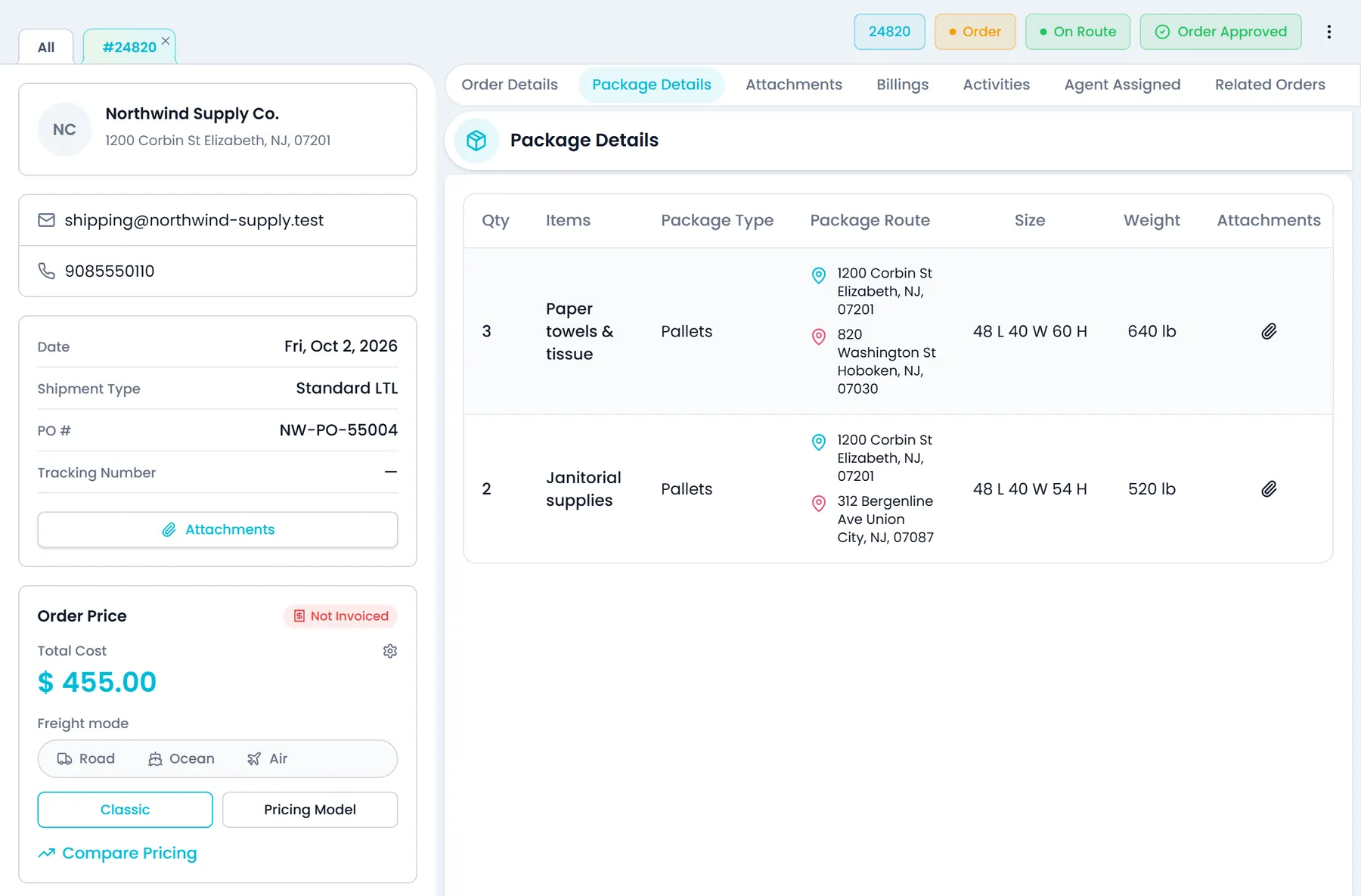
Each order opens with tabs for Order Details, Package Details, Attachments, Billings, Activities, Agent Assigned and Related Orders, beside a summary panel with the date, shipment type, PO and tracking numbers, notes and the price card. Status badges sit above the tabs, and the order menu opens the previous or next order.
- Package Details lists each item with its type, the pickup and delivery it travels between, size, weight and attachments
- Billings shows the price, any discount and the subtotal, and a Pay button for the amount still owed once you issue the invoice; card payment needs your own Cardknox account
- Activities shows delivery updates, package changes and holds, with search and a date filter; staff notes, price changes and your team's names stay out
- Agent Assigned shows the route name and the driver's name and photo once the order is on a route, and Related Orders lists orders linked to this one
Paperwork
BOLs, order sheets and files without asking your office
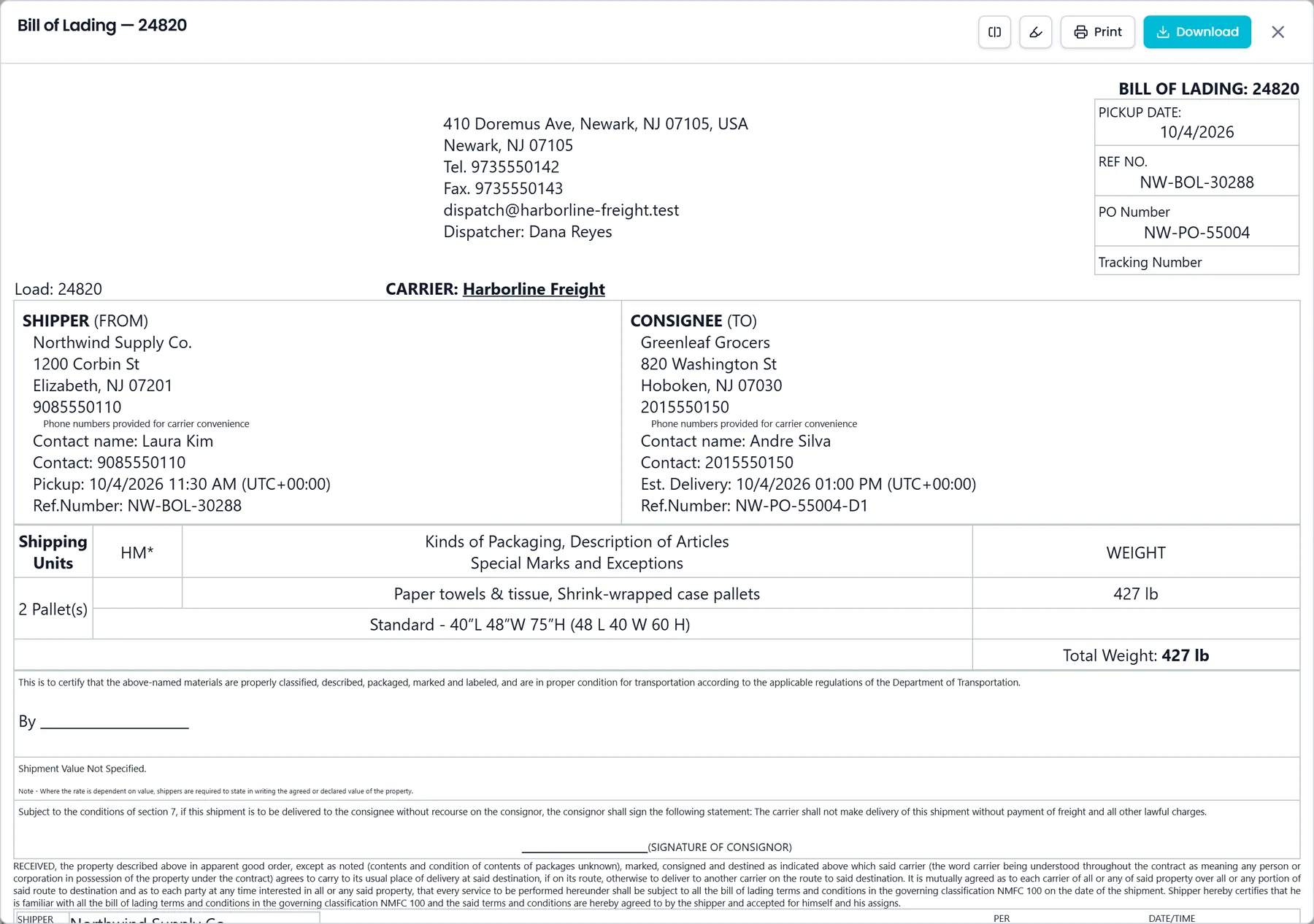
The order sheet and the bill of lading open in a preview inside the portal, built by the same document templates your office uses, and can be printed or downloaded as a PDF. Files travel both ways on the Attachments tab.
- BOL options in the preview: Split items per stop and Highlight items
- Open them from Order Sheet and BOL in the Orders list row menu once a driver is assigned to the order
- Attachments grouped as Paperwork, BOL, Order Sheet and Order Images, with preview and download for files on the order, its stops and its items
- Upload or delete files while the order is a draft or waiting for approval; approved orders are view and download only
- Attach a file to one stop or one item straight from its card or row
Tracking
Follow each package from pickup to delivery
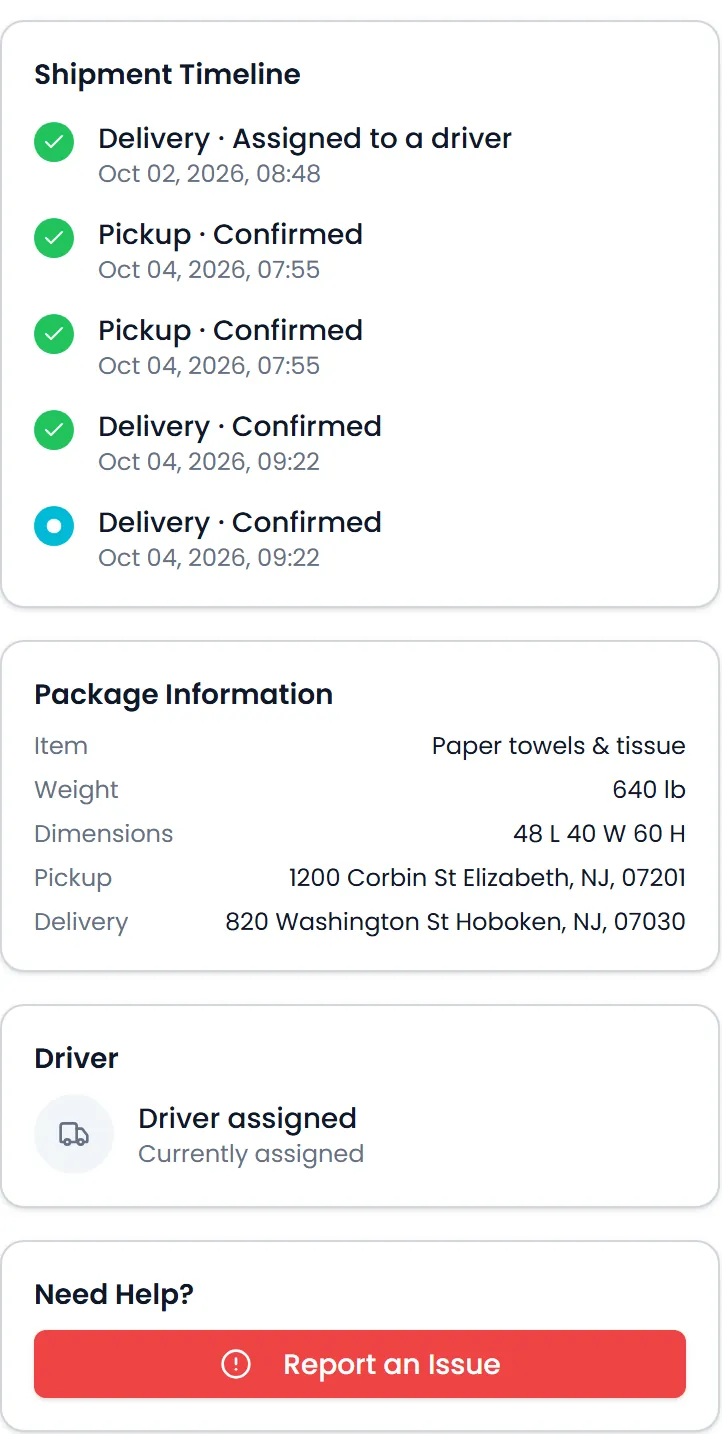
The Tracking page lists the shipper's approved shipments with their trip status and ETA. Track Live draws one package's route from pickup to delivery on your company's map, next to its shipment timeline. It shows the planned route, not where the truck is right now.
- Filter by status (Unassigned, Dispatched, On Route or Complete) and shipment type, tick shipments and export them to Excel (.xls)
- Shipment timeline of pickup and delivery events, such as assigned to a driver, confirmed and updated
- Package information (item, weight, dimensions, pickup and delivery) and a Driver assigned or Awaiting Driver status, without the driver's name
- Opens from Track Live on the Tracking list, showing the order's first package, or from View & Track on Package Details for any package once a driver is assigned to its stop
- Report an Issue sends a note about that shipment into the support conversation your team answers
- In their notification settings, shippers can turn on tracking links to get each order's link by email or in the notification bell, when you send tracking links automaticallyNext release
What stays under your control
Selling price only
Shippers see the price and any discount. The portal does not show your cost lines or markup, and its activity log leaves out staff notes and price changes.
Only their own account
The API takes the customer from the shipper's login for orders, prices, exports and saved locations, so one shipper never sees another's freight.
English or Hebrew, light or dark
Each shipper switches the portal between English and Hebrew, which runs right to left, and between light and dark themes.
Related pages
Questions carriers ask about shipper booking
Can a shipper's order go out without our approval?
Not one they build themselves. A submitted order reaches you as a quote waiting for approval, and the Customer Portal has no approve button: your staff approve it in the Company Portal. Until then the shipper can still edit it or withdraw it back to a draft. Once you approve it, it is read-only for them. The exception is Repeat Order: a copy of an order you already approved is created as an approved order.
Which price does the shipper see while booking?
The selling price from your own pricing engine, Classic or Pricing Model, with the mileage taken from the stops. It is always priced as that customer, with their own pricing model when you have set one, because the customer comes from their login. Cost lines and markup are never shown. When your rules cannot price the route, the portal tells the shipper your team will confirm the price.
Can shippers cancel an order after we approve it?
Yes, until a stop on it is completed or the order is closed. After that the portal tells them the order can no longer be cancelled online and to contact support. A cancelled order leaves their order lists.
Does Track Live show where the truck is right now?
No. Track Live draws the package's route from pickup to delivery, lists its pickup and delivery events and shows whether a driver is assigned. It does not plot the truck's current position.
Do shippers have to retype the same addresses?
No. Locations they save under Settings → Locations are offered when they pick a pickup or delivery address, and one click fills in their billing address. They can also edit, delete, export or print that list themselves.
Can shippers attach their own paperwork?
Yes. While the order is a draft or waiting for approval they can upload files to the order, a stop or an item, grouped as Paperwork, BOL, Order Sheet and Order Images. After approval they can still preview and download every file.
Can shippers use the portal in Hebrew?
Yes. Each shipper switches between English and Hebrew, and the Hebrew portal runs right to left. They can also choose a light or dark theme.
Watch a shipper book a load in the demo.
We open a sample shipper's login next to the Company Portal: they build a multi-stop order and see your price, and you approve it on the other screen.