
Two drivers,
one order, one record.
Hand freight from one driver to another at your warehouse, a hub or any address. RushHour adds a drop-off stop and a collection stop to the same order, linked as one transfer, so each driver confirms their half and the freight stays on one record from pickup to invoice.
How a handoff works
One order, handed over cleanly
From the Assign Transfer window to the driver's phone, every handoff stays on the order it belongs to.
Transfer stops
Split a run across two drivers without splitting the order
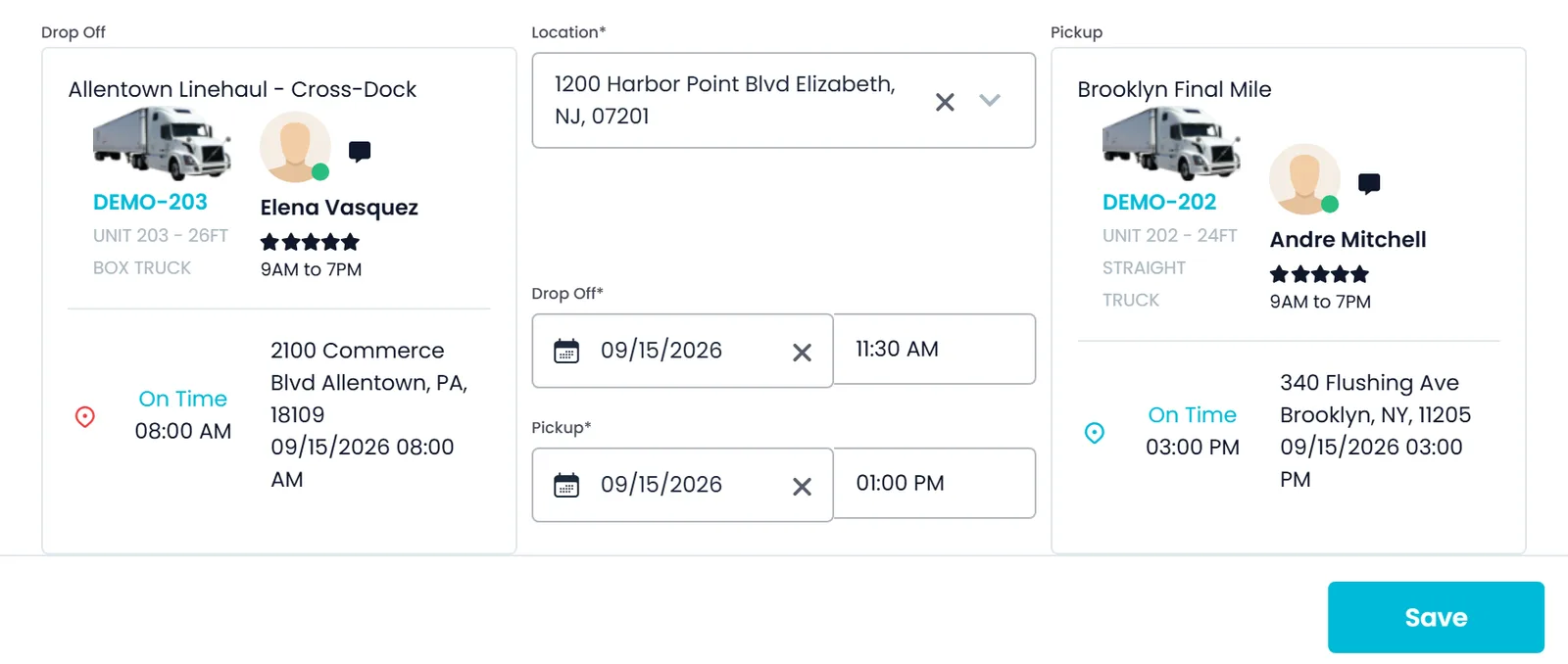
When an order's pickup and delivery sit on different routes, open Assign Transfer from the stop card. Choose one of your warehouses or type any address, set the drop-off date and time and the collection date and time, and RushHour adds both stops to the same order.
- One of your warehouses or any address
- Drop-off and collection times set up front
- A typed address can be saved as a new warehouse
- Open it from a stop card on the Dispatch board or from the stop on the order page
- The collection time can't be earlier than the drop-off time
Driver to driver
Each driver confirms their half in the driver app
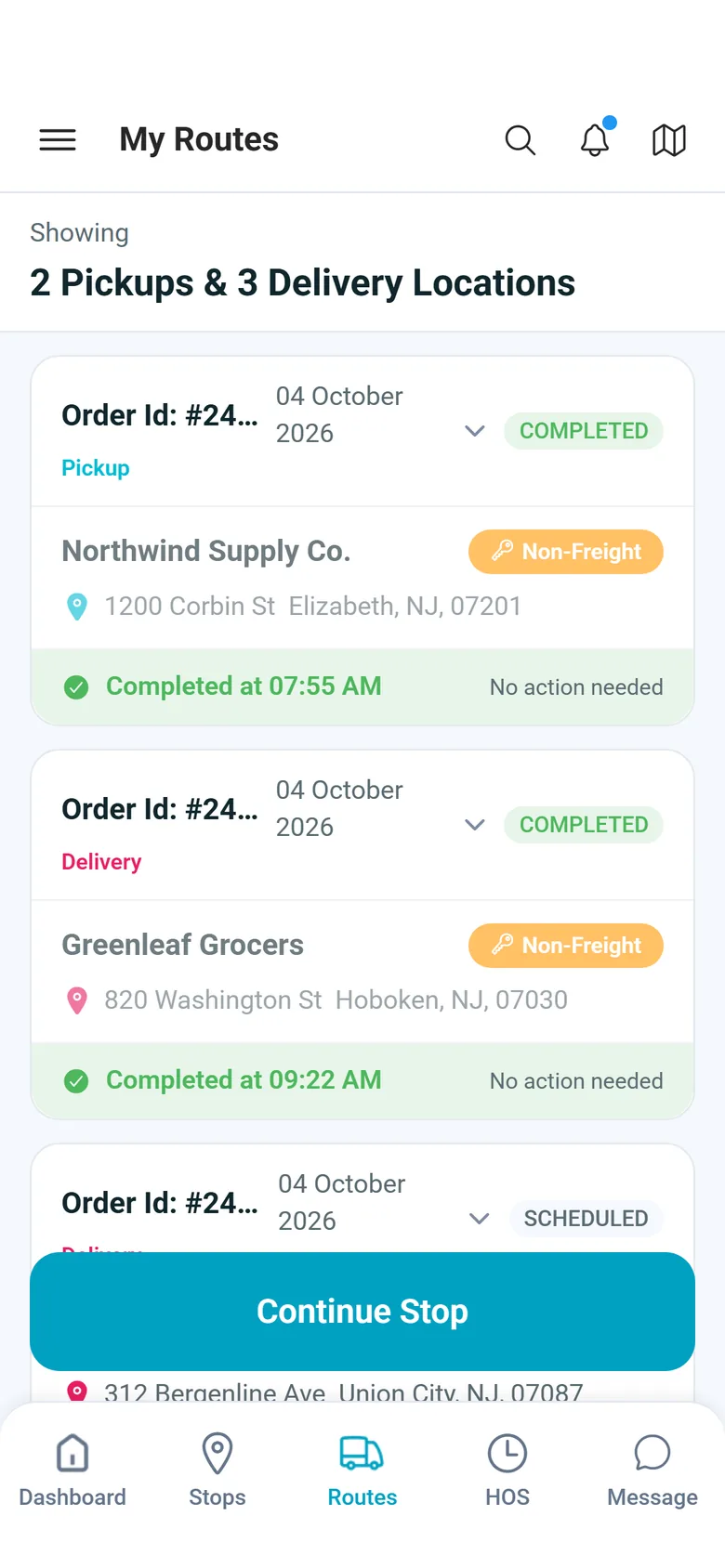
The drop-off at the transfer point sits in the handing-over driver's stop list and the collection in the receiving driver's list, alongside the rest of each route. In the RushHour driver app the drop-off runs the same steps as a delivery and the collection the same steps as a pickup. A collection at the transfer point can't be confirmed until the drop there is confirmed.
- Each leg confirmed like any other stop
- No collection before the drop is confirmed
- Settings → Driver App decides what happens to the transfer legs when a driver reports a failed attempt on the stop that feeds them: remove them or keep them on their routes
- When the next stop is a transfer, the Task Completed screen names the driver and truck to meet and the meeting address, with a Go to Transfer buttonNew in the October 2026 release
Held between legs
Park freight at your warehouse and finish on a later route
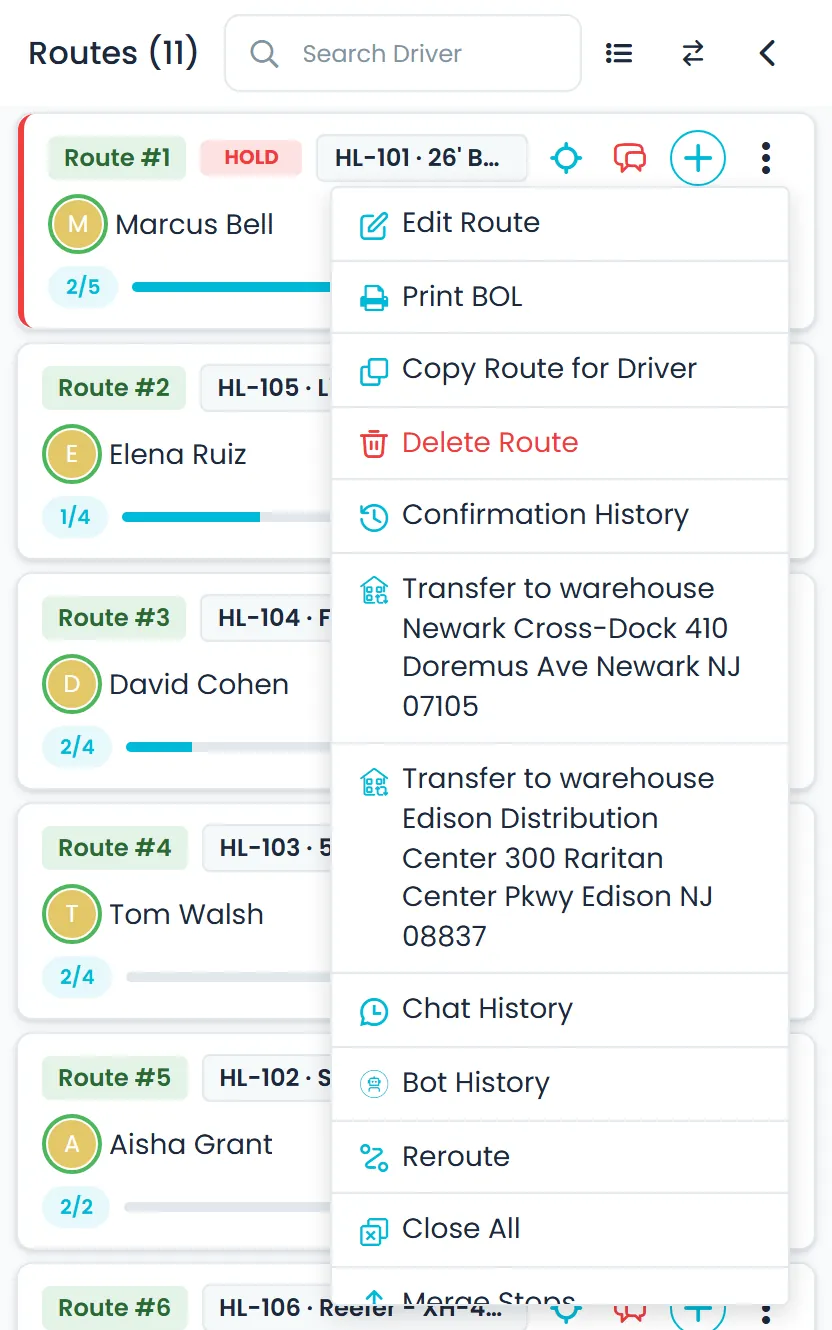
From a route card's menu, choose Transfer to warehouse and pick one of your warehouses. Freight that is already picked up but not yet delivered gets a drop at that warehouse. Once the drop is confirmed, it waits in the Warehouse view of the unassigned panel, still on its order, ready to add to a later route.
- Transfer to warehouse from the route menu
- Only freight already picked up and not yet delivered is moved
- Warehouse view in the unassigned panel's stop type filter
- Placed and collected times stamped on each held item
- Your warehouses come from Settings → Locations, each with a name and address
Guardrails
The board warns you when a handoff is missing
When an order's freight is split across two routes with no transfer, the stop card shows an Assign Transfer warning. Confirming that stop from the board first asks whether to arrange the transfer. If the dispatcher confirms anyway, the card is marked Confirmed Without Transfer and the order's audit log records it.
- Assign Transfer warning on the stop card
- Confirming without a transfer is allowed, flagged and logged
- Legs confirm in order: pickup, drop, collection, delivery
- A transfer can't be deleted once a leg is confirmed
- Deleting one transfer stop removes its paired stop too
- A transfer stop is flagged when pickup and delivery end up on the same route and it is no longer needed
- Dragging an order's last stop to a third route, leaving only its transfer legs behind, asks "Reassign & delete transfers?" before deleting them
- Unassigning the stops on both sides removes the hand-off stops from both routes; transfers already partly done or in progress are not deleted
Confirmation order
Four stops, confirmed in the order the freight moves
On the Dispatch board each leg waits for the one before it, and if someone confirms too early the board says exactly what to confirm first.
- Driver A
Pickup
The first driver collects the freight from the shipper.
The first leg. It has nothing to wait for. - Driver A
Delivery To Transfer
The same driver drops it at your warehouse or the meeting point.
Confirm it too early and the board says:
"Confirm the Pickup first — the Delivery to Transfer can only be confirmed after it." - Driver B
Pickup From Transfer
The second driver collects it from the same place.
Confirm it too early and the board says:
"Confirm the Delivery to Transfer first — the Pickup from Transfer can only be confirmed after it." - Driver B
Delivery
The second driver delivers it to the consignee.
Confirm it too early and the board says:
"Confirm the Pickup from Transfer first — the Delivery can only be confirmed after it."
The same rule holds in the driver app: a collection at the transfer point is refused until the freight has been dropped there.
Cross-border and overseas
Hubs for orders one truck can't run end to end
Two situations call for a hub: an order with stops in two countries split across two drivers, and an order with no drivable road between its pickup and delivery. Both show an Assign HUB warning on the stops.
No drivable route
Save an overseas order now and choose its hubs later
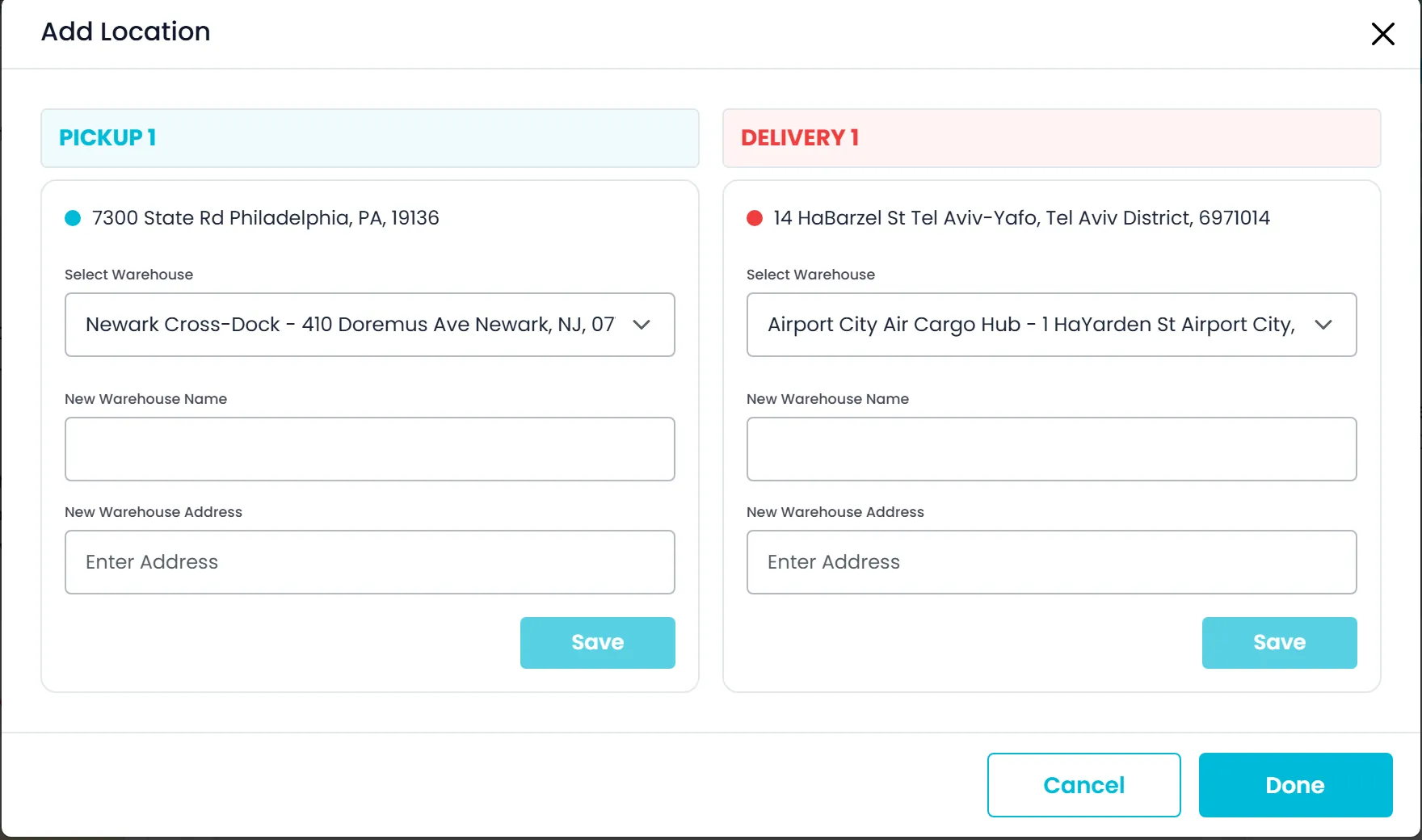
When the map lookup finds no road route between a pickup and its delivery, such as on an overseas shipment, the Company Portal still saves the order and flags both stops Assign HUB. When you're ready, open the warning and choose a warehouse near each end, one on the pickup side and one on the delivery side. The order then runs as two legs, pickup to the first hub and the second hub to the delivery, and the hub stops carry a HUB badge.
- A notice on the order says it has to travel through two hubs, one near each end
- Each side lists your warehouses in that stop's country, or all of them when none is there
- Create a new warehouse on the spot with a name and an address
- The HUB badge marks a warehouse the goods pass through, not a customer address
Two countries, two drivers
Hand a cross-border order from one country's driver to the other's
An order with stops in two countries shows a notice that it should go to two drivers from different countries, with a hub for each country. Once its stops are split across two drivers, the stop card shows an Assign HUB warning that opens Assign Transfer, where you set up the hand-off as a transfer at one of your warehouses.
- Drivers are assigned stop by stop on these orders; the order-level Assign Driver button is hidden
- When the transfer point is one of your warehouses, the board labels the hand-off legs Delivery To HUB and Pick up From HUB
- Dragging a stop to a third route when only the HUB hand-off would be left behind asks "Reassign & delete HUB hand-off?" first
- On orders with a transfer, the Bill of Lading picker lists your real deliveries, not the internal hand-off stop
Where transfers earn their place
Line-haul relay
Run the long leg with one driver and the local leg with another, on one order.
Storage tracking, not a WMS
Freight is held against its order between legs, with placed and collected times stamped. No bin locations or stock levels.
Cross-border hubs
A two-country order split across drivers, or a pickup and delivery with no drivable road between them, shows an Assign HUB warning. The first hands off through a transfer at one of your warehouses; the second runs through a warehouse near each end.
Recently added
More control over transfers and hubs
These changes are in production now. The changelog lists what each release added.
New setting
Choose whether Assign Transfer also moves the order's other deliveriesNew in the October 2026 release
Turn on Transfer all deliveries from the same driver in Settings → Systems → Order, and Assign Transfer also moves the order's other not-yet-started deliveries on the receiving driver's route through the same transfer point, when their freight comes only from the driver handing over.
- Off by default: only the delivery you pick is transferred
- With it off, the other deliveries can use their own transfer point and date
- Applies to Assign Transfer on the Dispatch board and on the order's stops
Transfers follow the order
Unassigning a stop takes its transfer off both routesNew in the October 2026 release
If a pickup or delivery has a transfer, unassigning it without recording an attempt, or deleting the delivery, takes the transfer's stops off both drivers' routes, even while the order's other stops stay assigned. Deleting warns first, and a transfer a driver has started is kept.
- Dragging the last stop onto the route with the other half of its transfer asks for one confirmation, then removes the transfer from both routes
- Assign Transfer moves the right quantity for each delivery when the freight being handed over is split across several of the receiving driver's delivery stops
- If the driver handing over has none of a delivery's freight left, you're told to transfer it from the driver carrying it
- A direct delivery on a split load can be confirmed as soon as its own pickup is
Hub legs and borders
Give both ends of a hub leg to the same driverNew in the October 2026 release
When you assign a driver to a stop on an order routed through a hub, the Portal offers to give the stop at the other end of that hub leg to the same driver, or says when the route has no room for it.
- Show only this stop's country in the driver list, remembered for your next stop assignments until you choose Show all countries
- On the Dispatch board, a "One driver, more than one country" reminder names the driver, the order and the countries; the assignment still saves
- Deleting a stop in another country, or one flagged Assign HUB, clears its Assign HUB warning, and the two-driver notice once the remaining stops are in one country and none still needs a hub
- Assigning a hub no longer adds a customer named after the warehouse
Order map
Each country's route and distance on the order mapNew in the October 2026 release
Once a cross-border order's hubs are assigned, the order page map draws a separate route in each country, such as pickup to hub and hub to delivery, following roads where possible. No line joins stops in different countries, and hovering a line shows its distance.
- Add Location lists the stops still needing a hub, in the New and Old UI
- Change a pair's hubs before clicking Done
- The Orders list shows hub and transfer stops in the order the freight travels
Questions
Cross-dock and transfers: common questions
Is this a warehouse management system?
No. RushHour tracks freight held between legs against its order. Each held item is marked placed when the drop is confirmed and withdrawn when it is collected, with both times recorded. There are no bin locations, stock levels or inventory counts.
Does the handoff have to happen at one of our warehouses?
No. In Assign Transfer you can pick one of your warehouses or type any address, and a typed address can be saved as a new warehouse. Hub hand-offs on cross-border and overseas orders use your warehouses, and you can create a new one from the hub selector.
What happens to a transfer if the first driver can't make the pickup?
That is a setting: Settings → Driver App → Transfer stops on failed attempt. When a driver reports a failed attempt on the stop that feeds a transfer, RushHour either removes the planned transfer legs, which is the default, or keeps them on their routes.
Will the internal handoff show up in the Bill of Lading picker?
No. On orders with a transfer, the list for choosing which Bill of Lading to open shows the billing copy and your actual deliveries, and leaves out the internal hand-off stop.
What if the pickup and the delivery end up on the same route after all?
The transfer stop is flagged with a hint that pickup and delivery are on the same route and it is no longer needed. Delete Transfer removes it together with its paired stop, as long as neither leg has been confirmed.
Do drivers need a new app version to see who they're meeting?
No. The Task Completed screen in the driver app shows the next stop, or the driver and truck to meet for a transfer, and that information comes from the RushHour server, so the app your drivers already have shows it.
Related features
See a handoff on your own lane.
In a demo we'll take one order, split it across two drivers at a hub, and follow the drop and the collection through to the invoice.