
Tell customers the driver has arrived,
in emails that carry your name.
With the next release, you can email the customer an order is billed to when the driver taps Arrived at a pickup or delivery and again when they complete the stop, each email showing the details you choose, and send tracking-link and proof-of-delivery emails automatically. The same release puts your logo, accent color and contact details on the emails RushHour sends for you, and lets admins rewrite 20 built-in emails in their own words. Late-delivery alerts already reach the Customer Portal users who switch them on.
At a glance
The delivery updates your customers can get
What sends each update, who gets it and where you switch it on. Late-delivery alerts work today; the other three arrive with the next release and stay off until you turn them on.
How it works
From the driver's tap to your customer's inbox
Arrival and departure emails start in the RushHour driver app, on iPhone and Android: one when the driver taps Arrived, one when they complete the stop. Branded emails set the look of what RushHour sends for your company, and Email Templates set the wording of 20 built-in emails. Late-delivery alerts work today; the other rows here arrive with the next release.
Arrival and departure
An email when the driver arrives, another when they leaveNext release
In Settings > Customer Notifications, switch on Driver arrived, Driver departed or both, and they go to the customer the order is billed to. The arrival email goes out when the driver taps Arrived at a pickup or delivery in the driver app, and the departure email when the driver completes the stop. The same page can also email each order's tracking link, once per order, when tracking links are turned on, as described on Shipment Tracking.
- Arrival and departure switched on separately
- Both stay off until you turn them on
- Set by users who can edit your company profile
- The arrival email lists the quantities planned for the stop; the departure email lists what the driver reported handling
- Sent only for stops the driver marks in the driver app, not for stops updated from the Company Portal
Email contents
Choose what each email shows, and in what orderNext release
Tick the lines each email includes and drag them into order: date and time, pickup or delivery, stop address, items and quantities, your company name, the driver's name and phone, and optionally the order and reference numbers. The arrival email can add the free waiting time, and the departure email the total time at the stop and the paid waiting time past the free time. Show email preview displays the subject and message with sample stop details, built by the same template that sends the real email.
- Drag to reorder, or use the move up and down buttons
- Leave out any line, including the driver's phone
- Preview with sample details before you switch it on
- Arrival starts with 8 lines ticked and departure with 9; the order and reference numbers stay off until you tick them
Per customer
Set exceptions for the customers who want themNext release
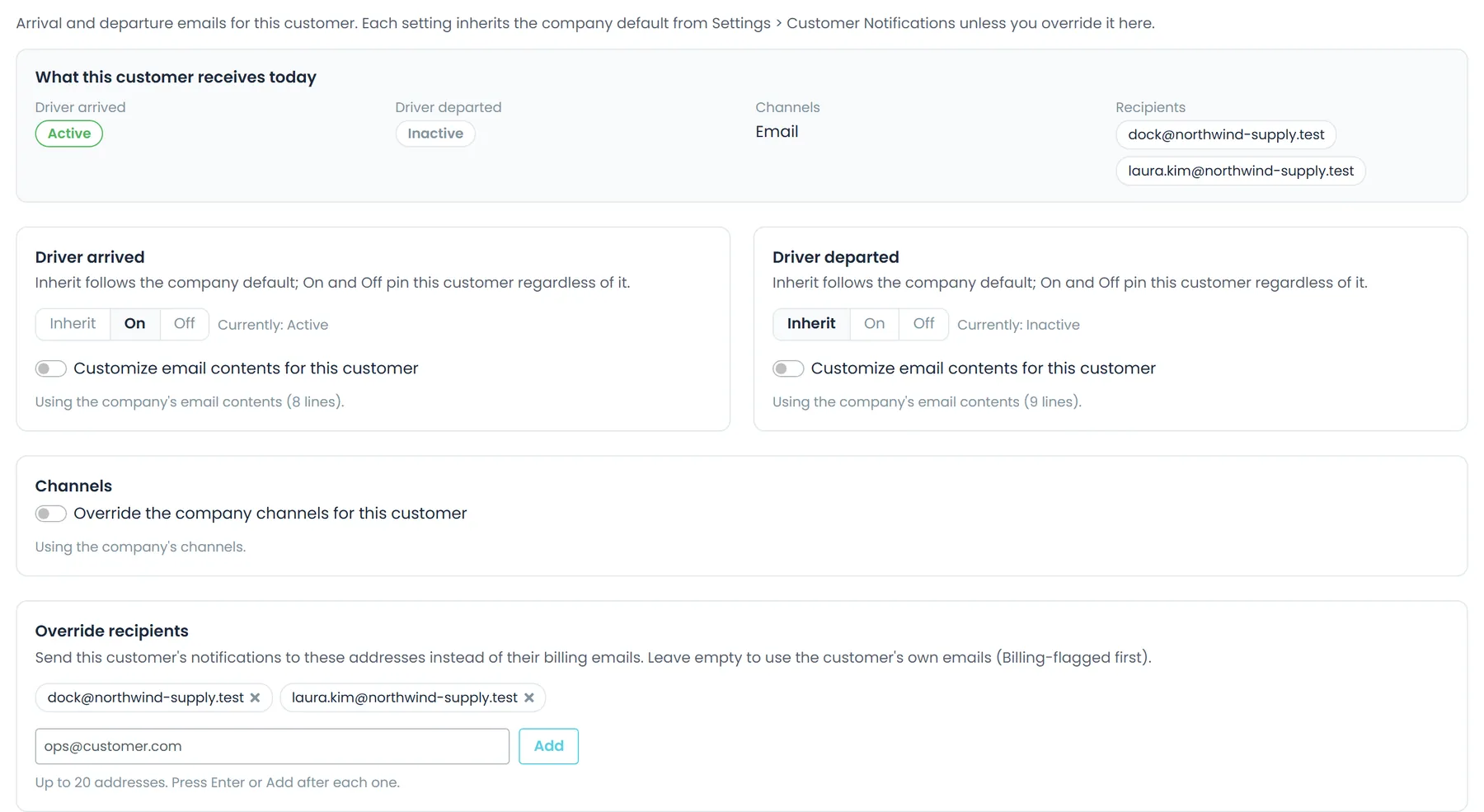
A customer's Notifications tab follows your company defaults (Inherit) until you switch an email On or Off for that customer or give it its own email contents. The emails go to the customer's email addresses marked Billing, or to all of its addresses when none is marked, unless you list up to 20 other addresses instead. The tab shows who will receive them and warns when there is no address to send to, and users who can edit customers can change it.
- Inherit, On or Off for each email
- Up to 20 override recipients per customer
- Recipient list, with a warning when there is none
- A 'What this customer receives today' summary at the top of the tab
Tracking-link emails
Each order's tracking link, emailed onceNext release
Turn on Tracking link emails in Settings > Customer Notifications, with Settings > Tracking Links on, and RushHour emails each order's live tracking link to your customer automatically, once per order. Pick one moment for the whole company: when a driver is assigned, when the order is booked, or when the driver picks up. Then pick who receives it: the order's contact (or the customer's shipment-update addresses when the contact has no email) plus the customer's Customer Portal users who subscribed to tracking links, or only those subscribers.
- Orders already past the chosen step when you switch it on are not emailed
- Nobody already sent the order's current link is emailed it again
- Per customer: Use company setting, Also email contacts, or Don't send
- Customer Portal users subscribe by email or in the notification bell
- Each automatic send is recorded in the order's activity log

Proof of delivery
The proof of delivery, emailed when the driver finishesNext release
Turn on Email proof of delivery on completion in Settings > Driver App > Features. When a driver completes a delivery stop in the driver app, RushHour waits about 90 seconds so the signature and photos can finish uploading, then emails that stop's proof-of-delivery PDF to the customer the order is billed to: its addresses tagged Bill of Lading, or else those tagged Billing, or else all of its active addresses.
- Off until you switch it on
- Arrival and departure times, driver, truck, delivered items and, when captured, GPS location, signature and photos
- Pickups and stops completed from the Company Portal send nothing; staff can email the POD from the order by hand
Late-delivery alerts
A heads-up when a stop is running late
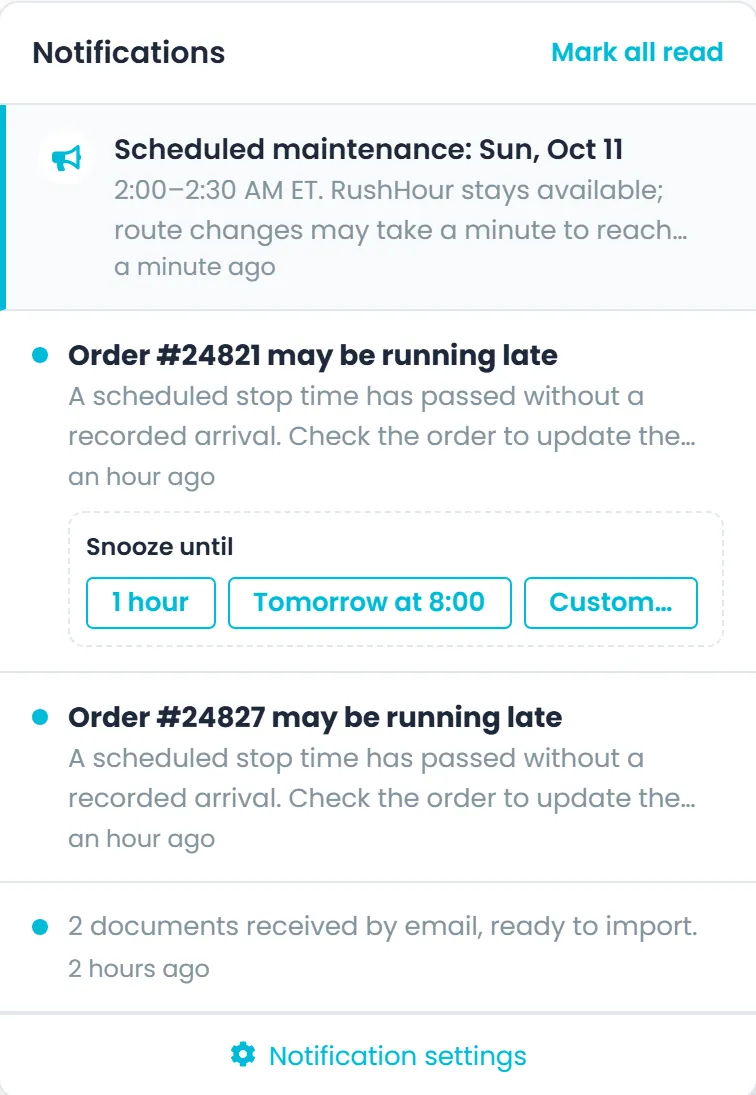
Every hour RushHour checks orders in progress for stops more than 30 minutes past their scheduled time with no arrival recorded. Your team gets an alert that opens the order in the Company Portal. The order's own Customer Portal users get a customer-friendly version about that order only, which opens it in the Customer Portal. Each person switches late-delivery alerts on in their own notification settings and chooses the bell, email or both.
- Opt-in for each user: in the bell, by email or both
- At most one alert per order every 24 hours
- Covers stops scheduled within the last 7 days
- Team members can snooze an alert for 1 hour, until tomorrow at 8:00, or to a time they pick
Branded emails
Your logo, accent color and contact details around each emailNext release
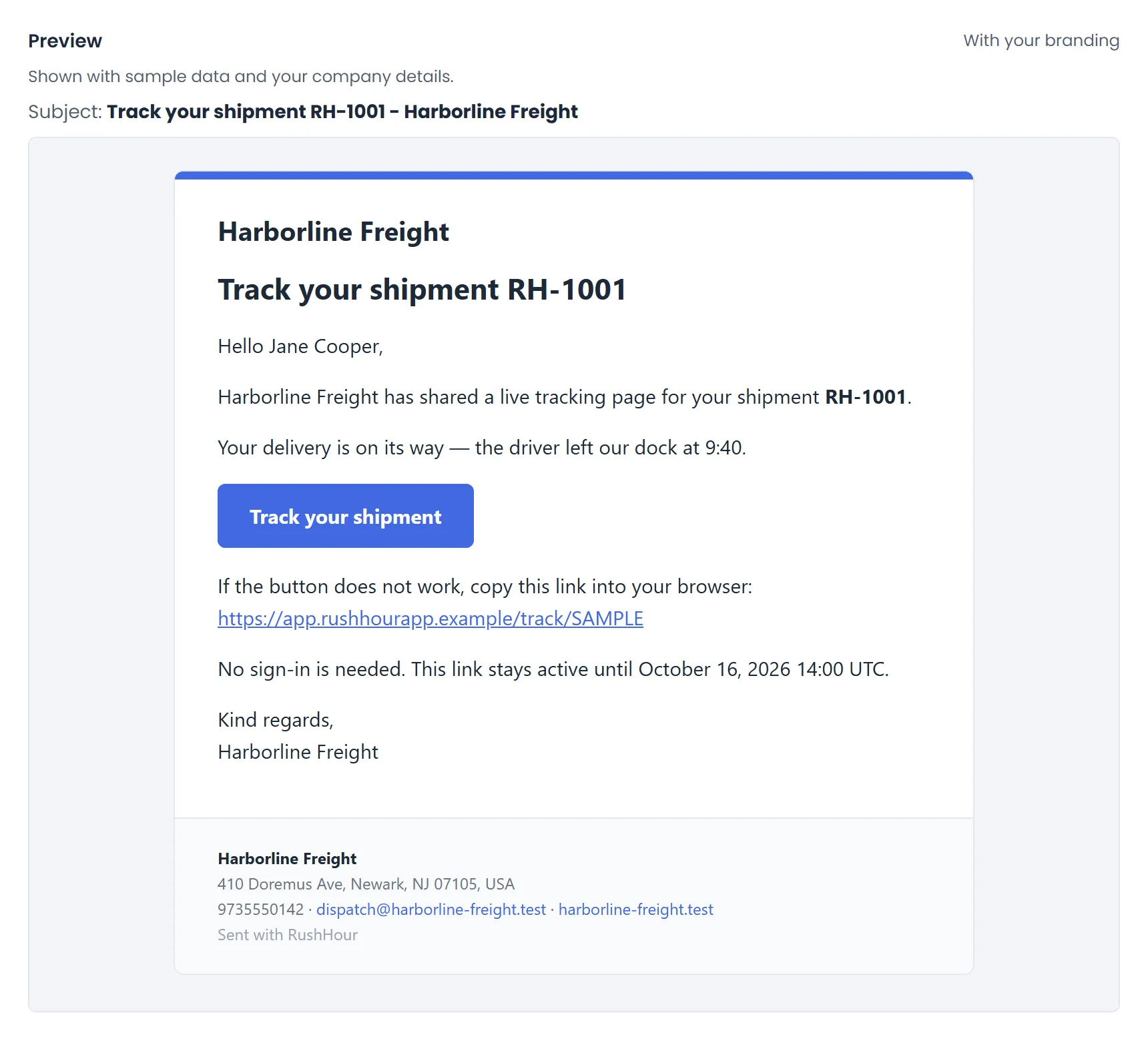
Invoices, quotes, bills of lading, portal and driver invitations, password resets and the arrival and departure emails all go out in one layout. A band in your accent color and your logo from Settings > Profile sit at the top, and the footer carries your company name, address, phone, email and website plus footer text you write. Branded emails are on by default; switching them off on the Email Templates page returns to the previous plain format, and emails you have customized keep your wording.
- Your company name appears when there is no logo
- Fits phone screens; mostly-Hebrew emails read right to left
- A plain-text version is sent alongside
- Accent color, footer text and the Branded emails switch sit on the Email Templates page
Email Templates
Put 20 built-in emails in your own wordsNext release
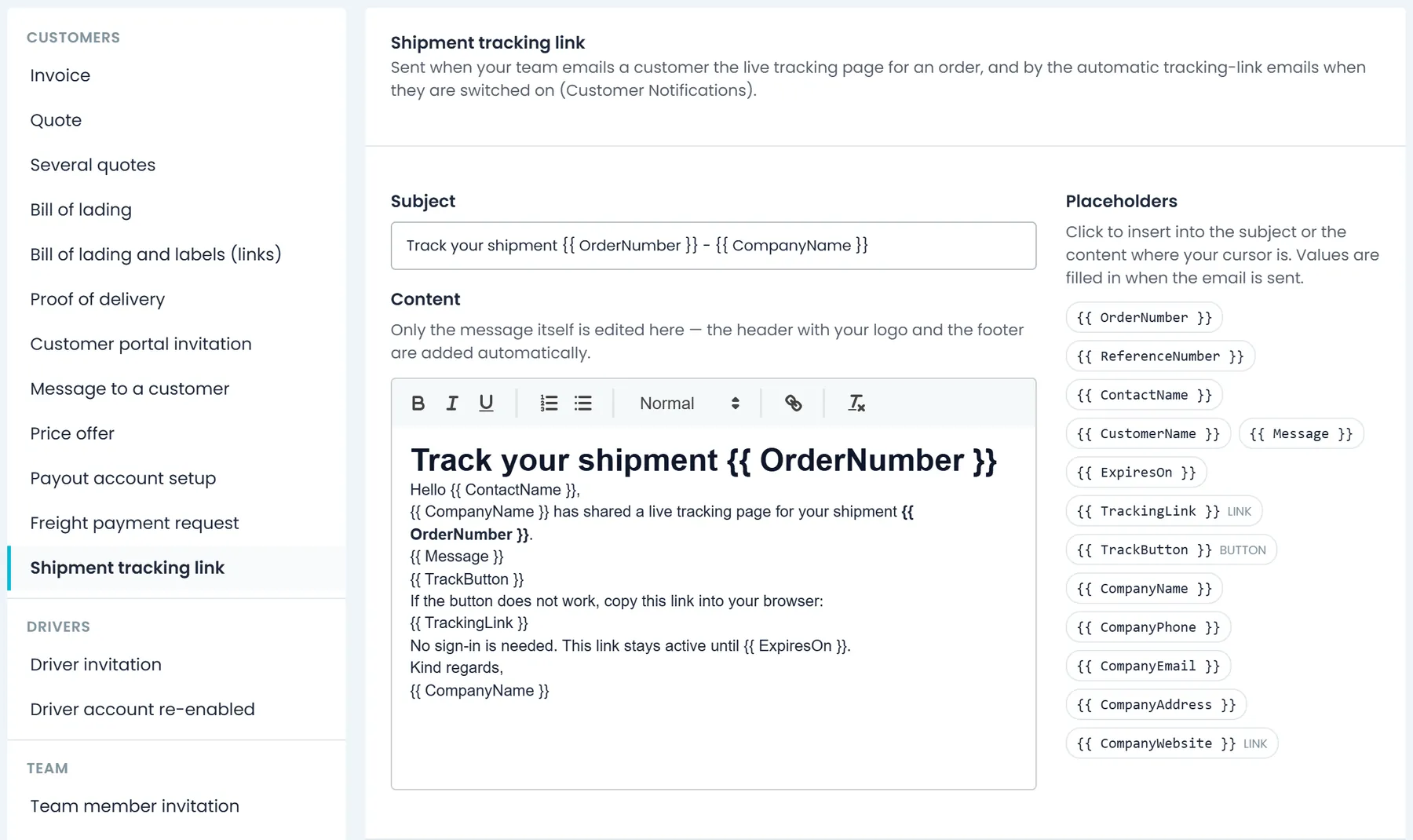
Settings > Email Templates lists 20 built-in emails, grouped by who receives them: Customers, Drivers, Team, and Sign-in & security. Edit the subject and message, click a placeholder such as the order number or a download button to insert it, and check the preview with sample data before you save. Send yourself a test, or reset an email to the default at any time.
- Logo header and footer added automatically
- Edited emails are marked Customised in the list
- Company admins edit by default; billing footer editors can view
- Three notices can be switched off entirely: Driver account re-enabled, User will be disabled and Password changed
Email Templates
The 20 built-in emails you can rewrite
Settings > Email Templates groups them by who receives them. While branded emails are on, your logo header and footer are added to each one, whatever wording you write.
Customers, 12 emailsNext release
Invoice, quote, several quotes, bill of lading, bill of lading and labels (links), proof of delivery, Customer Portal invitation, message to a customer, price offer, payout account setup, freight payment request and shipment tracking link.
Drivers, 2 emailsNext release
The invitation to join the driver app, and the notice that a driver's account was enabled again.
Team, 3 emailsNext release
Team member invitation, the warning that a user will be disabled, and the email copy of an in-app notification such as a late-delivery alert.
Sign-in & security, 3 emailsNext release
Password reset link, password reset code for the driver app, and the confirmation that a password was changed.
Why your customers notice
They hear it from you firstNext release
The customer learns the driver has reached the stop from your email, instead of calling dispatch to ask.
Waiting time, shown before the invoiceNext release
The departure email can show how long the truck stayed and how much of that ran past the free time, before the invoice arrives.
One look from quote to invoiceNext release
Quotes, bills of lading, invoices and stop emails arrive in the same layout, with your logo and contact details.
Customer notification questions
Can customers get these updates by text message?
No. RushHour sends customer notifications by email, and Customer Portal users can also get late-delivery alerts in the portal's notification bell.
Will my customers start getting new emails when the next release goes live?
Not from the arrival, departure, tracking-link or proof-of-delivery emails: each stays off until you switch it on. What changes for everyone is the look. Branded emails are on by default, so the emails RushHour already sends for you, such as invoices and invitations, arrive in the new layout with your logo and updated default wording. You can switch that off in Settings > Email Templates.
Who receives the arrival and departure emails?
In the next release, they go to the customer the order is billed to: the override addresses on that customer's Notifications tab if you set any (up to 20), otherwise its email addresses tagged Billing, otherwise all of its active addresses. The tab lists the recipients before anything is sent and warns when there is no address.
Do drivers have to do anything new?
No. With the next release, the arrival email goes out when the driver taps Arrived at the stop in the RushHour driver app, and the departure email when they complete the stop: the same steps they take today. Stops updated from the Company Portal do not send these emails.
Can customers get late-delivery alerts today?
Yes. Every hour RushHour looks for stops more than 30 minutes past their scheduled time with no arrival recorded. Customer Portal users who switch on Late delivery in their notification settings get an alert about their own orders, in the bell, by email or both, at most once a day per order.
Can the emails be in Hebrew?
In the next release, yes: write a template's content in Hebrew in Settings > Email Templates and the branded layout runs right to left. The built-in default wording is in English.
Can I see an email before my customers do?
Yes, in the next release. Settings > Customer Notifications previews the arrival and departure emails with sample stop details, and Settings > Email Templates previews each template with or without branding and sends a test to your own address.
Related
See the email your customer would get.
In the demo we switch on arrival and departure emails, pick what they show, and edit a built-in email with your logo and your wording.