
Shippers find, check and pay
their own invoices.
Each customer with a portal login sees their own unpaid invoices with status, total and balance, and opens any of them to check the lines and payment history. They preview and print the same invoice your office sends, record cash and check payments, apply one payment to several invoices, and pay with a saved card when you take cards through Cardknox.
Invoices and payments
What a shipper can do on the Invoices page
Every customer you invite to the Customer Portal gets all of this by default. Card payments are the one part that also needs your own Cardknox account.
The invoice list
Their unpaid invoices, filtered their way
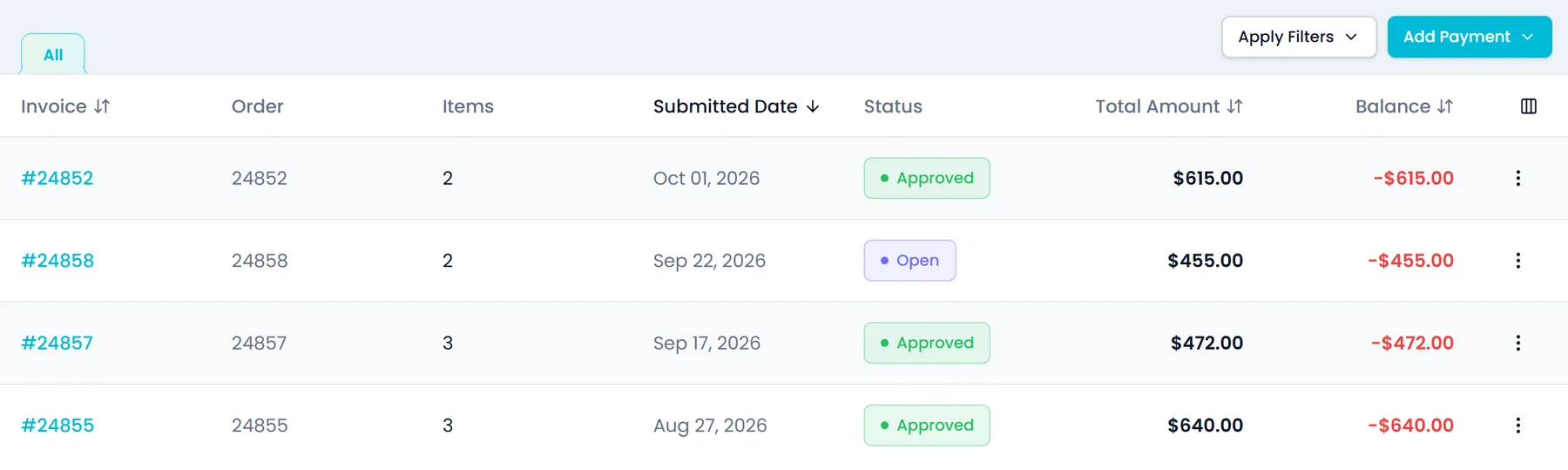
The Invoices page lists the signed-in customer's unpaid invoices, newest first: invoice and order number, item count, submitted date, status, total and balance. Shippers search by invoice number and filter by date range or by invoices with or without an order.
- Create Filter keeps a filter as its own tab, saved in that browser
- Filters stay in the address bar, so a filtered view can be bookmarked or sent to a colleague on the same account
- View opens an invoice in its own tab next to the list, and each invoice that can be paid has an Add Payment action
- On a phone, each invoice shows as a compact card with its status, total and balance
The invoice
An invoice they can read, print and keep
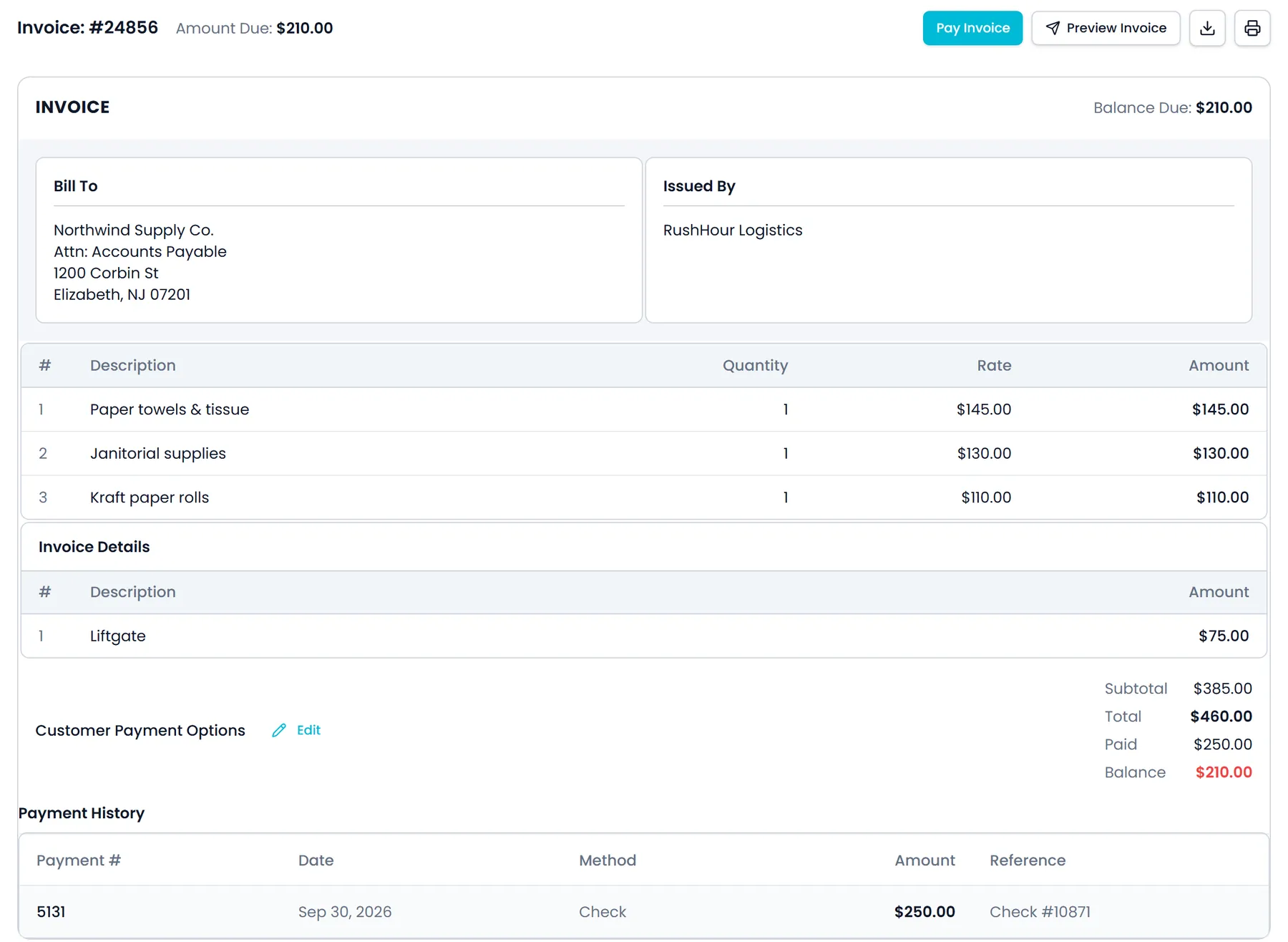
Opening an invoice shows the amount due at the top, then the Bill To details, the shipment it covers when there is one (ID, route, type, date and amount), the item lines, the charge lines and the totals: subtotal, total and balance, plus tax with its rate, discount, paid and credit when they apply. Payment History lists each payment's number, date, method, amount and reference.
- Preview Invoice and Print show the same invoice document your office prints and emails
- There is no separate PDF button: shippers keep a PDF copy with Save as PDF in the browser's print dialog
- Download saves a QuickBooks Desktop export file of an approved invoice, and Profile → Billing History puts their approved invoices with nothing paid yet into one such file
- Pay Invoice is offered while a balance is due, and each invoice tab has its own link, so a reload or a shared link reopens it
Recording payments
Record a payment, or apply one payment to several invoices
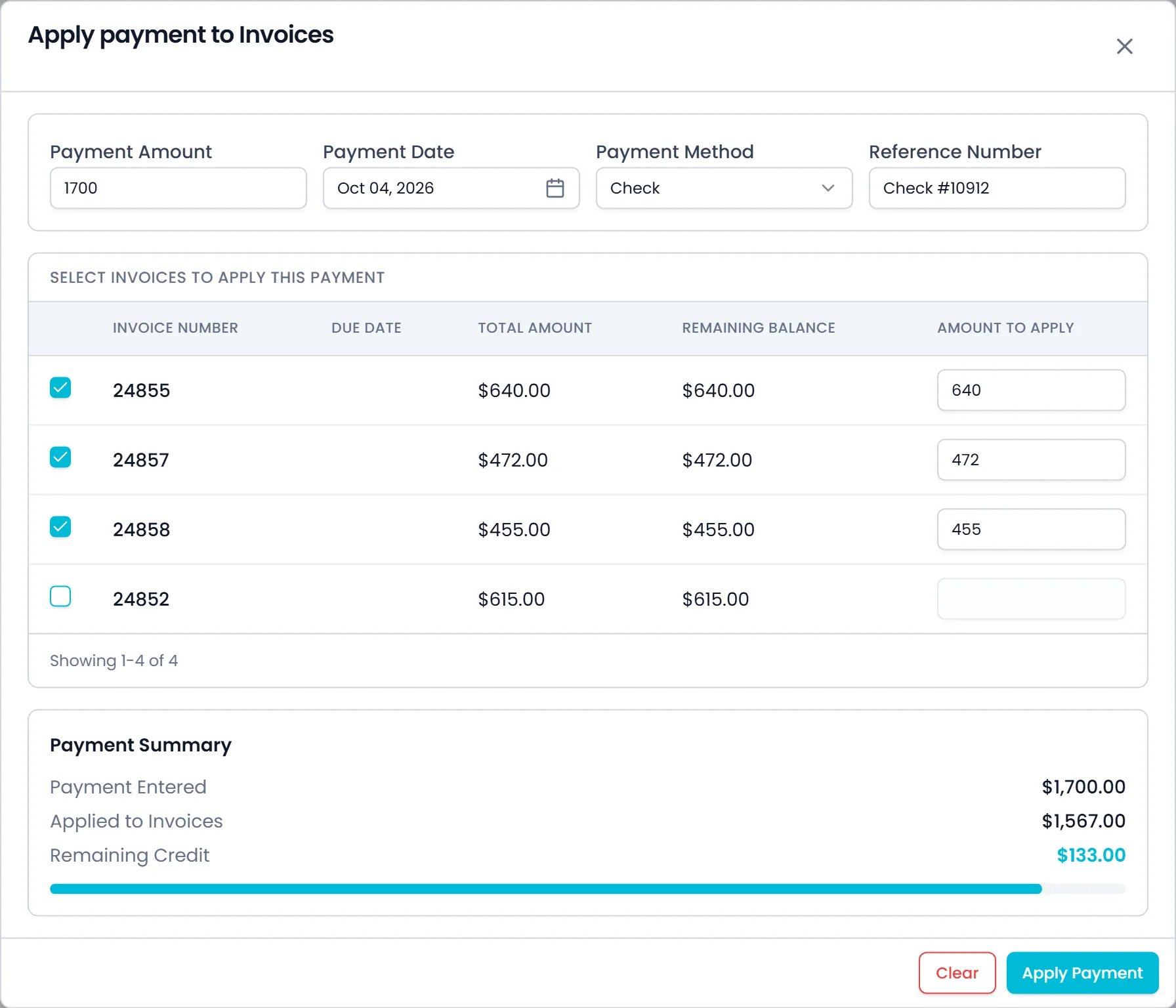
Add Payment records a payment against one invoice: the amount (filled in with the balance due), payment date, method, reference number and memo, next to a panel with the account's default payment method, credit limit, payment terms and open balance. Apply Payment to Invoice takes one payment amount and lists their unpaid invoices, oldest first, so the shipper can tick the ones it covers. Payments are accepted on invoices you have approved, are recorded in your Accounting against those invoices, and the customer's balance is recalculated right away.
- Ticking an invoice applies its full remaining balance, and the amount can be lowered per invoice
- Payment Entered, Applied to Invoices and Remaining Credit stay in view, and applying more than the payment is blocked
- Any amount left unapplied is recorded as customer credit after a confirmation
- Methods: Cash, Check, or a saved card when you take cards through Cardknox
Card payments (optional)
Saved cards, charged through your own Cardknox account
Connect Cardknox in Settings → Integrations and shippers can save cards and pay with them. The card number and CVV are typed into secure fields served by Cardknox, so card details never reach RushHour, and each card payment is charged through your Cardknox account. Without Cardknox, shippers cannot add a card, Cash and Check stay available, and Settings → Billing tells them that card payments are not enabled yet.
- Cardholder name, expiry from month and year lists (past dates refused) and a billing address filled in from their profile
- Set as my default payment method when adding a card, or Make default later
- Cards are managed in Settings → Billing, from an invoice's Customer Payment Options and from their Profile
- An order's Billings tab shows its subtotal (with price and discount when a discount applies) and a Pay button once the order's invoice can be paid
Around the invoice
Their balance, their billing contacts and your rates
Three places outside the Invoices page where shippers answer their own billing questions.
Dashboard
The balance is the first thing they see
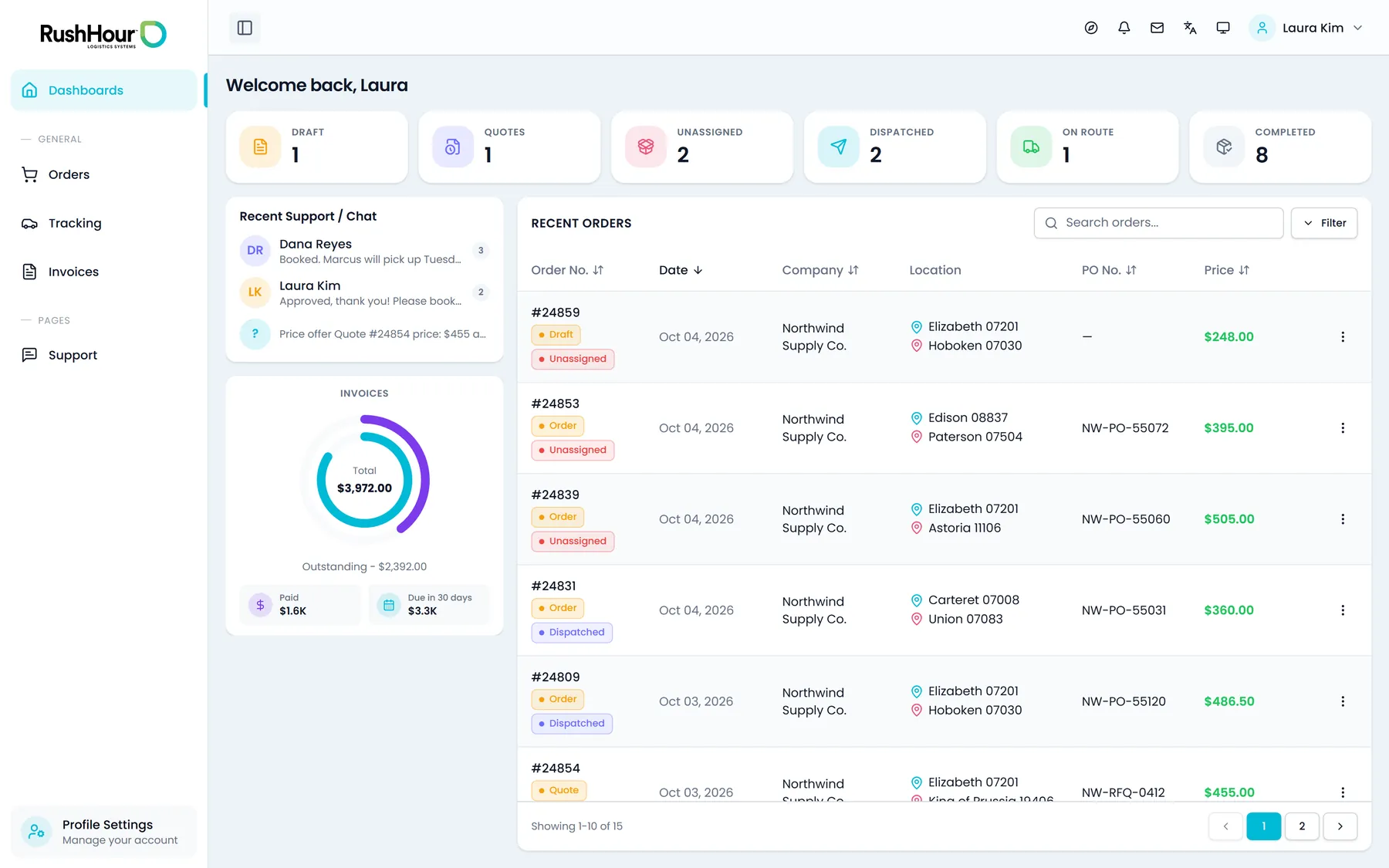
The dashboard's Invoices ring shows the account's invoice total, what is outstanding, what is paid and what falls due in the next 30 days, and selecting it opens the Invoices page. The rest of the dashboard, with order counts, Recent Orders and recent support chats, is described on the Customer Portal page.
- Total, Outstanding, Paid and Due in 30 days
- Due in 30 days adds up the invoices whose due date falls within the next 30 days
- Outstanding is the invoice total less the payments applied to those invoices
Billing contacts
Invoices go to the right inbox at the customer
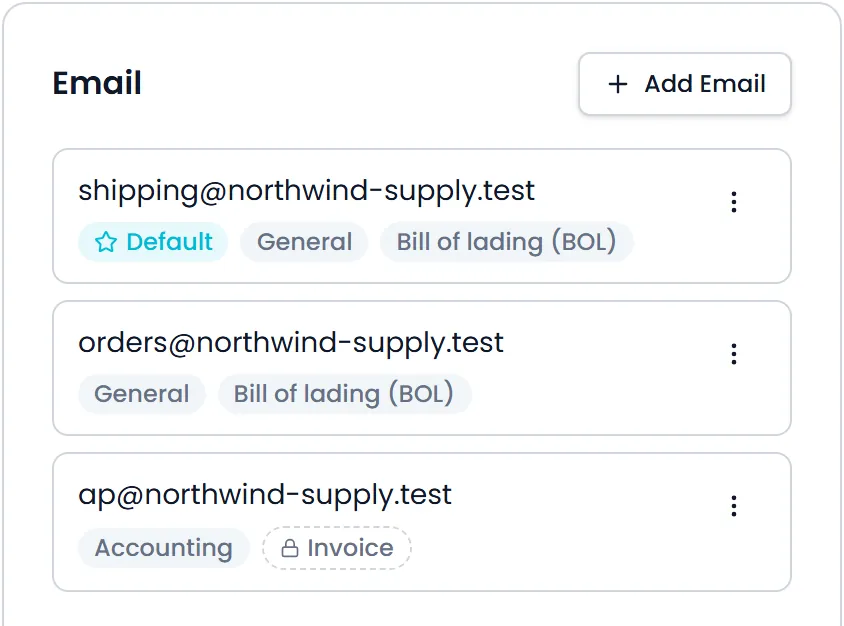
In Profile → Email, shippers add, edit and remove their company's email addresses and tag each one: General, Accounting (receives invoices), Billing / AR (receives shipment updates) or Bill of lading (BOL). Types your team sets, such as Invoice, Appointment or Accept payment, are shown by name and stay exactly as you set them.
- Four types a shipper can set, each with a note on what it receives
- Types your team manages are marked Set by your account team and kept unchanged
- The default address is marked
Rates and terms
Your charges and terms, where they can check them
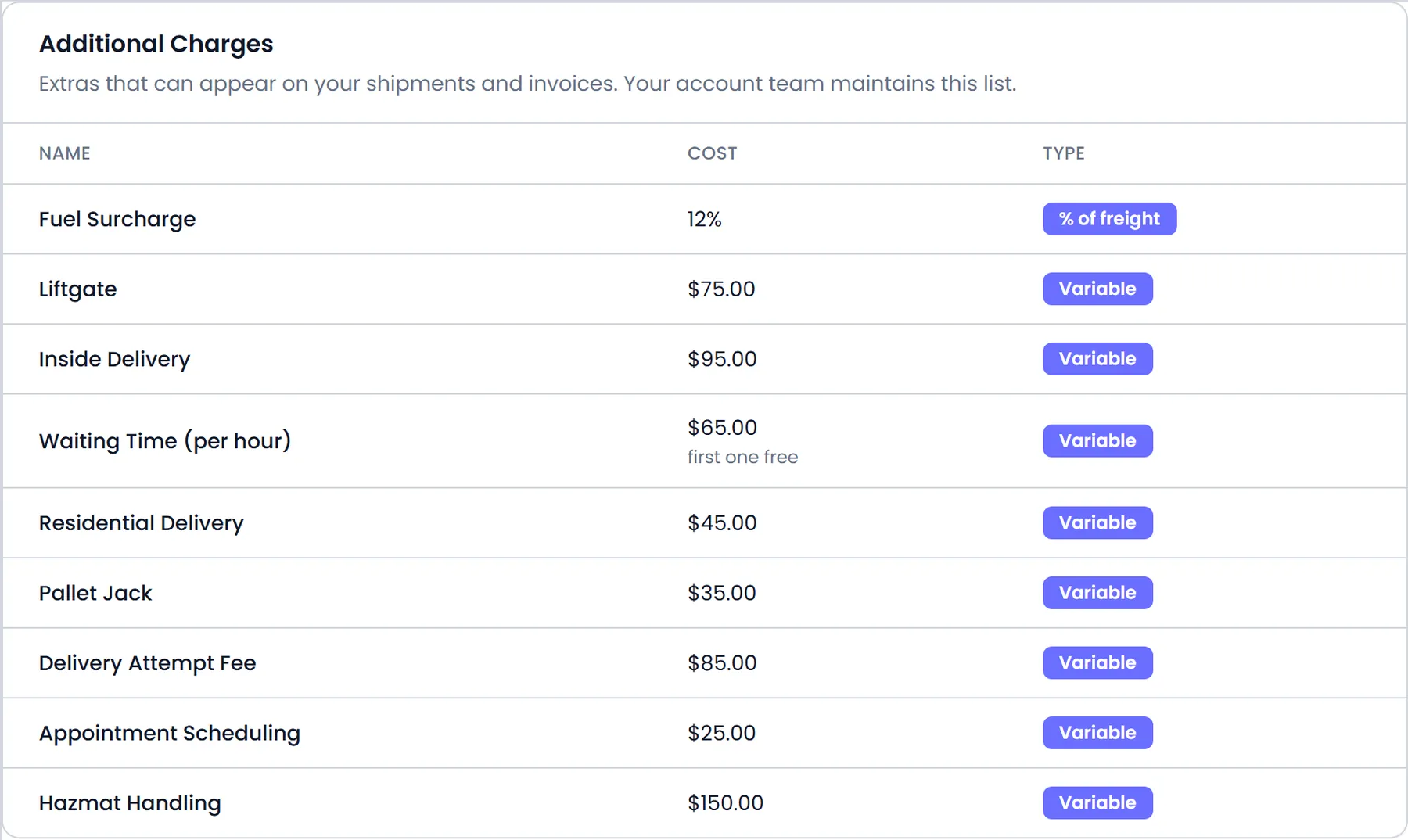
Read-only Settings pages show how the account is priced: Additional Charges with each charge's cost and type, the zones you price by, your Terms & Conditions and a Version page. Only your team can change any of them.
- Charge types: fixed, adjustable, variable, % of freight, % of shipment value, or per shipment, pallet, kg, piece, stop or document, with any minimum, maximum or free first units
- Zones with the named places or postcode ranges you price by
- Your Terms & Conditions, with the date they were last revised
- The Version page shows the portal and API version numbers to quote when reporting a problem
Built for receivables, not just display
Their account, and only theirs
The portal shows each login only its own customer's invoices and payment forms, and the server applies every payment to that customer's own account.
The same invoice you sent
Preview and Print use the invoice document your office prints and emails, so the copy in their file matches yours.
Card numbers stay off your desk
With Cardknox connected, shippers type cards into its secure fields on their own device instead of reading them out over the phone.
English or Hebrew, on any screen
The portal runs right-to-left in Hebrew, has light and dark themes, and shows invoices as compact cards on a phone.
Related
In the next release
A clearer invoice document, and a way to pay without a login
These changes are finished and ship with the next production release of RushHour.
Invoice document
A clearer invoice when shippers preview or print itNext release
The invoice document behind Preview Invoice and Print shows the order price under Items instead of Fees, counts it in the items total and gives additional charges their own total. The Invoice Total shows the full amount, with Paid and Balance Due lines once a payment is recorded, and amounts show two decimals. The invoices your office previews, prints, downloads and emails change the same way.
- Order price under Items, not Fees
- A separate total for additional charges
- Paid and Balance Due lines once a payment is recorded
Customers without a login
Pay an invoice by card from a secure linkNext release
Approved invoices with a balance due get Copy pay link and Send payment link in your Accounting, and the invoice email includes a Pay online now link. Your customer pays the balance by card on a secure page without logging in, through your Cardknox account, and the payment is recorded against the invoice. Payment links need a connected Cardknox account, are on by default and can be turned off in Settings → Billing.
- Copy pay link or Send payment link from Accounting
- No login and no account needed to pay
- Recorded against the invoice when the card is approved
Questions carriers ask about shipper invoices
Can shippers download an invoice as a PDF?
There is no PDF download button in the portal. Shippers open Preview Invoice or Print, which show the same invoice document your office sends, and choose Save as PDF in the browser's print dialog. The Download button saves a QuickBooks Desktop export file of an approved invoice instead.
Do we need Cardknox?
Only for card payments. Without a connected Cardknox account, shippers still see, preview and print their invoices and record cash or check payments, but they cannot add a card. Connect Cardknox in Settings → Integrations to let them save cards and pay with them; card payments are charged through your Cardknox account.
Where do the payments shippers record show up?
In your Accounting, against the invoices they were applied to, and the customer's balance is recalculated right away. A cash or check payment is recorded as soon as the shipper submits it, payments are accepted only on invoices you have approved, and any amount not applied to an invoice is recorded as customer credit.
Can one payment cover several invoices?
Yes. In Apply Payment to Invoice the shipper enters one amount and ticks the unpaid invoices it covers, listed oldest first. Each ticked invoice takes its full remaining balance unless they lower it, applying more than the payment is blocked, and anything left over is recorded as customer credit after a confirmation.
Which invoices does a shipper see?
Only the unpaid invoices of the customer their login belongs to. The portal's invoice list, invoice pages and payment forms are limited to that customer, and the server applies every payment to that customer's own account.
Can customers without a portal login pay online?
Not in production today. In the next release, your staff can copy or email a secure payment link for an approved invoice with a balance due, and the customer pays it by card without logging in. It needs a connected Cardknox account.
Show your shippers where their invoices live.
In the demo we sign in as a sample shipper, open an invoice, print it, record a check and apply one payment to several invoices.