
Dispatch, sales and billing in one office app,
in English or Hebrew.
The Company Portal is the web app your office runs on: the dispatch board, orders and quotes, customers, invoices and settings. Find orders, customers, invoices and other records with Ctrl+K, keep orders and customers open as tabs, switch between the companies you run, and work in English or Hebrew, in a light or dark theme.
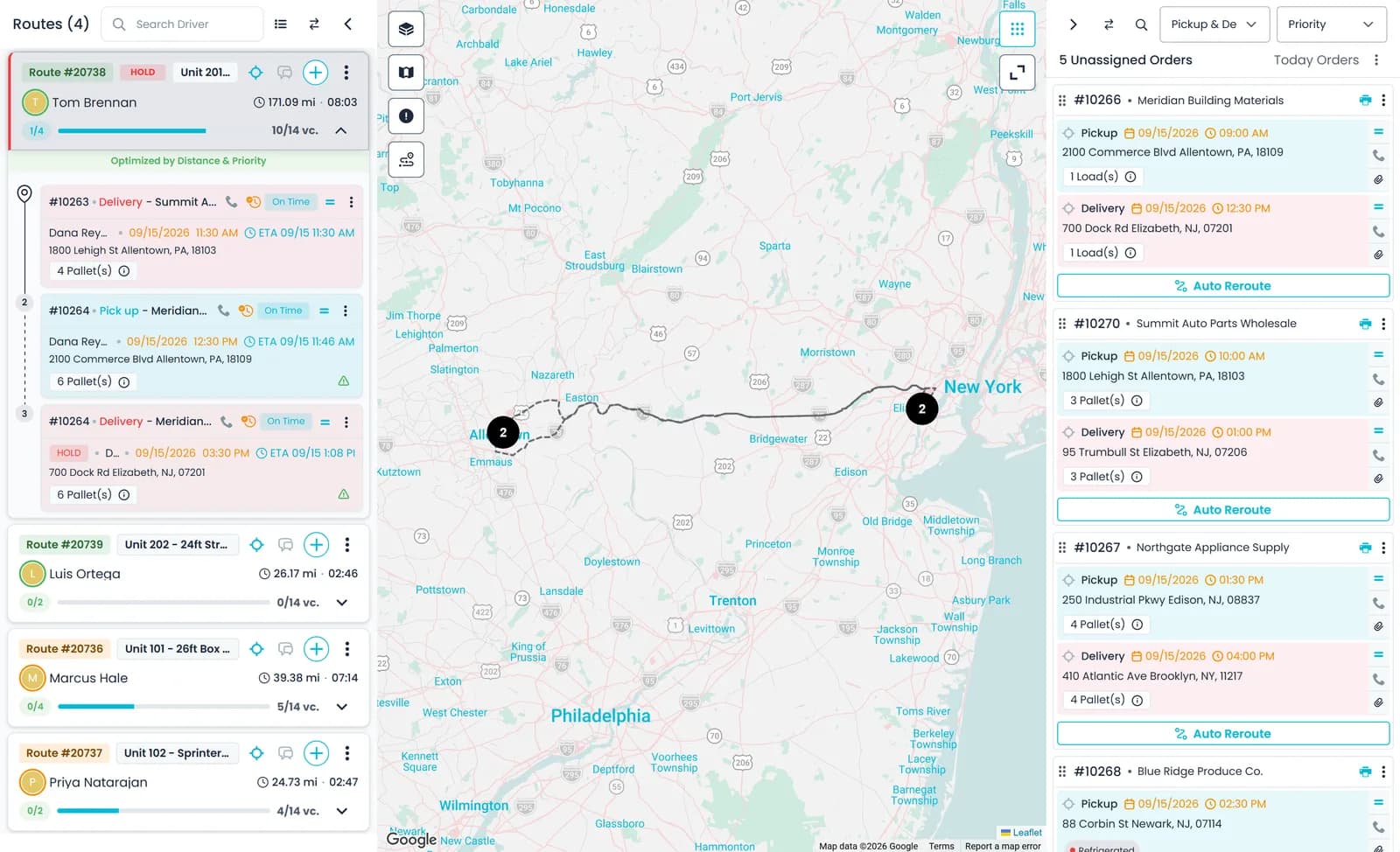
The workspace
Made for people who work in it all day
Language, search, tabs and layout are built around the dispatchers, sales and billing staff who keep the Portal open from the first call of the day to the last invoice.
English and Hebrew
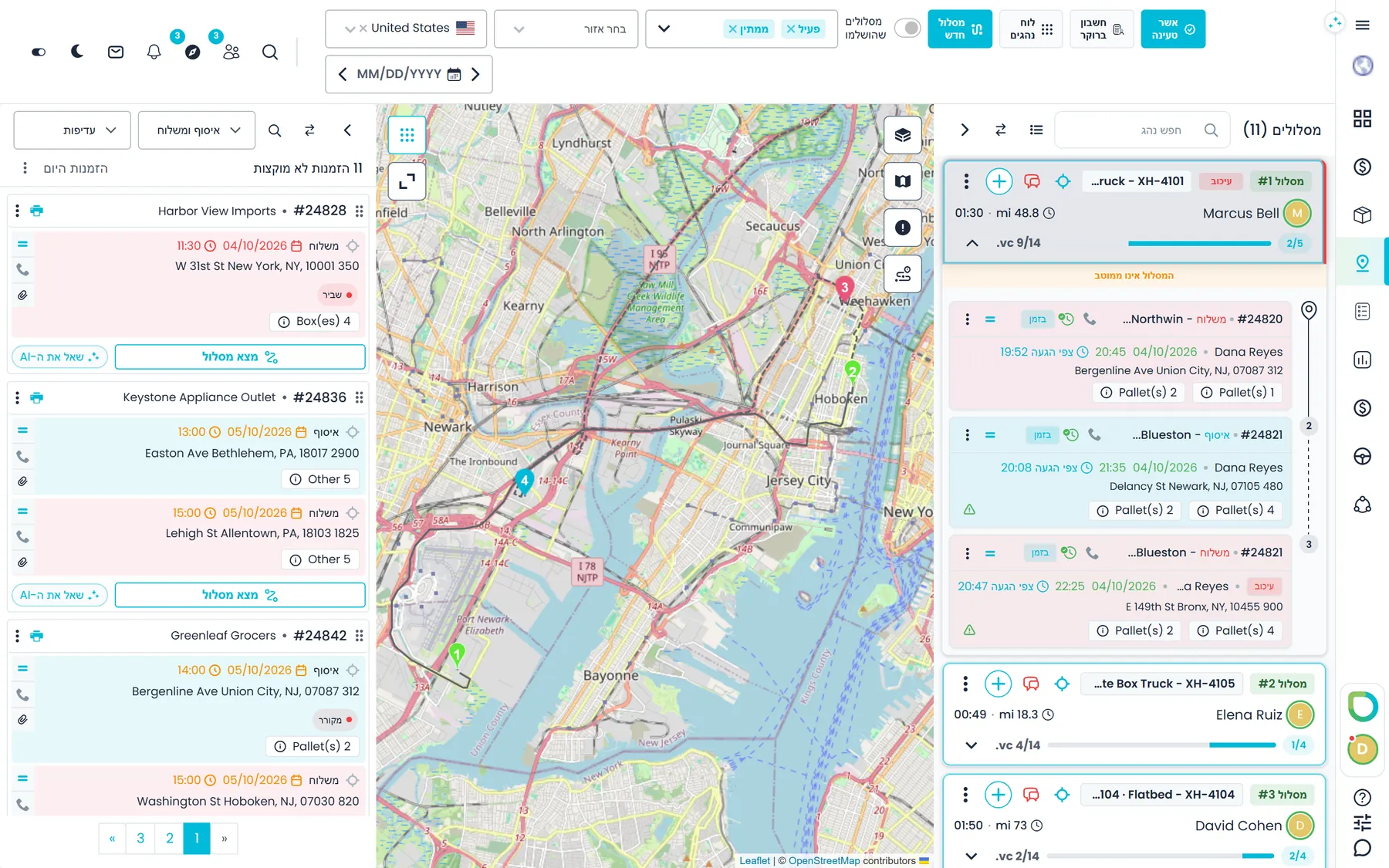
The Company Portal in English or Hebrew, with Hebrew laid out right to left
Each person picks English or Hebrew, and the Company Portal's menus, lists, forms and dialogs follow, with the whole layout mirrored right to left in Hebrew. Date pickers show Hebrew month and day names, form validation messages are in Hebrew, and more than 500 of the server's error messages are translated too, so most refusals are explained in the language of the screen. If a label has no Hebrew text yet, it appears in English rather than as a raw code.
- Switch language on the sign-in page, in Settings → Systems, in the setup guide's Preferences step, or by asking the AI assistant
- The choice is saved in each person's browser, so one dispatcher can work in Hebrew while the next desk works in English
- The Customer Portal is also in English and Hebrew; the driver app and the documentation site are in English
Search
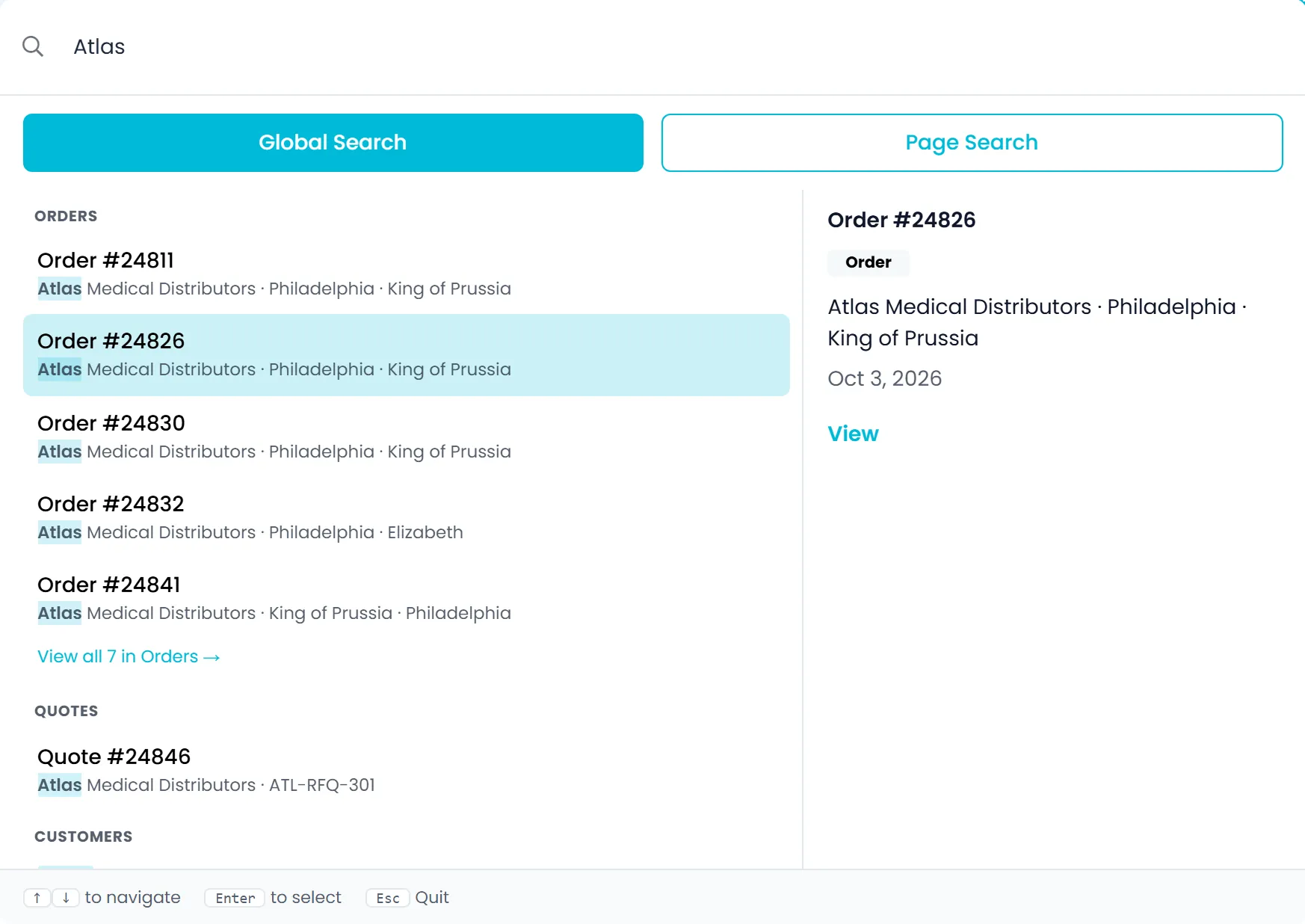
Search 12 kinds of records from any screen with Ctrl+K
Press Ctrl+K (Cmd+K on a Mac), or / when you are not typing in a field, and search 12 kinds of records at once: orders, quotes, customers, contacts, drivers, routes, invoices, payments, trucks, locations, users and outsource carriers. Results are grouped by type, with orders, quotes, customers, contacts and drivers first, and a preview of the highlighted result on wide screens. Move with the arrow keys and press Enter to open a result, pick a sidebar page such as Dispatch from the Pages group, or use View all to open the full list, such as Orders or Customers, filtered by your search.
- Your last 10 searches are saved to your account, so they are there on another computer too
- Results follow each user's view permissions, so orders, customers, invoices or payments their role can't view stay out of their results
- Contacts match on every word you type, and phone numbers match by their digits, whether or not they were saved with spaces, dashes, brackets or a plus sign
- On Orders and Quotes, the Page Search tab adds a date range and filters by customer, driver or order status; on Customers, by pipeline
- Save the filters you use on Orders and Quotes under a name; saved filters are shared with everyone in your company
- A Reports entry in search opens the new Reports page for users with the View reports permissionNext release
Workspace
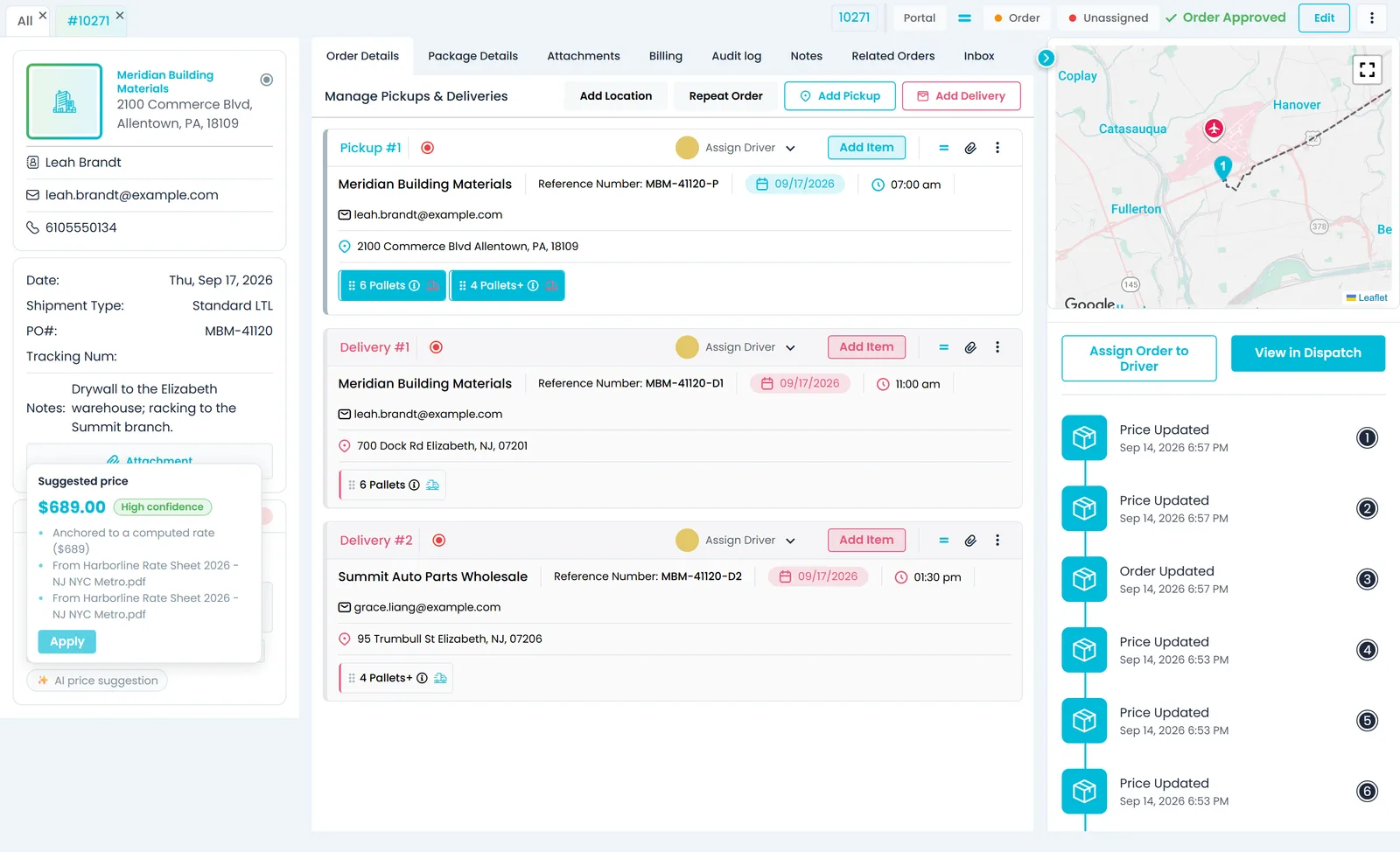
Keep orders, customers and invoices open in tabs
Open an order, quote, customer, invoice, driver or outsource carrier and it gets its own tab next to the list, so you can work on several at once without losing your place. Drag tabs into the order you want, close one or close them all, and your open tabs are still there after a reload. The address bar keeps the record, tab and view you are on, so a bookmark, or a link you send a colleague, opens the same screen.
- In Settings → Systems, choose when idle tabs close on their own, from 5 minutes to 24 hours or never, separately for quotes, orders, customers, invoices, drivers and outsource carriers
- Layout choices are saved to your user profile and follow you to any computer: the AI assistant panel's side and width, the sidebar, the Orders view, and the Dispatch board layout and density
- Light or dark theme from the moon and sun button in the toolbar, applied before the page draws so there is no white flash
- The New UI is the default, and the Old UI, the previous design, is one click away in the toolbar and works on the same data
- Unticked checkboxes, radio buttons and switches, and the text editor toolbars, display clearly in dark themeNext release
New requests
New requests are counted where your team looks first
Requests that come in from outside, such as quote and contact requests from a website form connected to RushHour, and the new customers they create, are marked unread, with a count next to Quotes, Orders and Customers (CRM) in the sidebar, so the team can see at a glance what is still waiting for someone to open it.
- Show only unread on the Orders, Quotes and Customers lists narrows each list to those records
- Opening a customer marks it as viewed for everyone in the company
- Customers (CRM) and Inbox open from icons in the header, and the people icon shows how many customers your team has not viewed yetNext release
- Opening an order or quote marks it as read in either order screen, and the count updates right awayNext release
AI assistant
An assistant beside every page
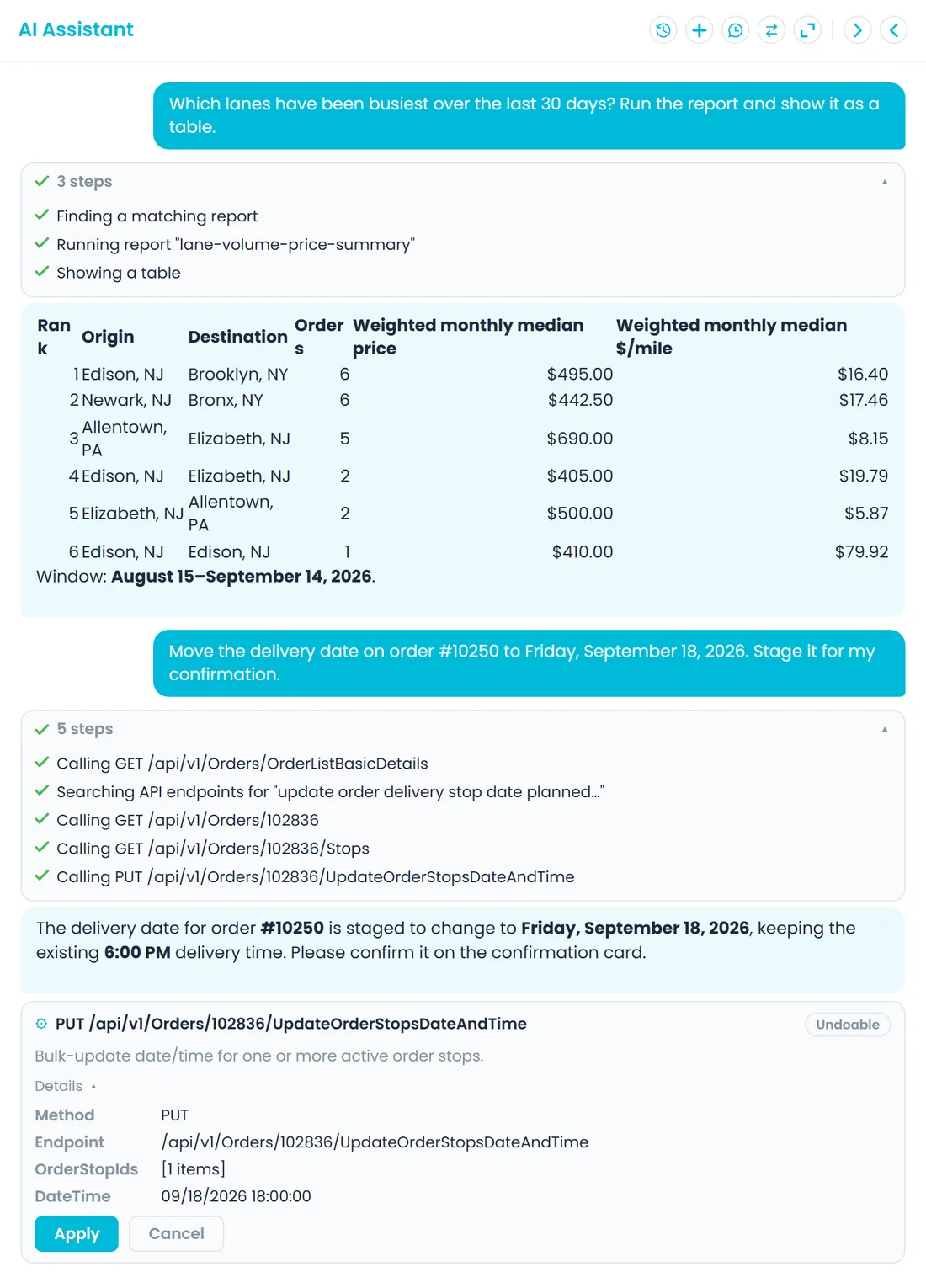
The AI assistant sits in a side panel on every Company Portal page. Ask in English or Hebrew; it replies in the Portal's language unless you write to it in another one. It knows which page you are on, so asking it to summarize this order works while the order is open, and it shows each step as it works. It acts as the signed-in user, seeing and changing only what that person's role allows, and anything that updates, deletes, bills or emails waits on a card for you to apply or cancel.
- Dock the panel on the left or right, collapse it or open it full width, and drag its edge to make it wider
- It can open records, filter lists, run reports and draft orders; the AI Assistant page on this site lists what it can do
- Chatting needs no extra permission; attaching files and importing with AI each have their own permission
Several companies
Run several companies from one login
If your group runs more than one company, such as separate operating companies under one owner, RushHour can hold them in one account. Each company keeps its own customers, orders, drivers, invoices and settings, and its own permissions for each role. People who work for more than one company pick it from the company selector in their user menu, and RushHour switches their session to that company.
- You work in one company at a time, and everything you see belongs to that company
- A user can switch only into companies they belong to
- Additional companies are set up for you by RushHour
- Theme, language and the New UI choice stay the same when you switch
Inside the Company Portal
The screens your office works in
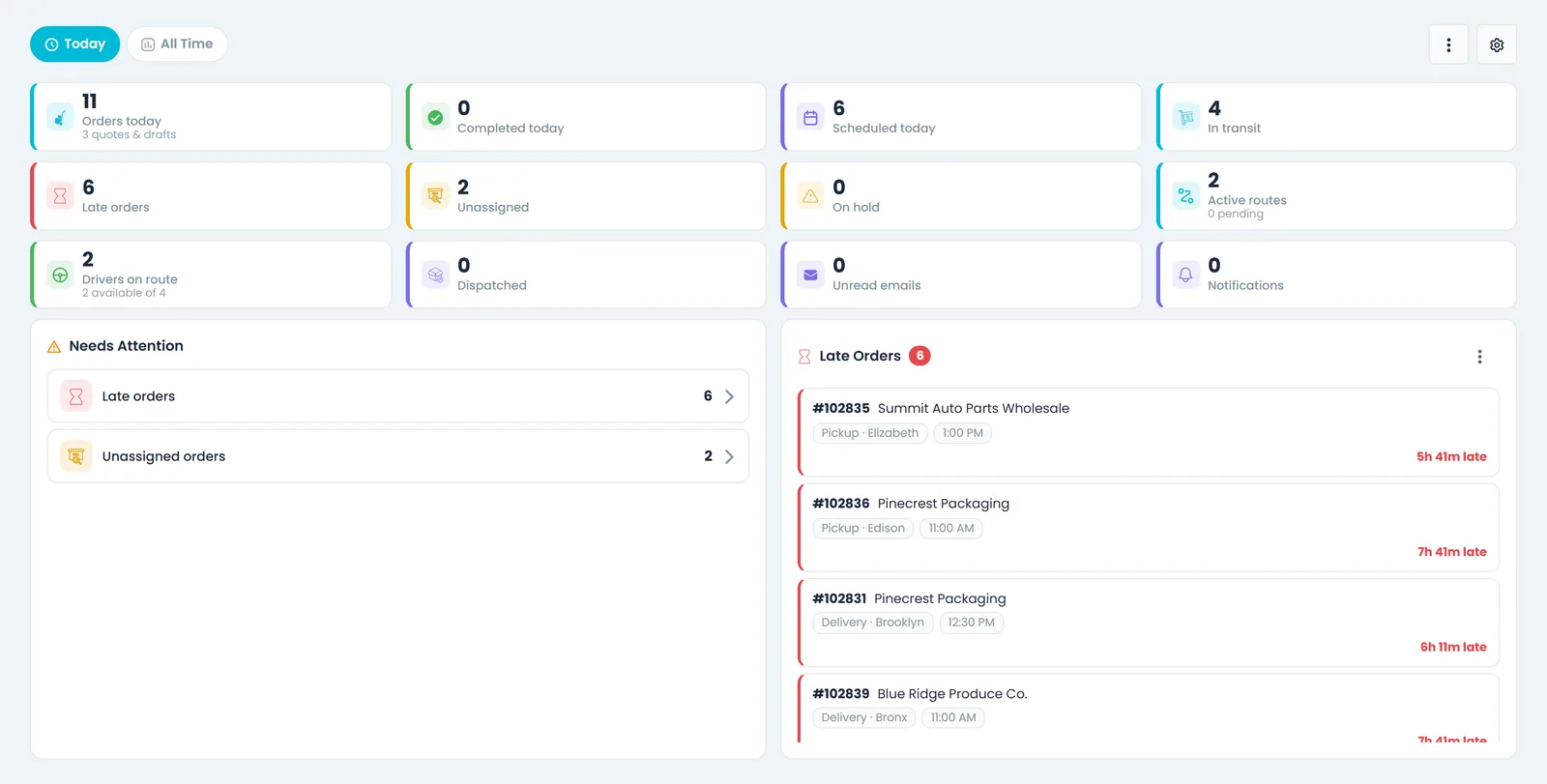
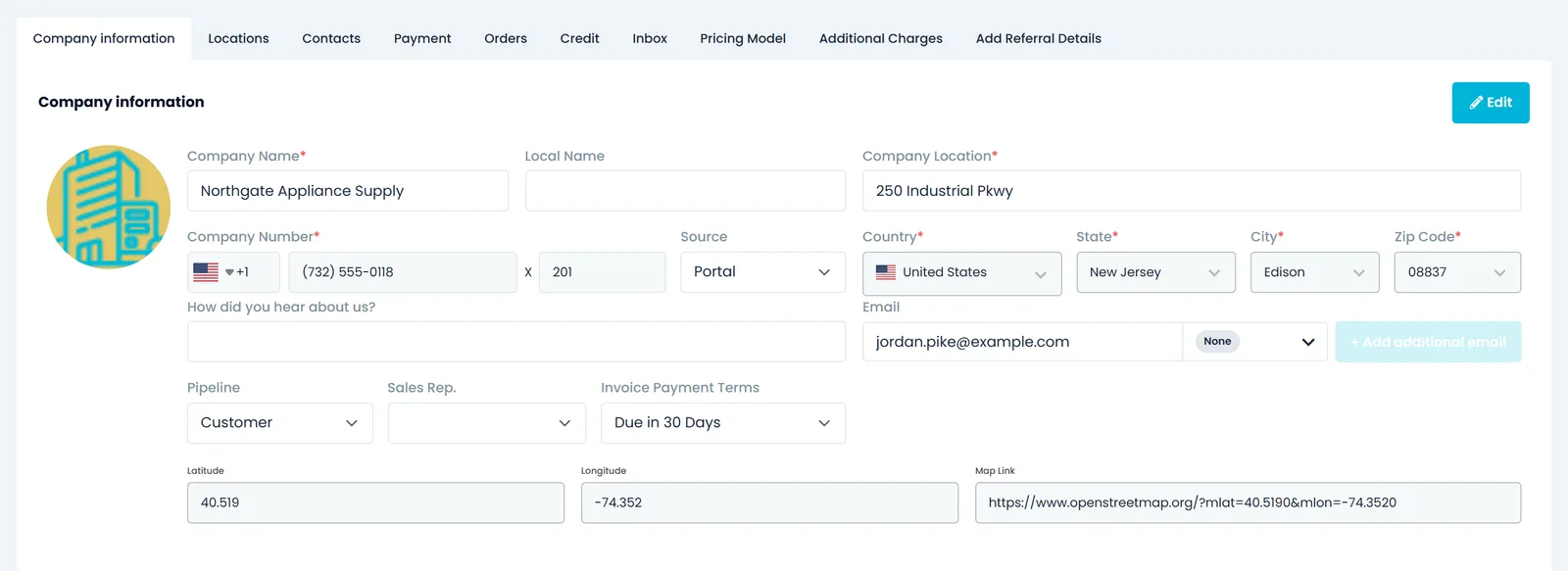
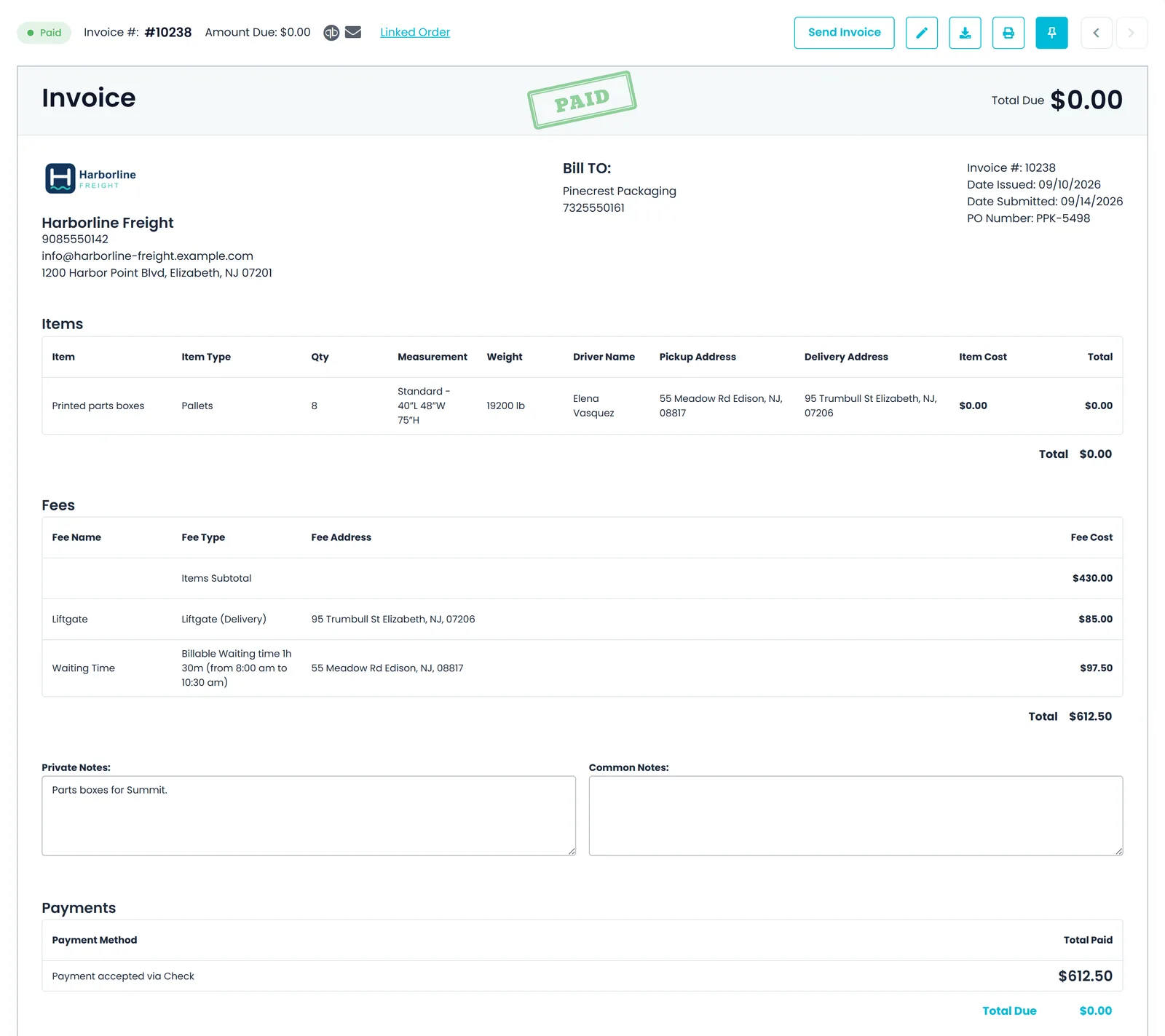
A few of the main screens, shown with a demo company's data.
Setup and administration
Get set up, then keep an eye on it
A guided setup for new companies, one Profile screen for the details your documents use, and a page that shows which version you are running and whether it is healthy.
Getting started
A setup guide that checks what is really done
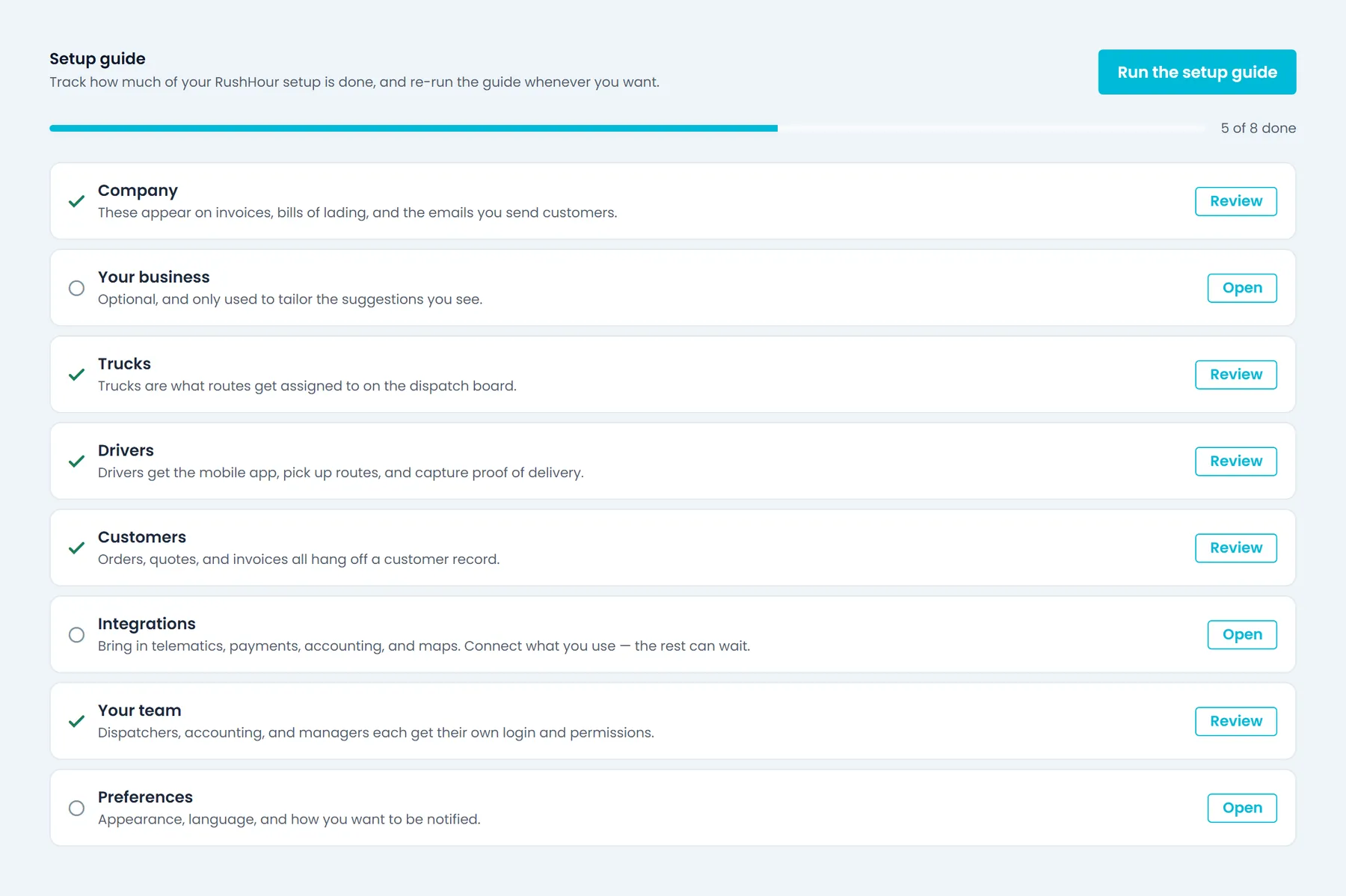
New users get a setup guide that covers the basics in order: your company details, a few questions about your business, trucks, drivers, customers, integrations, your team and your preferences. Six of the steps tick themselves off from your actual data, so if you have already added drivers, that step shows as done. Every step is optional: skip a step, skip the setup for now, close it and continue later from where you stopped, or hide it for good.
- The Integrations step opens the same connect dialogs as Settings → Integrations
- The Your business step asks what you mostly move, how big your fleet is, where you operate and what you want to get right first; answering is optional
- A compass button in the toolbar reopens the guide and shows how many steps are left
- Settings → Setup guide shows the checklist with a progress bar, opens any step, and runs the guide again or turns it back on after you hid it
Company settings
Units, currencies and numbering, set once for the company
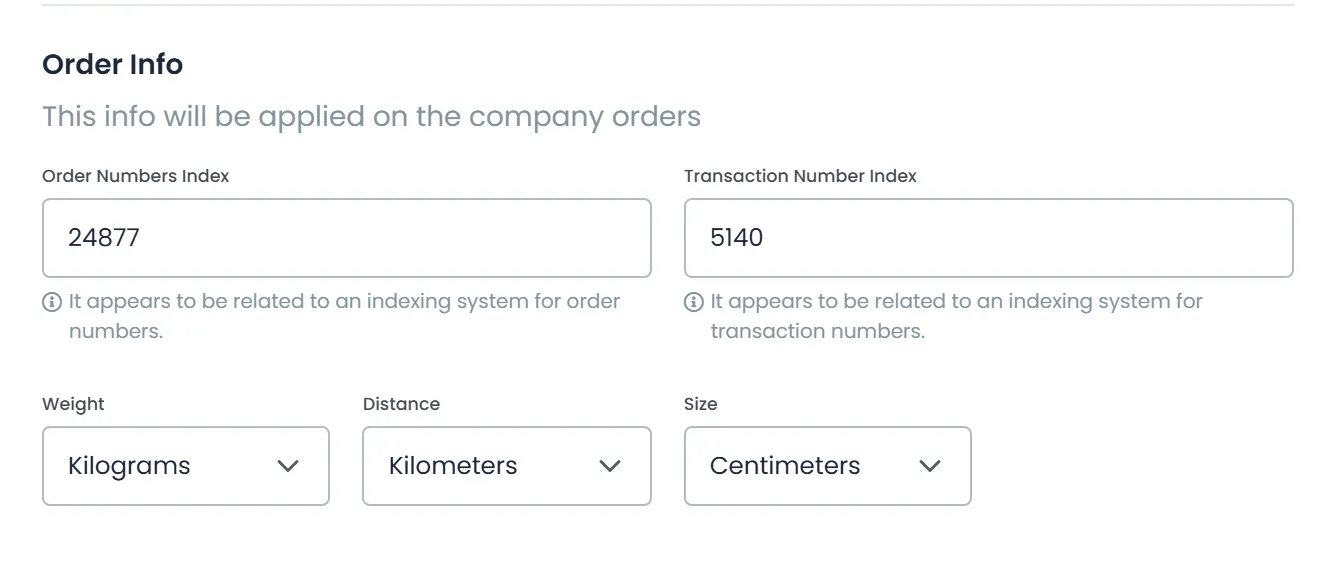
Settings → Profile holds your company's name, logo, address, phone, fax and website, and your name, logo and contact details appear on documents such as invoices. It also keeps the addresses RushHour works with: a general email, a billing email used for quotes and bills of lading, an accounting email, a CC address and the From address. The same screen sets how your orders are measured and numbered.
- Distance in miles or kilometers, weight in pounds or kilograms, size in inches or centimeters
- Turn on more currencies besides US dollars, from Canadian dollars, Mexican pesos, euros, British pounds and Israeli shekels, to price orders and invoices in them, and pick the default for new ones
- Set where your order numbers continue from, and where invoice and payment transaction numbers continue from
- Order options such as whether the address lookup searches companies directly by address or groups matching addresses, and whether the ZIP code counts when addresses are grouped
- Choose enabled currencies from a checklist; USD stays on and can't be removedNext release
System status
Check your version and system health yourself
Settings → About shows the API and Portal versions you are running and a live System Health check: a one-line summary, from all systems operational to a service disruption, and the status of each service behind the platform, including the database, file storage, search, maps, email and payments, with disk space and the time of the last check. Refresh it whenever you like. The same page links to the driver app on the App Store and Google Play.
- Any user can open it; no admin permission is needed
- The date each version was released, and how long agoNext release
- An info button on any check that reports a problem, explaining what it affects, the likely causes and what to do nextNext release
Built on the same platform as the rest of RushHour
Roles and permissions
Screens and actions follow the permissions in each user's role. Start from the built-in Admin, Dispatcher, Sales, Billing and Accounting roles, or build your own from more than 100 named permissions.
Activity log
Settings → Activity Logs records who created, changed or deleted what, and when, and orders and quotes have their own Audit log tab.
Connected to drivers and customers
The routes you dispatch here reach your drivers in the RushHour driver app, and your customers follow their orders in the Customer Portal.
API tokensNext release
Company admins create API tokens so your other systems can use the same RushHour API the Portal runs on.
Related
Questions about the Company Portal
Is the Company Portal available in Hebrew?
Yes. Each user can switch the Company Portal to Hebrew on the sign-in page, in Settings → Systems, in the setup guide or by asking the AI assistant, and the layout turns right to left, including date pickers, validation and error messages. The Customer Portal your shippers use is also in English and Hebrew. The driver app and the documentation site are in English.
Do we need to install anything for the office?
No. The Company Portal runs in a web browser, so your office staff sign in from their computers. Your drivers use the RushHour driver app from Google Play or the App Store, and your customers sign in to the Customer Portal in their browser.
Does each person keep their own settings?
Yes. Language, light or dark theme, and the choice between the New UI and the Old UI are saved in each person's browser. Layout choices, such as where the AI assistant panel sits and how wide it is, the Orders view and the Dispatch board layout, are saved to the user's profile and follow them to another computer. Company-wide options, such as units, currencies and when idle tabs close, are set once in Settings.
Can we run more than one company in one account?
Yes. An account can hold several companies, each with its own customers, orders, drivers, invoices, settings and role permissions. RushHour sets up the additional companies for you, and users who belong to more than one switch between them from the company selector in their user menu.
Can someone find records in search that they aren't allowed to see?
No. Global search applies each user's view permissions, so orders, quotes, customers and their contacts, locations and outsource carriers appear only for users whose role can view them, and invoices and payments only for users who can view invoices and payments.
Our team is used to the old screens. Can they keep them?
Yes. The New UI is the default, and the Old UI, the previous design, is one click away in the top toolbar. Both work on the same data, so an order created in one is the same order in the other, and the choice is remembered in each person's browser.
How do we see which version we are on?
Open Settings → About. It shows the API and Portal versions and a live System Health check of the services behind RushHour. From the next release, it also shows when each version was released. The changelog on this site lists what changed in each release.
See the office side of RushHour with your team in mind.
In the demo we switch the Portal to Hebrew, find an order with Ctrl+K, keep a few records open as tabs and walk through the setup guide, so you can judge it as the people who will use it every day.