
Customers follow their shipment,
without logging in or calling dispatch.
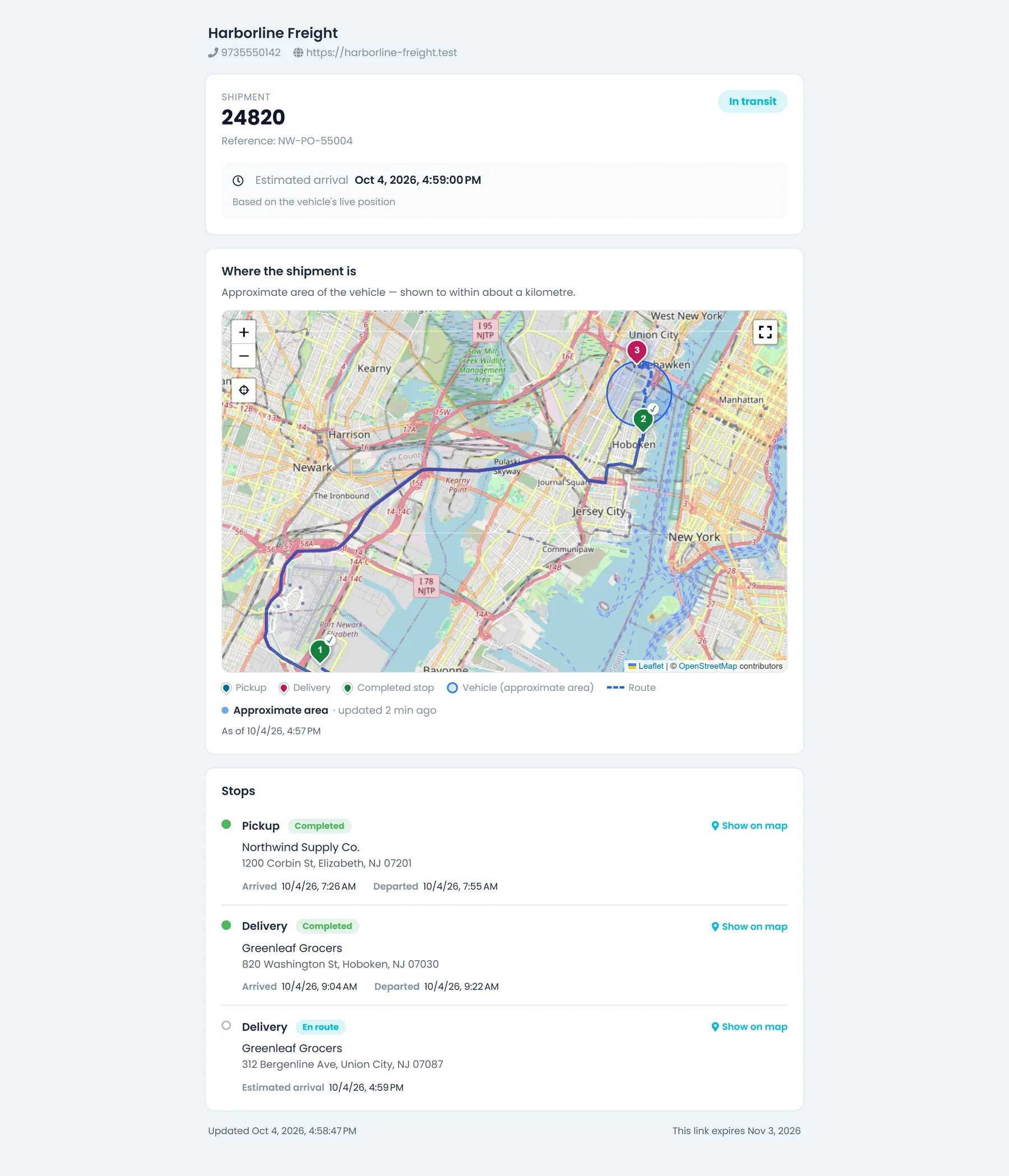
Once tracking links are on, copy or email a link from the order and your customer opens a page with your company details, each stop's status and times, and the stops on a map. Depending on your setting, the page also shows the vehicle's approximate area from the driver app, its exact position while it heads to that shipment, or only the last completed stop, and it never shows prices. Links expire after the lifetime you set, and you can revoke one at any time.
How tracking links work
From the order to your customer's browser
Tracking links stay off until an admin turns them on in Settings > Tracking Links. The truck's position comes from the RushHour driver app, not from Samsara. Everything else you need is listed further down, under Before you switch it on.
What your customer sees
A tracking page that opens in any browser, no login needed
The page shows your company name, logo, phone and website, the order number and, when the order has one, your customer's reference, and the shipment's status: Scheduled, In transit, Delivered, On hold or Cancelled. Each stop lists where it is, its status, its scheduled date and time and, once the driver has been there, when they arrived and left. While the driver is on the way to the order's next stop, the page estimates the arrival from the driver app's latest position, and it never shows prices, notes or who is driving.
- Your name, logo, phone and website at the top
- Estimated arrival at the next stop
- No prices, notes or driver details
- Stop statuses: Scheduled, Assigned, En route, Completed or On hold
- The link's expiry date at the foot of the page
Map and truck position
Every stop on the map, and only as much of the truck as you choose
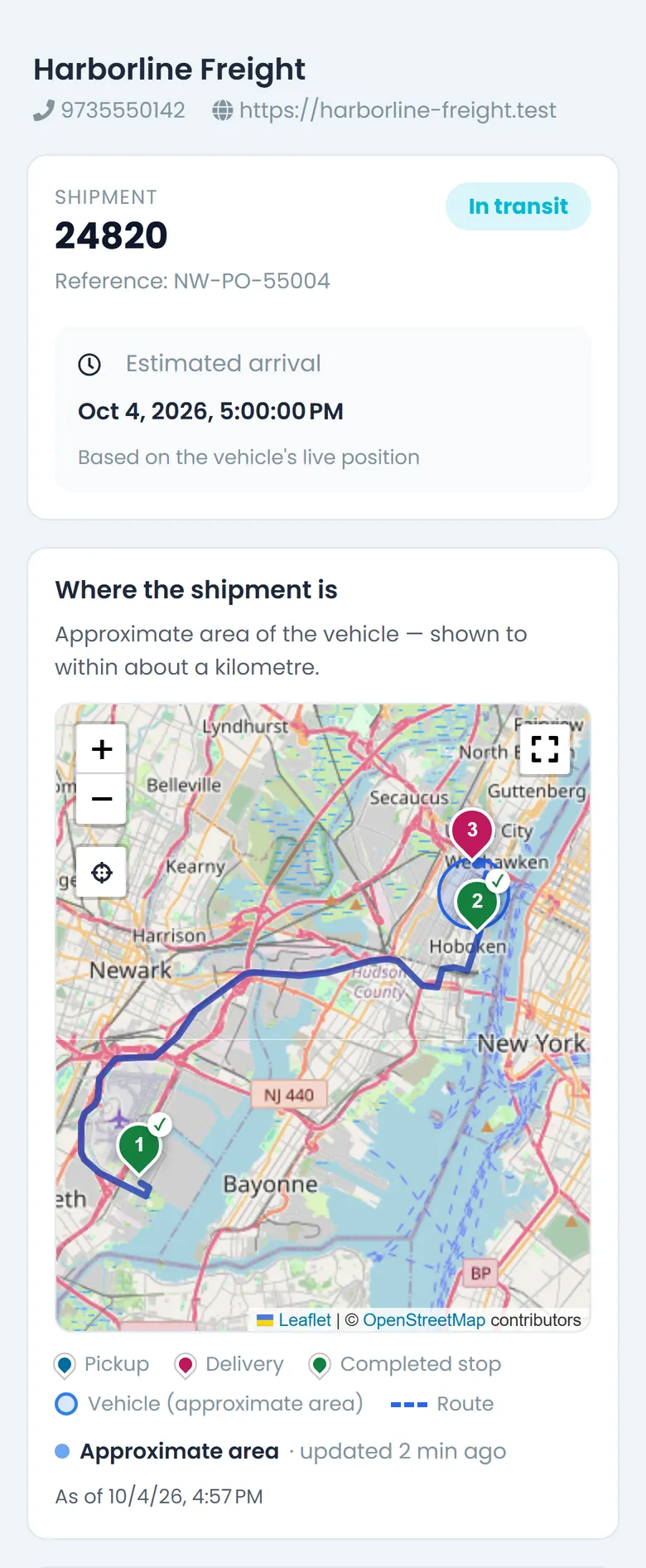
Pickups and deliveries are pinned on the map, with the road route between them when the order's directions are known, and completed stops are marked. In Settings > Tracking Links you choose what the page shows of the vehicle: an area of about a kilometre while the shipment is moving (the default), only the last completed stop, or the exact position while the driver is heading to one of that shipment's stops. The page refreshes itself, so your customer never has to reload it.
- Approximate area, last completed stop, or exact position
- Exact position only on the way to this shipment's stops
- Blind stops shown as an area with only the city, state and ZIP, never the street address
- Refreshes on its own: about every 15 seconds in live mode, every 30 seconds for the approximate area, otherwise once a minute
- A position more than 20 minutes old is not shown

Sharing a link
Copy it from the order or the route, or email it
Copy an order's link from its row menu on the Orders list, or copy the links for every order on a route from the route's menu on the dispatch board, one line per order. On the order's Tracking tab, Send by email pre-selects the order's contact or, if it has no email, the customer's shipment-update addresses, and you can add other addresses and a short note. Each recipient gets their own email, and the send is recorded on the order's Log Activity tab.
- Copy tracking link on the Orders list
- Copy Tracking Links on a dispatch route
- Up to 10 recipients per send, each emailed separately
- Suggestions from the customer's email addresses and contacts, and from earlier sends
- An optional note of up to 1,000 characters
- Sent with the Shipment tracking link email template, which you can edit

Link control
See when a link was opened, and switch it off when you need to
The order's Tracking tab shows whether the link is active, how many times it was opened and when it was last opened, how many of the order's stops appear on the map, and when it expires. Links expire after the lifetime you set, from 1 to 365 days with 30 as the default, and Revoke link stops a link working for everyone who has it. Switching tracking links off stops every link your company has issued from opening.
- Times opened, not counting the page's own refreshes
- Link lifetime of 1 to 365 days, 30 by default
- Revoke a link, then create a fresh one
- When each link was created and expires, and when and to whom it was last emailed

Automatic emails
Email each order's link automatically
The Tracking link emails card in Settings > Customer Notifications can email each order's tracking link when a driver is assigned, when the order is booked, or when the driver picks up. By default it goes to the order's contact, or to the customer's shipment-update addresses when the order has no contact email, plus the customer's Customer Portal users who subscribed, and each order's link is emailed once. It is off until you switch it on, only orders with a delivery still to come are emailed, and nothing is sent while tracking links are off. To leave a customer out, choose Don't send on its Notifications tab.
- Off until you switch it on
- Driver assigned, order booked or picked up
- Once per order, skipping anyone already sent it
- Customer Portal users subscribe by email, in the portal's notification bell, or both
- Send to the order contact and subscribers, or to subscribers only
- Each automatic send is recorded on the order's Log Activity tab

Truck position
Three ways to show the truck
One company-wide choice in Settings > Tracking Links. Every mode works from the truck's latest position only, never the path it has driven, and in all three the page can show the next stop's arrival estimate.
Approximate area (default)
An area of roughly a kilometre around the truck's latest position, shown only while the shipment is in transit. The page checks for a new position about every 30 seconds.
Last completed stop only
No truck location at all. The page says which of the shipment's stops was completed last and when, and can still show the estimated arrival at the next stop while the driver heads there.
Live position while heading to the shipment
The truck's exact position, checked about every 15 seconds, but only while the driver's next stop is one of this shipment's stops. While the driver serves other customers, or near a blind stop, the page shows the approximate area instead. Anyone holding the link can watch the truck in that window, and the setting says so before you choose it.
Privacy
What your customer sees, and what they never see
Anyone holding the link sees the same page, so it is built from a short list of shipment facts and nothing else from the order.
On the page
Your company name, logo, phone and website. The order number and your customer's reference. The shipment status, and each stop's type, location, status, scheduled time and actual arrival and departure. The next stop's estimated arrival, the stops on a map with the road route between them when it is known, the truck's position as your setting allows, and when the link expires.
Never on the page
Prices and charges, notes, the driver's name or phone number, the trail of where the truck has been, other customers' stops on the same route, and the street address or location name of a blind stop, which appears only as an area with its city, state and ZIP.
Why send tracking links
Fewer status calls
Customers check the stops, the status and the arrival estimate on the page instead of calling dispatch to ask.
You decide what is shared
Prices and notes never appear, blind stops stay blind, and you choose how much of the truck's position anyone with the link can see.
Links that don't last forever
Every link expires on its own, can be revoked from the order, and stops opening as soon as tracking links are switched off.
Requirements
Before you switch it on
Two things to settle first: who in your office may share links, and whether the driver's phone sends its position, which the page needs before it can show the truck.
In the office
An admin switches it on and decides who can share
An admin turns tracking links on in Settings > Tracking Links and sets the truck-position mode and the link lifetime there. Copying, emailing or revoking a link needs the Manage tracking links permission, which admins control. Admins have it, and in companies already on RushHour so do the dispatcher and sales roles. Links can be made for booked orders and for closed ones.
- Off until an admin turns it on in Settings > Tracking Links
- Manage tracking links permission: admins, plus the dispatcher and sales roles of existing companies
- Booked and closed orders, not quotes or drafts
On the driver's phone
The position comes from the RushHour driver app
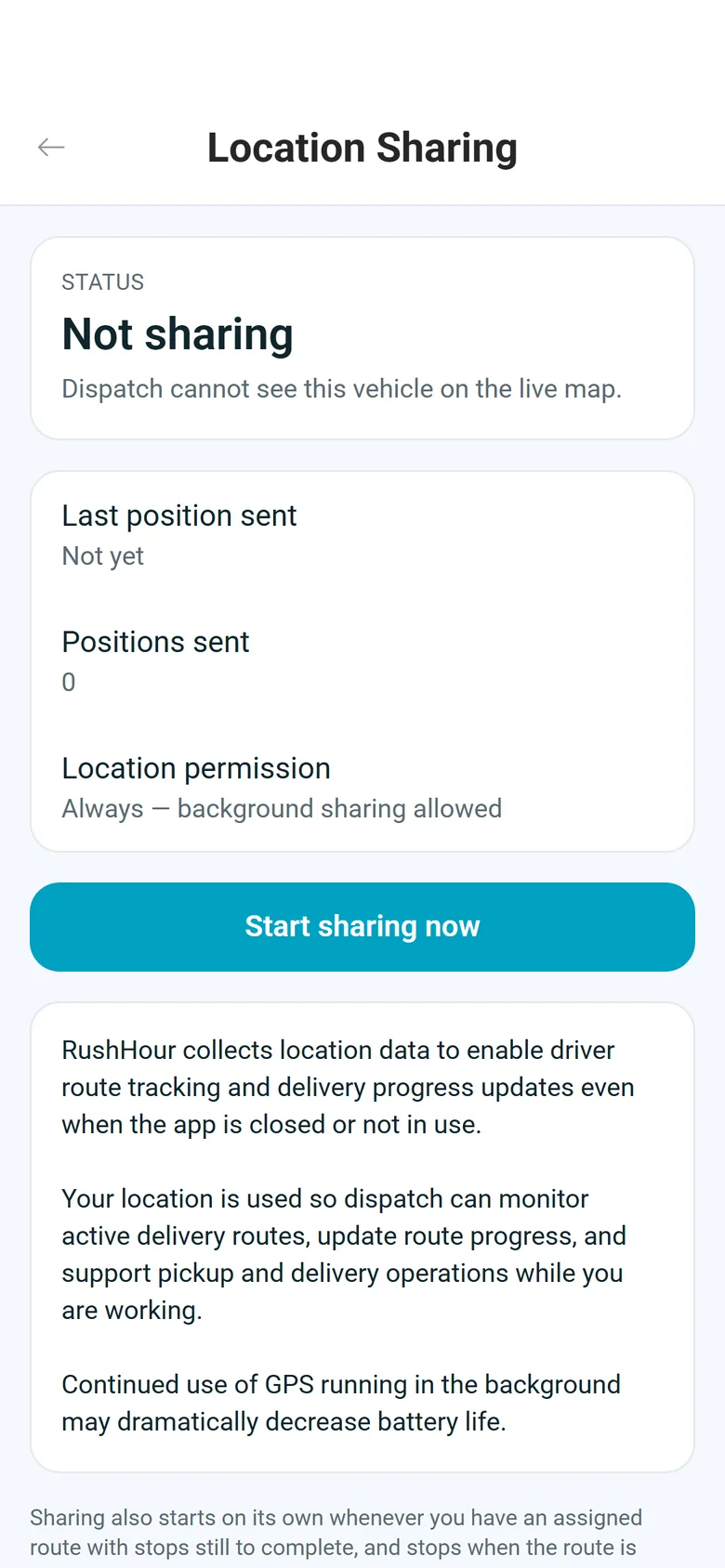
The truck's position and the arrival estimate come from the RushHour driver app, not from Samsara, while the driver is out on a route and has set the app's location access to Allow all the time (Always on iPhone). With While using the app, no position is sent, and the page still shows every stop with its status and times. Drivers can see what the app is sending under Settings > Location Sharing.
- Android: version 2.0.8 or later from Google Play sends the position throughout the route
- iPhone: version 2.0.12 or later from the App Store does the same
- iPhone on a 1.x version: only once the driver opens the route map on the app's Routes tab, while stops are left
Questions about tracking links
Can we use tracking links today?
Not yet. Tracking links, the automatic tracking-link emails and Customer Portal subscriptions are finished and arrive in the next release of RushHour. The changelog lists everything in that release.
Do we need Samsara or another GPS device?
No. The truck's position and the arrival estimate come from the RushHour driver app on the driver's phone. Without a position, the page still shows every stop with its status and times.
What if a driver allows location only while using the app?
Then the app sends no position, so the page shows no truck and no arrival estimate. The stops, their statuses and their times still appear. Location access has to be Allow all the time on Android, or Always on iPhone.
How is the arrival estimate worked out?
From the driver's latest position, when it is less than 20 minutes old and the driver's next stop is one of this shipment's stops. It is a straight-line estimate at a planning speed of 50 mph, the same speed your dispatch board uses to estimate a route's next stop from a live position.
How long does a link keep working?
For the lifetime you set in Settings > Tracking Links, from 1 to 365 days with 30 as the default, counted from when the link is created. Revoke link on the order stops it at once, and switching tracking links off stops every link your company has issued.
What if our customer forwards the link?
Anyone with the link sees the same page, which is why it never shows prices, notes or who is driving. Each link carries its own random 43-character code, so it can't be worked out from an order number. If you choose the live position, anyone holding the link can watch the truck while it heads to that shipment's stops. You can revoke a link at any time and create a new one.
Which orders can have a tracking link?
Booked orders and closed ones. Quotes and drafts can't. Once an order is closed, its page shows the shipment as Delivered.
Can we leave one customer out of the automatic emails?
Yes. On that customer's Notifications tab, choose Don't send. Use company setting follows Settings > Customer Notifications, and Also email contacts emails the order's contact, or the customer's shipment-update addresses, even when your company sends only to Customer Portal subscribers.
What about customers who sign in to our Customer Portal?
They can already follow their orders today on the portal's Tracking list and Track Live page, which shows a package's route from pickup to delivery on a map, its timeline and whether a driver is assigned, but not where the truck is. In the next release, they can also subscribe to tracking links in the portal's notification settings and get each order's link by email, in the notification bell, or both, when you send links automatically.
Can our customer read the page in Hebrew?
Yes. The page is translated into Hebrew and switches to right-to-left. Add ?lang=he to the end of a link to open it in Hebrew.
Related
Bring the shipment your customers call about most.
In the demo we switch on tracking links, copy one from an order and open it the way your customer would, with the stops on the map.