
Every load on the record,
with its BOL and labels.
Freight lives on the order, with weight, size and handling flags. Import a packing list and its units become numbered load units, which drivers scan in the driver app as they load at pickup. The bill of lading and 4 x 6 labels are generated from the same order.
How it fits together
From packing list to the dock
The same order record carries the freight from the customer's packing list to the truck.
1. Import the packing list
Attach the customer's packing list in the AI assistant. It stages each pallet, box, crate or container as a load unit on the order's pickup, and nothing is saved until you confirm.
2. Load units on the order
Each unit keeps its unit, tracking or container number, its dimensions and its contents, next to the order's items with their weights, sizes and handling flags.
3. Scan at pickup
In the driver app, the driver confirms the item counts and scans each unit's barcode as it is loaded. Planned, actual and scanned quantities are compared before the driver moves on.
4. BOL and labels
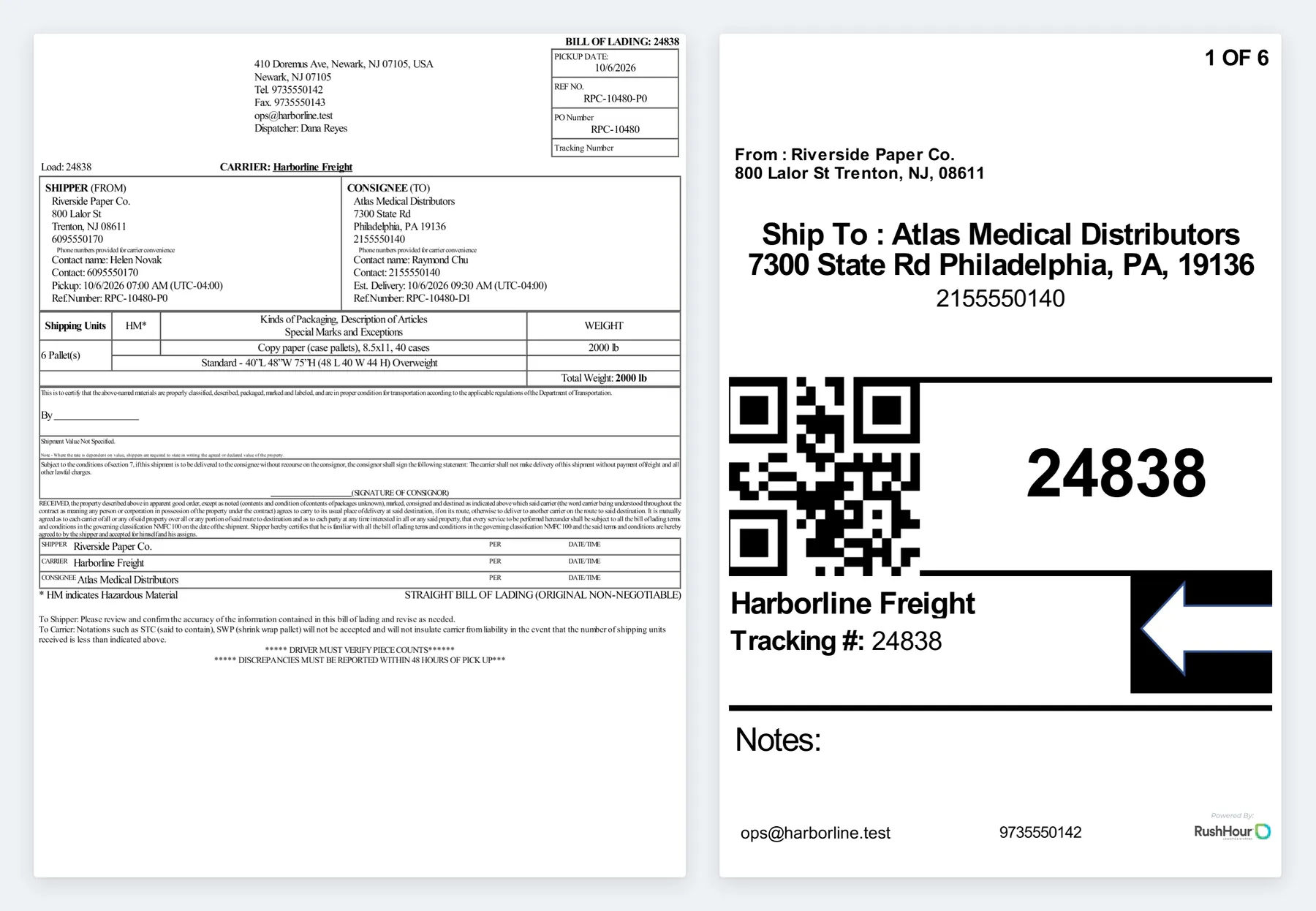
Print or download the bill of lading and 4 x 6 labels from the same order, and email the BOL. Your customer can download the BOL in the Customer Portal.
Loads & labels
Recorded, counted, scanned and printed
What the office records, what the driver checks at the dock and what prints, all read from one order.
Freight on the order
Record freight the way it actually ships
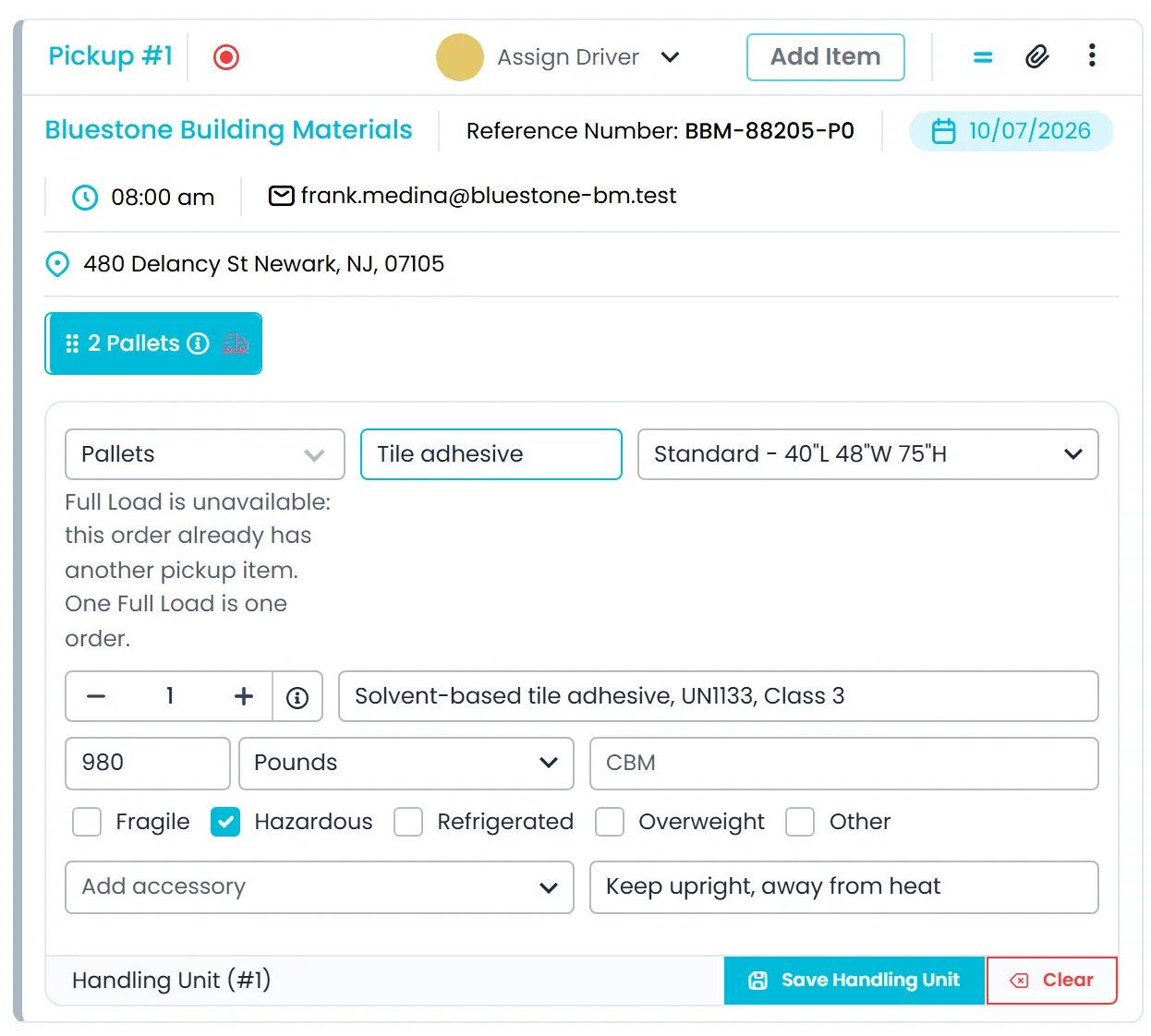
Describe each item as boxes and crates, bags, pallets, a full load or other freight, with its weight, size and handling flags. A full load also carries its truck type, CBM and container number.
- Boxes and crates, bags, pallets, full loads and other freight
- Weight, size and handling flags on each item
- Full loads with truck type, CBM and container number
- Standard (40 x 48 x 75 in), Small (42 x 42 x 75 in) and Large (48 x 48 x 75 in) pallet sizes; other freight in inches or centimeters, and weight in pounds or kilograms
- Full loads on a 53' tractor trailer, 26' box truck or sprinter van, with what the freight is packed in, total weight, weight per item and quantity of trucks
- Special instructions and attachments on each item
- The Package Details tab lists every item with its pickup and delivery, dimensions and weight
- A Validate unique item names switch in Settings > Systems > Order. It stays on for every company, so a repeated item name on the same stop is still refused; turn it off to let items on a stop share a name.Next release
Count at pickup
Counts confirmed before the truck leaves
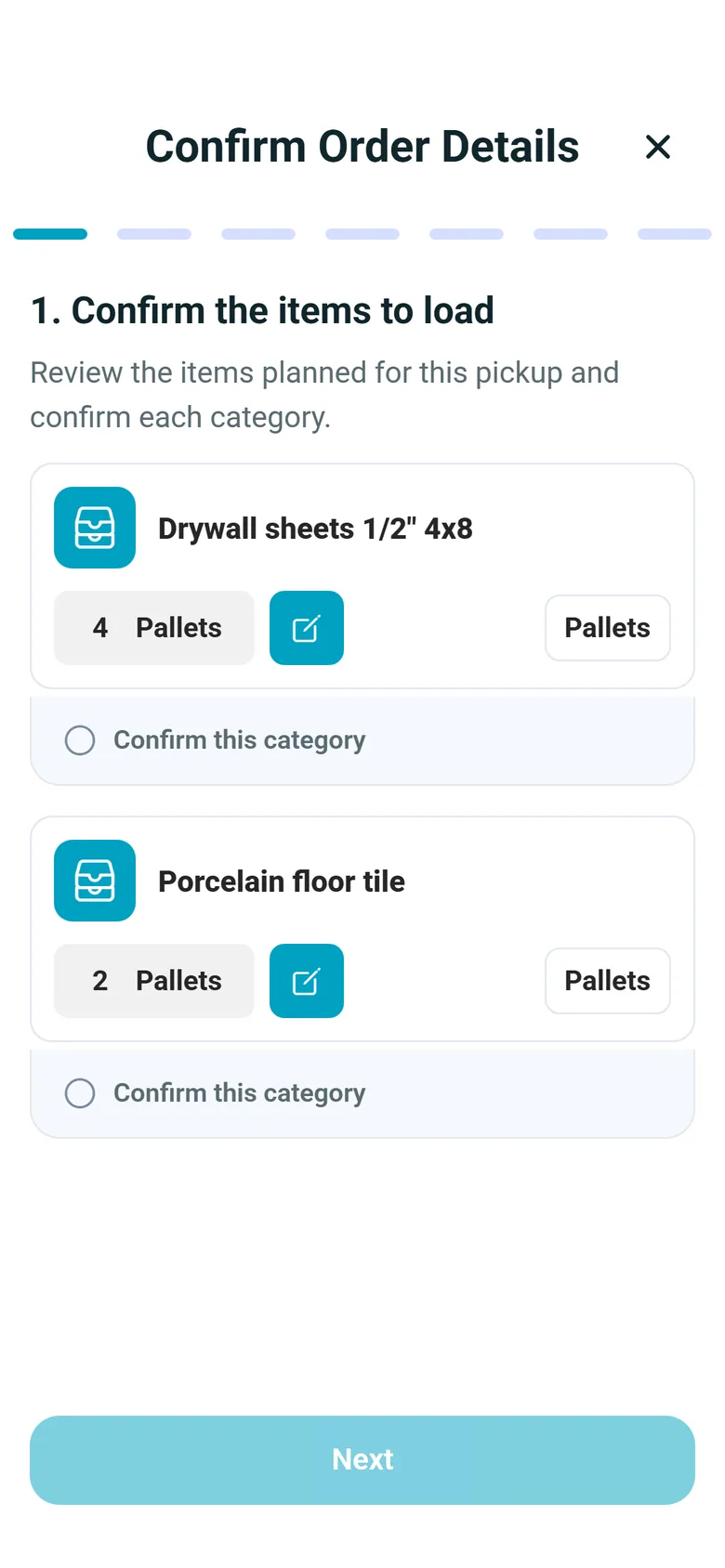
The pickup opens with the items planned on the order. The driver confirms each item category and corrects the quantity when the count on the dock is different. When the loaded quantity differs from the plan, or units were scanned, a review step shows planned, actual and scanned totals before the driver moves on.
- Planned items prefilled from the order and confirmed one category at a time
- Quantities corrected on the spot, or read-only when you switch Count item contents off
- A Short Pickup flag when less was loaded than planned
- Counts confirmed without signal are kept on the phone and sent with the stop confirmation
Pickup scan
Scanned as it's loaded, in the driver app
When a pickup's load units carry a unit, tracking or container number, the driver app adds a scan step: the driver scans each unit with the camera or types the number. Each scan is matched to the stop's load units, and a repeat scan is caught. If a unit can't be scanned, the driver records why. When the count differs from the plan, a reconcile step shows planned against actual before the driver moves on. Scanning happens at pickup; deliveries have no scan step.
- Camera scan or typed number
- Matched to the stop's load units, repeats caught
- Can't scan? The reason is recorded
- Scans made without signal sync when the phone reconnects
- Reads QR, Code 128, Code 39, Code 93, Codabar, EAN-13, EAN-8, ITF-14, UPC-A, UPC-E, PDF417, Data Matrix and Aztec codes
- A loading progress count, and a scans-waiting-to-sync notice that opens the Scanned Items screen with scanned, synced and pending totals
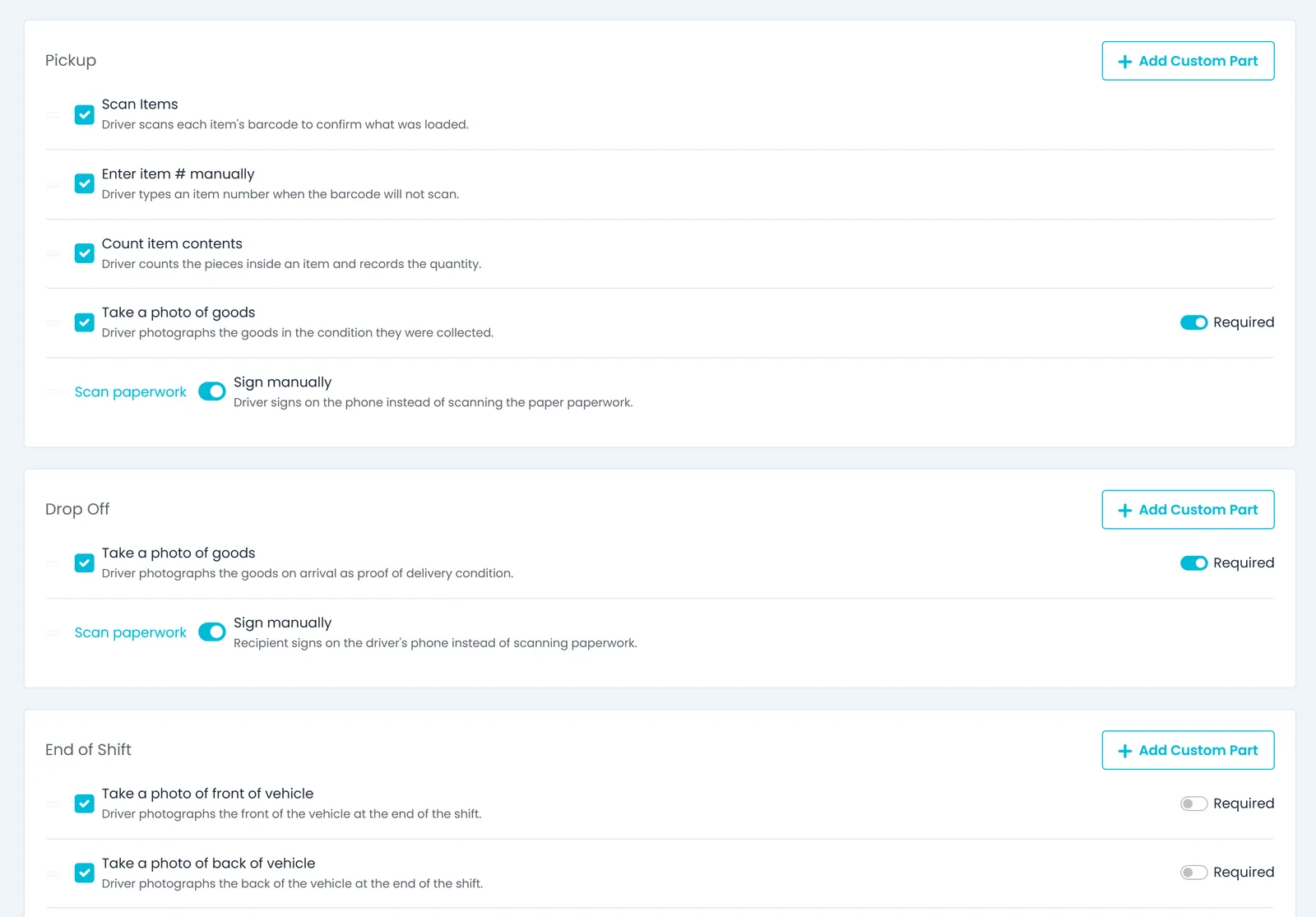
- Scan Items and Enter item # manually are switched on or off for your company in Driver App settings
- Scan Bar Code, under Scanning in the app's settings, checks whether RushHour recognizes a barcode
Delivery check
Damage reported before the stop closes
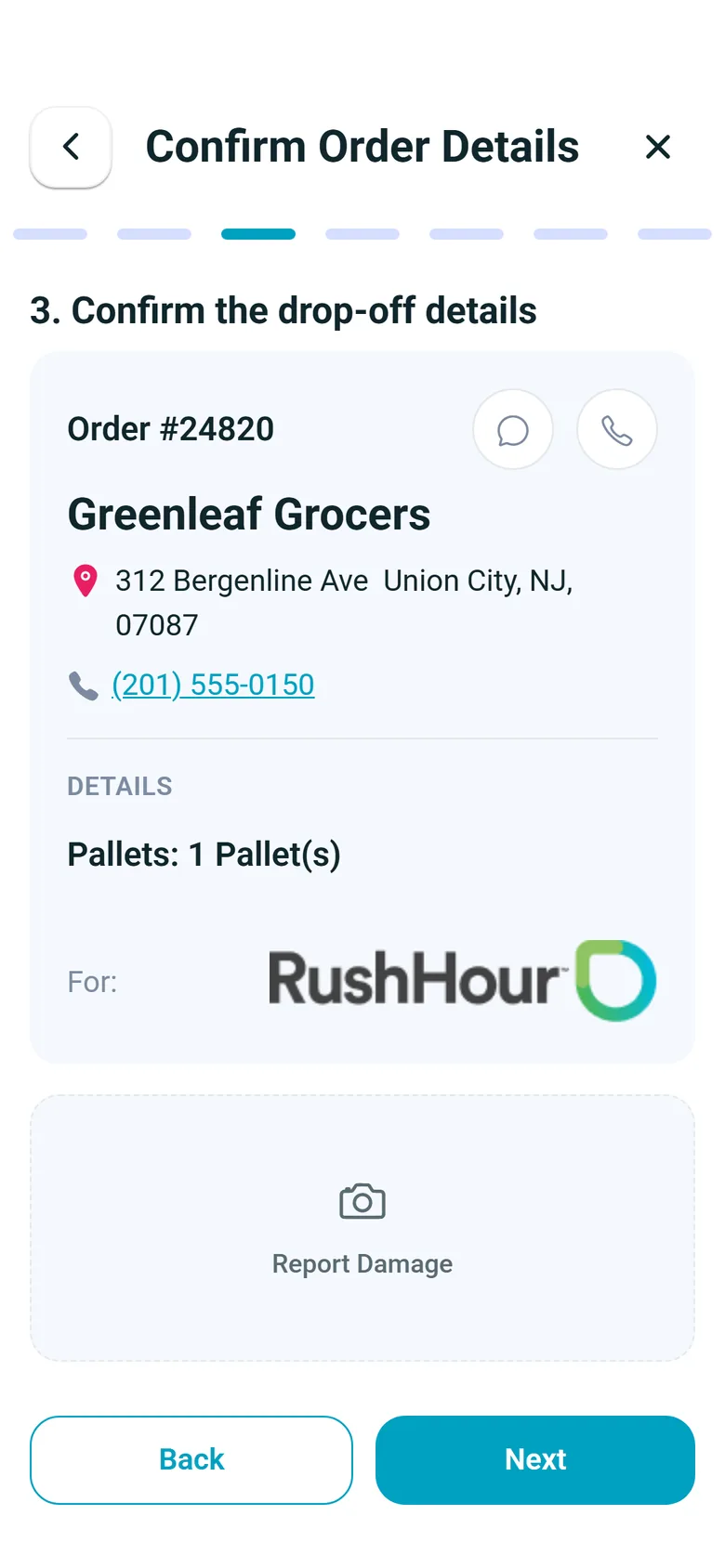
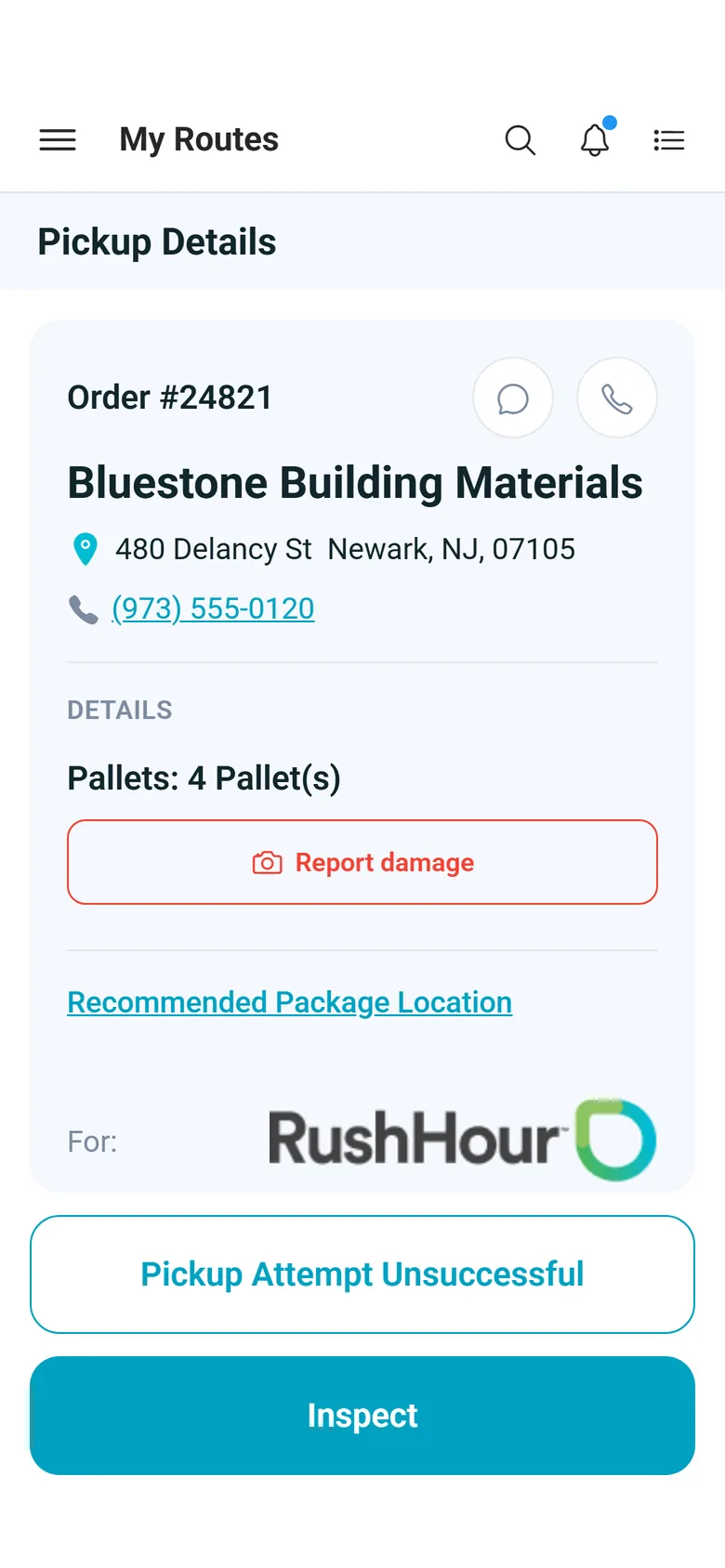
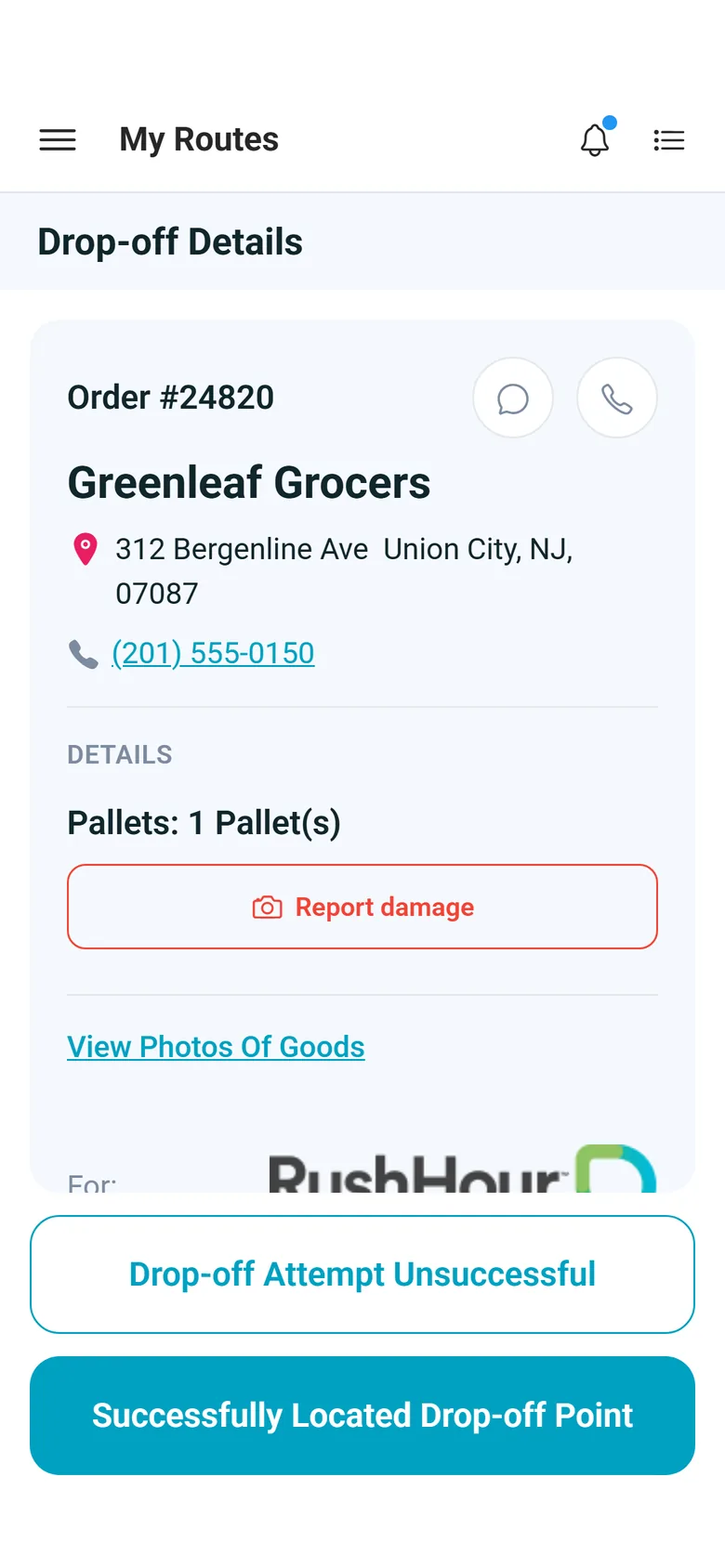
At the receiver, the driver confirms the drop-off details on a card with the order number, the receiver, the address, a phone number and the freight to unload, and can photograph damage with Report Damage before completing the stop.
- The drop-off card shows the order number, receiver, address, phone and freight
- Photos taken with Report Damage are saved on the stop
- Report damage is also on the drop-off details screen, before the driver starts the stop
- A photo of the goods at delivery, switched on or off in Driver App settings
Paperwork
The BOL and labels are generated from the order
The Bill of Lading, labels and order sheet are built from the order each time you open them, so the paperwork matches what was booked. Blind stops print the stand-in name and address you enter. Labels are 4 x 6 inch PDFs with your logo, From and Ship To, the delivery contact's phone and a QR code of the order number, plus notes and your company's name, email and phone.
- A BOL for the billing customer or for each delivery, with handling flags and the HM column
- 4 x 6 inch labels numbered by item quantity, for example 1 OF 4 to 4 OF 4 for four pallets, each with a QR code of the order number
- Order sheet from the same record
- A straight bill of lading with shipper, carrier and consignee signature lines, and in the PDF and emailed copy, a closing page with your own terms and conditions
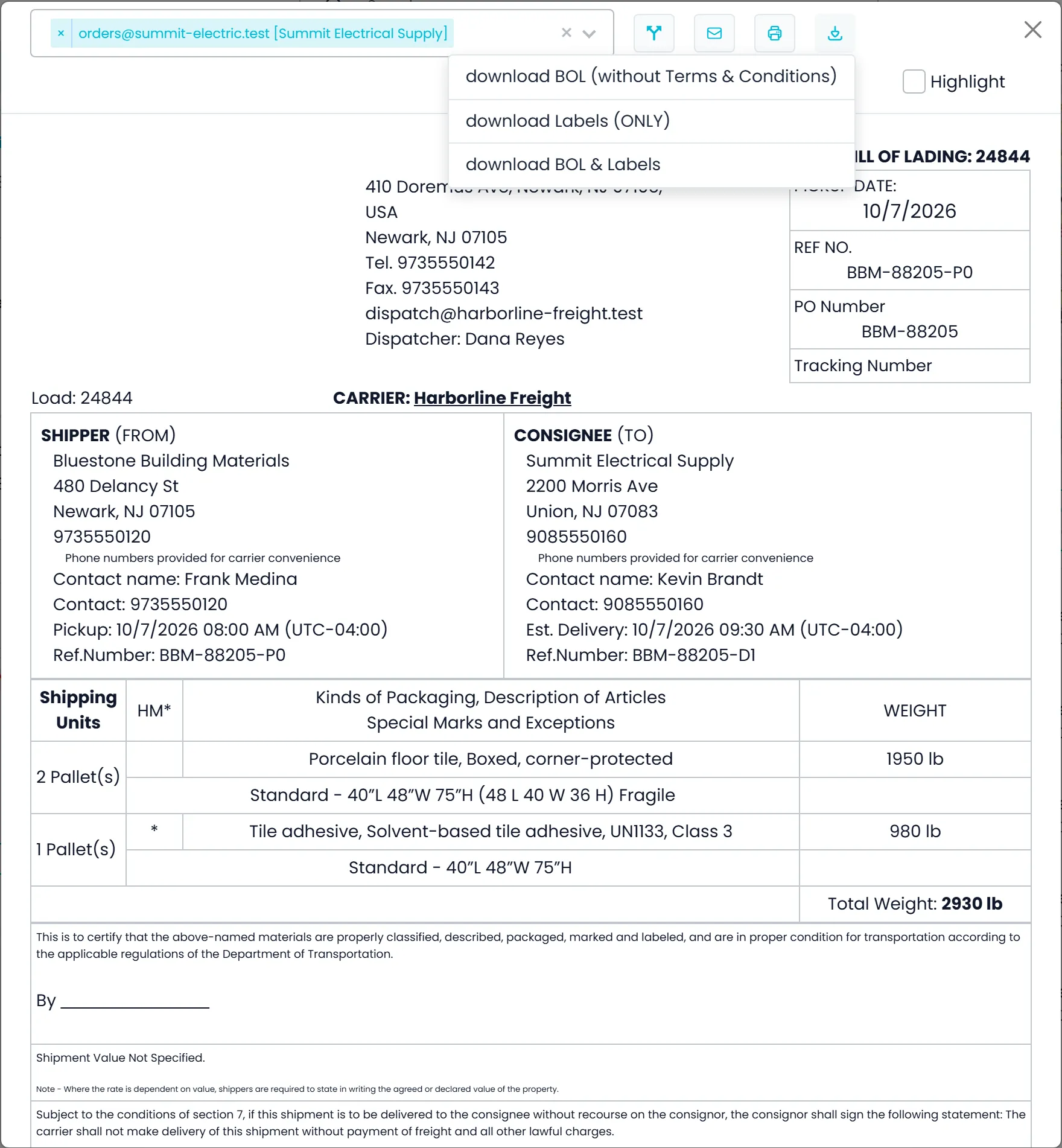
- Print or download the BOL, the labels only, or both, with options to split stop items or highlight items
- Email the BOL to several recipients: RushHour suggests the customer's contacts and earlier BOL recipients, and offers to save a new address to the customer
- Print BOL from Dispatch route cards and unassigned order cards
Customer Portal
Your customers download their own BOL
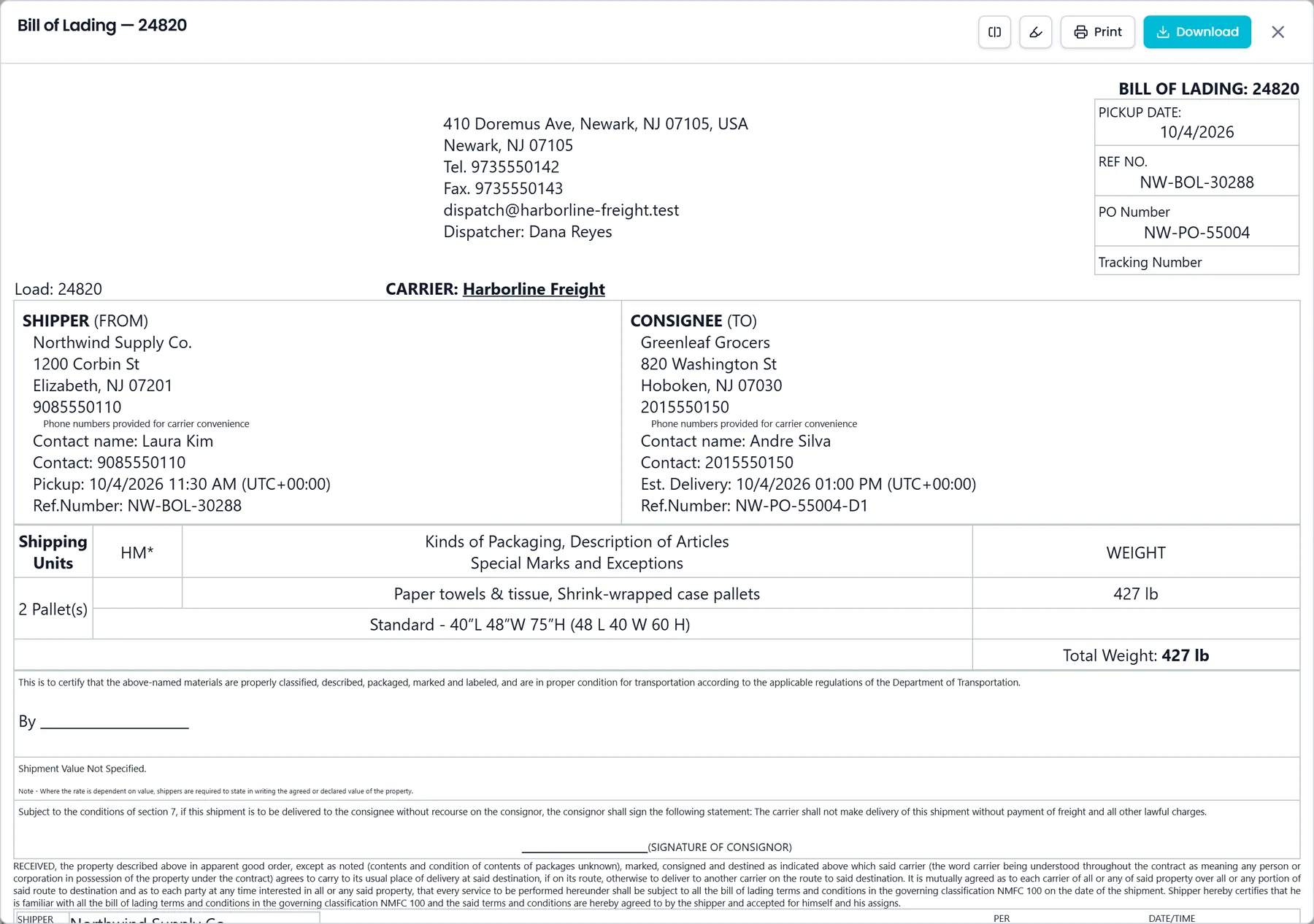
Customers with Customer Portal access open the BOL from the menu of an order in their Orders list once it is scheduled, on route or delivered, then print it or download the PDF, without asking your office for a copy. It is the same document your office prints, built from the order.
- BOL in the order menu, with Print and Download in the preview
- Customers see the BOLs of their own orders only
- Split and highlight item views before printing, as in the office
In the driver app
The freight on the driver's screen
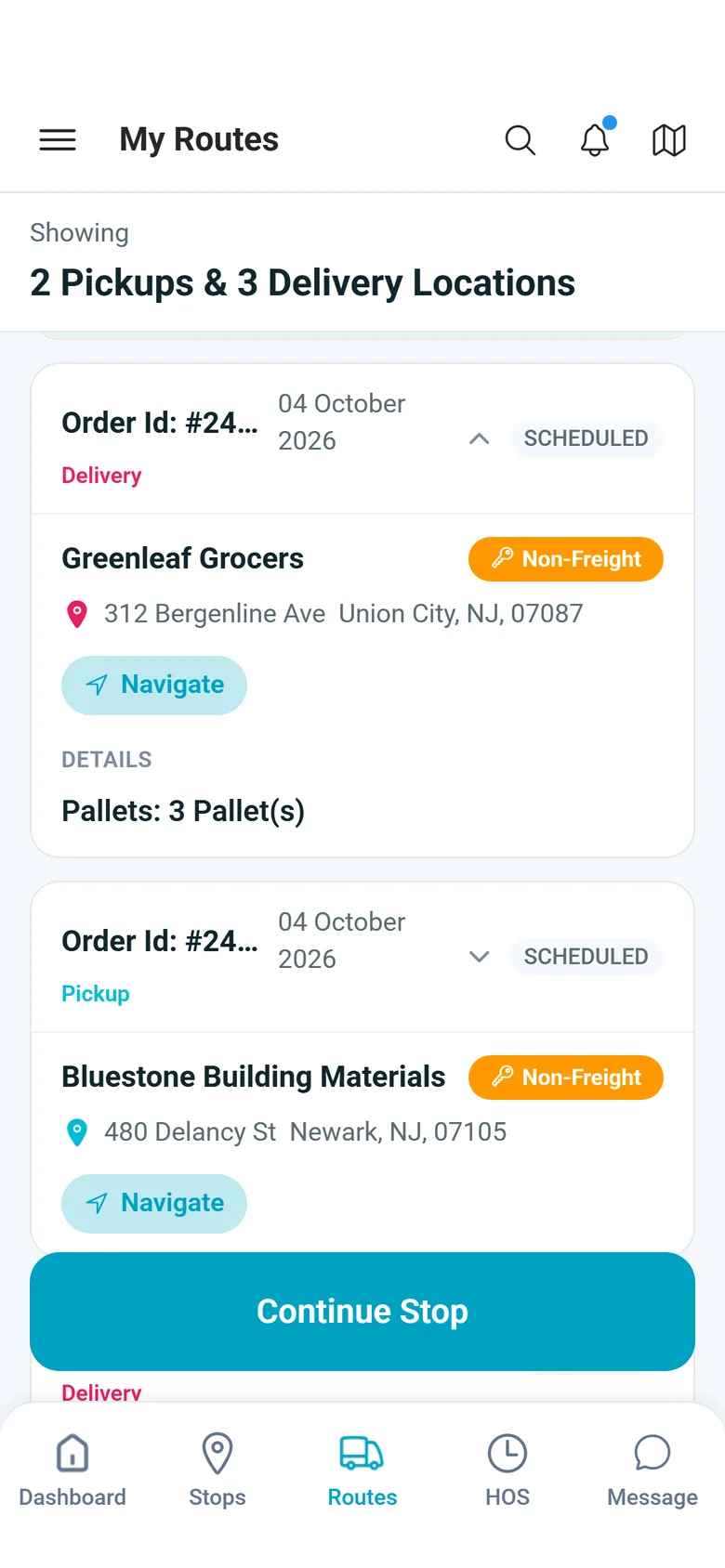
Drivers see what they are picking up and dropping off before they start a stop. These screens are from version 2.x of the RushHour driver app.
What rides along with the load
Handling flags that print
Mark an item fragile, refrigerated, overweight or hazardous once on the order. On the Bill of Lading, fragile, refrigerated and overweight print in the item's special instructions, and hazardous items are marked in the HM column.
Your company decides the steps
Turn the pickup prompts Scan Items, Enter item # manually and Count item contents on or off in Driver App settings.
Packing lists without retyping
When a customer sends a packing list, the AI assistant reads it and stages its units as load units on the order's pickup, with their unit, tracking or container numbers, weight and contents, for you to review and confirm.
Scans that wait for signal
Scans made in a dead-zone warehouse stay on the phone and upload when the connection returns, and the Scanned Items screen shows what is still pending. Completing the stop itself needs a connection.
BOL downloads are filed
When you download an order's standard BOL PDF, without the split, highlight or per-delivery options, a copy is saved to the Documents library automatically and linked to the order, so you can find it later.
You decide who handles paperwork
The View BOL, Send and download BOL, and Dispatch Send BOL permissions control who can open, download and email bills of lading.
In the next release
Batch printing, cleaner documents and local stop times
These printing improvements are finished and ship with the next production release of RushHour.
Bulk printing
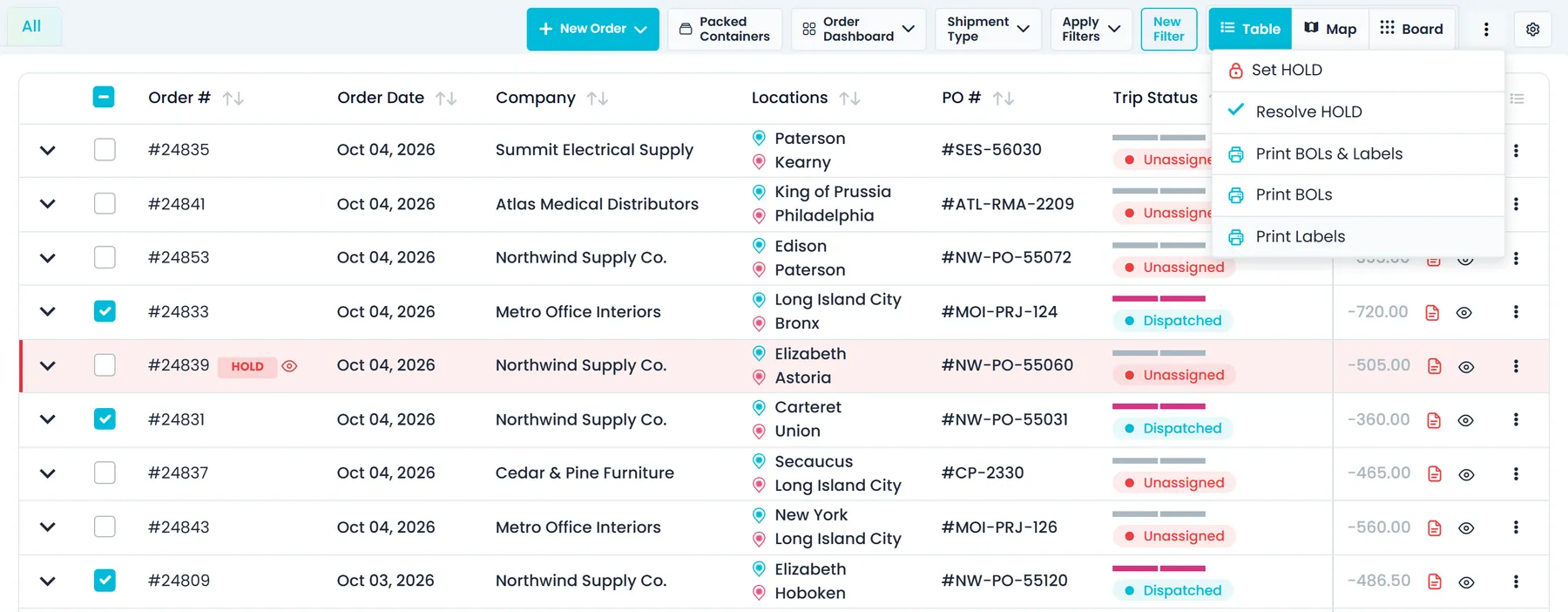
Print BOLs and labels for many orders in one goNext release
Tick two or more orders in the Orders list and open the … menu above it to print their paperwork together. The selected orders open in a single print dialog, and each order's BOL starts on a new page. It works in both the new and classic Orders list for users with the View BOL permission, the same permission that opens a single order's BOL, and admins decide who has it.
- Print BOLs & Labels, Print BOLs or Print Labels
- Up to 50 orders in one print job
- Blind stops print the same way as on the order's own BOL
Label and BOL PDFs
One label per page, with long addresses sized to fitNext release
When you download an order's labels as a PDF, each 4 x 6 inch label fits on a single page, without a near-empty extra page or a blank label at the end. A long ship-to address or note steps down to a smaller font so every line fits in its space on the label, and only very long text is shortened with an ellipsis.
- One 4 x 6 inch label per page
- Long ship-to addresses and notes step down in font size
- No near-empty last page on BOL PDFs without terms text
Item lines
Item sizes print once on BOLs, quotes and order sheetsNext release
On bills of lading, quote PDFs and order sheets, each item's size prints once, on the line under the item name. It is followed by the pallet size's dimensions when a pallet size is chosen, then any dimensions entered on the item. The weight column shows only the weight.
- Each item's size printed once, under its name
- Pallet dimensions when a pallet size is chosen, then the item's own dimensions
- A weight column with only the weight
Stop times
Stop times print in your time zoneNext release
Bills of lading, quotes, invoices and proof of delivery documents that you open or email from the Company Portal print a stop's exact time in your computer's time zone, with its UTC offset, instead of in UTC. The date next to it follows the same zone, so a 7:00 PM pickup in New York no longer prints as 11:00 PM. Stops set to Morning, Noon or Evening print as before.
- Bills of lading, quotes, invoices and proof of delivery documents
- Opened or emailed from the Company Portal
- The UTC offset printed next to the time
Questions
Questions about BOLs, labels and scanning
What do I need to print the labels?
Labels download as a PDF sized 4 x 6 inches, so they print on a printer that takes 4 x 6 inch labels. You can also print them, alone or with the BOL, from the BOL viewer through your browser's print dialog.
What does the QR code on a label contain?
The order number. It is also printed under the code and as the tracking number on the label, and every label of the order carries the same code. Each label is numbered, for example 1 OF 6, so the units of an item can be counted on the dock.
Can my customers get the BOL themselves?
Yes. Customers with Customer Portal access can open the BOL of their own orders from the Orders list once an order is scheduled, on route or delivered, print it and download the PDF. You can also email it from the order to several recipients at once.
What does the driver scan at pickup?
The barcodes already on the freight. Each scan is checked against the unit, tracking and container numbers of the stop's load units, which you import from the customer's packing list. The scan step appears on pickups whose load units carry one of those numbers, as long as Scan Items is on in Driver App settings.
Which barcode types can the driver app read?
QR, Code 128, Code 39, Code 93, Codabar, EAN-13, EAN-8, ITF-14, UPC-A, UPC-E, PDF417, Data Matrix and Aztec. If a barcode won't scan, the driver can type the number or record why it couldn't be scanned. Turning off Enter item # manually in Driver App settings removes typing from the scan step.
Does scanning work without signal?
Yes. Scans made without signal are kept on the phone and uploaded when the connection returns, and the Scanned Items screen shows which are still pending. Completing the stop needs a connection.
Related features
Bring a packing list to the demo.
We'll turn it into load units on an order, show the pickup scan in the driver app, and print the BOL and labels.