
Hours of Service in the driver app,
with every clock in view.
Drivers set their duty status on the HOS tab of the RushHour driver app and watch four clocks count down: the 14-hour on-duty window, the 11-hour driving limit, the driving time left before a 30-minute break, and the hours left in the 60-hour/7-day cycle. The app warns them before a limit runs out, keeps status changes made without signal, and emails their logs to a DOT officer at an inspection. In the next release, the Hours of Service board in the Company Portal puts every active driver's clocks on one screen, with the drivers closest to running out of hours listed first.
In the driver app today
What drivers see and do on the HOS tab
Hours of Service is on by default and shows as the HOS tab in the RushHour driver app, version 2.x on Google Play and the App Store. Switch it off in Settings > Driver App > Features and the tab and its alerts disappear from the app. Hours are logged by drivers; RushHour is not a certified ELD.
Duty status
Change duty status, with the location saved
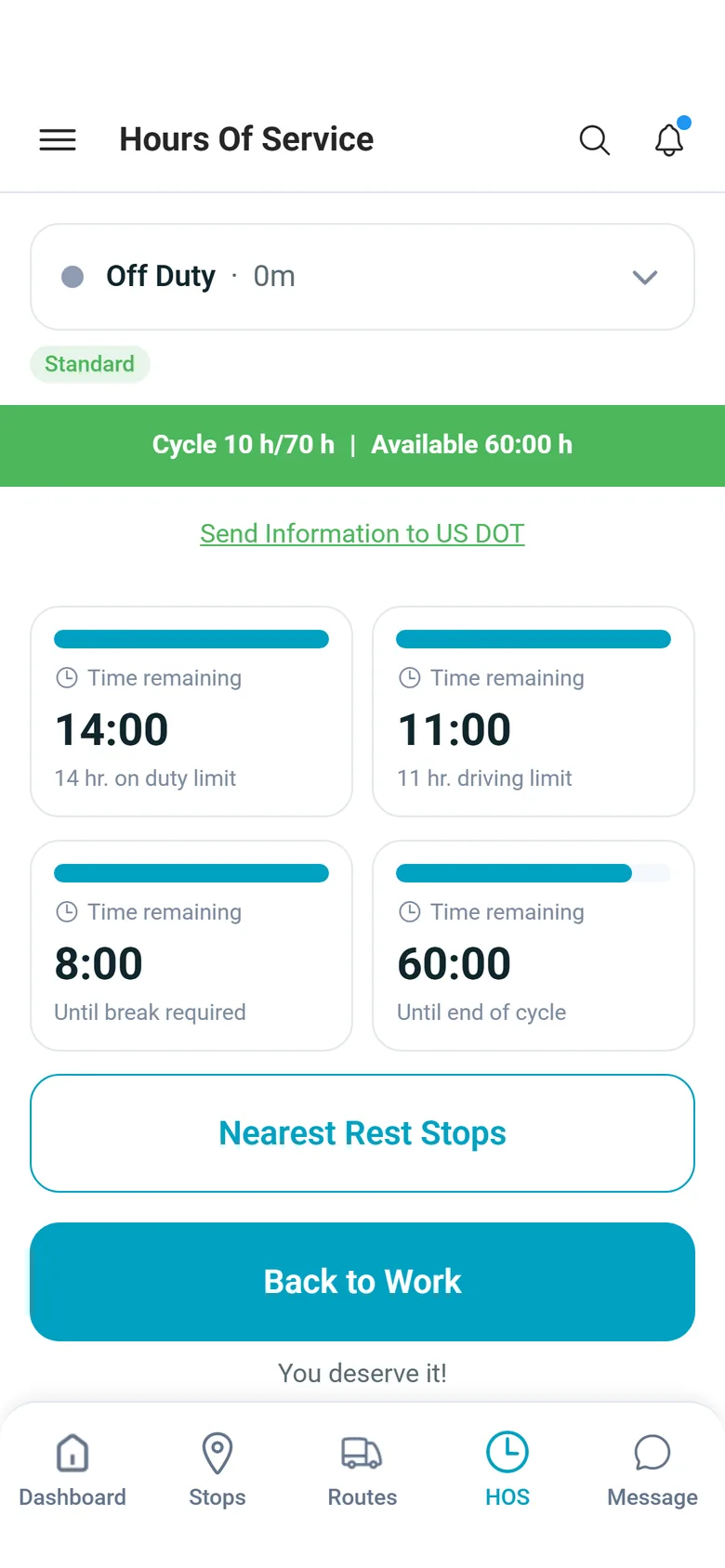
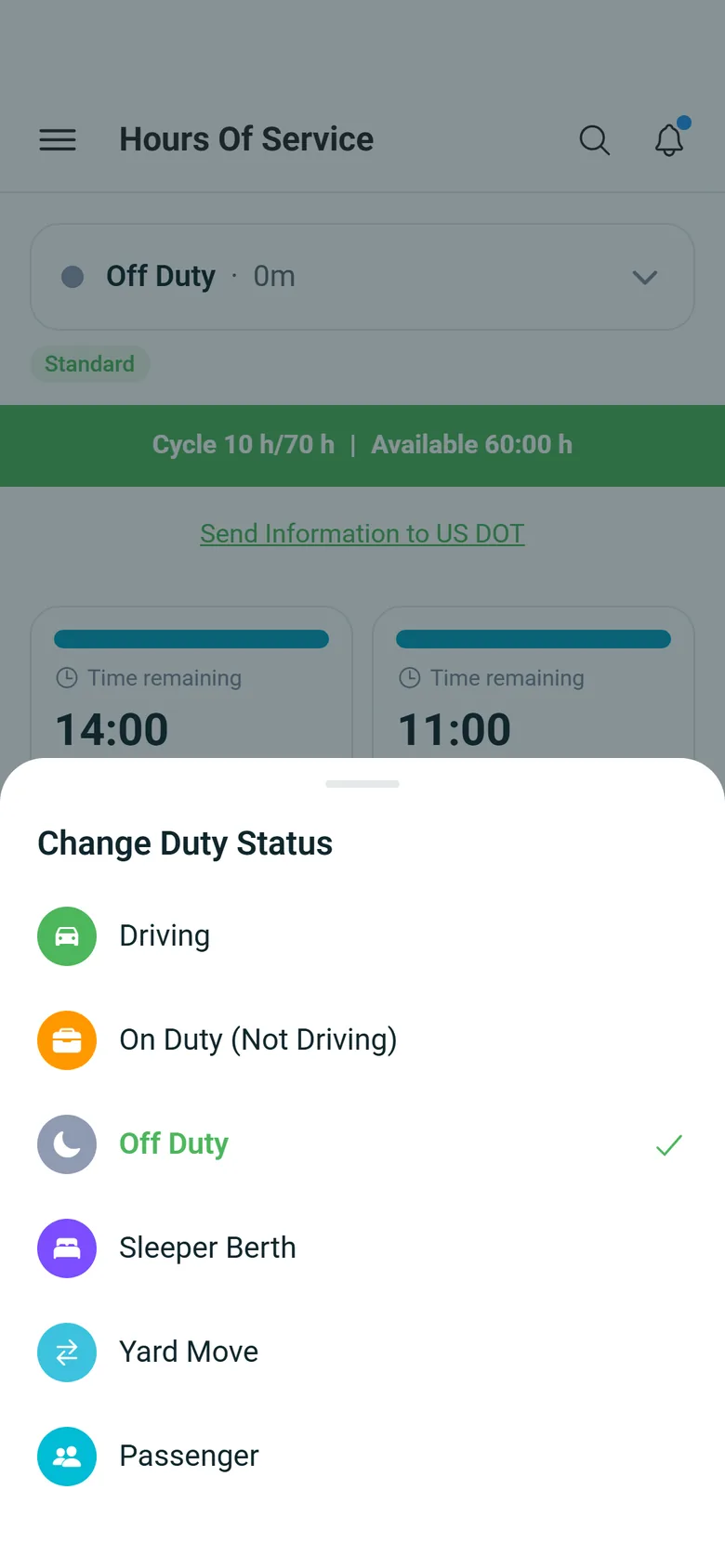
Drivers tap their current status at the top of the HOS tab and choose Driving, On Duty (Not Driving), Off Duty or Sleeper Berth. Every change is saved with the GPS position, plus the city and state when the phone has a fresh GPS fix. With no location the change is not saved, and the app asks the driver to turn location on. Start Break puts the driver Off Duty, Back to Work puts them On Duty (Not Driving), and Nearest Rest Stops is one tap away.
- Driving, On Duty (Not Driving), Off Duty and Sleeper Berth
- GPS position saved with every change, plus the place name from a fresh fix
- Start Break and Back to Work buttons, plus Nearest Rest Stops
Four clocks
The hours left, counting down on the phone
Four cards show the time left in the 14-hour on-duty window, on the 11-hour driving limit, in driving time before a 30-minute break is required, and in the weekly cycle. Each card has a bar that shortens as the time runs down and changes color when a warning is active and again at zero. A banner above the cards shows the hours still available in the cycle, and active warnings, such as an approaching 11-hour limit, are listed on the tab.
- 14-hour window, 11-hour drive, break and cycle clocks
- Bars change color at a warning and at zero
- Active warnings listed on the tab
Alerts
Warnings before a limit, on any screen
The app checks the driver's clocks every 5 minutes while it is open on any screen and, when location sharing is on, in the background. It alerts the driver 30 minutes before a break is due or the 11-hour or 14-hour limit is reached, and an hour before the weekly cycle runs out. If a clock reaches zero while they drive, it shows Drive Limit Exceeded, On-Duty Limit Exceeded, Break Overdue or Weekly Cycle Limit Reached. Drivers who are not driving get no limit-passed alerts, and each alert shows at most once a day.
- Alerts 30 minutes before the break and the 11-hour and 14-hour limits
- Alerts when a limit is passed while driving
- Checked in the background while location sharing is on (Settings > Location Sharing)
Duty log
A daily summary and a status log on the phone
Below the clocks, drivers see a daily summary: shift start and end, driving, on-duty and off-duty time, the longest continuous drive, and the day's violations, if any, such as Missing Break or Weekly Limit. The status log lists every change in the dates the driver picks, with its start time, how long it lasted and, when the app recorded one, the place name.
- Driving, on-duty, off-duty and longest continuous drive
- The day's violations, such as Missing Break
- Status log for a date range, with time, duration and place when recorded
Roadside inspection
Email up to 14 days of logs to a DOT officer
At an inspection the driver taps Send Information to US DOT, keeps Hours Of Service ticked, picks the dates (the last 8 days are filled in, and up to 14 are allowed) and enters the officer's email address. RushHour emails the duty status log and daily summaries for those days and records every transmission. It is an email, not an FMCSA web-services or USB transfer, and adding inspection (DVIR) records is marked Coming soon in the app.
- Last 8 days filled in, up to 14 days
- Duty status log and daily summaries by email
- Every transmission recorded
No signal
Status changes made without signal are kept
With no signal, the app keeps every duty status change on the phone and shows how many are waiting. When it sees signal return with the HOS tab open, it sends them in the order they were made. For now, each change is logged at the time it reaches RushHour, not the time it was made.
- Every change kept on the phone, not only the last one
- Sent in order when signal returns with the HOS tab open
- Logged at the time it reaches RushHour
The rules
Clocks built on the federal limits
Clocks use the US property-carrying limits with the 60-hour/7-day cycle. RushHour works out each driver's clocks, warnings and violations on its servers from the duty statuses they log. Warnings show on the driver's HOS tab, and driving with no time left on a clock is recorded as a violation in the day's summary.
11 hours of driving
Driving time within a shift. A warning shows at 7.5 hours of driving.
14-hour window
Counts down from the start of the shift, whatever the duty status. 10 hours in a row off duty or in the sleeper berth starts a new shift. A warning shows 10.5 hours in.
30-minute break after 8 hours
30 minutes in a row not driving resets the count. A warning shows at 7.5 hours of driving without a break.
60 hours in 7 days
Driving and on-duty time over the last 7 days, updated every hour. A warning shows at 55 hours.
In the next release
Hours left on one board, before the next load goes out
The Hours of Service board in the Company Portal is finished and in final testing, and it comes with the next production release. It reads the duty status drivers set on the HOS tab of the RushHour driver app, version 2.x for Android and iPhone from Google Play and the App Store. Hours are logged by drivers; RushHour is not a certified ELD.
Every driver, one row
Four HOS clocks on every driver's rowNext release
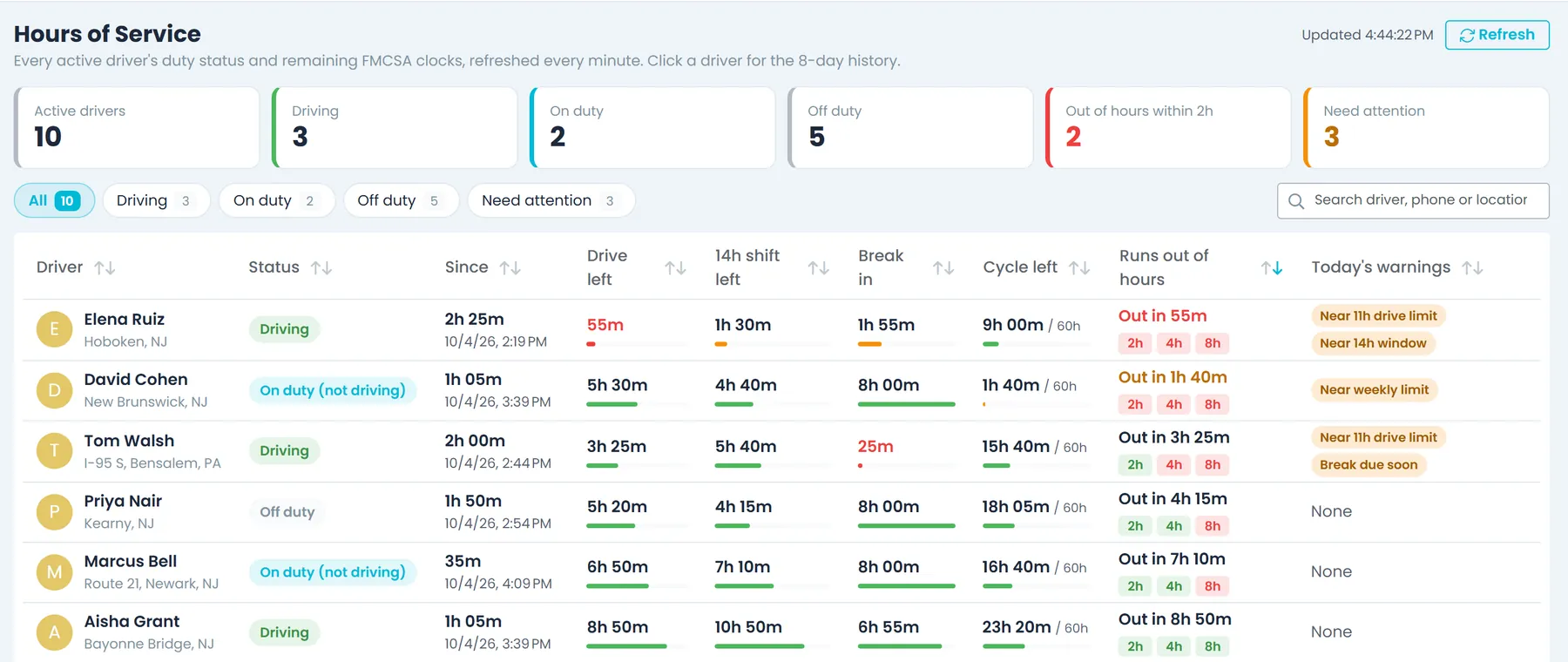
Each active driver's row shows their duty status and how long they have been in it, their drive, 14-hour shift and cycle time left, and the time until their next required break. Every clock has a bar that shortens as time runs down, highlighted at two hours left and again at one. The board refreshes itself every minute, and you can search by driver, phone or location.
- Duty status and time in that status
- Drive, 14-hour shift, break and cycle clocks
- Refreshes every minute, with a Refresh button
Who runs out next
Know who runs out of hours before you assign the loadNext release
The board runs each driver's clocks forward 2, 4 and 8 hours, assuming they keep doing what they are doing now, and marks where they would be out of hours. Drivers closest to running out are listed first. Tiles at the top count how many drivers are driving, on duty or off duty, and how many run out of hours within 2 hours.
- Out-of-hours markers at 2, 4 and 8 hours
- Closest to running out listed first
- Tiles for driving, on-duty and off-duty counts
Today's warnings
Warnings and violations where dispatch can see themNext release
A driver nearing the 11-hour driving limit, the 14-hour window, a required break or the weekly limit gets a warning on their row, next to any violation recorded today, such as more than 11 hours of driving or a missed 30-minute break. The Need attention filter gathers every driver with a warning, a violation today, or hours that run out within 2 hours.
- Near-limit warnings: 11-hour drive, 14-hour window, break, weekly
- Today's violations on the driver's row
- Need attention filter with a count
Last 8 days
One click to a driver's clocks, outlook and 8-day logNext release
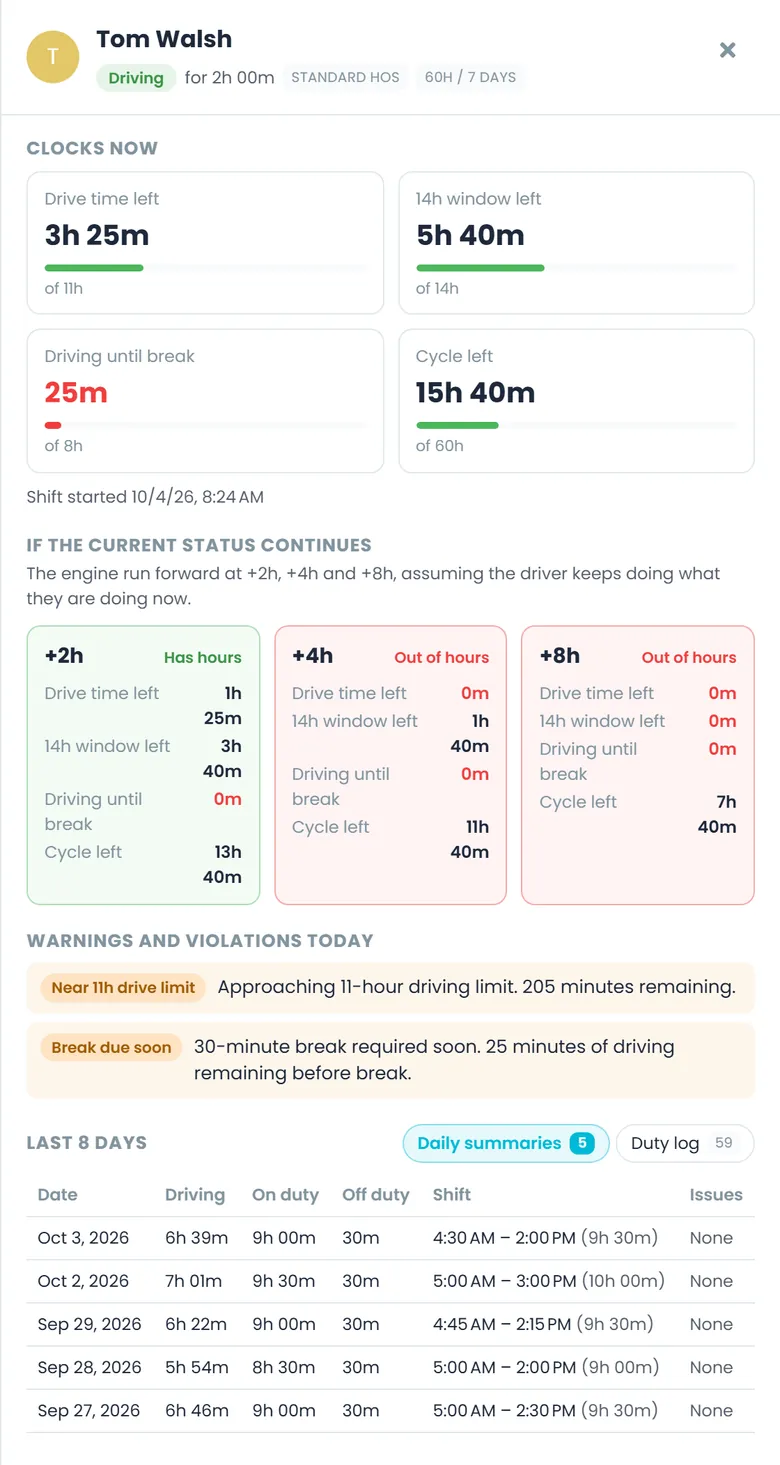
Click a driver to open the Driver hours panel: their clocks now, when their shift started and what each clock would read 2, 4 and 8 hours from now. Below, the last 8 days come in two views: daily driving, on-duty and off-duty totals with any warnings or violations, and a duty log of every status change with its start, end and duration.
- Clocks now and at +2, +4 and +8 hours
- Daily driving, on-duty and off-duty totals
- Every status change, with the location the app recorded
Access and setup
Follows your HOS switch, open to the roles you chooseNext release
Open the board from the Compliance button on the Drivers page, or from Reports under Compliance. It appears while Hours of Service (HOS) is on in Settings > Driver App > Features, which is the default. Company admins have access and can grant it to other roles, such as dispatchers, in Settings > Users > Roles; companies already on RushHour also get it for their dispatcher role.
- Drivers > Compliance, or Reports > Compliance > Hours of Service
- Shown while the HOS switch is on, which is the default
- A role permission admins can grant
- Clocks use the US property-carrying limits with the 60-hour/7-day cycle
Why dispatch watches the clocks
Loads a driver can finishNext release
Check the drive and shift time a driver has left before you give them the next load, not after they run out partway through a route.
Warnings in the office, tooNext release
Near-limit warnings and the count of drivers running out within 2 hours show on the board your office has open, not only on the driver's phone.
No second app for drivers
Drivers set their duty status in the same RushHour driver app they run their stops in. In the next release, the board shows dispatch that same duty log.
FAQ
Hours of Service questions
Is RushHour a certified ELD?
No. Drivers log their own duty status in the RushHour driver app, and nothing is read from the truck's engine. RushHour keeps the duty log, works out the clocks and warns drivers before a limit, but it is not a certified electronic logging device (ELD) and does not replace one.
Which hours-of-service rules do the clocks follow?
They use these US property-carrying limits: 11 hours of driving, a 14-hour on-duty window, a 30-minute break after 8 hours of driving, and the 60-hour/7-day cycle, counted over the last 7 days and applied to every driver. 10 hours in a row off duty or in the sleeper berth starts a new shift.
Can the office see drivers' hours today?
Today the clocks, warnings and duty log are on each driver's HOS tab, and a driver can email up to 14 days of logs. The Hours of Service board, which shows every active driver's hours in the Company Portal, comes with the next release.
Will the board stop us from assigning a driver who is out of hours?
No. The Hours of Service board, coming in the next release, is a view: it shows each driver's hours left and who runs out first, and the dispatcher decides. Assigning routes on the dispatch board is not blocked.
Who will be able to see the Hours of Service board?
Users whose role has the "Compliance - view hours of service" permission. Company admins have it and can grant it to other roles in Settings > Users > Roles, and companies already on RushHour also get it for their dispatcher role. The board shows while Hours of Service (HOS) is on in Settings > Driver App > Features.
What happens when a driver changes status without signal?
The app keeps every change on the phone, not only the last one, and sends them in the order they were made when it sees signal return with the HOS tab open. For now, each change is logged at the time it reaches RushHour, not the time it was made.
Can we turn Hours of Service off?
Yes. Hours of Service (HOS) is on by default in Settings > Driver App > Features. Switch it off and the HOS tab and its alerts disappear from the driver app.
Related
Bring the load that ran a driver out of hours.
In the demo a driver changes duty status in the app, and you watch the clocks, warnings and duty log update on the phone. We can also show the Hours of Service board from the next release, with each driver's clocks, whether they run out of hours within 2, 4 or 8 hours, and their last 8 days.