
You know the area.
Now your rate card does too.
Draw the area on a map, or build it from ZIP codes, ZIP prefixes and city names. Then set the rate between two zones, flat or per pallet, on your company rate card or a customer's own. Price a pallet order with Pricing Model and, when both ends land in zones you priced, that rate is the price.
From boundary to rate
Define the area once, then price between areas
Zones live under Settings → Pricing Zones and are shared by the whole company. The rates between them live on each rate card, under Settings → Pricing Models → Zone Rates.
Drawn areas
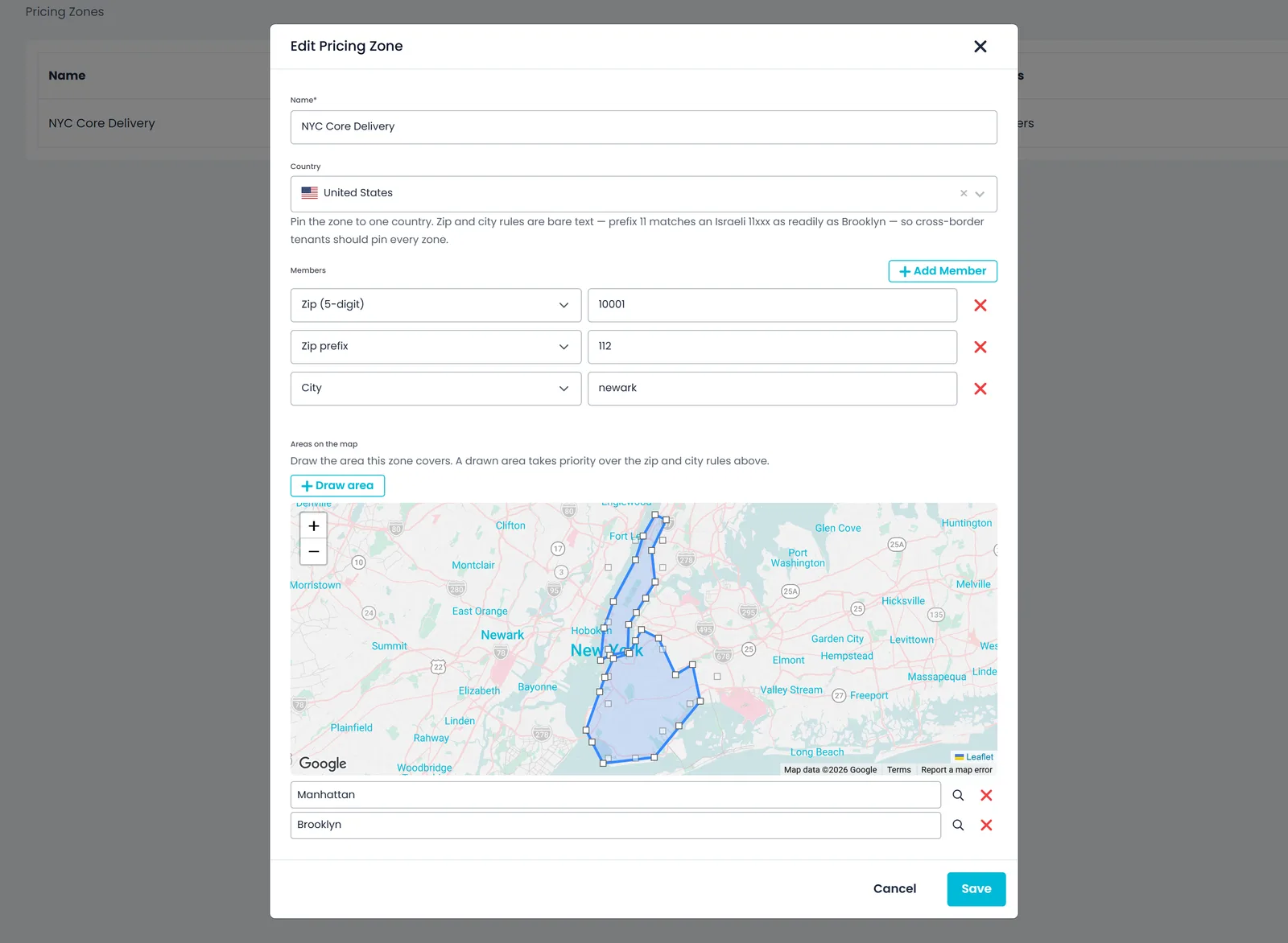
Draw the area instead of listing ZIP codes
Trace the boundary you actually mean on the map: one area or several, each with an optional name so a multi-area zone stays easy to edit. A zone can be drawn areas alone, with no ZIP rules. Where a drawn area and a ZIP rule disagree, the drawing wins. Drawn areas match on an address's coordinates, so switch on Address coordinates in Settings → Billing (off by default); your ZIP and city rules work either way.
- Trace the boundary on the map
- Several named areas in one zone
- A drawn area outranks ZIP and city rules
- Click each corner, then the first point again to close the area
- Drag a corner to reshape an area, zoom to it or remove it
- Drawn on the map provider your company selected
Match rules
ZIP, ZIP prefix and city rules for everything else
Build a zone from exact 5-digit ZIPs, ZIP prefixes or city names. The most specific rule wins: an exact ZIP beats a prefix, and a prefix beats a city. Pin a zone to one country, or leave it open to anywhere, so a ZIP prefix cannot claim an address across a border.
- Exact ZIP, ZIP prefix or city name
- The most specific rule decides
- Pin a zone to one country
- City rules ignore capital letters and extra spaces
- The zone list shows how many ZIP and city rules each zone has
Zone rates
Price zone to zone, flat or per pallet
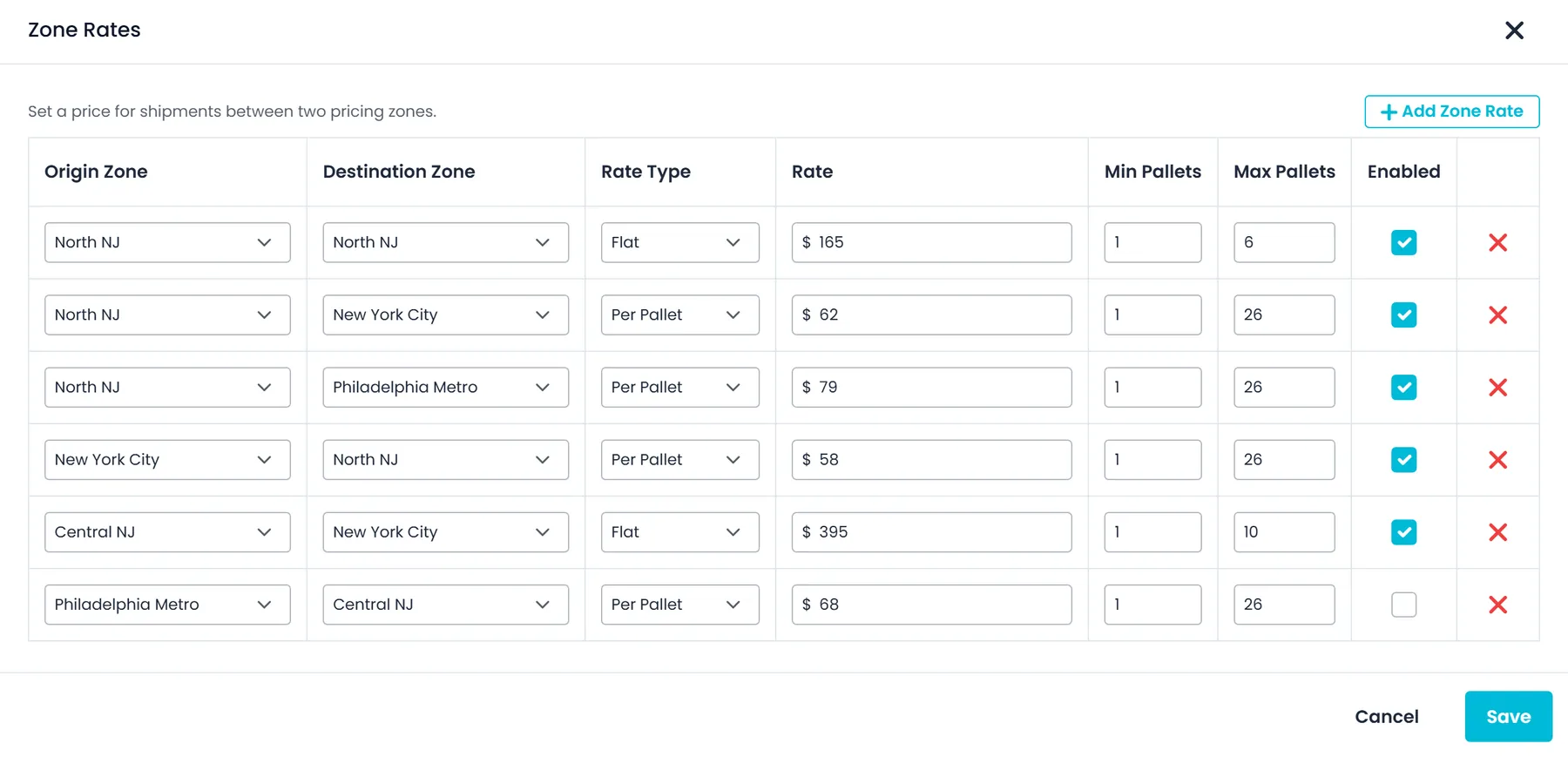
On your company rate card or a customer's own, set the price from one zone to another: a flat price, or a price per pallet, with optional minimum and maximum pallets. A matched zone rate is the price; the mileage grid and its adjustments are not stacked on top. A cross-border rate card that matches the lane is checked first.
- Flat price or price per pallet
- Optional min and max pallets per rate
- Switch a rate off without deleting it
- Each direction is its own rate, so outbound and return can differ
- Two rows for one zone pair can split it by pallet count
On the order
Two dispatchers, one zone pair, one price
Zones are set once for the company, and rate cards attach to the customer, falling back to your company default. Choose Pricing Model on a pallet order and the price comes from that customer's rate card, not from someone's memory of the last load. Zone rates price pallet-only orders; when a load really is a one-off, you can still type a custom price.
- Pricing Model calculates the order price
- A rate card per customer, plus a default
- Custom price for the one-off load
- The zone pair comes from the order's first and last stop
Worked example
From a zone pair to an order price
Example figures from a demo company's Zone Rates window, on orders priced with Pricing Model.
1. Define the zones
North NJ, New York City, Central NJ and Philadelphia Metro, each built from ZIP prefixes, a drawn area, or both.
2. Price the pairs
North NJ → New York City: $62 per pallet for 1 to 26 pallets. New York City → North NJ: $58 per pallet. Inside North NJ: $165 flat for 1 to 6 pallets.
3. Price the order
A 4-pallet order picked up in North NJ and delivered in New York City comes to 4 × $62 = $248. The same load in the other direction is 4 × $58 = $232.
4. When no rate fits
An 8-pallet run inside North NJ is outside the 1 to 6 range, and Philadelphia Metro → Central NJ is switched off, so those orders are priced from the pallet and mileage grid.
Which zone an address lands in
The most specific match wins
When an address fits more than one zone, RushHour uses the most specific match, in this order. A zone pinned to a country is only considered for addresses in that country; a zone left on Anywhere is considered everywhere.
1. Drawn area
The address's coordinates fall inside an area you drew on the map. The address needs coordinates, which Address coordinates in Settings → Billing fills in for locations you add.
2. Exact ZIP
The address's 5-digit ZIP equals a ZIP rule, such as 10001.
3. ZIP prefix
The address's ZIP starts with a prefix rule, such as 112 for Brooklyn.
4. City
The address's city matches a city rule, such as Newark, whatever the capitalization.
What zones touch
Quotes and orders
When a pallet-only order is priced by Pricing Model and both ends land in zones you priced, that zone rate sets the price.
Cross-border rate cards
International air, ocean and ground rate cards can be limited to an origin or destination zone, and a surcharge can apply only when the shipment touches a zone.
Addresses on the map
Switch on Address coordinates in Settings → Billing (off by default), and locations added from then on, for example on a customer's Locations tab, get the coordinates your drawn areas match on. ZIP and city rules work without it.
Your shippers' view
Shippers who use your Customer Portal can see your pricing zones by name under Settings → Zones, read-only. Only your staff can change zones and rates.
Not your dispatch zones
The zones you assign to routes and filter the Dispatch board by are a separate list under Settings → Zones, each with a name, city, state, country and ZIP code range. Editing one never changes the other.
Who can change them
Your user roles decide: the Zones view permission to see pricing zones, and Zones create/edit/delete to change them.
Pricing zone questions
Do I need address coordinates to use pricing zones?
Only for drawn areas. ZIP, ZIP prefix and city rules match on the address text. A drawn area matches on the address's coordinates, so switch on Address coordinates (“Look up coordinates when an address is saved”) in Settings → Billing. It is off by default. Once on, it fills in coordinates for locations you add, for example on a customer's Locations tab, and only for addresses that have none yet. An address without coordinates still matches your ZIP and city rules.
What happens when an address fits two zones?
The most specific match wins: a drawn area, then an exact ZIP, then a ZIP prefix, then a city. A zone pinned to a country only matches addresses in that country. If two zones match an address the same way, the zone that was created first is used.
Does a zone rate add to the mileage grid price?
No. When both ends of the order land in a zone pair that has an enabled rate covering the pallet count, that rate is the price, and the grid and its adjustments are not added on top. A cross-border rate card that matches the lane is checked before zone rates. If no zone rate fits, the order is priced from the grid as usual.
Can I stop using a rate without deleting it?
Yes. Clear its Enabled box in the Zone Rates window and save. A disabled rate never prices an order, and you can switch it back on at any time.
Which orders do zone rates price?
Quotes and orders priced with the Pricing Model price type, which is offered for orders made up of pallet items. RushHour finds the zone of the order's first stop and the zone of its last stop, then looks for an enabled rate from the first zone to the second that covers the order's pallet count. A flat rate charges the same amount for any pallet count its minimum and maximum allow. When you want to set the price yourself, choose Custom and type it.
Can each customer have its own zone rates?
Yes. Open Zone Rates on the customer's own rate card, from the customer's Pricing Model tab or by picking the customer in Settings → Pricing Models. A customer with its own rate card is priced from that card's zone rates; customers without one are priced from your company default.
Are pricing zones the same as the zones on the dispatch board?
No. Dispatch zones, under Settings → Zones, have a name, city, state, country and a ZIP code range; you assign them to routes and filter the Dispatch board by them. Pricing zones only decide prices. The two lists are kept apart, so you can draw pricing zones as finely as your rates need without changing how routes are grouped.
Can my customers see my pricing zones?
Yes, read-only. Shippers who sign in to your Customer Portal can see your pricing zones by name under Settings → Zones. Only your staff can change zones and rates.
Which lane do you argue about most?
Operators on RushHour have run stops in 41 US states and 12 countries. Bring your worst lane to the demo and we will show you how to draw the zone and price it.