
Pre- and post-trip inspections,
done on the phone, reviewed in the office.
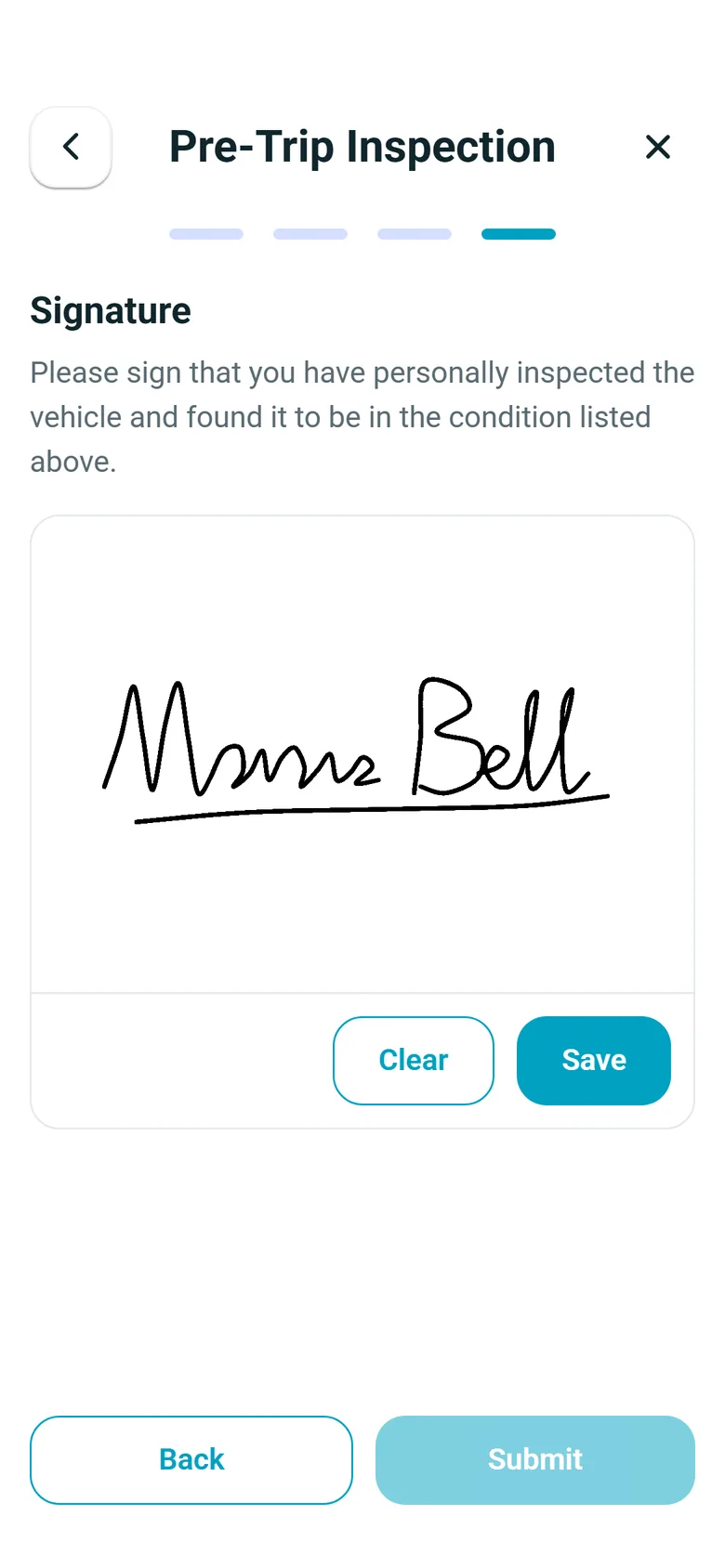
Drivers inspect the truck in the RushHour driver app at the start and end of the shift: the vehicle ID and odometer reading, photos of the truck, a checklist marked Acceptable or Damaged, a comment and an optional photo for anything damaged, and their signature. Company admins review every inspection in Truck Inspection Logs.
How inspections work
From the cab to the office log
Inspections run in the RushHour driver app on Android and iPhone, in version 2.x from Google Play and the App Store. Every inspection feature below works on both.
Start of shift
A pre-trip inspection before the first stop
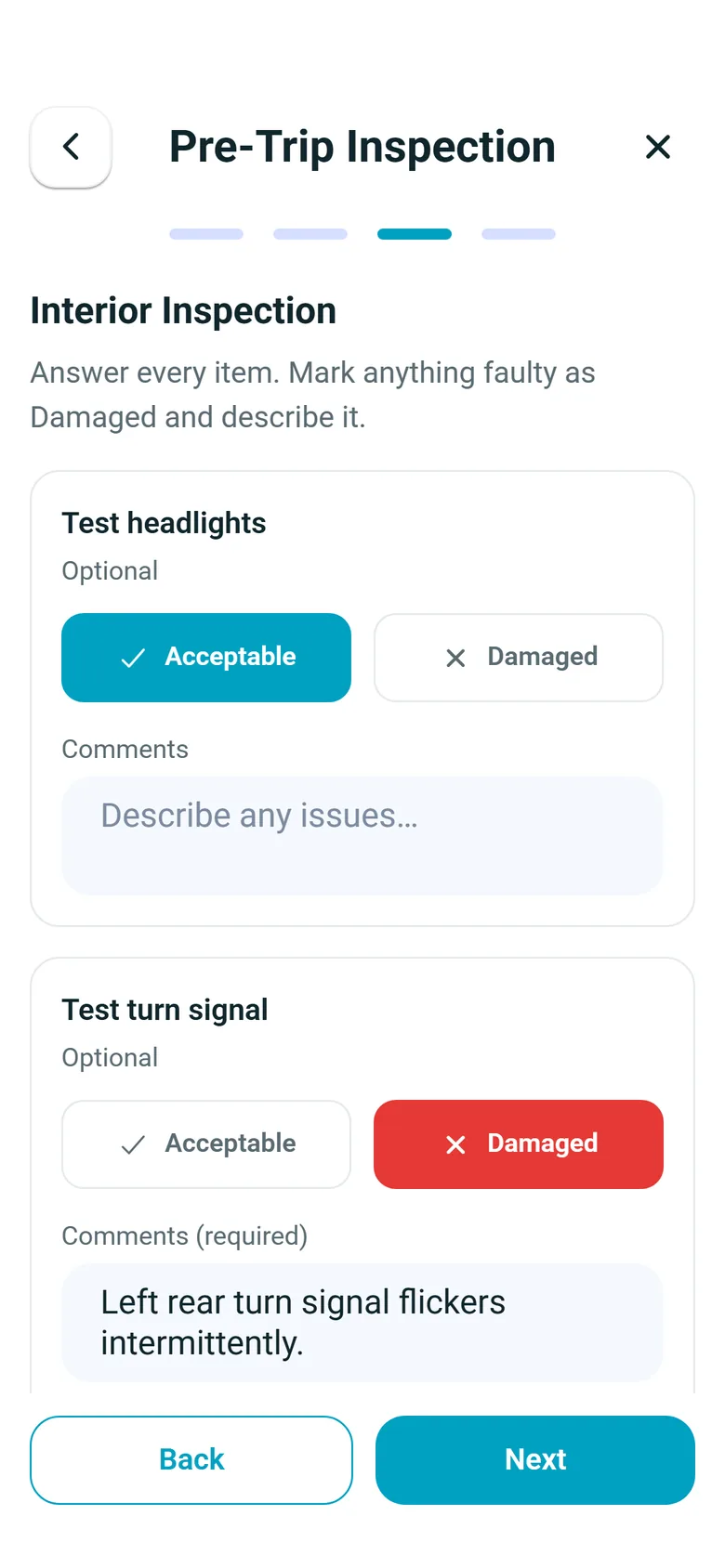
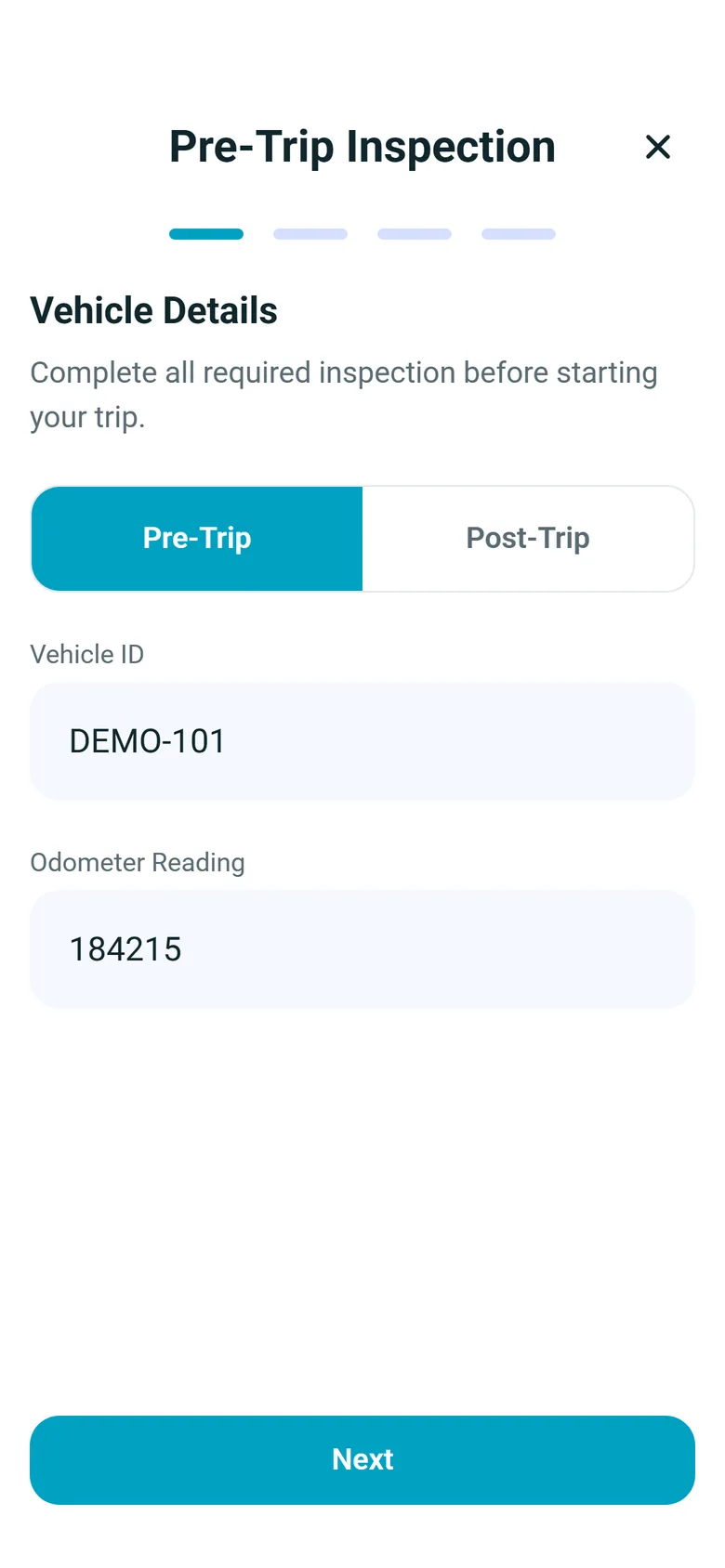
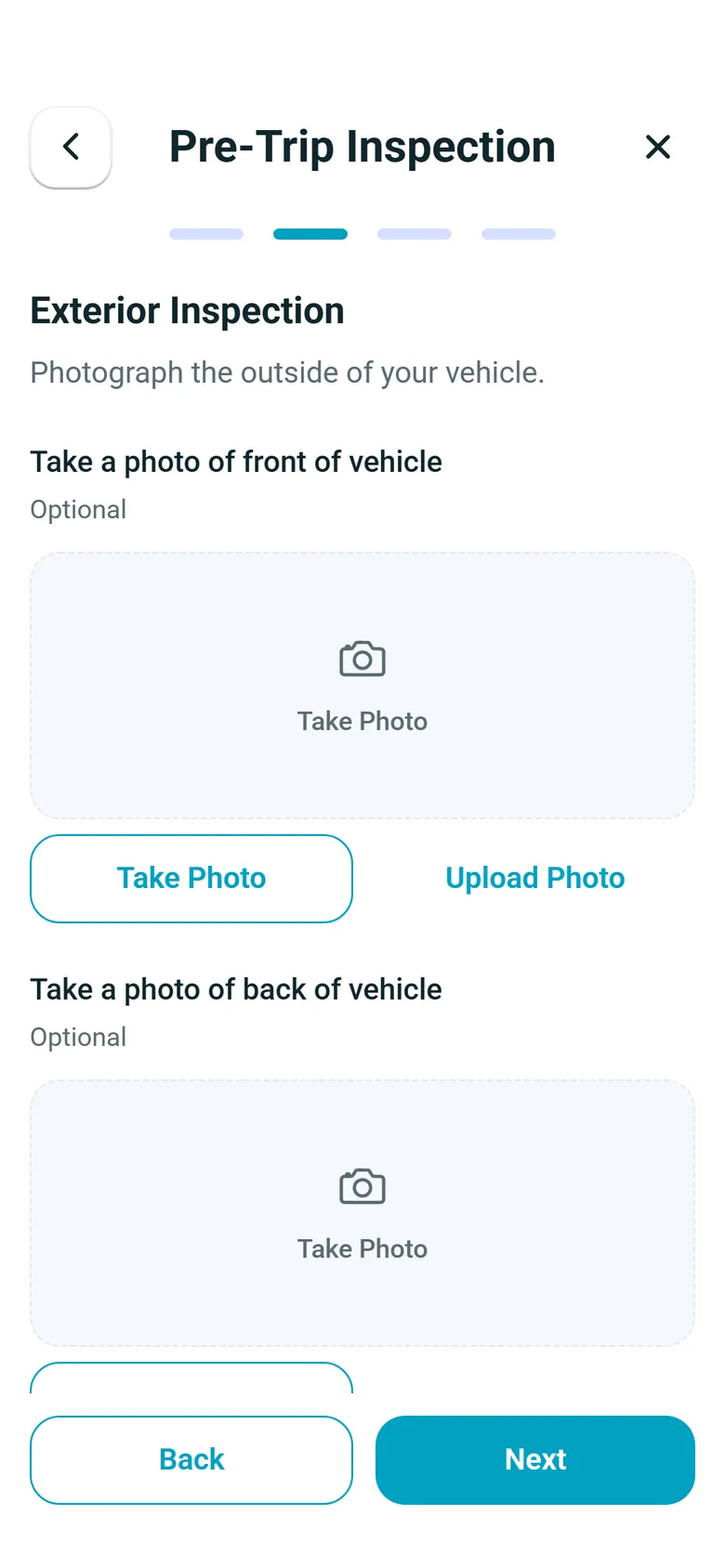
The driver taps Start Pre-Trip Inspection, confirms the vehicle ID, which is filled in from the truck on their route, and types the odometer reading. Then they photograph the front and back of the truck and go through the checklist. Five checks are on by default: headlights, turn signals, brake lights, fluid leaks and the horn. Mirrors, brakes and the reverse light or backup alarm are three more you can switch on. Each check is marked Acceptable or Damaged, and for anything damaged the app asks for a comment and offers a photo. The driver signs, and the inspection is saved against the truck and the route.
- Truck and route filled in from the driver's active route
- Odometer reading on every inspection
- Mirrors, brakes and reverse light/backup alarm checks, ready to switch on
- A comment, and a photo if needed, for anything marked Damaged
- No truck assigned? The driver types the plate number instead
- Driver's signature on every inspection
End of shift
The same inspection when the truck comes back
At the end of the shift the driver runs the inspection again: Start Post-Trip Inspection, or Post-Trip on the first step. The post-trip inspection always asks for the vehicle ID and odometer, both truck photos, all eight built-in checks and the signature, and it goes into the same office log, marked as an end-of-shift inspection. When the driver closes the day through Daily Driving Log Review on the End of Day screen, the app also asks for photos of the front, back and cab of the truck and a signature, as long as Require DVIR at end of shift is on.
- End-of-shift inspection with photos and a signature
- Listed next to the morning inspection in the office log
- Front, back and cab photos when the driver closes the day through Daily Driving Log Review
- Daily Driving Log Review with the shift's total hours and miles, or kilometers
- With Require DVIR at end of shift on, the driver adds notes and signs to certify the day's driving log
- Switch off Require DVIR at end of shift and Daily Driving Log Review skips the truck photos and the sign-off
Reminders
Reminders on the Dashboard, Routes and End of Day
With Require DVIR at start of shift on, which is the default, a banner appears on the Dashboard and the Routes screen when the driver has a route today and no pre-trip inspection yet. It appears again when today's pre-trip inspection covers a different truck than the one on the route, matched by the truck record, or by plate when no truck is linked. With Require DVIR at end of shift on, also the default, the End of Day screen shows a banner until a post-trip inspection is submitted. Tapping a banner opens the inspection with the route's truck filled in. The driver can dismiss a banner for the rest of the day: it is a reminder, not a lock on the route.
- "Complete your pre-trip DVIR" when today's inspection is missing
- "You changed vehicles" when the route's truck is not the one inspected
- "Complete your post-trip DVIR" on the End of Day screen
- Start- and end-of-shift reminders each on or off in Settings > Driver App
Your checklist
Add your own checks and set what is required
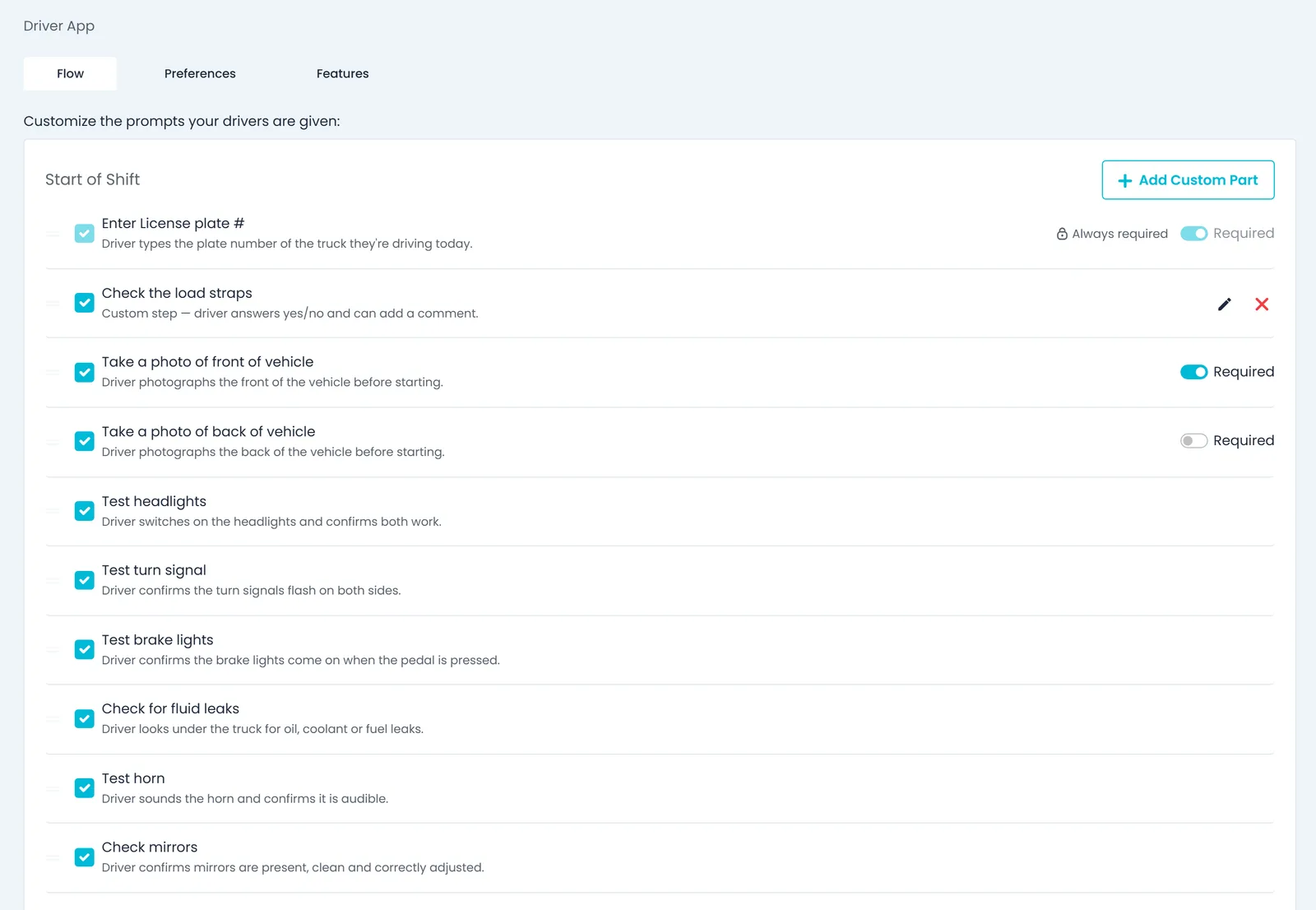
In Settings > Driver App you add your own yes/no checks to the start-of-shift inspection, such as "Load straps secured", turn built-in steps on or off, mark photos as required, and choose whether drivers are reminded to inspect at the start and at the end of the shift. The end-of-shift setting also decides whether closing the day through Daily Driving Log Review includes the truck photos and sign-off. The plate number and the signature are always part of the inspection. Custom checks appear in the start-of-shift inspection only. The driver app follows this setup on Android and iPhone, with no app update.
- Your own yes/no checks, with a comment required when the answer is Damaged
- Start- and end-of-shift inspection reminders on or off
- Plate number and signature always required
- Up to 50 steps per section, each label up to 200 characters
- Changes reach drivers' phones without an app update
Real-world interruptions
An interrupted inspection is not lost
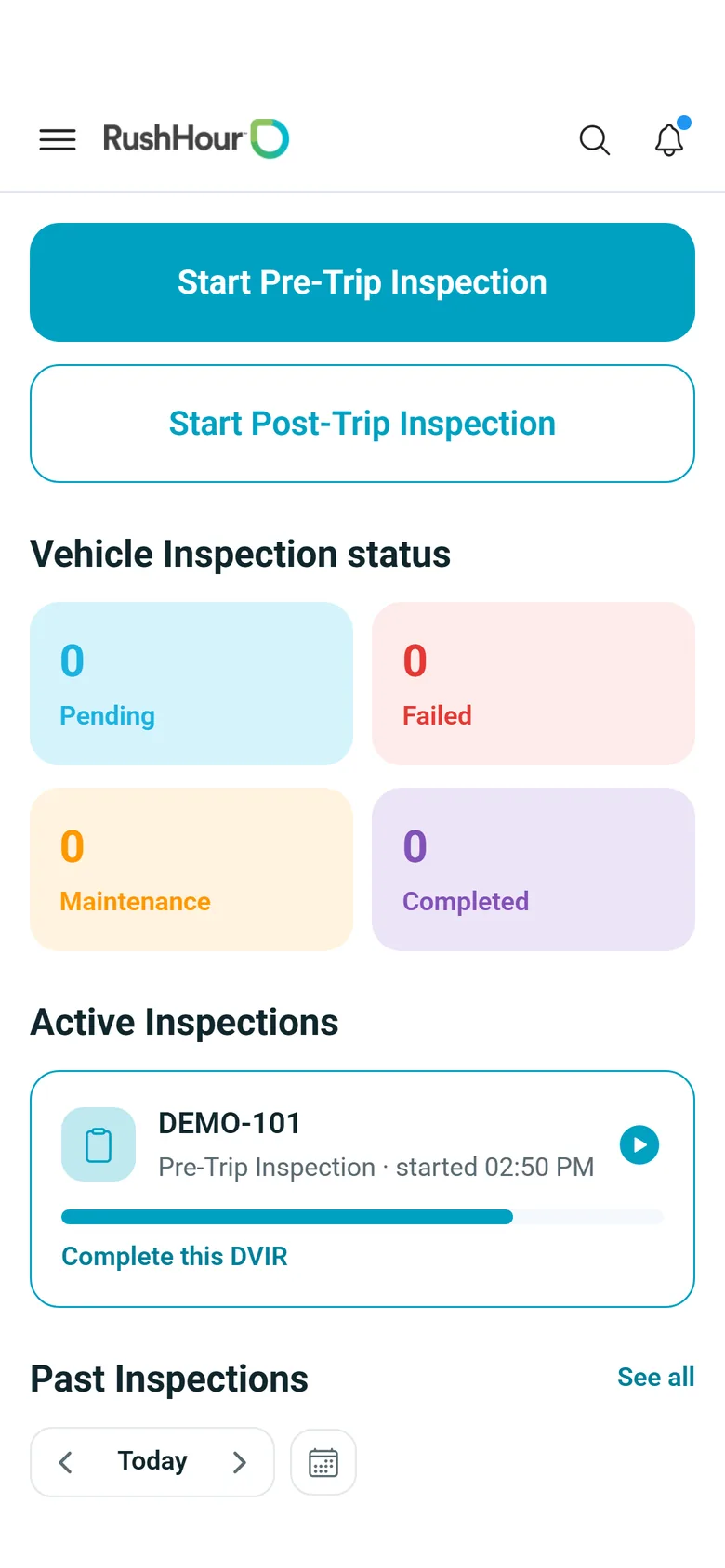
If a phone call or a customer interrupts the inspection, it is kept on the phone as a draft and reopens on the step where the driver stopped. If the driver moves to a different truck during the day, the app prompts for a new pre-trip inspection for that truck. An unfinished inspection is kept for up to 24 hours and waits under Active Inspections on the Inspections screen. The same screen lists the driver's own past inspections by day, with a count of those completed and those with a damaged item, and See all lists the latest 100 inspections, with pre-trip and post-trip in separate groups. Each inspection opens with its photos, checks, comments and signature.
- Drafts reopen on the same step
- Unfinished inspections kept on the phone for up to 24 hours
- New inspection prompt after a truck change
- Drivers open their own past inspections, photos and signature included
- Each day's count of completed inspections and those with a damaged item
In the office
Every inspection in one log
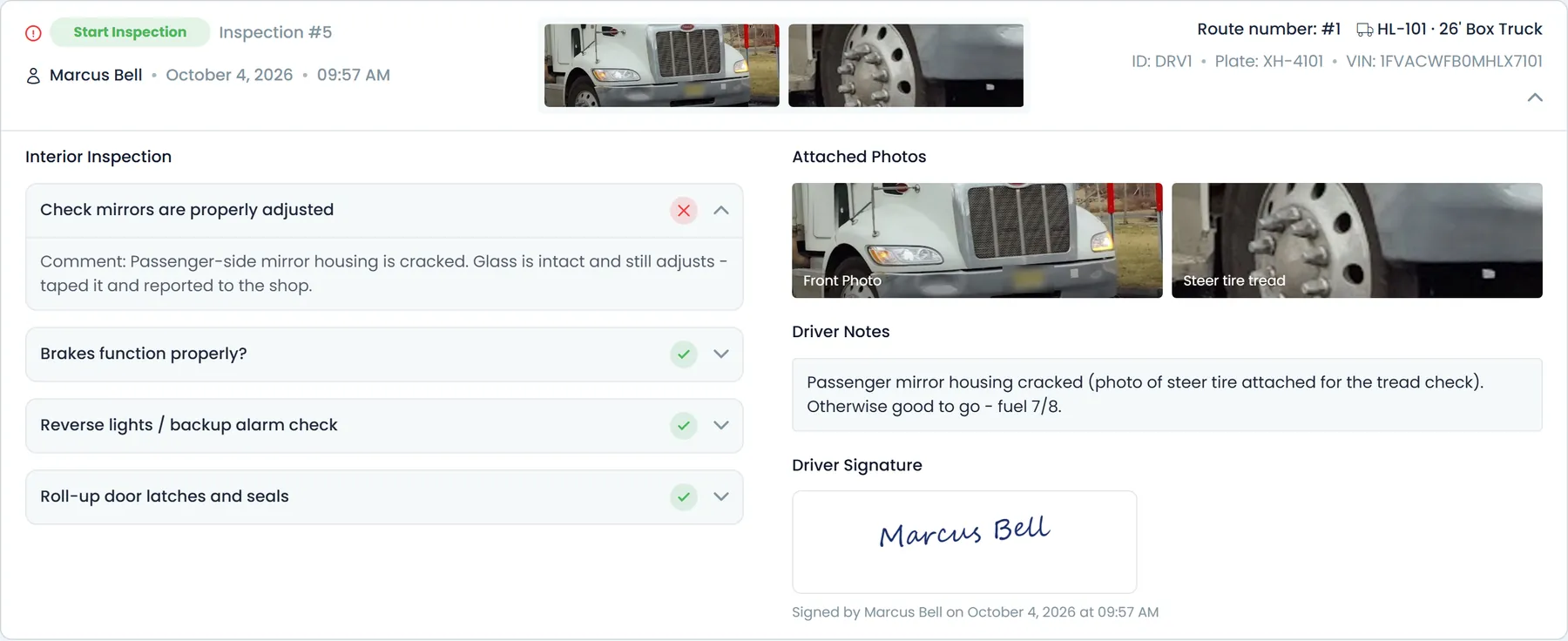
Company admins open Truck Inspection Logs from Settings > Fleet. It is one list for the whole fleet that you can filter to a single day and search by driver or truck. Each entry shows whether it was a start- or end-of-shift inspection, the driver, route, truck, plate and VIN, each check's result and comment, the answers to your own checks, the photos, the Driver Notes box, which shows the odometer reading, and a "Signed by" stamp with the date and time. Photos open in a larger viewer.
- Per-check result, comment and photo
- Answers to your own checks next to the built-in ones
- Filter by day, search by driver or truck
- Odometer reading under Driver Notes
- Photos in a carousel, each opening in a larger viewer
- Start Inspection and Stop Inspection badges tell pre-trip from post-trip
The built-in checklist
Eight checks, set up your way
In the start-of-shift inspection, five checks are on by default and three more are ready to switch on in Settings > Driver App > Flow. The post-trip inspection always asks all eight. The driver marks each one Acceptable or Damaged, and the app asks for a description of anything damaged.
| Check in the Flow tab | What the driver confirms | Pre-trip | Post-trip |
|---|---|---|---|
| Test headlights | Headlights function on both high and low beam | On by default | Always asked |
| Test turn signal | Turn signals function properly | On by default | Always asked |
| Test brake lights | Brake lights function, including the third brake light | On by default | Always asked |
| Check for fluid leaks | No fluid leaks detected | On by default | Always asked |
| Test horn | Horn sounds | On by default | Always asked |
| Check mirrors | Mirrors function and are clean | Off until you switch it on | Always asked |
| Test brakes | Brakes function correctly | Off until you switch it on | Always asked |
| Test reverse lights / backup alarm | Reverse light and back-up alarm function | Off until you switch it on | Always asked |
Your own yes/no checks appear after these in the pre-trip inspection. The plate number and the signature are always required.
Pre-trip vs post-trip
What each inspection asks for
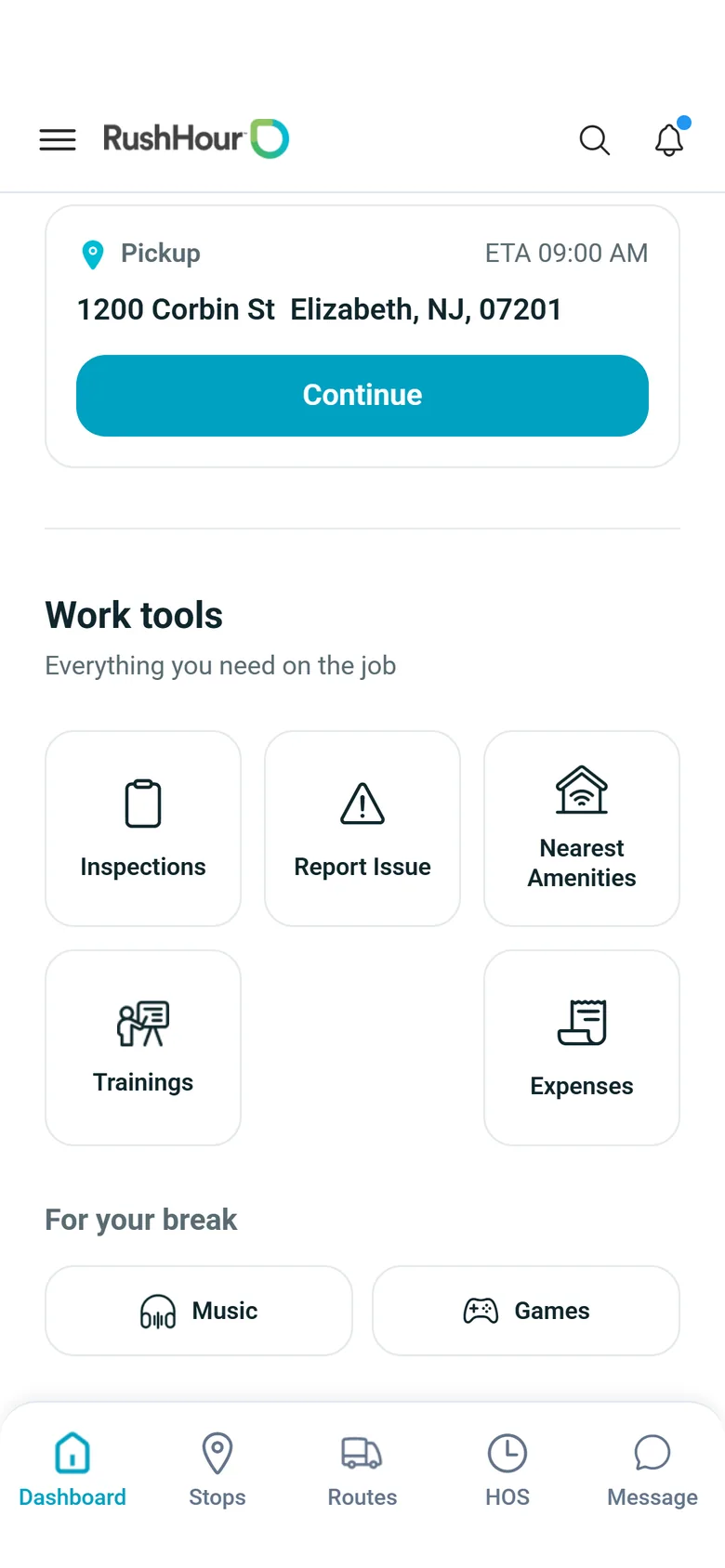
Both inspections start from the Inspections screen in the app and land in the same office log. The pre-trip inspection follows your Flow settings; the post-trip inspection is the same for every company.
| Step | Pre-trip (start of shift) | Post-trip (end of shift) |
|---|---|---|
| How the driver starts it | Start Pre-Trip Inspection, or the reminder on the Dashboard or the Routes screen | Start Post-Trip Inspection, or the reminder on the End of Day screen |
| Vehicle ID and odometer | Required; the vehicle ID is filled in from the route's truck | Required; the vehicle ID is filled in from the route's truck |
| Front and back truck photos | On by default; required when you mark them Required in the Flow tab | Both required |
| Built-in checks | Five on by default; mirrors, brakes and reverse light/backup alarm can be switched on | All eight, and each must be answered |
| Your own yes/no checks | Yes, from the Flow tab | Not asked |
| Driver's signature | Always required | Always required |
| Reminder setting | Require DVIR at start of shift, on by default | Require DVIR at end of shift, on by default |
| Badge in Truck Inspection Logs | Start Inspection | Stop Inspection |
In the app
Inspections on the driver's phone
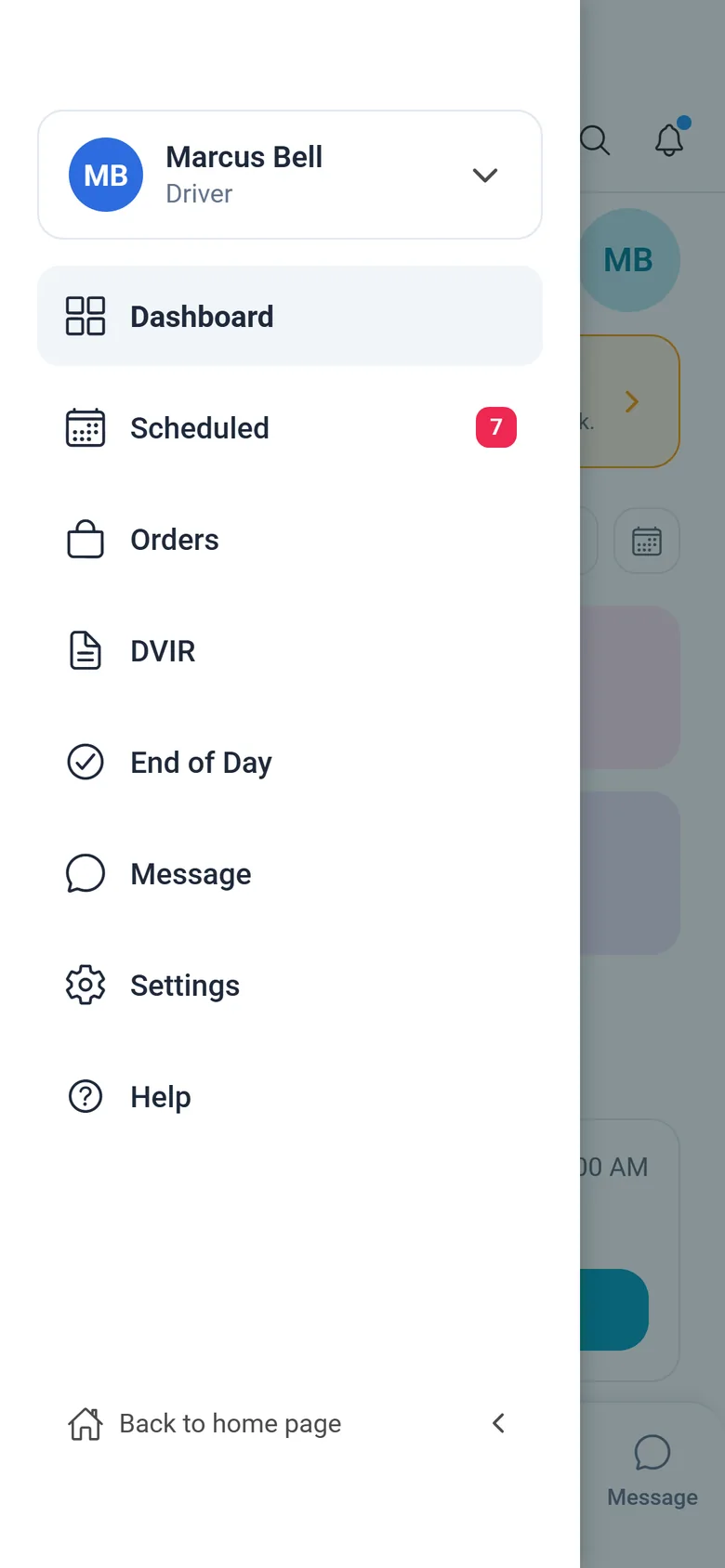
Real screens from the RushHour driver app, which runs in English.
What inspections in the app give you
No paper sheets to chase
Inspections are submitted from the phone and land in the office log, so nobody collects paper forms at the end of the day.
The truck's condition, in photos
Front and back photos from the start- and end-of-shift inspections show how the truck left and how it came back.
Damage with evidence
A check marked damaged can carry the driver's comment and photo, on an inspection signed and dated by the driver.
One checklist on every phone
Change the pre-trip checklist in Settings > Driver App > Flow and drivers' phones pick it up without an app update, on Android and iPhone.
Vehicle inspections: common questions
Is this an FMCSA DVIR?
It is an electronic record of the driver's inspection. For each pre-trip and post-trip inspection RushHour keeps the driver, truck, route, date and time, the odometer reading, each check marked Acceptable or Damaged with the driver's comment and photo, the truck photos and the driver's signature, and the office can open it in Truck Inspection Logs. There is no mechanic sign-off or repair-certification step in RushHour, so if your process needs one, keep it in your shop workflow.
Does the app stop a driver who skips the inspection?
No. With Require DVIR at start of shift on, which is the default, a reminder banner appears on the Dashboard and the Routes screen until today's pre-trip inspection is submitted, and again after a change of truck. The driver can dismiss it for the day and can still start stops. With Require DVIR at end of shift on, also the default, End of Day shows a reminder about the post-trip inspection, which does not stop the driver from ending the day, and closing the day through Daily Driving Log Review includes the end-of-shift truck photos and sign-off.
What happens when a driver marks something damaged?
The app asks the driver to describe the damage and offers a photo. The inspection is submitted with that item marked Damaged, and the driver can carry on with the route: RushHour records the problem and leaves the decision about the truck to you. In Truck Inspection Logs the check is marked with a red X, its comment opens under it, and the photo sits with the inspection's photos. For problems found between inspections, drivers can also send a report from Report Issue in the app; the Company Portal page for reading those reports arrives in the next release.
Can we use our own inspection checklist?
Yes, for the pre-trip inspection. In Settings > Driver App > Flow you switch the built-in steps on or off, set their order, choose whether the truck photos are required, and add your own yes/no checks with Add Custom Part, up to 50 steps per section with labels of up to 200 characters. The post-trip inspection always uses the eight built-in checks. The plate number and the signature are always required.
Can drivers look up their past inspections?
Yes. The Inspections screen in the app lists the driver's own inspections by day, with how many were completed and how many had a damaged item, and See all lists the latest 100 inspections, with pre-trip and post-trip in separate groups. Each one opens with the vehicle, the odometer reading, the front and back photos, every check with its comment and photo, and the signature.
What if the driver is interrupted or switches trucks?
An unfinished inspection stays on the phone as a draft for up to 24 hours and reopens on the step where the driver stopped, photos included. With Require DVIR at start of shift on, which is the default, if the truck on the driver's route is not the truck in today's pre-trip inspection, matched by the truck record or, when no truck is linked, by plate, the app shows "You changed vehicles" and asks for an inspection of the new truck.
Who sees the inspections in the office?
Company admins, in Settings > Fleet > Truck Inspection Logs. They pick a day, search by driver or truck, and open each inspection to see the checks and comments, the answers to your own checks, the photos, the odometer reading under Driver Notes, and who signed it and when.
Related
Bring your current inspection sheet to the demo.
We'll show how it maps onto the driver app's checks and your own yes/no questions, and what the office sees once a driver submits it.