
Every driver file and every truck,
in the system that dispatches them.
Invite drivers to the RushHour driver app, keep their license and documents on file, record the outsource carriers you hire with their drivers and rates, and link trucks to the vehicles you track in Samsara. It all sits next to the routes those drivers and trucks run, and permissions decide who sees a driver's personal details.
On file
The records behind every route
Drivers, carriers and trucks are kept in the same system your dispatchers use to build routes, so nobody retypes them into a second tool.
Driver roster
Your drivers, from first invite to last shift
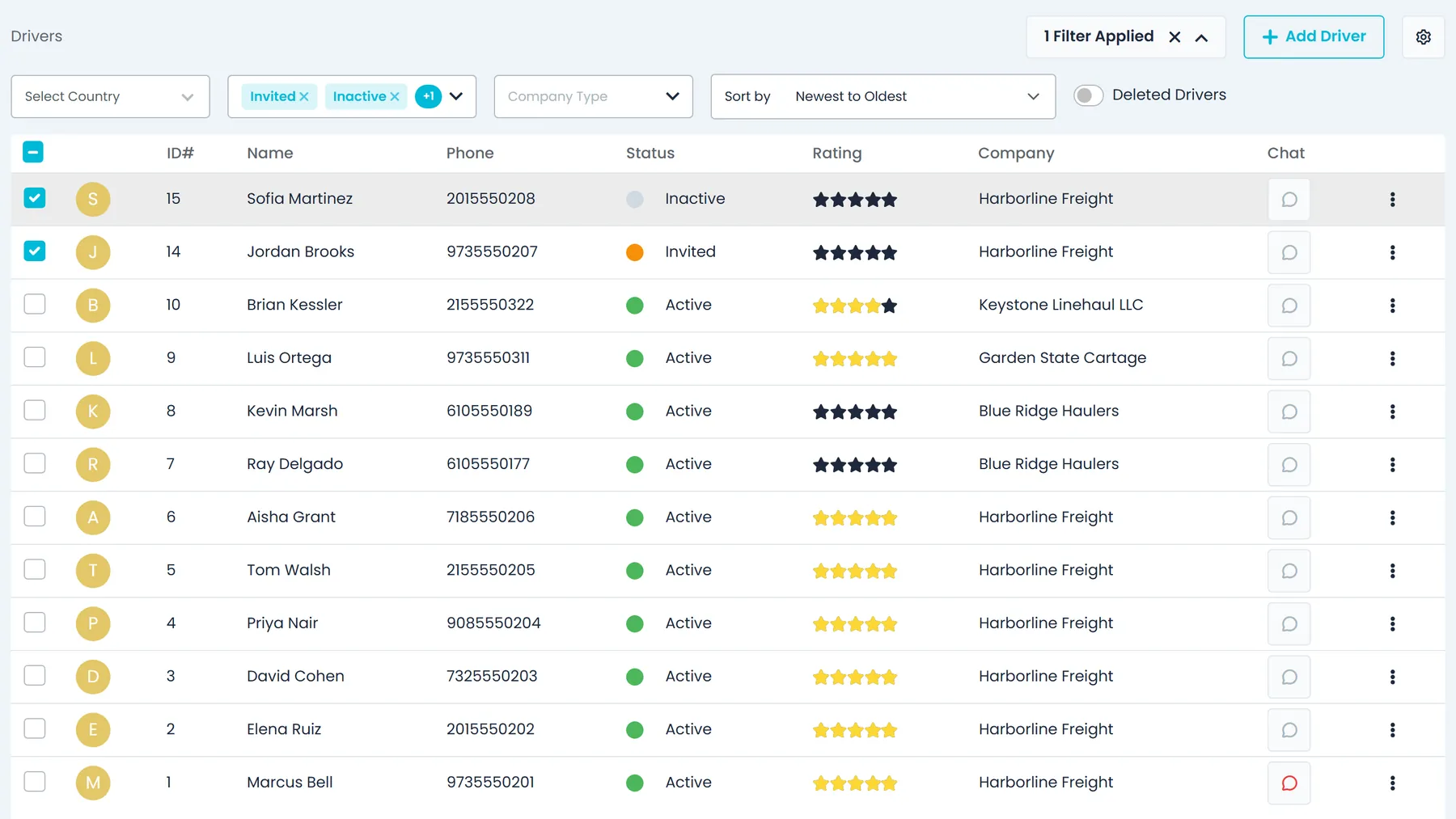
Add a driver with contact, employment, pay type and license details, then email an invite that lets them sign in to the RushHour driver app, and resend it if it gets lost. Every driver carries a status, Draft, New, Invited, Active, Inactive or Disabled, so the roster shows who is ready to work. Disable, reactivate or delete several drivers at once, search the list, filter it by country and status, and filter it to your own drivers or to outsource-carrier drivers.
- Email invite to the driver app, with resend
- Draft, New, Invited, Active, Inactive and Disabled statuses
- Filter your own drivers or outsource-carrier drivers
- A driver on an active route can't be disabled, made inactive or deleted
- Saving stops if the email, phone, cell number or SSN already belongs to another driver
Driver app access
An invite code, and the driver is in the app
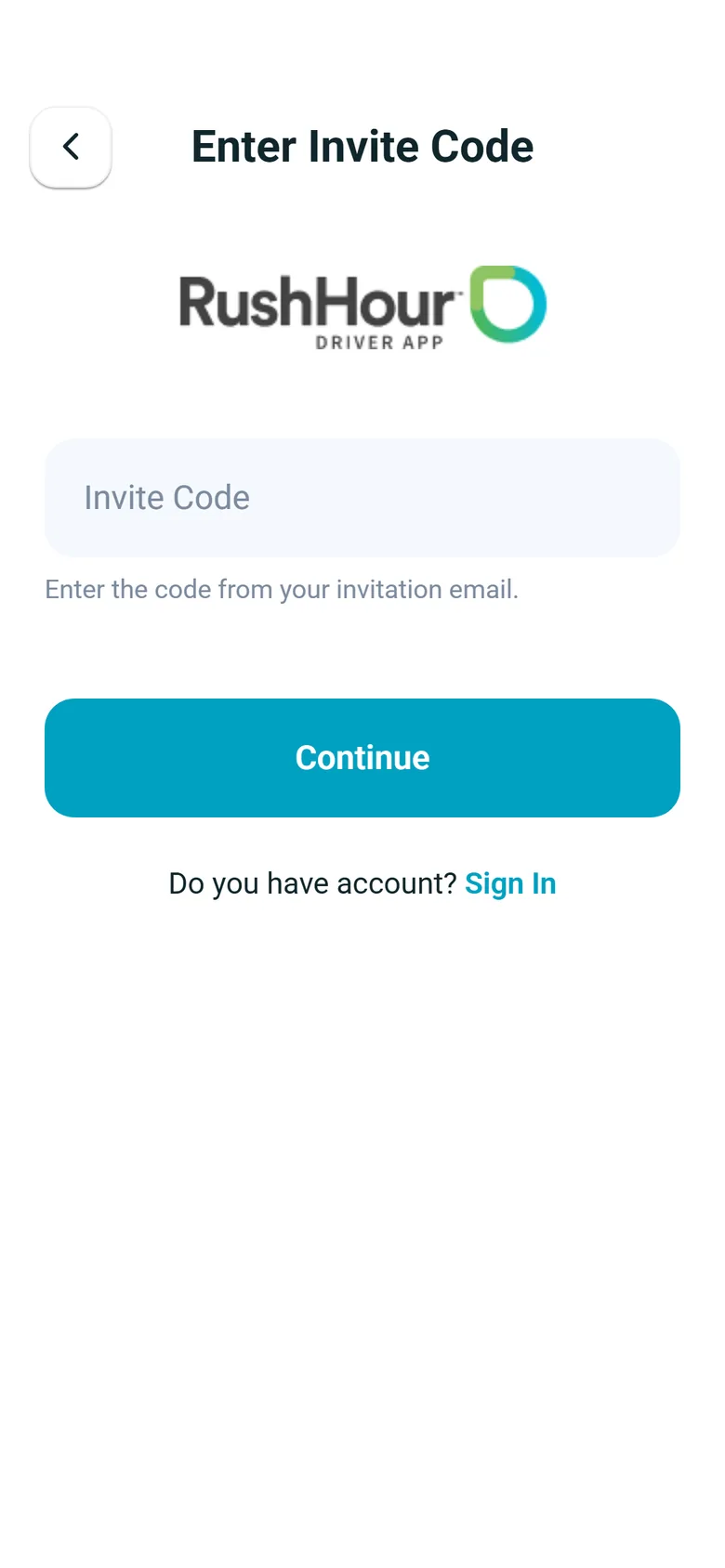
Send the invite when you add a driver, or later from the Drivers list or the driver's record. The invitation email carries a one-time invite code and a link to a page that shows the code with an Open App button; on a phone that has the RushHour driver app, Open App opens it with the code filled in. In the app on Android or iPhone, the driver taps Enter Invite Code, enters the code or pastes the whole invitation link, and chooses a password. There is no open sign-up, so only drivers you invite can join your company.
- One-time invite code; each resend issues a new code and replaces the old one
- Enter the code or paste the whole invitation link (driver app 2.0.13 and later)
- Admins can set a password or email a reset link once the driver has registered
- The invitation page explains what to do on a computer, or when the app hasn't openedNext release
Driver onboarding
Drivers fill in their own file from the phone
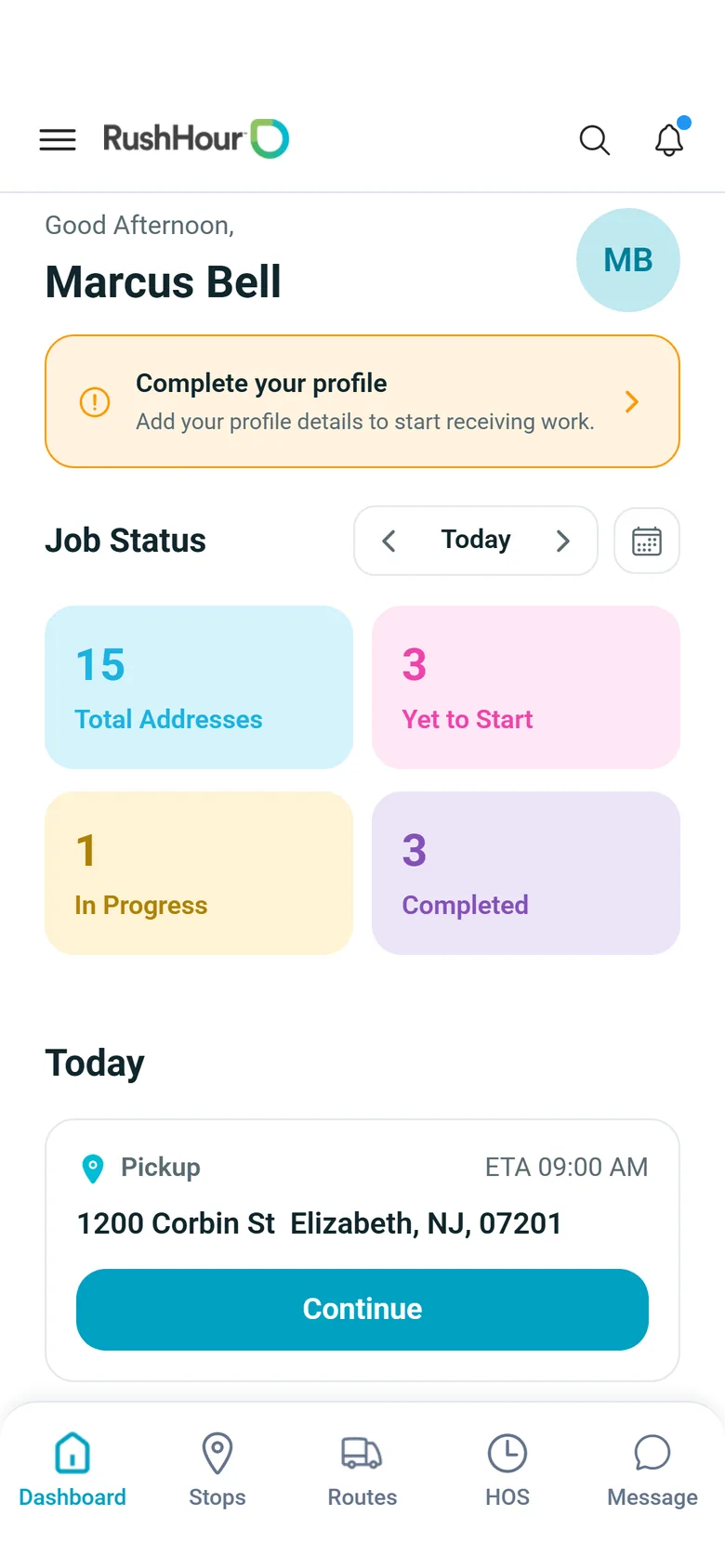
Right after sign-up, the driver app walks a new driver through their profile: a profile photo, phone number with country code, spoken language (English, Spanish, Russian, Gujarati or Hindi), home location, date of birth and years of experience, then photos of their driver's license, registration card and insurance card, taken with the camera or picked from the gallery. Until the profile is complete, a Complete your profile banner on the dashboard takes them back to it. The photo, phone, address and date of birth they enter update the same driver record your office works from.
- Profile photo, phone, language, home location, date of birth and experience
- Photos of the license, registration card and insurance card, up to 5 MB each
- View and replace them later under Settings → My Profile, including My Truck
The driver file
License, documents and history on one record
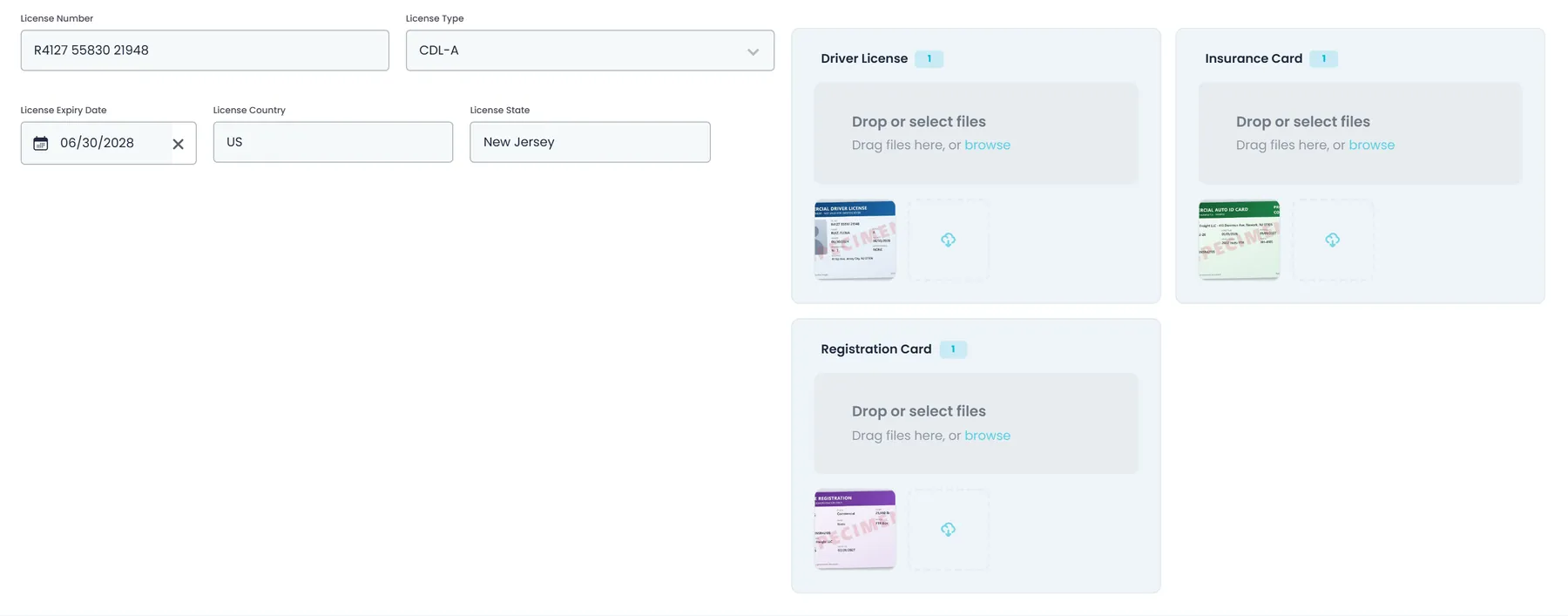
Each driver file holds the license number, type, expiry date, country and state. On the Driver's License tab you upload several files each for the driver's license, the insurance card and the registration card, as images or PDFs, then preview or delete them one by one. License types come from your own list, and you can add a new type right from the picker. Send a license scan to the AI assistant and it finds the driver and proposes the license fields; if the name matches more than one driver, it asks you which one. Nothing is saved until you confirm, and it never blanks a value you already have. The file also counts the orders the driver has run and their late deliveries, and keeps a direct chat thread with the office.
- License details with document uploads
- AI reads a license scan, you confirm the changes
- Orders run, late deliveries and direct chat
- Several files per document, as images or PDFs
History and settings
Every order and route a driver has run
The History tab lists the orders a driver has run, newest first, with the customer, the from and to addresses, PO number, date, price, status and balance. Search them, or narrow them with date presets such as This Week, Last Month or This Year. Switch the view to All Routes to see the driver's routes with the truck, zone, date and status. The Settings tab records the driver's employment type, pay type (Hourly, Fixed Salary, Distance, Fix Distance or Fix Hourly) and Telegram user ID, so route and stop details can be sent to them on Telegram when your Telegram integration is connected. From the top of the file you can rate the driver, call them or email them.
- Orders with search and date presets, routes with truck and zone
- Employment type, pay type and Telegram user ID
- Star rating, one-click call and email

Access and offboarding
Who sees a driver's details, and what happens when they leave
In the Company Portal's driver records, a driver's SSN, date of birth, license number, expiry and image, and home address are shown only to people whose role has the Drivers settings - view details permission; for everyone else those fields stay blank. Mark a driver inactive and the driver app shows them a notice and signs them out; it checks the driver's status about once a minute. Disable or delete a driver and RushHour refuses their driver app from that moment, and they can't sign in again unless they are reactivated. Deleting moves a driver to the Deleted Drivers view, where an admin can reactivate them. Terminate removes a deleted driver for good, and only when they never had a route, chat, invoice or payout, so it never takes that history with it.
- SSN, date of birth, license and home address on driver records only for roles with view details
- Inactive drivers are signed out; disabled and deleted drivers lose app access
- Reactivate from Deleted Drivers; Terminate only drivers with no history
Fleet
Carriers, trucks and what happens on the road
Outside carriers and your trucks are kept where dispatch picks them, together with what each truck costs and what drivers report about it.
Outsource carriers
The carriers you hire, with their drivers and rates
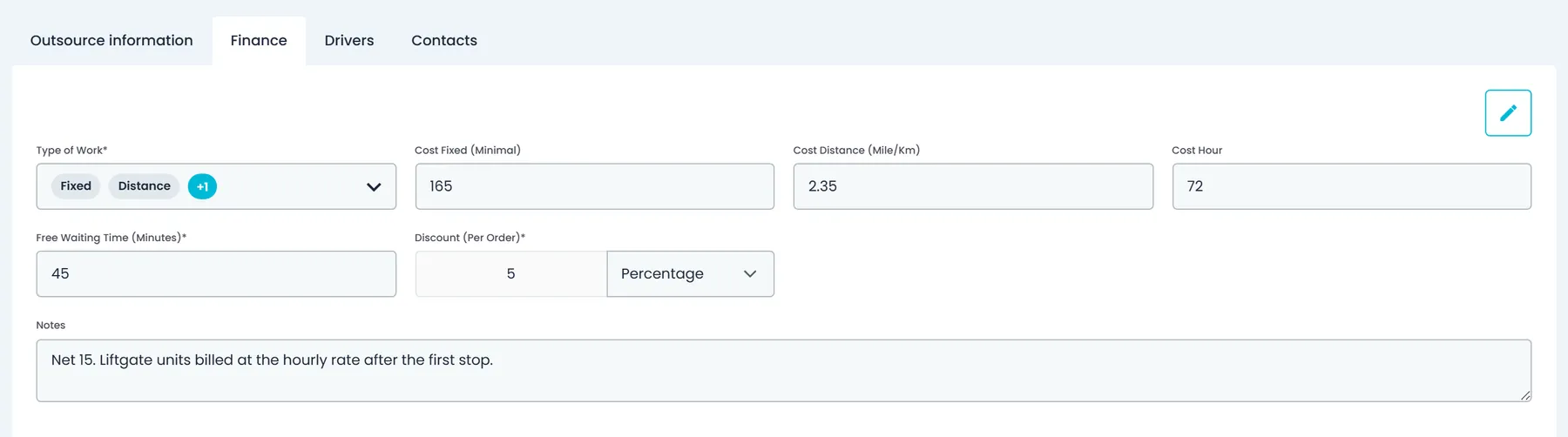
Keep each outsource carrier as a company record with its details, contacts and drivers. Its finance profile records how you pay that carrier: the type of work, a fixed, per-distance or hourly cost, free waiting time, a discount and notes. The carrier's drivers appear in the same roster as yours, marked as outsource, and on the carrier's own Drivers tab, and you invite them to the RushHour driver app the same way as your own drivers.
- Carrier details, contacts and drivers
- Fixed, per-distance and hourly costs
- Free waiting time, discount and notes
- Carrier drivers use the same driver app as yours
Trucks
Trucks linked to the vehicles you track in Samsara
Trucks in RushHour are tied to your Samsara account. To add a truck in the Portal you pick its Samsara vehicle, which also shows its VIN, then give it a name, a plate and a monthly insurance cost, so without a connected Samsara account there is no vehicle to pick. Assign the truck to a route and its name and plate show on the route card, while its Samsara position appears on the dispatch map. A truck that is on a route can't be deleted, and deleting one asks whether to keep the expenses already recorded for it.
- Add a truck by picking its Samsara vehicle
- Name, plate and monthly insurance cost
- Truck and plate on the route card, position on the map
- Separate permissions to view trucks and to add, edit or delete them
- The Settings → Fleet list shows each linked truck's current Samsara location, vehicle name and VINNext release
On the dispatch board
The drivers and trucks you assign every day
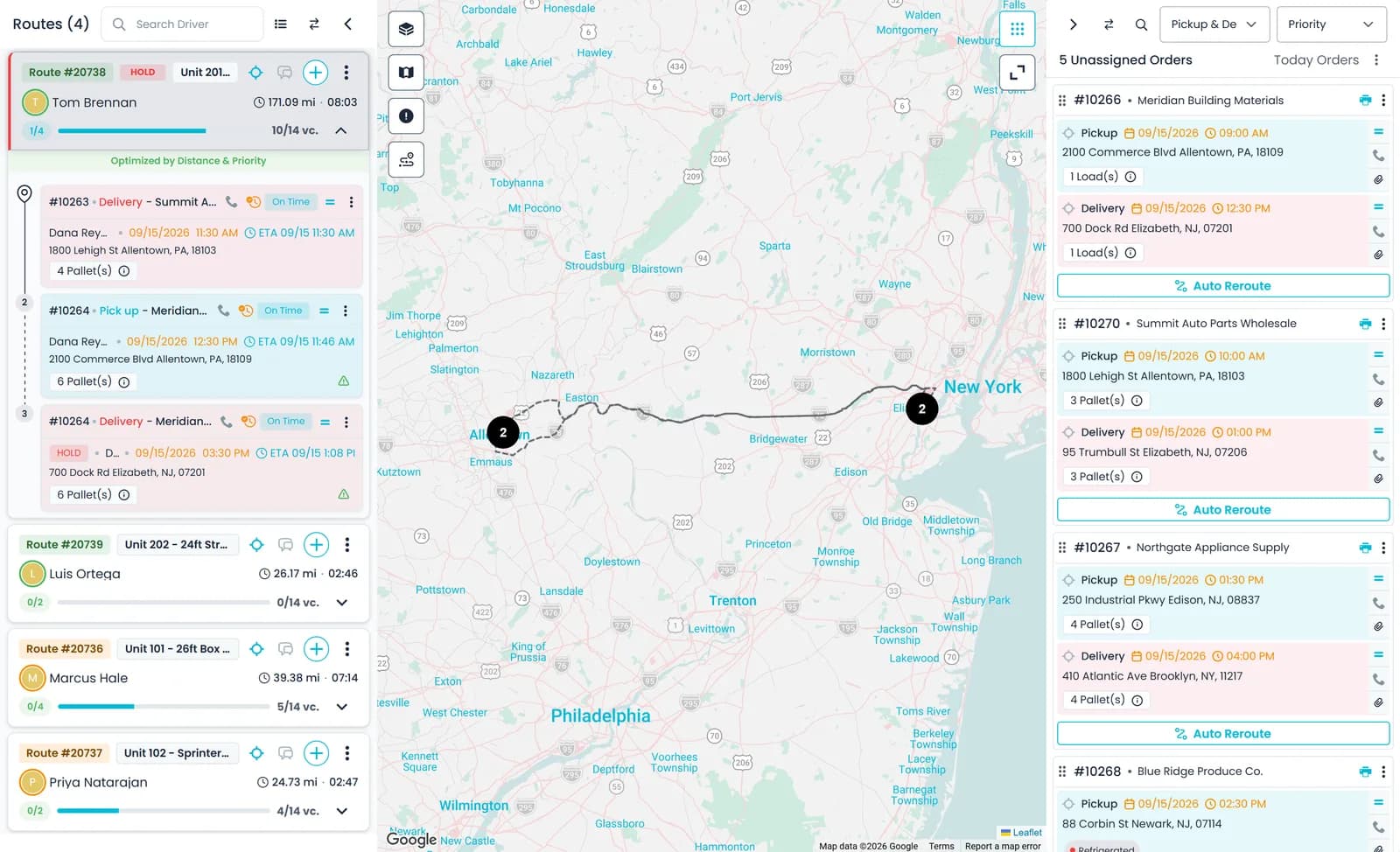
Every route needs a zone, a driver and a truck. In New Route you pick one of your drivers, or switch to Outsource Driver and choose the carrier and then its driver, and add a truck from your fleet. Each route card on the board then shows the truck and the driver running it, with their stops underneath.
- Zone, driver and truck on every route
- Company Driver or Outsource Driver in New Route
- Truck and driver on each route card
Truck costs
What each truck costs you per mile
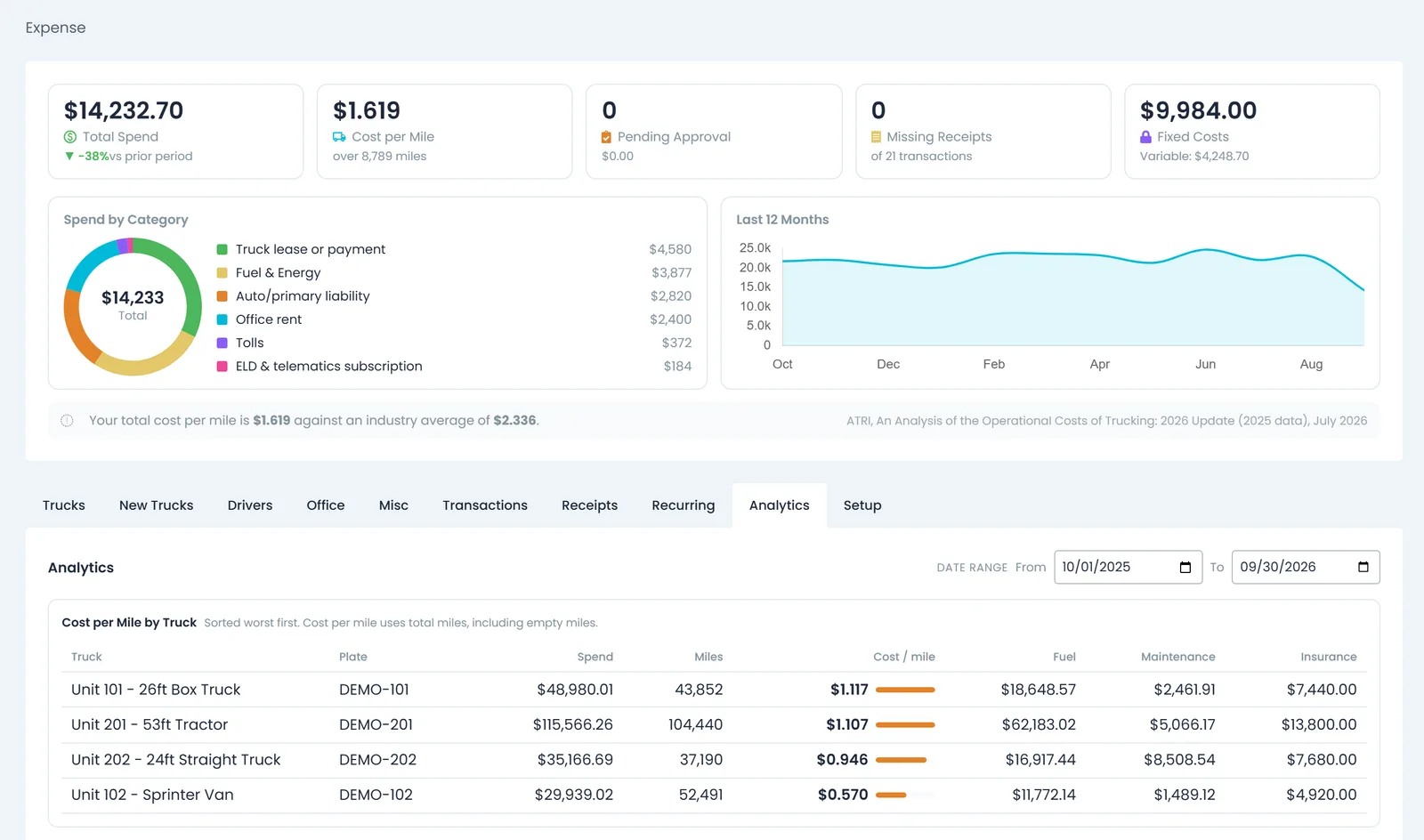
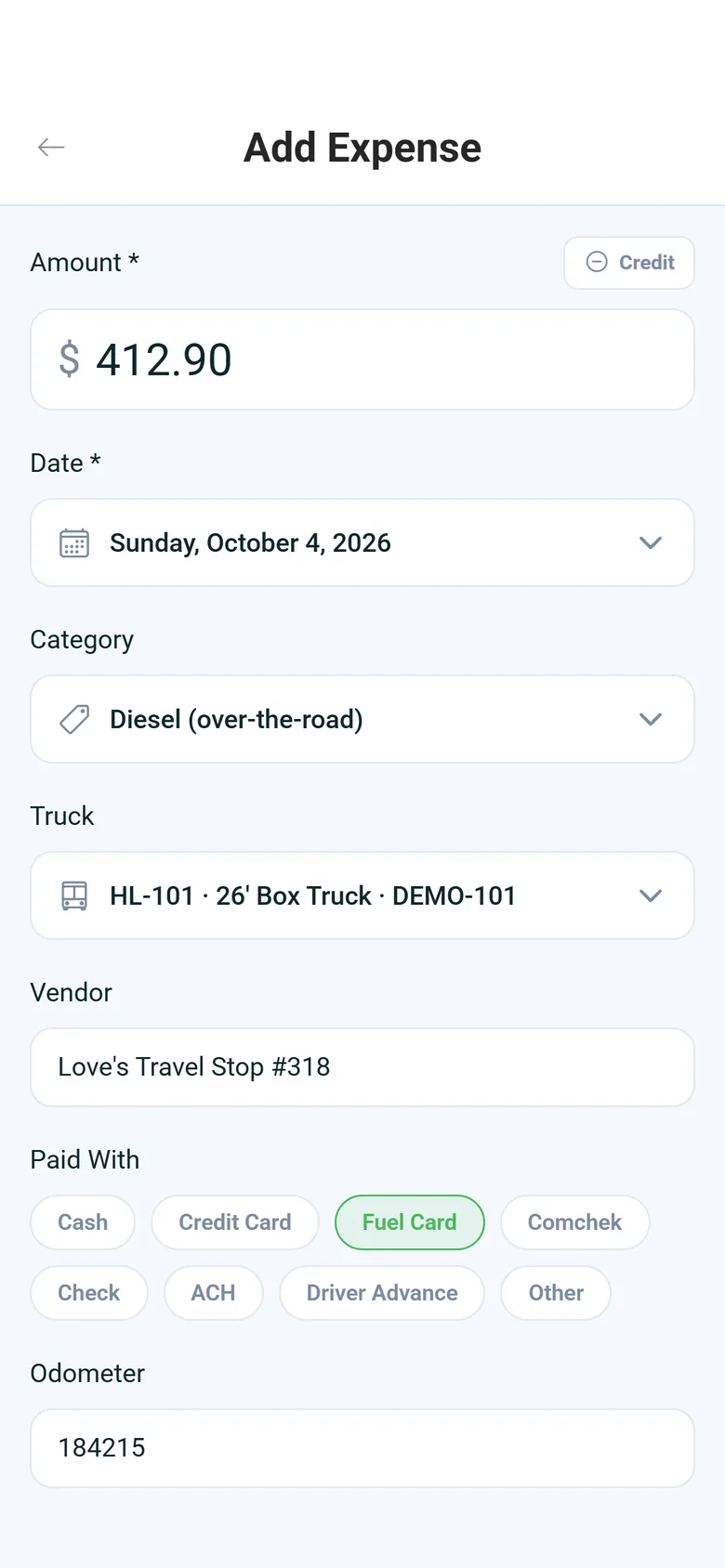
Attach fuel, repair and insurance costs to the truck they belong to in Expenses, and each truck gets its own spend and cost per mile. Open a truck to see its spend by type, a 12-month trend and its cost per mile next to the fleet's. Cost per mile divides by the miles your team records for that truck, so it needs those mileage or odometer entries.
- Spend by type for each truck
- Truck cost per mile next to the fleet's
- Calculated from the miles you record
Truck Inspection Logs
Every start- and end-of-shift inspection in one log
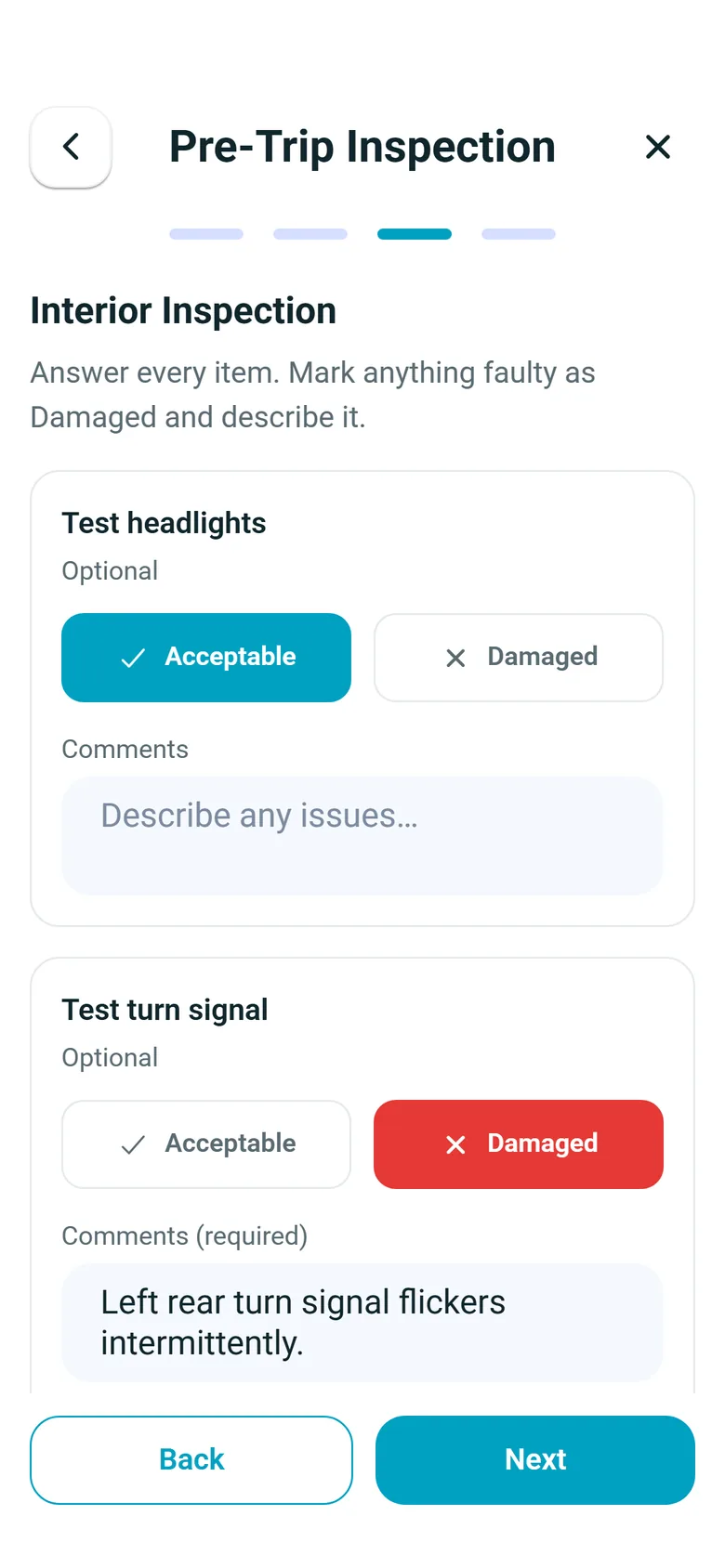
Start- and end-of-shift inspections drivers complete in the driver app land in Truck Inspection Logs under Settings → Fleet. Company admins see who inspected which truck on which route, each check with its comment, the photos taken, the driver's notes and the signature, fleet-wide for the day they pick.
- Start- and end-of-shift inspections
- Checks, comments, photos, notes and signature
- One fleet-wide list for the day you pick
Driver issues
Problems reported from the driver's phone
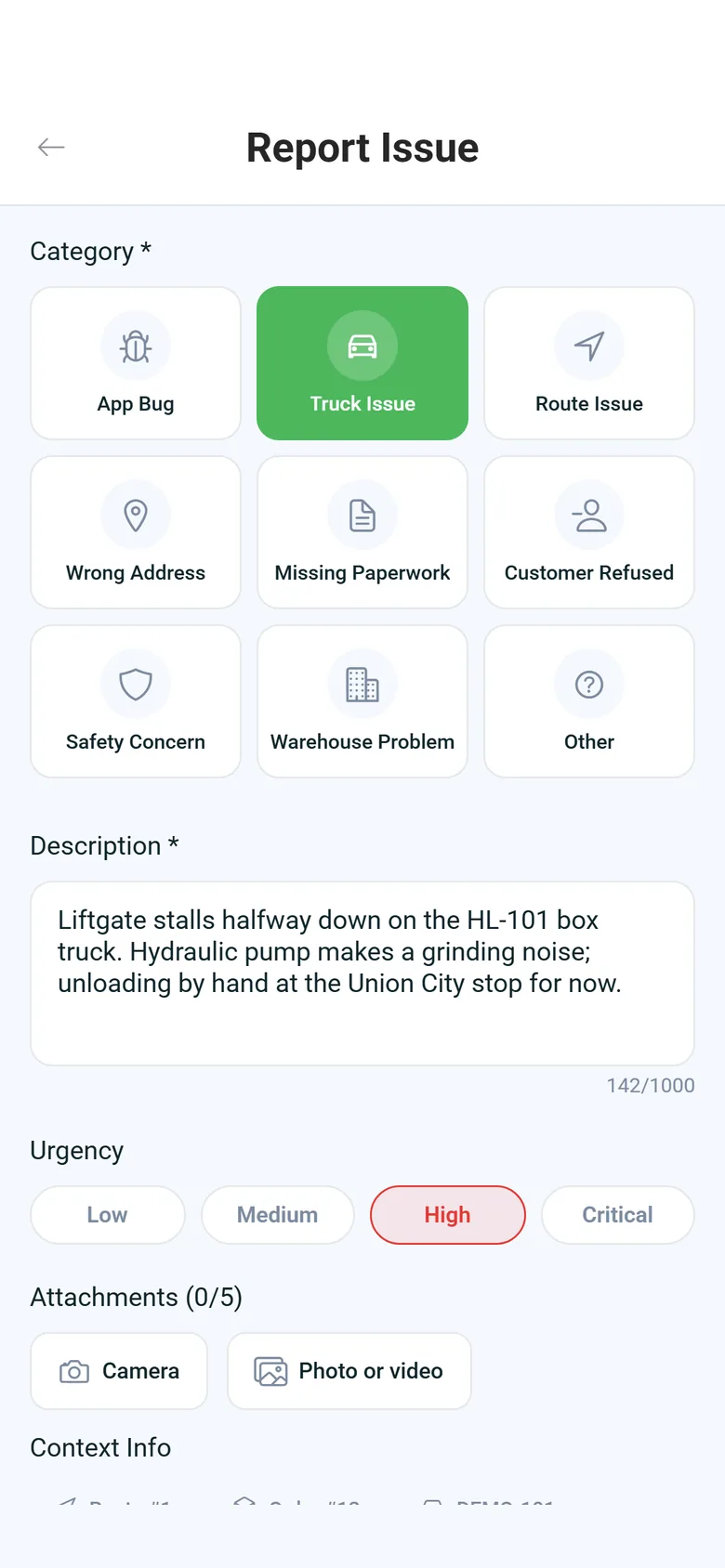
From the driver app, drivers report truck or route issues, wrong addresses, missing paperwork, customer refusals, safety concerns, warehouse problems and app bugs, with an urgency and photos, and each report is tagged to the route, order or stop it concerns. The office screen for working these reports is finished and ships with the next release.
- Report type, urgency and photos, tagged to the route, order or stop
- An Issues page to acknowledge, work on and answer each reportNext release
- Open issues shown per truckNext release
In the driver app
What your drivers do from the cab
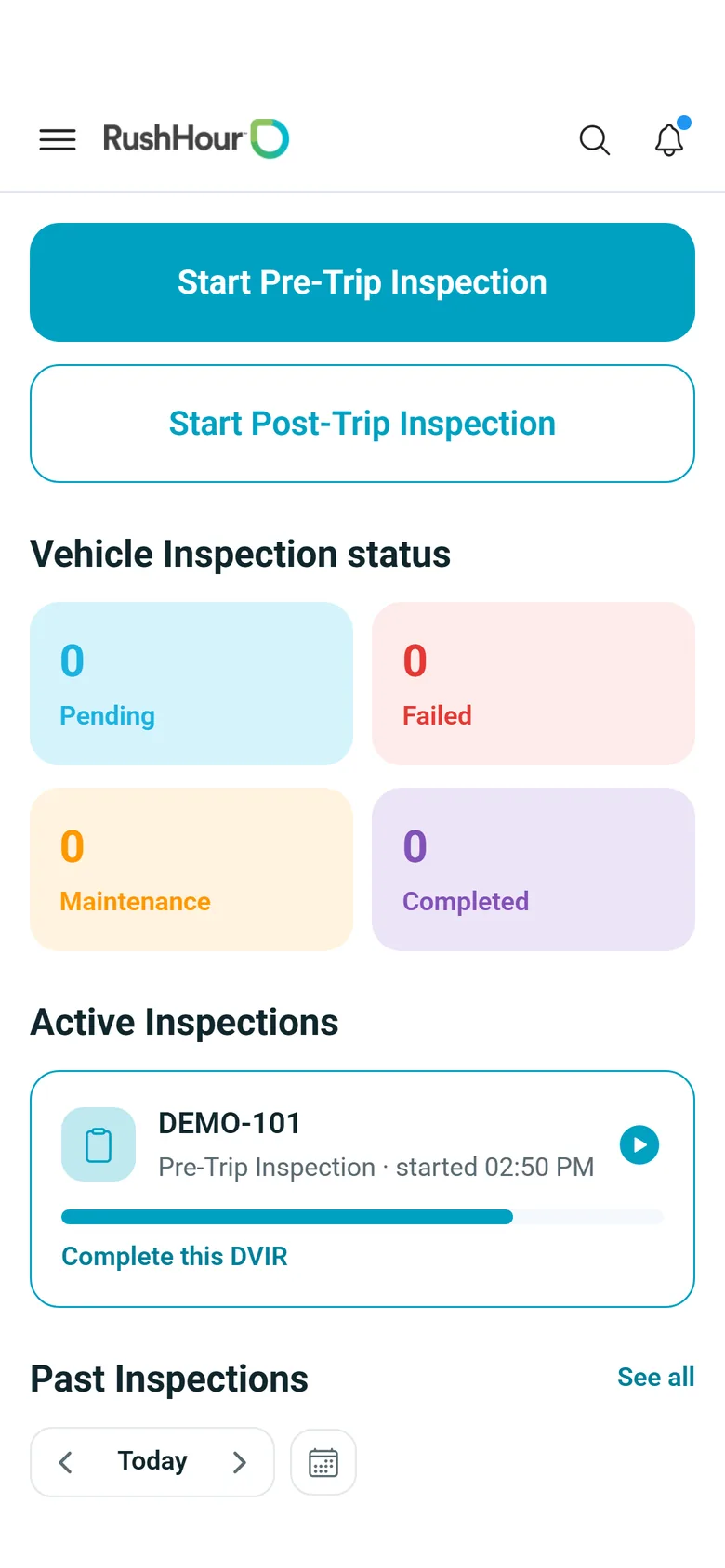
These are the screens drivers use for the inspections, issue reports and expenses described on this page. They are real screens from the RushHour driver app, which runs in English.
Where these records are used
On the dispatch board
The drivers, outsource carriers and trucks on file are the ones you pick when you build and assign routes.
In Expenses
Costs attach to a truck or a driver, so spend and cost per mile add up by truck and totals add up by driver.
Behind permissions
Editing drivers, disabling them and deleting them for good are separate permissions you give to separate people, and another one decides who sees a driver's SSN, date of birth, license and home address on their record.
Hours of Service boardNext release
A dispatch view of each driver's drive, shift, break and cycle time left, from the hours drivers log in the driver app. Driver-logged, not a certified ELD.
Questions about drivers and trucks
Do I need Samsara to add trucks?
In the Company Portal, yes. Adding a truck means picking its vehicle from your connected Samsara account, so connect Samsara under Settings → Integrations first. The truck then carries its name, plate and monthly insurance cost in RushHour, and while it runs a route, its Samsara position shows on the dispatch map. Without a connected Samsara account there is no vehicle to pick.
How does a new driver get into the driver app?
Add the driver and send an invite, either when you create them or later from the Drivers list or their record. The invitation email carries a one-time invite code. The driver installs the RushHour driver app on Android or iPhone, taps Enter Invite Code, enters the code or pastes the whole invitation link, and chooses a password. Only drivers you invite can join your company in the app.
Can my outside carriers' drivers use the same app?
Yes. Link the driver to the carrier with the Organization field, send the same invite you send your own drivers, and assign them routes from New Route by switching to Outsource Driver. They complete their stops in the RushHour driver app, the same way your own drivers do.
Who can see a driver's SSN and date of birth?
In the Company Portal's driver records, only people whose role includes the Drivers settings - view details permission. For everyone else, a driver's SSN, date of birth, license number, expiry and image, and home address stay blank there, while names, phone numbers and the driver pickers used in dispatch keep working.
What happens when a driver leaves?
Once they are off any active route, disable or delete them. Either way RushHour refuses their driver app from that moment, and they can't sign in again unless they are reactivated. Deleted drivers move to the Deleted Drivers view, where an admin can reactivate them. Terminate removes a deleted driver for good, but only if they never had a route, chat, invoice or payout, so the routes, orders and payouts they were part of stay on record.
Does RushHour remind me when a driver's license expires?
No. The driver file stores the license number, type, expiry date, country and state, with files for the license, the insurance card and the registration card, but RushHour does not send expiry reminders, and there is no medical card field.
Go further
Where the rest of the story lives
Bring your driver list to the demo.
We'll add a few of your drivers, send one of them an invite to the driver app, and show where their license, documents and trucks are kept.