
From your warehouse
to every drop on the route.
For distributors and private fleets delivering their own goods to stores and customers. Build each day's multi-stop routes on one board, slot new stops where they fit, put the delivery window and instructions on each stop, and get photos and a signature back from every drop. Then see what each truck costs per mile, with inspections and hours logged in the same driver app.
The distribution day
Routed, delivered and proved from one board
Route building
Build the day's routes and slot new stops where they fit
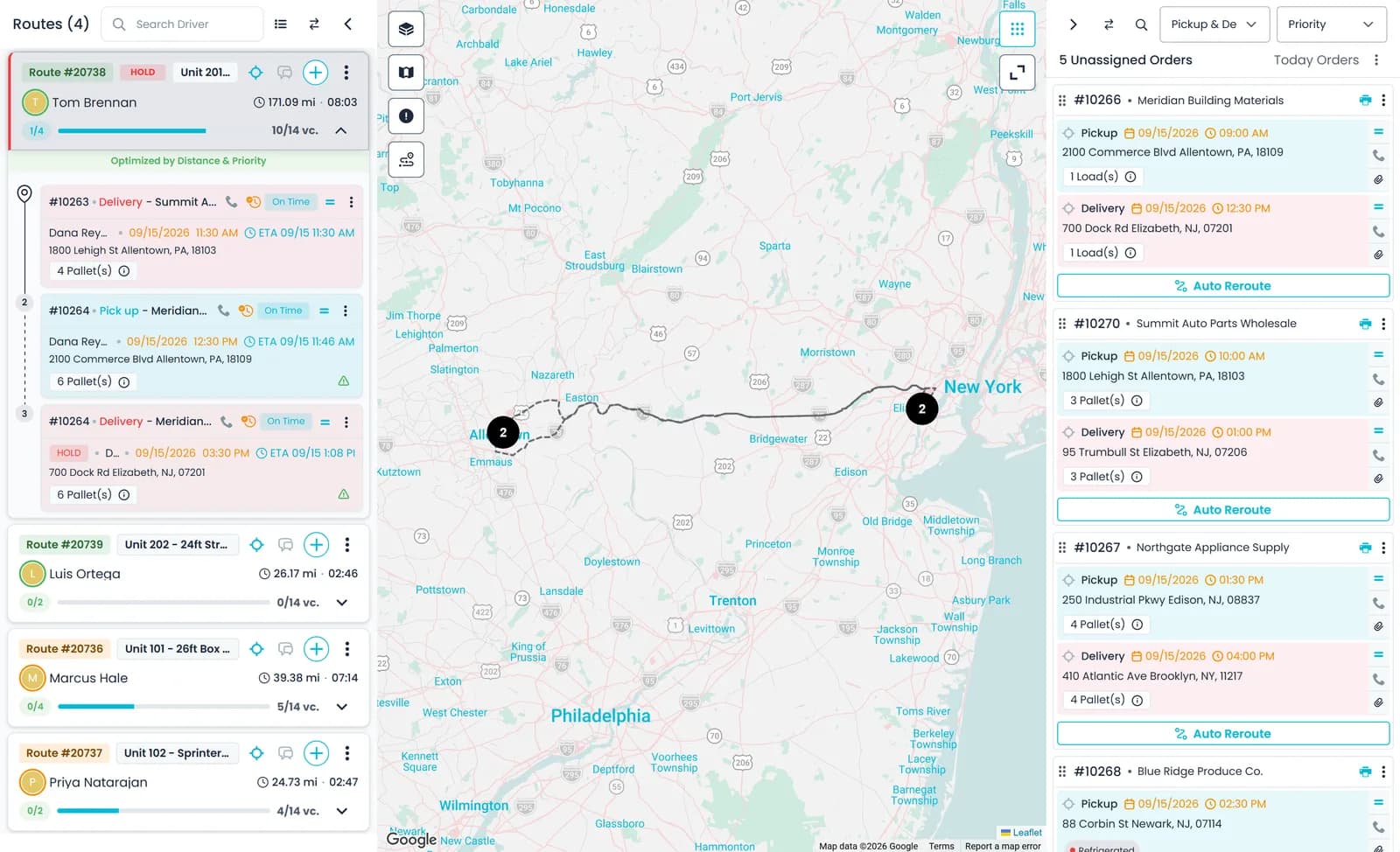
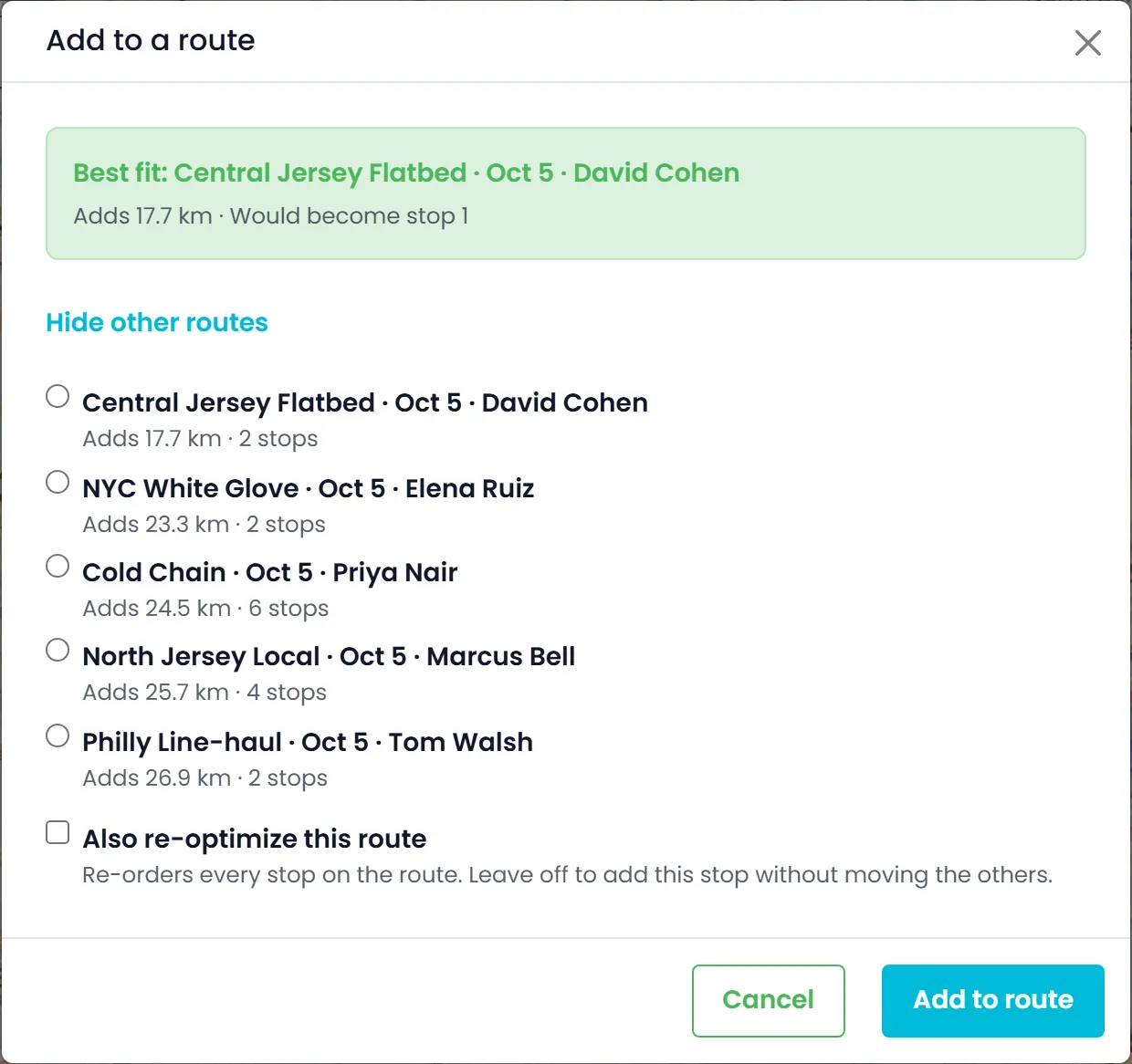
Drag orders onto routes on the dispatch board, with a driver and a truck on each route and a warning when the pallets on a route go over the pallet limit (one limit for every truck). When a new order comes in, Add to a route shows the best-fit route, how far the stop adds and where it would land in the run. Re-order a route's stops by distance or priority, and the driver gets a push notification when the sequence changes.
- Best-fit route suggestion by added distance
- Stop order re-optimized by distance or priority
- Pallet-limit warning when assigning, with one limit for every truck
- A Driver Board to plan several routes side by sideNext release
Warehouses
Move freight between routes through your warehouse
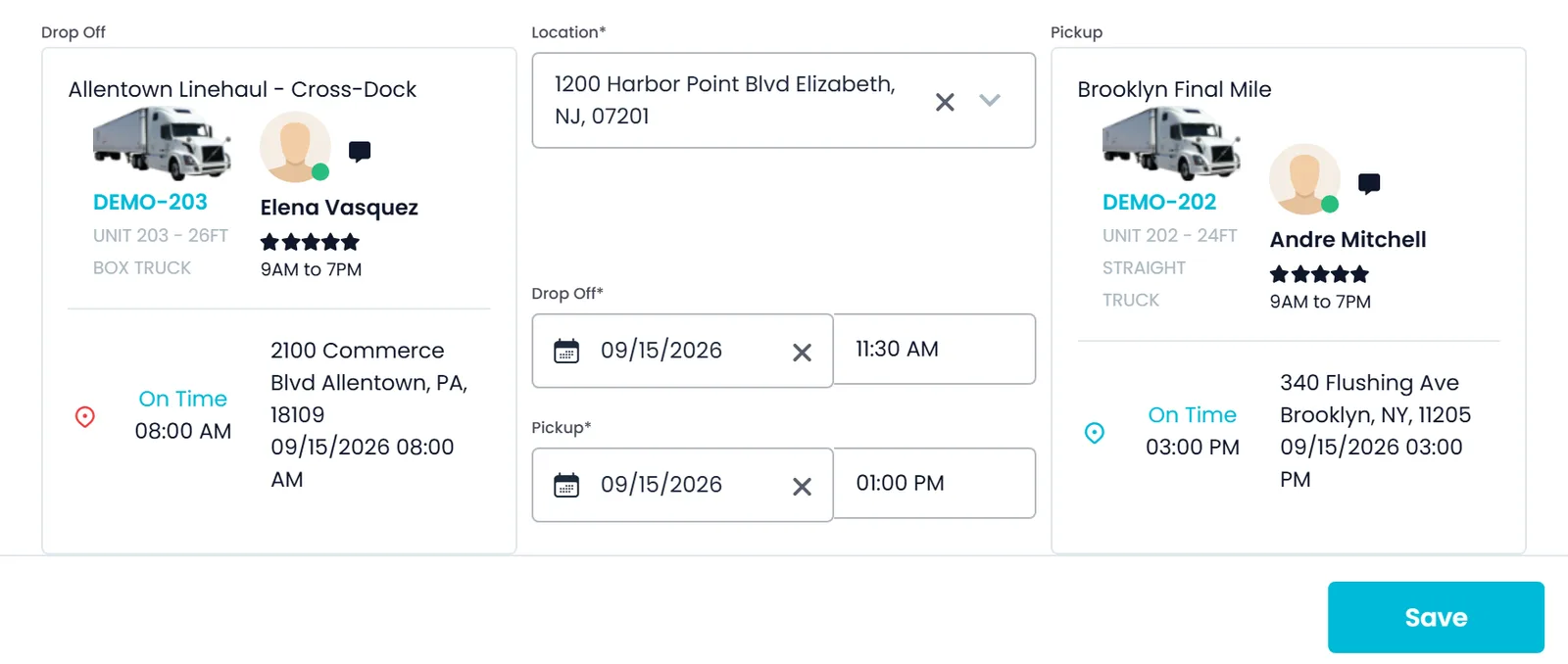
Save your warehouses as locations. When freight has to change trucks, create a transfer through a warehouse or any address: RushHour adds the matching drop-off stop on one route and pick-up stop on the other, and allocates the item quantities to each leg so the order stays whole. From a route card you can also move freight the route has picked up into one of your warehouses, where it waits for another route.
- Warehouses saved as company locations
- Paired drop-off and pick-up stops for each transfer
- Item quantities allocated to each leg
- Move freight a route has picked up into a warehouse, from the route card
Stop details
The delivery window and instructions on every stop
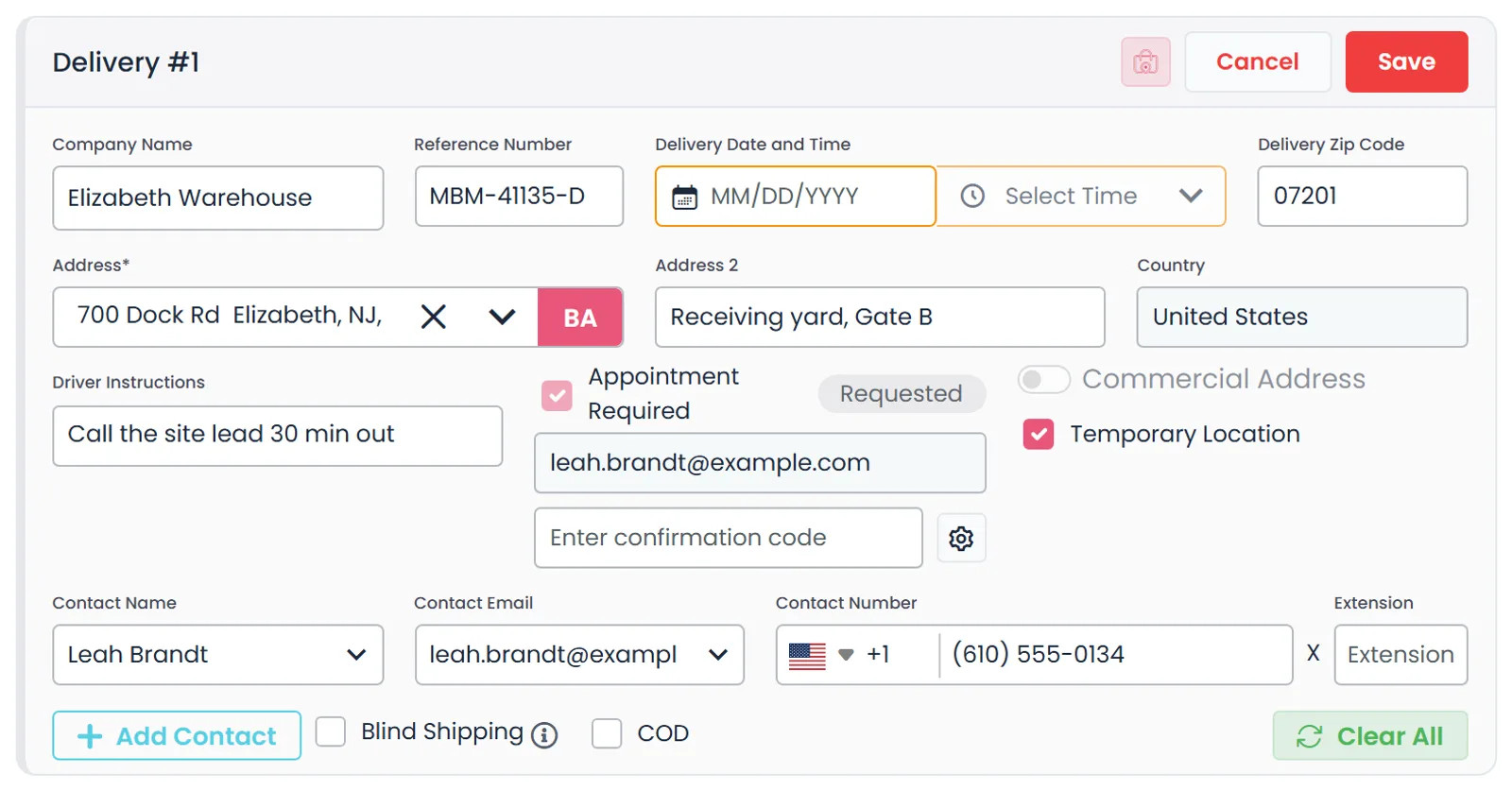
Each stop carries its date and a time window of morning, noon, evening or a set time, plus an appointment status with the confirmation code and driver instructions such as the gate code or the receiving door, which are included when you copy the route details for the driver. Instructions saved on the delivery address show on the stop in the driver app.
- Morning, noon, evening or set-time delivery windows
- Appointment status with the confirmation code
- Driver instructions on the stop, sent with Copy to Driver
- The receiving hours saved for the company at the delivery stopNext release
- Liftgate and other per-stop service needsComing soon
At the drop
Proof at every drop, from the driver's phone
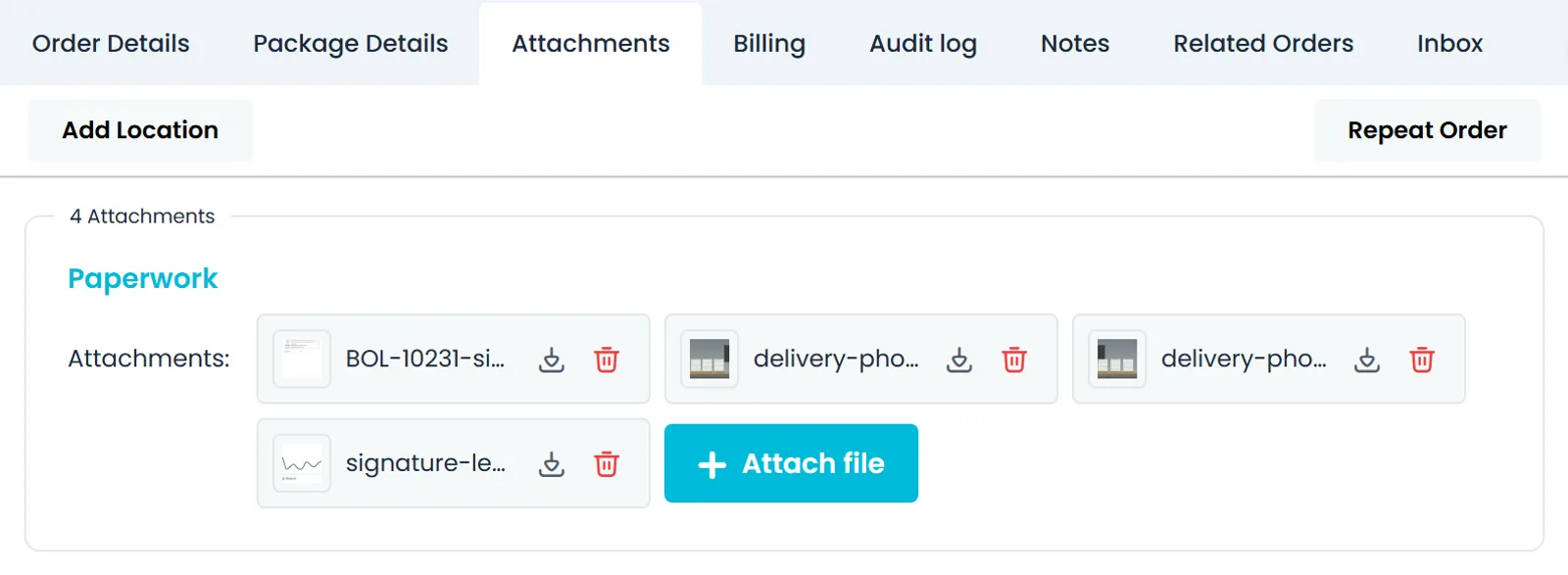
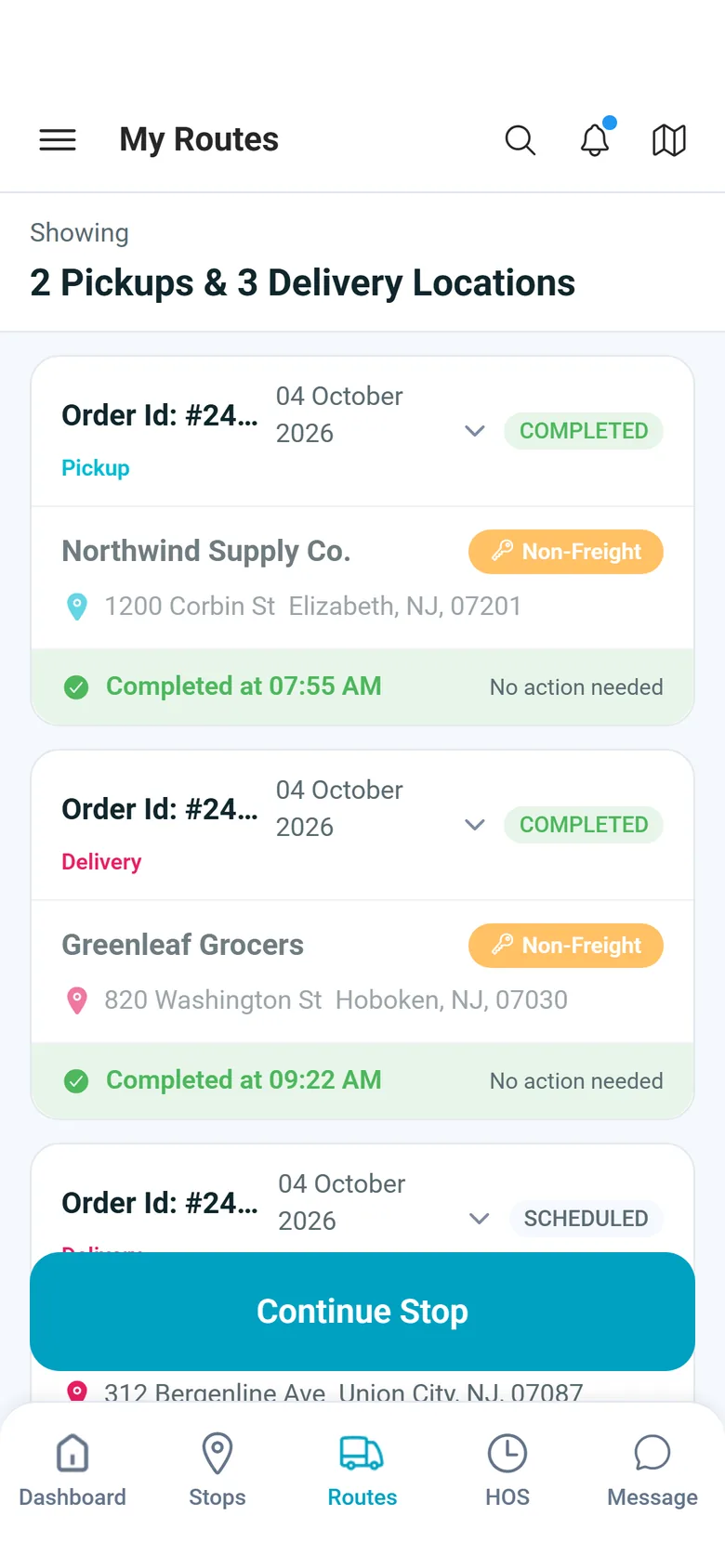
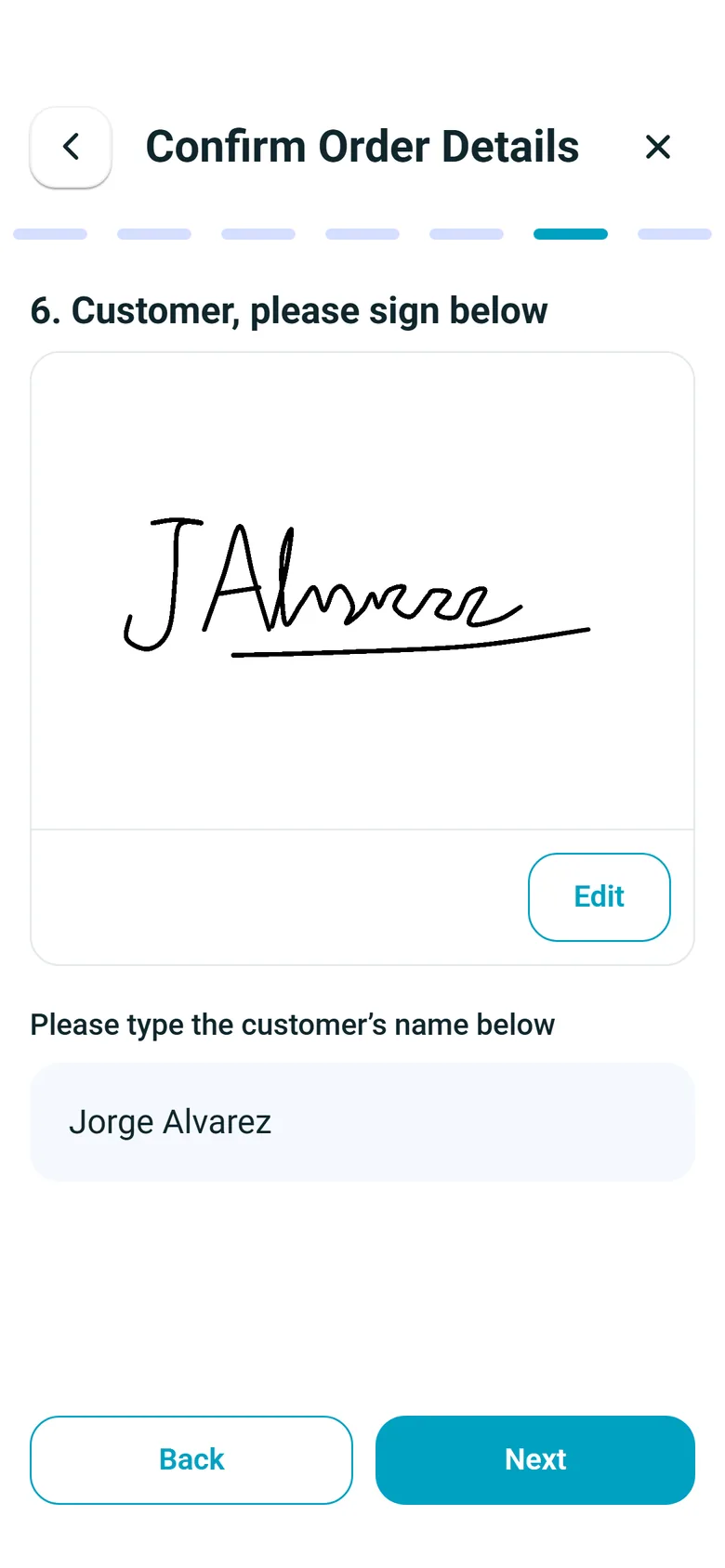
Drivers work the route stop by stop in the RushHour Drivers app on Android and iPhone. On the route map, an arrival banner with an Arrived button appears when the driver is within about 25 meters of a stop, and the arrival time goes to RushHour when the driver confirms it; arriving at a stop that isn't next asks the driver to confirm first. At the drop they photograph the goods and capture the receiver's signature, saved to the order. Drivers also scan the load units at pickup, and your company can require photos and a signature before a delivery can be completed.
- Arrival banner when the driver is within about 25 meters of the stop
- Delivery photos and signature saved to the order
- Pickup barcode scans and required proof in the app
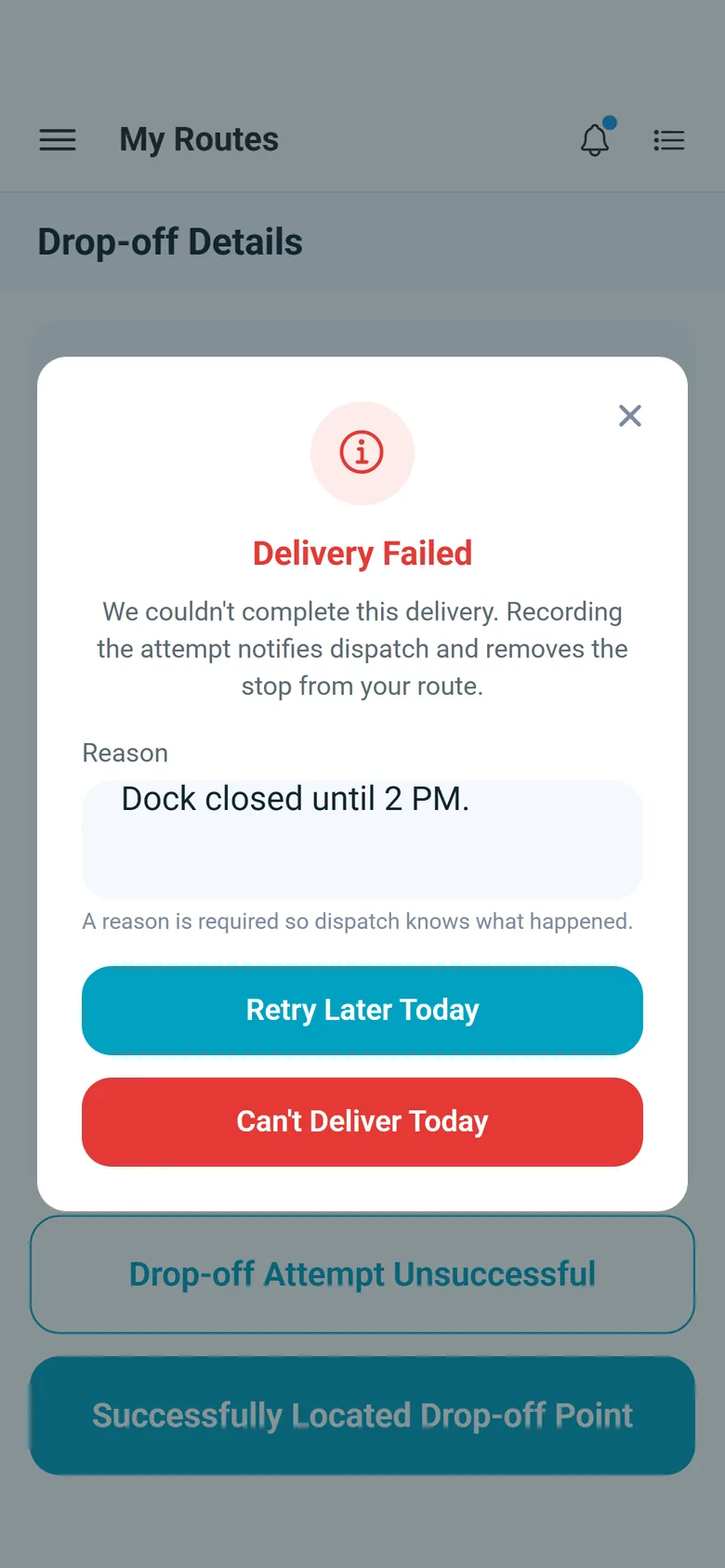
- A required reason when a drop fails: Retry Later Today or Can't Deliver Today
- A confirmation before arriving at a stop out of order
Visibility
See how the deliveries went, and let customers look for themselves
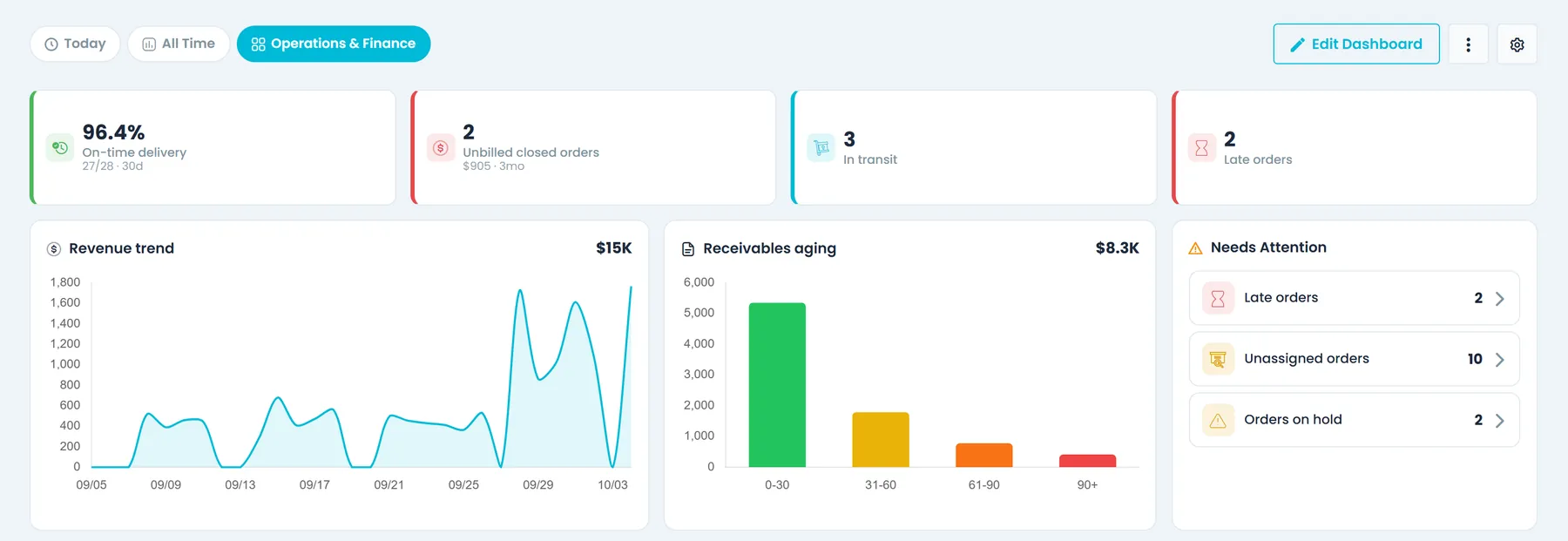
Add the on-time delivery widget to your dashboard to compare delivery arrivals with the scheduled stop times over the last 7, 30 or 90 days. An order counts as on time when the driver reached each of its delivery stops no more than 30 minutes after the scheduled time, and the tile shows the rate and how many delivered orders made it. The stores and customers you deliver to can sign in to the Customer Portal to follow their orders stop by stop and open the delivery photos and documents, instead of calling your dispatchers.
- On-time delivery rate as a dashboard widget
- Customers follow their orders in the Customer Portal
- Delivery photos and documents shared with the customer
- Tracking links the stores can open without logging inNext release
Private fleet costs
See what each truck costs per mile
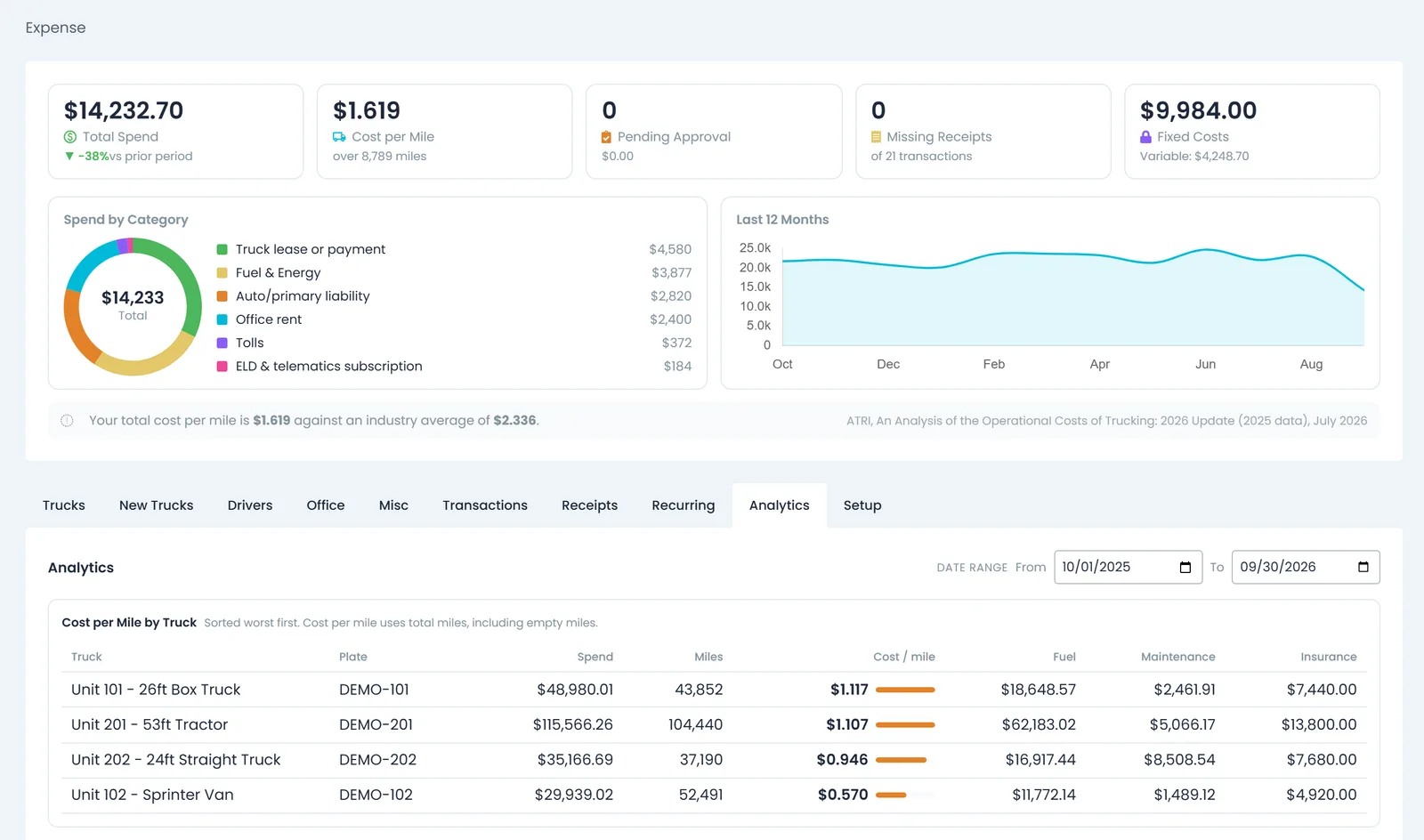
A private fleet answers for its costs, not its invoices. In Settings → Expenses, every truck cost lands in one ledger, filed against the truck, driver or order it belongs to. Drivers log fuel and repair costs in the driver app with a photo of the receipt, plus gallons, price per gallon, fuel type and state at the pump, and the office approves them. Receipts uploaded in the office are read by AI and checked by a person before anything is booked. The Analytics tab ranks trucks by cost per mile, worst first, and compares your cost per mile with ATRI's published industry average. Cost per mile uses the miles, or odometer start and end readings, that your team records for each truck, not telematics.
- Cost per mile by truck, worst first, with fuel, maintenance and insurance split out
- Driver expenses with receipt photos from Android and iPhone, approved in the office
- Office receipts read by AI and booked only after a person confirms
- Compared with ATRI's published US trucking costs
Fleet compliance
Inspections and hours, logged in the same app
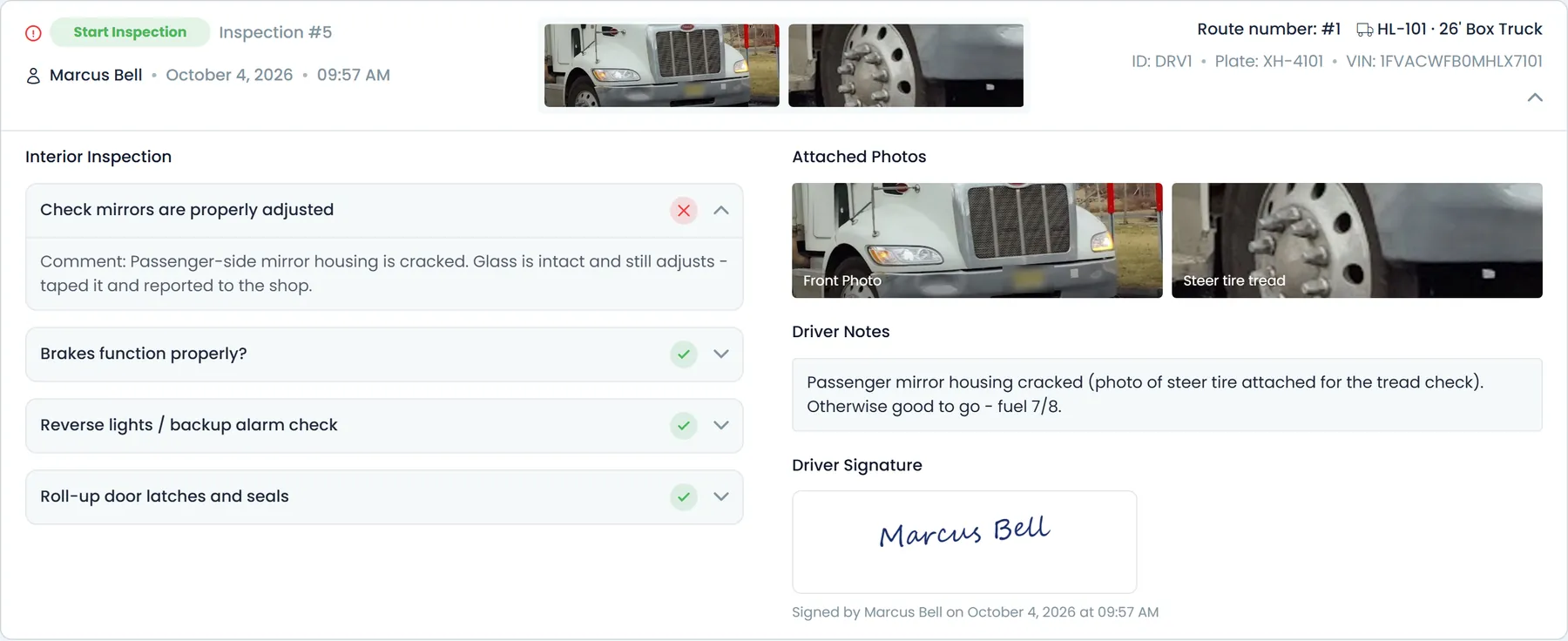
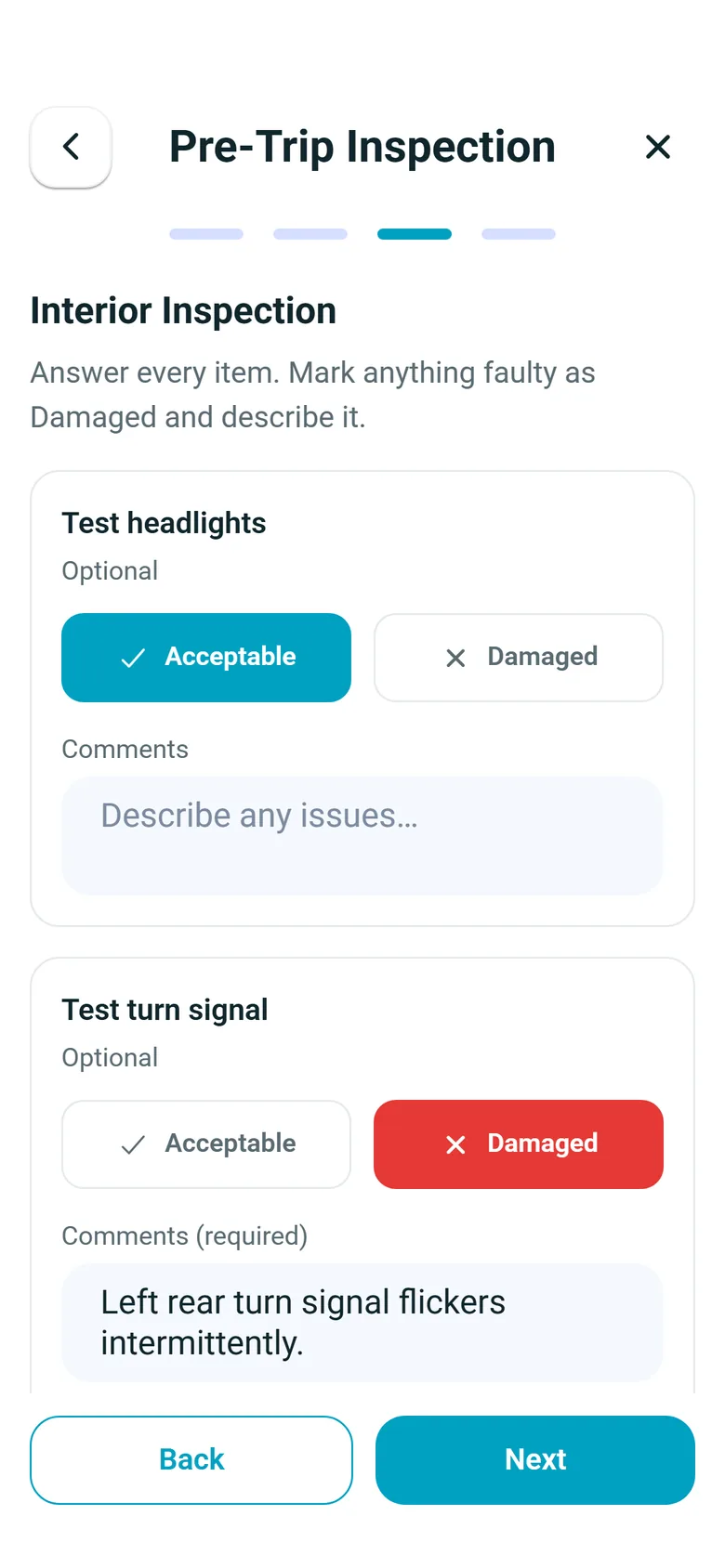
Drivers run a pre-trip inspection at the start of the shift and a post-trip inspection at the end, in the same RushHour driver app they deliver with: the plate, front and back photos of the truck, a checklist where anything marked damaged needs a comment and can take a photo, your own checks added to the start-of-shift inspection, and the driver's signature. The office reviews every inspection in Truck Inspection Logs. On the HOS tab, drivers set their duty status and watch the driving, on-duty window, break and cycle time they have left. Hours are logged by drivers; RushHour is not a certified ELD.
- Pre-trip and post-trip inspections with truck photos and a signature
- Damaged items need a comment and can carry a photo
- Every inspection reviewed in Truck Inspection Logs
- Driver-logged hours of service with drive, shift, break and cycle clocks
- An Hours of Service board with each active driver's time leftNext release
In the driver app
What drivers see on the route
Screens from the RushHour driver app, version 2.x on Android and iPhone.
Next release
Coming in the next release
Finished and in final testing, these ship with the next production release. The changelog lists every change.
Driver Board
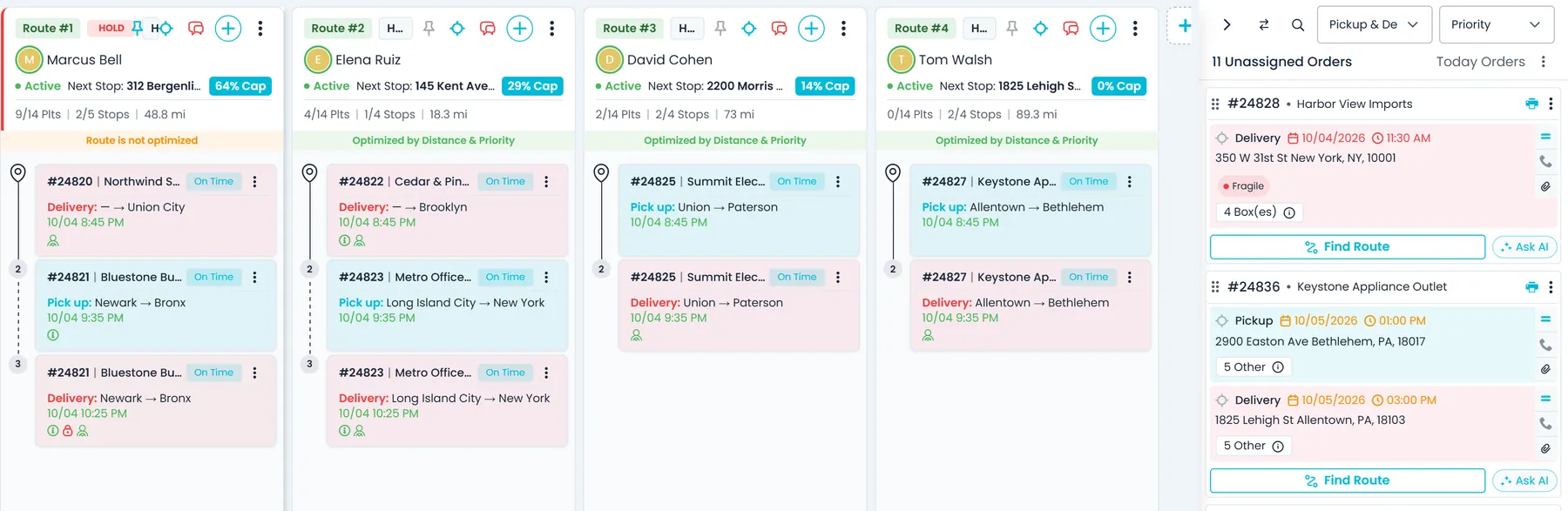
Plan several drivers' routes side by sideNext release
Switch Dispatch to the Driver Board to see the Unassigned panel next to a full-height column for each route you add, and drag stops between them with the same rules and prompts as the regular board. Pick Yesterday or any past date to see that day's routes, including completed ones, and open a route's Trip History for each stop's times.
- Up to 50 routes on your board, with pinned columns that stay in viewNext release
- Compact stop cards with order number, customer, pallets, cities, time and priorityNext release
- A past day's routes, including completed ones, for users with the Route History permissionNext release
- Trip history with each stop's assigned, arrival, confirmation and departure timesNext release
Receiving hours
Know when the store takes deliveriesNext release
Record each customer's work days and separate shipping and receiving hours, when you create the customer or on its Company information tab. Delivery stop forms then show the receiving hours of the company at that stop, and pickup stop forms its shipping hours, so whoever books the delivery sees when the dock takes freight.
- Work days with separate shipping and receiving hoursNext release
- Hours that can run past midnightNext release
- All of a company's hours when you hover its name on an order stopNext release

Store updates
Let stores follow their delivery without a loginNext release
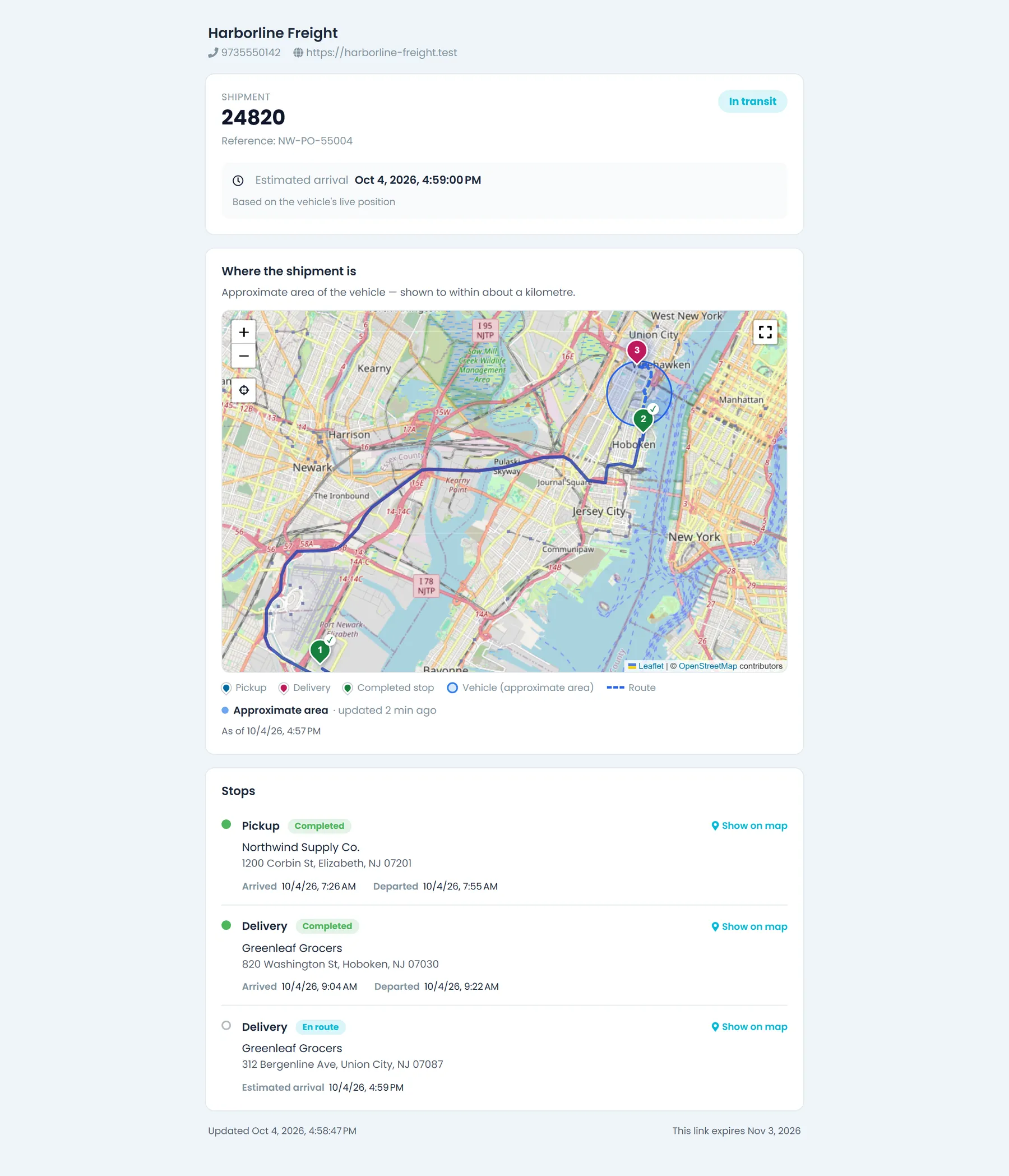
Turn on Settings → Tracking Links, then copy a link from an order or route menu and send it to the store, or email it from the order's Tracking tab. The page shows your company details and each stop's status on a map, never prices, and while the load is moving it adds the next stop's estimated arrival. You can also email your customer automatically when a driver arrives at or leaves a stop, and send each order's tracking link once, at the step you choose.
- The truck shown as an approximate area, as a live position on the way to the shipment, or only as the last completed stopNext release
- Links that expire after the lifetime you set and can be revokedNext release
- Arrival and departure emails, off until you switch them onNext release
- Customers can opt in to your automatic tracking links in the Customer PortalNext release
For fleets that deliver their own goods
Built for routes, not a billing department
Route changes reach the driver
A push notification when a route is assigned, and again when stops are added, removed, re-ordered or moved to another route.
Missed drops go back in the queue
Record a failed delivery with a reason and a re-attempt date, and the stop returns to the unassigned list for another route.
Every order change on record
The order's audit log shows who changed a delivery date, a stop's time or its driver instructions, with the old and new value and when.
Regular store runs without retyping
Repeat Order copies an existing order, with its stops, items and charges, into a new order with its own number. Notes, the PO number and attachments are not copied.
Measured on the RushHour platform
Platform-wide figures from the RushHour production database, September 2026, rounded down. Almost all of this volume is Shimon's Express.
Questions
Distribution questions, answered
We don't invoice our deliveries. Do we have to use billing?
No. In Settings → Billing, set Create Invoices to Manual, and RushHour does not create an invoice when an order is created or completed. Routes, the driver app, proof of delivery and the on-time widget work the same either way.
How does RushHour decide whether a delivery was on time?
The on-time delivery widget looks at orders delivered in the last 7, 30 or 90 days. An order counts as on time when the driver reached each of its delivery stops that has a scheduled time no more than 30 minutes after that time. The tile shows the rate and how many delivered orders made it.
Where does the driver see the gate code or the receiving door?
Instructions saved on the delivery location show on the stop in the driver app. Instructions typed on a single stop go to the driver with Copy to Driver from the order, the stop or the route; the driver app shows the location's instructions, not the per-stop note.
What happens when the store's dock is closed when the driver gets there?
The driver records a failed attempt in the app with a required reason and picks Retry Later Today or Can't Deliver Today. The stop comes off the driver's route and goes back to the unassigned list, so you can put it on another route. From the office you can also record an attempt with a reason and a re-attempt date.
Can dispatchers see a store's receiving hours while booking a delivery?
In the next release. Customer records get work days and separate shipping and receiving hours, and delivery stop forms show the receiving hours of the company at that stop. Today, set the delivery window on the stop (morning, noon, evening or a set time) and put the receiving door or hours in the driver instructions.
Can the stores we deliver to follow their deliveries?
Yes, for orders where the store is the customer: give it a Customer Portal login and it can follow those orders stop by stop and open the order's documents, such as a signed BOL and the other files your office attaches. In the next release you can also send a tracking link that opens without a login and shows each stop's status on a map with the next stop's estimated arrival, and email your customer automatically when a driver arrives at or leaves a stop.
Which phones does the driver app run on?
Android and iPhone. The stop steps, proof of delivery, barcode scanning, inspections, hours of service and expenses are all in version 2.x of the RushHour driver app on both.
Related products
See one of your delivery days on the board.
Bring a real day of stops. We will build the routes with you and show the arrival, photos and signature that come back from each drop.