
Talk to
the RushHour team.
Book a demo on one of your own loads, talk through plans and pricing, or get help. Send us a message or ask the assistant on this page, and a person from our team replies by email.

Email us directly
Prefer your own inbox? Here is where each kind of question goes.
Demos, pricing and general questions
[email protected]Help for existing customers
[email protected]Address
New York, USA
Availability
The AI assistant answers any time. Our team replies by email.
Why people contact us
- See a demo of RushHour on one of your own loads
- Talk through plans and pricing for your fleet
- Ask about connecting QuickBooks Online, Cardknox or Samsara
- Already a customer? The support page has the assistant, support email and help topics. Go to Support Read the user guides
What happens after you reach out
No drawn-out discovery process. Bring a real load and see the platform work on it.
We read every message
A person from our team emails you back, and we find a time that suits you for a walkthrough.
A demo on your own freight
Bring one of your actual orders. We'll take it through dispatch, proof of delivery, invoicing and payment, live.
Onboarded with your own data
For a one-time onboarding fee set by your plan, we import your customers, rates and drivers, configure your pricing and billing, and train your team on their first real loads.
Preparing for the demo
Bring your own paperwork
What to have ready for the call, and the tools that bring your orders, rates, customers and drivers into RushHour when you switch.
Checklist
What to bring to the demo
A demo on your own documents tells you more than a scripted tour. Have these ready for the call and we'll show RushHour working on them.
- One real order, which we take through dispatch, proof of delivery, invoicing and payment.
- A rate sheet in the format you use today. Import with AI can read a price sheet into rates you review before they are saved.
- A recent invoice, so we can set up the same charges and compare it with the invoice RushHour builds from the order.
- Your driver count, office user count and monthly order volume. Each plan is sized by these three numbers, so they tell us which plan fits.
- Optional: your customer list as an Excel or CSV file.
Orders and rates
Order sheets, PDFs and rate sheets, read for you
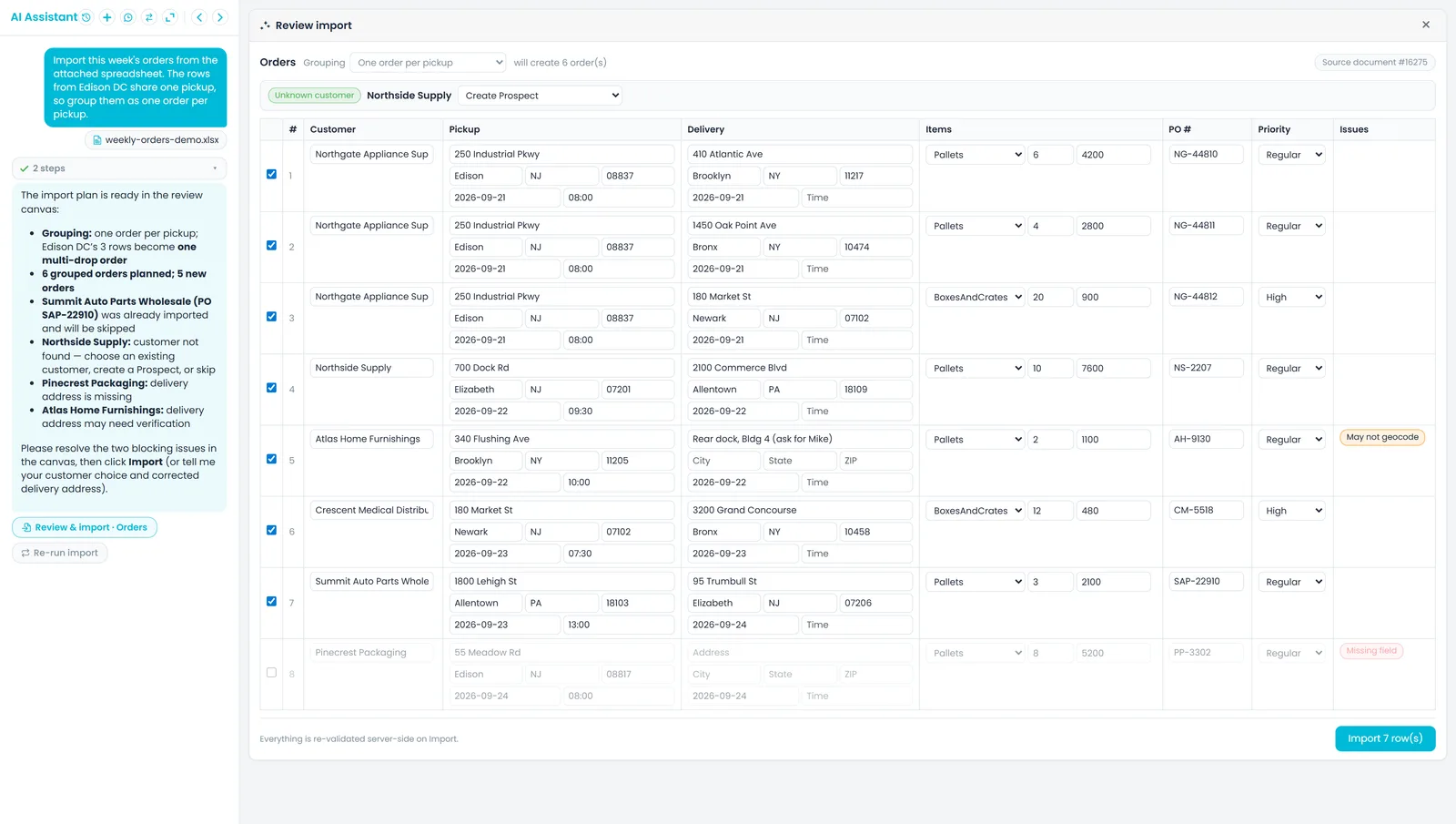
Import with AI reads the paperwork your customers already send, such as a weekly order spreadsheet, a purchase order PDF or a rate sheet, and lays it out in an editable review. Nothing is saved until you confirm.
- Reads PDF, Word (.docx), Excel, CSV and text files, plus images such as PNG, JPG and TIFF scans.
- Order sheets, purchase orders and manifests become orders, packing lists become load units, price sheets become rates and customer documents become CRM records.
- In the review you correct cells, untick rows, choose how deliveries are grouped into orders and decide what happens to a customer RushHour doesn't recognize.
- PO numbers, line items, delivery windows and special instructions carry over. A PO already imported for the same customer is skipped.
- Once you confirm an import, RushHour remembers the document's layout for the next one in the same format.
Customers
Your customer list from Excel or CSV
If your customers live in a spreadsheet today, put it in RushHour's columns and drag the file in.
- Drag and drop an .xlsx, .xls or .csv file, or download the sample file and start from it.
- Columns: Name, Phone, Email, Address, City, State and Zip, plus a contact's First Name, Last Name, Contact Phone, Cell and Contact Email.
- If a row uses a company name, phone or email that already belongs to one of your customers or prospects, the import stops and nothing is added until the file is fixed.
- Company admins can export customers to a spreadsheet any time, choosing fields such as Company Name, Email, Balance, Address, Phone Number, Status and Pipeline.
- Importing needs the Export/Import permission. Exporting is for company admins who also hold it.
Drivers
Drivers join the app with an invite code
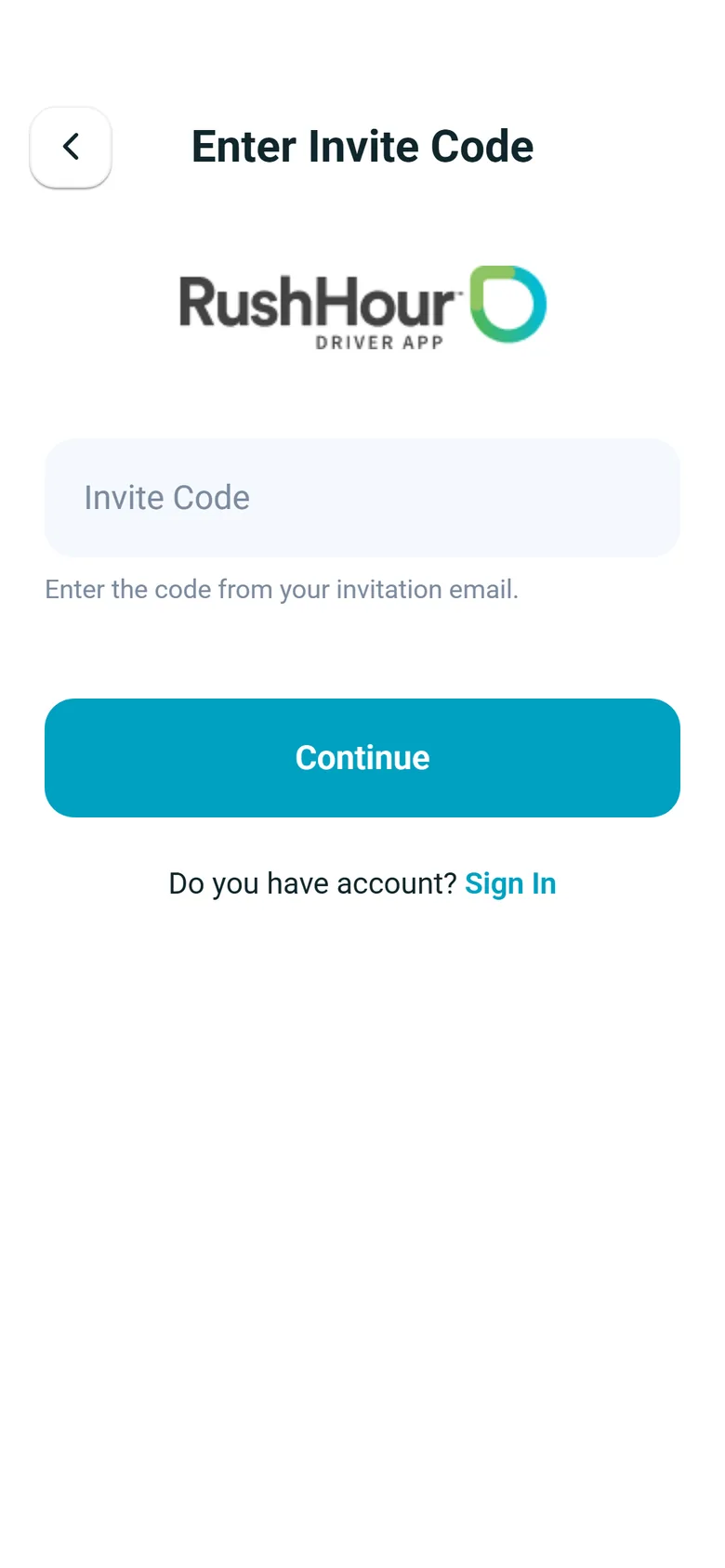
Add each driver in the Company Portal and send an invite. The driver gets an email, enters the code in the RushHour driver app on Android or iPhone and chooses a password.
- Invite while adding the driver, from the Drivers list, or with Send Invite on the driver's record.
- The email, titled "Invitation to register with" and your company name, carries the code and a link to a page with an Open App button.
- In the app, Enter Invite Code on the sign-in screen accepts the code, or the whole invitation link pasted in.
- A resend issues a new code that replaces the old one, and the driver becomes Active once registered.
- Admins can set a registered driver's password or email them a reset link.
Languages
English or Hebrew, for your office and your customers
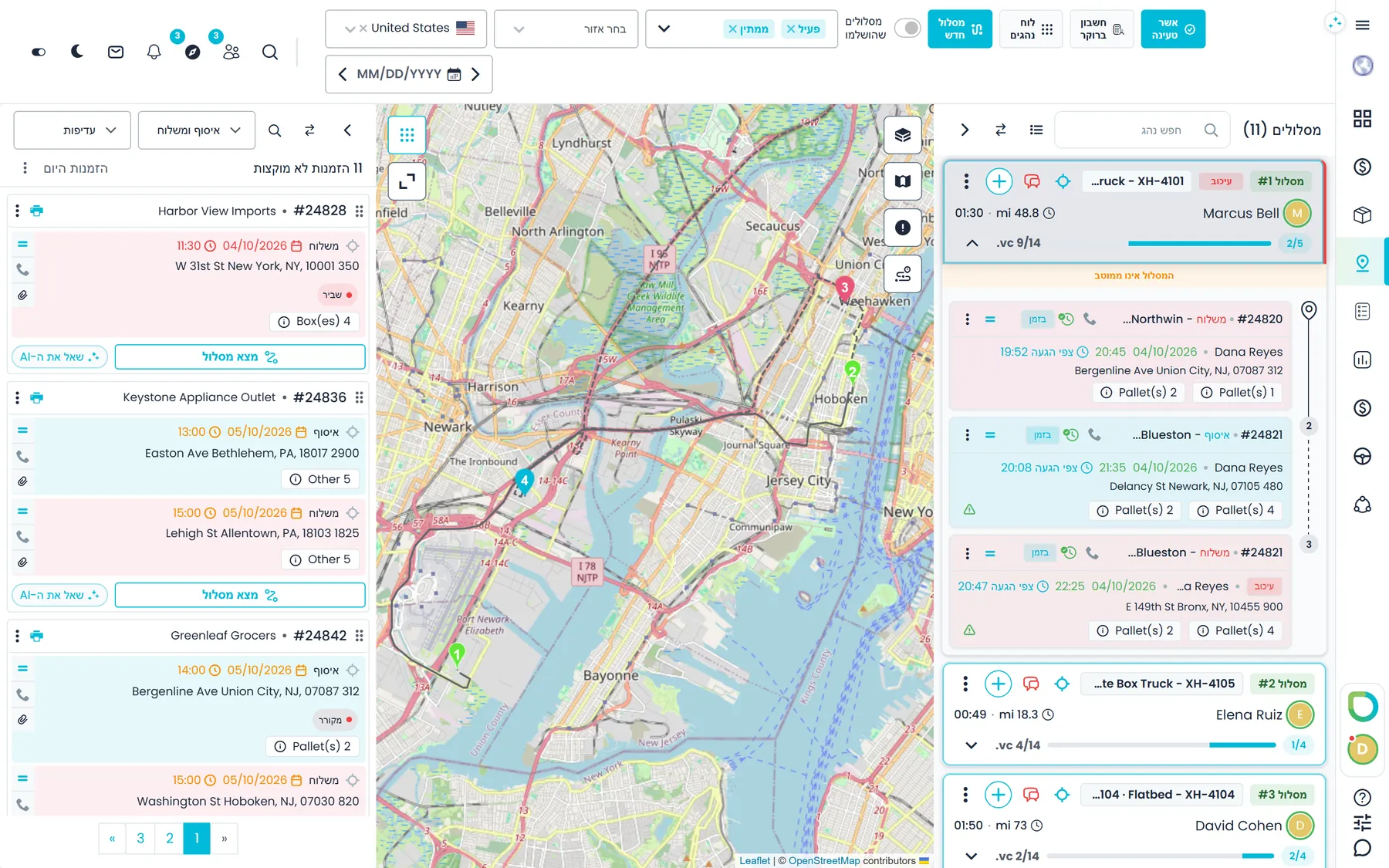
The Company Portal and the Customer Portal both run in English and Hebrew. In Hebrew the whole screen is laid out right to left.
- Company Portal screens in both languages, including date pickers, form validation and error messages.
- Switch language on the sign-in page, or in Settings > Systems under Application language.
- Your customers can switch the Customer Portal between English and Hebrew.
- The driver app and the user guides at docs.rushhourapp.com are in English.
Common questions before a demo
Will I get a hard sell?
No. We'll tell you honestly if RushHour isn't the right fit. We would rather not onboard a customer than onboard the wrong one.
Do I need to commit to anything to get a demo?
No. The demo is free and commits you to nothing. See the platform, then decide in your own time.
Can I bring my IT team to the demo?
Please do. We'll show them custom roles built from named permissions, the order audit log and the activity log kept for 365 days, how each company's data is kept separate, encryption in transit, and our published DPA and sub-processor list. We'll also be straight about the gaps: we don't hold a SOC 2 report, and single sign-on and two-factor sign-in are not available today.
What if I'm already using another platform?
Tell us what you run on today. Customers come across from an Excel or CSV file: download the sample file, fill in its columns and drag it in. Import with AI reads order sheets, purchase orders, manifests and rate sheets, whether they arrive as spreadsheets, PDFs, Word (.docx) files or scanned images, into an editable review where you fix cells and untick rows before anything is saved. Drivers are invited to the driver app by email with an invite code. We'll be straight with you about what does and doesn't come across.
How do my drivers get onto the app?
Add each driver in the Company Portal and send an invite. The driver receives an email with an invite code, installs the RushHour driver app from Google Play or the App Store, enters the code and chooses a password. If an invite gets lost, send it again: each resend issues a new code.
Which languages does RushHour support?
The Company Portal for your office and the Customer Portal for your customers are both available in English and Hebrew, with a full right-to-left layout in Hebrew. The driver app and the user guides at docs.rushhourapp.com are in English.
I'm already a RushHour customer. Where do I get help?
The Support page has the assistant, the support email and help topics, and the user guides are at docs.rushhourapp.com. You can also email [email protected], or choose Help for existing customers in the form on this page.
Before your demo
Read up on what matters to you
Pages worth reading before a call with us.