
Freight that travels between hubs,
followed from pickup to delivery.
The Hubs menu in the Company Portal is for companies that move freight between countries through hubs. Create a hub as an origin, a destination or both. At a hub you consolidate orders into a manifest for an air, sea, truck or LCL shipment, mark it when it departs and when it arrives, receive each order at the other end and hand it to local dispatch. A Shipments view on the Dispatch board follows every manifest from pickup, through both hubs, to delivery.
Hubs
Your hubs, and what is at each one
The Hubs menu sits in the sidebar after Dispatch. Its pages are Hubs, Hub Inventory, Manifests, Containers, Receiving and Driver Pickup.
Hub records
Set up each hub once
Create a hub from scratch or from one of your locations, as an origin, a destination or both, with its code, time zone, address, contacts, manager and operating hours. An inactive hub no longer appears in selection lists.
Hubs in the documentation- Opening hours for weekdays and weekends, or 24/7 operation
- A hub linked to a location shows the orders assigned to that location with Assign HUB
- Deactivate one hub, or several at once
Hub inventory
Inbound, at the hub and outbound, order by order
Each hub shows the orders on their way to it, the orders at the hub and the orders waiting to leave, with their pallets, boxes, weight, destination and status. Totals for the hub and a filter by company sit beside the list, and the hub's own page adds its open manifests and its place on the map.
- Statuses from Inbound and In Hub to Consolidated, In transit and Arrived at hub
- Orders still waiting for Assign HUB are listed at the hubs of their stop's country
- Release orders to dispatch from the hub's Outbound tab
Assign HUB
An order asks for hubs when no road connects its two ends
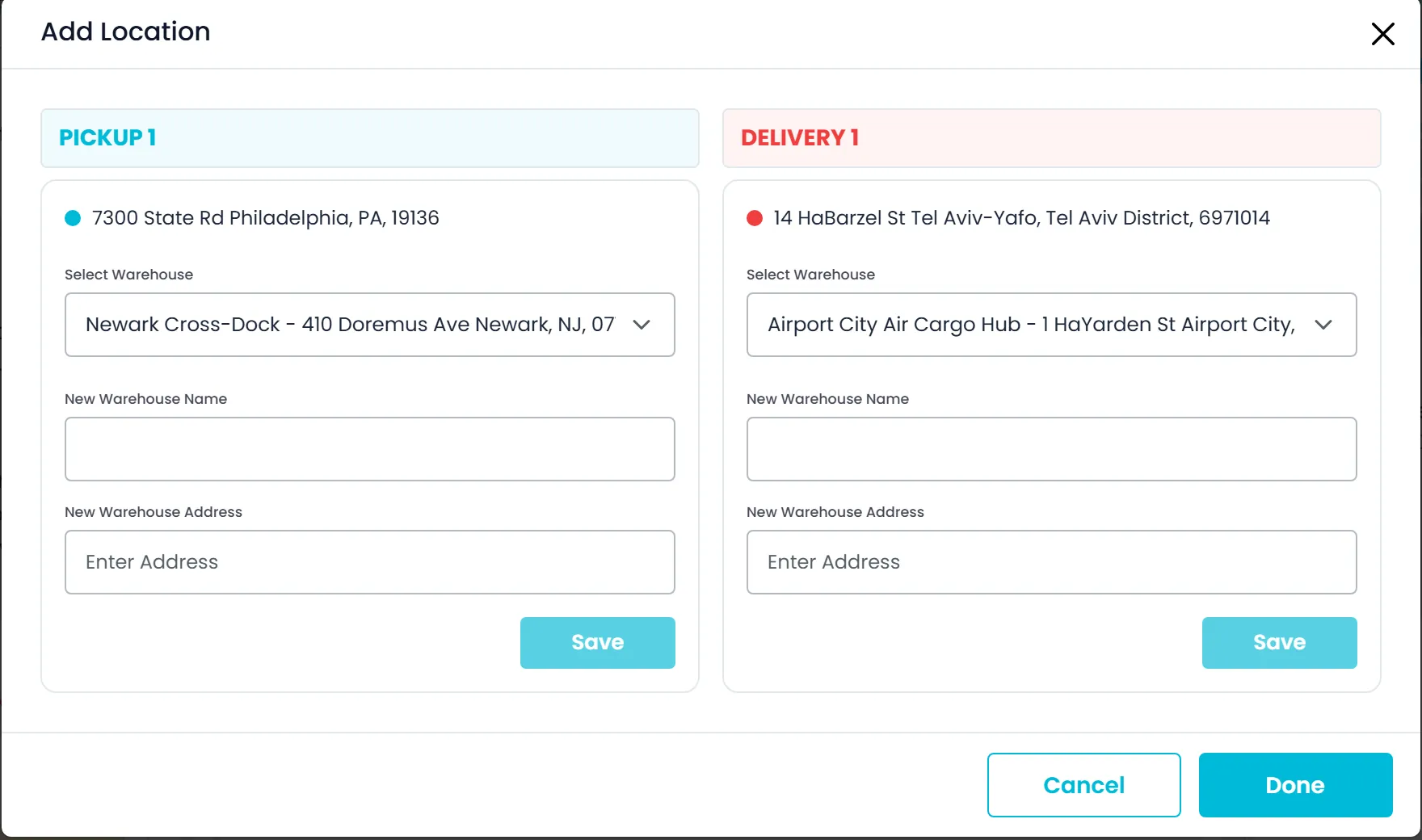
An order whose pickup and delivery have no drivable route between them, for example across an ocean, is saved and flagged Assign HUB. Choose a hub near each end and the order gets its legs through both. In the order editor, Assign HUB lists the hubs of each stop's country first.
- A company setting also asks for hubs when the two countries share a land border
- Another setting measures and prices the stretch between two hubs as a land leg when a road connects them; an air or sea stretch is never counted in miles
- The order map marks the stretch between hubs as not counted in miles
Manifests
From consolidation to the receiving dock
A manifest is the shipment that carries a group of orders from one hub to the other. Each step has its own page.
Consolidation
Consolidate a hub's orders into one manifest
Pick the orders at a hub and consolidate them into a manifest, or create an empty manifest and add orders to it. Choose the shipment type, air freight, sea container, truck or LCL, and enter its reference: the air waybill, the container number, the trailer number or the booking number. A selection summary totals the orders and their weight before you execute it.
- Add orders to an open manifest, or take one off
- Mark the manifest Depart when it leaves and Shipment arrived when it lands
- Cancel a manifest and its orders can be consolidated again
- A setting can require the reference number, and units and a weight on every order, before a manifest is consolidated or departs
Release on arrival
The next leg waits until the shipment has arrived
With Hold hub orders until the shipment arrives switched on, an order travelling between two hubs keeps its pickup from the destination hub and its final delivery out of Unassigned until its manifest is marked Shipment arrived. Marking a manifest as arrived releases its orders at that hub for local dispatch.
- A user who can edit hubs can still release an order to dispatch before arrival, after a confirmation
- An order released that way is marked Released before arrival
- Choose when freight leaves the origin hub's inventory: when its manifest departs, or when a driver picks it up at the destination hub
Containers
Plan how a sea manifest loads into its container
The Containers page takes a sea manifest and lays its pallets out in the container by destination zone, loaded last in, first out, with stackable and non-stackable pallets marked. Export the layout to Excel as a container report.
- One layout for each sea manifest being loaded at the hub
- Pallets grouped by destination zone
- The report follows your language, English or Hebrew
Receiving
Confirm what arrived, and keep the missing part moving
At the destination hub, Receiving lists the shipments on their way with their orders. Confirm the quantity received for each order and where it was received. When part of an order is missing, the order is split: the received part continues to delivery, and the missing part stays in transit.
- Expected, received and missing counts side by side
- Counts in boxes, pallets and units
- A Received badge on every order already confirmed
Driver pickup
Consolidated shipments waiting for a driver
Driver Pickup lists the consolidated shipments at a hub that are waiting for a driver, each with its orders, pallets and boxes and where it is to be dropped: the destination hub, the airport cargo terminal or the port.
- Each job lists the orders in its manifest
- From Hub Inventory, an order's pickup from the hub and its delivery are added to the route you pick
Dispatch and orders
The whole journey on the Dispatch board, and the parties on the order
Shipments view
Every manifest in five steps, from pickup to delivery
On the Dispatch board, a Shipments view shows each manifest of your hubs as five steps: pickup, origin hub, manifest, destination hub and delivery. It shows when the manifest departed and arrived and how many of its orders are delivered and, for the local legs, how many are unassigned and how many are on a route.
Dispatch- Views for shipments in flow, delivered and all
- Search by manifest, container, air waybill, hub or order
- Local legs marked Held until arrival, Unassigned, On route or Delivered
International orders
Supplier, broker and payer on the order
Switch on International Orders in Settings → Systems → Hubs and an order takes a Supplier, a Broker and a Payer, customers take a customer number, and Suppliers and Brokers get their own pages, separate from your customers. The payer is information only: invoices still go to the order's customer. The switch is off by default.
- Supplier and Broker filters on the Orders lists
- A company can be both a supplier and a broker
- Each supplier and broker keeps a history of its changes
- Deleting a supplier or broker leaves its name on the orders that already use it
Access and rules
Who sees the menu, and where its rules live
A permission for the menu
The Hubs menu shows for users with the View hubs permission. Company admins have the hub permissions, and an admin gives them to other roles on the Roles screen.
Rules in one place
Settings → Systems → Hubs holds the hub rules: holding orders until arrival, the shipment details a manifest needs, and how the stretch between hubs is measured.
Costs behind their own permission
Costs on the hub and warehouse screens show only with the View costs on HUB and warehouse screens permission.
Switch the menu off if you don't need it
A company admin can hide the Hubs menu in Settings → Systems. Nothing is deleted, and turning it on again brings everything back.
FAQ
Hub and manifest questions
Who is the Hubs menu for?
Companies that move freight between countries through hubs, such as freight forwarders and carriers with a terminal at each end. A company that only runs local routes can switch the menu off in Settings → Systems; nothing is deleted.
Which shipment types can a manifest be?
Air freight, sea container, truck or LCL. Each takes its own reference: an air waybill, a container number, a trailer number or a booking number.
What happens when part of an order does not arrive?
On the Receiving page you confirm the quantity that arrived. If it is less than expected, the order is split: the received part continues to delivery and the missing part stays in transit, so it can be received when it turns up.
Can we dispatch an order before its manifest is marked as arrived?
Yes. With Hold hub orders until the shipment arrives on, the order's last leg stays out of Unassigned until arrival, but a user who can edit hubs can release it to dispatch from the destination hub after a confirmation. The order is then marked Released before arrival.
How are orders through hubs priced?
International rate cards price a lane by origin and destination country, for Ocean, Air or Ground. By default the stretch between two hubs is not measured or priced in miles; the Count hub-to-hub miles setting changes that for a land leg.
Since when is the Hubs menu available?
Since the platform release of November 24, 2026. The menu shows for users with the View hubs permission.
Related pages
Bring us a shipment that crosses a border.
In the demo we set up a hub at each end, consolidate your orders into a manifest and follow it on the Shipments view until the last delivery.