
One record per customer.
Not four systems.
Every account moves from Lead to Prospect to Customer as you quote and close its orders. Contacts, locations, email roles, order history, payment terms, customer-specific rates and your message thread with the customer all sit on the same record.
One customer record
Stage, contacts, terms and conversation on the account itself
Sales works the pipeline, dispatch picks up the saved locations and contacts, and billing uses the terms and rates, all from the same customer list.
Sales pipeline
Leads, prospects and customers in one list
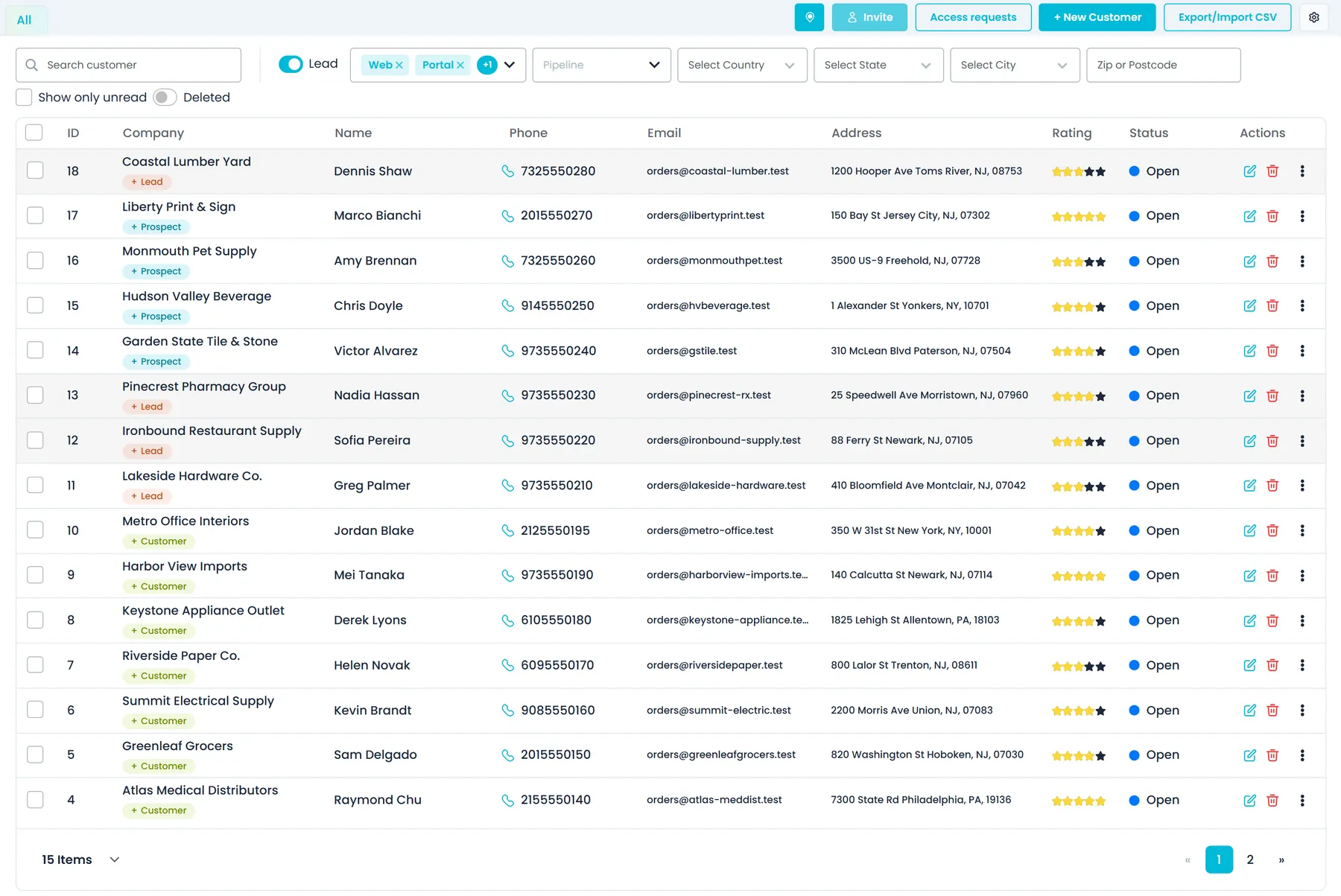
Every customer carries a stage: Lead, Prospect or Customer. Creating a quote for a Lead moves it to Prospect, and closing an order marks the account a Customer, so the list stays current without anyone updating it. Staff can still set the stage by hand. Record the sales rep and how the customer heard about you, and filter the list by stage, by source (web, Company Portal or Customer Portal signup), by new customers nobody has opened yet or by deleted accounts.
- Stages update when you quote and close orders
- Filter by stage, source and customers not yet opened
- Sales rep and lead source on the record
- A Lead, Prospect or Customer badge on every row of the list
The customer list
Find any account, then narrow it down by place
The CRM list shows each customer's ID, company, primary contact, phone, email, main address, star rating and status, with its Lead, Prospect or Customer badge. Search the list, then filter it by source, pipeline stage, country, state, city or ZIP code. The Lead switch shows or hides individual customers. Show only unread lists new customers that came in from outside, such as through a web form connected to RushHour, until someone on your team opens them, and Deleted lists removed customers so you can restore one. Click a phone number, email or address to copy it, or the phone icon to call.
- Filters for source, stage, country, state, city and ZIP code
- The CRM menu counts new customers from outside your team that nobody has opened yet
- A warning icon on customers with no company phone or email
- Copy a phone number, email or address with one click
New customers
Add a customer in one form, with duplicate checks
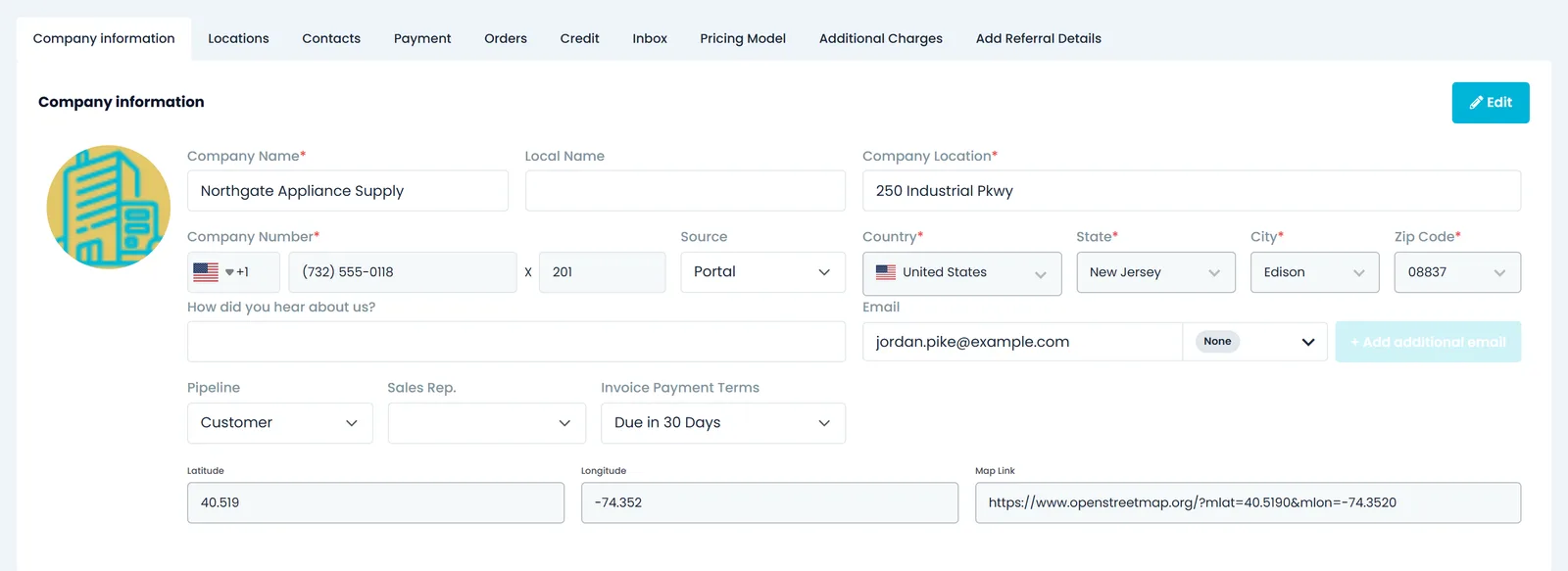
+ New Customer takes the company, its addresses and its people in one form. Tick Lead for an individual rather than a company: first and last name become required, and company name and address become optional. Tick Broker Account for a customer that acts between shippers and carriers. Add the headquarters address and as many more locations as you need, and add the people you deal with as team members, saved as the customer's contacts. Paste a map link or enter latitude and longitude to fill in an address. On save, RushHour checks the company name and company phone against your existing customers, and if a deleted customer already has that name, it offers to restore that customer instead of creating a second one.
- Lead mode for individuals, Broker Account for brokers
- Headquarters, extra locations and contacts in one form
- A map link or coordinates fill in the address
- Duplicate name and phone checks, with an offer to restore a deleted customer
The account file
Contacts, locations and order history in one place
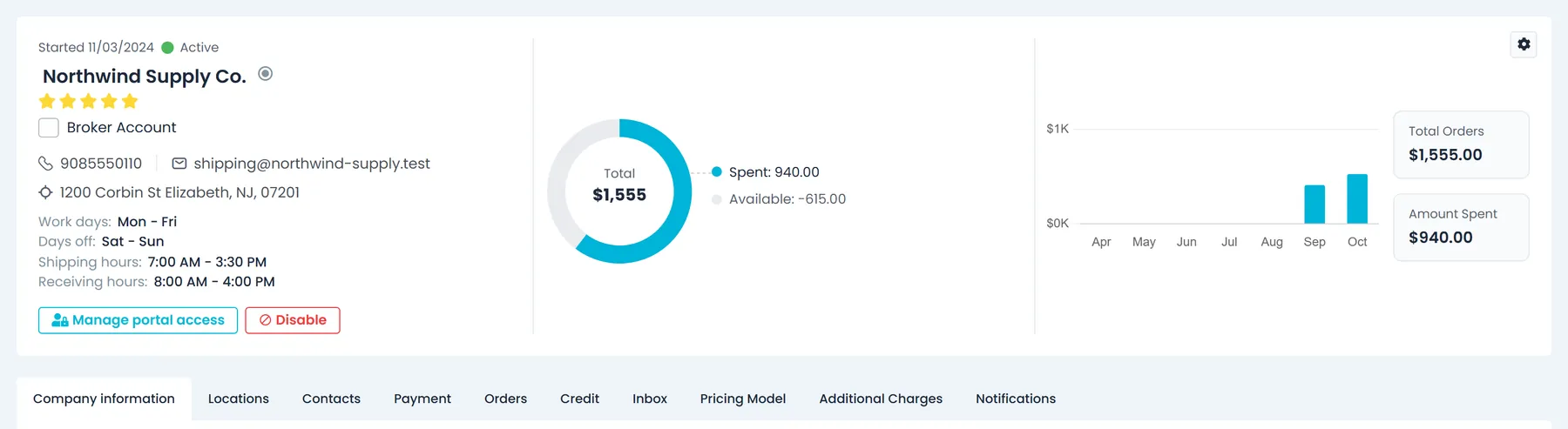
The customer record has tabs for company information, locations, contacts, payments, orders, the Inbox message thread, pricing model and additional charges, under a header with a star rating, total orders, amount spent and monthly spend. Mark a primary contact; when you delete a contact, its orders can move to the primary. Saved pickup and delivery locations keep their own phone number and location details, such as which gate or dock to use. A customer can have several email addresses, each tagged for its job: accounting, billing, bill of lading, invoice, appointment or marketing mail. On an order or quote that has a billing customer, its name opens this record in a new tab.
- Contacts with a primary contact and reassign on delete
- Saved locations with their own phone and gate or dock details
- Email addresses tagged for accounting, BOL, invoice and more
- Open the customer from the billing name on an order or quote
- Work days, shipping and receiving hours and portal status in the customer headerNew in the October 2026 release
Locations
Every warehouse and dock, saved on the customer
The Locations tab is the customer's address book: the main address marked with a star, plus each warehouse, store or job site with its own title, address, phone number and extension, and location details. When you fill in a pickup or delivery stop for that customer, its saved locations are offered. The Map Link field reads the spot from Google Maps links, and from OpenStreetMap, HERE WeGo, Bing Maps, Apple Maps and Waze links that include coordinates, as well as shortened Google Maps and HERE WeGo links; you can also enter latitude and longitude. RushHour asks before it replaces an address you already filled in, and one customer can't have two locations with the same title or the same address.
- Saved locations offered on that customer's pickup and delivery stops
- Map links from Google Maps, OpenStreetMap, HERE WeGo, Bing Maps, Apple Maps and Waze
- No two locations with the same title or the same address
- Customers with portal access keep their own locations up to date
Import and clean-up
Bring the list in, then clean up what you inherited
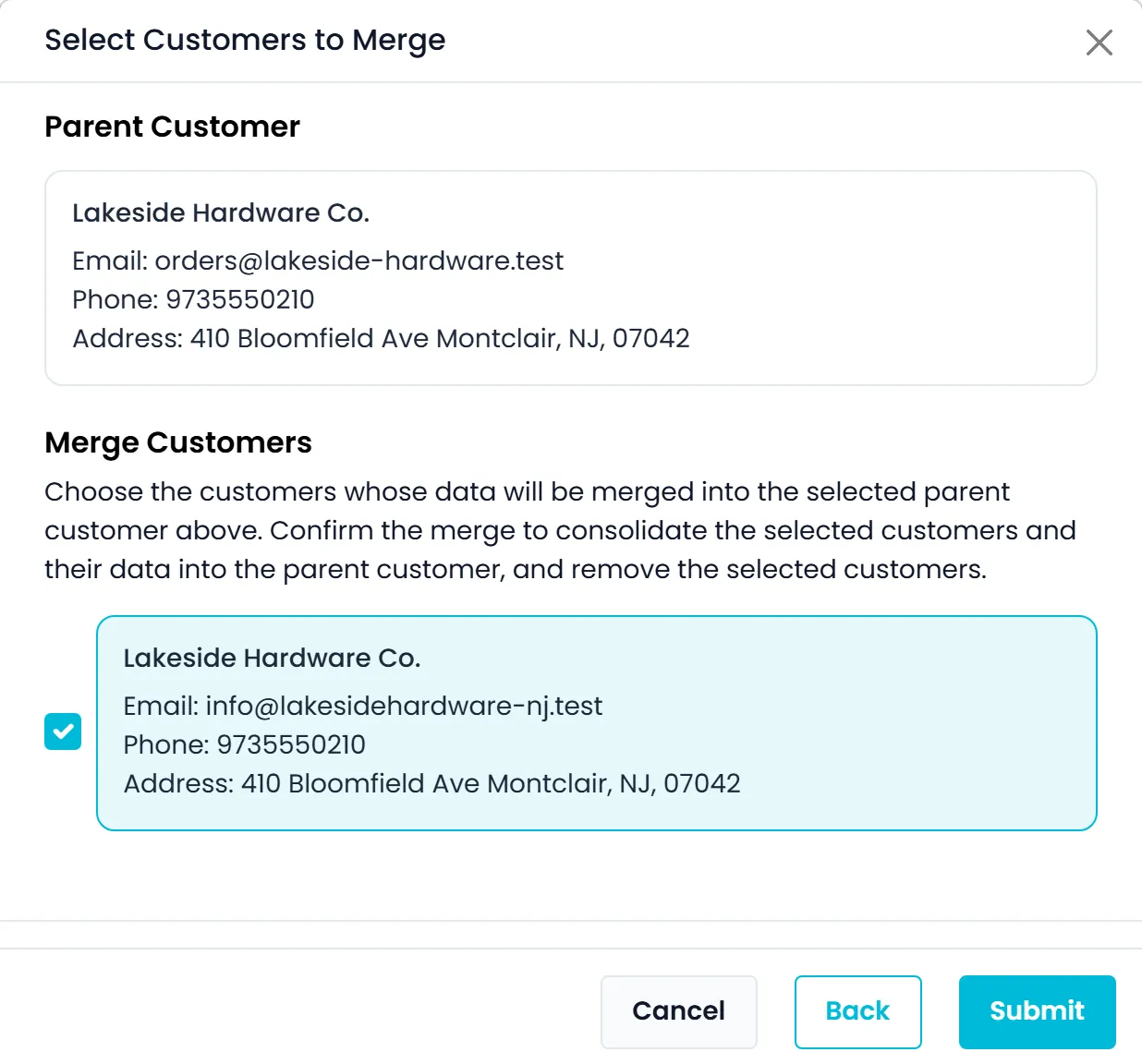
Import customers from a CSV or Excel file, starting from a sample file, and export selected customers with the fields you pick. The Merge Customers wizard moves orders, invoices, payments, contacts and addresses from duplicates onto the record you keep. It refuses while a duplicate has an open balance, unfinished routes or items that failed to sync to QuickBooks. Duplicates must share a name, email, address or phone with the record you keep, merging is for company admins, and a merge can't be undone. Normalize Contacts previews contact clean-up on one customer before you apply it, and admins can remove duplicate contacts and locations across the company.
- CSV or Excel import, export with the fields you choose
- Merge duplicate customers onto one record
- Contact clean-up with a preview, and duplicate removal
- The AI assistant can create or update customers from a document, after you confirm
Terms and rates
Payment terms and customer-specific rates on the account
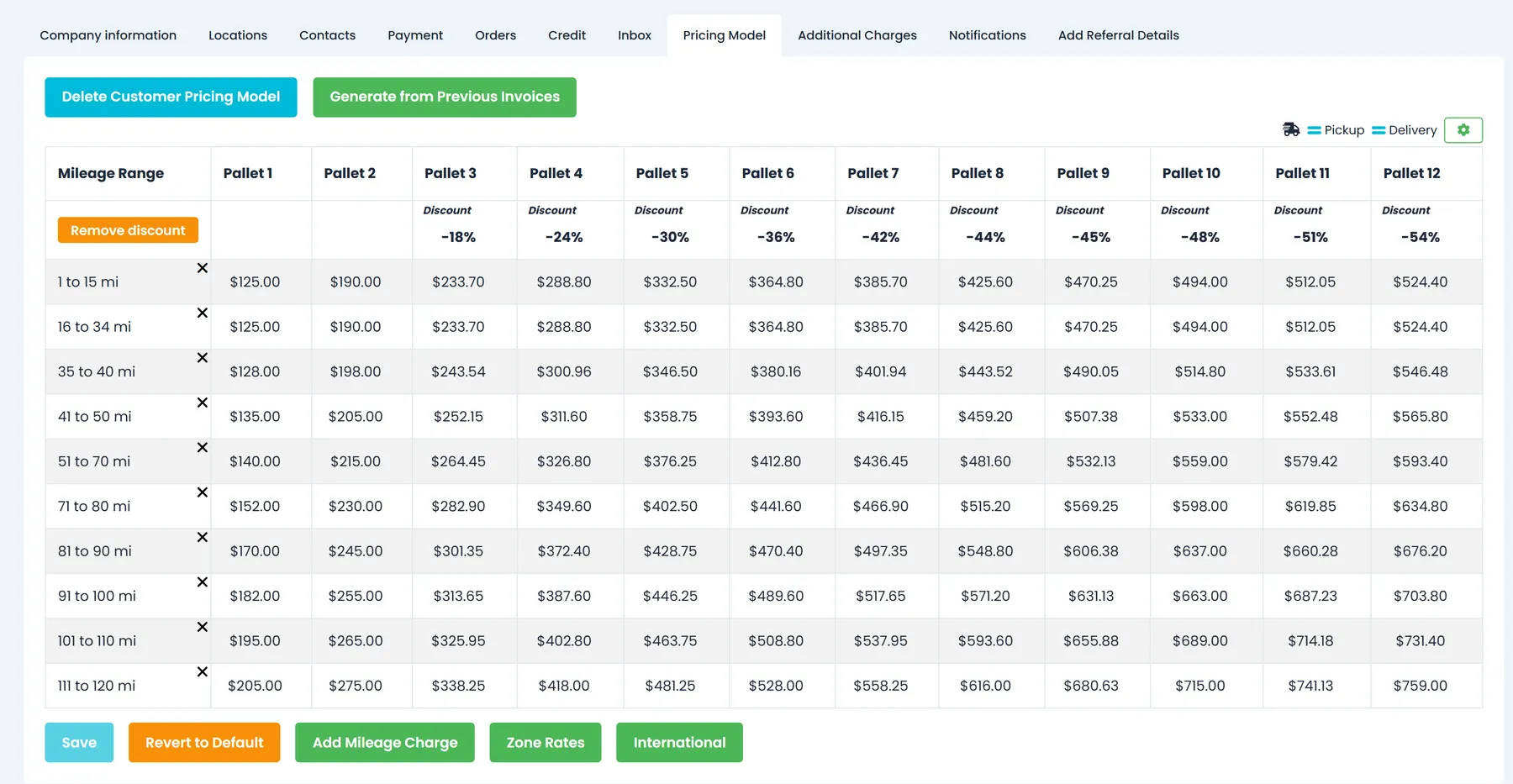
Set invoice payment terms per customer: due on receipt, 15, 30, 60 or 90 days. Give a customer its own pricing model and its own additional charges, separate from the company defaults, so a quote for that account is priced by that account's rates. Start a customer's grid from its previous invoices, add a mileage charge, or revert it to the company default.
- Invoice payment terms per customer
- Customer-specific pricing model
- Customer-specific additional charges
- Generate a customer's prices from its previous invoices
- A Price per unit column on the customer's Additional Charges tabNew in the October 2026 release
Customer communication
Messages, portal logins and a copy of every email RushHour sends
Talk to the customer on its record, give its people their own login, and keep a copy of every email RushHour sends for you.
Customer conversations
Talk to the customer from their record
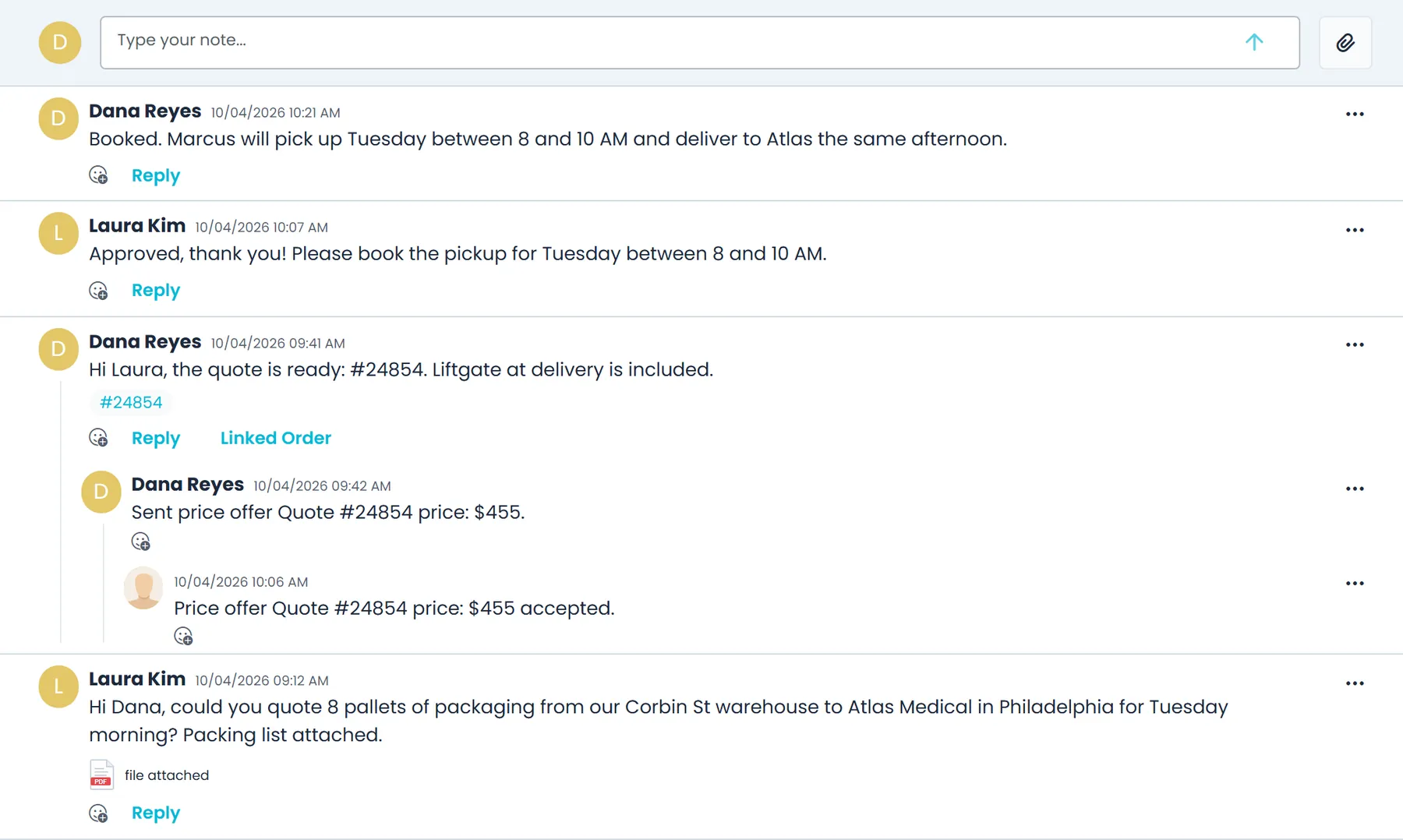
The Inbox tab on each customer is a message thread. A message posted there is emailed to the customer with a link to reply, and the reply lands back on the thread. Messages can carry attachments and tag the order, invoice or BOL they are about, and the Inbox tab shows how many of them are unread. Company admins can also send a price offer that the customer accepts or rejects from the email. Customers with Customer Portal access see the same conversation under Support → Chat, shared with their colleagues and with attachments up to 10 MB, and can send a price match request from an order, which arrives as a message on that order.
- Message thread with emailed replies
- Attachments and tagged orders, invoices and BOLs
- Price offers accepted or rejected from the email
- The same thread in the Customer Portal, under Support → Chat
- Price match requests from the portal arrive on the order
Customer Portal access
Give the customer's team a login from their record
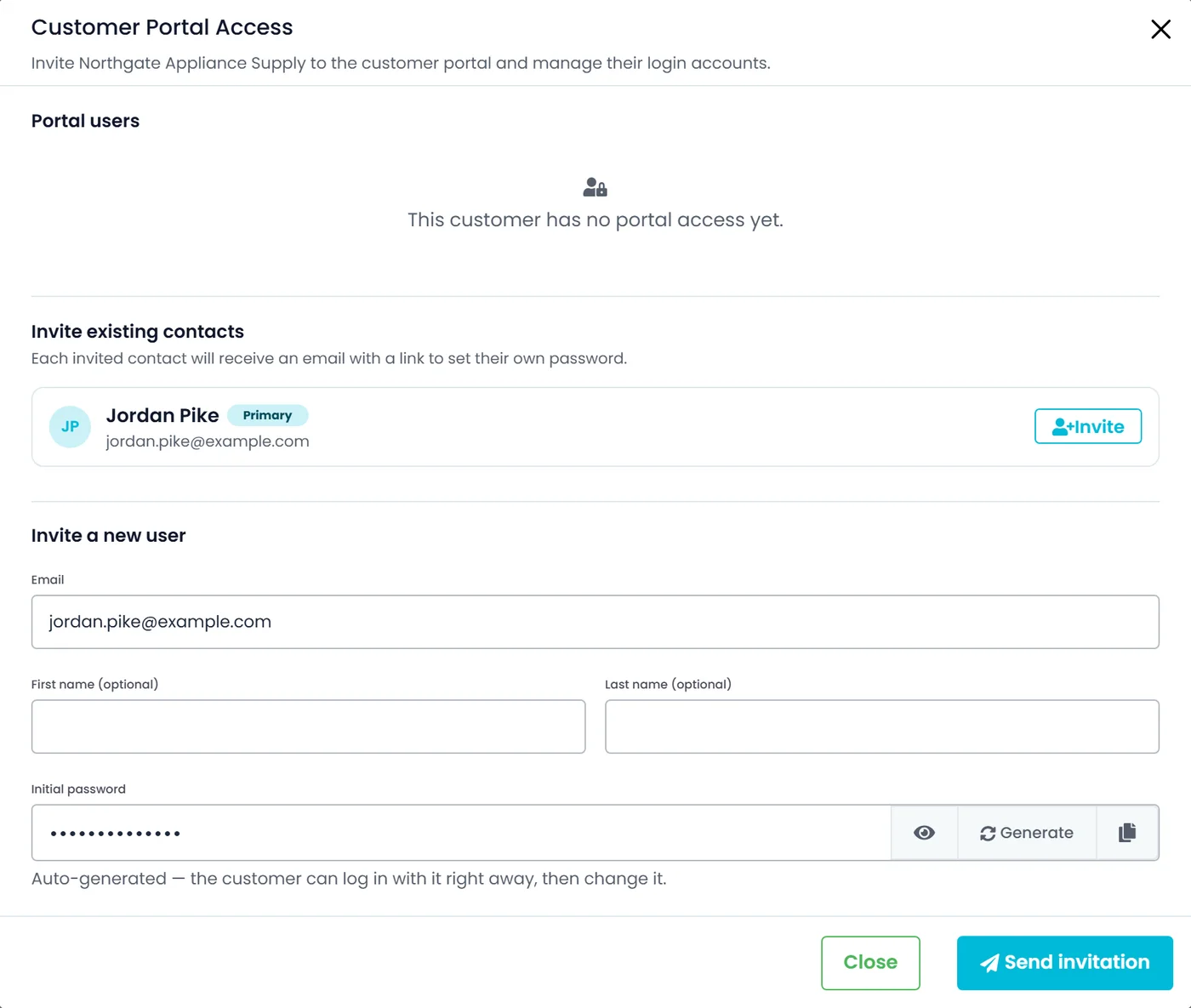
Invite to Portal on a customer, or Invite with one customer selected in the list, opens the Customer Portal Access window. Invite the customer's existing contacts one click at a time, or several at once with Invite selected or Invite all: contacts with a valid email and no portal login yet are listed, and each one invited gets an email with a link to set their own password. You can also invite someone new by email, with an initial password RushHour generates for you to copy and share. Every login shows as Active, Pending or Disabled, with Resend invitation, Set password, Disable, Enable and Delete. Company admins manage portal access.
- Invite one contact, the ones you select, or all of them
- Invite a new user with a generated initial password
- Each login shown as Active, Pending or Disabled
- Resend the invitation, set a password, disable, enable or delete a login
Company Inbox
Every email in and out, in one company Inbox
RushHour keeps a copy of every email the platform sends, such as invoices and quotes, together with whether it was sent or failed, in one company Inbox with folders and search. Staff can compose from there, with AI help to draft a message, improve it or write a subject line. Each company also gets its own inbound email address in Settings → Inbound Email. Forward manifests, purchase orders or price sheets to it: the email appears in the Inbox and its attachments land in Documents, ready for you to review and import. You can limit which sender domains are accepted, and forward from your own mailbox.
- Every sent email kept, marked sent or failed
- Your own inbound address for forwarded documents
- Compose with AI help to draft or improve
- Mail goes out from your own addresses once verified, with an optional CC address on outgoing mail
- Reply, forward and preview attachments; reset links and one-time codes are redacted
Where Customers & CRM earns its place
Limit users to their own accounts
Permissions can let a user see and edit only the customers they created.
Stages that keep themselves current
Quote a lead and it becomes a Prospect; close its order and it becomes a Customer.
Every sent email on file
Invoices, quotes and customer mail the platform sends are copied into one company Inbox.
Portal access from the record
Invite a customer's contacts to the Customer Portal straight from the customer record.
Recently added
More on the customer record
These customer features are in production now. The changelog lists what each release added.
Working hours
Shipping and receiving hours, shown on order stopsNew in the October 2026 release
Customer records hold work days and separate shipping and receiving hours, set when you create a customer or on its Company information tab. Existing customers start with Monday to Friday, and hours can run past midnight. Pickup stop forms show the customer's shipping hours and delivery stop forms its receiving hours, and hovering the customer name on an order stop shows all of them.
- Work days, with Mon - Fri and All week shortcuts
- Separate shipping and receiving hours, including overnight
- The hours shown on pickup and delivery stop forms

Portal status
A customer status that shows portal accessNew in the October 2026 release
A customer's status reflects its Customer Portal access: Open with no portal login, Pending while invitations wait to be accepted, and Active once a login can sign in. Existing customers are updated to match. Users with the Delete Customers permission can Disable a customer from its profile, which locks out all its portal logins until someone selects Enable. Company admins can also email a portal user a password reset link from the Customers list, the customer's Actions menu or the Customer Portal Access window.
- Open, Pending, Active or Disabled, in the list and on the profile
- Disable locks out every portal login until you select Enable
- Reset a portal user's password from the list or the customer's page
Export
Export your whole customer list, however largeNew in the October 2026 release
Company admins can export every customer from Customers → Export/Import CSV → Export, however many there are. With no customers selected, the list is downloaded in parts with a progress bar counting the customers done, a part that times out is tried again, and everything is joined into one CSV file; Cancel stops the export without saving anything. Exporting selected customers works as before.
- A progress bar counting the customers exported
- A part that times out is tried again automatically
- Everything joined into one CSV file
Cleaner addresses
ZIP codes that fill in, and wrong countries flaggedNew in the October 2026 release
Picking a city on customer, contact, driver, outsource carrier and user address forms, or in Settings → Profile, fills in the ZIP code when a suitable one is known for that city; you can still pick or type another, and a ZIP you entered or saved is never changed. A warning icon flags an address that seems to be outside the country it is saved under, next to Country on a customer's Company information, on pickup and delivery stop forms and on an order's stop cards; nothing is changed automatically. When a customer's address can't be saved, the message gives the reason, such as a location with that title or address already existing.
- ZIP filled in from the city, never over one you typed
- A warning icon on an address outside its saved country
- Save errors that name the title or address at fault
Appointment emails
Appointment emails remembered for the customerNew in the October 2026 release
When a stop's customer has no appointment email yet, the address you type in Email Address for appointment on a pickup or delivery is saved to that customer and fills in on its next stop. If the customer already has that address under another email type, you choose Save or Use once. Customers that already have an appointment email keep it, and saving needs permission to edit customers.
- Typed once on a stop, filled in on the customer's next one
- Save or Use once when the address already has another type
- An existing appointment email is never replaced
Questions
Customers and CRM: common questions
Can I bring in my existing customer list?
Yes. On the customer list, open Export/Import CSV, choose Import and drop in a CSV or Excel file. A sample file shows the columns: name, phone, email, address, city, state and ZIP, plus a contact's first and last name, phone, cell and email. Importing needs the Export/Import permission. You can also give the AI assistant a customer list or an onboarding packet: it shows the customers it would create or update, and nothing is saved until you confirm.
What happens to duplicate customers?
Select the duplicates in the list, choose Merge Customers and pick the parent customer to keep. Orders, invoices, payments, locations, contacts and messages move onto it, and the duplicates are removed. Each duplicate must share a name, email, address or phone with the customer you keep, the merge is refused with the reason while a duplicate still has an open balance or unfinished routes, and it can't be undone. Merging is for company admins, who can also delete duplicate contacts and locations across the company.
Can my customers log in themselves?
Yes, through the Customer Portal. A company admin invites the customer's contacts, or a new user, from the customer record, and each login sees only that customer's own orders, invoices and messages. There they place and track orders, open their invoices and message your team.
Can a sales rep see only their own accounts?
Yes. Customer permissions are split between customers from the user's own account and customers from other accounts, for viewing and for editing, so a rep can be limited to the customers they created. Each customer also has a Sales Rep field and a How did you hear about us? field.
Can I export my customer list?
Yes. Company admins with the Export/Import permission export the customers they select, or all of them, to a spreadsheet with the fields they pick, such as company name, email, balance, address, phone number, status, pipeline and Broker Account. The whole list exports in parts with a progress bar, however large it is.
Can RushHour keep a customer's shipping and receiving hours?
Yes. Each customer has work days and separate shipping and receiving hours, and pickup and delivery stop forms show them while you plan the order. You can also note gate or dock details on each saved location.
Works with the customer record
Where does your customer list live today?
Book a demo and we will walk through a sample customer record: stage, contacts, terms and the message thread on one page.