
The receiver picks the time,
the stop fills itself.
Flag the pickup or delivery stops that need an appointment and send a request. RushHour emails it under your company name, and the date and time the recipient picks are written straight onto the stop for your dispatcher to approve. No login for them, no re-keying for you.
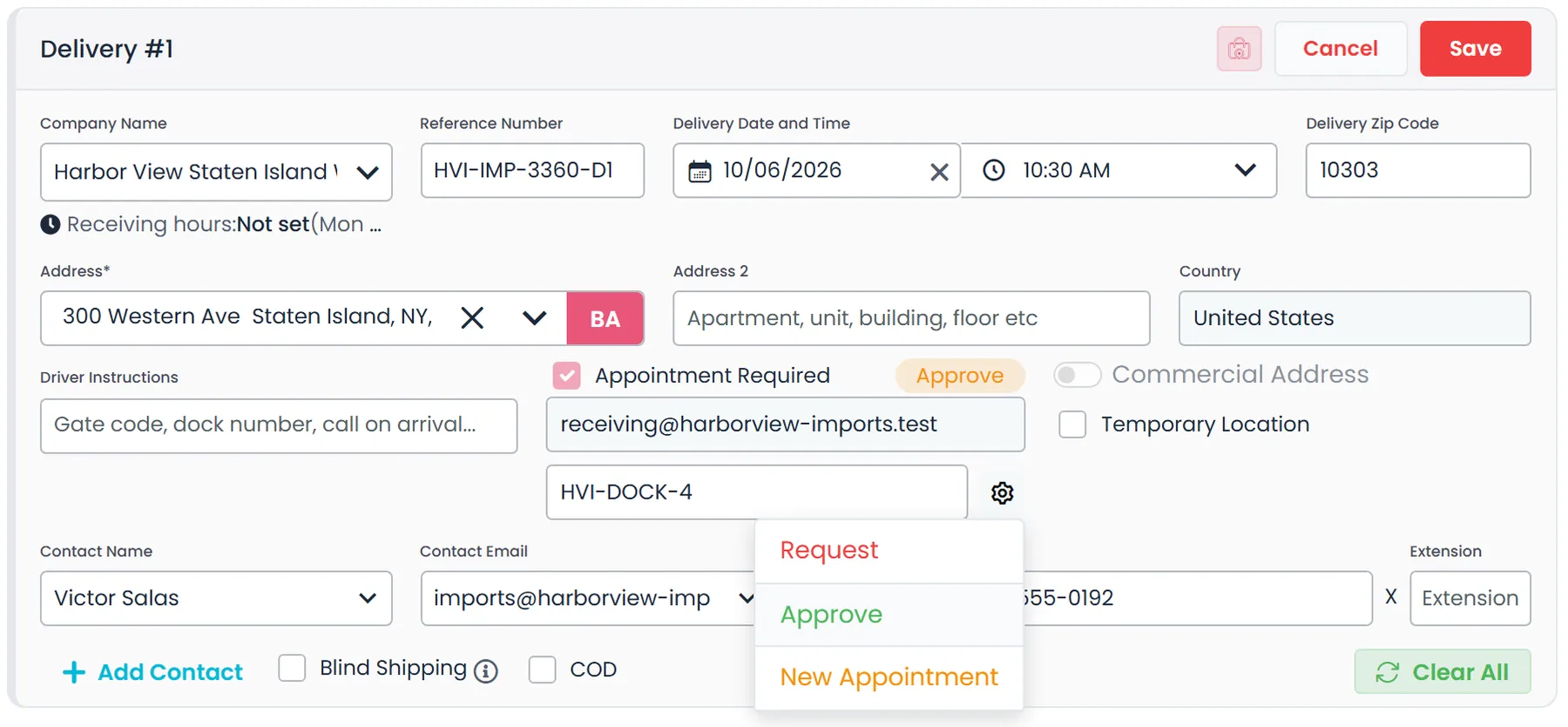
The appointment status
Every stop shows where its appointment stands
The status sits next to Appointment Required on the stop and on the reply in the customer's Inbox. RushHour moves it when the email goes out and when the receiver answers. Your team moves it the rest of the way.
- Request
When you tick Appointment Required
The stop is flagged and the appointment email fills in. Nothing has been sent yet.
- Requested
When the request email goes out
Press Request and save the stop, and RushHour emails the request with a reply link that works once. A new stop added to an existing order sends it as soon as you save it with Appointment Required ticked. If the email can't be sent, the stop goes back to Request so you can press it again.
- Approve
When the receiver replies
Their date and time are written onto the stop, and the reply lands in the customer's Inbox to wait for your decision.
- Accepted
When you press Approve
Approve on the stop, where it needs a date and a time, or on the reply card in the Inbox. A confirmation code you record shows next to the status.
A company admin proposes a From and Till window. The receiver gets a new email and link, and the stop goes back to Requested. The same action re-opens an Accepted slot that falls through and clears its confirmation code.
From the request to the accepted slot
The appointment lives on the stop
Every step your team takes, from flagging the stop to approving the slot, happens on the order and in the Inbox.
Mark it up front
Flag the stops that need an appointment
Tick Appointment Required on a pickup or delivery stop. The stop saves without a date or time, so an order waiting on a slot is never blocked, and the empty date and time stay highlighted until the slot is set. The appointment email fills in from the Appointment address saved on the stop's company, or else on the order's customer. If there are several, you pick one from a list, and you can type a different address at any time before the request goes out.
- Pickup and delivery stops
- Saves without a date or time
- Status label and confirmation code on the stop
- Pick from the customer's Appointment addresses or type another
- When the stop's customer has no appointment email yet, the address you type is saved to them and fills in on their next stop. If they already have it under another email type, you choose Save or Use once.New in the October 2026 release
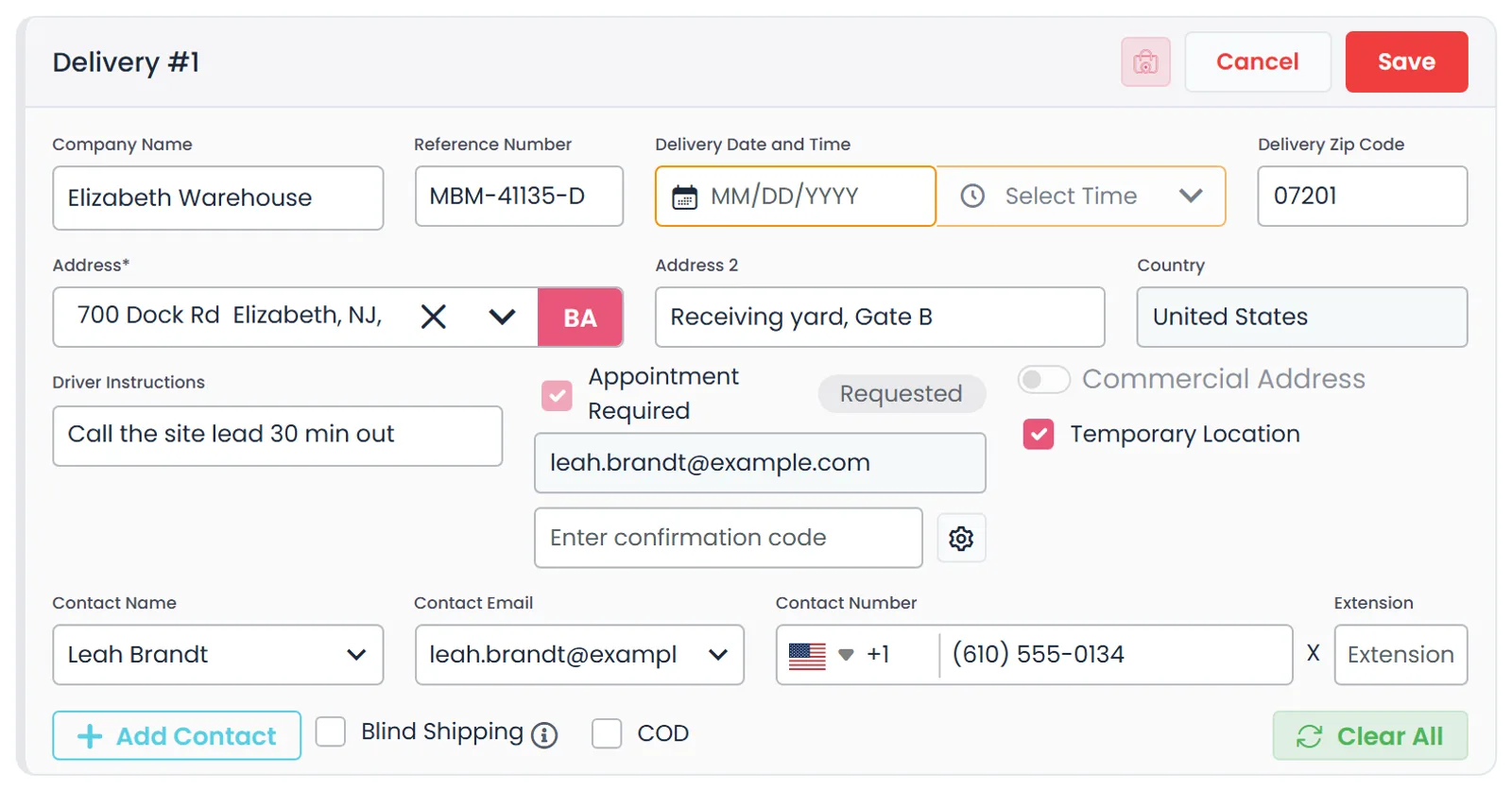
Ask the right contact
The request goes to the right contact, under your name
Choose Request from the stop's appointment menu and the request is sent when you save the stop. It goes to the appointment email on that stop, and Request stays unavailable until that field has an address. A new stop added to an order that already exists sends its request as soon as you save it with Appointment Required ticked, and if its appointment email is empty, that request goes to the customer's appointment address, or else their main email. The letter carries your company name, the order number, the stop's company and address, the freight, the date if the stop has one, and a Confirm appointment button. If the email can't be sent, the stop still saves and you can press Request again.
- Per-stop appointment email
- Filled in from, or falls back to, the customer's appointment address
- Sent under your own company name
- Names the order and the facility, not internal stop numbers
- Labels the stop Pickup from or Delivery to
Their reply, your decision
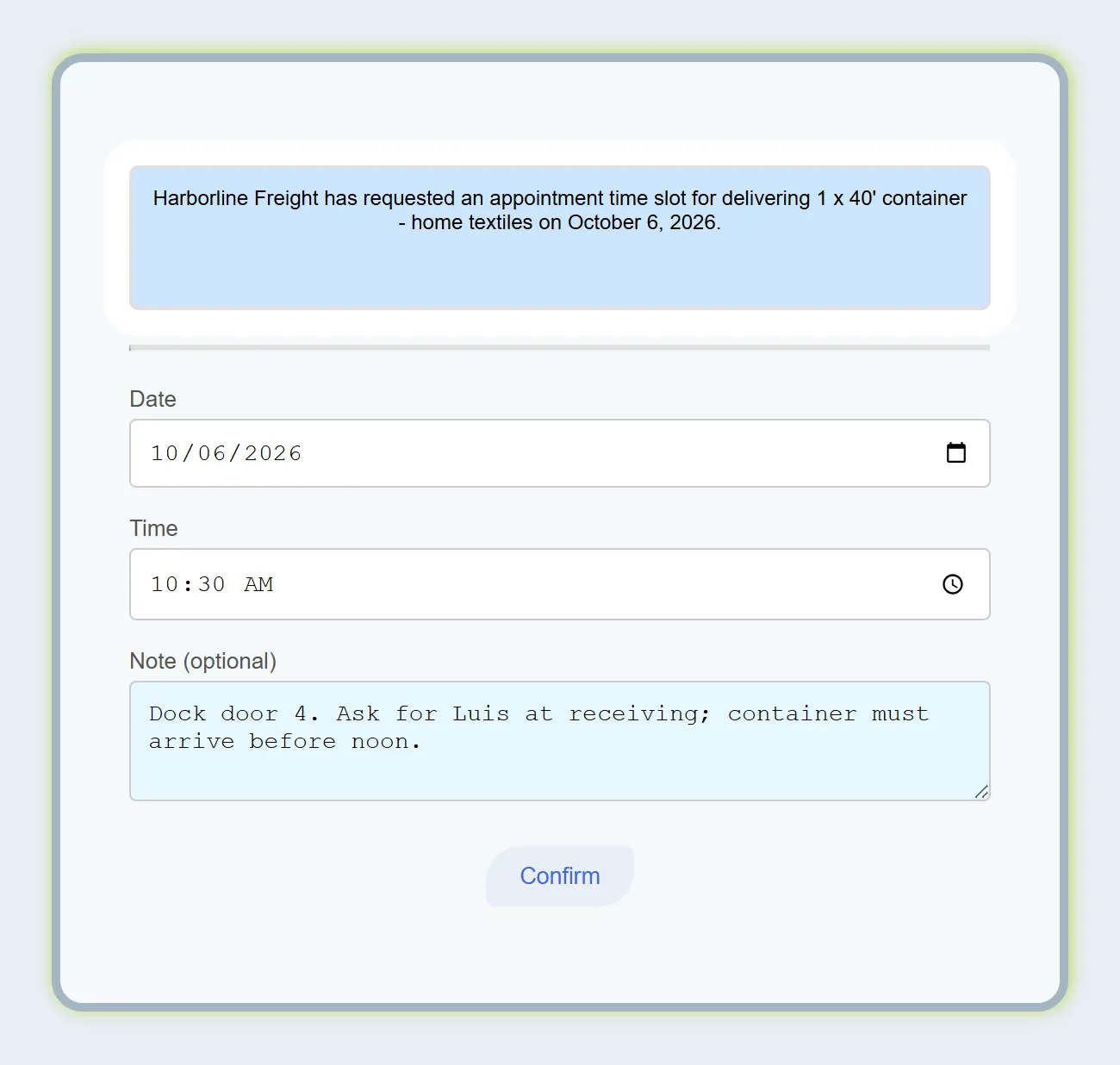
The receiver replies and the stop gets a time
They open a form from the email, with no account and no portal, and pick a date, a time and a note. The reply writes that date and time onto the stop, moves the appointment to Approve to wait for your decision, and appears in the customer's message thread against the order and the stop. The slot is accepted when your dispatcher presses Approve.
- No login for the receiver
- Writes the date and time onto the stop
- The link works once and expires after 96 hours
- Date is required; time and note are optional
- Approve on the stop needs both a date and a time
When the time won't work
Propose a window and ask again
If the time they picked doesn't fit, a company admin can send a New Appointment request with a From and Till window. The receiver can answer inside it or suggest another time. Their answer is labelled within or outside the proposed range and threads onto the earlier reply, so the whole exchange reads as one conversation. Start it from the stop's appointment menu or from the reply card in the Inbox, on the order or on the customer.
- Propose a From and Till window
- Answers labelled within or outside the range
- Threaded as one conversation
- Approve or ask again right from the reply card
- The form shows your window and pre-fills its start
- Also re-opens an Accepted slot that falls through
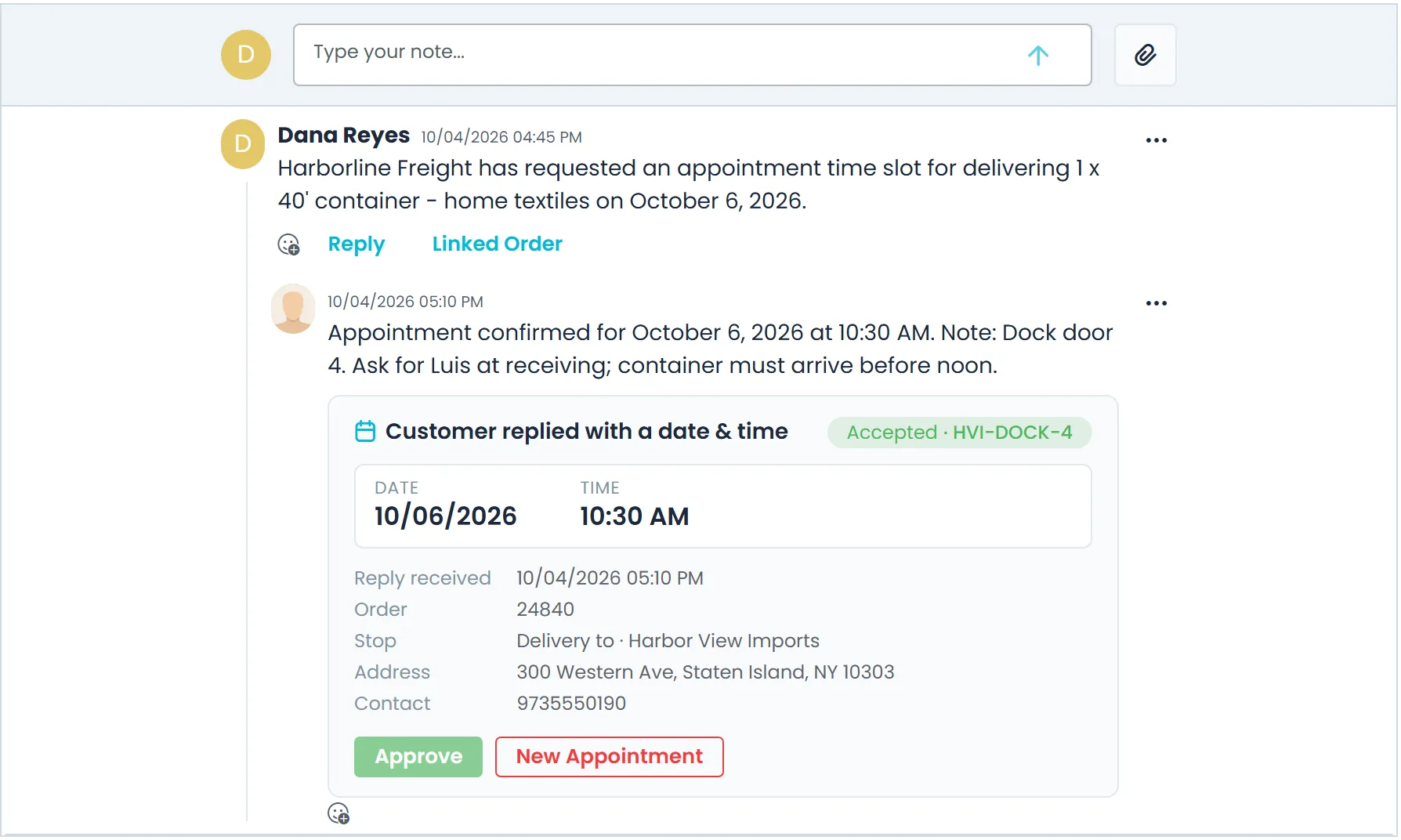
Where appointment scheduling earns its place
The time flows through
The date and time from the reply become the stop's schedule, so dispatch and the BOL show it without anyone re-typing it.
Confirmation code on the stop
Once the slot is accepted, record the facility's confirmation code next to the appointment status, where the whole team can see it.
Missed appointments called out
Ask the AI Assistant which orders are late, and stops that missed an accepted appointment are flagged as missed appointments.
Nothing agreed off the record
Changes to the appointment status, code and email are captured in the order's audit log, and every request and reply stays in the customer thread.
Built-in safeguards
Guardrails on every request and reply
The rules that keep a request, a reply and a confirmed appointment from going wrong behind your back.
One answer per link
Each request link works once and expires 96 hours after it is sent. An expired link, or one whose request was already answered or confirmed or whose stop was deleted, opens a short notice instead of the form.
A failed email never blocks the stop
The stop saves either way. If the request can't be sent, the status goes back to Request, so you can press Request again.
A confirmed slot stays confirmed
A reply can't overwrite an appointment you have already approved. Re-opening an Accepted slot takes a deliberate New Appointment, which also clears the old confirmation code.
The same contact all the way through
Once the request is out, the appointment email on the stop locks, so the conversation stays with the address you asked. Clear All on the stop keeps an appointment whose request has already gone out.
Appointment scheduling questions
Does the receiver need a RushHour account?
No. The email has a Confirm appointment button that opens a short form: a date, an optional time and an optional note. There is nothing to sign in to. The link works once and expires 96 hours after it is sent.
Who gets the appointment request?
The address in the stop's appointment email field. RushHour fills it in from the Appointment address saved on the stop's company, or else on the order's customer, and you can pick another or type any address. If a new stop added to an existing order is saved with that field empty, its request goes to the customer's appointment address, or else their main email. When the stop's customer has no appointment email yet, the address you type is saved to them for their next stop. Saving it needs permission to edit customers.
What if the time they pick doesn't work for us?
A company admin sends a New Appointment request with a From and Till window that works for you. The receiver gets a new email and link, can answer inside the window or suggest another time, and the reply is labelled within or outside the proposed range.
Does it work for pickups as well as deliveries?
Yes. Tick Appointment Required on any pickup or delivery stop. The email names the stop as Pickup from or Delivery to, with the facility's company name and address.
Where does the agreed time show up?
The receiver's date and time become the stop's own date and time, so the order, the dispatch board and the bill of lading show them without re-typing. The appointment status and confirmation code stay on the stop, and changes to them are recorded in the order's audit log.
Who can send appointment requests?
Pressing Request or New Appointment needs the Admin role in RushHour. A new stop added to an existing order with Appointment Required ticked also sends its request when it is saved. Anyone who opens the stop sees the status, the appointment email and the confirmation code.
Is this a dock-door scheduling calendar?
No. It works from the carrier's side: RushHour emails the facility at a pickup or delivery stop, asks for a slot and records the answer on your stop.
Related features
See it on one of your stops.
In a demo we'll flag a delivery that needs an appointment, send the request, reply as the receiver and approve the slot, so you can watch the stop fill in.