
Less switching.
More moving.
Many freight operations keep orders, dispatch, driver paperwork and invoicing in different places, and pay for it in re-keying and phone calls. In RushHour, the order your team enters, your shipper books or you import from a spreadsheet is the same record dispatch assigns, the driver completes in the app and the invoice is built from.
One record, four steps
What each step hands to the next
Nothing is copied from one screen to another. This is what moves forward at each step, without anyone typing it again.
1. Order in
The customer, each pickup and delivery with its date and time, the items and the agreed price, whether your team typed it, the shipper booked it or it came from a file.
2. Dispatch
The stops go onto a driver's route in order, and the driver's app gets a push notification when a stop is added, removed or re-ordered.
3. At the stop
The driver confirms the items and, as your settings ask, records photos, extra charges, scanned paperwork and a signature. Confirming the last stop closes the order.
4. Invoice
The invoice is built from the order and from what was recorded at each stop. Your team checks it, sends it and records the payment.
Where the re-keying goes
One order, four handoffs, typed once
Each step reads the same record, so nobody copies an address into a driver text or retypes a charge on an invoice.
Order in
The order is entered once, wherever it starts
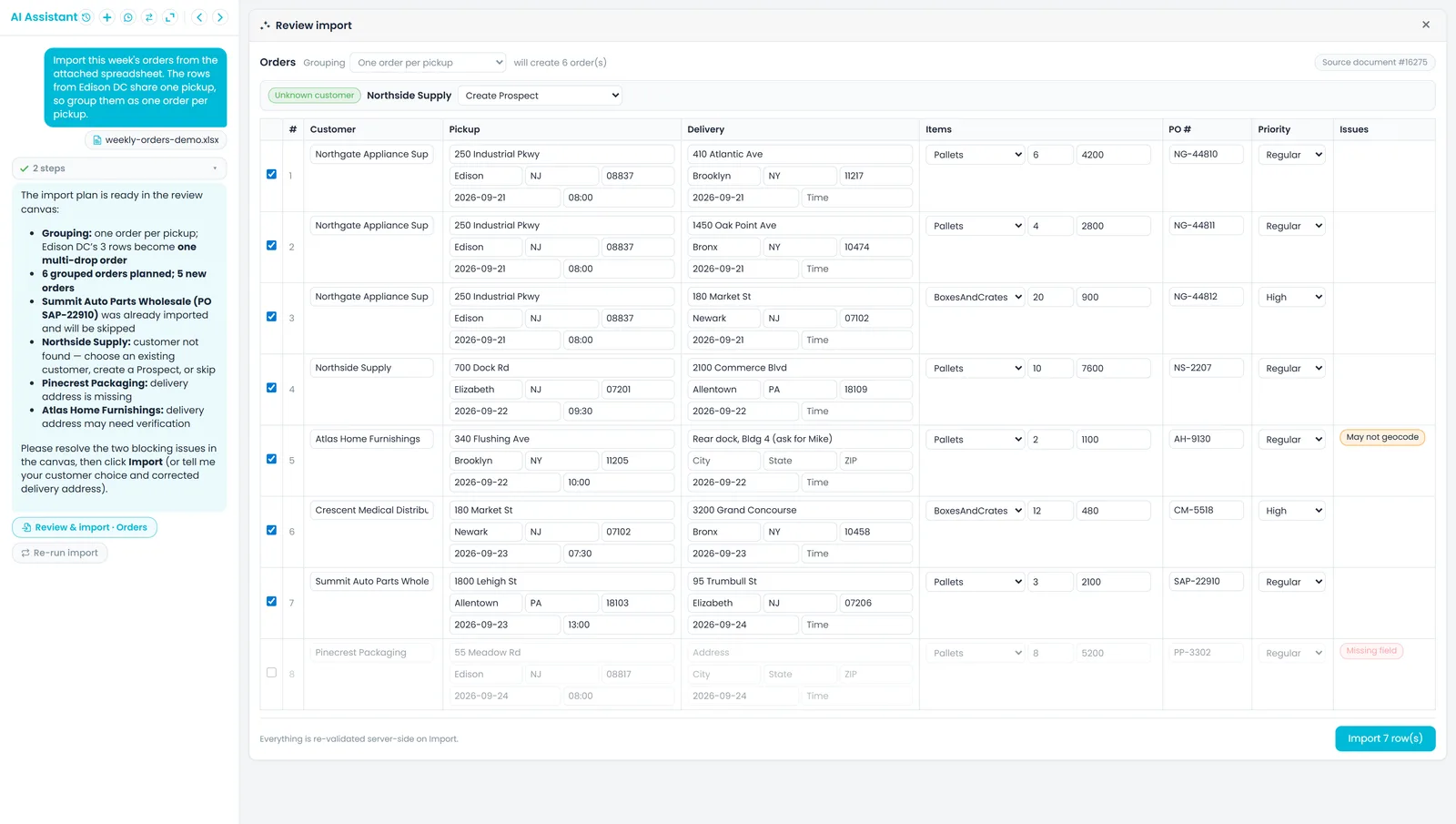
Your team builds orders and quotes in the order workspace. Shippers with a Customer Portal login book their own and submit it, and it reaches your team as a quote waiting for approval; they can also repeat a past order in one step. A spreadsheet, PDF or scan of orders goes to the AI assistant, which lays the rows out in an editable review: choose how rows are grouped, match the customer, and rows whose PO number is already on file are skipped instead of duplicated. Nothing is created until someone confirms.
- Shippers book and repeat orders in the Customer Portal
- Spreadsheets, PDFs and scans become orders you confirm
- Orders with a PO number already on file are skipped
- A shipper's draft stays private until they submit it, and a submitted order waits for your team to approve it
- Unknown customer names are never guessed: pick an existing customer, create a prospect or skip the rows
Dispatch
Assign it by dragging, not by phoning around
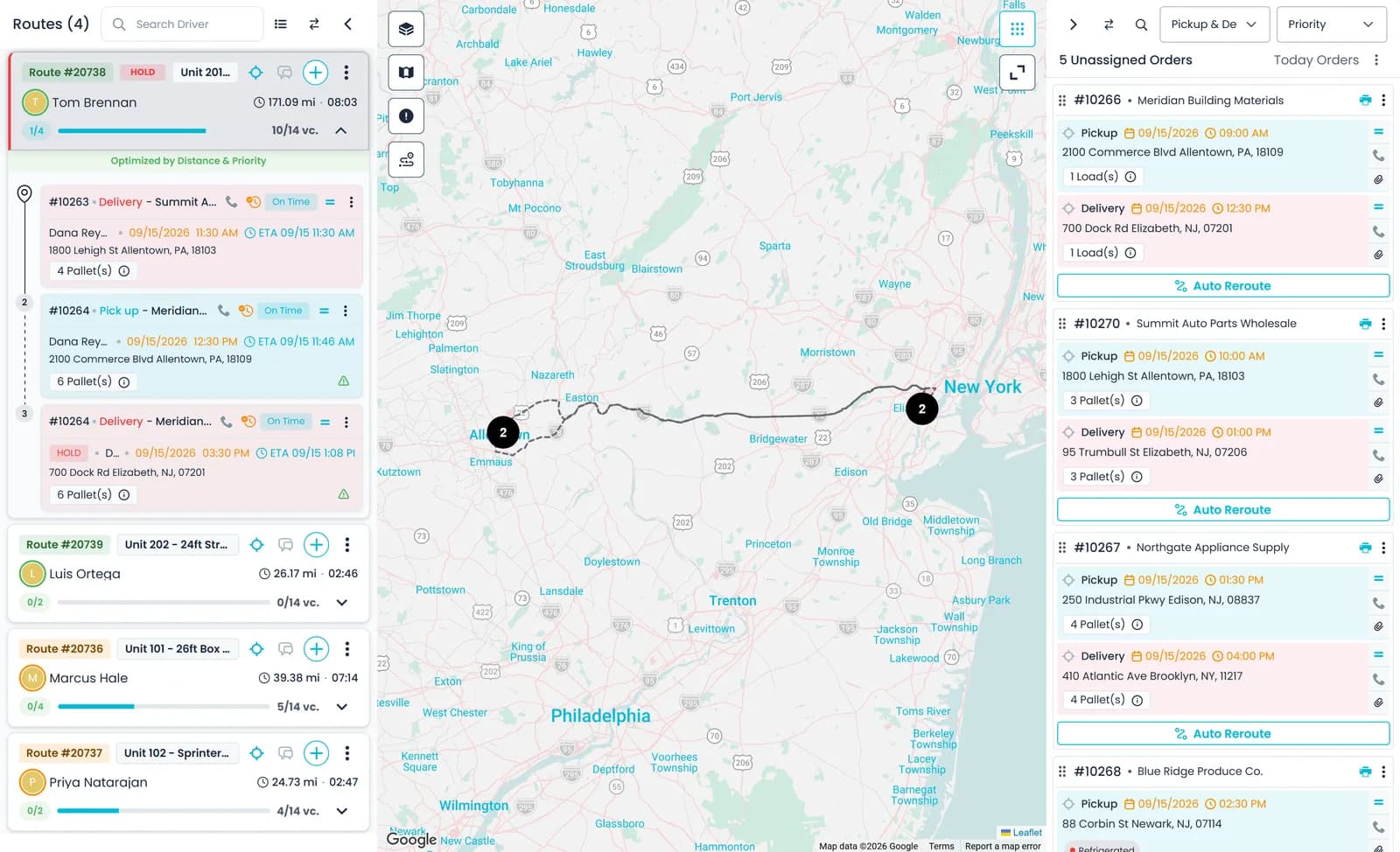
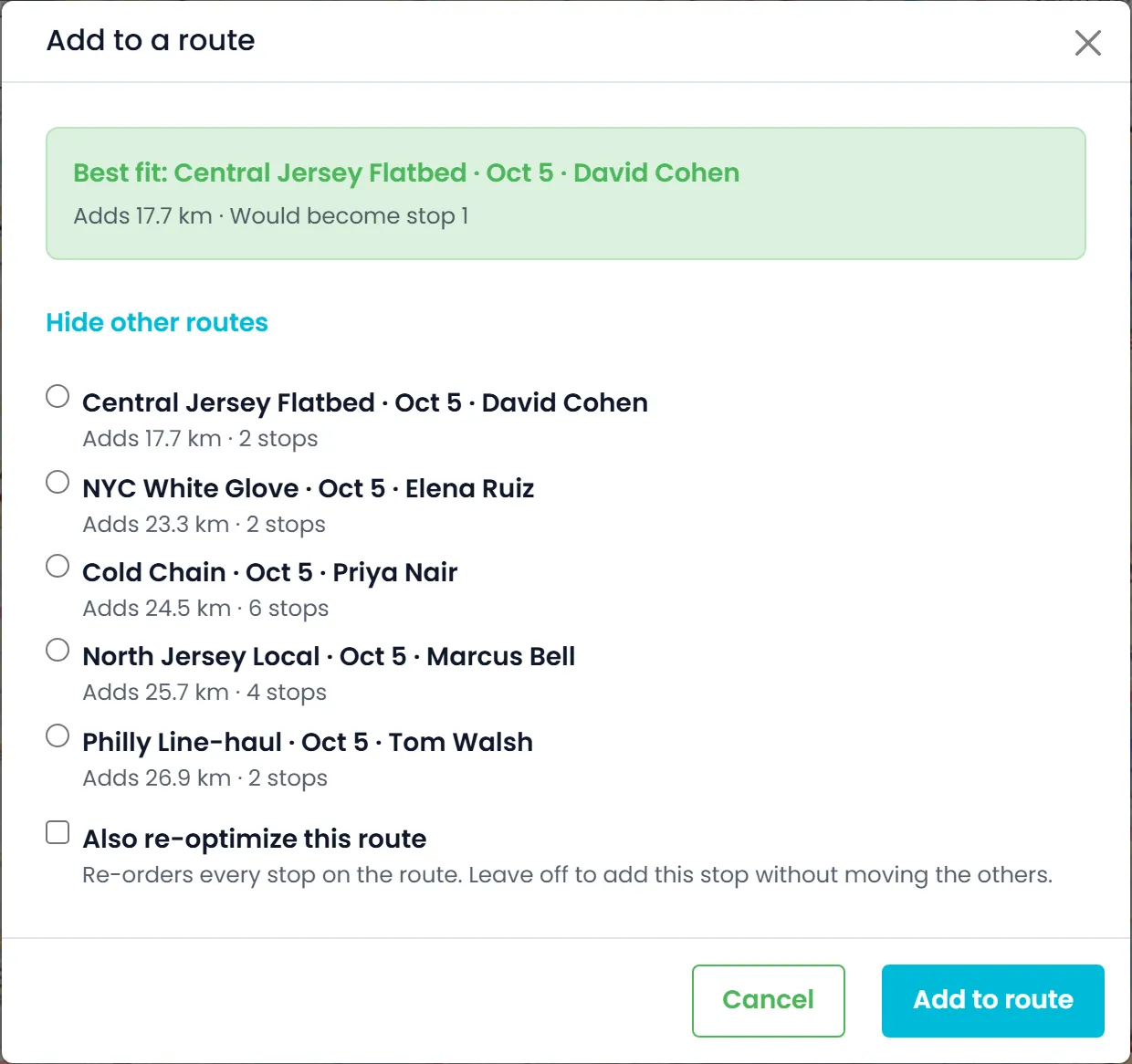
Unassigned orders sit next to the routes on the dispatch board. Drag one onto a route card, or click Find Route on the order card to open Add to a route and see the best-fit route, how far it adds and which stop it would become. Re-order a route's open stops by distance, by priority or with AI, and completed stops stay where they are. The driver's app gets a push notification when a stop is added, removed or re-ordered, and dispatch and drivers can message each other in the app. If you connect Samsara, your trucks appear on the same map.
- Drag-and-drop assignment on the dispatch board
- Best-fit route suggestions with the added distance
- Driver notified when stops are added, removed or re-ordered
- The button on unassigned order cards is called Find Route (it was Auto Reroute), orders too big for one route are flagged, and selecting an unassigned order lists the routes with room for all of it firstNew in the October 2026 release
At the stop
The driver closes the stop, and the order closes with it
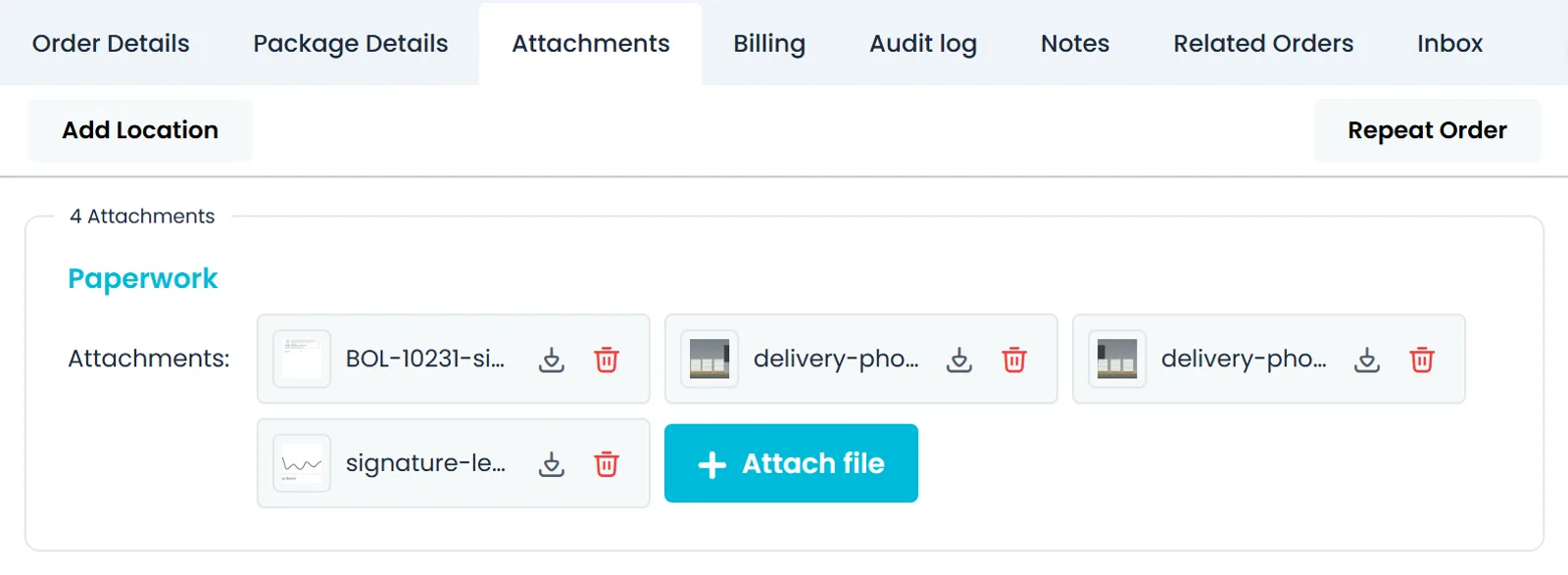
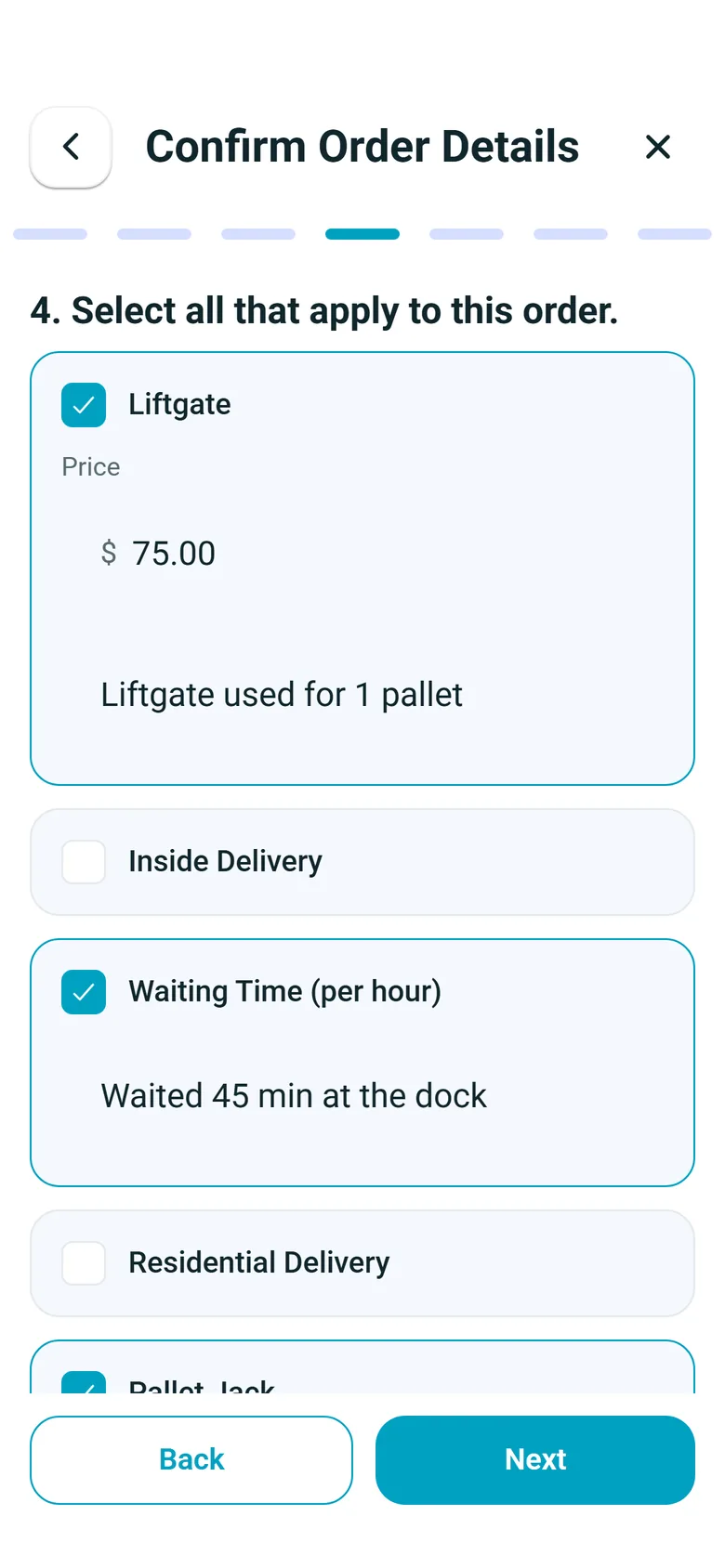
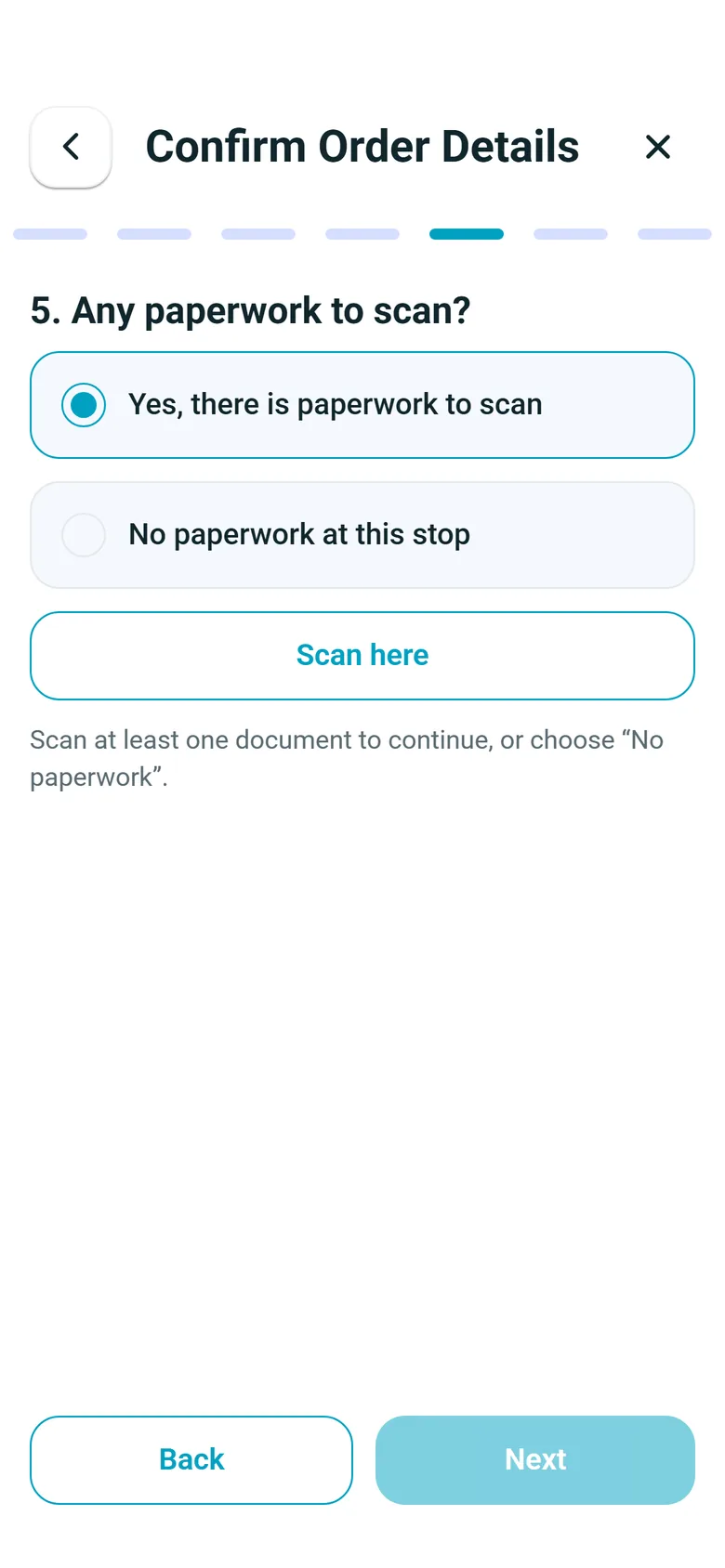
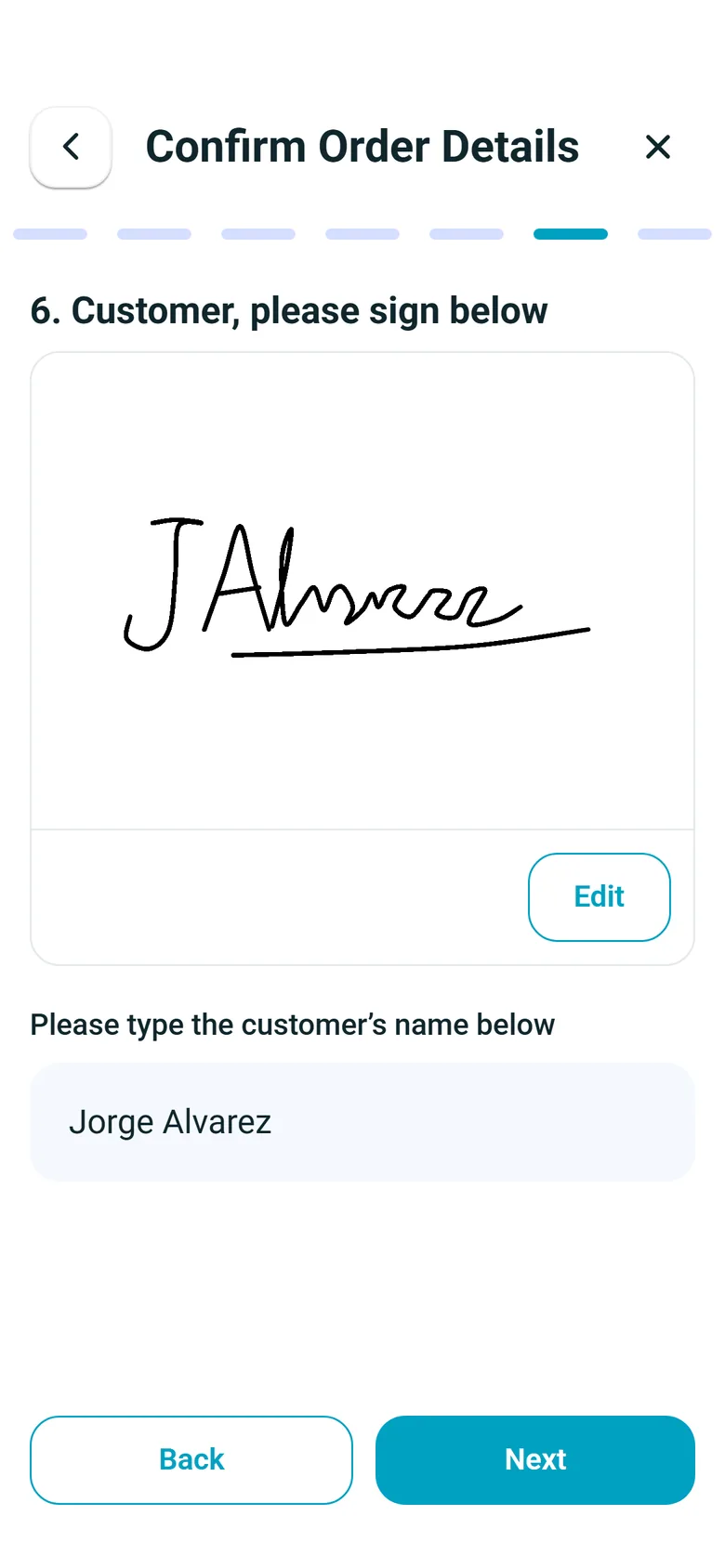
The driver works each stop in the RushHour driver app: goods photos, extra charges such as a liftgate, and the receiver's signature. The driver can also scan the signed paperwork into a PDF that is attached to the stop, and you choose which steps appear and which are required in Settings > Driver App. When the driver confirms the stop that completes the order, the order closes itself. Nobody in the office has to click Close.
- Photos, signature and stop charges captured in the driver app
- Paperwork scanned to a PDF on the stop
- Confirming the last stop closes the order
- Settings > Driver App switches the photo, charges, paperwork and signature steps on or off, and decides whether a missing photo or signature blocks the stop or only warns the driver
In the driver app
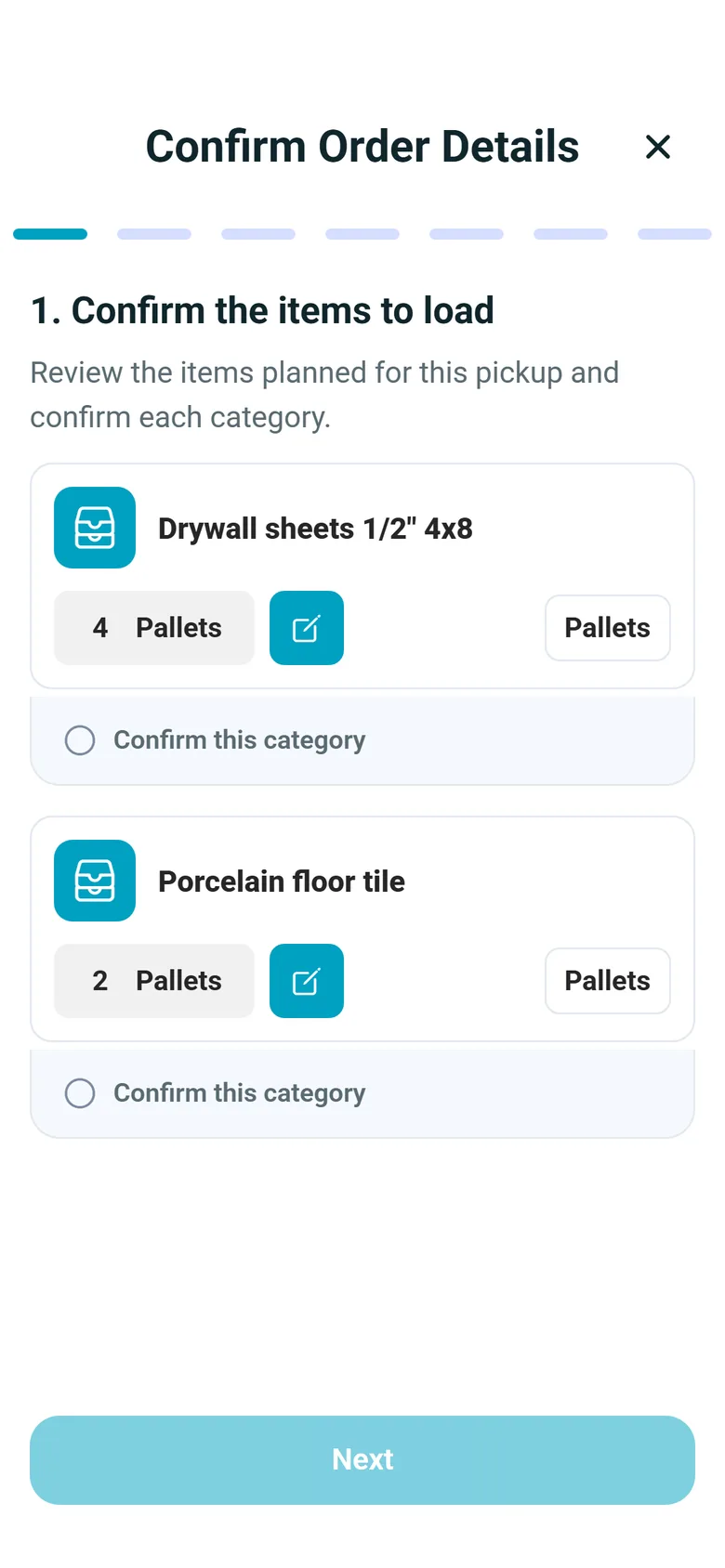
The stop, one question at a time
The driver app walks the driver through each stop in order and shows how many steps are left. These are the screens of a pickup; steps your company switches off are skipped.
Invoice and cash
The invoice is already built when the load is delivered
You do not have to start the invoice. Settings > Billing decides when it is created: when the order is created, when it is completed, or only by hand. In either automatic mode, closing an order also builds the invoice if it is missing. Its lines come from the order: the items, the agreed price, the charges recorded at each stop and billable waiting time. For an order the office closes, Close & Create Invoice closes it and builds or replaces its invoice in one step while an automatic mode is on. Then email it, charge the customer's saved card through Cardknox or record a payment, and apply one payment across several open invoices. With QuickBooks Online connected in Auto mode, approved invoices for closed orders are sent there for you; QuickBooks Desktop users can download an export file to import.
- Invoice created automatically by default
- Stop charges and waiting time become invoice lines
- Cardknox card payments and QuickBooks Online export
- Invoices go out only when someone on your team sends them
- New companies start on Order was completed, and existing companies keep their current settingNew in the October 2026 release
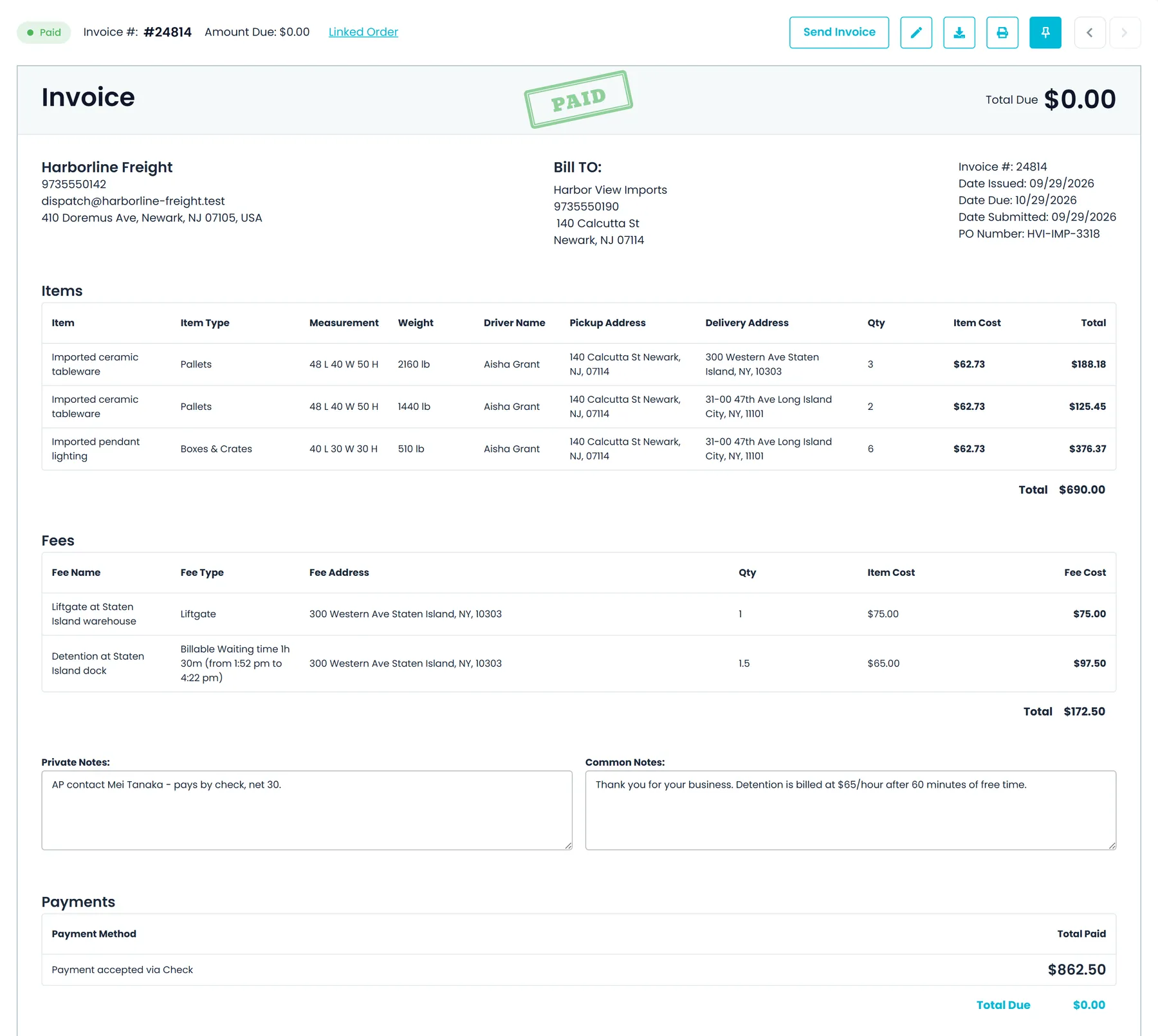
Settings > Billing
Choose when the invoice is created
Create Invoices has three settings. With either automatic one, closing an order also builds the invoice if it is still missing.
Order was created
The invoice is created with the order, so it is there from the start. New companies start with Order was completed instead.
Order was completed
The invoice is created when the order is completed: after the driver confirms the last stop, or when the office closes the order. New companies start with this setting.
Manual
Nothing is created on its own. Someone clicks Create Invoice in Invoice Actions on the Orders list when the order is ready to bill.
While the day runs
See what is stuck before a customer calls
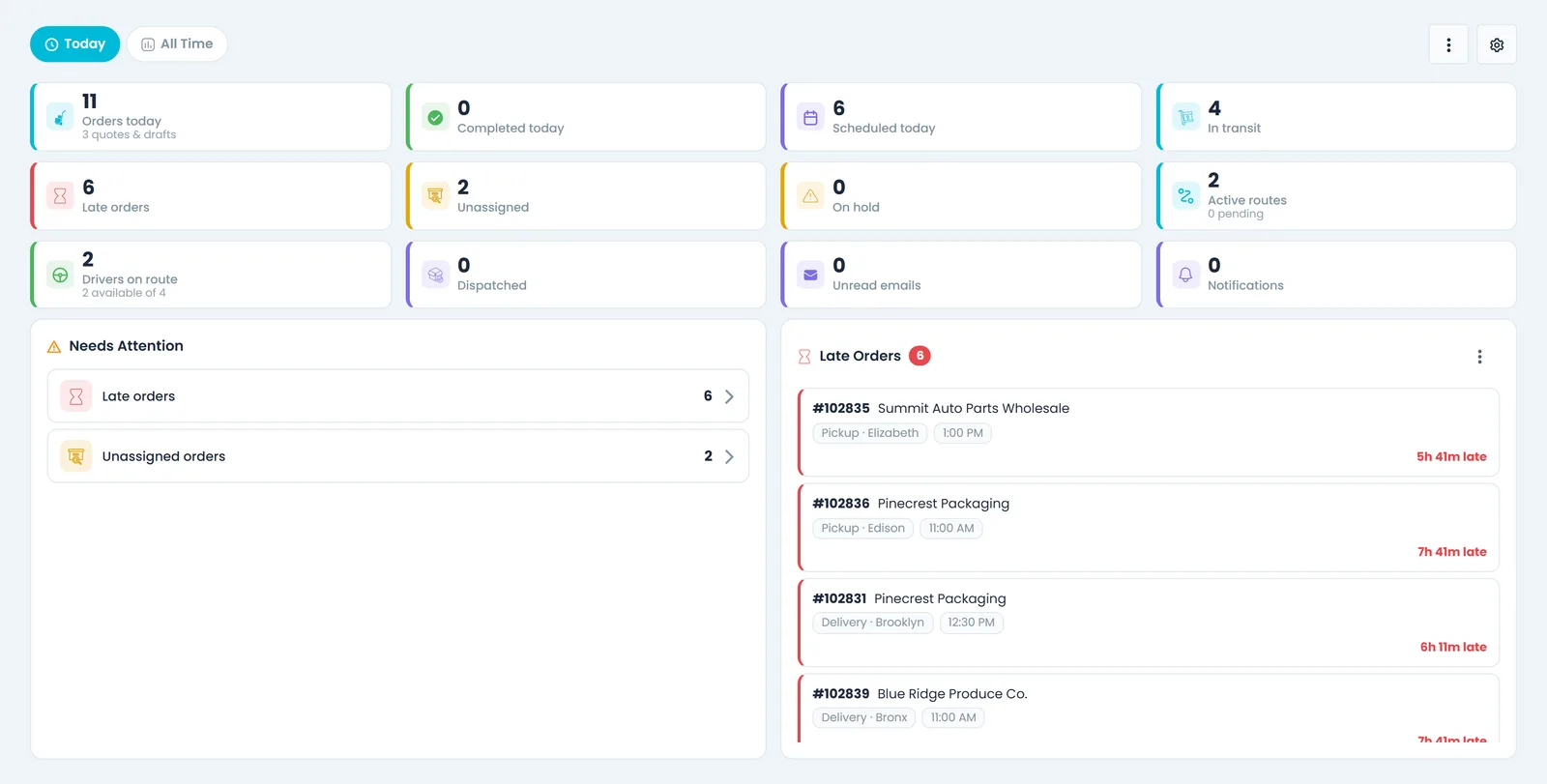
The Today dashboard counts the day's work and flags what needs a person, from the same orders and routes.
Dashboard, Today tab
Each count is one click from the screen behind it
Up to twelve tiles count orders entered today, completed and scheduled today, in transit, late, unassigned, dispatched and on hold, plus active routes, drivers on route, unread notifications and, for users with Inbox access, unread emails. The page refreshes itself every minute while it is on screen, and each tile opens the screen behind it: Orders, Dispatch, Drivers, the Inbox or the notifications panel. Needs Attention shows only what is waiting for someone, and Late Orders lists the most recent late loads with the overdue stop and how late it is.
- A pickup counts as late 2 hours after its scheduled time, so a last-minute order is not flagged the moment it is saved
- The 10 orders that went late most recently are listed, with a count of how many more are late
- Users who can see invoices can add widgets for closed orders never invoiced and for AR aging
What one system changes
Fewer places for it to go wrong
Enter it once
The order becomes the route stop, the driver's task and the invoice lines. Nobody retypes it.
Invoice the day it delivers
The last confirmed stop closes the order, and with the default setting the invoice is already there.
See what's stuck
Dashboard tiles for unassigned, late and on-hold orders, plus widgets for closed orders never invoiced and AR aging.
Paperwork on the load
Photos, signatures and scanned paperwork are attached to the order they belong to. RushHour holds 100,000+ documents so far.
What has run through RushHour so far
Recently added
Less paperwork and fewer reminders
These changes are in production now. The changelog lists what each release added.
Orders list
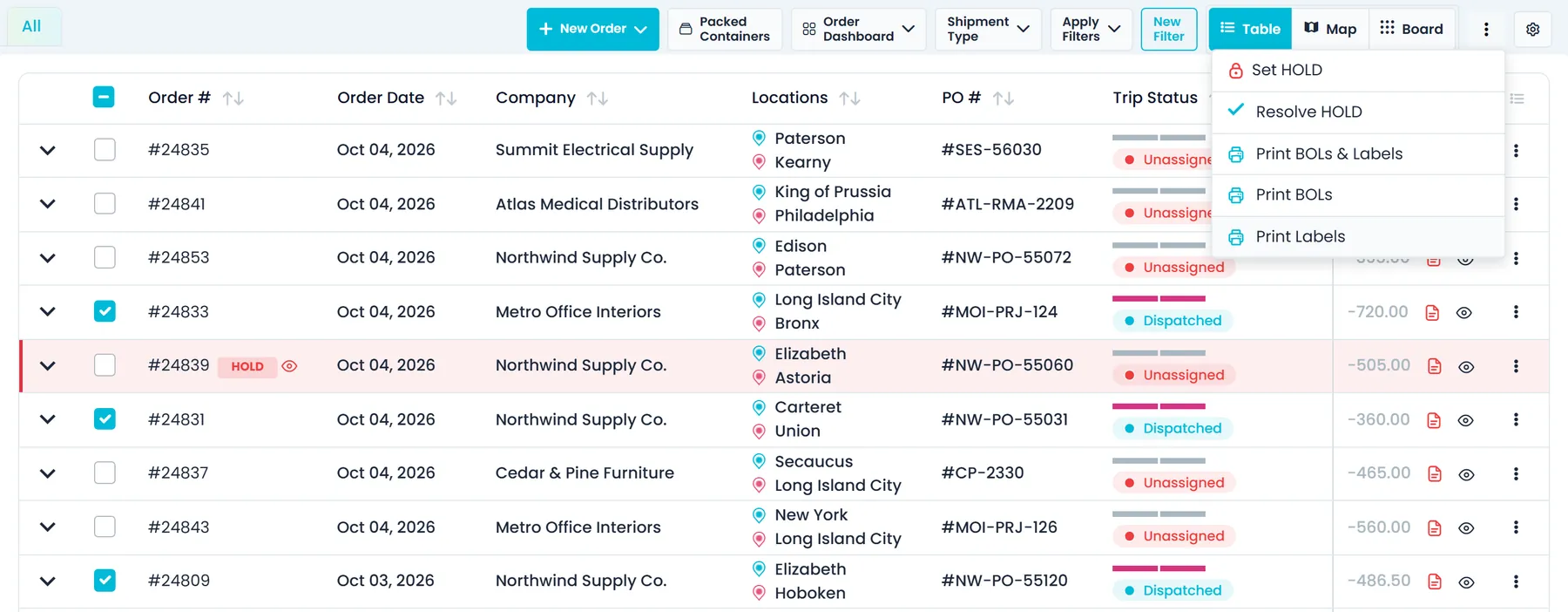
Print a whole morning's BOLs and labels at onceNew in the October 2026 release
Tick two or more orders on the Orders list, open the … (Actions) menu at the right of the toolbar and choose Print BOLs & Labels, Print BOLs or Print Labels. They all come out in one print job.
- Up to 50 orders in one print job
- Needs the View BOL permission, like the BOL on a single order
- Works on the Orders list in both the New UI and the Old UI
Customer notifications
Email each order's tracking link to your customer automaticallyNew in the October 2026 release
Turn on Tracking link emails in Settings > Customer Notifications, with Settings > Tracking Links on, and each order's tracking link is emailed to your customer once, at the step you choose: driver assignment, booking or pickup. By default it goes to the order's contact email, or else to the customer's arrival and departure email addresses.
- Off until you switch it on
- Choose Don't send on a customer's Notifications tab to leave that customer out
- Orders already past the chosen step when you switch it on are not emailed, and each send appears in the order's activity log

Dispatch
Leftover items become a new delivery for the driver you chooseNew in the October 2026 release
When you confirm an order's last stop with items left over and choose Confirm & Create Delivery, the Add Items to Delivery window offers the items still to deliver. After you add them, you are asked "Assign to the same driver?" Yes gives the new delivery to the driver who has the items, and No leaves it in Unassigned. While that delivery still has items to deliver, the order stays open.
- The window offers what is left after the quantities you just lowered
- Yes keeps the delivery with the driver who has the items; No sends it to Unassigned
- Works in the New UI and the Old UI
Dispatch board
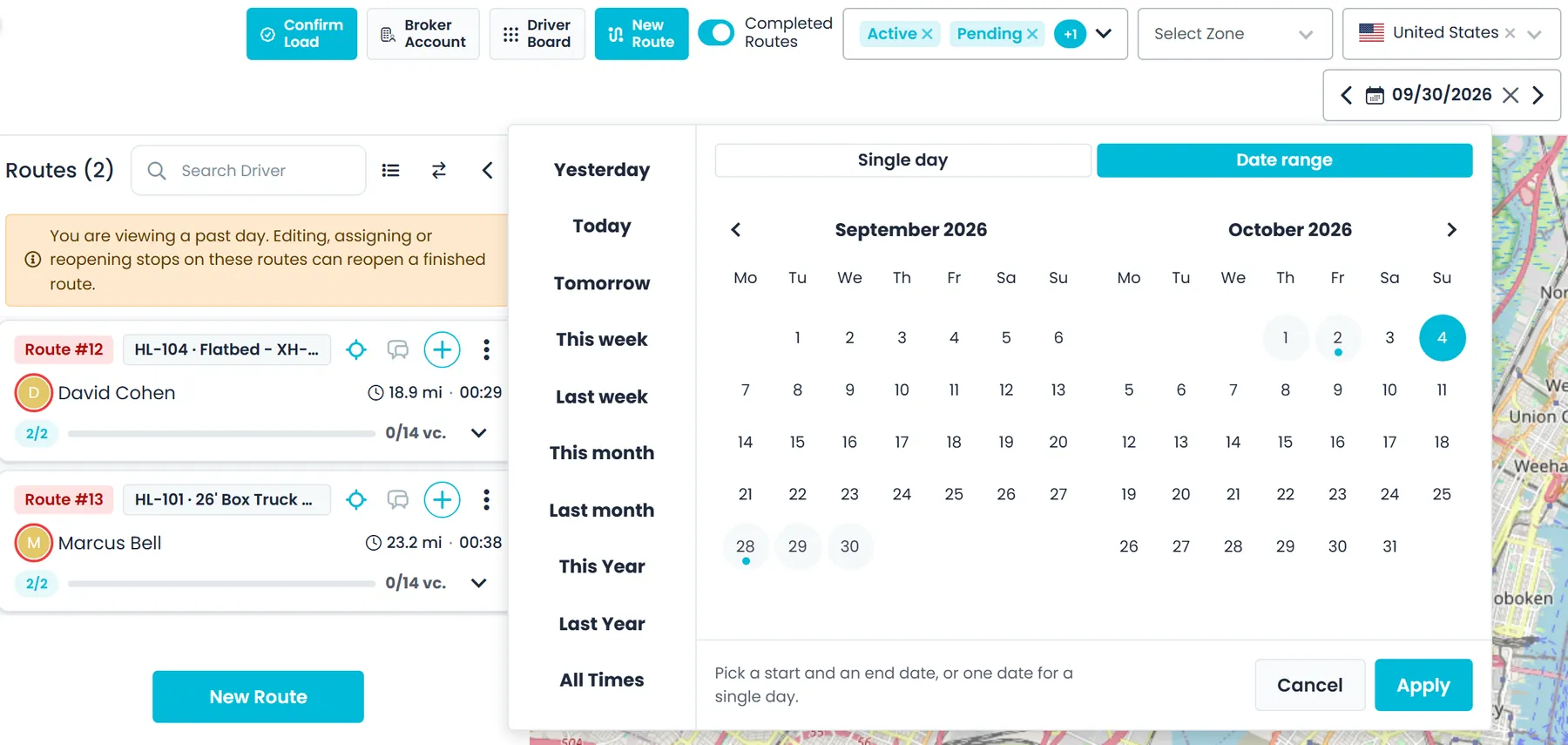
See the board for one day or a date rangeNew in the October 2026 release
One date control on the Dispatch board, in the New UI and the Old UI, offers Yesterday, Today and Tomorrow, this or last week, month or year, All Times, a single-day calendar and a date-range calendar. Routes, their stops, the Unassigned panel and the Driver Board follow the dates you pick, and the dates stay in the page address, so a reload or a shared link opens on them.
- Arrows step to the previous or next day or period
- A range that has already ended opens the same past-day view as an earlier date
- The Orders list's date filter also offers Tomorrow
Questions
Order-to-invoice questions
Do we have to create invoices by hand?
No. Settings > Billing > Create Invoices has three settings: Order was created, Order was completed and Manual. With either automatic setting, closing an order also builds its invoice if it is missing, and the lines come from the order and from what was recorded at each stop. Invoices are not emailed on their own: someone on your team sends each one. New companies start with Order was completed, and companies that already existed kept their setting.
What does the driver do at each stop?
The driver app walks the driver through the stop one step at a time: confirm the items loaded or unloaded, photograph the goods, confirm the stop details, add any extra charges, scan the paperwork, collect a signature and rate the location. Your company switches the photo, charges, paperwork and signature steps on or off in Settings > Driver App, and chooses whether a missing photo or signature blocks the stop or only warns the driver. Confirming the stop that completes the order closes the order.
Can our shippers book their own orders?
Yes, in the Customer Portal. A shipper can save an order as a draft, which stays private to them, or submit it. A submitted order reaches your team as a quote that waits for your staff to approve it. Until then the shipper can edit it or withdraw it back to a draft, and a past order can be repeated in one step.
Our customers send orders as spreadsheets and PDFs. Do we still retype them?
No. Give the file to the AI assistant and it lays the orders out in an editable review: change cells, untick rows, choose how rows are grouped and match each customer. Unknown customer names are never guessed, and rows whose PO number is already on file are skipped. Nothing is created until someone clicks Import, and the server checks every row again when they do.
How do we choose the route for a new order?
Drag the order onto a route card, or click Find Route on its card in the Unassigned panel. The Add to a route window shows the best-fit route, how far it adds and which stop the order would become, with the other routes that can take it, and you can re-optimize that route in the same step. When you select an unassigned order, the routes on the board with room for all of it are listed first.
The products behind each handoff
See one of your loads go from order to invoice.
Bring a real order to the demo. We'll enter or import it, put it on a route, and show the stop steps in the driver app and the invoice that comes out the other end.