
Send the invoice with a pay link,
and get paid by card.
An approved invoice with a balance due can carry a secure payment link that you copy or email, and the invoice email includes a Pay online now link. Your customer pays the balance by card without logging in, through your own Cardknox account, and the payment is recorded against the invoice.
How it works
From approved invoice to paid, in four steps
Nothing for your customer to install or sign up for, and nothing for your office to retype.
1. Approve the invoice
Payment links are offered on approved invoices that still have a balance due, once your Cardknox account is connected.
2. Share the link
Copy pay link to paste into a text or a chat, Send payment link to email it, or email the invoice itself with its Pay online now link.
3. Your customer pays by card
They open the page without logging in, check the invoice summary and pay the full balance due in Cardknox's secure card fields.
4. The payment is recorded
RushHour applies it to the invoice as Paid online by card, and the link's status in the invoice preview changes to Paid online.
From invoice to paid
How payment links work
Payment links take cards through your own Cardknox merchant account, connected with your Cardknox keys under Settings → Integrations. Without it, the pay link actions and the email link do not appear. Staff also need the Manage invoice payment links permission: company admins have it, roles that can already email invoices get it automatically when the release reaches your account, and admins can give it to any other role.
Copy or send
A pay link for any approved invoice with a balance due
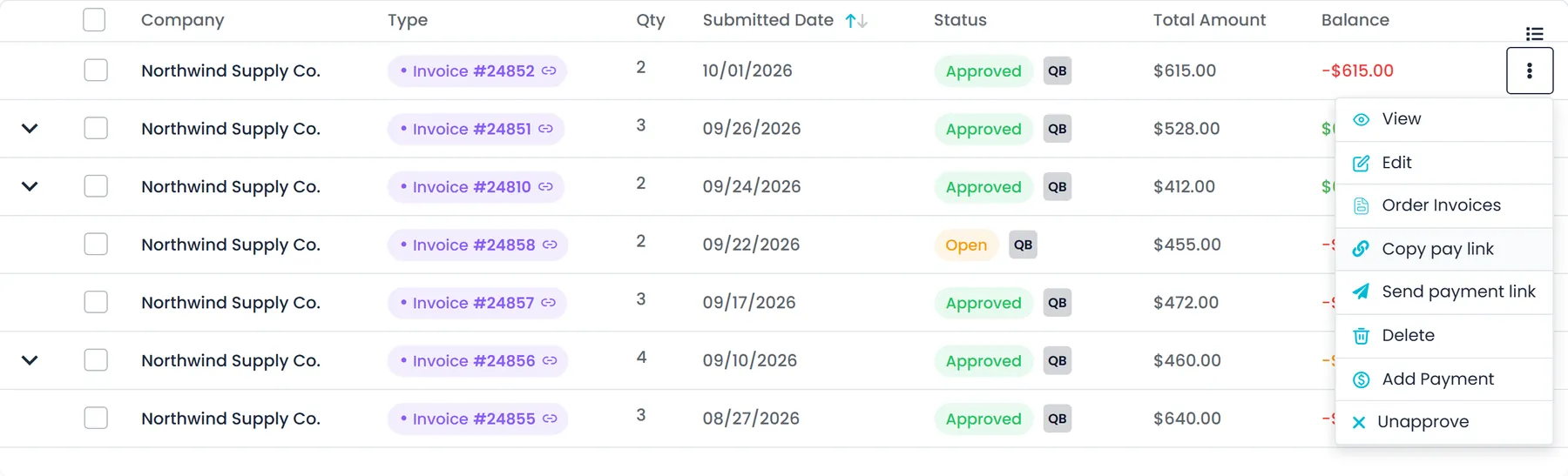
In Accounting, an approved invoice that still has a balance due offers Copy pay link and Send payment link, in the invoice row's … menu and in the invoice preview, in both the classic and new layouts. Copy pay link puts the link on your clipboard to paste into a text or a chat, and creates one first if the invoice has no working link. Send payment link emails it to the address you enter or, if you leave the field blank, to the customer's accounting email, or their first email on file if they have no accounting email.
- Copy pay link for a text, a chat or your own email
- Send payment link to any address, or the customer's accounting email
- In the row menu and the invoice preview, in both layouts
In the invoice email
The invoice email carries a Pay online now link
When you email an approved invoice with a balance due, the email includes a Pay online now link to that invoice's payment page: a button in your branded email layout, or a line with the link when branded emails are off. The link is added only while payment links are on and your Cardknox account is connected, so customers are not sent a link they cannot pay. Send payment link sends an email of its own, with the balance, a Pay online button and the date the link expires.
- Pay online now in the invoice email
- Left out when nothing is due or Cardknox is not connected
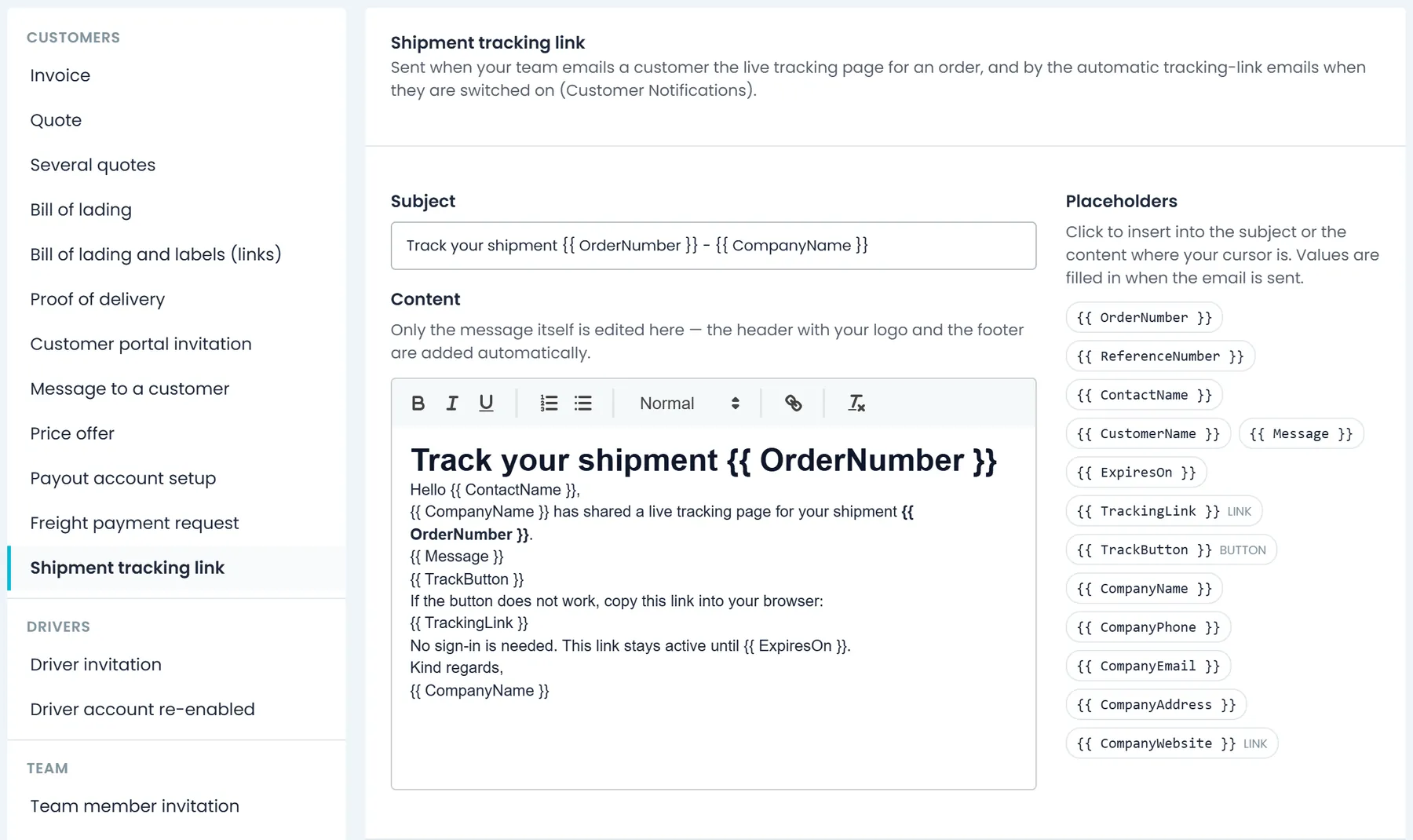
- Put the pay button where you want it in your own invoice email, with the PayButton placeholder in Settings → Email Templates
- A PayLink placeholder for the plain link, left empty when the invoice cannot be paid online
What your customer sees
One secure page, with no login and no account
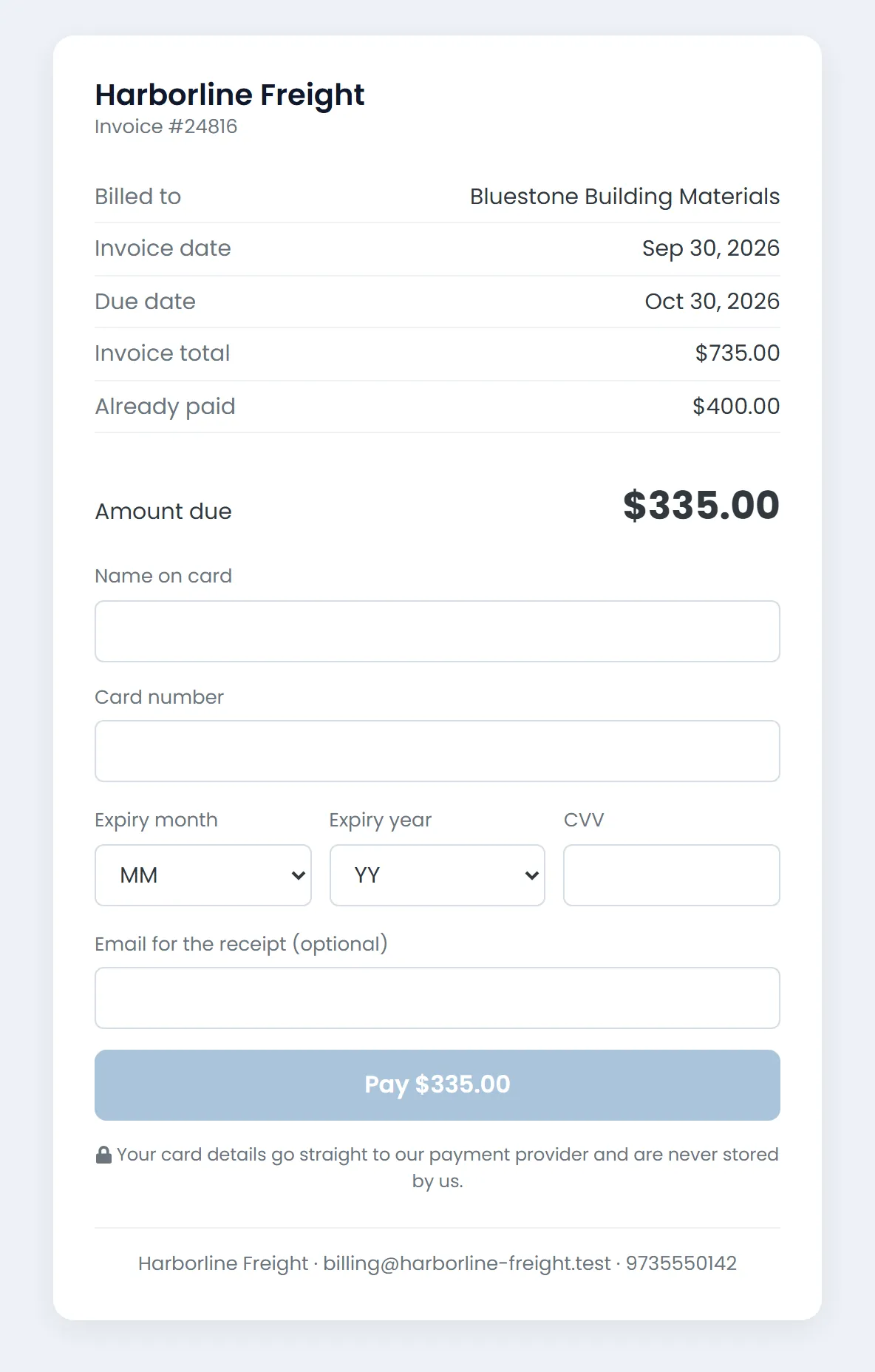
The link opens a page with your company name and logo (when you have one set), the invoice number, who it is billed to, the invoice and due dates, the total, anything already paid and the amount due. Your customer types the card number and CVV into Cardknox's secure fields and pays the full balance due, an amount taken from the invoice that cannot be changed on the page. When the payment goes through, they see a thank-you with the amount and a payment reference.
- Invoice summary and the amount due
- Card number and CVV go straight to Cardknox
- Payment reference on the thank-you screen
- Name on card and an email address are optional, and are saved in the payment's note
Back in Accounting
The payment is recorded on the invoice for you
When the card is approved, the charge goes through your own Cardknox account and RushHour records the payment against the invoice. It is listed there as Paid online by card, with the Cardknox reference in the payment note, and a link that has been paid cannot take a second payment. For an invoice raised from an order, the order's Log Activity tab shows Payment Link Sent when you use Send payment link, and Paid Online when the customer pays.
- Applied to the invoice without retyping anything
- Payment Link Sent and Paid Online in the order's Log Activity tab
- A paid link cannot be charged twice
- Listed in Accounting's Payments Received as Paid online
Your controls
See where each link stands, and stop it when you need to
The invoice preview's Payment link panel shows the link's status (Not opened yet, Opened, Paid online, Expired or Revoked), when it was opened, when it expires and who it was last sent to. Each link expires 30 days after it is created; New link replaces it and stops the old one at once, and Revoke stops a link from working. Payment links are on by default, and switching them off in Settings → Billing hides the actions and stops links already sent from working.
- Not opened yet, Opened, Paid online, Expired or Revoked
- 30-day links, with New link and Revoke
- On by default; switch off in Settings → Billing
- New link and Revoke ask you to confirm first

Where payment links earn their place
No card numbers over the phone
Your customer types the card into Cardknox's secure fields on their own device, instead of reading it out to someone in your office.
For customers who never log in
The link needs no login and no account, so it works for customers who will never use the Customer Portal.
Balances that are up to date
The payment is applied to the invoice as soon as the card is approved, so the balance due is current when you open Accounting.
Security
Built to be safe to send
A payment link opens one invoice's payment page and nothing else, and RushHour, not the page, decides what is charged.
Card details go to Cardknox
The card number and CVV are typed into Cardknox-hosted fields and turned into a one-time token on your public Cardknox key. The card number never reaches RushHour and is not stored.
The amount comes from the invoice
RushHour charges the balance due as it stands when your customer pays. Nothing typed or changed on the page can alter the amount.
One link, one payment
A paid link refuses a second payment. The Pay button is disabled while a payment is processing, and a second attempt on the same link, for example from another tab, is refused as already in progress and is not charged.
Links that run out
Each link works for 30 days. New link replaces it at once, Revoke stops it, and turning payment links off stops every link already sent.
Limited attempts per link
Each link answers a limited number of requests within a few minutes. Past that, the page asks the visitor to wait and try again, and the link stays valid.
One invoice, nothing more
The page shows your company details, who the invoice is billed to, its dates and its amounts. It opens nothing else in your RushHour account.
Available today
Other ways to get paid in RushHour
Payment links come with the next release. These ways to take a card or record a payment are in production now, and every card payment runs through Cardknox.
Customer Portal
Shippers pay open invoices from their portal
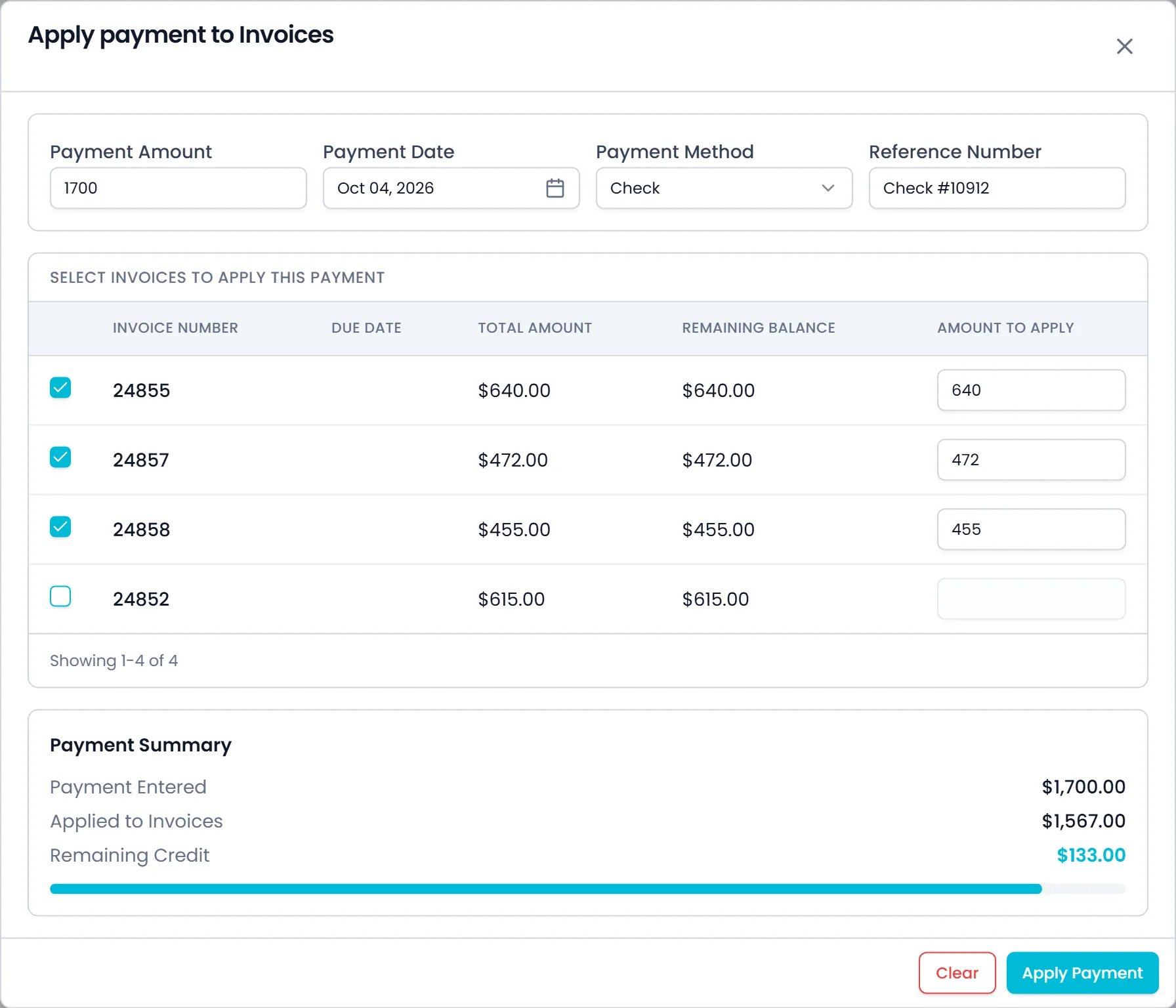
Customers who log in to your Customer Portal see only their own invoices, and can pay an open, overdue or partly paid one with a saved card. Apply payment to Invoices takes one amount and spreads it over the invoices they tick: each ticked invoice fills with its balance, which they can lower, and any amount left over is recorded as credit after they confirm. Card payments need your Cardknox account connected: cards are added in Cardknox-hosted fields and charged on your Cardknox account.
- Pay an invoice with a saved card, or record a check or cash payment
- One payment spread over several invoices, with any remainder kept as credit
- Customers add cards, choose a default card and remove cards under Settings → Billing
In Accounting
Charge a customer's saved card when you record a payment
When you record a customer payment in Accounting, choose Select Payment Method to charge the customer's saved card through your Cardknox account, or record a check or cash. The default card shows with its number masked, and Change Payment Method or Add Payment Method are on the same screen.
- Check, Cash or the customer's saved card
- The card is charged through your Cardknox account and the payment is applied to the invoices you choose
- Change or add the card without leaving the payment
On delivery
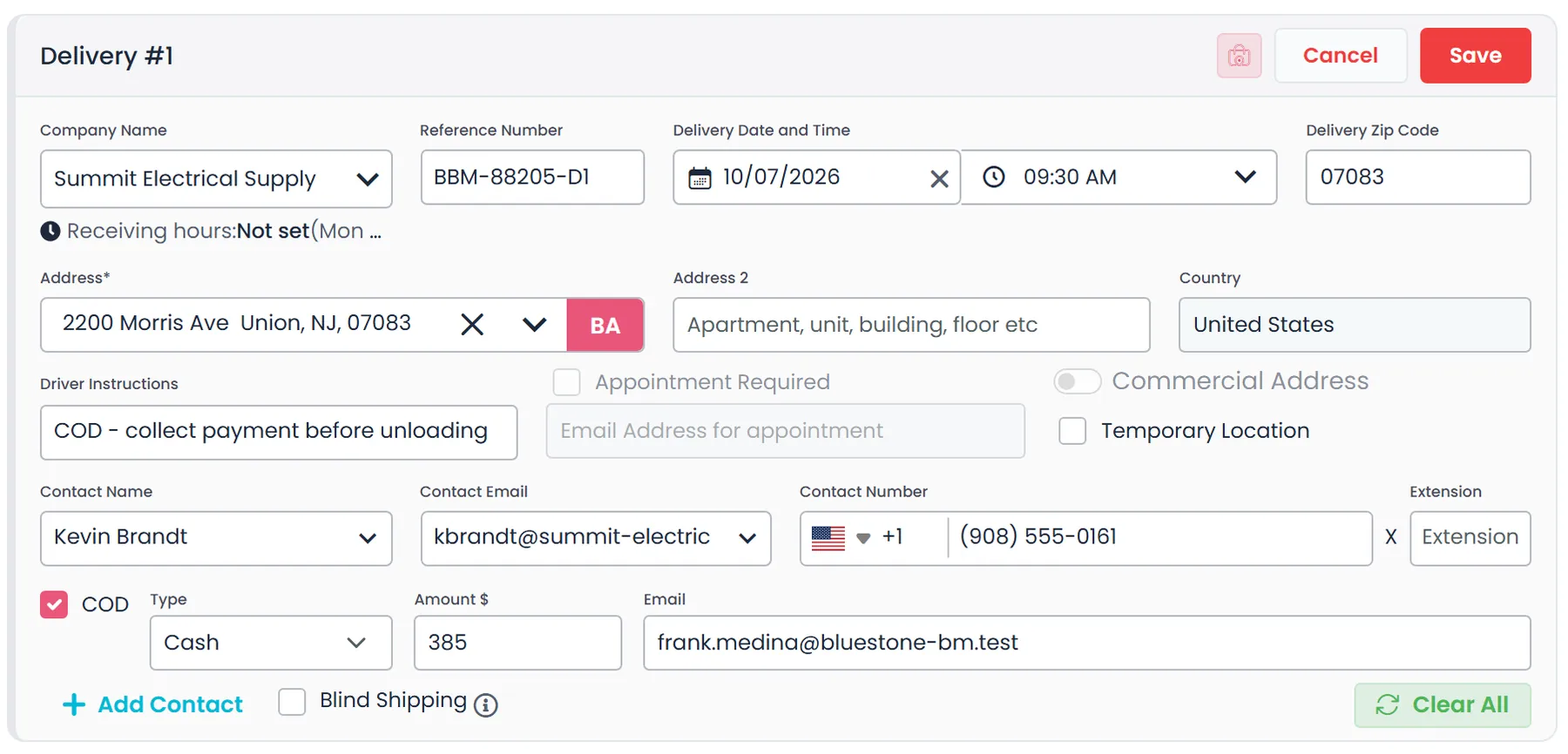
COD on delivery stops
Mark a delivery stop COD with its type, amount and payment email. For card COD, Request Payment emails a secure card-payment page that works for 24 hours, and the card is charged on your shipper's own Cardknox account, so the money goes straight to them. Request again replaces the earlier link, and the stop shows Requested, Success or Failed. Requesting a payment is a company-admin action.
- COD type, amount and payment email on the delivery stop
- A Request Payment link that is valid for 24 hours
- Card payments go to the billing customer's own Cardknox account, set up through Accept Payments
FAQ
Payment links: common questions
When can I use payment links?
Payment links are finished and in final testing, and arrive with the next production release. Customer Portal card payments, saved-card charges in Accounting and COD payment requests on delivery stops are available today.
Who processes the card payment?
Your own Cardknox merchant account. Payment links charge on the Cardknox keys you connect under Settings → Integrations, so the payment goes through your own merchant account under your agreement with Cardknox. Without a connected Cardknox account, RushHour does not offer payment links.
What do I need to turn payment links on?
A Cardknox merchant account connected under Settings → Integrations. Once the release arrives, payment links are on by default under Settings → Billing → Payment links, and staff need the Manage invoice payment links permission, which company admins have.
Can a customer pay only part of an invoice through the link?
No. The link always charges the full balance due, and the amount cannot be changed on the page. Customers who log in to your Customer Portal can choose their own amount and spread one payment over several invoices, and your office can record a partial payment in Accounting.
What if the invoice changes after I send the link?
The page and the charge use the invoice's balance due at the moment your customer opens it and pays, not the amount when you sent the link. If the balance has already been cleared another way, or the invoice is no longer approved, the link cannot take a payment.
How long does a payment link work?
30 days from when it is created, and the invoice's Payment link panel shows the expiry date. New link issues a fresh link and stops the old one at once, and Revoke stops a link without replacing it. An expired, replaced or revoked link shows your customer the invoice summary and your contact details instead of a card form.
Can customers pay with Apple Pay, Google Pay or a saved card on the link?
No. On the payment page the card number and CVV are typed into Cardknox's secure fields, and the expiry month and year are chosen from two lists. Customers who keep a card on file can pay with it in your Customer Portal.
Does my customer get a receipt?
The page shows a thank-you with the amount paid and a payment reference. RushHour does not email a receipt: an email address your customer types on the page is saved in the payment's note, together with the name on card if they enter one.
Related
Bring an invoice you are still chasing.
In the demo we approve a sample invoice, send its payment link, open the page your customer sees and show where the payment lands in Accounting.