
Every extra at the stop,
billed at your price.
Keep one list of accessorial charges with your prices, and let dispatchers and drivers add them at the stop. Waiting time beyond the free time you allow becomes a priced invoice line, a failed delivery attempt adds your attempt fee, and optional auto-billing can add detention, learned accessorials and a fuel surcharge to the order for you.
Capture
Record the extra where it happens
One charge list feeds the order, the dispatch board, the driver app and the invoice, so an extra recorded at the stop becomes a line on the invoice built from the order.
Charge Types
One charge list, with your prices
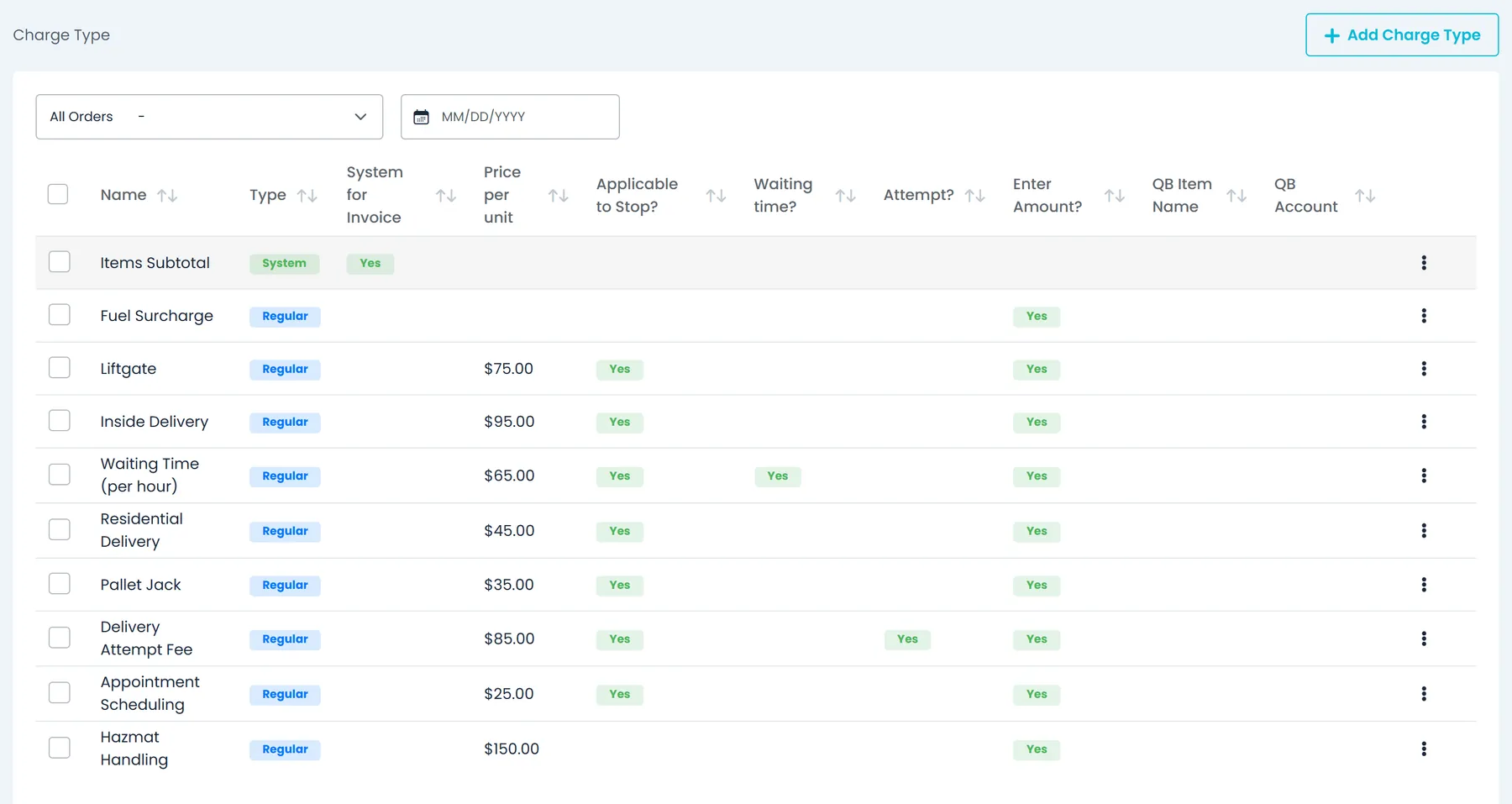
Settings → Charge Types holds every extra you bill, from liftgate and inside delivery to pallet jack, appointments and hazmat handling. Each charge has a name, a price per unit, a QuickBooks item name and account, and a few switches that decide how it behaves when someone adds it.
- “Applicable to Stop?” puts the charge in the driver app's charges step; new charges start with it switched on
- “Waiting time?” marks the one charge whose hourly price bills waiting time, and “Attempt?” the one charge added when an attempt fails
- “Enter Amount?” asks for a quantity when the charge is added in the Company Portal, and the invoice bills the price per unit times that quantity
- “Overridable Price?” lets whoever adds the charge, the driver included, type its price
- System for Order and System for Invoice keep built-in charges such as Items Subtotal off the stop and invoice pick lists, and bulk delete leaves system charges alone
- QB Item Name and QB Account carry each charge into the QuickBooks Desktop export
Per-customer prices
Each customer's own charge list and prices
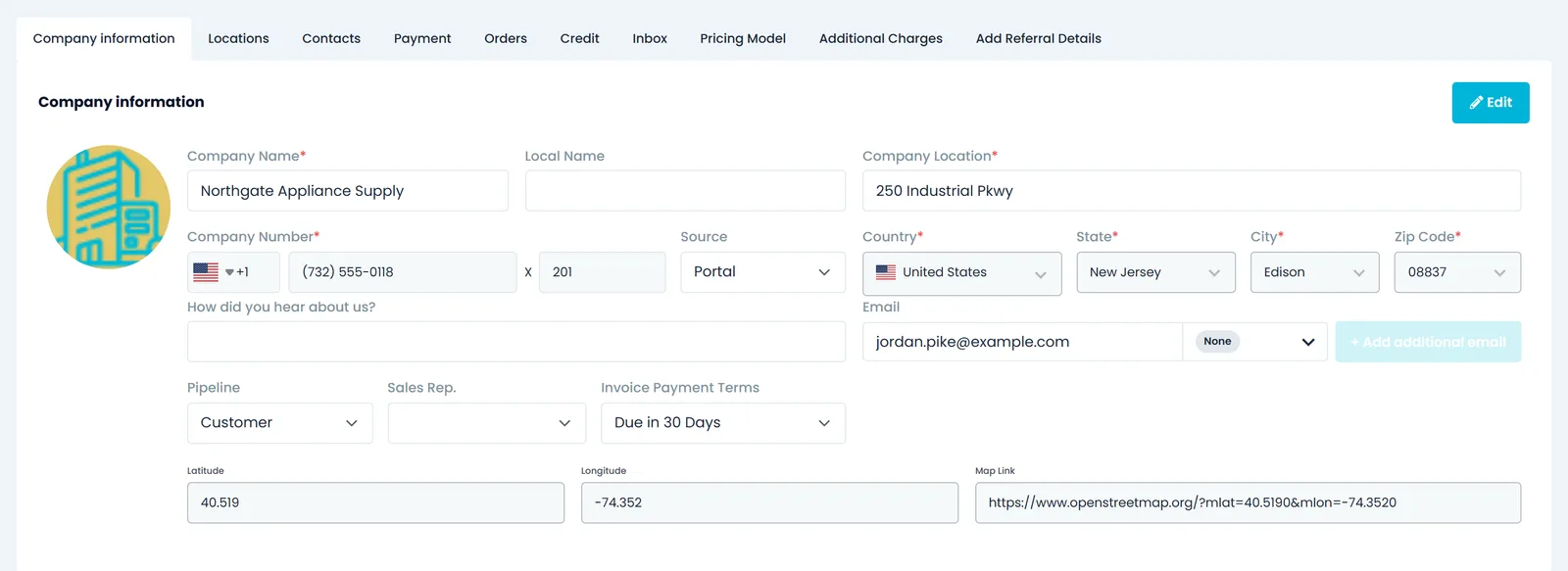
Open a customer and go to Additional Charges. The first time someone who can edit that customer opens the tab, it fills with a copy of your Settings charges. Change a price for that customer, add a charge only they pay, or remove one that does not apply to them, and your other customers keep the company price.
- When you add a fee to an invoice, the Fee Type list offers the Additional Charges of the customers on the order's stops, at their prices
- A customer's charge has its own name, price per unit, Enter Amount? and Overridable Price?; QuickBooks and System settings stay with the company charge
- Removing charges from a customer's list takes permission to edit that customer
- A Price per unit column on the customer's Additional Charges tabNext release
Order and dispatch board
Dispatchers add charges as they confirm the stop
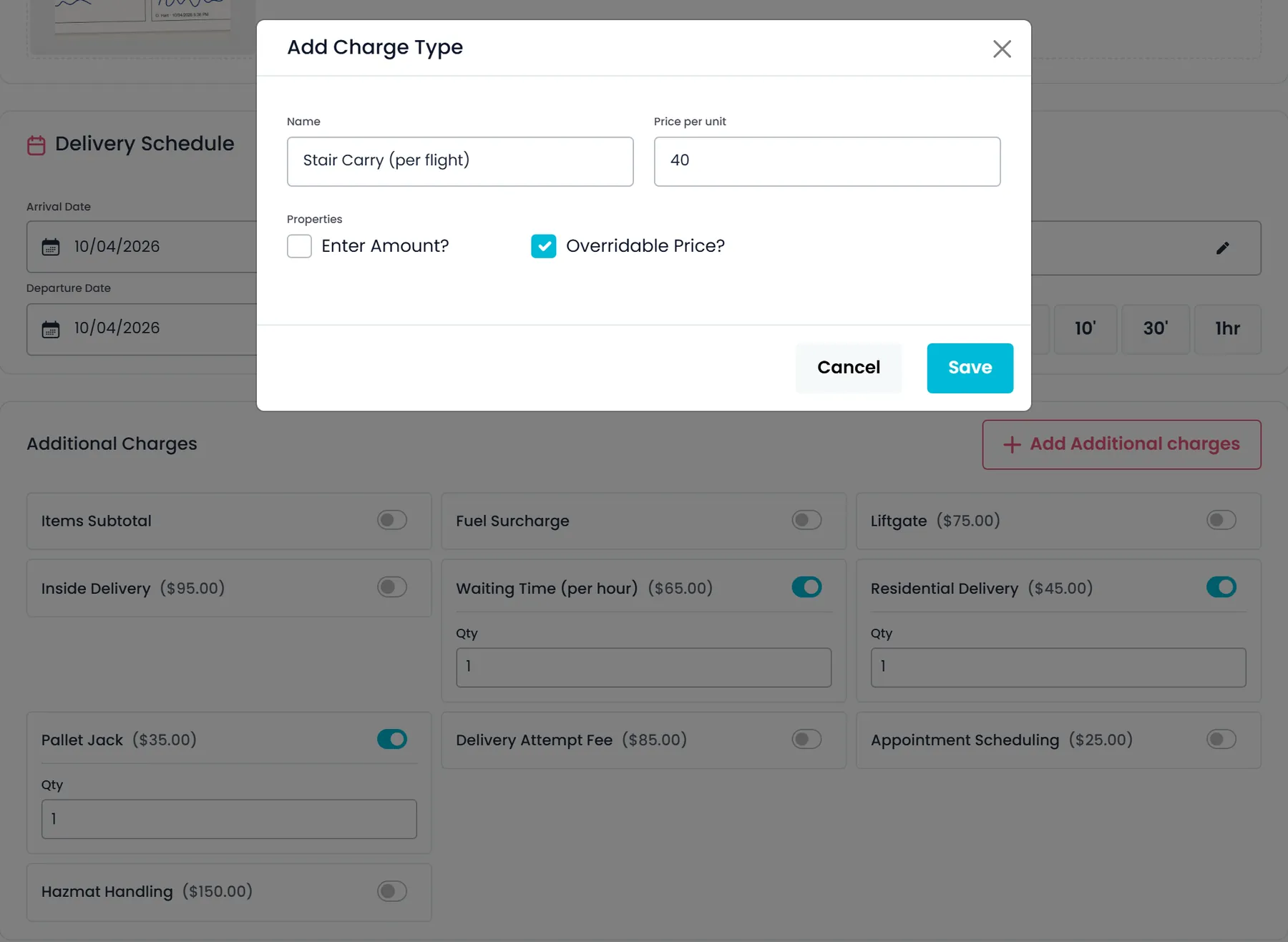
When a dispatcher confirms a pickup or delivery, from the dispatch board or from the order, the confirmation window shows arrival and departure, waiting time, free time and your Additional Charges, with the ones already on the stop switched on. Switch on the charges that applied, type a price or a quantity where the charge allows it, or create a new charge on the spot with just a name, a price per unit, Enter Amount? and Overridable Price?.
- Quick buttons push departure out by 1, 5, 10 or 30 minutes or 1 hour, and the waiting time follows
- A charge created here is saved to your company charge list and appears in the window, ready to switch on
- In the order editor, a stop's menu opens Additional Charges with a search box, quantities and a running total
- Charges that auto-billing added carry an Auto badge
Driver app
Drivers tick the extras before they leave the stop
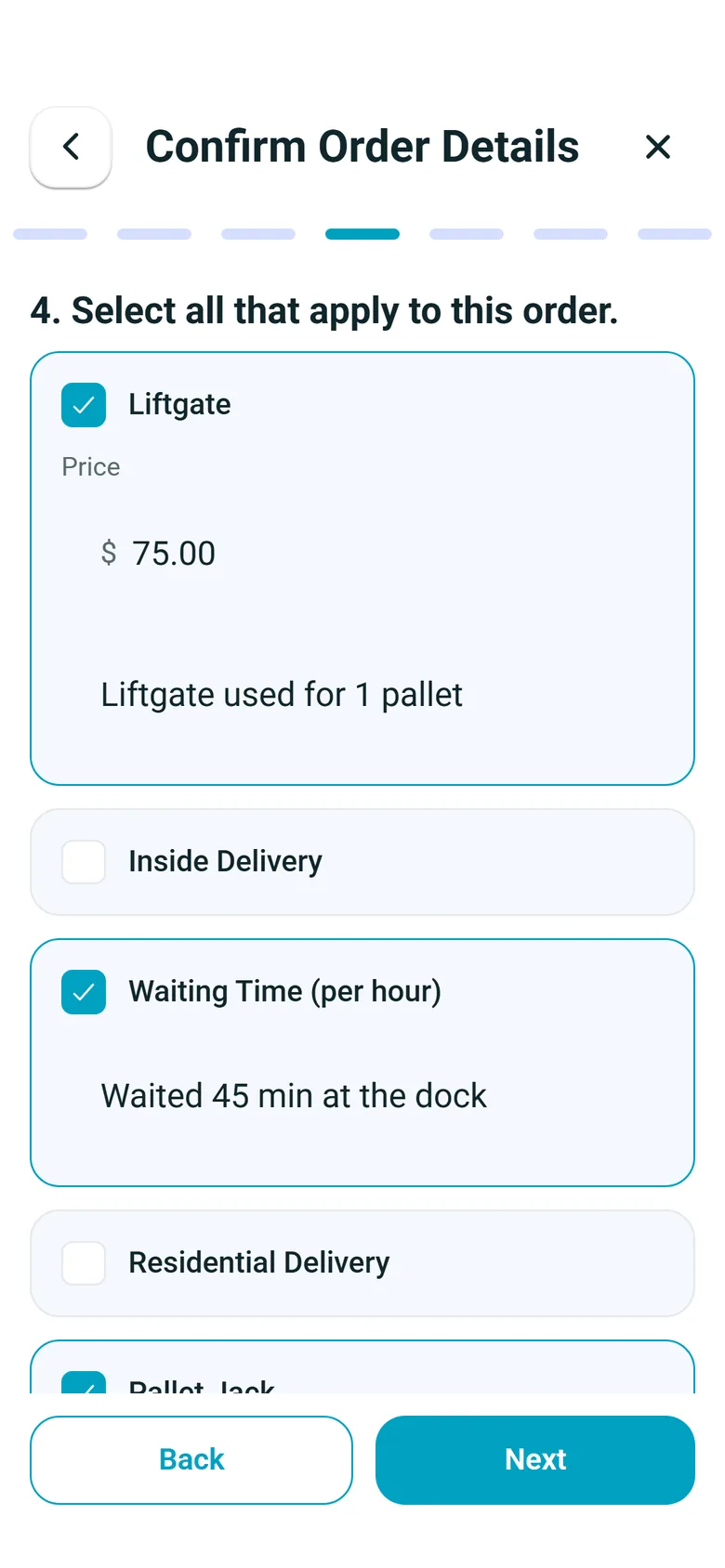
With charges collection on, completing a stop in the RushHour driver app includes a “Select all that apply to this order.” step that lists the stop charges from your Charge Types. The driver ticks what applied, adds a note, and types a price only where the charge allows a price override.
- The list comes from your Charge Types, not from a fixed list in the app
- Charges the office already put on the stop show as ticked, and a corrected confirmation updates them instead of adding a second copy
- On by default; turn it off in Settings → Driver App → Features → Charges collection
- In the driver app on Android and iPhone
Failed attempts
A failed attempt adds your attempt fee
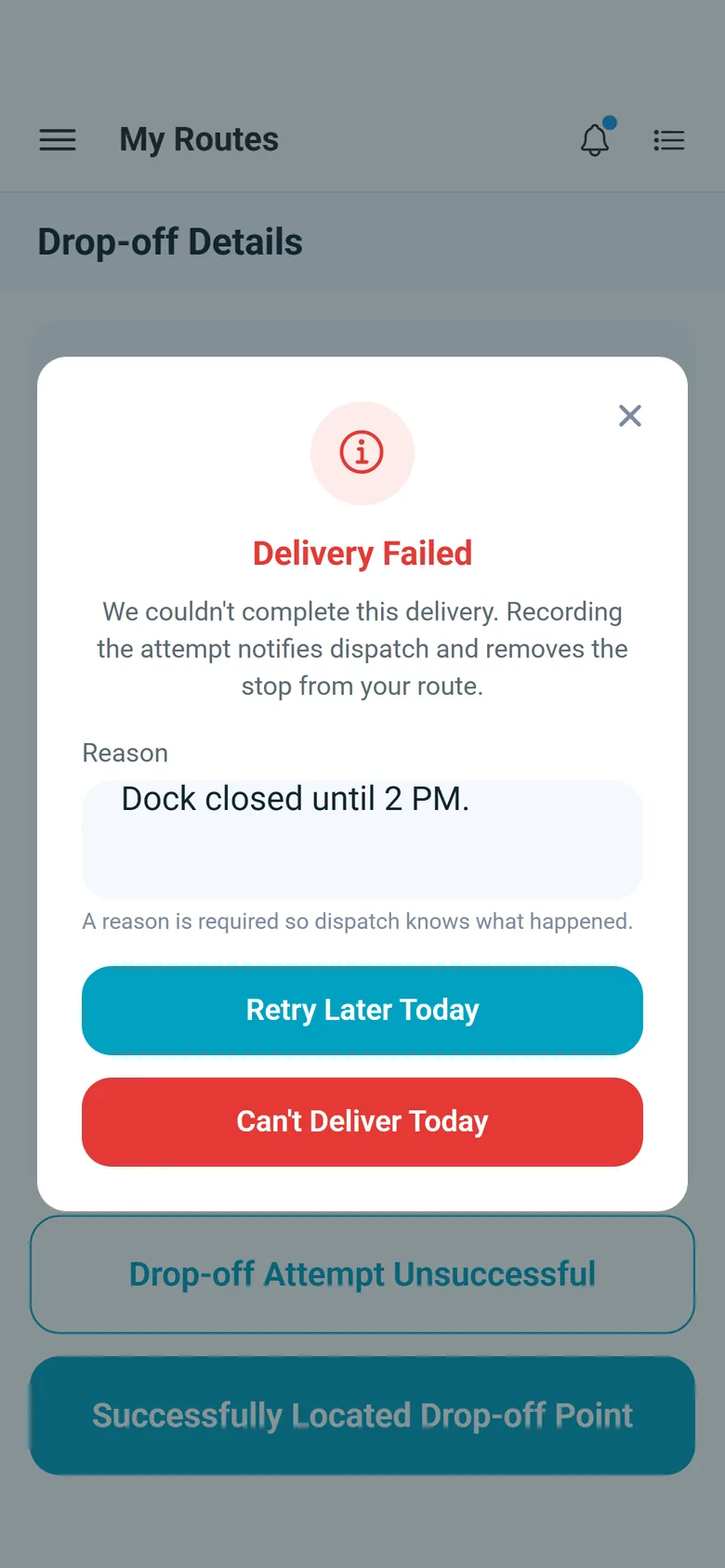
Mark one charge as “Attempt?” and it is added to the stop every time a pickup or delivery attempt fails, with the reason in its note. Drivers report the attempt in the app, where a reason is required. In the Company Portal, a dispatcher who moves a stop back to the unassigned orders and answers Yes to “Is it attempt?” records a reason, a re-attempt date and start and end times.
- The driver picks “Retry Later Today” or “Can't Deliver Today”, and either way the stop goes back to dispatch
- The attempt charge sits on the stop with the reason, and reaches the invoice with the stop's other charges
- One Attempt? charge per company, priced like any other charge
Bill
Waiting time and extras, priced on the invoice
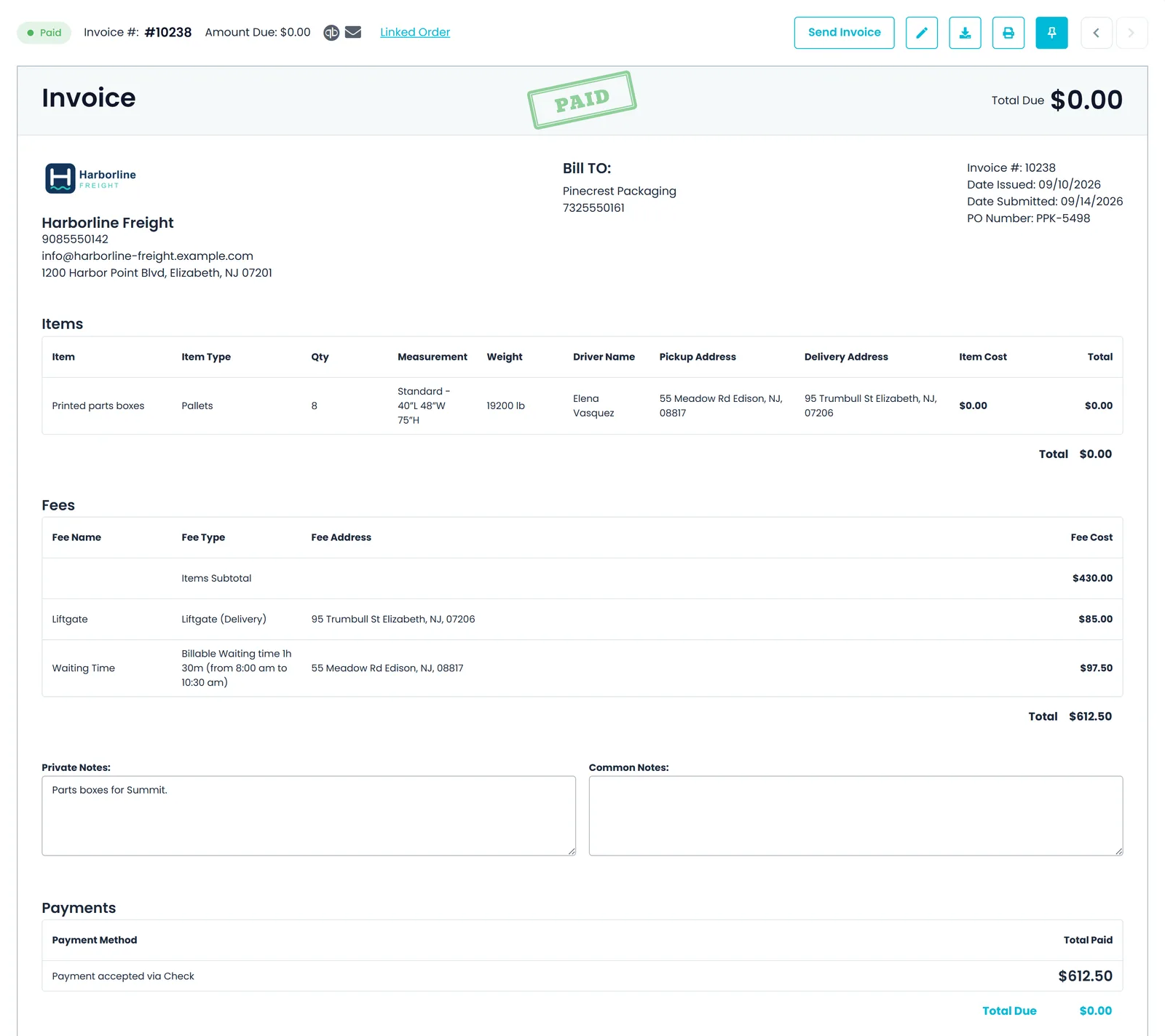
Waiting time, stop charges and attempt fees become invoice lines, and billing staff can add or correct anything that was missed before the invoice goes out.
Detention
Waiting time past the free time becomes a priced line
Set the free waiting time in Settings → Billing → Waiting Time and give the charge marked Waiting time? an hourly price. When a pickup or delivery is confirmed with its arrival, departure and waiting time, the invoice built from the order gets a Waiting Time line for the minutes beyond the free time, priced at your hourly rate, with the calculation and the arrival and departure times written on it.
- Billed by the minute: waiting time minus free time, at your hourly rate
- Free time is set per price type (Classic, Custom or a pallet-count range for Pallets orders); the confirmation window suggests the matching value, which you can change on a single stop
- Only pickups and deliveries accrue waiting time
- Each stop's waiting time is its own invoice line, in the Fees list with the stop charges
Invoice editor
Add what was missed, straight from the invoice
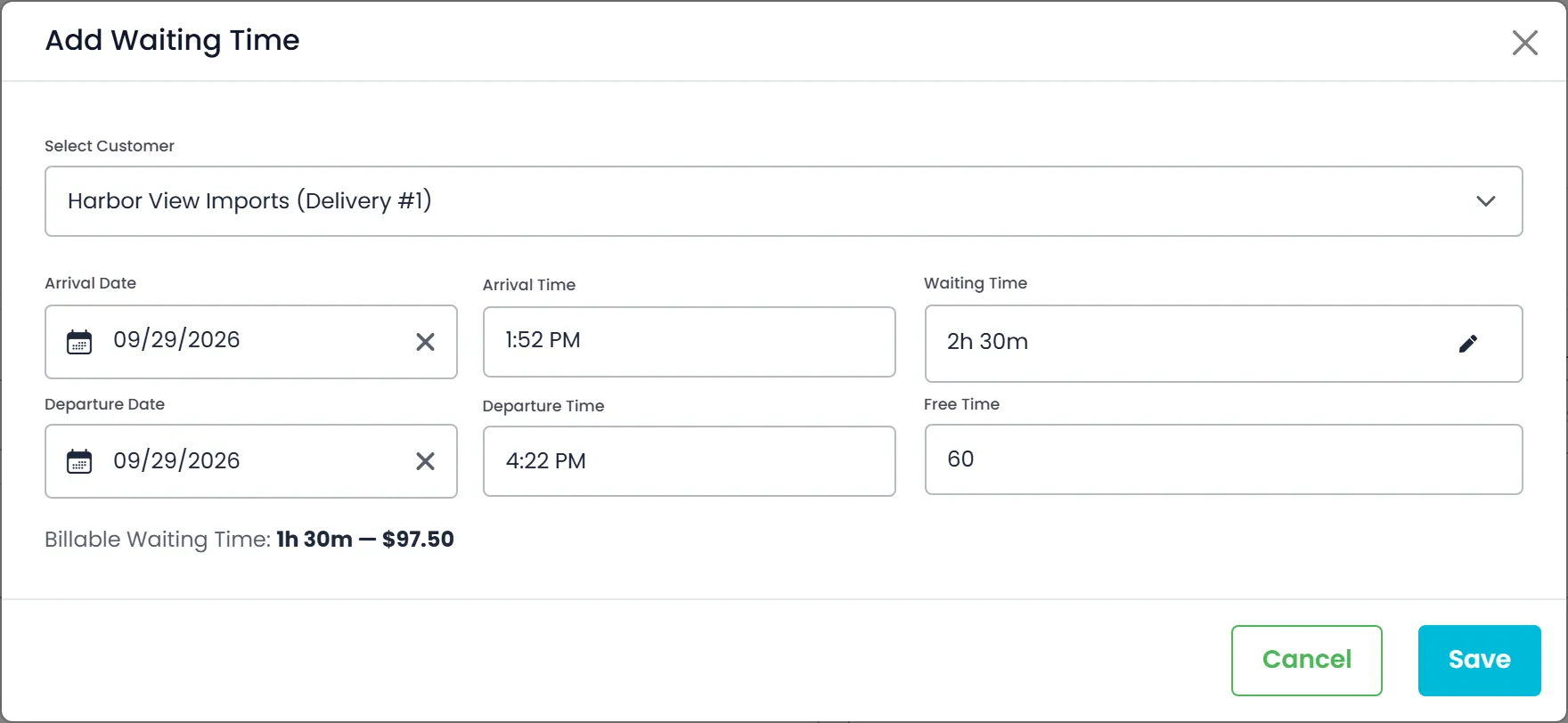
In the invoice editor, the Fee Type list has two shortcuts. Add Waiting Time opens a window where you pick the stop, set arrival, departure and free time, and see the billable time and fee before you save; the stop's own times update to match, without confirming the stop again. Create New adds a charge type and lets you tick where it is saved: your Settings list, the billing customer, or any pickup or delivery customer on the order.
- An existing waiting-time line reopens in the same window for correction
- The waiting time can be shortened by hand, but never beyond the window between arrival and departure
- The billing customer is ticked by default when you create a charge
- Picking a stop fills in the arrival and departure already recorded for itNext release
Optional auto-billing
Let RushHour add the charges people forget
Auto-billing stays off until an admin turns it on in Settings → Billing. In “Preview — log only” mode it writes the detention and learned charges it would add into the order's activity log and charges nothing. “Apply automatically” adds charges to the order when it is saved: detention for waiting time beyond the free time, accessorials such as residential, liftgate or appointment fees that match rules learned from the price sheets and customer documents you uploaded to Documents, and, with Auto-bill fuel surcharge ticked, your pricing model's fuel surcharge percentage.
- Automatic charges on a stop show an Auto badge, and each automatic charge carries a note that says where it came from
- A charge is added once and never overwrites one a person entered; remove an automatic charge in the Company Portal and it is not added again
- A learned rule applies when a stop's notes, address details or location name mention it, when the stop has an appointment, or when the order's notes mention it
- A customer's own rules come before company-wide ones, and only rules learned with enough confidence are used
- Orders that already have an invoice, quotes, drafts and closed orders are left alone
- The fuel surcharge is a percentage of the order price plus its other charges, and is skipped when the order already has a fuel charge

Customer Portal
Shippers can check what an extra costs before they dispute it
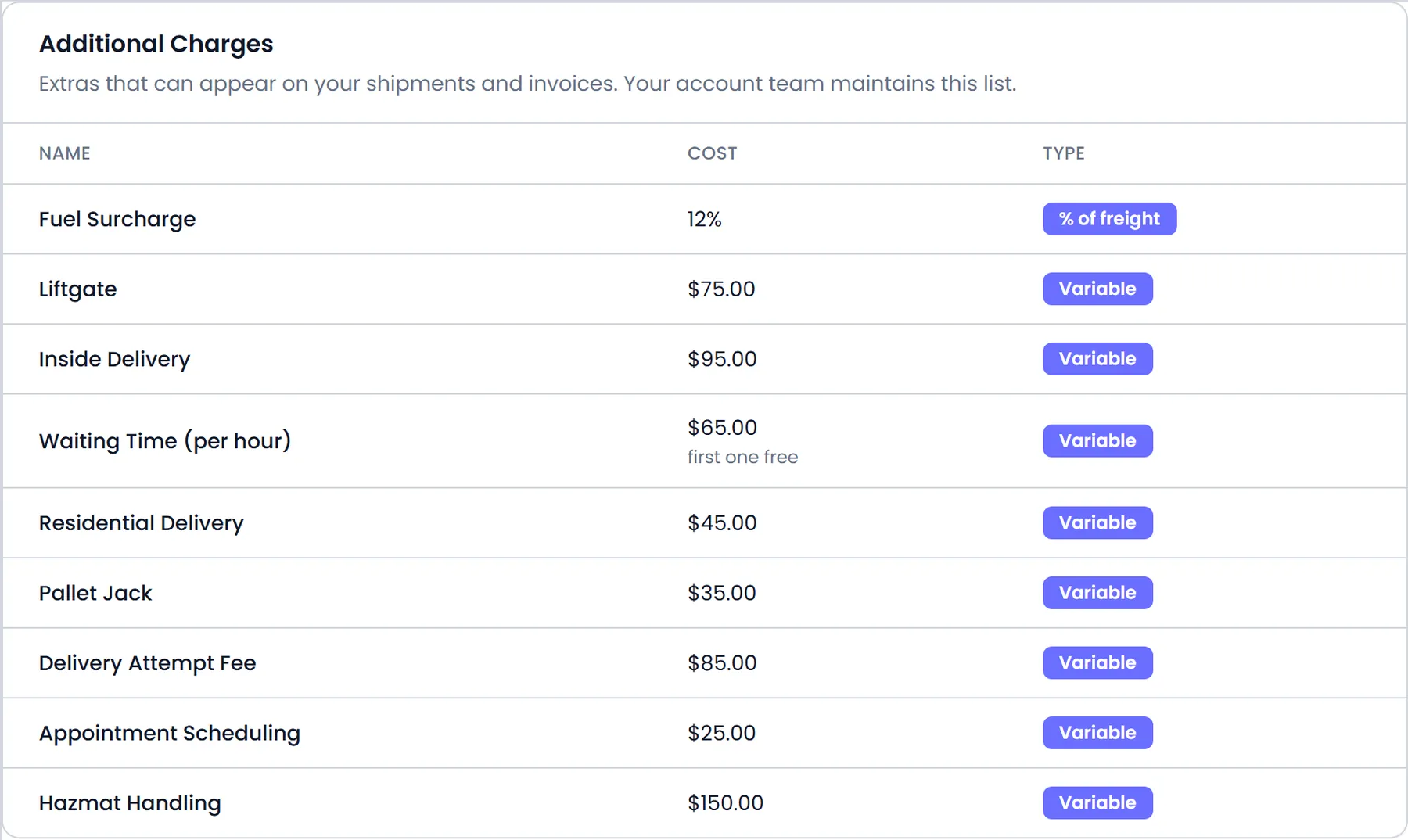
In the Customer Portal, Settings → Charge Types shows your customer the Additional Charges on their account: each charge's name, its cost, and whether the price is fixed, adjustable or set when the charge is used. The list is read-only; only your staff can change prices.
- The same list you keep on the customer's Additional Charges tab in the Company Portal
- Shown to Customer Portal users by default
- A charge without a set price shows a dash instead of an amount
Rules that keep the bill right
Nothing billed twice
A corrected stop confirmation updates the charge already on the stop. Auto-billing adds each charge once, its detention charge takes the place of the invoice's Waiting Time line for that stop, and its fuel surcharge is skipped when the order already has a fuel charge.
People have the last word
Auto-billing never changes a charge someone entered, and an automatic charge removed in the Company Portal stays removed. Dispatch and billing can still change any stop charge or invoice fee by hand.
Learned from your own paperwork
Automatic accessorials come from rules learned from the price sheets and customer documents you uploaded, used only when the rule is confident enough, with a customer's own rules ahead of company-wide ones. Each charge's note cites the rule and, when it is on file, the document it came from.
Every automatic charge on the record
Applied and dismissed automatic charges are written to the order's activity log, and Preview mode logs the detention and learned charges it would have added, without charging anything.
In the next release
Pending amounts, price-type free time on invoices, and clearer fee lines
These billing changes are finished and ship with the next production release of RushHour.
Amount Pending
A charge without a price can't slip through at $0Next release
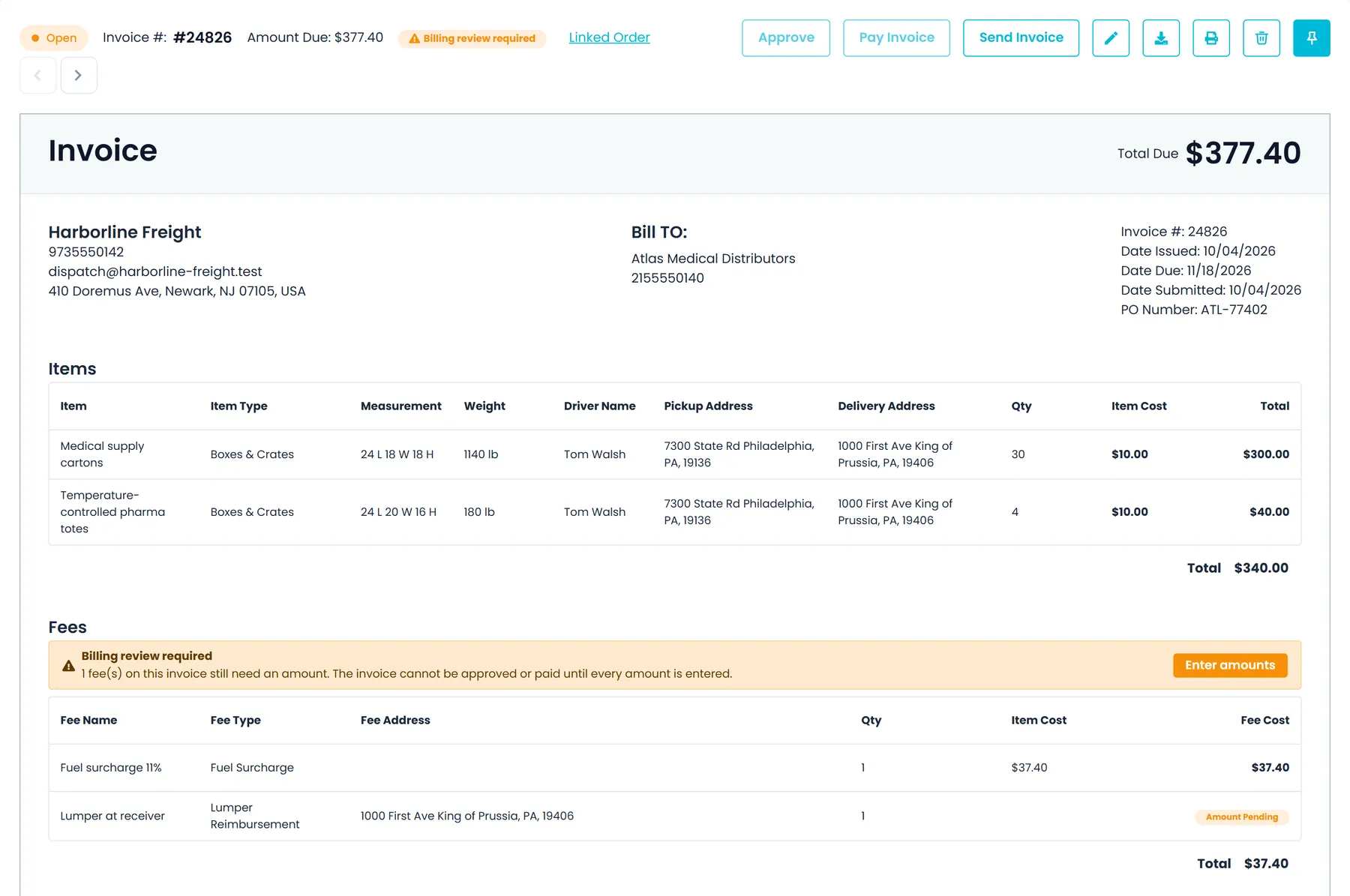
Charges from a charge type with Enter Amount? ticked and no price per unit show Amount Pending in the invoice preview and editor instead of a zero amount, and a Billing review required warning appears on the invoice and its order. The Company Portal won't approve the invoice or record a payment on it until you enter a price for each pending fee.
- Amount Pending instead of $0.00 in the invoice preview and editor
- Billing review required on the invoice and on its order
- The Enter amounts window opens from the warning or from Approve in the invoice list
- When a pending fee comes from a stop charge added for several units, the price you enter is multiplied by that quantity
Free time on invoices and orders
Free waiting time that follows each order's price typeNext release
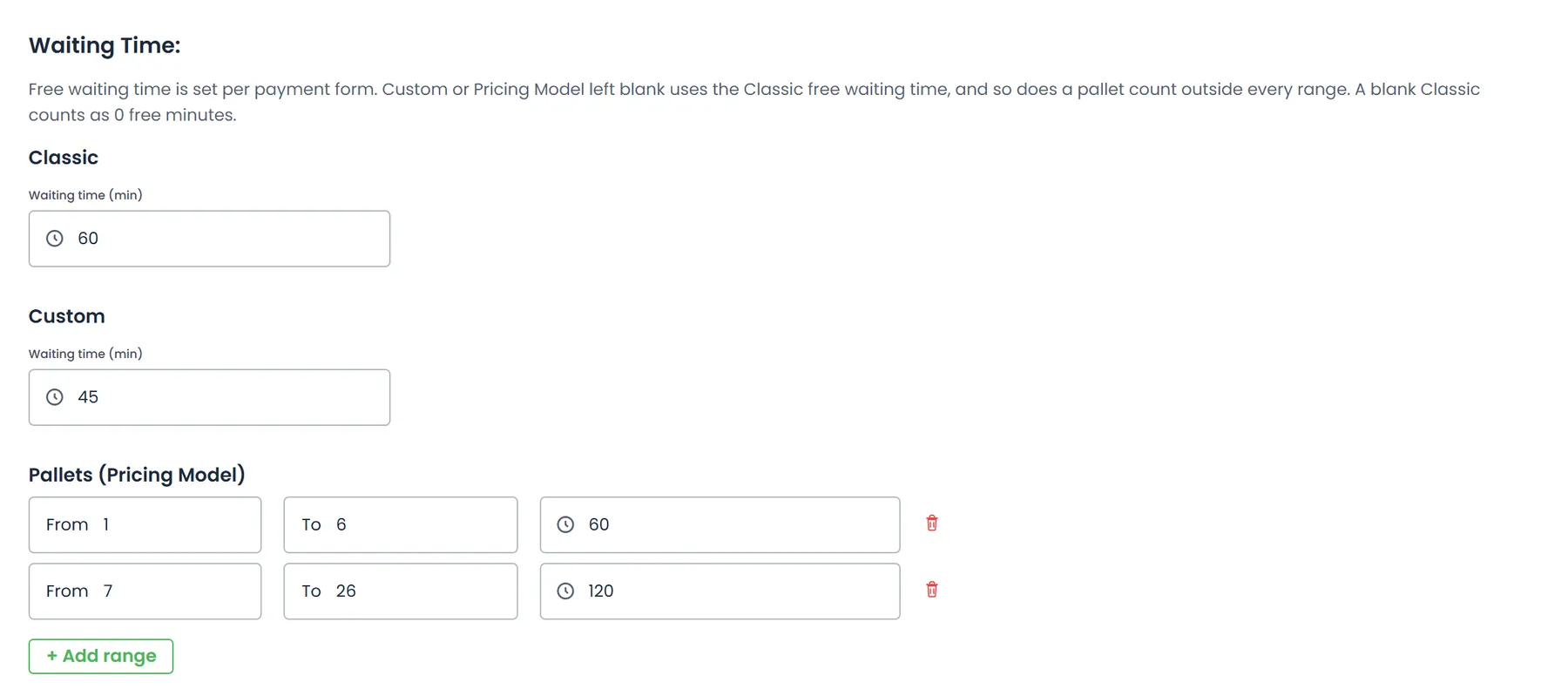
Waiting-time charges on orders and invoices use the free time set in Settings → Billing → Waiting Time for the order's price type: Classic, Custom, or the Pallets (Pricing Model) range that fits the pallets picked up on the order. Stop confirmation and an invoice's Add Waiting Time window suggest the same free time. If Custom or Pallets is left blank, or no range fits, the Classic value is used.
- In the confirmation and Add Waiting Time windows, a blank Custom value or a pallet count outside every range uses the Classic free time instead of 0 minutes
- Pallets are counted across all of the order's pickups, leaving out the extra pickup a transfer or hub adds
- Applies to invoice waiting lines, the order's waiting total and auto-billed detention
Invoice fees
Fee lines with a quantity and an item costNext release
In the invoice preview and editor, each fee gets Qty and Item Cost columns before Fee Cost. Choosing a fee type fills in its quantity and price per unit, and changing either one recalculates the Fee Cost; a waiting-time fee shows its billable hours and hourly rate. You can still type a Fee Cost directly.
- Add Waiting Time fills in the stop's recorded arrival and departure
- A Price per unit column on each customer's Additional Charges tab
- The save options for a new invoice charge type name each stop's customer, after labels such as Pickup #1 and Delivery #1
- The Reports page runs accessorial revenue by charge type and invoiced waiting time and detention by month
Questions about accessorials and detention
Where can an accessorial charge be added?
In four places: on a stop in the order editor (the stop menu's Additional Charges, on orders not marked Use New Pricing Model), in the stop's confirmation window when a dispatcher confirms a pickup or delivery, in the driver app's charges step when a driver completes the stop, and as a fee in the invoice editor. A failed attempt adds your Attempt? charge on its own, and optional auto-billing can add detention, learned accessorials and a fuel surcharge.
How is detention calculated?
RushHour takes the waiting time recorded on a pickup or delivery, subtracts the free time, and bills the rest by the minute at the hourly price of the charge marked Waiting time?. A 2h 30m wait with 1 hour free, at $65 an hour, bills 1h 30m for $97.50. Free time is set per price type in Settings → Billing → Waiting Time, the confirmation window suggests the matching value, and it can be changed on a single stop. In the next release, invoice lines, order totals and auto-billed detention take the free time from the order's price type, including pallet ranges, whenever the stop has none of its own.
Where does the waiting time come from?
From the stop's arrival and departure. A dispatcher confirms the pickup or delivery in the Company Portal with its arrival, departure, waiting time and free time, or billing adds it from the invoice with Add Waiting Time. The driver app saves the driver's arrival and departure on the stop but does not turn them into billable waiting time on its own; in the next release, Add Waiting Time fills those recorded times in for you.
Where are a customer's own accessorial prices used?
A customer's Additional Charges, with their prices, are what the invoice's Fee Type list offers for that customer, and what the customer sees in the Customer Portal. Charges added on a stop or in the driver app use the price from Settings → Charge Types, unless someone types a price where the charge allows it. Auto-billing can use the price of the rule it learned, including a customer's own rule, when the charge allows a price override.
When does auto-billing run, and what will it never touch?
Only after an admin sets it to Apply automatically in Settings → Billing. It runs each time an order is saved, until the order has an invoice, and skips quotes, drafts and closed orders. It adds each charge only once, never changes a charge a person entered, and does not add back an automatic charge someone removed in the Company Portal. Preview — log only records the detention and learned charges it would add in the order's activity log, without charging anything; the fuel surcharge is added only in Apply mode.
What do automatic detention and fuel surcharge need?
Detention needs a charge marked “Waiting time?” with an hourly price and “Overridable Price?” ticked. Each stop is billed once, with a note such as “Detention: 45 billable min over 60m free (0.75h × $65.00/h)”, and the invoice's own Waiting Time line for that stop is then left out. The fuel surcharge also needs Auto-bill fuel surcharge ticked, a Fuel Surcharge (%) on the pricing model, and a charge whose name contains “fuel” with “Overridable Price?” ticked. Learned accessorials are billed under the charge in Charge Types whose name matches the rule, and rules stated as a percentage are not billed automatically.
Do accessorials reach QuickBooks?
Each charge type carries a QuickBooks item name and account, and the QuickBooks Desktop export uses them for the invoice's charge lines.
Bring a load that had a liftgate and a long wait.
In the demo we set up your charge list, confirm that stop with its waiting time and liftgate, and show the invoice lines it produces.