
See what's late, unassigned or unbilled
before the morning gets away.
A Today view that refreshes every minute, dashboards you arrange from 25 widgets, 44 built-in reports you ask the AI assistant for, and late-delivery alerts that reach your team and the order's own customer, in the notification bell or by email.
Three layers, one product
Live dashboards, reports on request, and alerts that find you
Dashboards, reports and alerts live in the RushHour Company Portal, and each person sees only the figures their permissions allow.
Today view
Start the day on one screen that keeps itself current
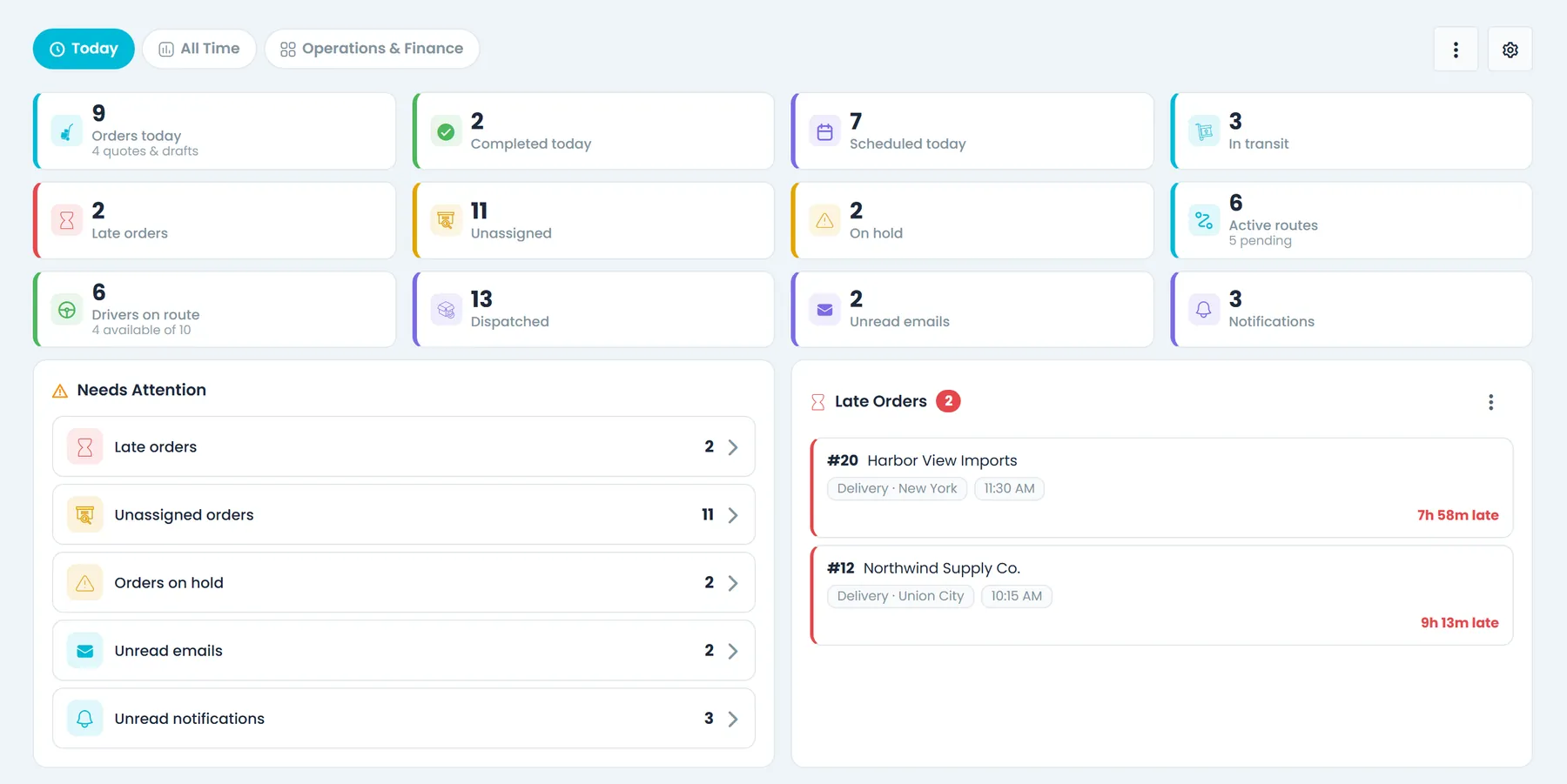
The Today tab puts up to 12 live tiles, a Needs Attention list and the latest late orders on one screen. It refreshes every 60 seconds while it is open in a visible browser tab, and every tile is one click from the work behind it: Orders, Dispatch, Drivers, the Inbox or the notification panel.
- Tiles for orders today (with the quotes and drafts entered today), completed, scheduled, in transit, late, unassigned, on hold, active routes, drivers on route (with how many are available), dispatched, unread emails and notifications
- Completed today is compared with yesterday up to the same time of day
- Needs Attention counts late, unassigned and on-hold orders, unread emails and unread notifications, hides any row at zero, and shows "All clear" when nothing is waiting
- Late Orders lists the 10 most recently late orders with the customer, the overdue stop's type and city, the driver and how far past the scheduled time it is, then "+ N more late orders in dispatch"
- A pickup counts as late 2 hours after its scheduled time, a same-day delivery 4 hours after its pickup and a delivery booked for a later day from midday that day, but never before its own scheduled time; stops scheduled more than 30 days ago are left out
- Each person returns to the tab they used last, and the address bar names the tab so it can be bookmarked
Dashboards
Build the dashboard you'd otherwise rebuild in Excel
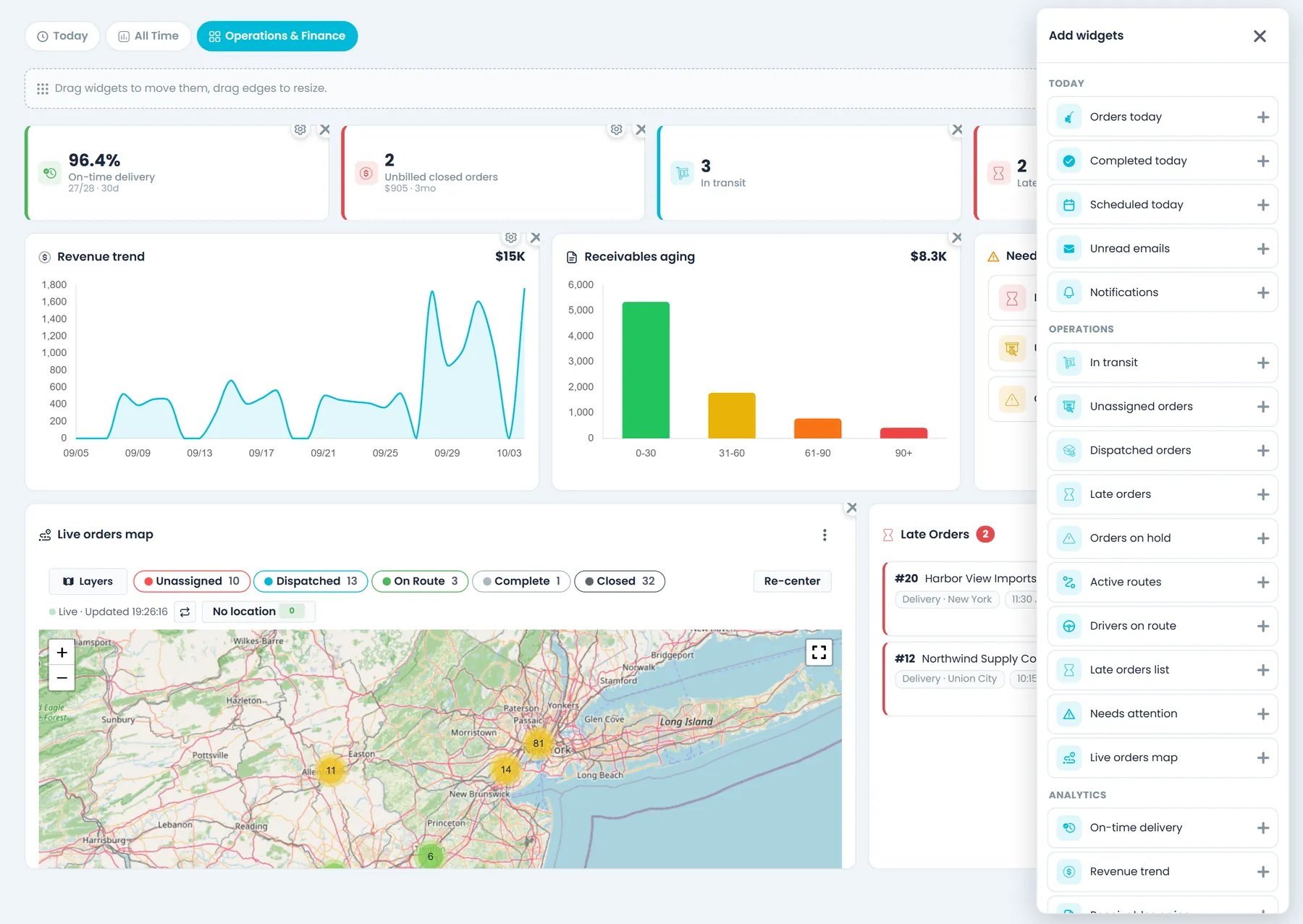
The dashboard comes with a Today tab and an All Time tab. Beyond those, drag and resize widgets on a grid: KPI tiles, late orders, a needs-attention feed, a map of open orders, on-time delivery over 7, 30 or 90 days, revenue trend, AR aging buckets, closed orders never invoiced and daily order volume. Revenue, AR and unbilled widgets only appear for people allowed to see invoices and payments. Custom dashboards are included on every plan.
- 25 widgets to drag and resize, with a choice of time window on the trend widgets
- Personal dashboards for anyone, company dashboards for users with the Manage dashboards permission
- One company dashboard can be set as the default
- Revenue, AR and unbilled widgets hidden from users without invoice access
- Start from a copy: duplicate the Today or All Time view, or any custom dashboard, then add, remove and rearrange widgets
- Save stores the whole layout and Cancel puts back the last saved one; rename or delete the dashboards you manage
- Up to 40 widgets per dashboard, 20 company dashboards and 10 personal dashboards per person
- On a shared dashboard, a widget someone is not allowed to see shows "You do not have permission to view this widget" in place of the data
Money and service widgets
Revenue, receivables and on-time delivery next to the day's work
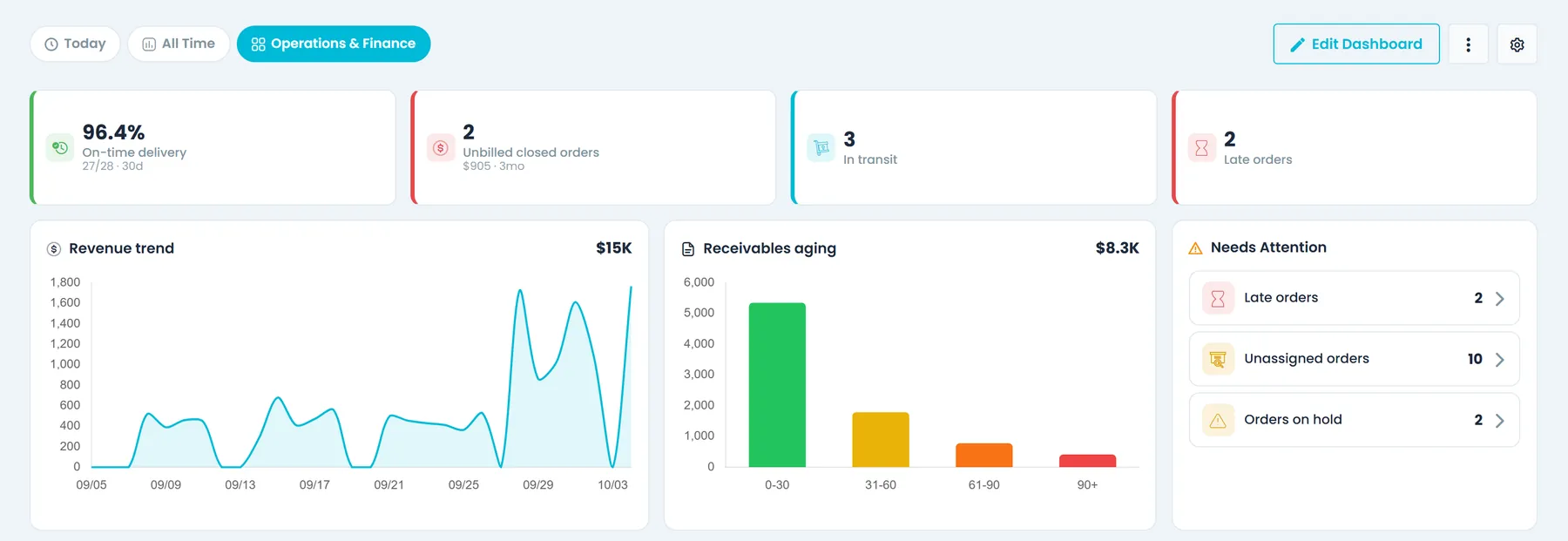
Add the finance widgets to a custom dashboard to see invoiced revenue, how old your open invoices are and which finished jobs were never billed, beside your on-time delivery rate. The revenue, receivables and unbilled widgets are offered only to people with the View Invoices and Payments permission, and the server enforces the same rule.
- Revenue trend: invoiced revenue per day over the last 30 or 90 days, with the total for the period
- Receivables aging: open amounts in 0-30, 31-60, 61-90 and 90+ day buckets, aged from each invoice's due date, or from its invoice date when it has none
- Unbilled closed orders: how many closed orders dated within the last 3, 6 or 12 months have no invoice, and their freight value; the tile turns green at zero
- On-time delivery: the share of orders delivered in the last 7, 30 or 90 days whose delivery stops all arrived within 30 minutes of the scheduled time, with the counts behind the percentage
- The on-time tile is green at 90% and above, amber from 75% and red below that
- Invoices chart: total, paid, outstanding and due in the next 30 days
Built-in reports
Ask for the report instead of building it
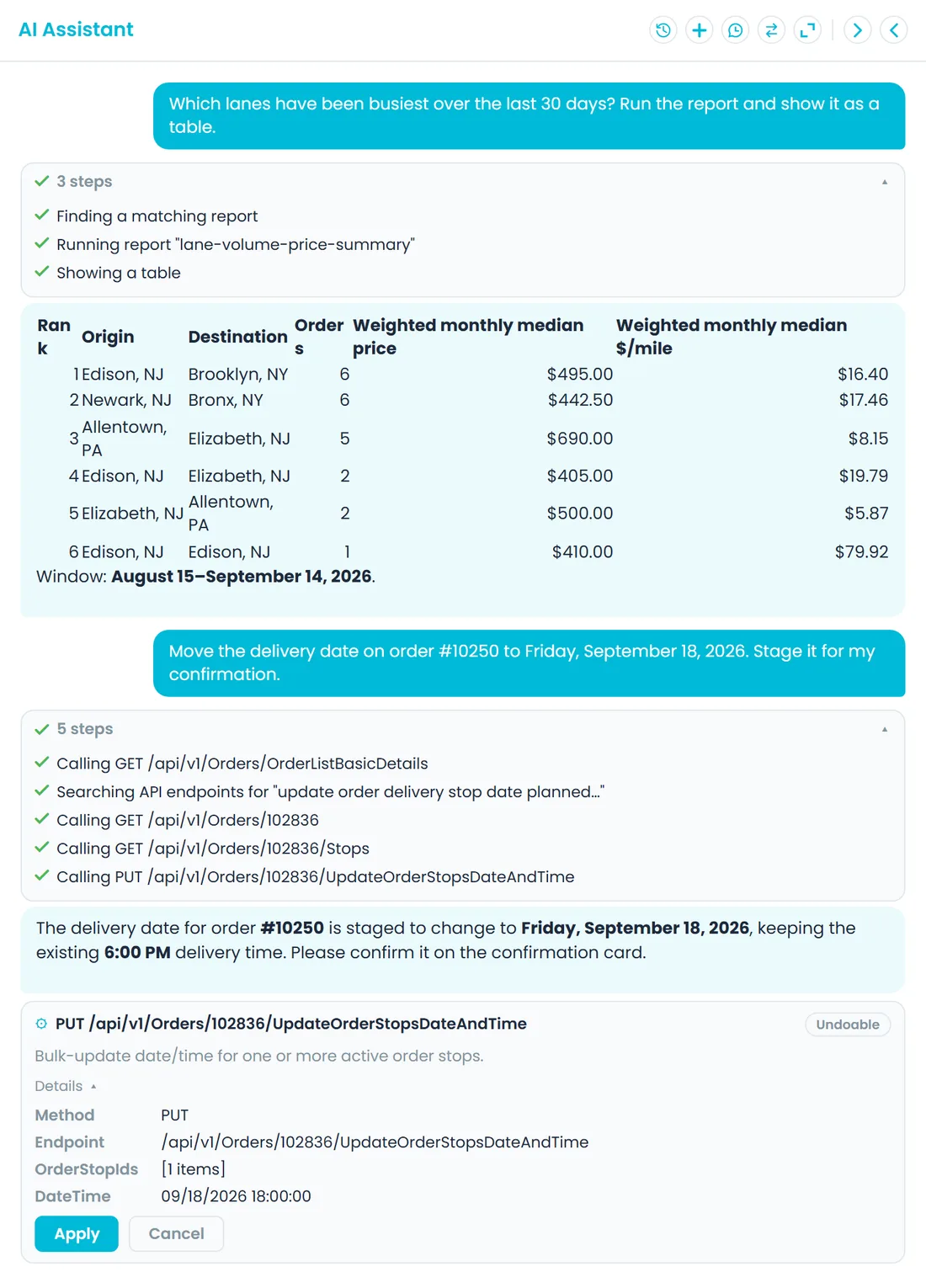
Ask the AI assistant in plain English and it runs one of 44 built-in reports, then shows the result as a table or chart beside the chat. Examples include invoiced revenue by month, top customers, AR aging, lane volume with median price, quote-to-order conversion, expense breakdown by type, accessorial revenue and closed orders never invoiced. Reports that read the everyday lists run with your own permissions. The rest are for admins, apart from the money reports, which anyone with invoice or expense access can run. Reports are included on every plan.
- 44 reports across orders, revenue, AR, customers, lanes, drivers and costs
- Results as tables and charts; 18 of the reports also tell the assistant what each figure is based on, so it can explain the numbers
- Your permissions decide which reports you can run
- Ask in plain English, for example "Show receivables aging" or "Which lanes were busiest in the last 30 days?"
- The assistant only chooses a report and fills in its options, such as dates. It never writes its own database queries, and every report is limited to your company's data
- A Reports page where you set the dates or options, run a report and export the rows to CSVNew in the October 2026 release
Alerts & notifications
Late orders flagged within the hour, to your team and to the customer
Every hour RushHour checks orders in progress. A stop more than 30 minutes past its scheduled time with no arrival raises an alert: your team gets a link to the order, and that order's own Customer Portal users get a customer-facing version. Late-delivery alerts are off until a person turns them on. The same bell carries document alerts and announcements from RushHour.
- Opt-in late-delivery alerts for staff and the order's customer
- Each person chooses per category: in the bell, by email, or both
- Email is off by default for every category
- Mark read or unread, dismiss or snooze from the bell
- At most one alert per order in 24 hours, for stops scheduled within the last 7 days
- When an hourly check finds late orders, the Activity Log records a System event with how many it found
- The dashboard's Late orders tile and list work without any sign-up
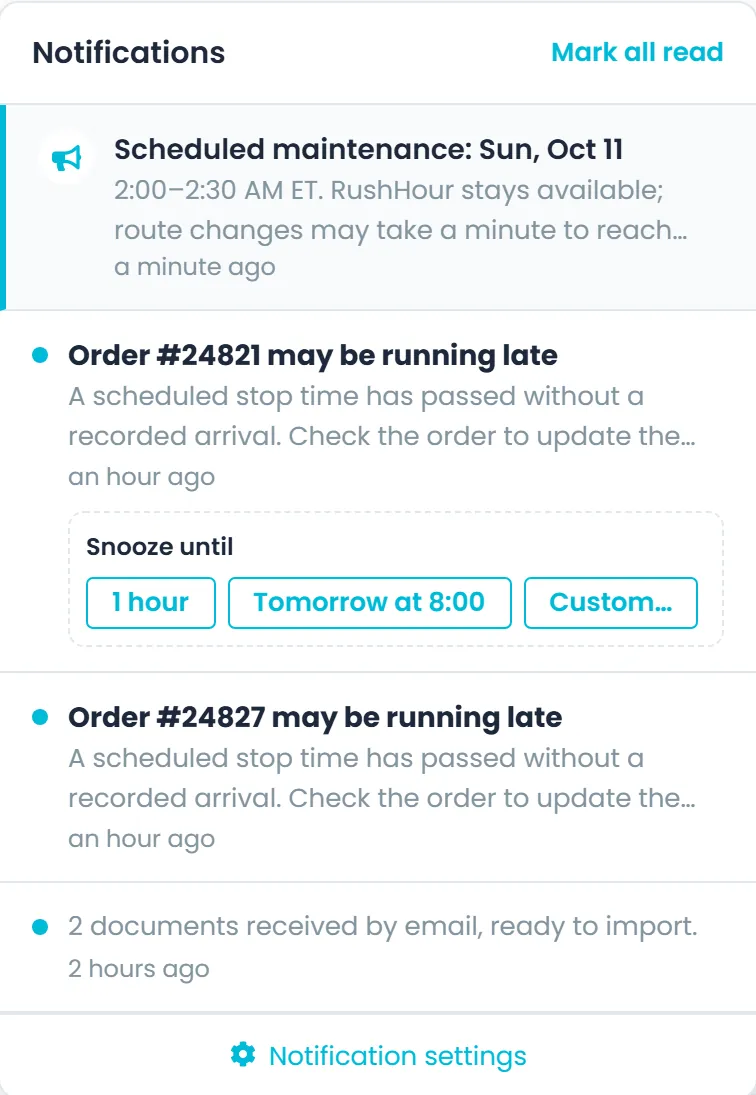
Notification center
One bell for every alert, and each person picks what reaches them
The bell in the Company Portal header carries an unread count that updates in real time. Open it to read, dismiss or snooze a notification, or follow it to the page it is about. Your customers have the same bell in the Customer Portal and set their own preferences there.
- Snooze for 1 hour, until tomorrow at 8:00, or to any date and time up to 90 days ahead
- Mark as read or unread, Mark all read, and Dismiss
- Announcements from RushHour, such as new features and maintenance windows, stay pinned at the top
- Settings → Notifications has an In-app and an Email switch for each category, such as General, System announcements, Documents and Late deliveries
- System announcements always show in the app, and email stays off for every category until the person turns it on
- The Notifications tile on the dashboard opens the same panel
Widget catalog
25 widgets in four groups
These are the groups in the Add widgets panel. Each widget loads its own data, so any of them can sit on any dashboard, and widgets with a time range let you pick it in edit mode.
Today · 5 tiles
Orders today, completed today, scheduled today, unread emails (for people with Inbox access) and notifications.
Operations · 10 widgets
Tiles for in transit, unassigned, dispatched, late, on hold, active routes and drivers on route, plus the late orders list, the Needs attention feed and a live map of open orders.
Analytics · 7 widgets
On-time delivery (7, 30 or 90 days), revenue trend (30 or 90 days), receivables aging, unbilled closed orders (3, 6 or 12 months), open orders chart, invoices chart and daily order volume (7, 14 or 30 days).
People · 3 widgets
Customers (active and total), drivers (available and on route) and team activity, which lists today's sessions and who is active.
Who sees what
Dashboards, reports and alerts follow the same roles and permissions as the rest of RushHour.
Everyone in the office
The Today and All Time views, up to 10 personal dashboards that only they see, the notification bell and their own alert settings. The unread-emails tile shows only for people with Inbox access.
Dashboard managers
People with the Manage dashboards permission, company admins by default, build up to 20 company dashboards that everyone sees and choose one as the company default.
Finance
The revenue trend, receivables aging and unbilled widgets, and the revenue and receivables reports, need View Invoices and Payments. The report that compares order price with cost lines needs expenses access.
The views your team actually opens
Today view
Orders today, completed, scheduled, in transit, unassigned, late and on hold, plus active routes and drivers on route, refreshed every minute while it is open.
All Time view
Team activity today, open orders by state (unassigned, dispatched, drafts and quotes), active and total customers, available drivers and drivers on route, invoice totals and daily order volume.
On-time and revenue
On-time delivery over 7, 30 or 90 days for everyone, plus revenue trend and AR aging buckets for people who can see invoices.
Saved filters
Save the filter sets you use on the Orders and Quotes lists and reopen them in one click.
Activity log
Changes by staff, the AI assistant and background jobs, plus who signed in and when, in one log with separate tabs.
Time in the system
Settings → Activity Logs shows each user's status, start and stop time and total time worked for the day you pick, with every session listed. Ten minutes without activity counts as offline.
Find anything
Press Ctrl+K (Cmd+K on a Mac) on any screen to search orders, quotes, customers, contacts, drivers, routes, invoices, payments, trucks, locations, users and outsource carriers at once, or jump to a page by name. Your last 10 searches follow you between devices.
AI usage
Settings → AI Usage shows each month's AI calls, tokens, estimated cost in US dollars and success rate, grouped by feature, user, model or day. Company admins have access by default.
FAQ
Questions about dashboards and alerts
When does the dashboard count an order as late?
A pickup counts as late 2 hours after its scheduled time. A delivery on the same day as its pickup counts as late 4 hours after the pickup, but no later than the end of the pickup's day, and a delivery booked for a later day counts as late from midday that day. A delivery never counts as late before its own scheduled time, and a stop with a date but no time counts only after its day has ended. Only stops scheduled in the last 30 days are checked. The Late Orders list shows the 10 most recent, with a count of the rest and a button that opens dispatch, and "how late" is measured from the scheduled time.
How do late-delivery alerts work?
Once an hour, RushHour checks orders in progress for a stop that is more than 30 minutes past its scheduled time with no arrival recorded, looking at stops scheduled within the last 7 days. A stop with a date but no time counts only after its day has passed. Each late order raises at most one alert in 24 hours. Office staff get a dispatcher version that opens the order in the Company Portal, and that order's own Customer Portal users get a customer version that opens it in the Customer Portal. Nobody gets one until they turn on late-delivery alerts in their notification settings, and email goes only to people who switched email on.
How is the on-time delivery rate calculated?
It looks at orders delivered in the last 7, 30 or 90 days that have a scheduled time and a recorded arrival. An order is on time when every delivery stop arrived within 30 minutes of its scheduled time. The tile shows the percentage with the on-time count out of the total, in green at 90% and above, amber from 75% and red below that.
How often do the numbers update?
The Today data refreshes every 60 seconds while the dashboard is open in a visible browser tab, and the live orders map refreshes with it. The notification badge updates in real time, with a check every minute as a fallback.
Who can build dashboards, and are there limits?
Anyone can build personal dashboards that only they see, up to 10 each. Company dashboards, which everyone in the company sees, need the Manage dashboards permission, which company admins have by default. A company can have up to 20 of them, and one can be set as the company default. Each dashboard holds up to 40 widgets.
Can my customers get late-delivery alerts?
Yes. Customer Portal users can turn on late-delivery alerts in the portal's notification settings, in the bell, by email or both. They only hear about their own company's orders, in customer-friendly wording, with a link to the order in the Customer Portal. They can also subscribe to tracking links when you send them automatically.
Can I export report results?
Yes. The Reports page in the sidebar runs 18 of the built-in reports with date and option fields and exports the rows to a CSV file that opens in Excel. The AI assistant shows report results as tables and charts.
Can I see how much my team uses the AI features?
Yes. Settings → AI Usage shows each month's calls, tokens in and out, estimated cost in US dollars and success rate, grouped by feature, user, model or day. The usage records hold counts and timings, never what was asked or answered. Company admins have access by default, and the permission can be given to other roles. Company admins can also set the company's own daily and monthly AI spending limits there.
Related
Recently added
A Reports page, arrival and departure emails, and tracking links your customers can subscribe to
These features are in production now. The changelog lists what each release added.
What's the one number you check every morning?
Tell us in the demo and we'll show you the widget or report that answers it.