
Price ocean, air and cross-border lanes
alongside your domestic rates.
Keep a rate card for every country lane, split it into pickup, crossing and delivery legs when your vendors quote it that way, and quote and invoice in USD, CAD, MXN, EUR, GBP or ILS. Orders priced from your rate card check these cards first. When a card cannot price the load, a company setting decides what happens next: price it with your domestic rules, warn the person working on it, or hold it until someone enters a price.
International rate cards
Rate cards built the way forwarders quote
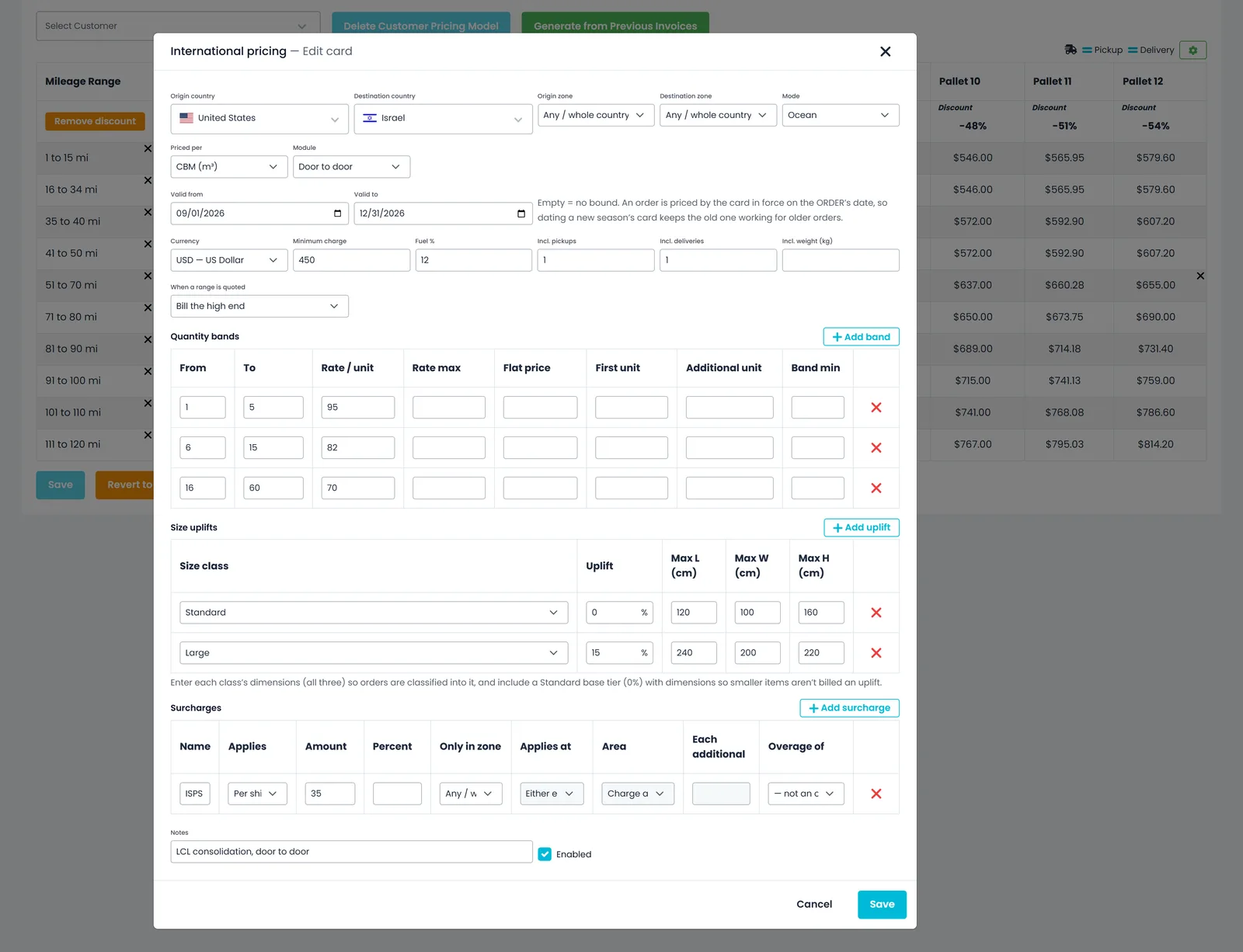
Cards live in Settings → Pricing Models → International, on your company pricing model or on a customer's own. Each card covers one lane, module, mode and quantity basis, and can be switched off without deleting it.
Country lanes
A rate card for every country lane
Pick the origin and destination country, and narrow either end to one of your pricing zones or leave it as the whole country. Choose Ocean, Air or Ground and what you bill by, then add quantity bands, the card's currency, a minimum charge and a fuel percentage, which is applied last, to the freight subtotal. Every card also has notes and an Enabled switch.
- Ocean, Air or Ground cards by country pair, optionally narrowed to a pricing zone at either end
- Priced per pallet, chargeable kg, piece, CBM (m³) or container
- Bands with a rate per unit, a flat price, or a first-unit price plus each additional, and an optional band minimum
- Chargeable weight is the greater of actual and volumetric weight, using the card's volumetric divisor (for example 6000 for air)
- Valid-from and valid-to dates: an order is priced by the card in force on the order's date, and deleting a card never changes orders already priced with it
Door to door or by leg
Price pickup, the crossing and delivery separately
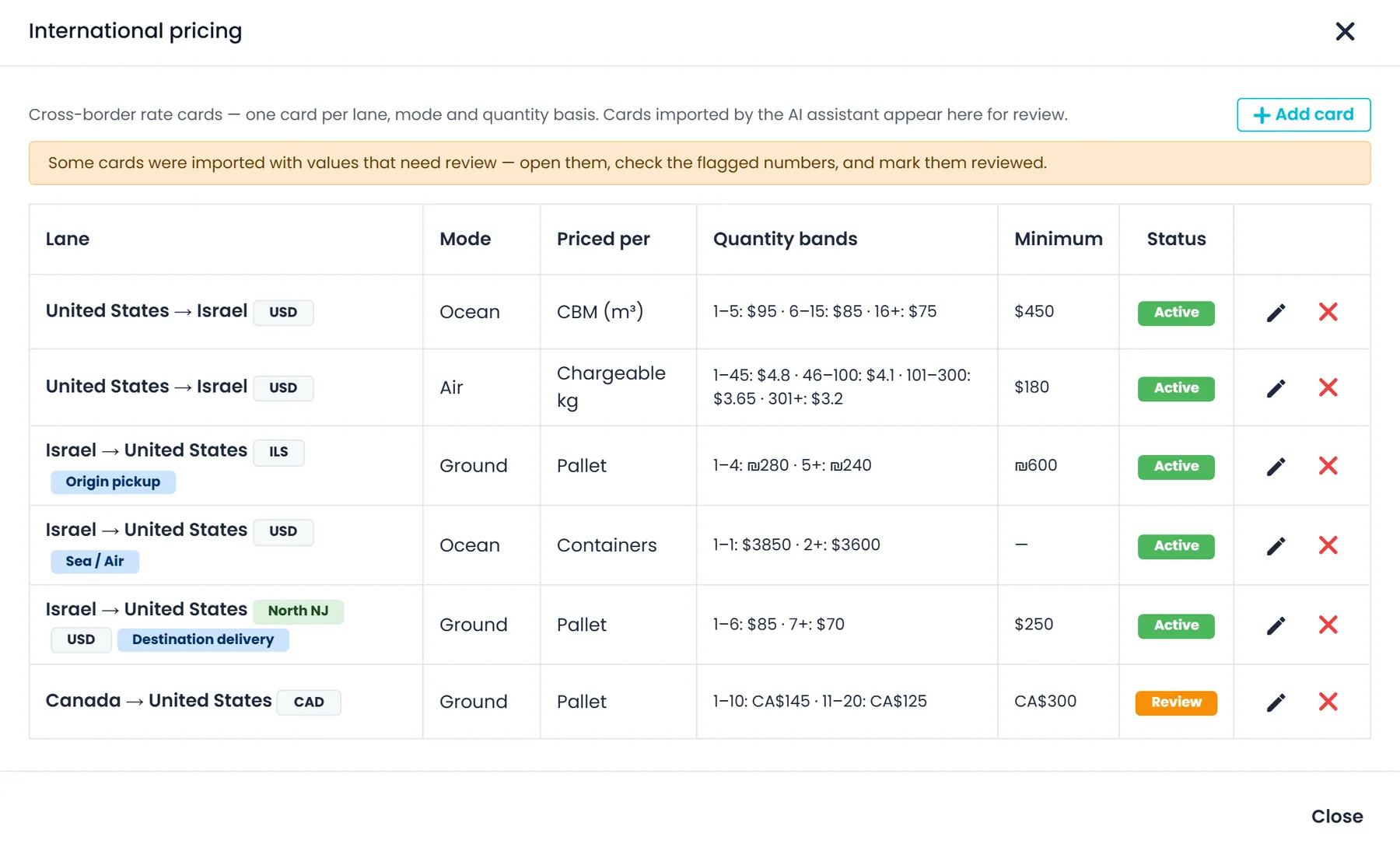
Quote a lane with one Door to door card, or split it into Origin pickup, Sea / Air and Destination delivery cards when each part comes from a different vendor. Every leg is its own card, with its own currency, bands, minimum and surcharges, and RushHour adds the legs into one order price. A lane is priced either door to door or by leg, never both.
- Modules: Door to door, Origin pickup, Sea / Air, Destination delivery
- Each leg has its own currency, bands, minimum and surcharges
- The legs add up to one order price
- Legs in different currencies are not converted or added together: the cards decline to price that order instead
Surcharges, overages and size
Every line of a forwarder's rate sheet
Add named surcharges as an amount or a percent, charged per shipment, on the first unit, on each unit or per location, or as a first-unit price plus a price for each additional unit. A surcharge can apply only in one of your zones, and only at the pickup end or the delivery end. Set how many pickups, deliveries and kilograms the base rate includes, and bill the rest as overages. Size uplifts add a percentage for Medium, Large or Oversize items over a Standard base, classified by maximum length, width and height in centimeters.
- Per shipment, first unit, each unit or per location, as an amount or a percent
- Zone-only fees at the pickup end, the delivery end or either
- Overages for extra pickups, extra deliveries and excess weight per kg
- Mark a zone as included in the base price, or as price upon request
- When a sheet quotes a price range, bill the high end, the low end or the midpoint
AI import
Turn a rate sheet, or a sentence, into rate cards
Upload a forwarder's price sheet to the AI assistant, or describe your rates in chat, such as “ocean to Israel is $595 a pallet, $850 minimum, 10% fuel”. The assistant lays out the cards it plans to create in a table and a review panel, where you can untick a card before importing, and nothing is saved until you approve. Rates taken from a quoted range are flagged Review, and the International button shows how many cards still need a look until someone checks each one, clicks Mark reviewed and saves it.
- From an uploaded price sheet or a plain chat message
- Nothing is saved until you approve the plan
- Cards you do not mention are left alone, and a card with the same lane, zones, mode, basis, module and validity dates as one you already have is updated in place
- Ask “what are my rates to Israel?” and the answer is read from your saved cards
- The assistant can also store a sheet's weight rounding (up to the next 0.5 kg or 1 kg) on chargeable-kg cards
What keeps cross-border prices honest
No hidden conversion
RushHour does not convert money between currencies on its own. Each quote, order and invoice has one currency, rate-card legs in different currencies are not added together, and exchange rates come only from the table you keep.
Reviewed before it is saved
Cards the AI assistant builds are a plan until you approve them. Rates it took from a quoted range stay flagged Review until someone checks the card and marks it reviewed, and an order priced from a card still under review says that some values need review.
Per-customer cards
Give a customer international cards of their own, from Settings → Pricing Models or the customer's Pricing Model tab. A customer's own pricing model starts with a copy of your company cards, and customers without one are priced from the company cards.
On the order and the invoice
From a priced quote to an invoice in the right currency
What happens when a card cannot price the load, how currencies and exchange rates work, and how an overseas order is dispatched.
When no card fits
Decide what happens when a card cannot price the order
A card can match the lane and still not price it: the order has nothing the card bills by, the quantity is outside every band, the order date is outside the card's validity, the legs are in different currencies, a zone the shipment touches is marked price upon request, or one leg of a split lane has cards but none matches this order. You choose what happens next in Settings → Billing → International price-upon-request. It is Off by default.
- Off (the default): your domestic rules price the order, as before
- Warn: still priced by your domestic rules, and the person working on the order is told why the card could not price it
- Block: the order stays unpriced, never $0, until someone enters a Custom price, and it cannot be approved, emailed or invoiced until then
Currencies
Quote and invoice in your customer's currency
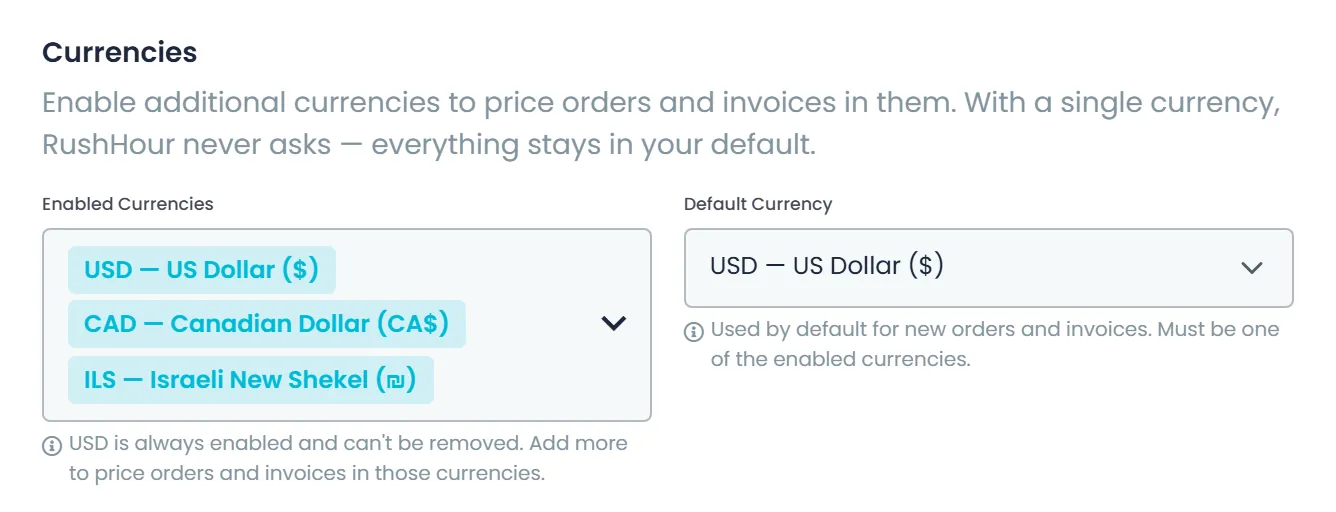
Turn on the currencies you work in under Settings → Profile → Currencies and choose your default. With more than one enabled, quotes and draft orders show a Currency selector: you set the currency while it is a quote or draft, and it locks once it becomes an order. Invoices take their order's currency and show it on screen and on the PDF. Each rate card has its own currency too, and when a card in another currency prices an order that has no invoice yet, the order switches to the card's currency and says so.
- USD, CAD, MXN, EUR, GBP and ILS, with USD always on
- Currency set on the quote or draft, then locked once it becomes an order
- Invoices in the order's currency, with its symbol on the invoice and quote PDFs
- A payment can only be applied to invoices in its own currency
Exchange rates
Your own exchange rates, never a guessed one
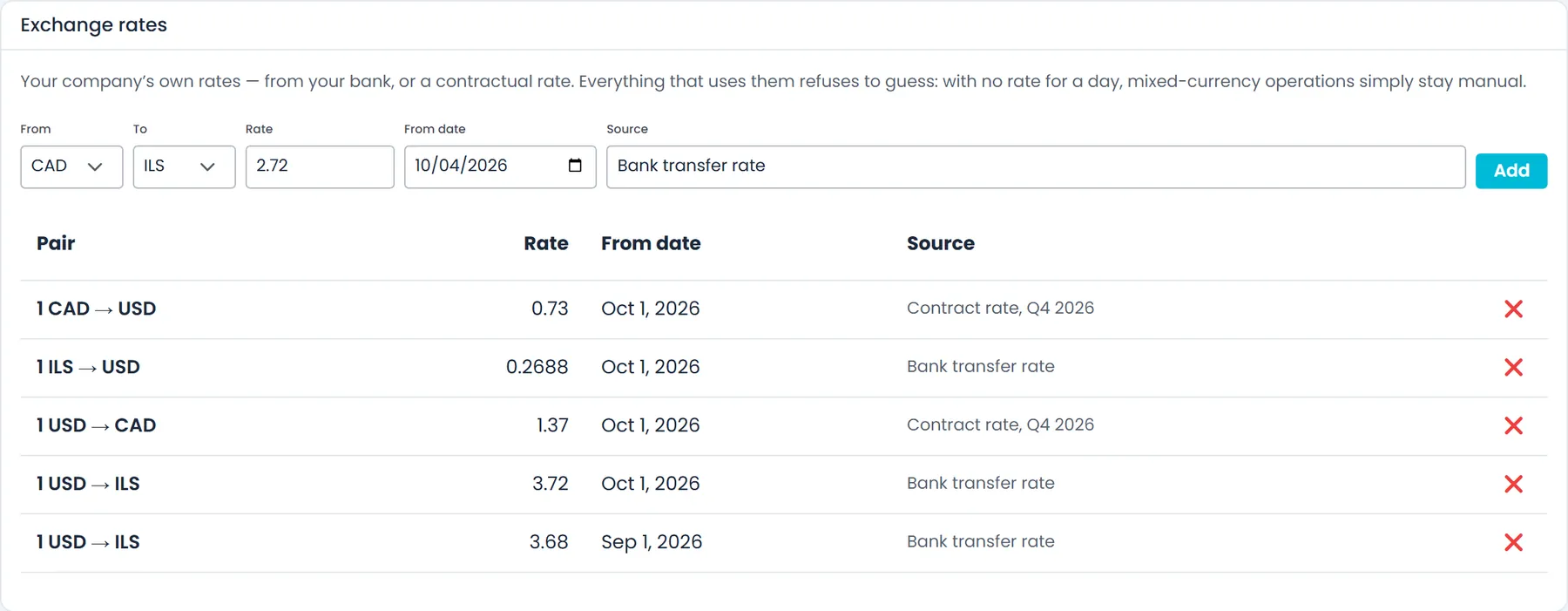
Record the rates your company actually uses, from your bank or a contract, in Settings → FX rates: the currency pair, the rate, the date it applies from and an optional source note. A new rate for the same pair on the same day replaces the earlier one. RushHour never looks a rate up or fills in a missing one. When an invoice is issued in a currency other than your default, the rate in force on the invoice date, if you entered one, is recorded with it, so a later change to the table never restates that invoice.
- Currency pair, rate, effective date and an optional source
- Same pair on the same day: the newer entry replaces the old one
- No automatic rate lookups and no guessed rates
- Invoices in a non-default currency record the rate in force on their date, when you have entered one
Overseas and cross-border orders
Overseas orders run as two legs through your hubs
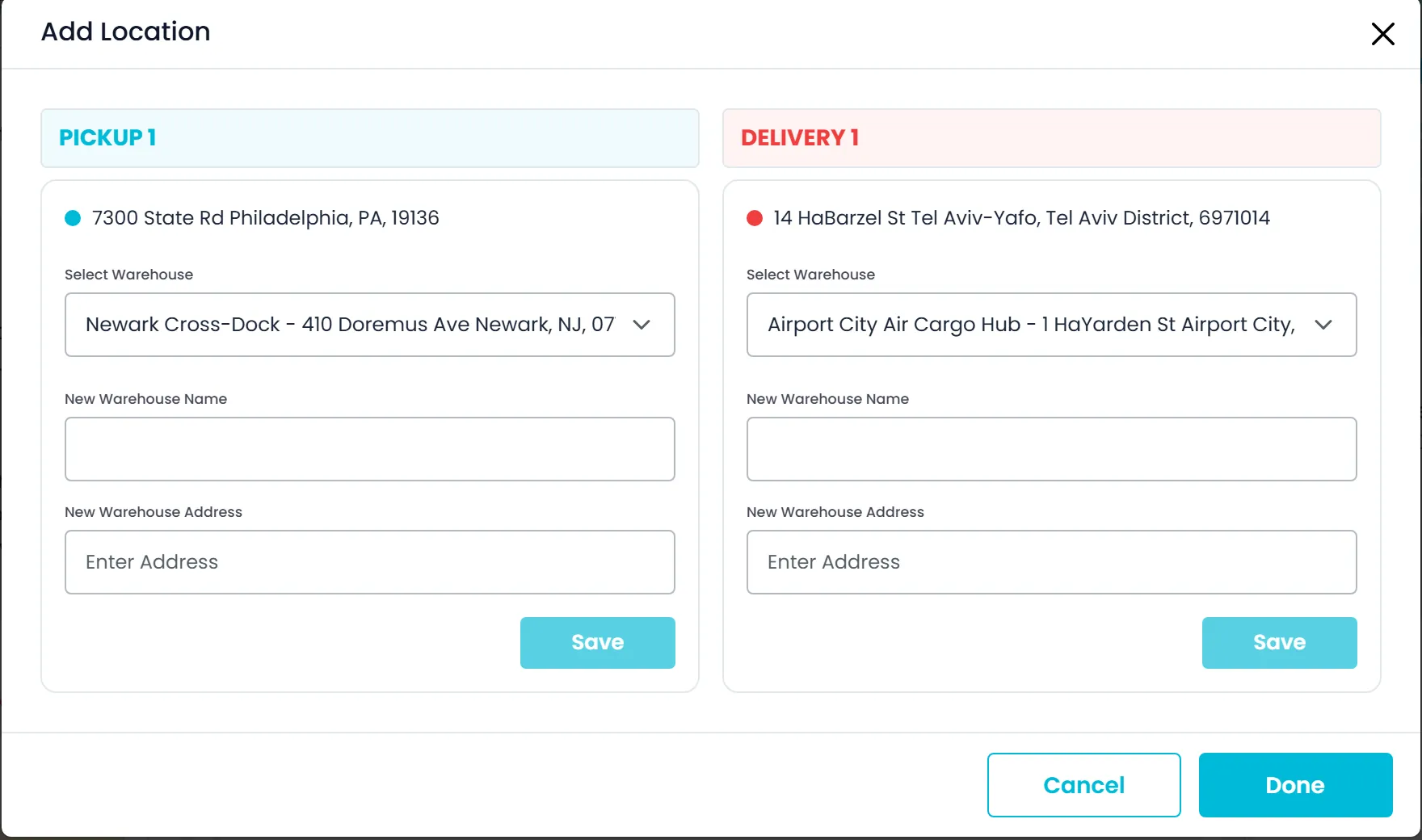
An order with stops in two countries shows that it needs two drivers from different countries and a hub in each country. When the map finds no drivable route between a pickup and its delivery, as on an overseas shipment, the order still saves and both stops are flagged Assign HUB. Choose one of your warehouses near each end and the order runs as two separate legs, with the hub stops marked HUB.
- A notice on orders with stops in two countries: two drivers, two hubs
- No drivable route between pickup and delivery: the order saves with both stops flagged Assign HUB
- Each hand-off is a Delivery To HUB stop and a Pick up From HUB stop at your warehouse
- Reassigning a stop asks before it deletes the HUB hand-off
Next release
Cross-border orders, easier to dispatch
These international order improvements are finished, and they ship with the next production release of RushHour.
Order map
Each country's route and distance on the order mapNext release
Once a cross-border order's hubs are assigned, the order page map draws a separate route in each country, such as pickup to hub and hub to delivery, following roads where possible. No line joins stops in different countries, and hovering a line shows its distance. Add Location, in the New and Old UI, lists the stops still needing a hub, and you can change a pair's hubs before clicking Done.
- A separate route line in each country once the hubs are assigned
- Hover a line to see its distance
- Add Location lists the stops that still need a hub
Assigning drivers
Both ends of a hub leg for the same driverNext release
When you assign a driver to a stop on an order routed through a hub, the Portal offers to give the stop at the other end of that hub leg to the same driver, or says when the route has no room for it. The driver list can show only drivers in that stop's country. On the Dispatch board, when one driver gets an order's stops in two countries, a “One driver, more than one country” message names the driver, the order and the countries. The assignment is saved as usual; the message is a reminder to check that the driver can cross.
- An offer to give the other end of a hub leg to the same driver
- Show only this stop's country in the driver list
- A “One driver, more than one country” reminder on the Dispatch board
Orders and Quotes lists
Filter the lists to regular or Air/Port ordersNext release
Filter the Orders and Quotes lists to regular orders or to Air/Port orders, whose stops are in two or more countries, with the Old UI tabs (the Air/Port tab shows a count) or the New UI Shipment Type menu or filter panel. Order Dashboard counts follow your choice. While you create an order or quote, a notice offers to switch it to an Air/Port or regular order when its addresses call for it.
- Old UI tabs, with a count on the Air/Port tab
- New UI Shipment Type menu and filter panel
- Order Dashboard counts follow the filter
Addresses and currencies
Wrong-country addresses flagged, and a currency checklistNext release
A warning icon flags an address that seems to be outside the country it is saved under, which can make an order look international. It appears on a customer's Company information, on pickup and delivery stop forms and on an order's stop cards, and nothing is changed automatically. Deleting an order's stop in another country clears the Assign HUB warning tied to it, and once the remaining stops are in one country and none still needs a hub, the two-driver notice goes away too. In Settings → Profile → Currencies, Enabled Currencies becomes a checklist, with your choices shown as chips.
- A warning icon on addresses that look outside their saved country
- Deleting a stop in another country clears its Assign HUB warning, and the two-driver notice once the rest are in one country
- Enabled Currencies picked from a checklist
International pricing questions
Which orders do international rate cards price?
Orders priced with the Pricing Model price type, which the order editor offers for orders made up of pallet items (Pallets or Pallets+). For those orders, RushHour looks for a matching international card in the customer's pricing model, or your company's, before it tries your zone rates or pallet grid. In the New UI order editor, the order's Freight mode (Not stated, Ground, Ocean or Air) narrows which cards can match, and Not stated lets any card match.
Does RushHour convert between currencies automatically?
No. RushHour does not convert money on its own. Each quote, order and invoice keeps one currency, rate-card legs priced in different currencies are not added together, and the exchange rates in Settings → FX rates are the ones you enter, not a live feed. When an invoice is issued in a currency other than your default, the rate on file for its date is recorded with it.
Can one lane use different vendors for pickup, the crossing and delivery?
Yes. Split the lane into Origin pickup, Sea / Air and Destination delivery cards, each with its own bands, surcharges and currency, and RushHour adds them into one price. Keep the legs of a lane in one currency if you want them priced automatically: legs in different currencies are not added together, and the order is then handled by your International price-upon-request setting.
What happens when a card matches the lane but cannot price the order?
Your International price-upon-request setting in Settings → Billing decides. Off, the default, prices the order with your domestic rules as before. Warn does the same and tells the person working on the order why the card could not price it. Block leaves the order unpriced, never $0, until someone enters a Custom price, and the order cannot be approved, emailed or invoiced until then.
Can I build the cards from a forwarder's price sheet?
Yes. Upload the sheet to the AI assistant, or describe the rates in chat. The assistant shows the cards it plans to create and saves nothing until you approve. Rates taken from a quoted range are flagged Review until someone checks them, and cards you did not mention are left as they are.
Which currencies does RushHour support?
USD, CAD, MXN, EUR, GBP and ILS. USD is always on; you enable the others and choose your default currency in Settings → Profile → Currencies. With more than one enabled, you choose the currency on each quote or draft order, and it locks once it becomes an order.
How are overseas orders dispatched?
As two legs through your warehouses. When the map finds no drivable route between a pickup and its delivery, the order still saves and both stops are flagged Assign HUB. Choose a warehouse near each end, and each half is driven separately, with the hub stops marked HUB. Orders with stops in two countries show that they need two drivers from different countries and two hubs.
Related
What's your hardest international lane to quote?
Operators on RushHour have run stops in 12 countries and 41 US states. Bring a forwarder's rate sheet to the demo, and we'll walk through how it becomes rate cards in RushHour.