
Find any record from any page,
with one shortcut.
Press Ctrl+K (⌘K on a Mac) anywhere in the Company Portal, or / when you are not typing in a field, and search orders, quotes, customers, contacts, drivers, routes, invoices, payments, vehicles, locations, users and outsource companies at once. Results come grouped by type, followed by the Portal pages and reports whose names match. Each person sees only what their permissions allow.
How it works
One window for records, pages and reports
Global Search is the search window of the Company Portal since the platform release of November 24, 2026. Until then the window found only drivers, routes and orders.
Results
Twelve kinds of records, in groups
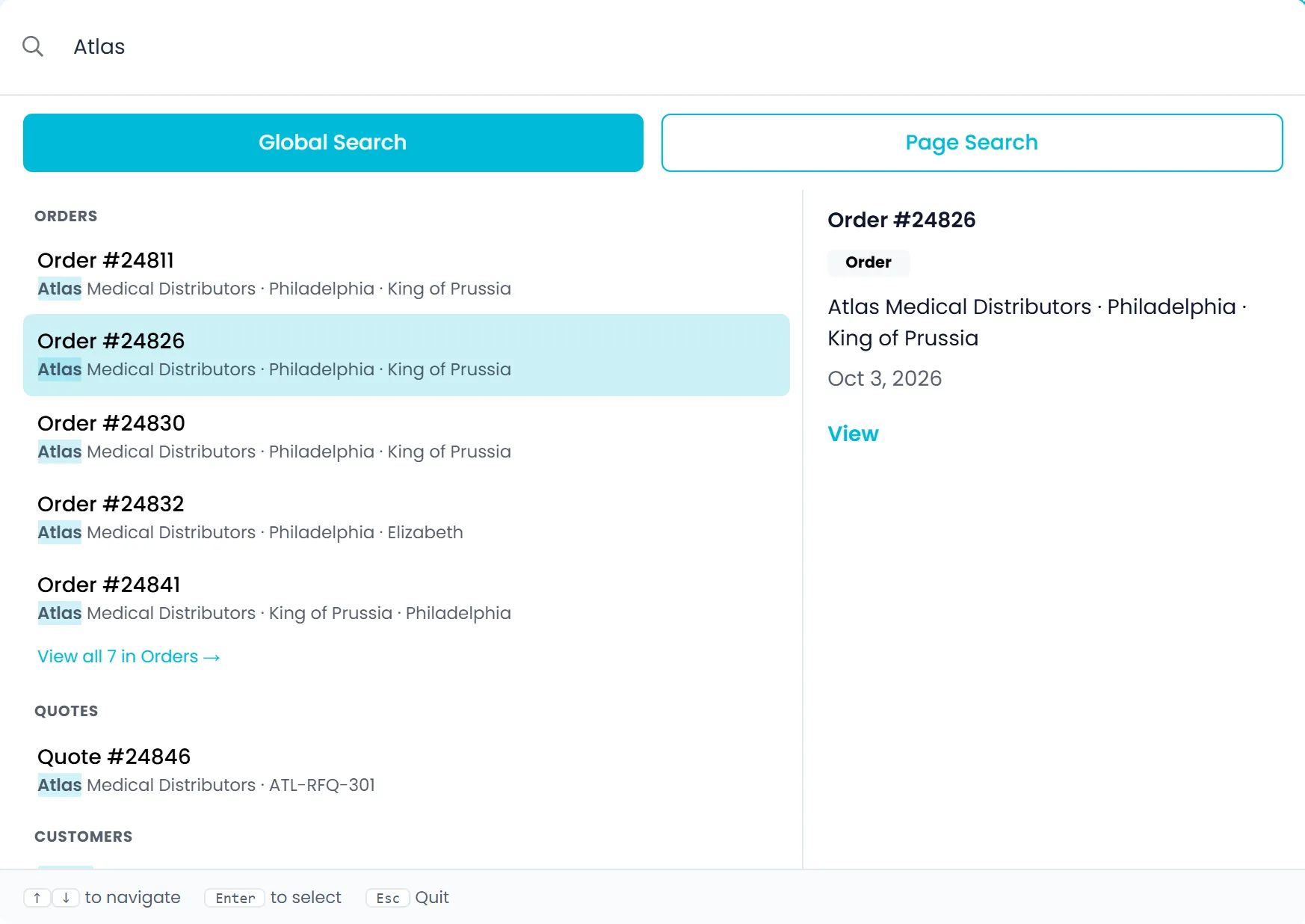
Type at least two characters and the results arrive in groups: Orders, Quotes, Customers, Contacts, Drivers, Routes, Invoices, Payments, Vehicles / Assets, Locations, Users and Outsource. Each group shows its first results, and when there are more, View all opens the list they come from.
Global Search in the documentation- Choosing an order, quote, customer, driver, invoice or outsource company opens that record
- A payment, contact, route, vehicle, location or user opens its list with your search applied
- On a wide screen, a preview shows the details of the selected result
- Contacts match on every word you type, and phone numbers match by their digits, however they were saved
Keyboard
Open, move and choose without the mouse
Ctrl+K or ⌘K opens the window from any page, and so does / when you are not typing in a field. On a page that has no list of its own, a click in the header's search box opens it too. Move through the results with the arrow keys, choose with Enter and close with Esc.
- An empty search box lists your recent searches
- Your last 10 searches are saved to your account, so they are there on another computer too
- Portal pages and reports whose names match come after the records, so the same window takes you to a page
Page Search
Filter the list you are on
On a page with a list, the window has a second tab, Page Search, which filters that list. On Orders and Quotes it adds a date range and other quick filters, and on Customers and Accounting a quick filter of their own.
- On Orders and Quotes: a date range, and filters by customer, driver or order status
- On Customers: a filter by pipeline. On Accounting: a filter by invoices or payments
- Save the filters you use on Orders and Quotes under a name; saved filters are shared with everyone in your company
Permissions
People find only what they may see
Global Search applies each user's view permissions. Orders, quotes, customers and their contacts, locations and outsource companies appear only for users whose role can view them, and invoices and payments only for users who can view invoices and payments.
Activity log- The Hubs and Warehouses pages show in the results only where a company uses them
- Global searches are recorded in the activity log
FAQ
Search questions
What does Global Search find?
Twelve kinds of records: orders, quotes, customers, contacts, drivers, routes, invoices, payments, vehicles, locations, users and outsource companies, plus the Portal pages and reports whose names match what you typed.
How do I open it?
Press Ctrl+K, or ⌘K on a Mac, on any page of the Company Portal. The / key opens it too when you are not typing in a field, and so does a click in the header's search box on a page that has no list of its own.
Can someone find records they are not allowed to open?
No. Global Search applies each user's view permissions, so orders, quotes, customers and their contacts, locations and outsource companies appear only for users whose role can view them, and invoices and payments only for users who can view invoices and payments.
Does it remember what I searched for?
Yes. Your last 10 searches are saved to your account, and an empty search box lists them, also on another computer.
Is Global Search in the Customer Portal or the driver app?
No. Global Search is the search window of the Company Portal, the office app.
Related pages
Type an order number and watch it open.
In the demo we search your own kind of records, filter a list with Page Search and show what each role can and cannot find.